- Scheduling
- Scheduling Award Alerts
Scheduling Award Alerts
Overview
Astalty checks selected roster rules under the award on the worker's employment contract. An alert helps you review an assignment; the absence of an alert does not confirm compliance or guarantee correct payroll.
You need access to Scheduling and permission to view the relevant shifts. Changing alert category settings requires permission to update Scheduling settings.
| Award | Scheduling checks |
|---|---|
| SCHADS | Ordinary-hours caps, minimum engagement, rest and days off, broken shifts and sleepovers |
| Nurses | Casual minimum engagement, minimum break, maximum shift length and permanent employees' days off |
| Aged Care | Minimum engagement, ordinary hours, minimum break, days off, broken-shift span and sleepover duration |
| Health Professionals | Casual minimum engagement, minimum break and ordinary-hours duration |
The detailed examples below describe SCHADS unless stated otherwise. The award pages explain pay calculations and limitations for SCHADS, Nurses, Aged Care and Health Professionals.
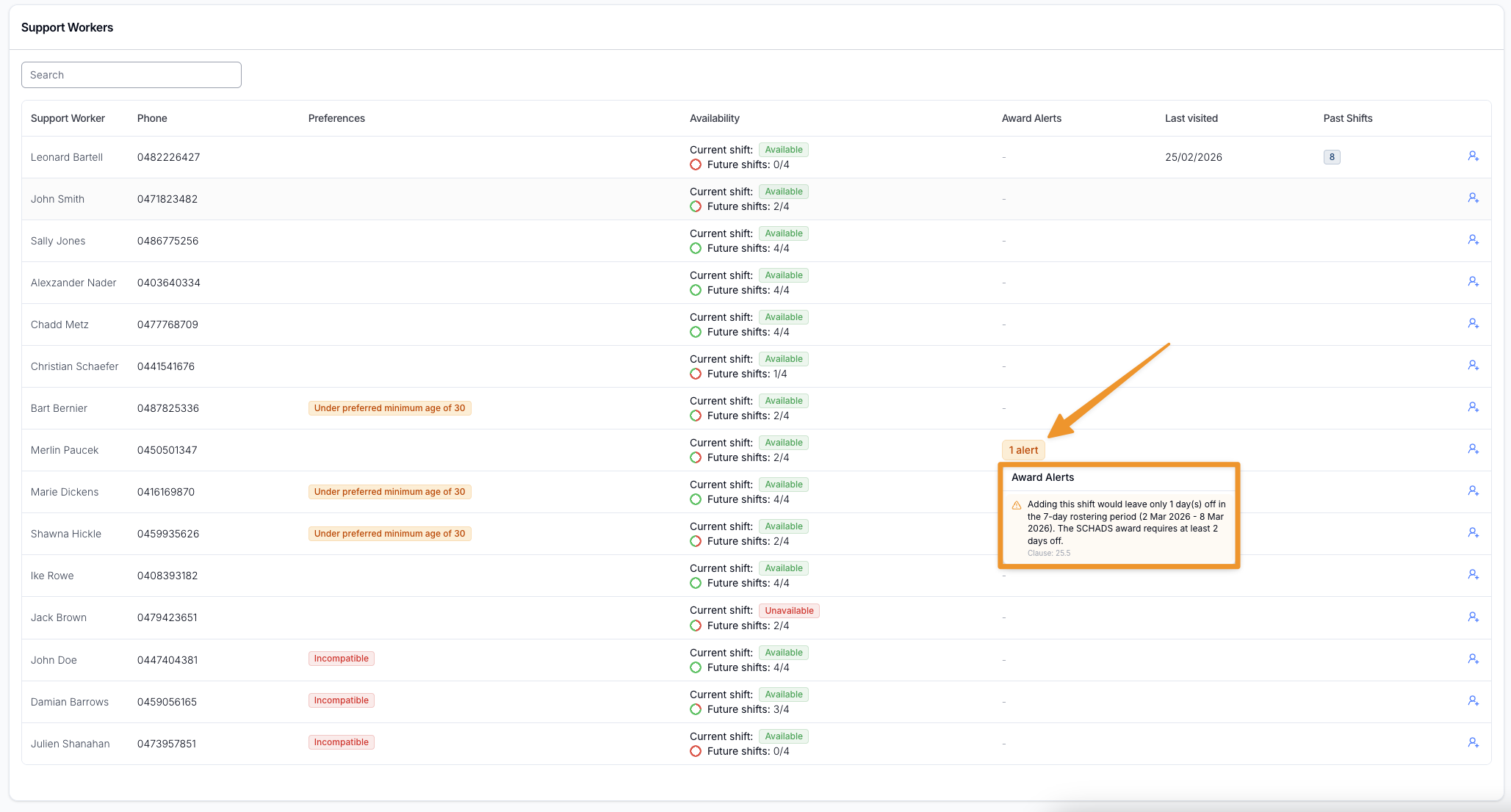
Alerts appear in the Suggested Support Worker table when:
- Assigning shifts from the Unassigned Shifts page
- Creating new Direct Support shifts
This helps you make informed decisions before confirming a shift.
Alert Categories
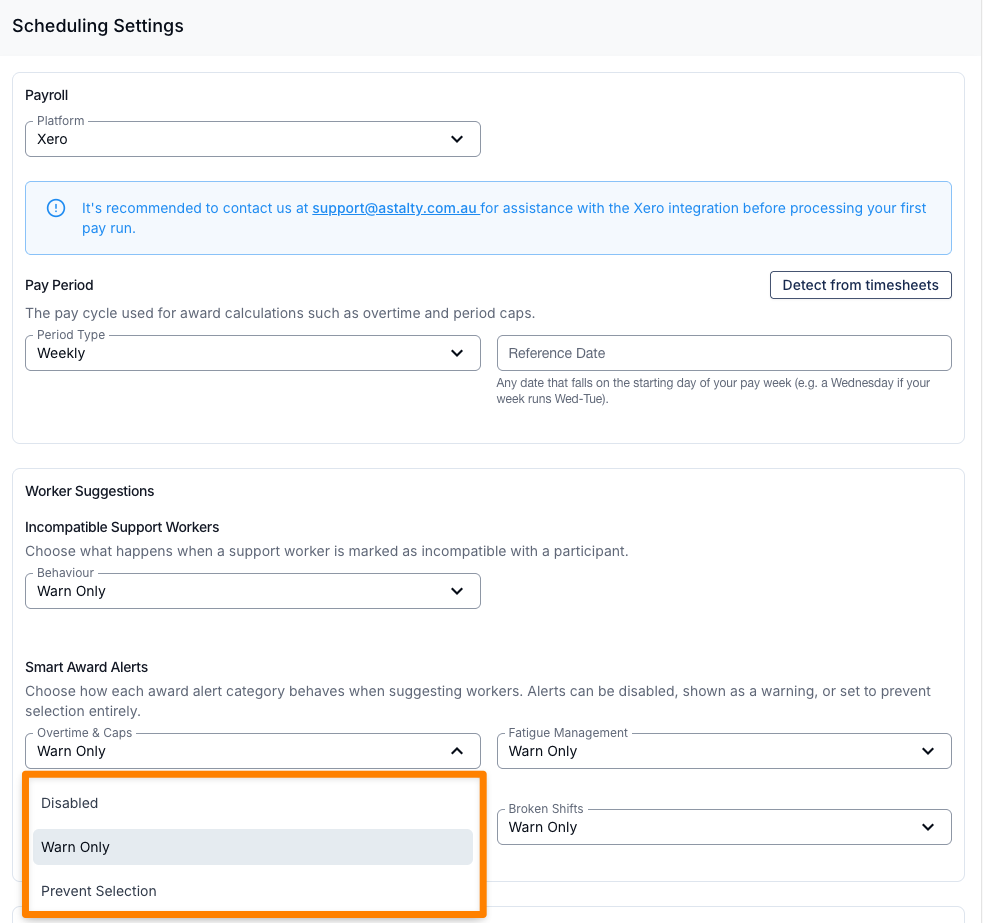
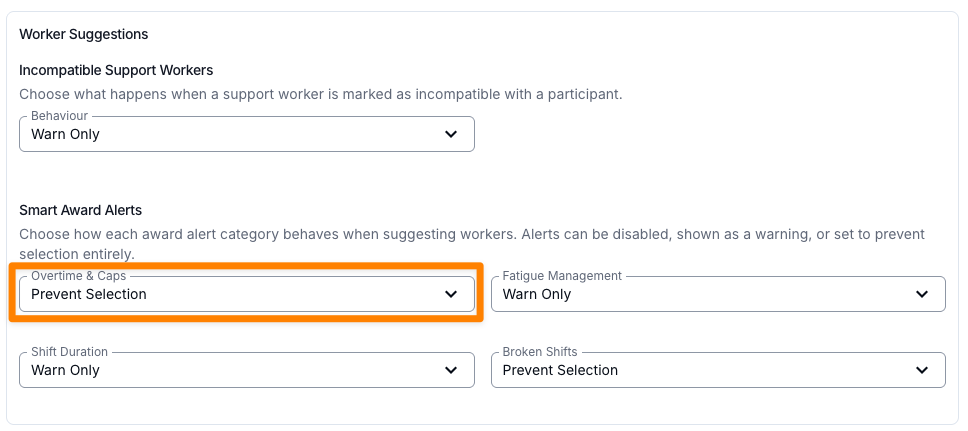
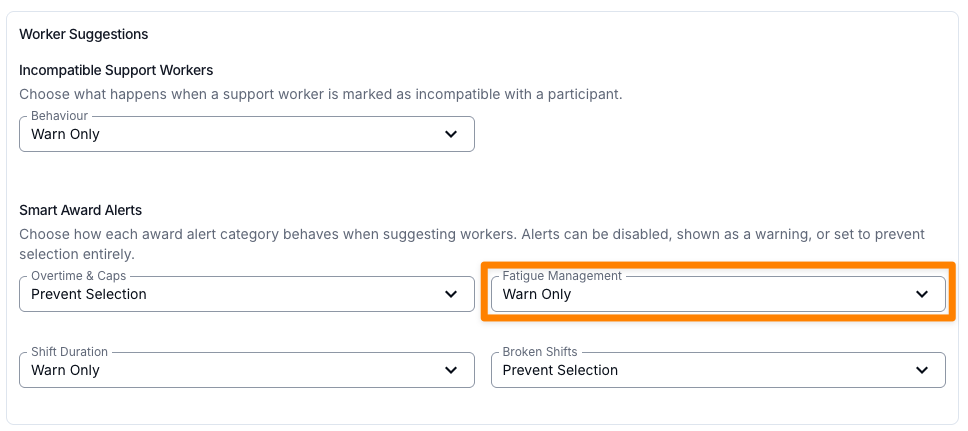
Each alert belongs to one of four categories. You can control how each category behaves in:
Settings > Scheduling
For each category, choose:
- Disabled - No alerts shown
- Warn Only - Warning shown, but you can still assign the shift
- Prevent Selection - Worker cannot be assigned
Overtime Alerts
These SCHADS alerts flag ordinary-hours caps reached by the proposed assignment. Other awards have different duration checks; do not assume every overtime rule has a matching alert.
For Nurses, Health Professionals and full-time Aged Care workers, duration alerts measure the same continuous shift that pay caps. That includes back-to-back shifts, travel that runs straight on, and work either side of a recorded unpaid meal break of 30-60 minutes, including work in a neighbouring pay period. The alert gives the combined length and the hours before and after the shift being added or changed. The interpreter carries adjoining earlier-period work into shift and daily caps without paying those earlier hours again. Overtime from a separate daily or period cap can still be payable when no duration alert appears.
Daily Cap Reached
Triggered when the shift would push the worker over their daily ordinary hours limit.
- Hours beyond the cap are paid at overtime rates.
Example: Worker has an 8-hour daily cap. They already have 6 hours scheduled. You assign a 4-hour shift > 2 hours become overtime.
Per-Shift Cap Reached
Triggered when a single shift exceeds the worker's per-shift ordinary hours cap (the cap recorded on their employment contract). Applies to pay periods starting on or after 1 June 2026.
- Back-to-back shifts with no gap between them, travel that runs straight on, work either side of a recorded unpaid meal break of 30-60 minutes, and shifts that cross midnight count as one continuous shift for this cap.
- Hours beyond the cap are paid at overtime rates.
Example: Worker has a 3pm-11pm shift and picks up the 11pm-7am shift straight after. With a 10-hour cap, that is one continuous 16-hour shift with 6 hours of overtime.
Period Cap Reached
Triggered when the shift would push the worker over their weekly or fortnightly ordinary hours cap.
- Weekly cap: 38 hours
- Fortnightly cap: 76 hours
- Additional hours attract overtime rates.
Example: Worker has 74 hours in a fortnight. You assign a 4-hour shift > 2 hours become overtime.
Rostered Hours Exceeded
Astalty does not currently raise a separate alert or convert hours to overtime simply because a worker exceeds their rostered or contracted hours while remaining below the implemented caps. Check the award's rostered/agreed-hours provisions separately.
Broken Shift Spread (Overtime)
Triggered when a worker's total span of work in a day exceeds 12 hours (from first shift start to last shift end).
- Time beyond 12 hours attracts overtime rates.
- Not raised for a worker on the Social, community & crisis accommodation stream, where broken shift rules do not apply.
Example: First shift starts 7am. Last shift ends 8pm > 13-hour spread. 1 hour overtime applies.
Fatigue Management Alerts
These alerts compare the roster with the rest checks implemented for the worker's award profile.
Minimum Break
Triggered when there is less than the required break between shifts.
- This is a rostering flag only - it does not change the worker's pay or apply a penalty. Adjust the roster to clear it.
- Astalty checks 10 hours by default. The Minimum Break Near a Sleepover employment setting changes the implemented threshold to 8 hours directly before or after a sleepover. Record the setting only where the worker's arrangement supports it; see Minimum Break Near a Sleepover. The implementation continues to check 10 hours between ordinary shifts.
- The current rest checker skips pairs whose shifts start on the same local date, across all four awards. That includes same-day gaps which may still need a legal rest check. SCHADS broken-shift checks are separate and do not cover every skipped gap.
- Back-to-back work is grouped for the SCHADS continuous-shift cap, but the rest checker uses different boundaries. A pair starting on different dates can still raise a Minimum Break alert even with no gap. Review the actual continuous work and subsequent rest.
Example: Worker finishes at 10pm. Next shift starts 5am > 7-hour break (minimum required is 10).
Consecutive Days
For full-time and part-time SCHADS workers, triggered when assigning the shift creates more than six consecutive working days. It does not apply to casuals.
Example: Worker has worked 6 days in a row. Assigning day 7 triggers the alert.
Insufficient Days Off
Triggered when assigning the shift would reduce required days off within the rostering period.
Example: In a 14-day period, four days off are required for a permanent employee. The worker currently has four. Assigning this shift reduces it to three.
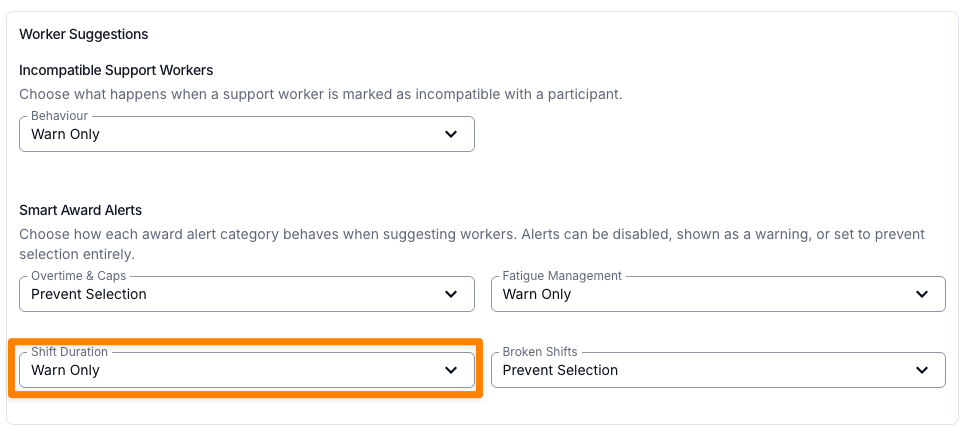
Shift Duration
These alerts flag issues with the length of the shift being assigned - either too long or too short.
Exceeds Maximum Hours (Nurses, and SCHADS for pay periods starting on or after 1 June 2026) and Exceeds Ordinary Hours (Health Professionals and full-time Aged Care) count the shift's own travel towards its length. A 9-hour shift with 1h 30m of travel reads as 10h 30m (9h this shift + 1h 30m travel), and back-to-back work joins the shift the same way pay joins it; see Overtime Alerts. The SCHADS 8-hour Exceeds Ordinary Hours alert and the part-time Aged Care alert measure the rostered shift alone.
Exceeds Ordinary Hours
Triggered when the shift exceeds ordinary hours per shift.
- Extra hours attract overtime rates.
Example: Ordinary shift cap is 8 hours. You assign 10 hours > 2 hours overtime.
Exceeds Maximum Hours
Triggered when the shift exceeds the maximum allowed shift length.
- This is a duration warning. Check the award page for the pay calculation; a warning does not itself add overtime.
Example: Maximum shift length is 10 hours. You assign 12 hours > 2 hours overtime.
Minimum Engagement
Triggered when a shift's engagement is shorter than the award's minimum engagement.
- The alert reports the implemented award minimum. Whether Astalty adds a top-up depends on Pay Award Minimum Engagement, and the alert says which product behaviour applies.
- Under SCHADS the minimum is 2 hours for part-time and casual employees, or 3 hours on the Social, community & crisis accommodation stream. Full-time employees have none.
- An engagement is the shift plus any work that runs straight on from it, such as a back-to-back shift or travel, across midnight included. A short shift inside a longer engagement raises no alert. See Engagements for when a break joins two shifts.
Example: Shift is 1.5 hours, with no work either side of it. Minimum engagement is 2 hours > Worker must be paid for 2 hours. Pay Award Minimum Engagement on > Astalty pays 2 hours. Pay Award Minimum Engagement off > Astalty pays the 1.5 approved hours, and the other 30 minutes is still owed.
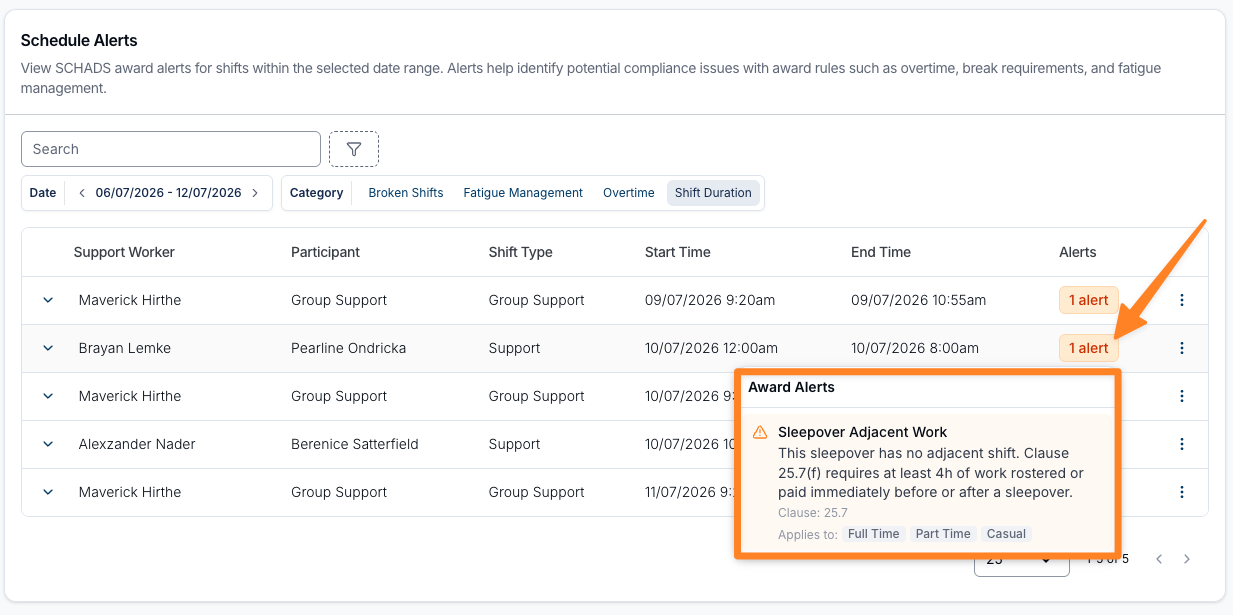
Sleepover Adjacent Work
Triggered when a SCHADS sleepover does not have at least 4 hours of work rostered immediately before or after it. This is Astalty's implementation of its clause 25.7(f) scheduling check and includes a sleepover saved with no adjacent shift at all.
- Applies to full-time, part-time and casual workers.
- Add or extend adjacent work where appropriate, or arrange the required payment through payroll. The minimum-engagement top-up setting does not pay sleepover-adjacent work automatically.
Example: A sleepover is rostered with no shift on either side > the alert flags that no adjacent work meets the 4-hour minimum.
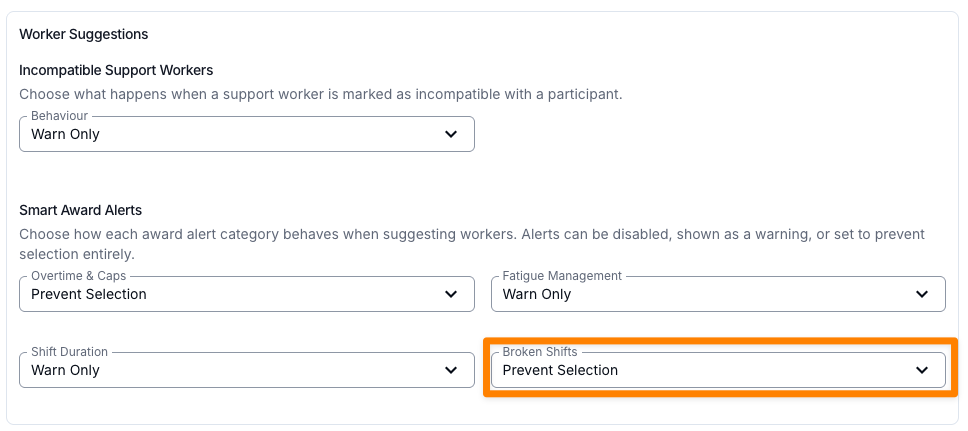
Broken Shifts
These alerts relate to broken shift arrangements - where assigning a shift would result in a worker having multiple work periods in a single day separated by unpaid gaps.
Both alerts use the Broken Shift Minimum Gap setting below to decide how long an unpaid gap has to be before it counts as a break. Left empty, they use the same standard calculation as the Broken Shift Allowance, so the alert and the allowance always agree.
Two same-day shifts more than 10 hours apart are separate engagements rather than a broken shift, and raise neither alert.
Broken shift alerts are never raised for a worker on the Social, community & crisis accommodation SCHADS Overtime Stream. The Award's broken shift clause (25.6) covers only disability services work and home care employees.
Broken Shift Periods
Triggered in two situations:
- Excessive periods
- More than 3 work periods in one day (maximum allowed).
- Broken shift formed
- 2 or more work periods with unpaid breaks.
- Requires explicit employee agreement.
Example: Worker already has 2 shifts on Monday. Assigning a third creates 3 work periods (maximum allowed) and requires agreement.
Broken Shift Spread (Double Time)
Triggered when the day is a broken shift and the total daily spread exceeds the maximum allowed (typically 12 hours). A broken shift within that spread raises Broken Shift Periods only.
- Time beyond the spread attracts double time.
Example: 7am start, 8pm finish > 13-hour spread. Time beyond 12 hours is paid at double time.
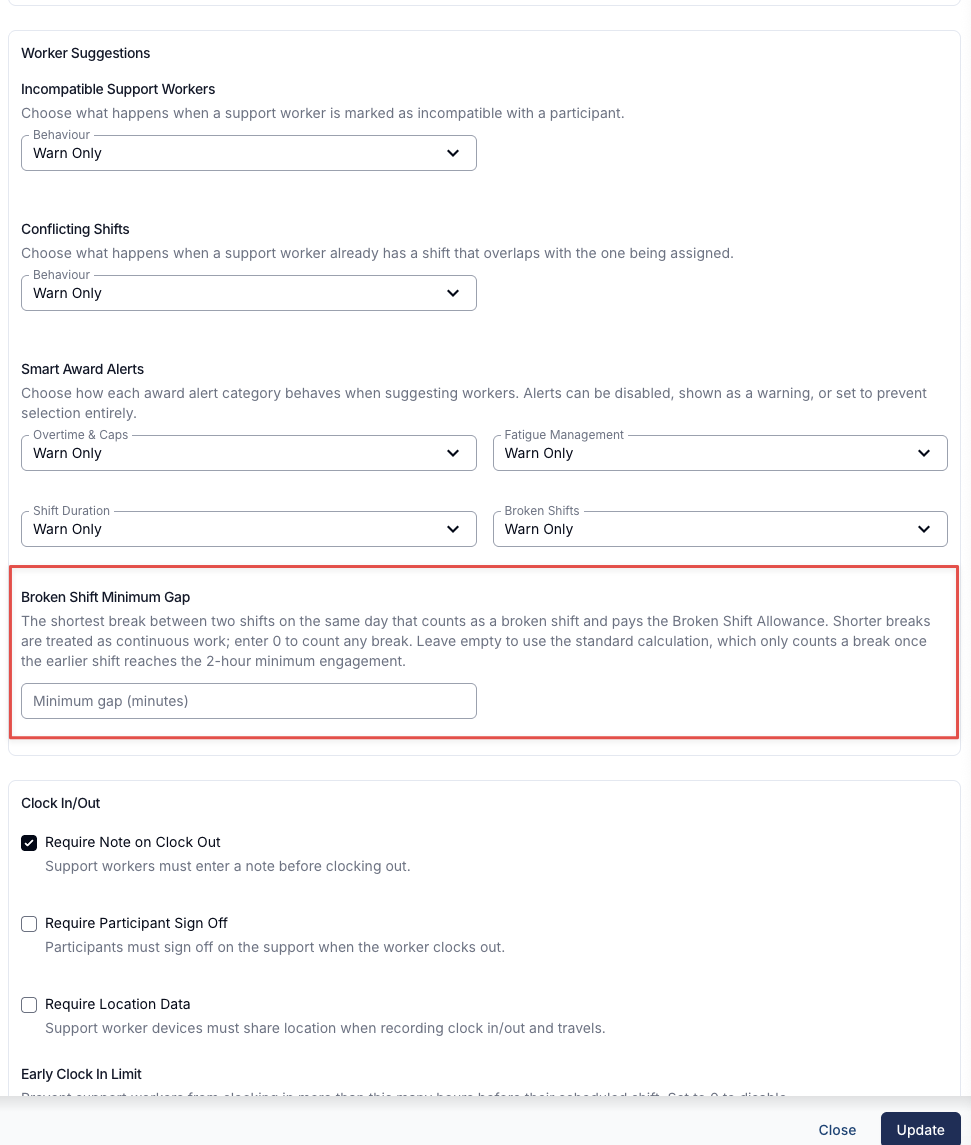
Broken Shift Minimum Gap
The Broken Shift Minimum Gap setting sits in the same Smart Award Alerts area of Settings > Scheduling. Set it, and it becomes the single threshold behind both halves of a broken shift: the Broken Shift Periods and Broken Shift Spread roster alerts described above, and the Broken Shift Allowance paid on a timesheet. A gap that pays the allowance then also warns the scheduler who rosters it. Left empty, both sides fall back to the same standard calculation, so they still agree.
A broken shift is a day where a worker has two or three separate work periods split by an unpaid gap. This setting decides how large that gap must be before Astalty treats the day as a broken shift. It has no effect on workers on the Social, community & crisis accommodation stream, who never have broken shifts.
Enter a whole number of minutes from 0 to 599:
- A number of minutes (for example,
5or30): Gaps of up to that many minutes are treated as continuous work. Only a longer gap between two same-day shifts forms a broken shift, raising the Broken Shift Periods alert and, on a day of 2 or 3 work periods, paying the Broken Shift Allowance. 0: Every break counts. Any gap between two same-day shifts forms a broken shift (shifts that run straight into each other with no gap are still treated as continuous work).- Empty: Keeps the standard calculation, for the alerts and the allowance alike. The day forms a broken shift once the next shift starts more than 2 hours after the earlier one began, or after the earlier one ends, whichever is later - so a 45-minute break after a 3-hour shift both pays the allowance and warns the scheduler. This is the default.
Because the setting moves the alerts, it also moves what Prevent Selection blocks. Where Broken Shifts is set to Prevent Selection, a broken shift alert stops the worker being assigned at all, so a small value here can block rostering that a larger one allows.
This setting changes grouping, not the Award entitlement. Review short unpaid gaps for full-time staff: the default two-hour grouping can combine their work periods even though they do not have the part-time/casual minimum payment period.
The Broken Shift Allowance itself is paid through the SCHADS interpretation - see How broken shifts are paid and the Award Pay Report.
Pay Award Minimum Engagement
Pay Award Minimum Engagement decides whether Astalty adds a pay-line top-up for a short engagement under its implemented award rules. It is off by default. When it is off, Astalty exports the approved hours without adding that top-up; review the final payroll result separately.
- Off: pay covers the approved hours only, and Astalty never adds a top-up. The Minimum Engagement alert flags a short engagement and says the shift will not be topped up. Where turning the setting on would top that shift up, the alert also points to this setting. It never does on Employment Hero, PayCat or QuickBooks Payroll.
- On: Astalty adds a top-up pay line for the difference, and the alert says the worker's pay for the shift will be topped up to the minimum. The exception is the work that How the Top-Up Is Paid lists as not topped up: there the alert says the shift will not be topped up.
To turn it on:
- Go to Settings > Scheduling and click Edit.
- Under Payroll & Awards, turn on Pay Award Minimum Engagement.
- Save your scheduling settings.
How the Top-Up Is Paid
- It is paid on the shift's pay group, at the rate the engagement ends on. A Friday 11pm to Saturday 12:15am shift is topped up at the Saturday rate.
- It is added after ordinary hours and overtime are worked out, so it never counts towards an ordinary hours cap or causes overtime.
- It is included in the worker's pay on the Award Interpretation tab of a timesheet batch, the Award Pay Report, the SCHADS interpreted timesheet and Xero-formatted timesheet exports, and the push to Xero with Export Xero Timesheet (API). The interpretation trace records each top-up.
- A cancelled support the worker is still paid for is topped up.
- Sleepovers, active overnight periods and work that runs straight into or out of a sleepover are not topped up.
Engagements
The minimum applies to each engagement, not each shift. The Minimum Engagement alert groups work the same way.
- Work with no gap in it is one engagement: back-to-back shifts, a shift and the travel next to it, and shifts either side of midnight.
- A rostered unpaid break inside a shift does not split the engagement, and is not paid.
- Any other break starts a new engagement with its own minimum, so each period of a broken shift is topped up on its own. There are two exceptions:
- SCHADS, Disability services & home care stream: a shift that starts within 2 hours of the start of the engagement joins it. With the setting on, the break is paid as time worked. With it off, an absorbed break that leaves pay short raises a minimum-engagement alert but is not paid automatically.
- Aged Care, full-time: a shift that starts on the same day as the shift before it, 10 hours or less after it ends, joins its engagement, and the gap is not paid. After a gap, a shift that starts on a later day starts a new engagement with its own 4-hour minimum.
Each award's minimums, with a worked example, are on its page: SCHADS, Aged Care, Nurses and Health Professionals.
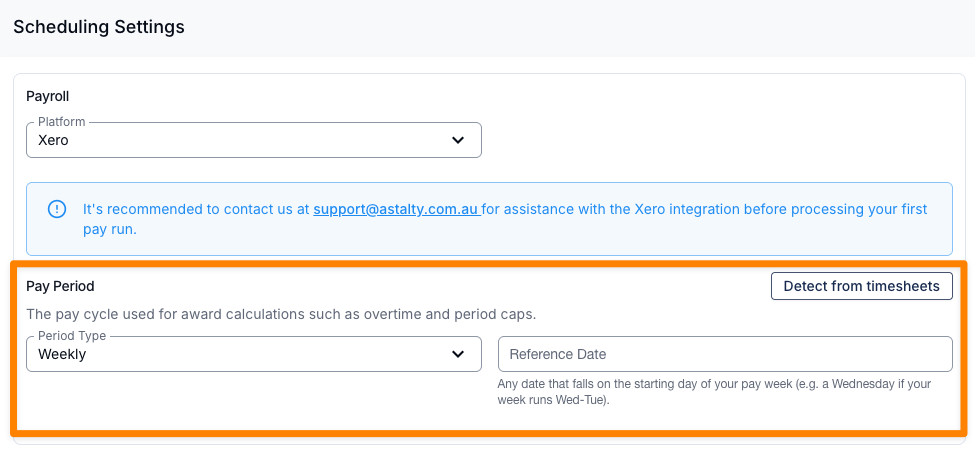
Pay Period Settings
Pay Period settings determine how Astalty calculates:
- Overtime
- Period caps
- Accumulated hours
If these settings are incorrect, alerts will be inaccurate.
Go to:
Settings > Scheduling > Edit > Pay Period
Required Fields
- Period Type - Either Weekly (7-day cycle) or Fortnightly (14-day cycle).
- Reference Date - A specific date that Astalty uses to anchor the start of each period cycle.
How It Works
Weekly
- Uses a rolling 7-day cycle.
- Enter any date that falls on the first day of your pay week.
- Only the day of the week matters.
Example: If pay week runs Wednesday-Tuesday, enter any Wednesday.
- Weekly SCHADS cap: 38 hours
- Hours beyond 38 = overtime
Fortnightly (Most Common)
- Uses a rolling 14-day cycle.
- Reference Date must match the actual first day of a real pay fortnight.
- The exact date matters (not just the weekday).
Example: Pay period runs 6 Jan - 19 Jan 2025. Enter 6 January 2025 as the reference date.
- Fortnightly SCHADS cap: 76 hours
- Hours beyond 76 = overtime
Why This Matters
If the pay period settings are incorrect, overtime and period cap alerts will be inaccurate. For example:
- Wrong period type - If your payroll runs fortnightly but Astalty is set to weekly, a worker doing 40 hours one week and 30 hours the next would trigger a false overtime alert in the first week (exceeding the 38-hour weekly cap), when in reality they're under the 76-hour fortnightly cap.
- Wrong reference date - If your fortnights start on a Monday but the reference date points to a Wednesday, the system will calculate period caps against a Wed-Tue cycle instead of your actual Mon-Sun cycle, potentially splitting hours across the wrong periods.
Setting Up
- Go to Settings > Scheduling.
- Under Pay Period, set the Period Type to match your payroll cycle (Weekly or Fortnightly).
- Set the Reference Date:
- Weekly - Pick any date that falls on the first day of your pay week (e.g. if your week starts on Wednesday, pick any Wednesday).
- Fortnightly - Pick any date that falls on the first day of one of your actual pay fortnights. Check your payroll system for the start date of a recent pay period and use that.
Insufficient Days Off Alert
This alert applies only to full-time and part-time workers. It is triggered when assigning a shift would reduce the worker's required days off within the rostering period.
Example: In a 14-day period, a permanent worker needs four days off. Assigning work on one of those days leaves three and triggers the alert. A weekly period requires two days off.
Where You'll See Award Alerts
The award alerts system is integrated into the "suggested Support Worker" table, which can be found when assigning shifts from the unassigned shifts page or by creating brand new direct support shifts.