- Scheduling
- During a Shift
- Completing Support Tasks
Completing Support Tasks
Overview
This section covers how to review and complete Shift Tasks in the Support Worker App.
How to View Shift Tasks
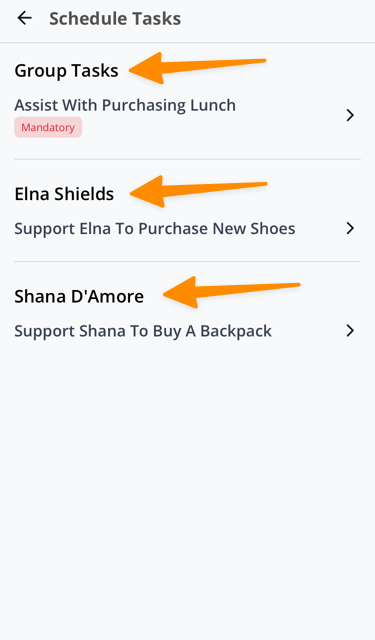
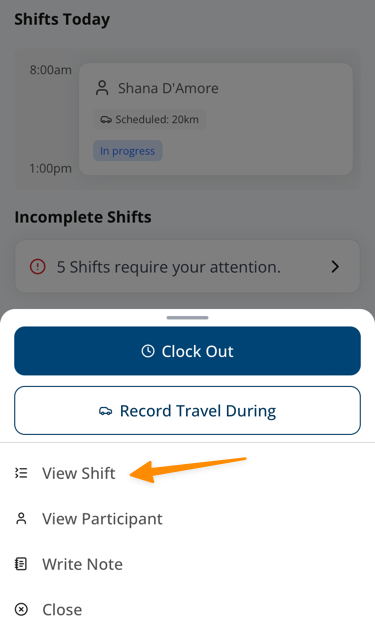
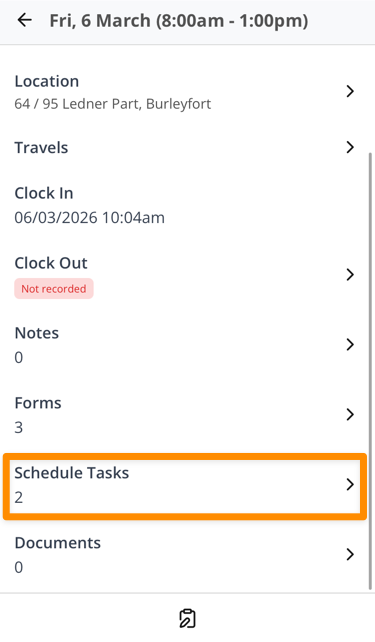
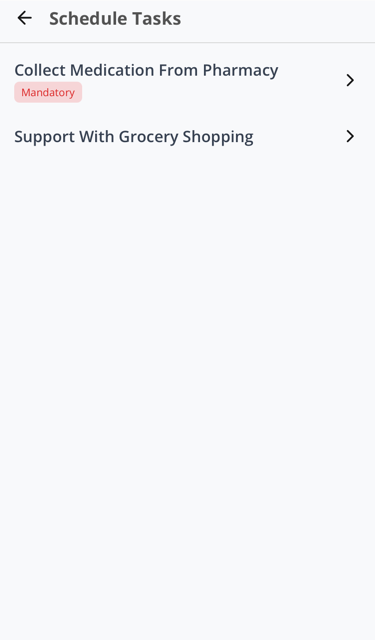
To view Shift Tasks, open the relevant Shift and click on View Shift Details and then select the Schedule Tasks section. To view the task in more detail, tap on the task in the list displayed.
How to Complete Shift Tasks
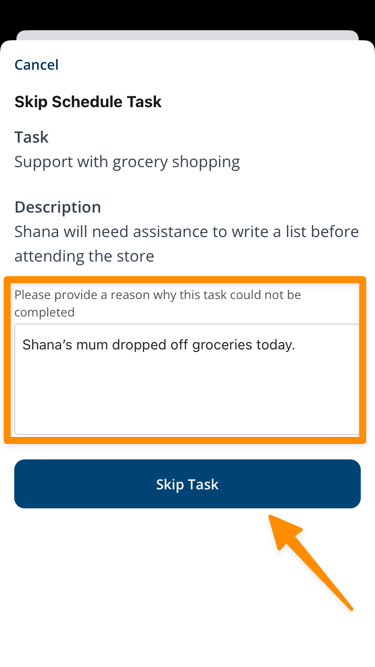
Click on either Mark Complete, or Skip Task. If you choose Skip Task, you will be prompted to provide a reason.
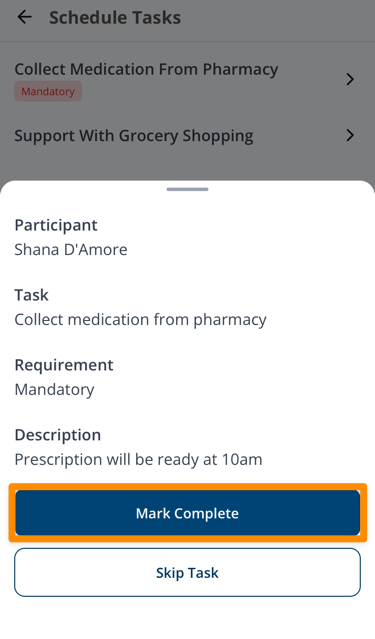
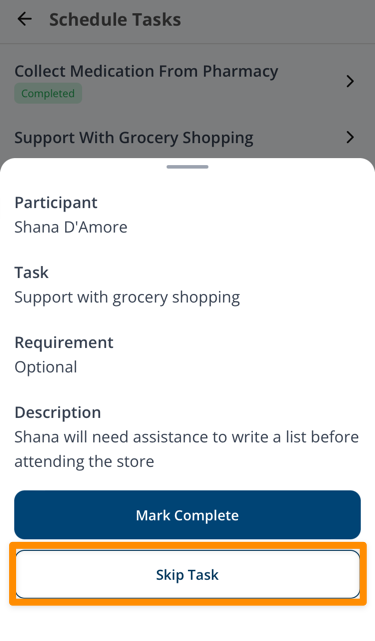
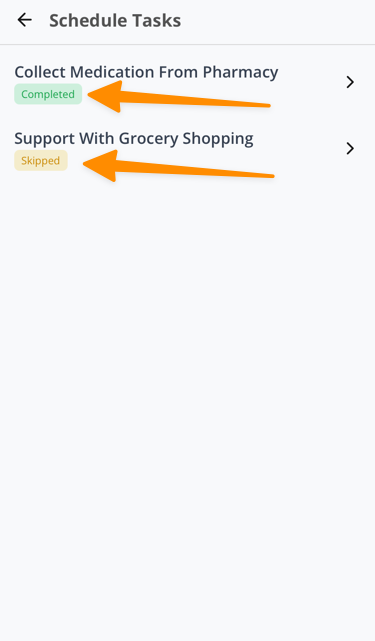
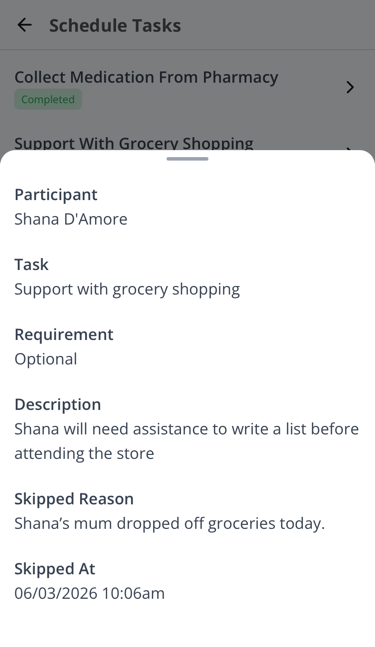
The completion status will be displayed in the list of tasks. You can tap on the task to see more details.
Important Notes
- Tasks are not enforced — While mandatory tasks are visually flagged, the system does not prevent a shift from being completed if mandatory tasks are left undone. They serve as a checklist and reporting tool, not a blocker.
- No reminders or notifications — There is currently no automated reminder system for incomplete tasks. Support workers see them when they open their shift in the mobile app.
- Skip reasons are required — When a support worker skips a task, they must write a reason (minimum 10 characters). This cannot be bypassed.
- One completion per task — Once a task is completed or skipped by a support worker, no one else can change the status. If a different worker tries, they will see a message like "This task has already been completed by [Name]."
- Group support tasks — For group supports, tasks can exist at two levels: on the group support itself (visible to all Participants) and on individual Participant supports. Support workers see both when viewing their shift.