Participant Details App View
Overview
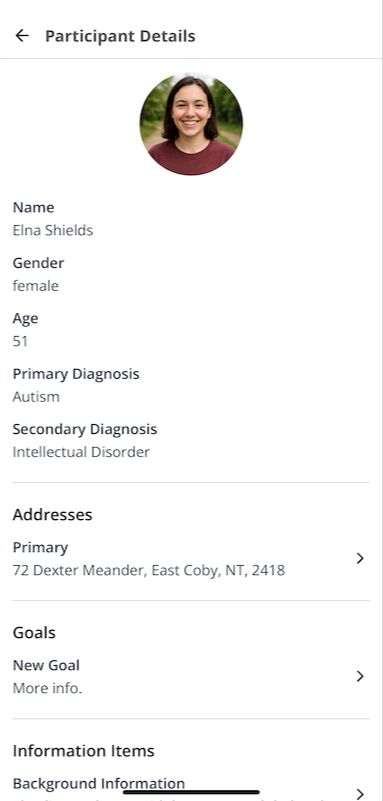
Support Workers can open a Participant's profile from an assigned support. The profile includes core details allowed by your organisation's Scheduling settings. Risks, Information Items, Goals, Records, and Forms appear only when they are available to Support Workers.
Use these guides to choose what they can see:
- Making Risks Visible to Support Workers
- Making Information Items Visible to Support Workers
- Making Records Visible to Support Workers
- Making Forms Visible to Support Workers
How to View Participant Information
- Open Schedule in the app.

- Select a Support.
- For a direct support, select View Participant.
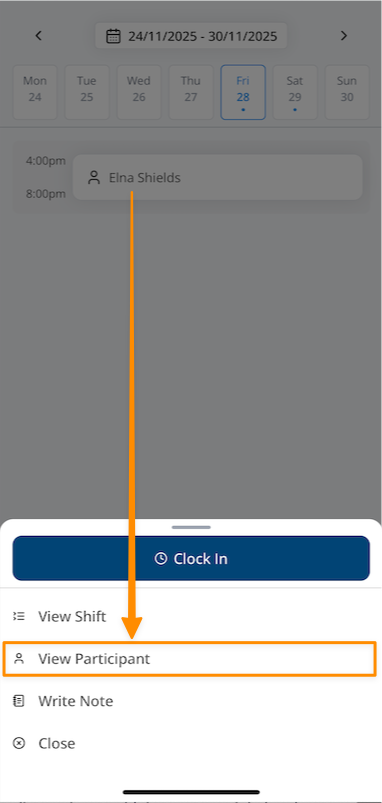
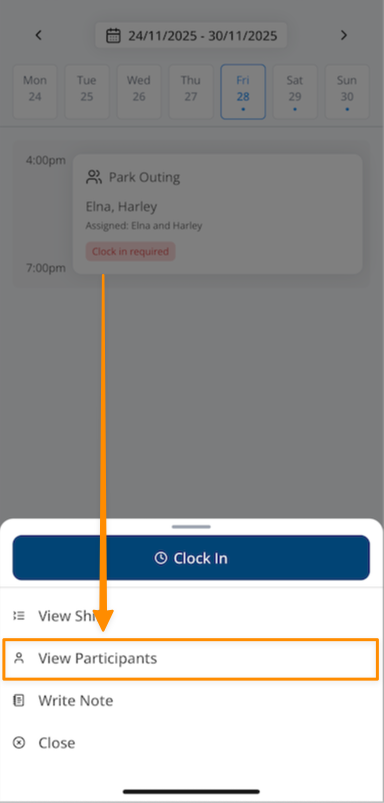
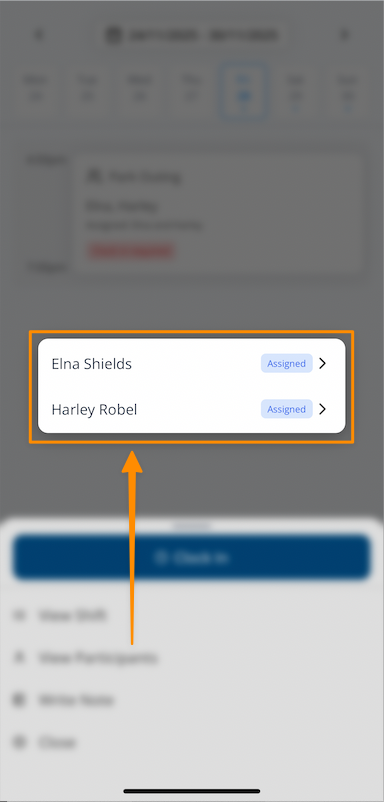
- For a group support, select View Participants, then choose the Participant.
App Privacy - Screenshots
The App Privacy setting allows administrators to control whether Support Workers can take screenshots or record video within the Astalty mobile app. This setting is found within Scheduling Settings.
How to Configure App Privacy
- From the left-hand menu, open Settings.
- Select Scheduling Settings.
- Select Edit on the Notes & Visibility card, then scroll to App Privacy.
- Choose one of the following options:
Allow Screenshots - Support Workers can take screenshots within the mobile app.
Forbid Screenshots - The app asks the device operating system to block screenshots and screen recording for Support Workers.

How it Works
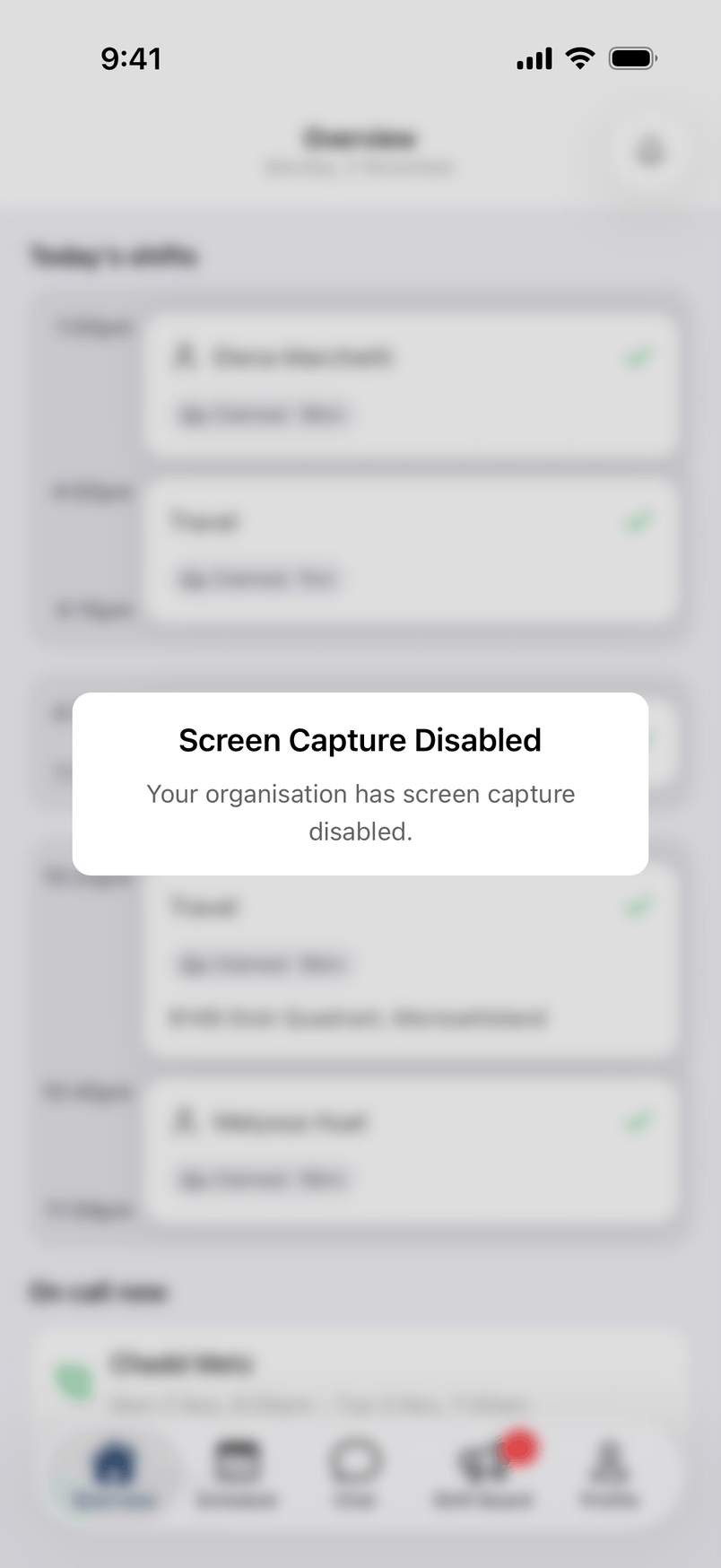
When Forbid Screenshots is selected, the app prevents screen capture. If a screenshot attempt is detected, it shows Screen Capture Disabled and blurs the app behind the message.
Information Available
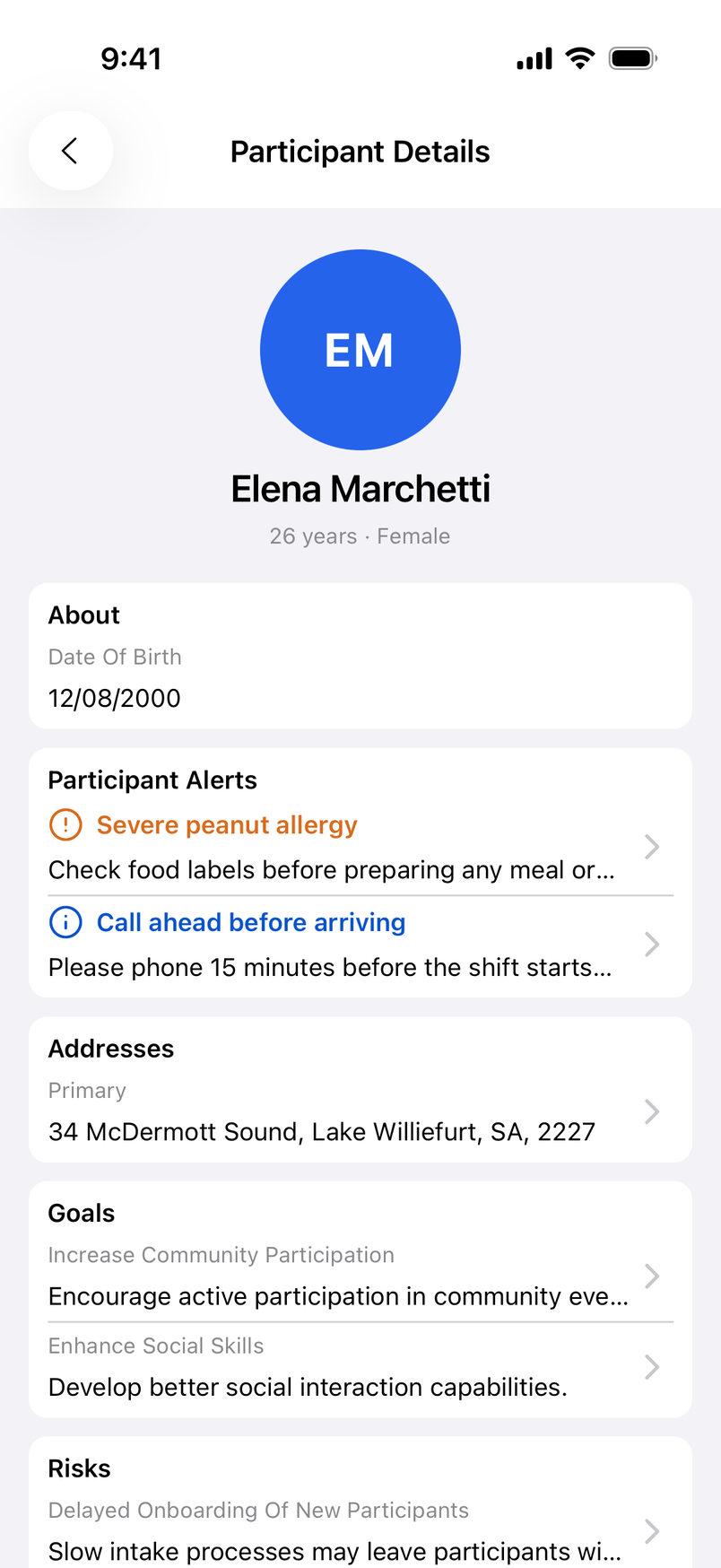
From the profile, Support Workers can view:
- Name, preferred name, and pronoun
- Age and gender
- Language and ethnicity
- Primary and secondary diagnosis
- Date of birth - only once your organisation turns on Show Participant Date of Birth
- Participant Alerts
- Previous Notes, when enabled for Support Workers
- Previous Submissions of a Form, when enabled for Support Workers
- Phone, mobile, email, and preferred contact method
- Participant contacts
- Visible addresses - selecting an address opens the device's map app
- Goals made visible to Support Workers
- Risks marked as visible to Support Workers
- Information Items marked as visible to Support Workers
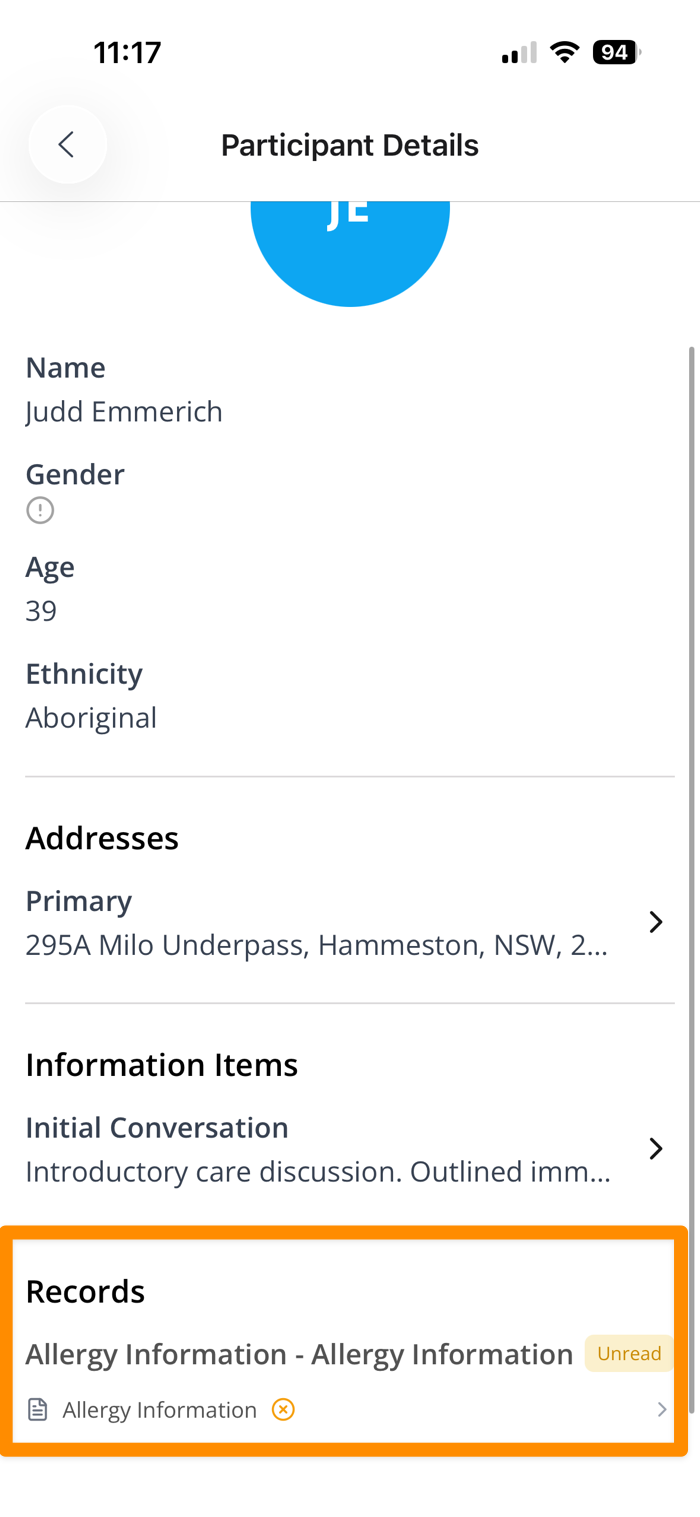
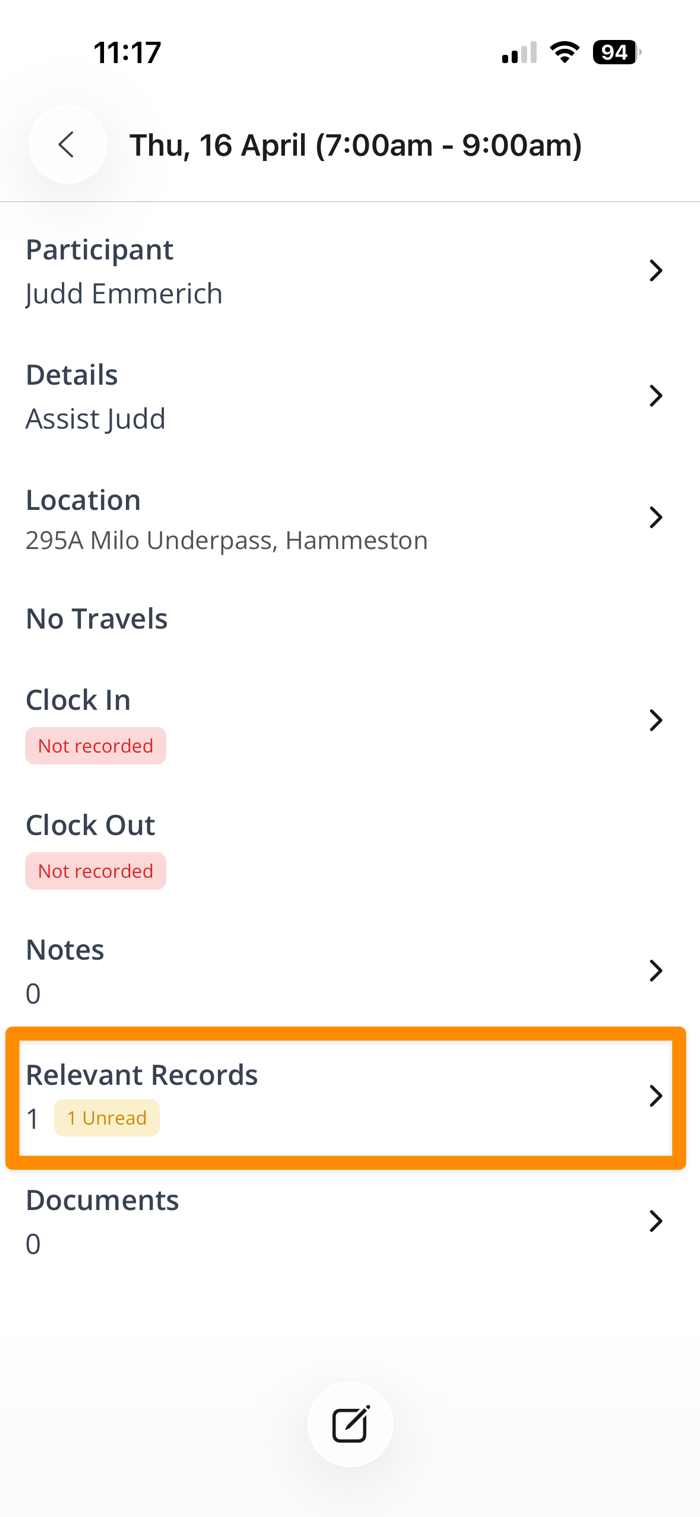
- Records and Documents marked as visible to Support Workers
Risks
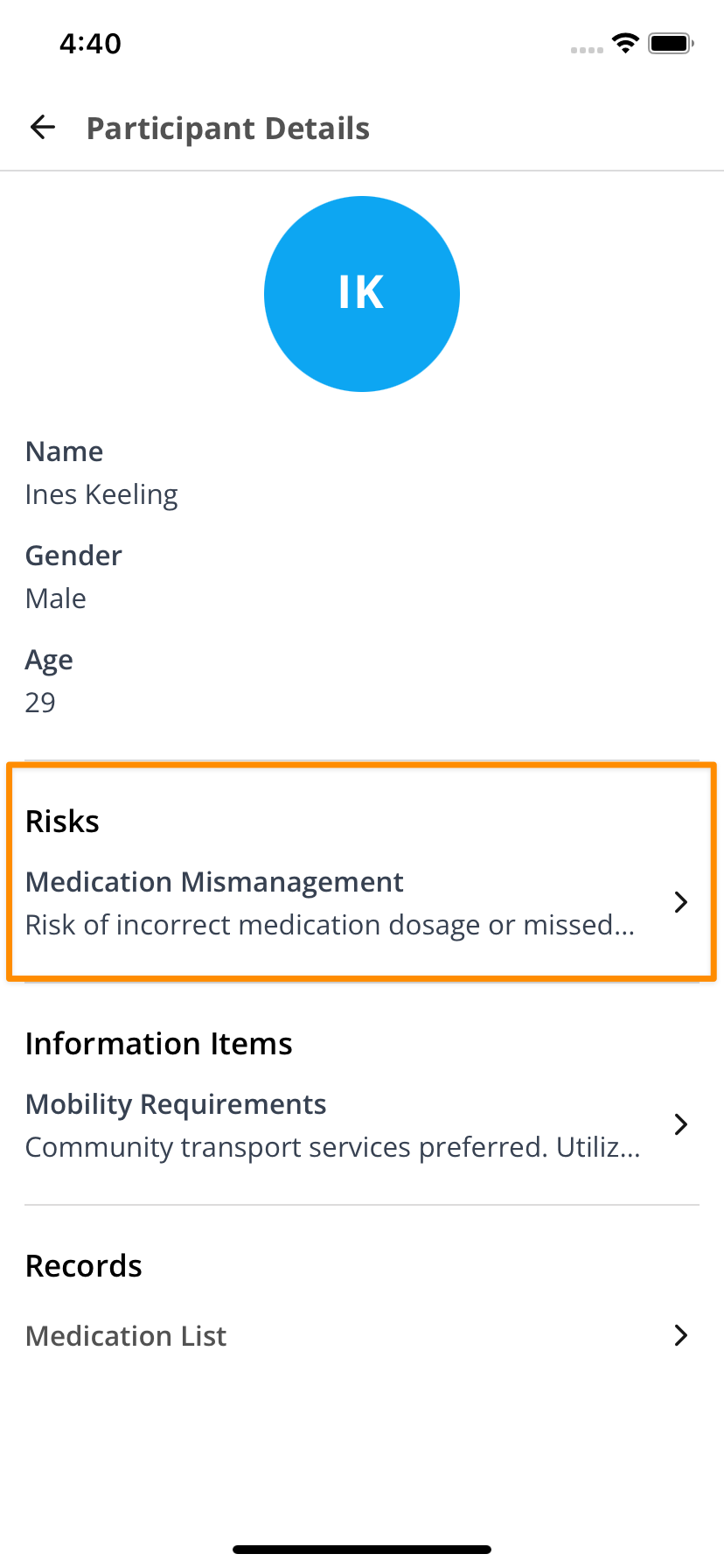
Where Risks have been identified as having the potential to impact on direct support, you will see these listed under the heading Risks within the Participant's profile.
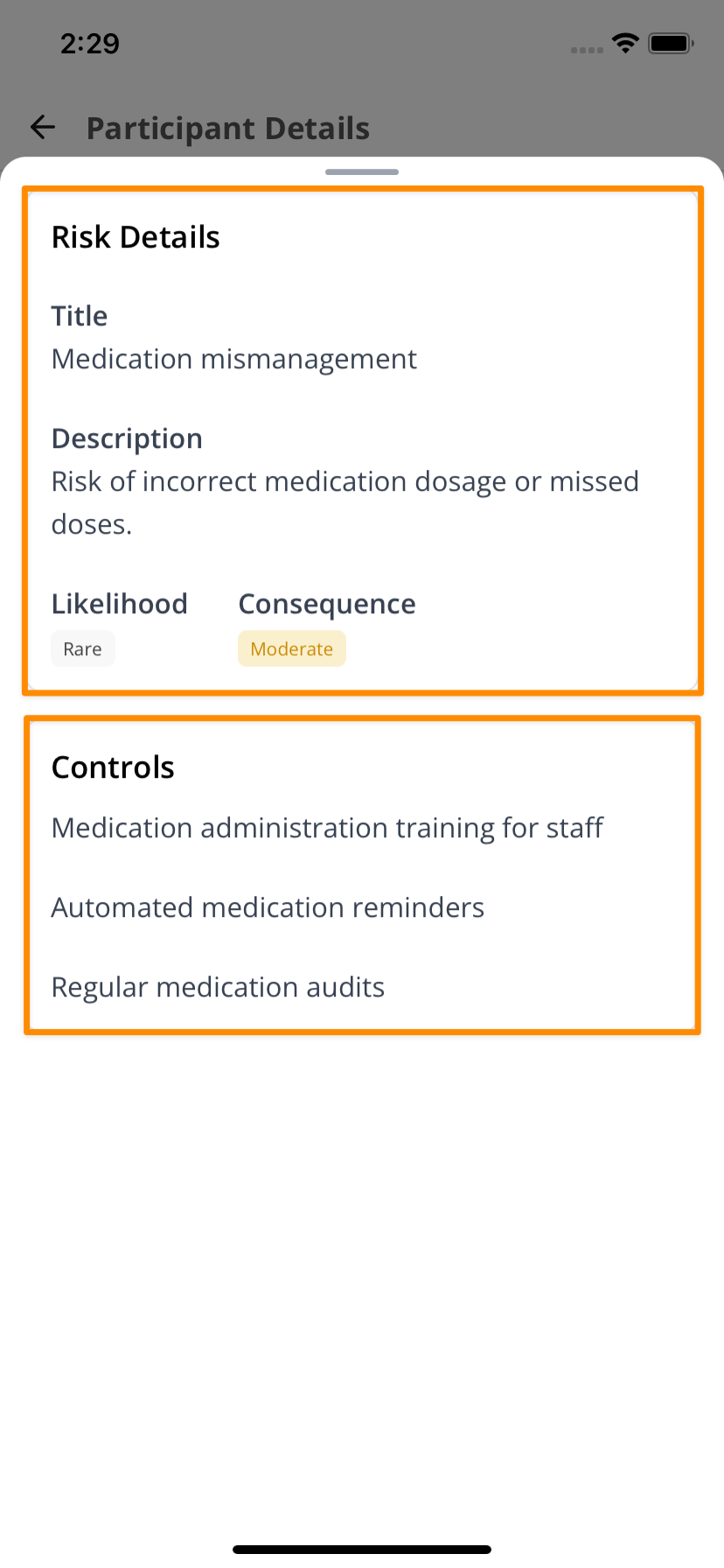
Select a Risk to view its details, including Likelihood, Consequence, and the Controls in place.
- See Participant Risks to control whether Support Workers can view risks.
Information Items
- When you select an information item, it opens on its own screen with more detail.
- The content shown depends on what your organisation has chosen to make visible.
- See Information Item Visibility to make Information Items visible to Support Workers.
Records and Documents
- Records can also be set as Visible to Support Workers.
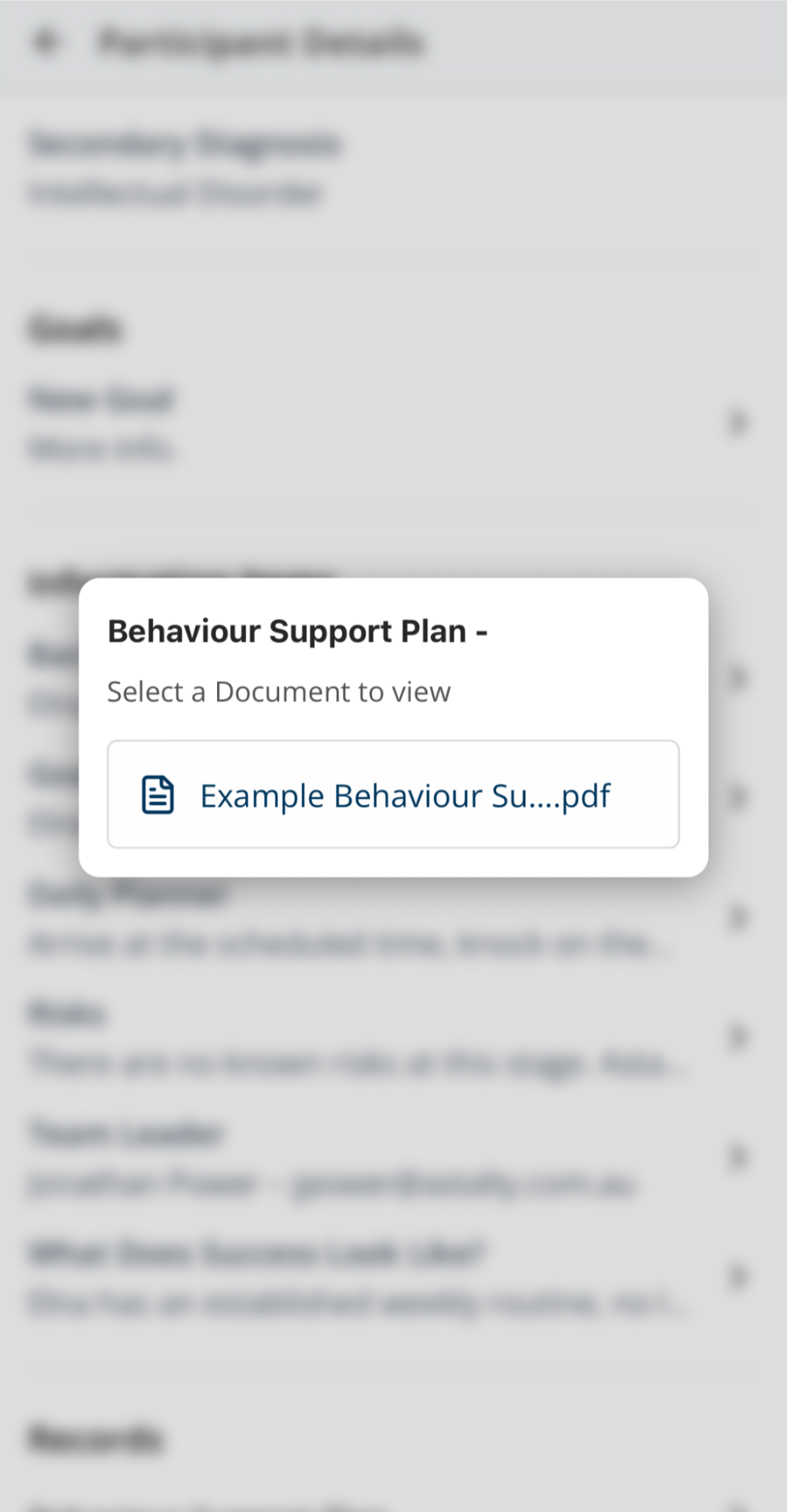
- This may include documents such as a Behaviour Support Plan, ensuring workers have access to critical information at the point of support.
- See Making Records Visible to Support Workers.
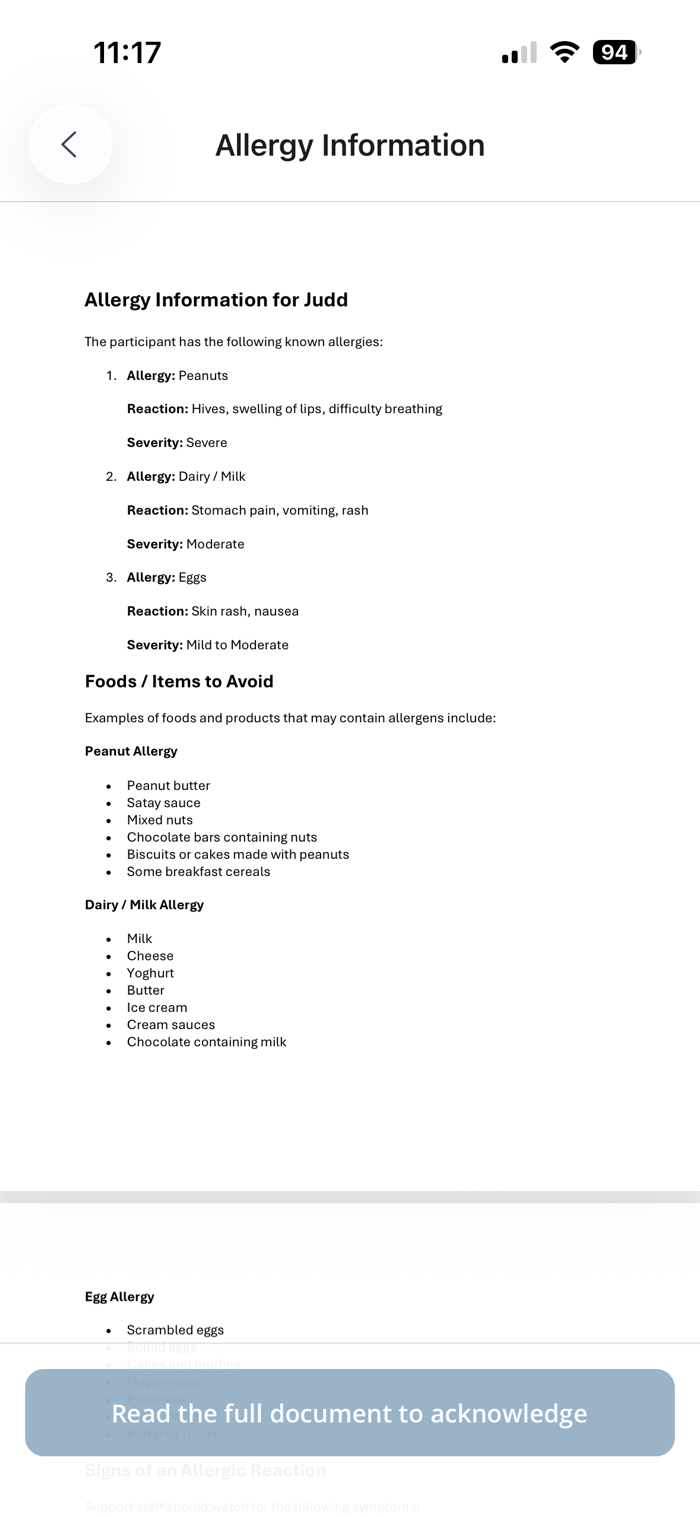
- Depending on the settings applied to the Record, Support Workers may also be required to Acknowledge Records.
Watching a Record Video
A Participant Record can have a video attached to it as well as documents. For example, it could demonstrate how a Participant communicates. See Participant Records for supported uploads.
Tap the video under Records and it plays in the app, with the usual play, pause and scrubbing controls. You don't need to leave Astalty or download anything first.
A few things worth knowing:
- Playback pauses when you leave the screen, so a video never keeps playing in the background.
- The sound plays even if your iPhone is on silent.
- Videos are streamed, not stored on your device, so you need a data connection to watch one. Without a connection, the app reports that the document is not available.
PDFs and images open in the app. Word documents (.doc and .docx) cannot be previewed in the app. Convert a Word document to PDF before attaching it to a Record that workers must open in the app.
Forms
If a Form is required at clock-out, the app prompts you to complete it before you finish the shift. See Clocking In and Out of a Shift.
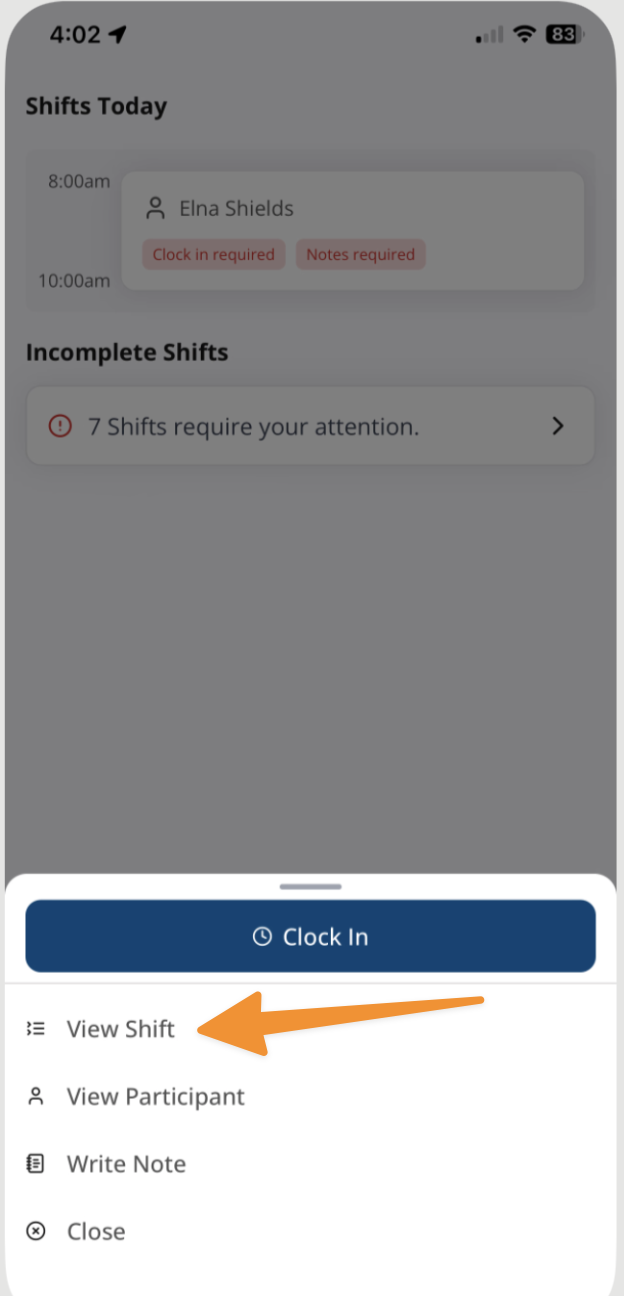
To complete an Incident Report or another available Form, open the shift from your calendar and select View Shift.
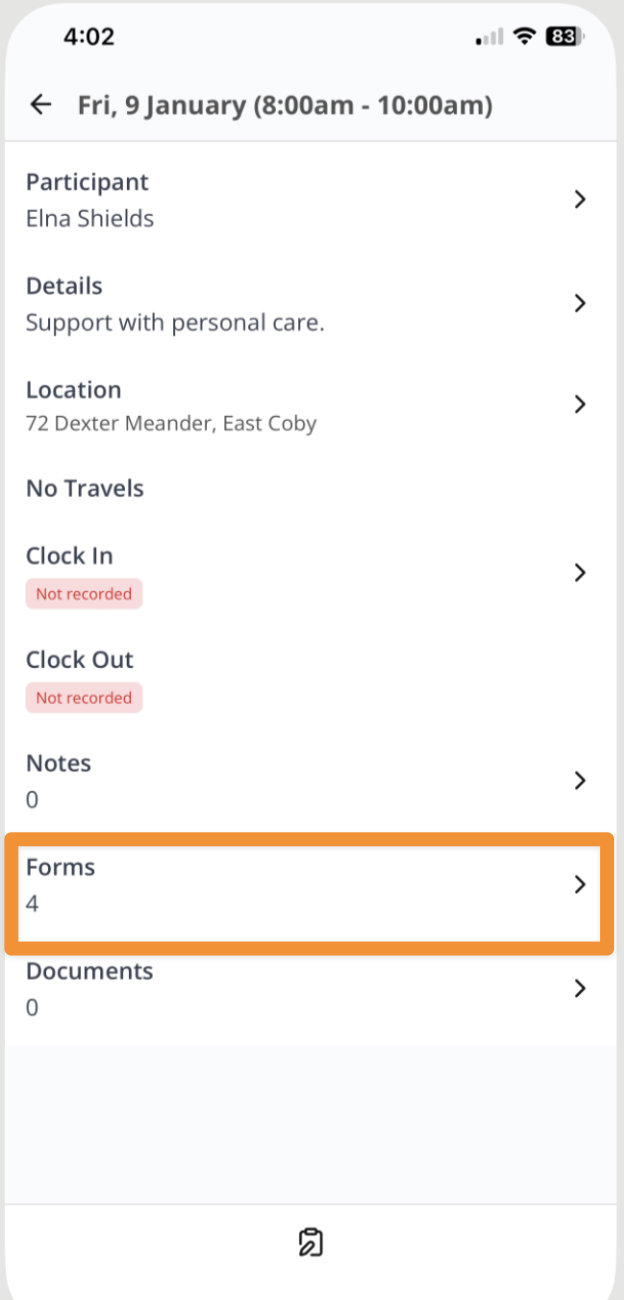
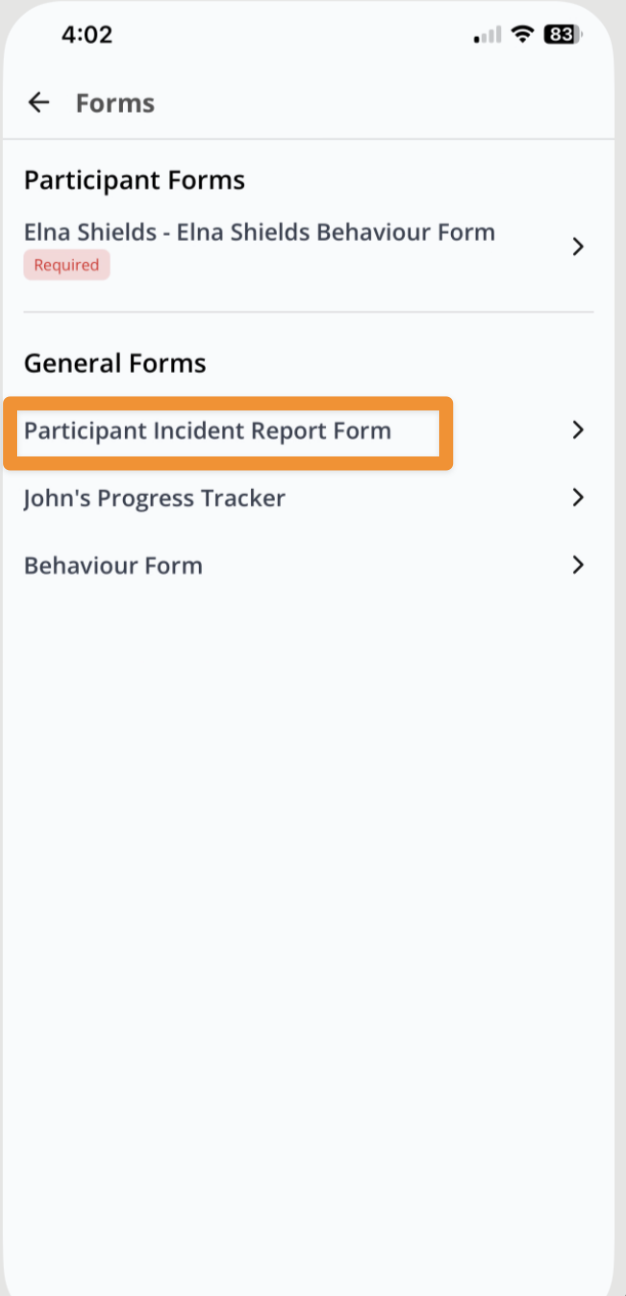
Select Forms, then choose the Incident Report Form. Required Forms for the shift also appear in this list and must be resolved before clock-out.
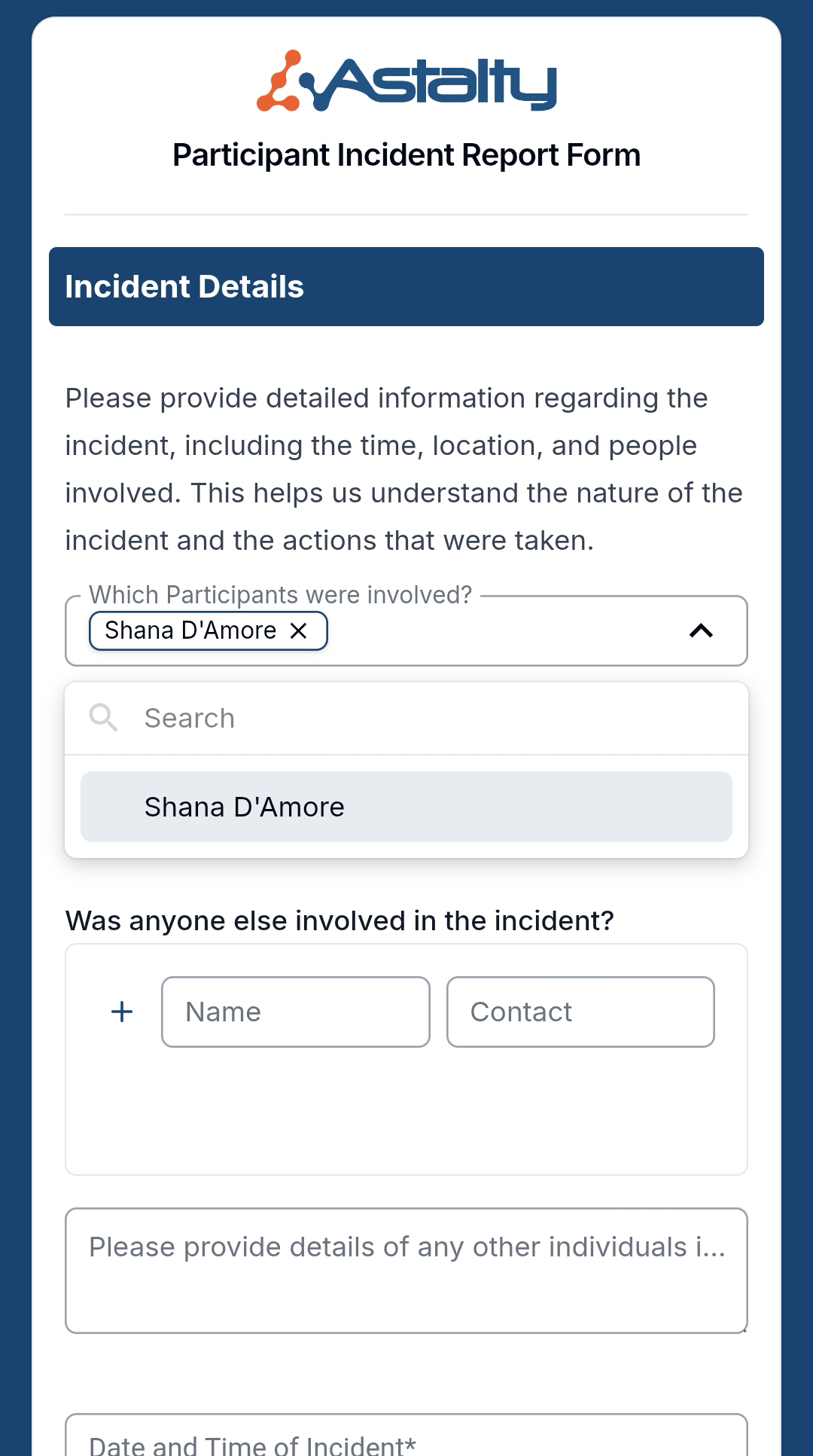
Complete and submit the Incident Form.
The app has a second Forms list under Profile, separate from Forms associated with a Shift. External Forms can be hidden from that list for everyone. See Forms Settings.
Previous Submissions
When your organisation turns on Recent Submissions in the Astalty App for a Form, you can look back at its recent submissions for a Participant on your shift - for example, to check when medication was last given.
From a shift's Forms list, select a Form. If it has recent submissions, select View Submission (View Submissions when there is more than one): with one submission, this opens straight to its answers; with more than one, it lists them so you can choose one.
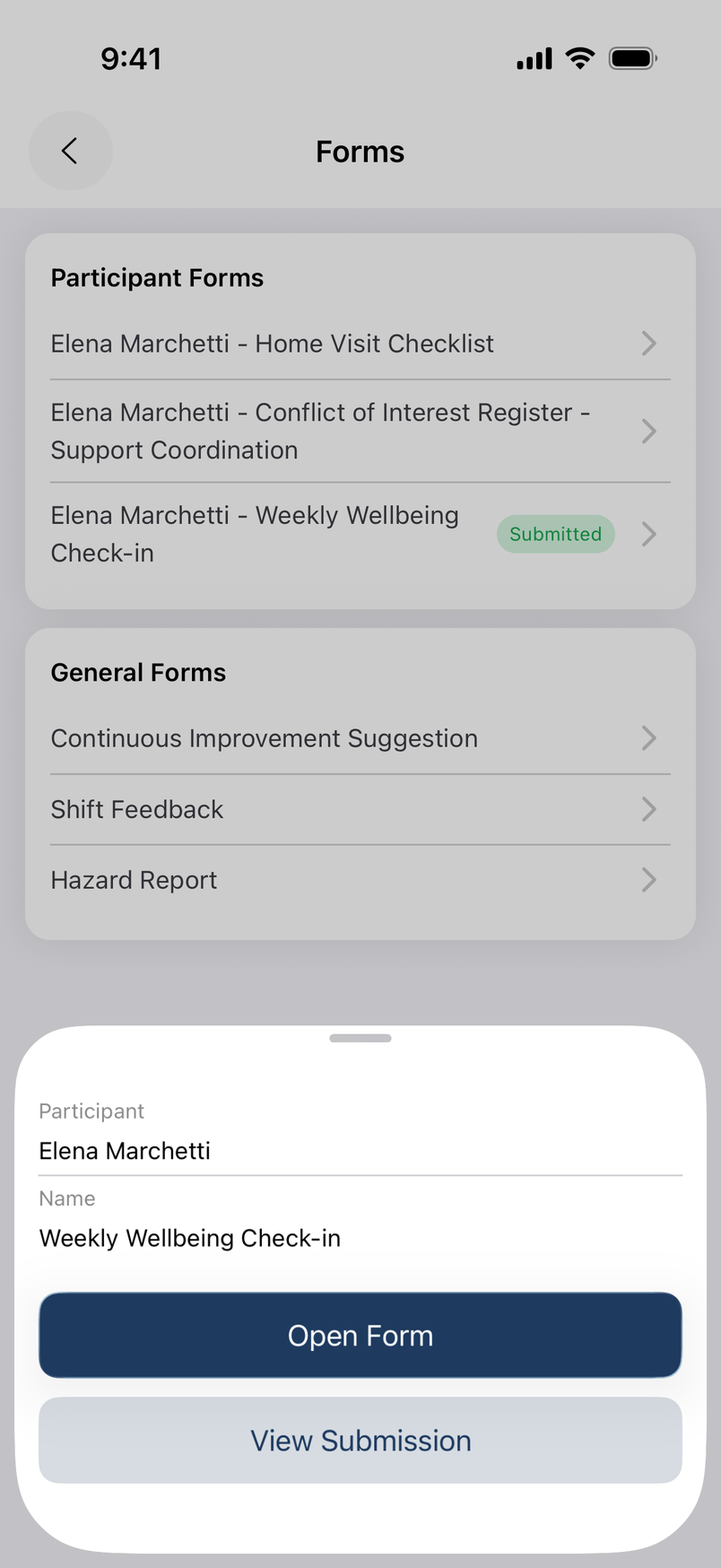
From a Participant's profile, select Previous Submissions to see their recent submissions across every Form with this setting on, most recent first.
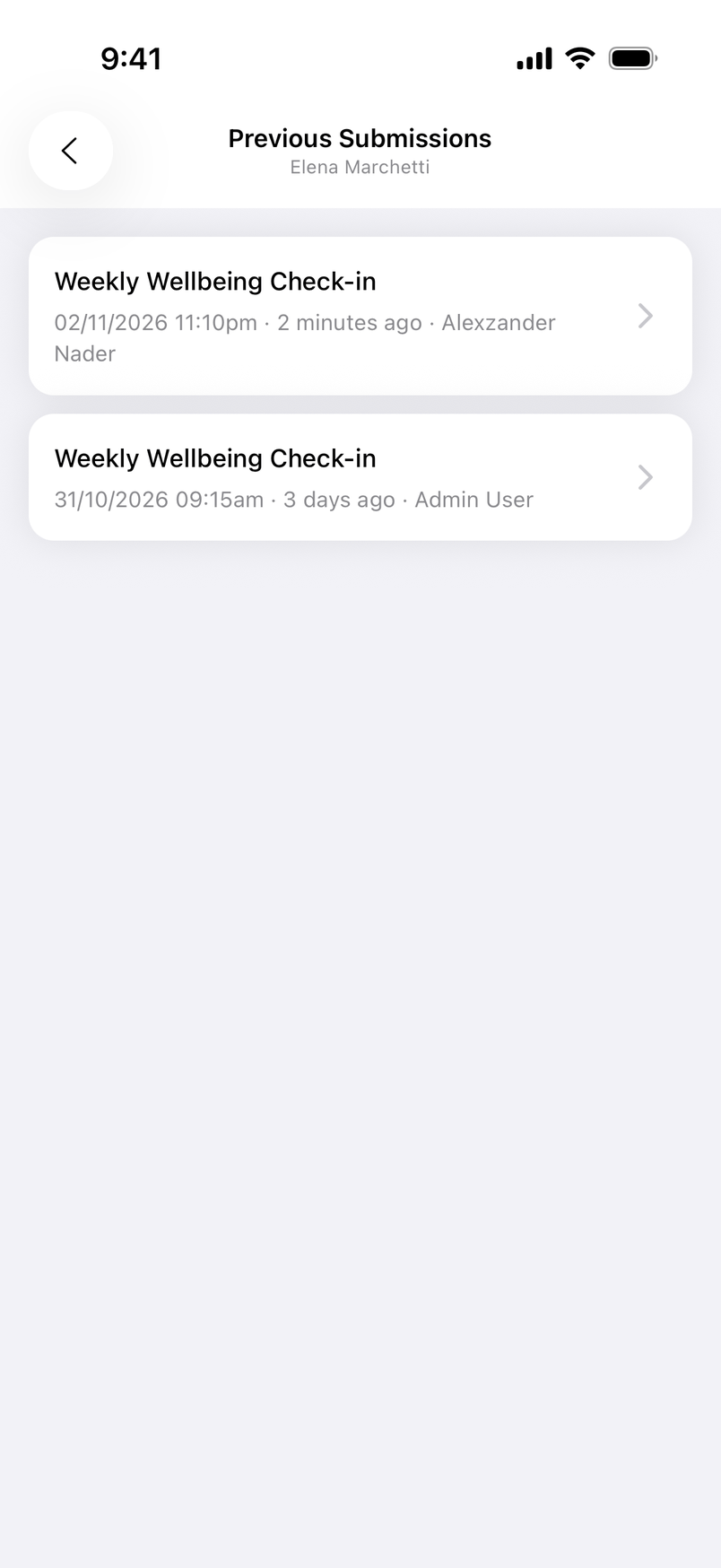
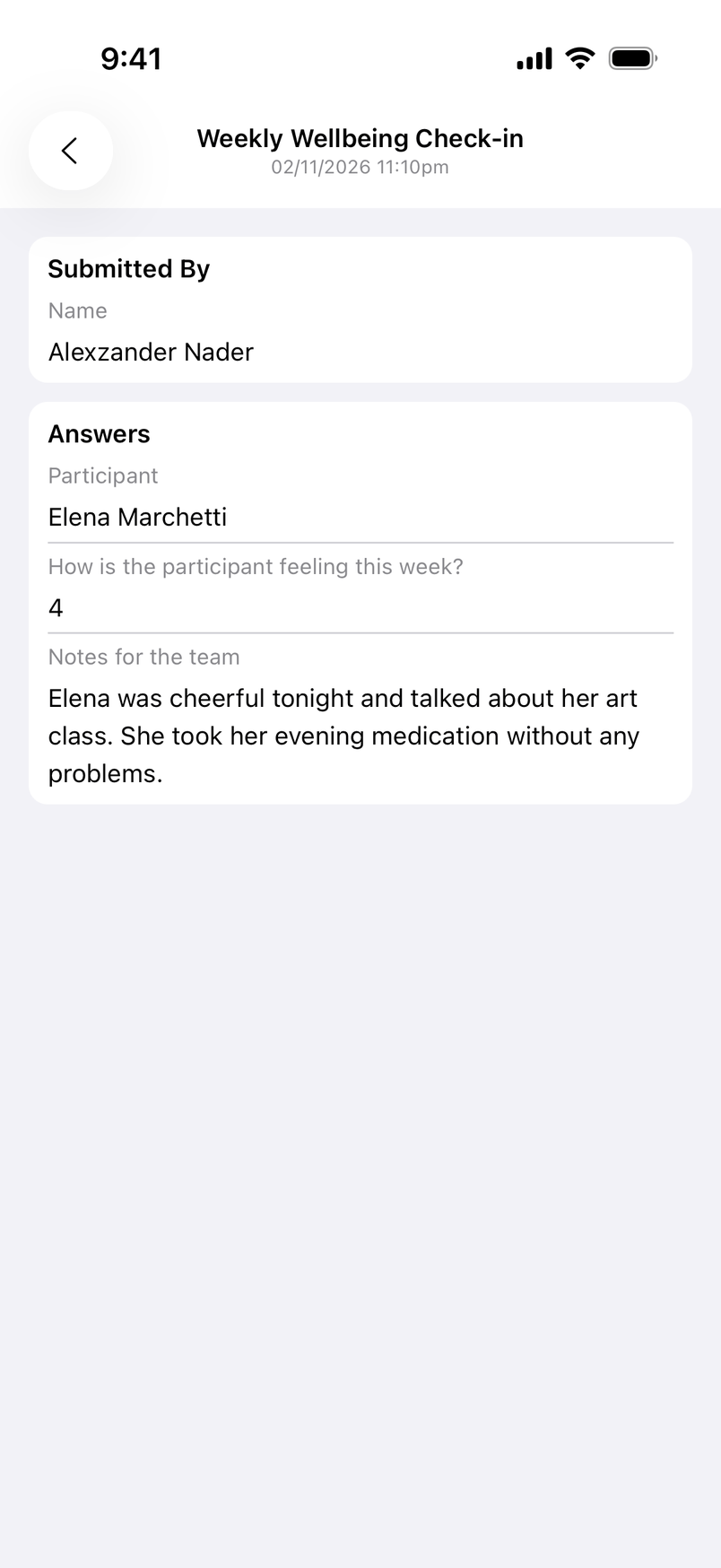
Select a submission to see who submitted it, when, and their answers.
Participant Details App View Video Overview
The following video provides a walkthrough of Participant Details in the Support Worker app.