Clocking In and Out of a Shift
Overview
Clock in from the shift on Overview. At the end, complete any required notes, Forms, Schedule Tasks, travel and Participant sign-off before clocking out.
How to Clock In
- On Overview, open the shift under Today's shifts or Upcoming shift.
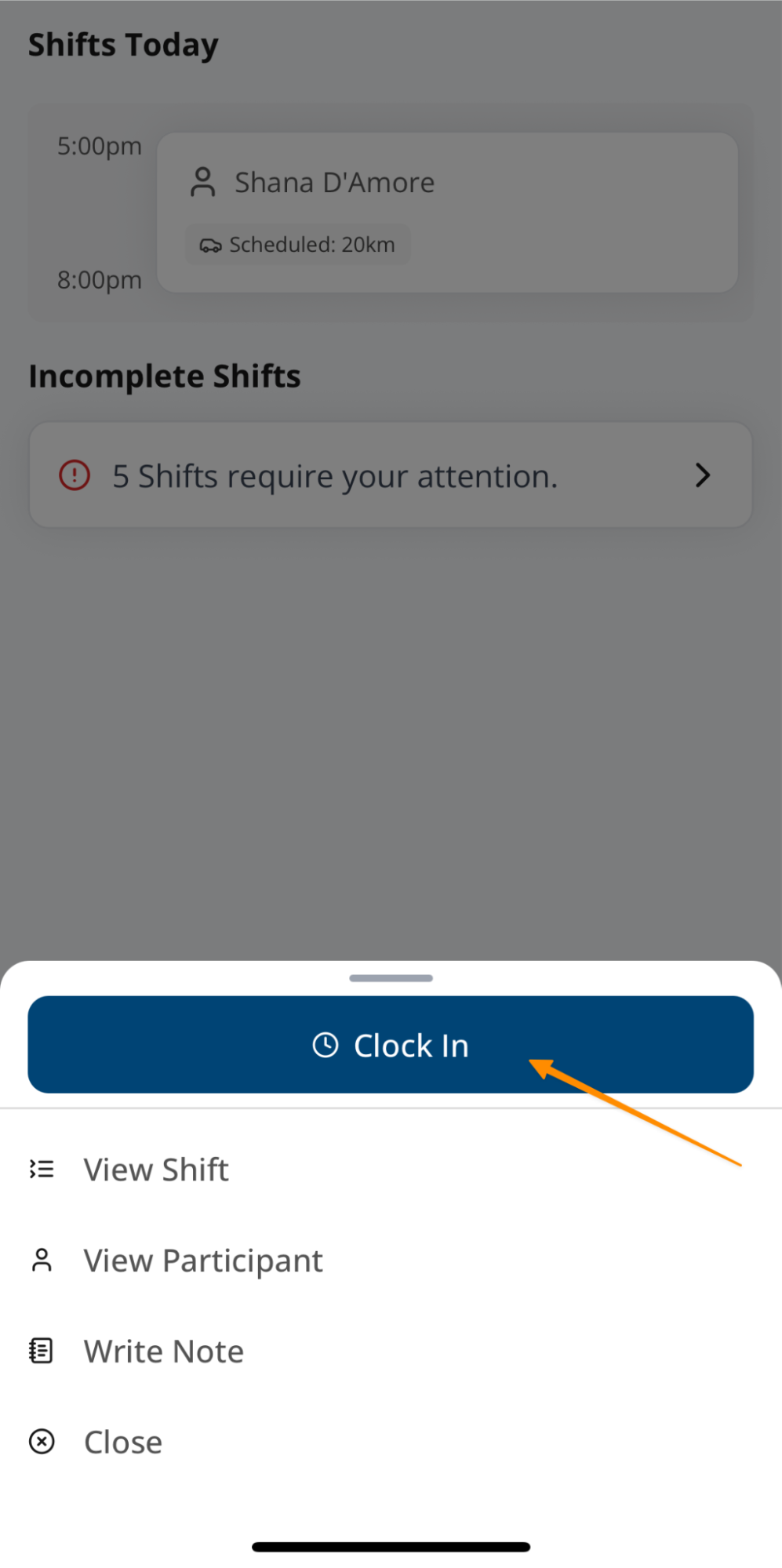
- Select Clock In.
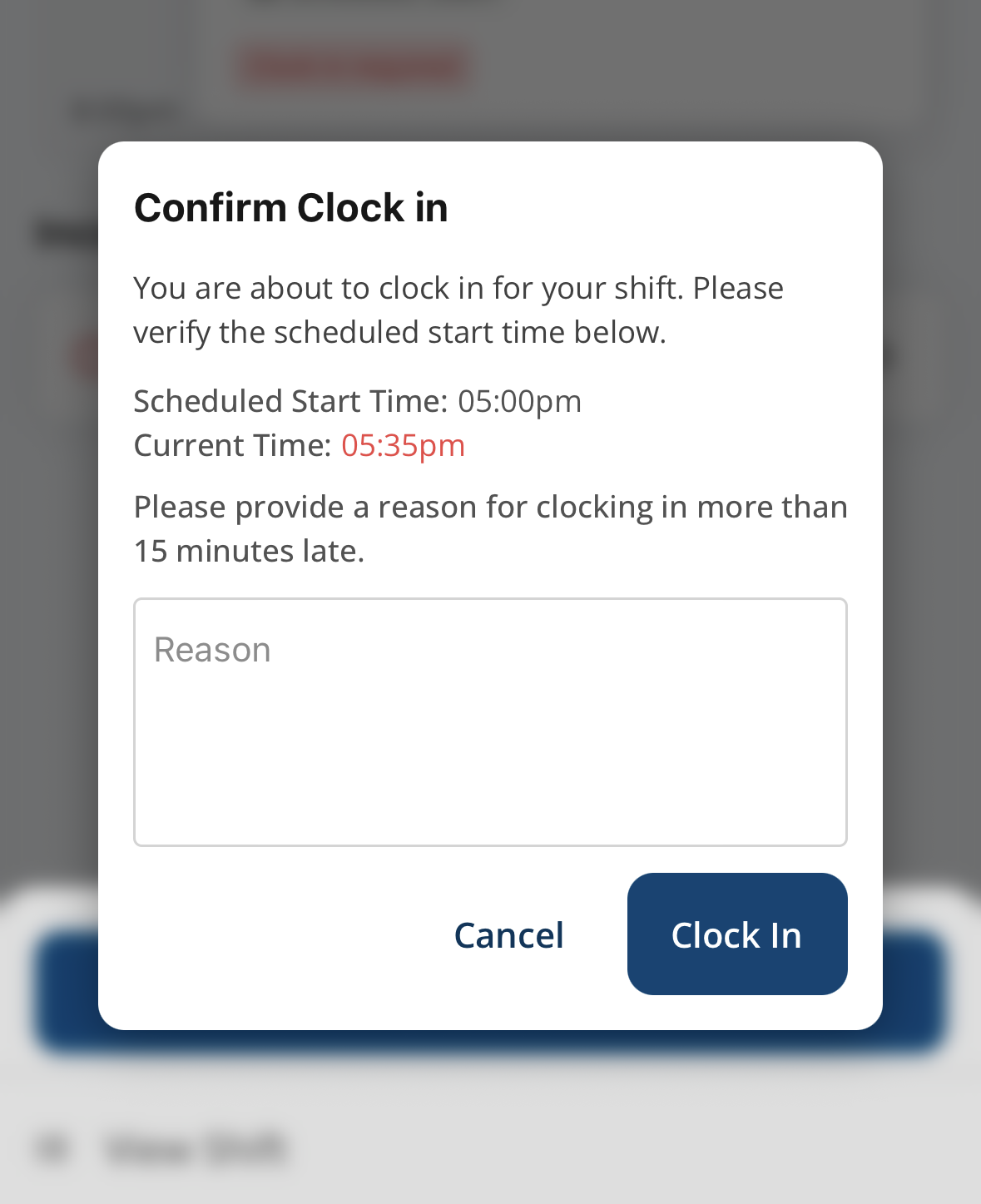
- If you are outside your organisation's early or late tolerance, enter the requested note and submit the clock-in.
Your organisation can prevent clock-in more than a configured number of hours before the shift. When that limit applies, the app shows when clock-in becomes available.
How to Clock Out
- At the end of the shift, open it and select Clock Out.
- Complete each required item shown on the Unable to Clock Out screen:
- Incomplete Notes: write the support note when Require Note on Clock Out is enabled.
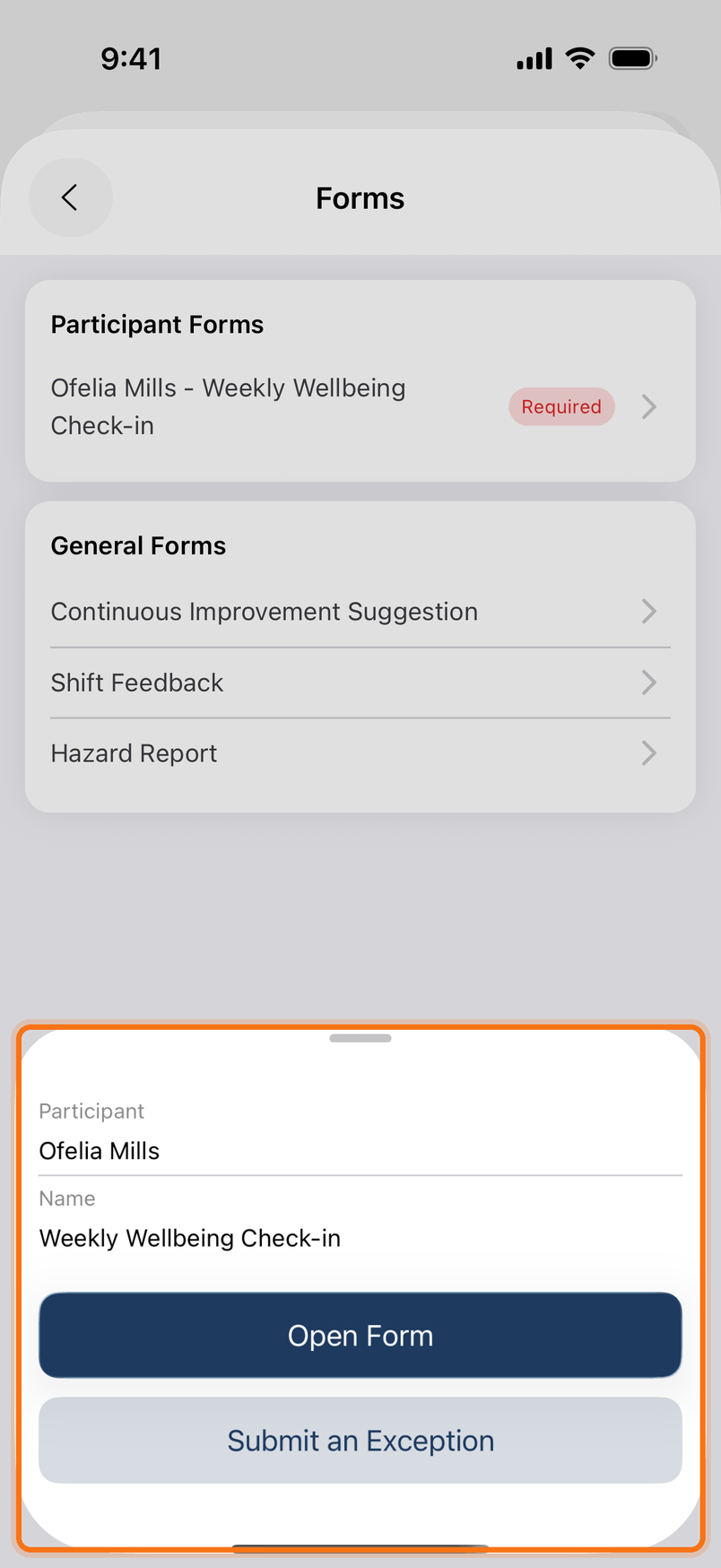
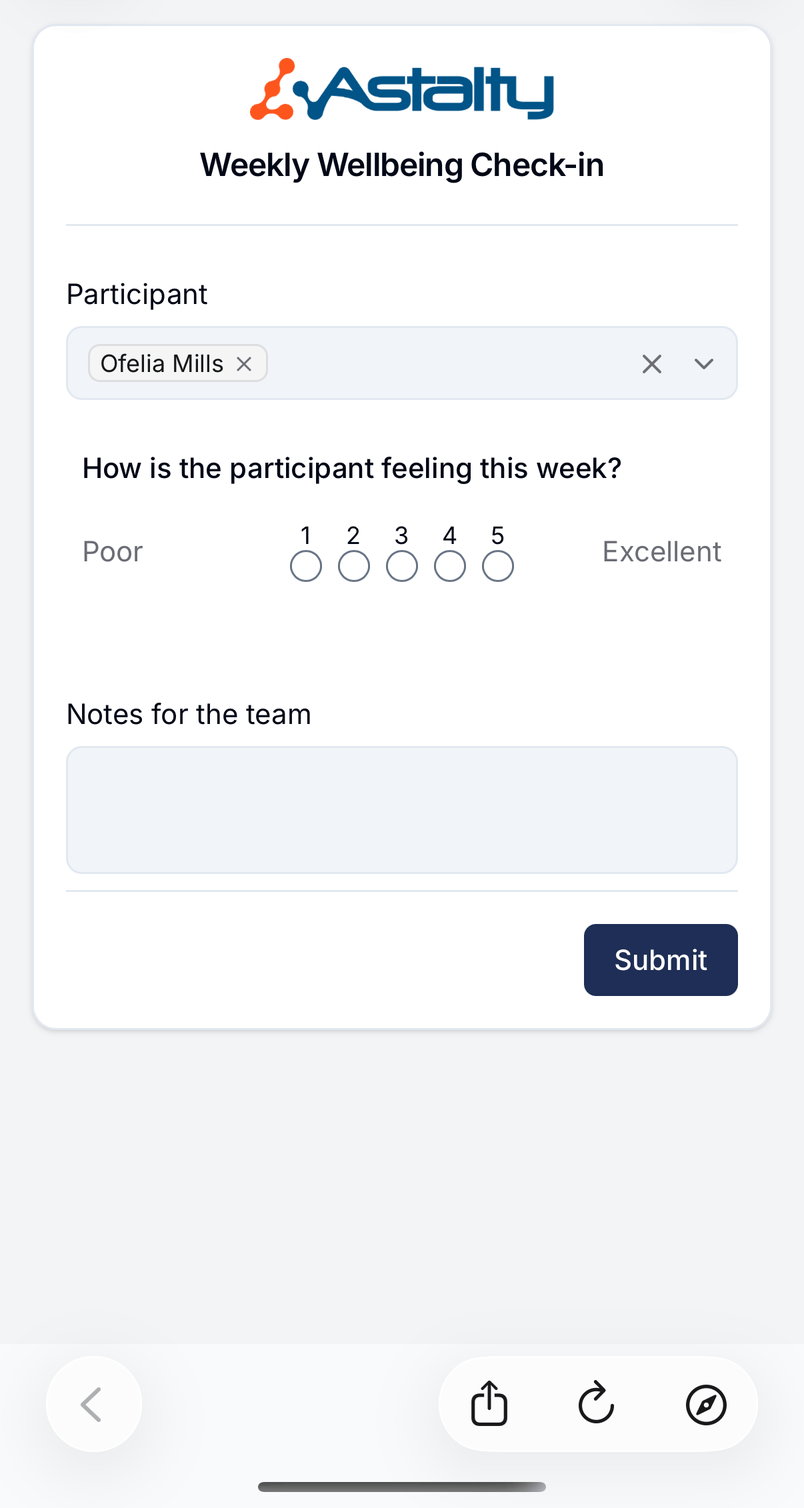
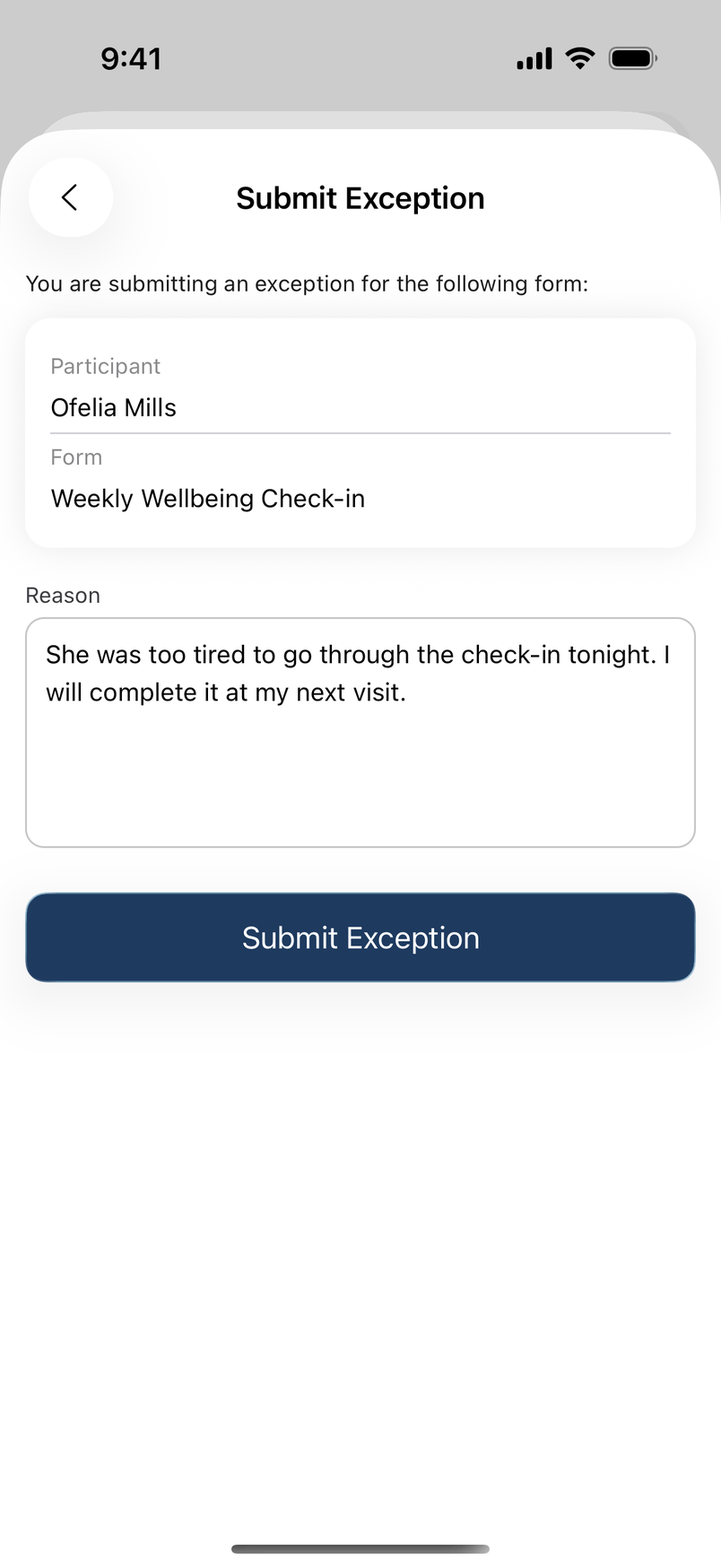
- Incomplete Forms: complete each mandatory Form or submit an exception.
- Incomplete Schedule Tasks: complete each mandatory task or skip it with a reason.
- If Travel During is incomplete, enter the odometer readings or mark that travel did not occur.
- Confirm the clock-out details and select Clock Out.
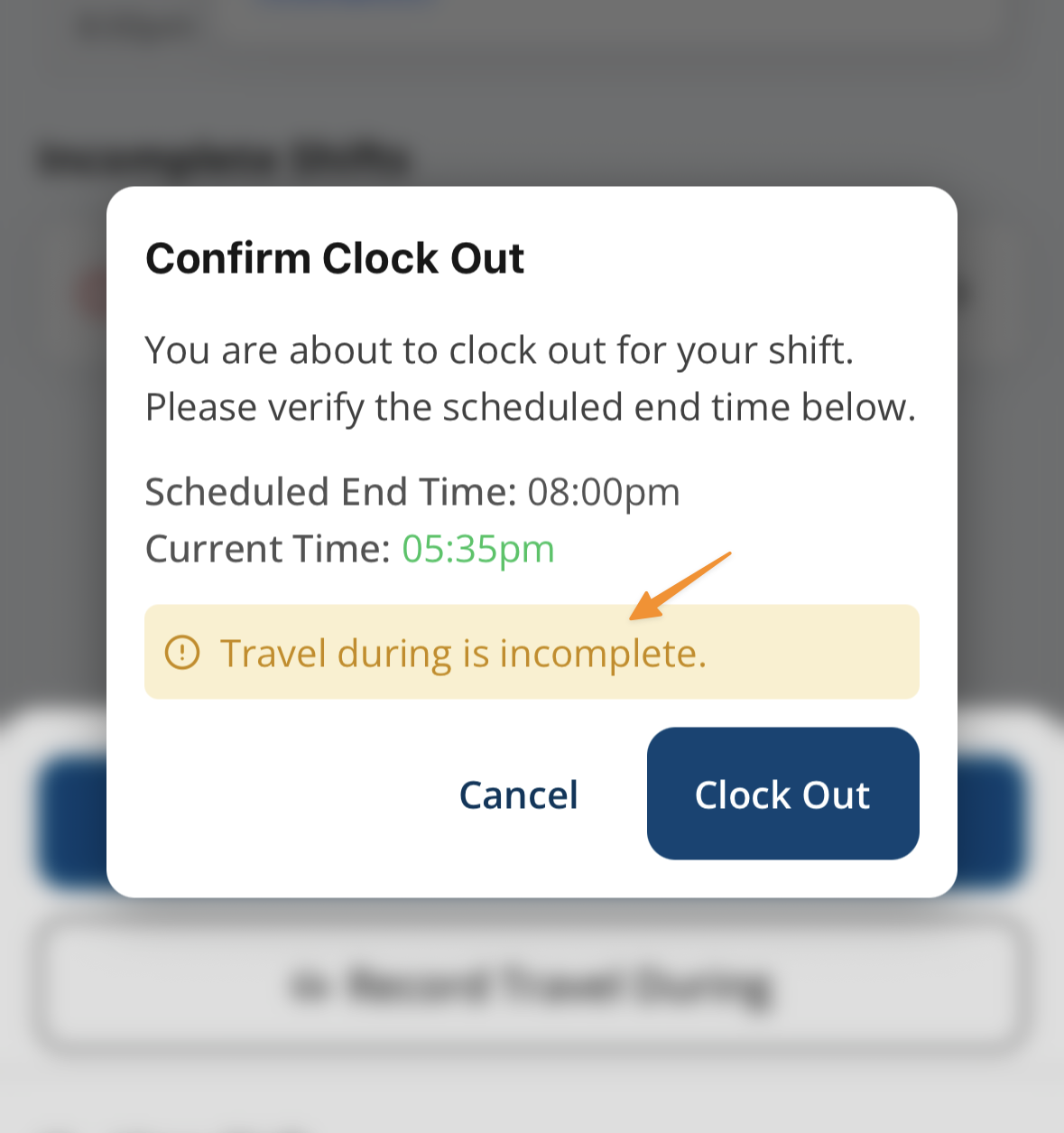
An active overnight period still in progress shows a warning. It does not block clock-out.
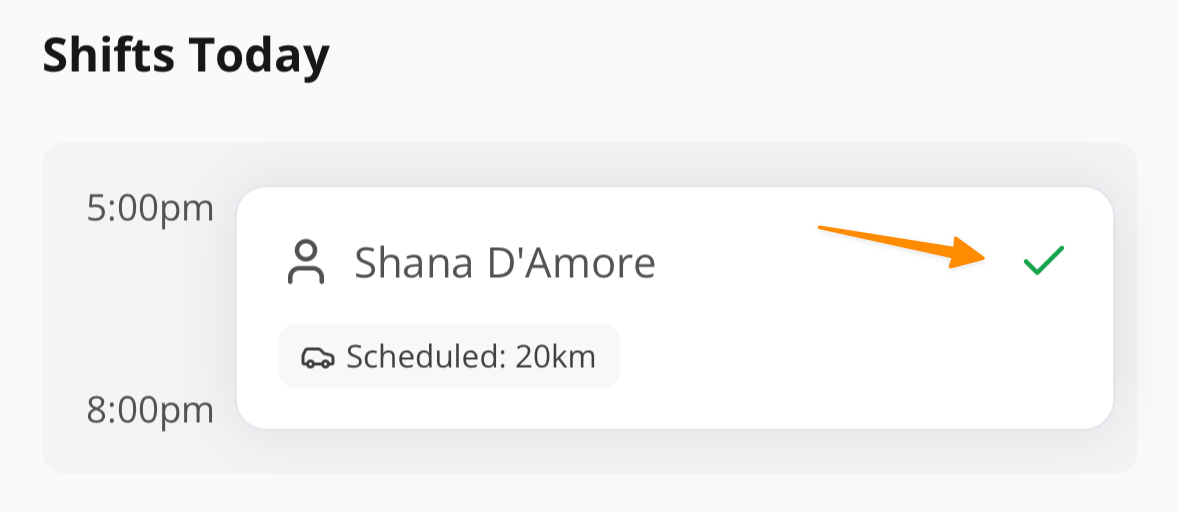
Clocking Out Early
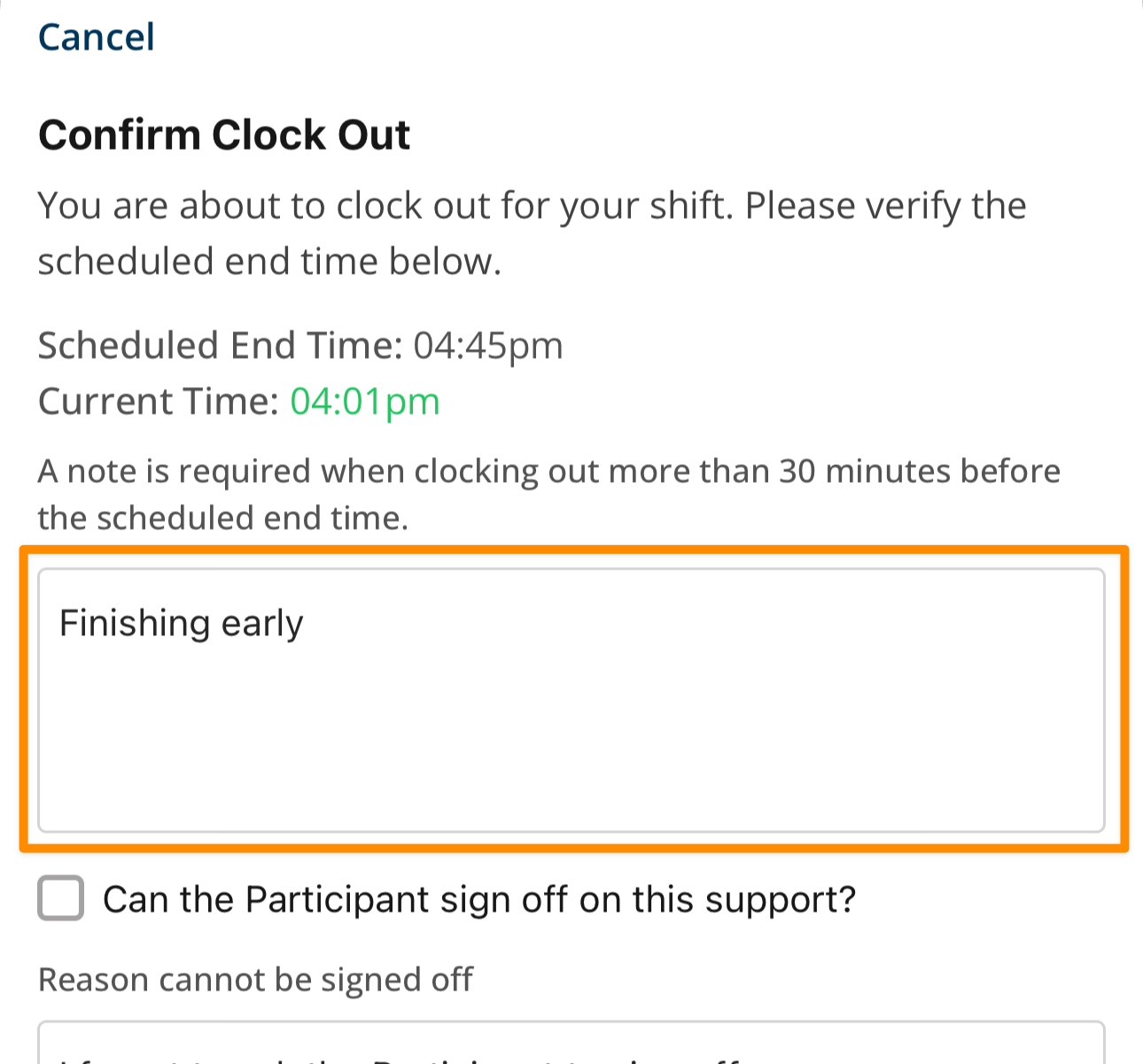
If you need to clock out before the scheduled end time, you may be prompted to provide a note detailing why before you can clock out.
Participant Sign-off Required
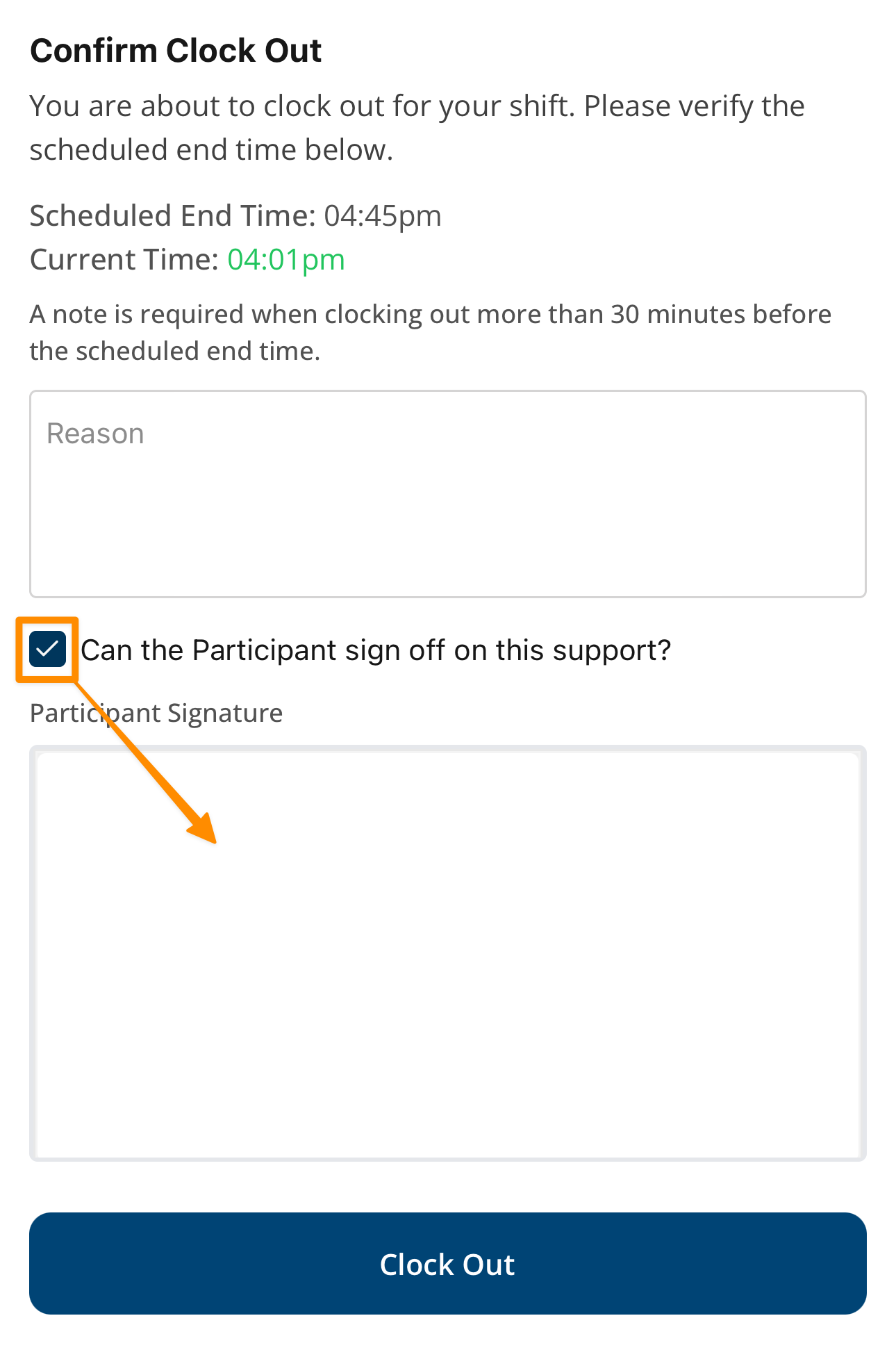
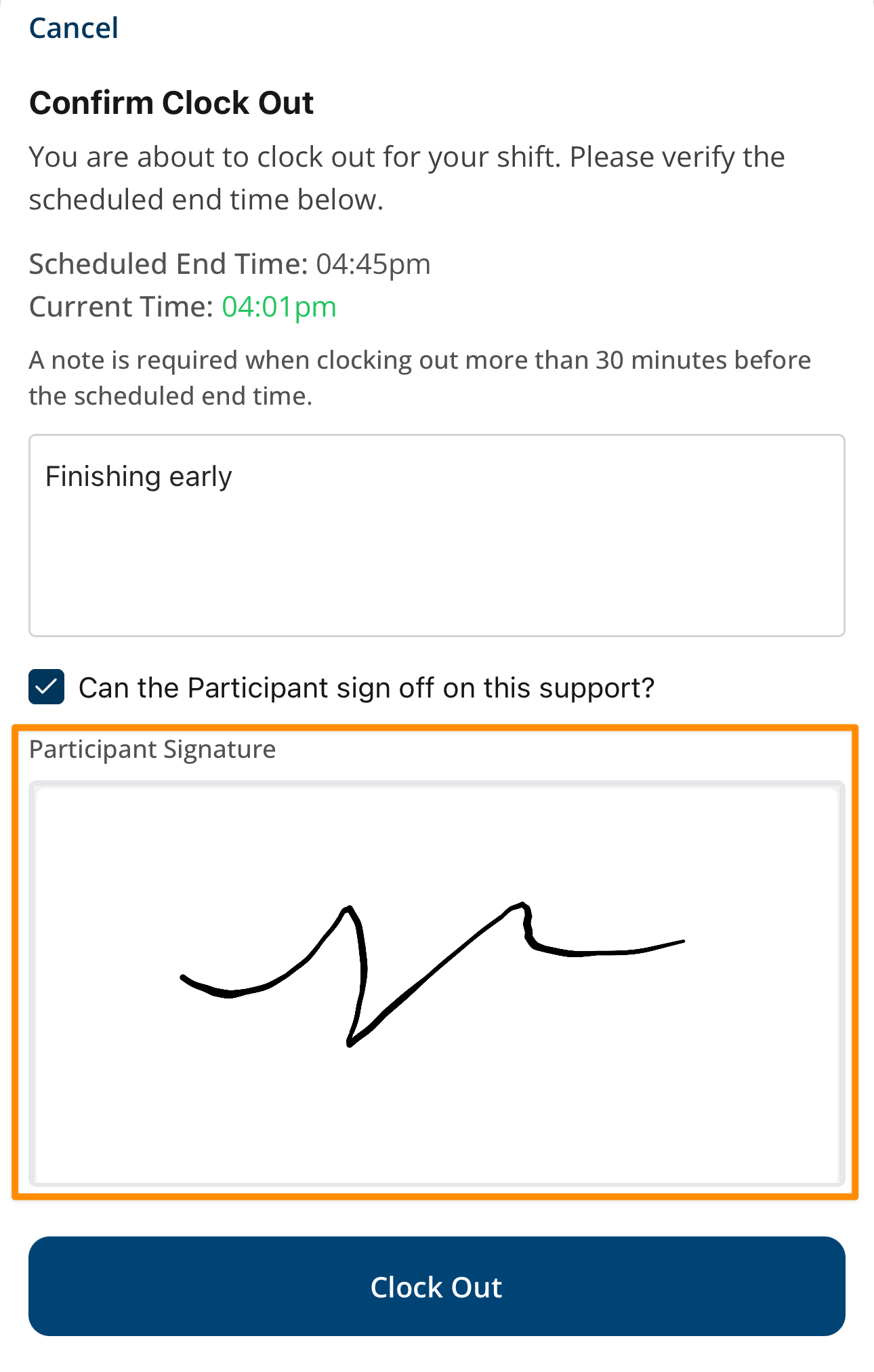
Where Participant Sign-Off is required, the app asks Can the Participant sign off on this support? Leave it on and collect the Participant's signature. For a group support, first select the Participant who is signing.
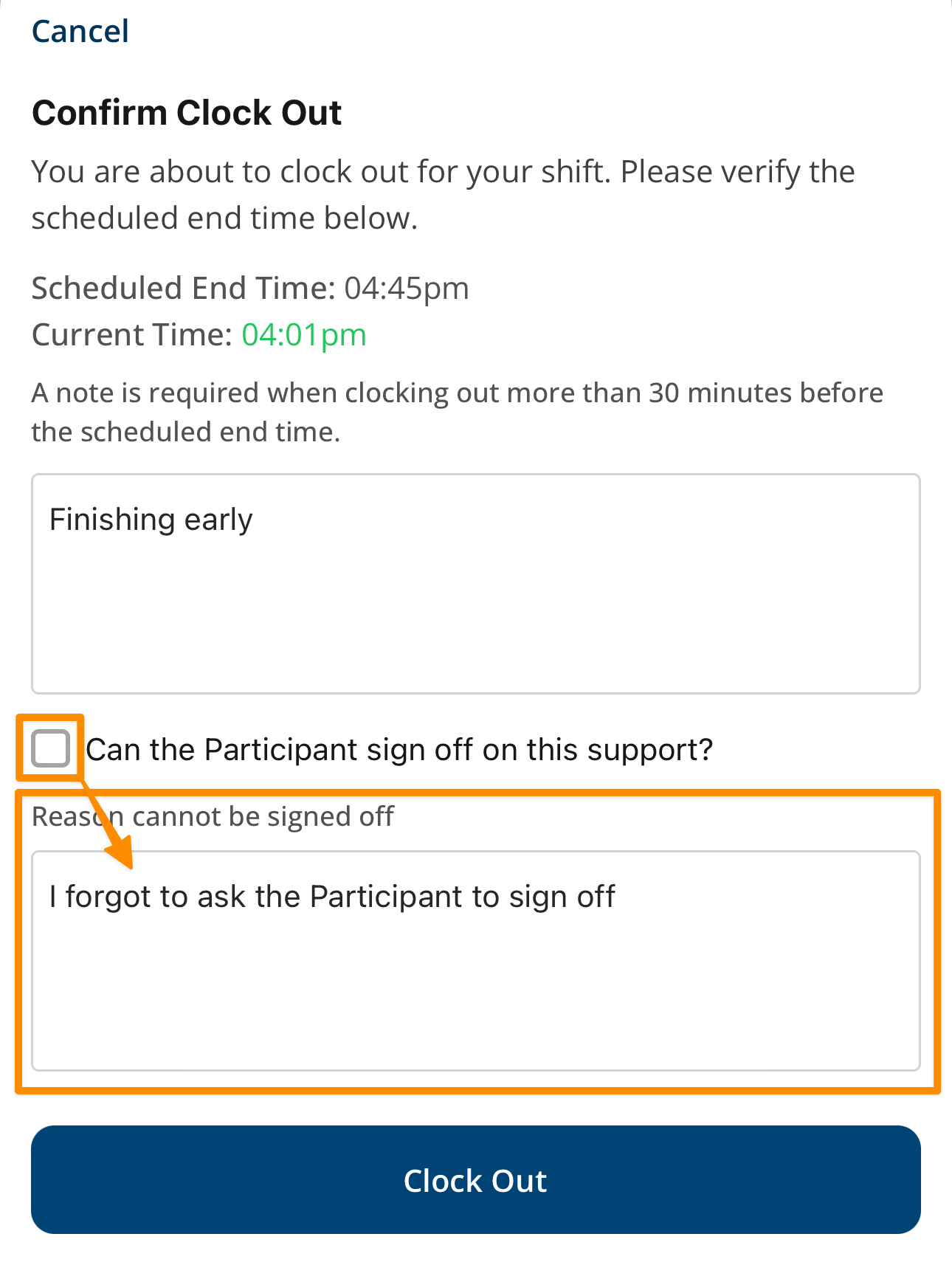
If the Participant cannot sign, turn it off and enter a reason of at least 10 characters.
Form Required
If a mandatory Form is associated with the shift, clock-out is blocked until the Form is submitted or an exception is recorded. Forms available on the shift are not necessarily mandatory.
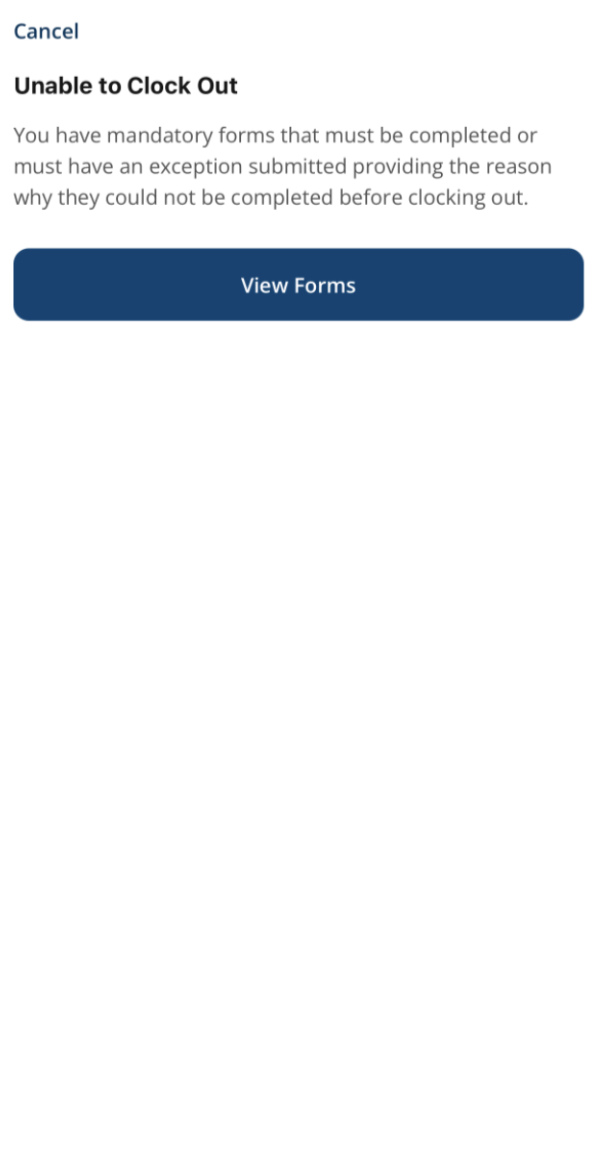
Select Incomplete Forms and the required Form, then select Open Form to complete it, or Submit an Exception and provide the required reason.
Restricted by Clock In/Out Radius
Where your organisation has set a Clock In/Out Radius, you can only clock in or out while your device is within that distance of the support's location.
If you are too far away, a warning shows: "You must be within X kms of the Support location to clock in/out". The button is disabled until you are within range. If your organisation requires location data and location permission is off, the app asks you to enable it before continuing.
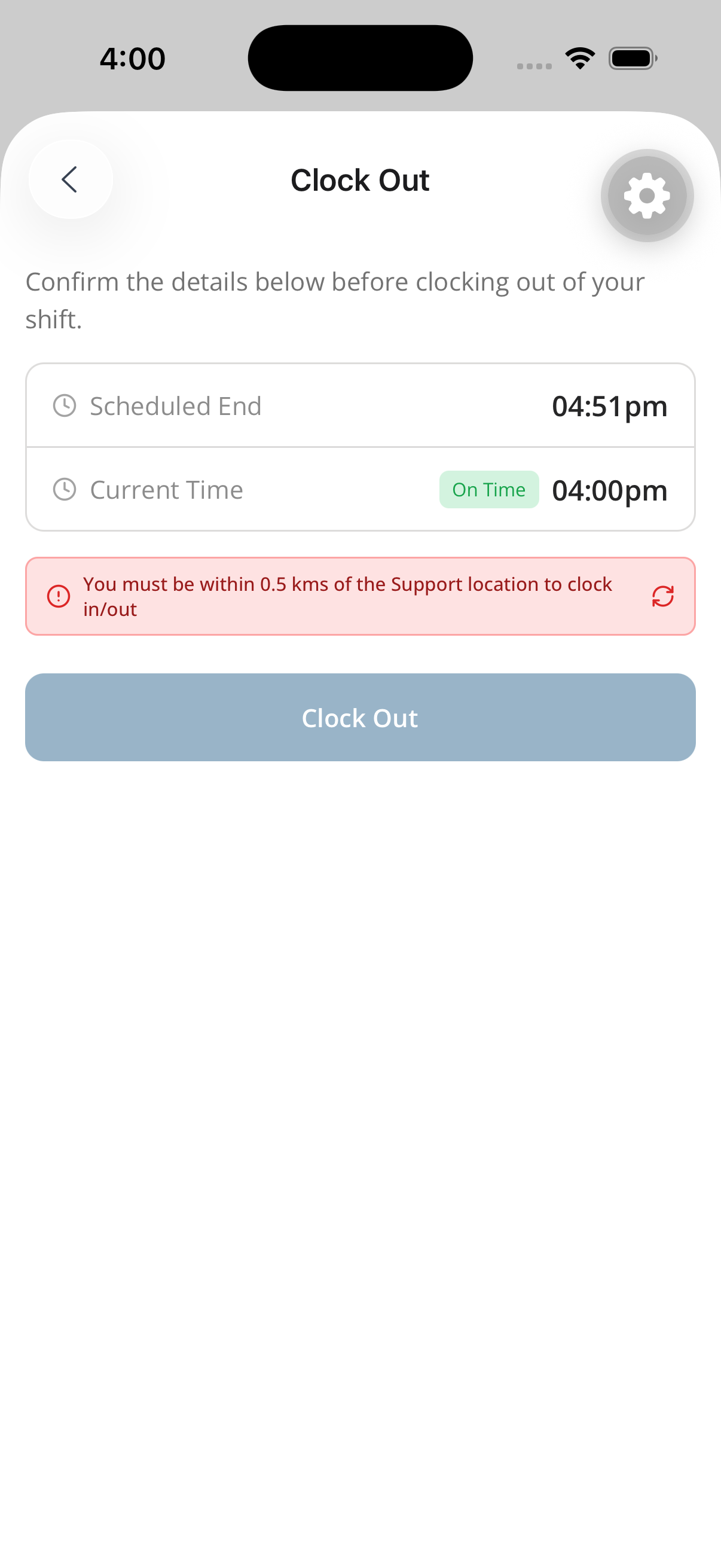
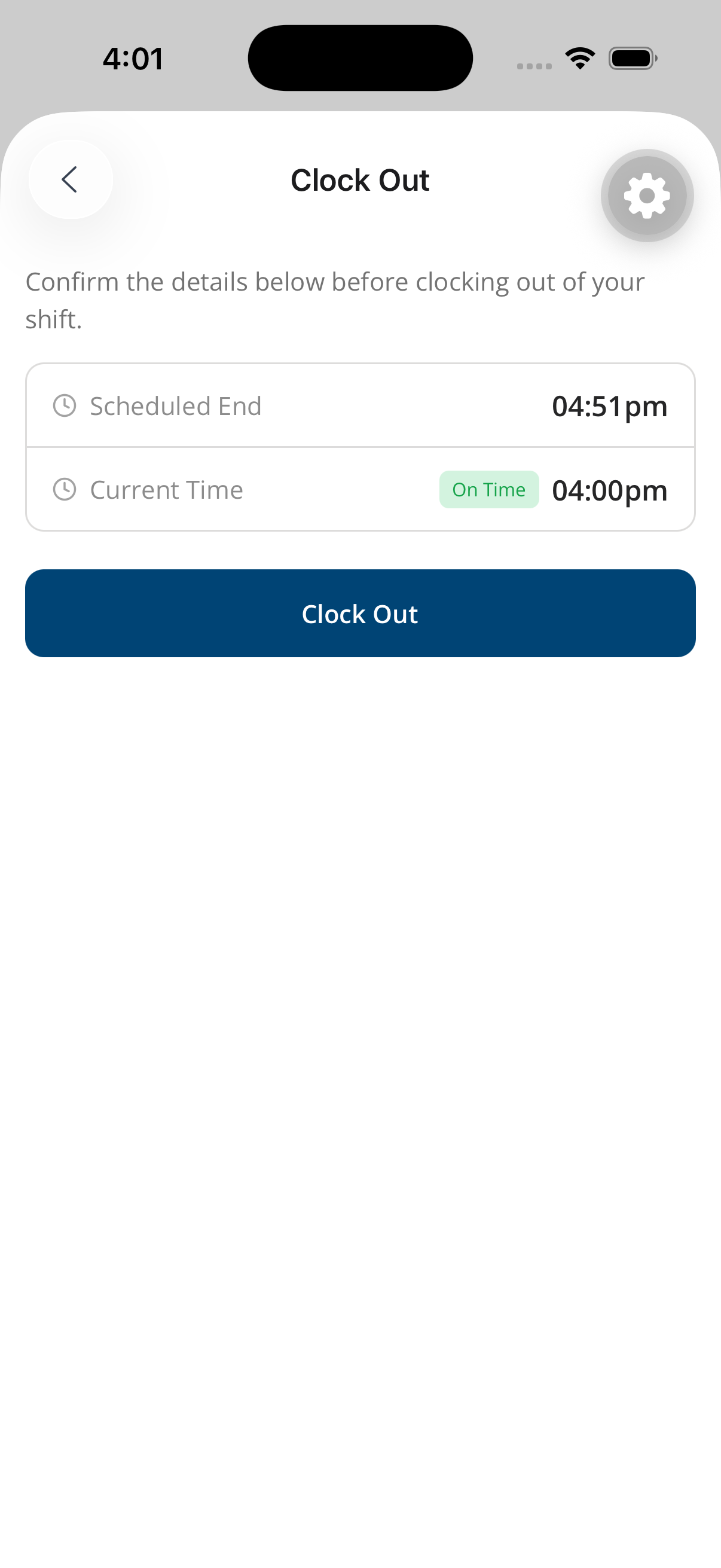
Move closer and select the refresh icon on the warning to check again. The button enables once you are within range.
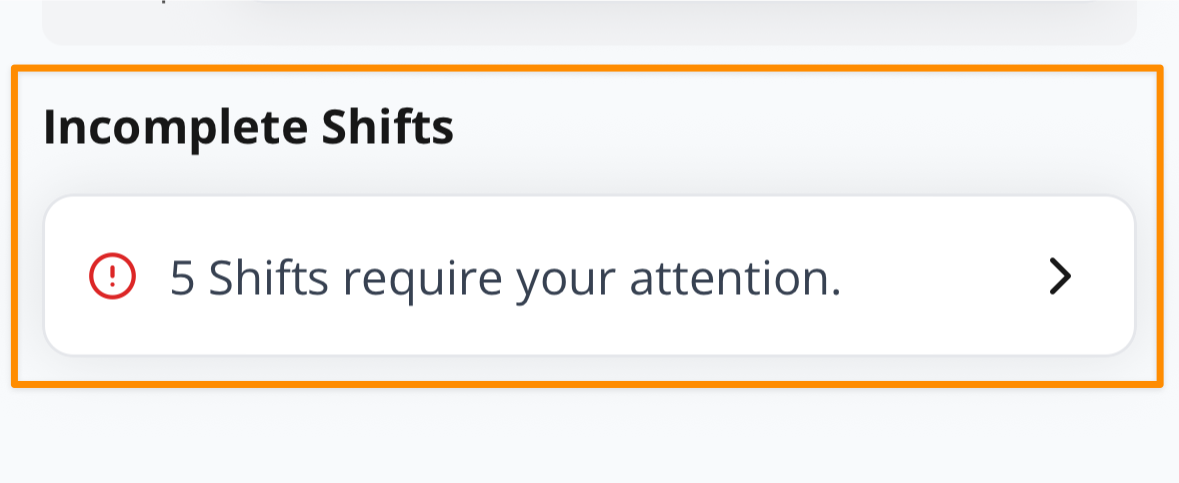
Incomplete Shifts
If you forget to clock in or out, the shift is counted in the incomplete shifts row under Needs attention on the Overview tab for follow-up.
Clocking in & Out in the App - Video Overview
The following video provides a walkthrough of how to clock in and out within the Support Worker app.