App Notifications
Overview
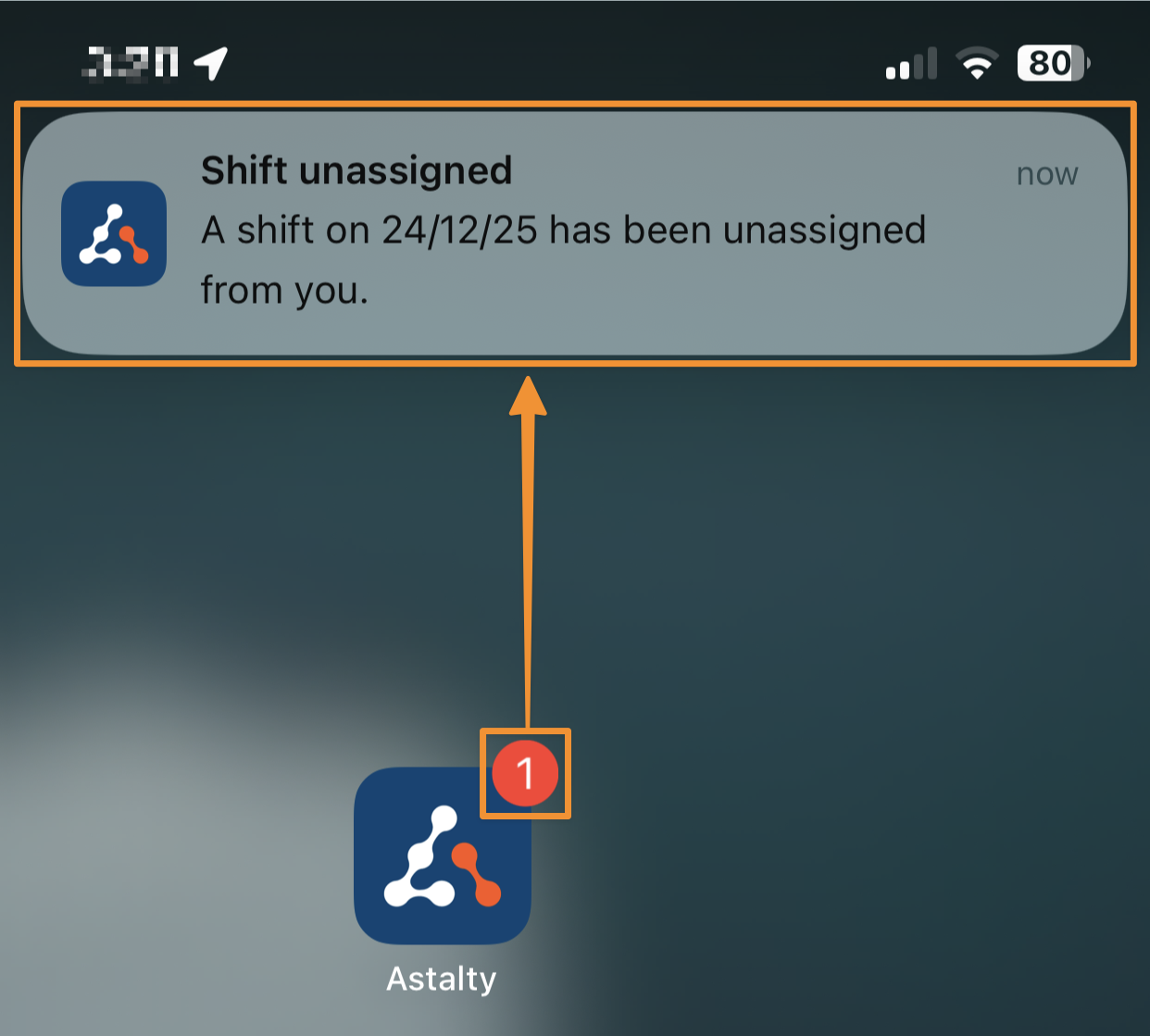
The Astalty app sends push notifications for shift changes, reminders, Chat messages, availability decisions, Record acknowledgements, and User Record updates. Workers can review the notifications the app has received on its Notifications page.
Viewing App Notifications
Open App Notifications
Select a notification on your device to open the related page when the notification has a supported destination. Your device's notification settings control where push notifications appear.
App Notification Count
The Astalty app icon and the notification bell can display the number of unread notifications. Counts above 99 display as 99+.
The Notifications Page
The app includes a dedicated Notifications page so Support Workers can review notifications after dismissing the device alert.
Opening the Notifications Page
On Overview, select the bell icon in the top-right corner. A red badge shows the unread count.
Reading Your Notifications
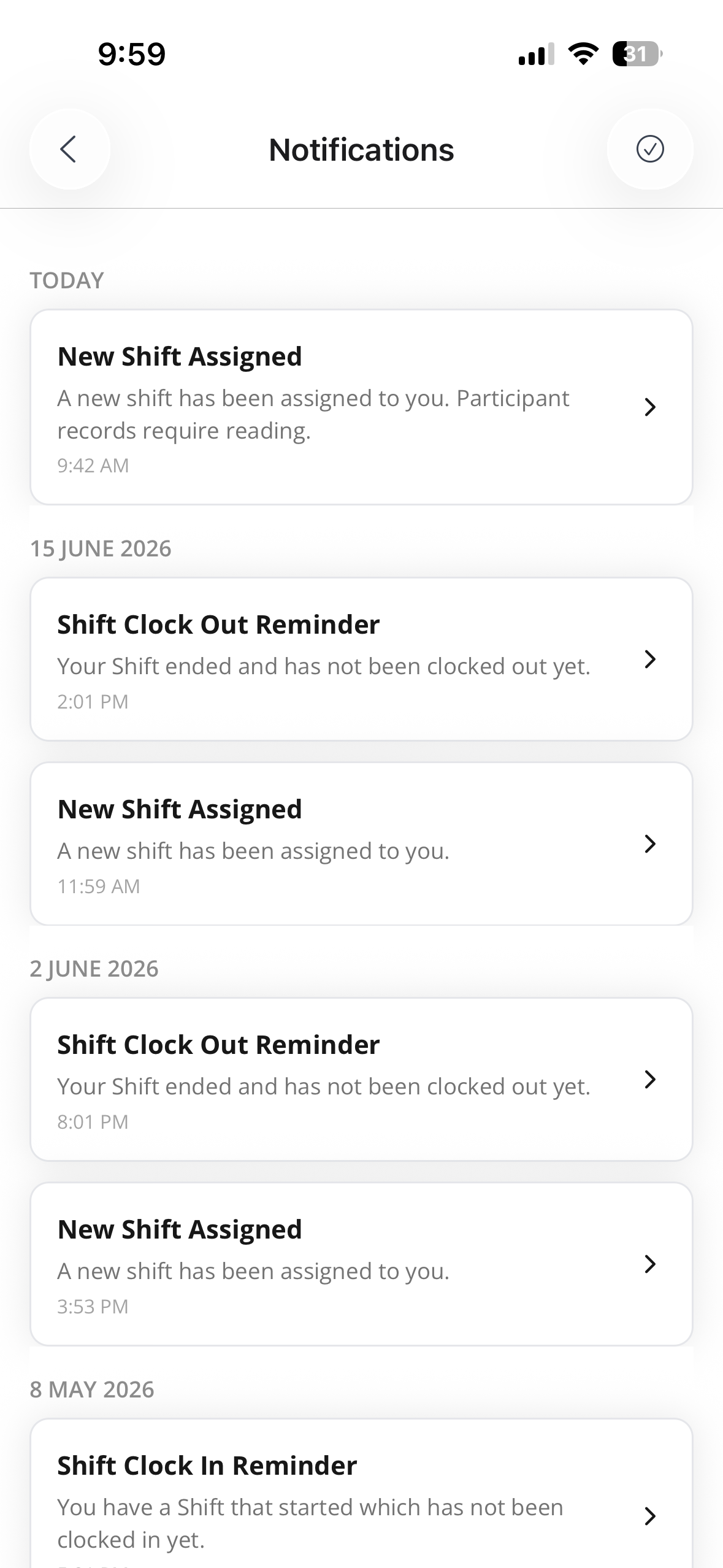
Notifications are listed in chronological order and grouped by Today, Yesterday, and then the full date for older notifications. Each entry shows its title, description, and time.
Notifications that open a shift, Shift Board entry, availability request, on-call period, Chat conversation, Record acknowledgement, User Record, or your Incomplete Shifts show a chevron. Select the notification to open that destination. Informational notifications without a destination cannot be selected.
Clearing Notifications
Select the tick icon in the top-right corner to clear the unread state and dismiss notifications from the device tray. This does not delete notification history from the page.
If you haven't received any notifications yet, the page will show No notifications yet.
Notification Types
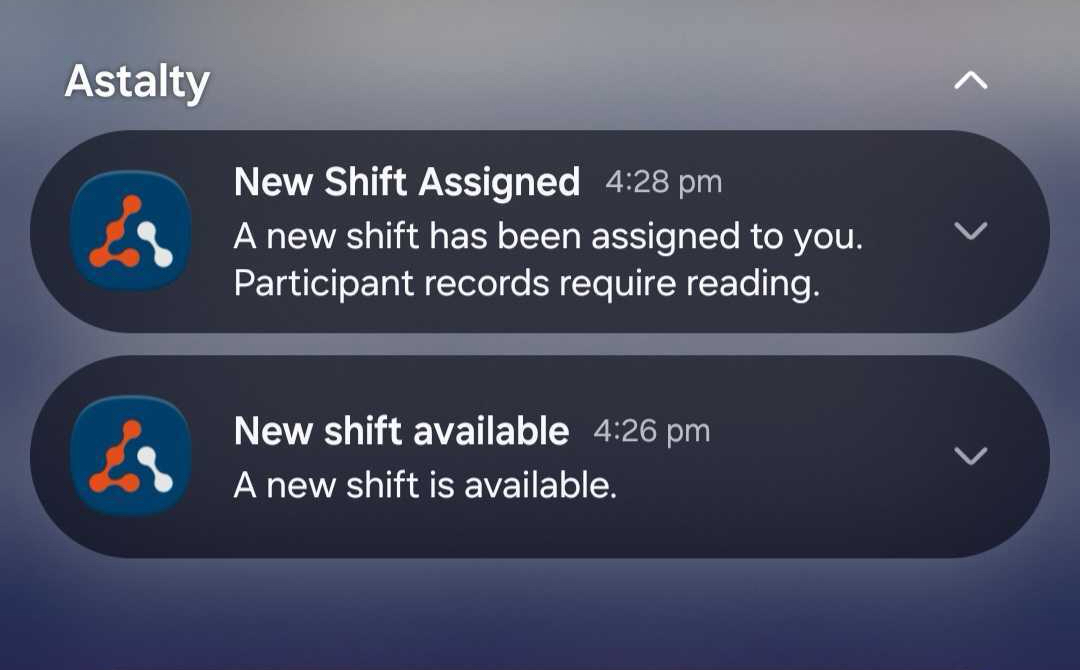
The Astalty app provides various app notifications whenever changes have been triggered. For example, a Support Worker may see notifications letting them know a new shift has been assigned to them or that a new shift is available:
Current notification types include:
Availability Approved
Your submitted availability (days/times you can work) has been reviewed and approved.
Missing Support Notes Reminder
You have required support notes that have not been completed.
If a Missing Support Notes Reminder Notification has been set up by an Admin user, Support Workers may be sent a push notification every Monday morning for the 7 days prior of any missed support notes.
New On-Call Period
You have been rostered on call, or given an existing on-call period. The notification gives the time of your next on-call and says if the period repeats. Select it to open the period. See On Call in the Support Worker App.
On-Call Period Cancelled
An on-call period you were rostered on has been deleted or given to another worker, or one occurrence of it has been skipped. Select it to open your list of on-call periods.
On-Call Period Updated
An on-call period you are rostered on has changed, such as its times, notes or how it repeats, a repeating period has been ended early, or one occurrence has been restored. Select it to open the period.
On-Call Starting Soon
A reminder that your on-call period is about to start. Your organisation sets how long before the start it arrives. Select it to open that on-call period.
Participant Record Acknowledgement Reminder
A Participant Record requires your acknowledgement. Select the notification to open the acknowledgement list.
Shift Assigned
You have been assigned or scheduled to work a specific shift.
Shift Available
A published Shift Board shift is available for you to view and express interest in.
Shift Cancelled
A scheduled shift has been cancelled.
Shift Clock In Reminder
A reminder that it is time, or almost time, to clock in for your shift.
Shift Clock Out Reminder
A reminder that your shift is ending and you should clock out.
Shift Deleted
A shift has been permanently removed from the schedule (not just cancelled).
Shift Expression of Interest Rejected
Your expression of interest in a Shift Board shift was rejected.
Shifts Published
New shifts or a new schedule have been released and are now visible to you.
Upcoming Shift
A reminder that one of your shifts is about to start. Your organisation sets how long before the start it arrives, from a minute up to a day. Select it to open the shift.
Shift Unassigned
You have been removed from a shift you were previously assigned to.
Shift Updated
Details of a shift (such as time, location, or role) have changed. It's a great time to select this notification to view the changes.
Support Document Uploaded
A support-related document has been uploaded and is available for you to view or use.
Chat Messages and Mentions
You received a direct message, group message, or mention in Chat. Select the notification to open the conversation.
User Record Expiry or Decline
A User Record is approaching expiry or was declined. Select the notification to open Your Records.
Troubleshooting
Not Seeing App Notifications?
If notifications do not appear, check the device settings and allow notifications for Astalty.
If the issue continues, log out and back in to refresh the device's notification registration. If that does not resolve it, contact support@astalty.com.au.