- Scheduling
- Recurring Shifts
Recurring Shifts
Overview
Use a recurring support when the same support repeats on a regular schedule. It can repeat daily, weekly, fortnightly, monthly or at a custom interval, with an end date up to two years away.
When the roster changes, choose the occurrences that should be updated instead of rebuilding the series.
Setting Up a Repeating Shift
Create a Support
When setting up a new support, look for the repeat options
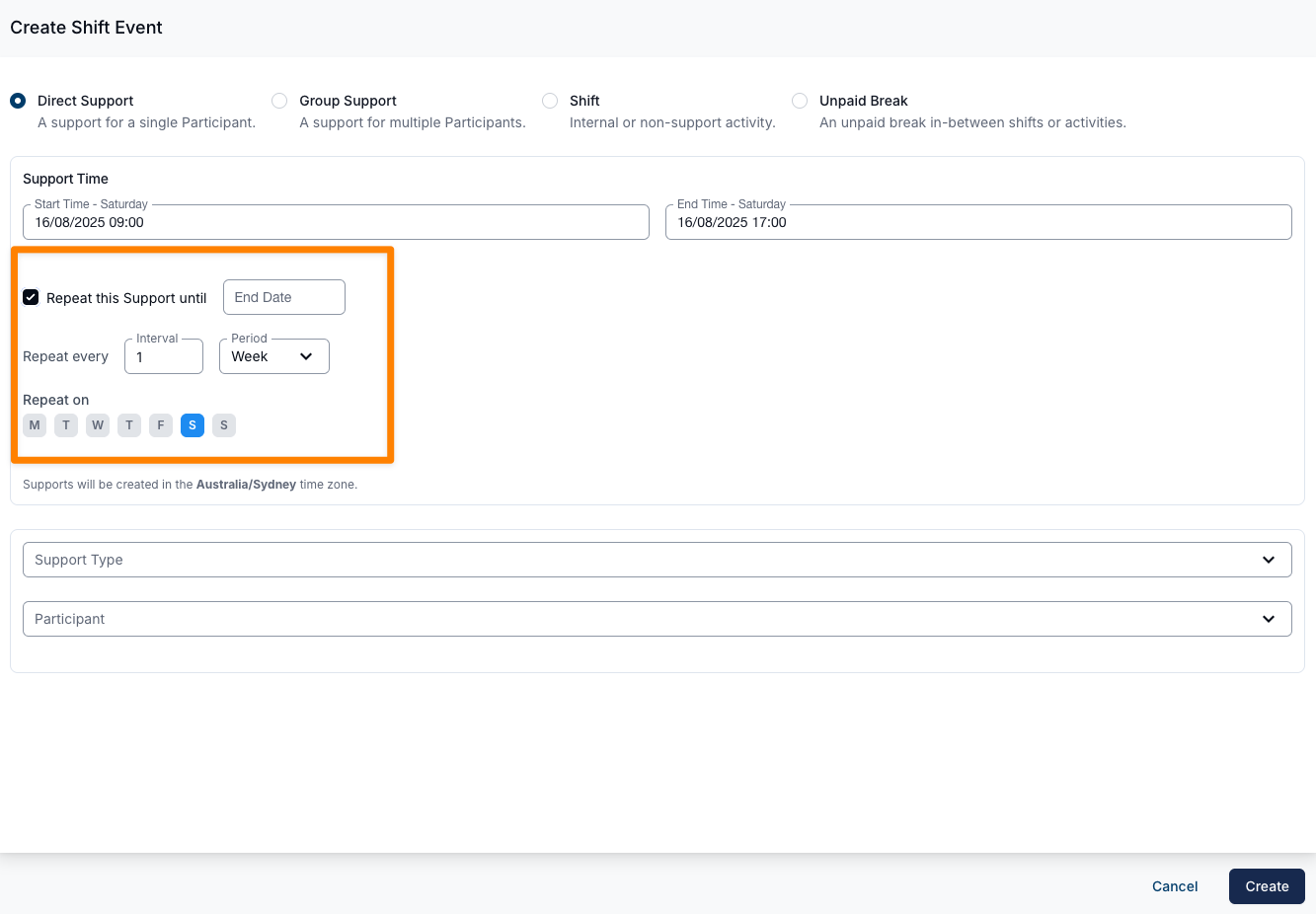
Set the End Date
Choose an end date for the repeating support (preset options include 1 Month, 6 Months, 12 Months, 2 Years, or until the Plan End Date*).
*If you select a Participant and then choose an end date, the option to select the Participant's Plan End Date will be available to set as the final date for the recurring support. If no Participant is selected, this option will be greyed out and unavailable.
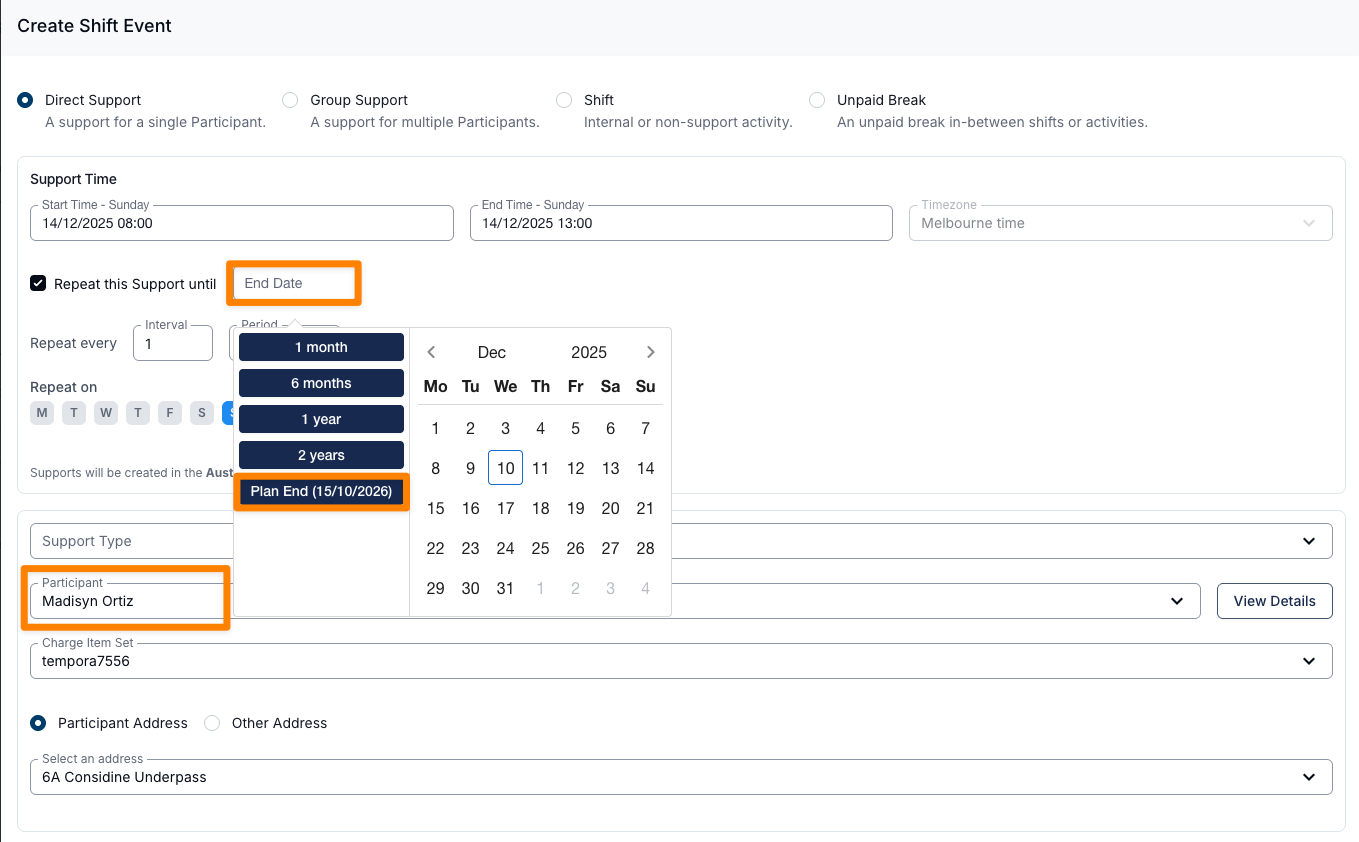
Choose the Repeat Interval
- Daily
- Weekly
- Fortnightly
- Monthly
- Custom intervals (e.g., every X days, weeks, or months)
Select the Days
Tick the days of the week the support should repeat on (optional)
Create the Repeating Support
Once created, the support will automatically be added to the schedule for each occurrence.
Choosing Which Shifts to Assign a Worker To
When you assign a Support Worker to a support that repeats, the Shift Preview displays every occurrence in the sequence as a timeline with a checkbox beside each date. Tick the occurrences you want to roster the worker on, and a running total (for example, 3 of 9 shifts selected) confirms your current selection.
To build the selection quickly, open the Select dropdown at the top of the preview for a set of shortcuts:
- All without clashes - selects every occurrence except the dates where the worker already has a clash.
- Every [Weekday] - selects every occurrence that falls on that weekday (for example, Every Monday).
- Every [Weekday] without clashes - selects every occurrence on that weekday, skipping the dates where the worker already has a clash.
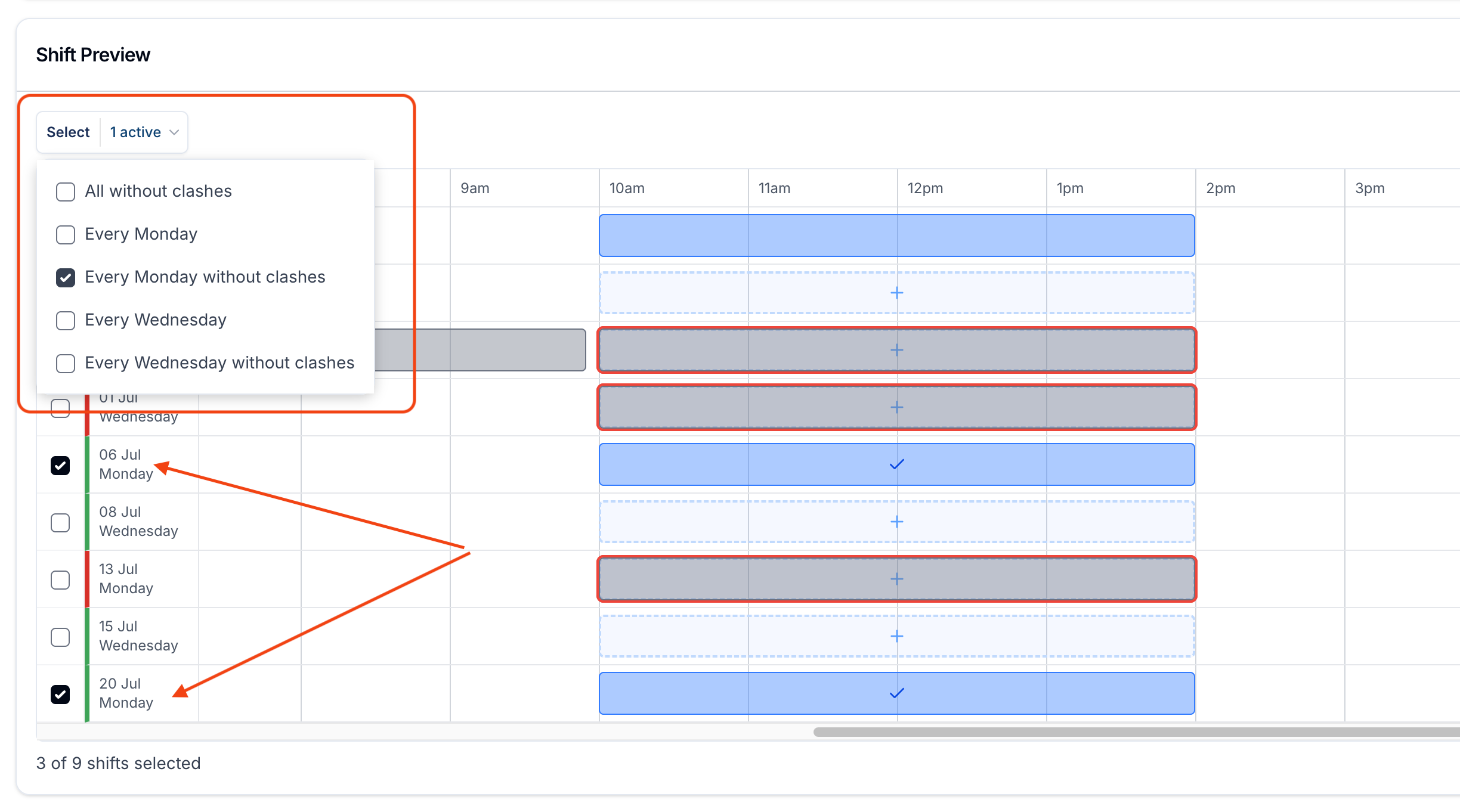
A weekday's without clashes option only appears when that weekday actually has a clash, so there are no duplicate shortcuts to sort through. This makes it easy to roster a worker across a full weekday and decide whether to include or skip the clashing dates - particularly handy when building a SIL roster day-by-day.
Managing Repeating Shifts
Unassigning or Reassigning
When unassigning or reassigning a Support Worker, you tick the occurrences the change should apply to. That lets you update:
- Only the selected shift
- The selected shift and all future shifts in the sequence
- The selected shift and just the future occurrences you pick
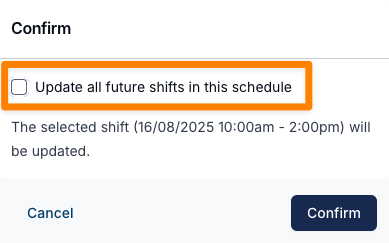
Astalty confirms which of the three you're about to do before the change is applied. For a full walkthrough of swapping a worker, see Reassigning a Support Worker.
Goals, Documents and Support Tasks can also be applied to a recurring Support across selected future occurrences, rather than the whole future sequence. See Support Goals and Documents and Support Tasks.
Cancelling or Reinstating a Range of Dates
Cancelling a Support in a repeating sequence works the same way - tick the future dates the cancellation should apply to and the rest of the series keeps running, rather than cancelling each date one by one. Reinstating a range of cancelled dates uses the same selection. See Cancelling a Range of Supports in a Recurring Series.
Viewing a Participant’s Recurring Supports
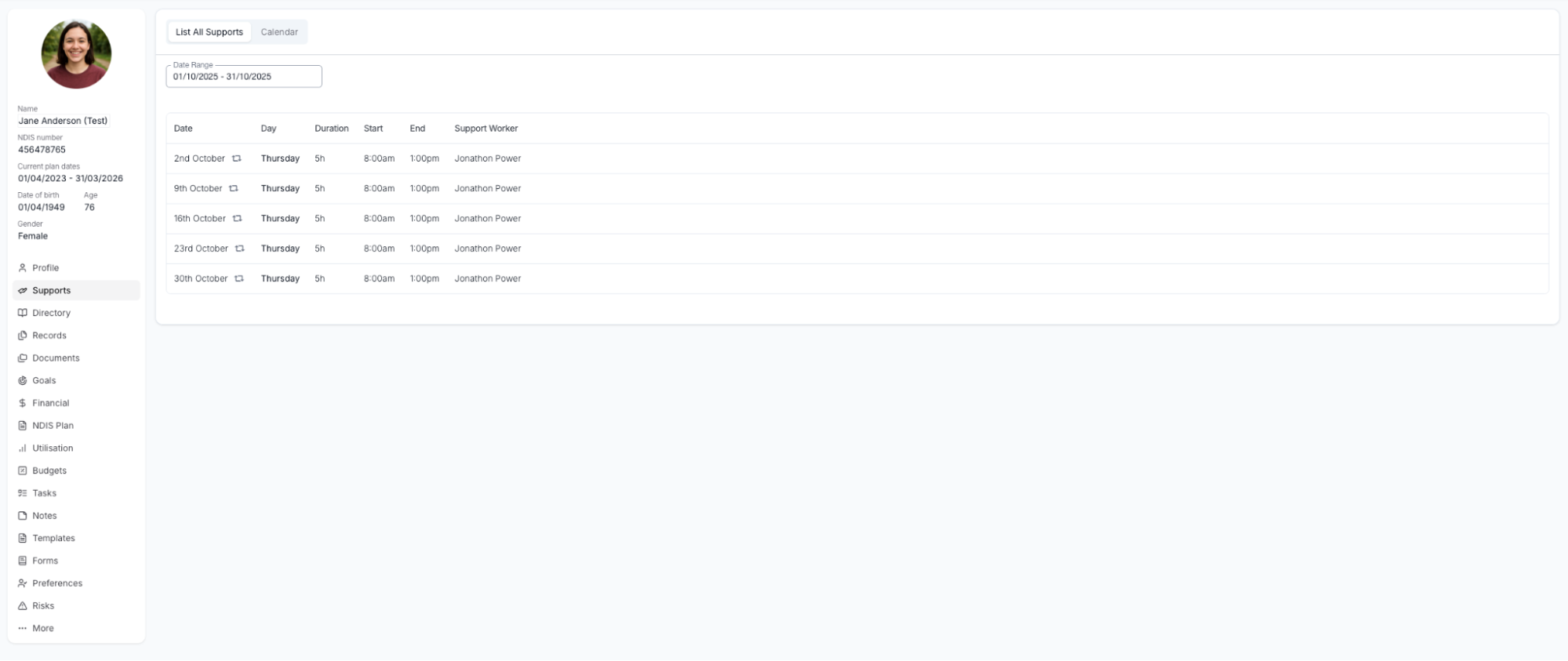
Go to the Participant's profile and set a date range to see all supports (including recurring ones) within that period. The 🔁 icon indicates that this shift repeats.
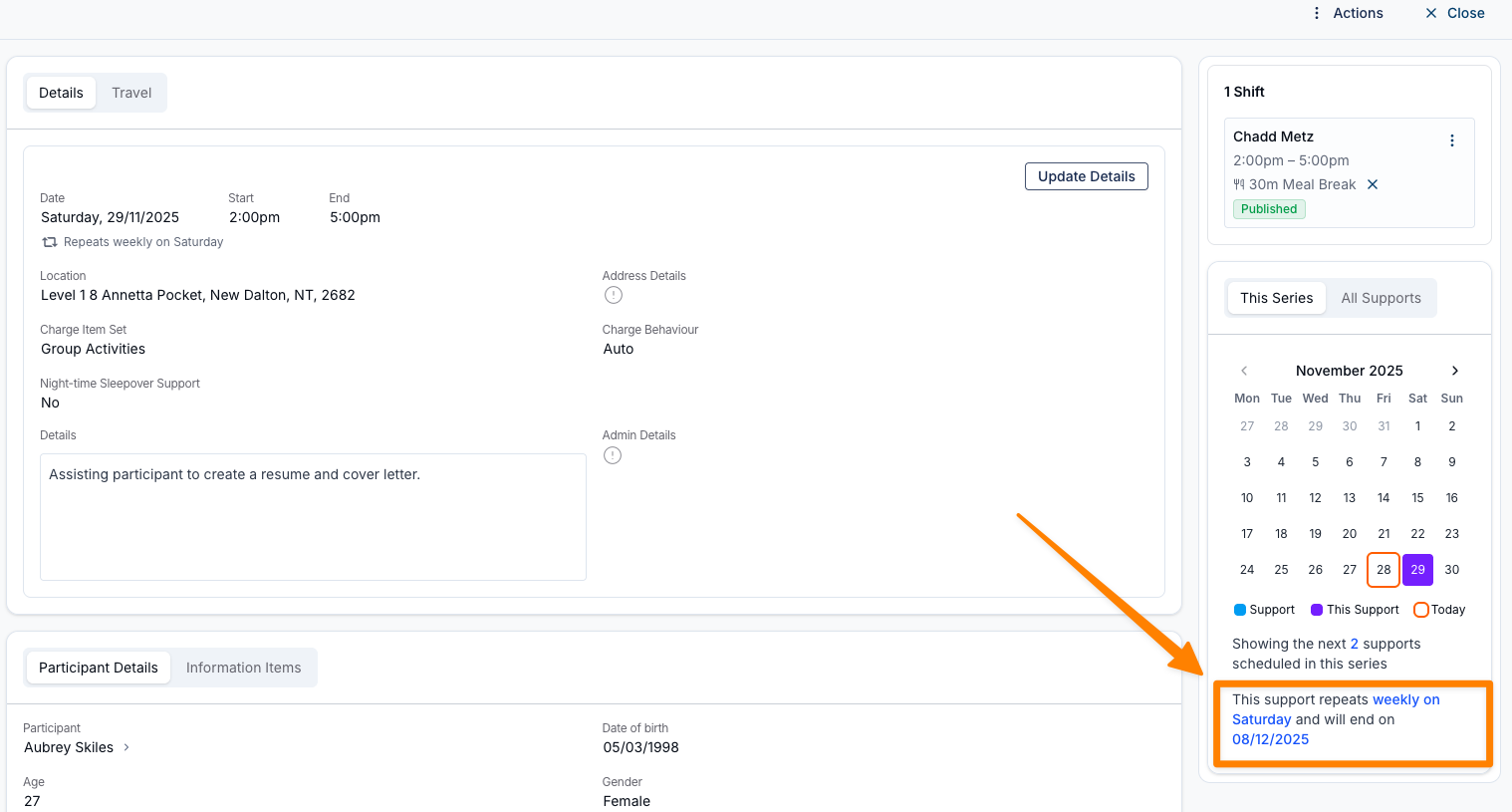
The mini schedule in the Participant's support shows the repeat frequency and end date for a recurring support.
Extending Recurring Shifts
Extending recurring shifts past their current end date is simple - especially if you're using the Recurring Shifts Ending Soon notifications.
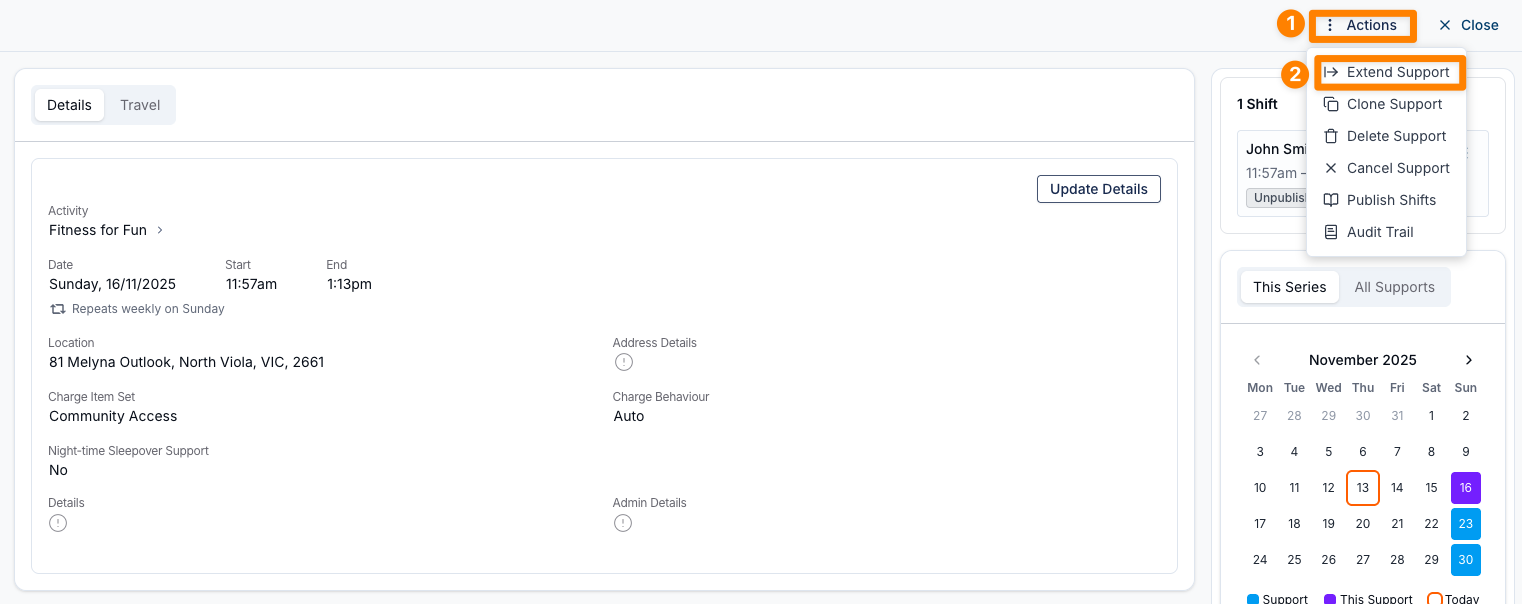
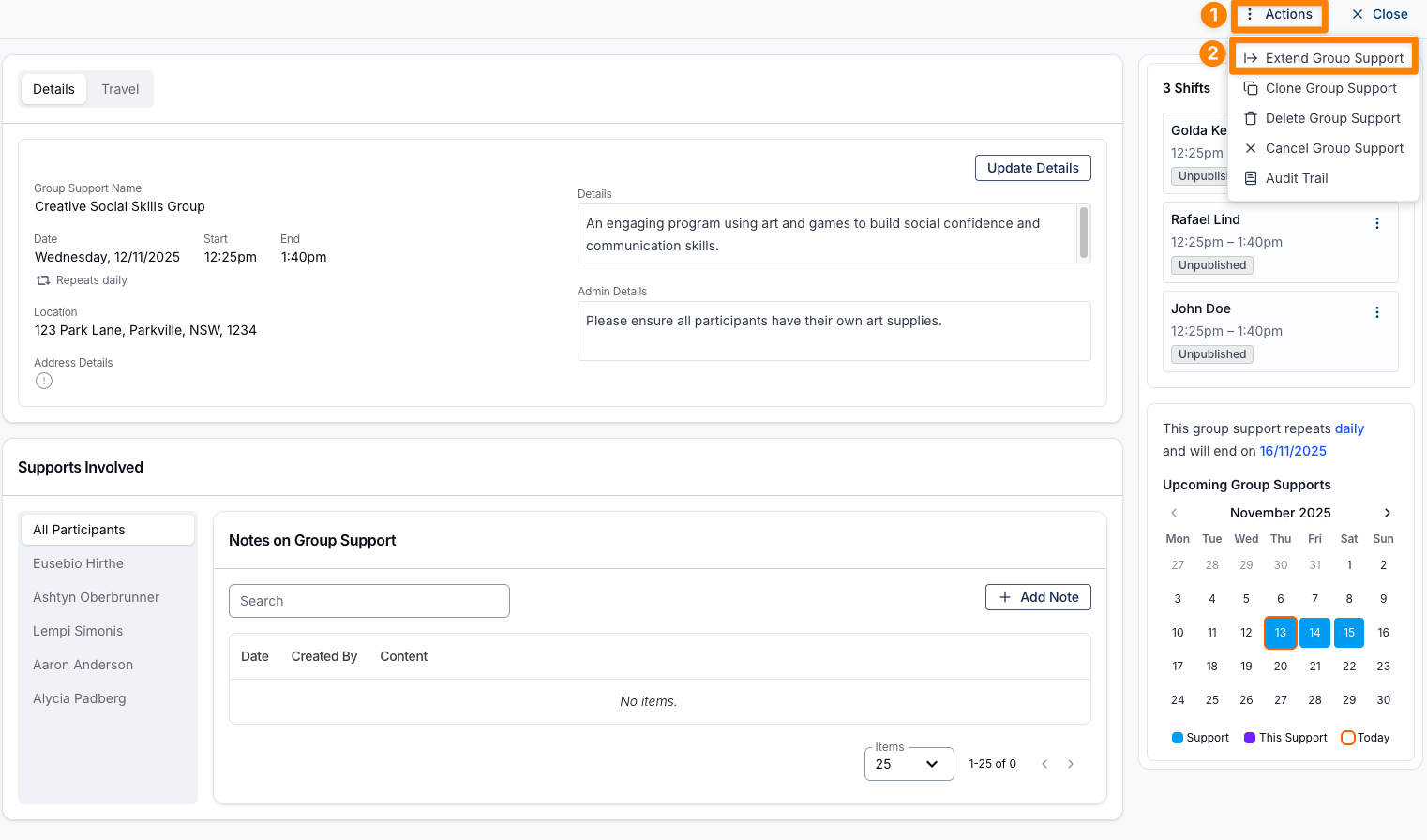
- Open the Support
- Click Actions
- Select Extend Support or Extend Group Support
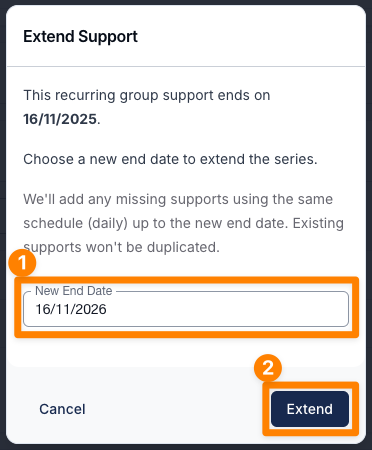
- Choose the new end date
- Click Extend to apply the update
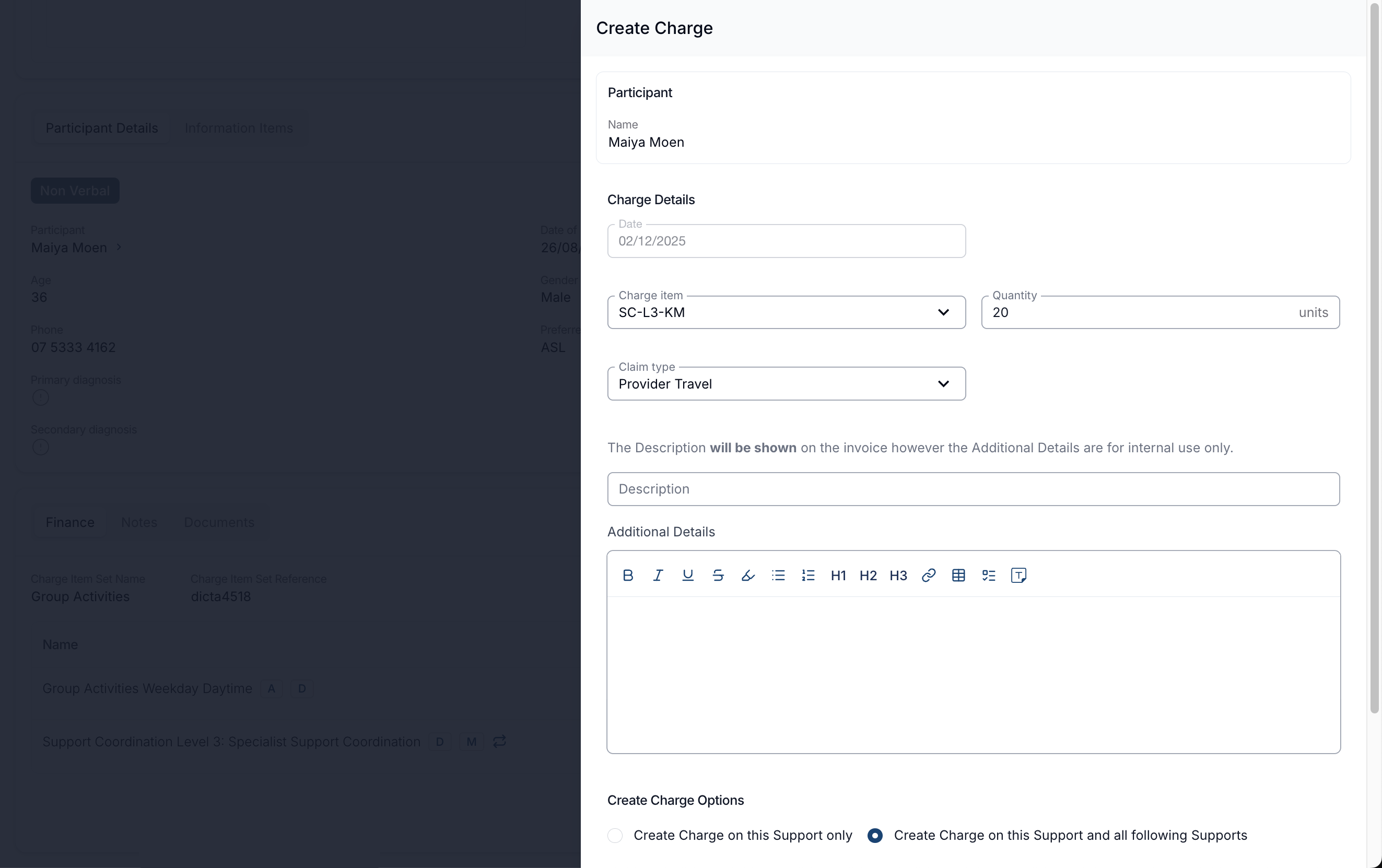
If a charge has been applied part way through an existing recurring support to all future Supports, it will include this newly added charge on all of the added supports created when extended.
Recurring Shifts Overview
This video introduces recurring shifts.