- Scheduling
- Support Goals and Documents
Support Goals and Documents
Overview
Goals and documents can be attached directly to a Support so workers and coordinators can see the information that relates to that specific shift.
- Use the Documents tab on a Support to upload support-specific files.
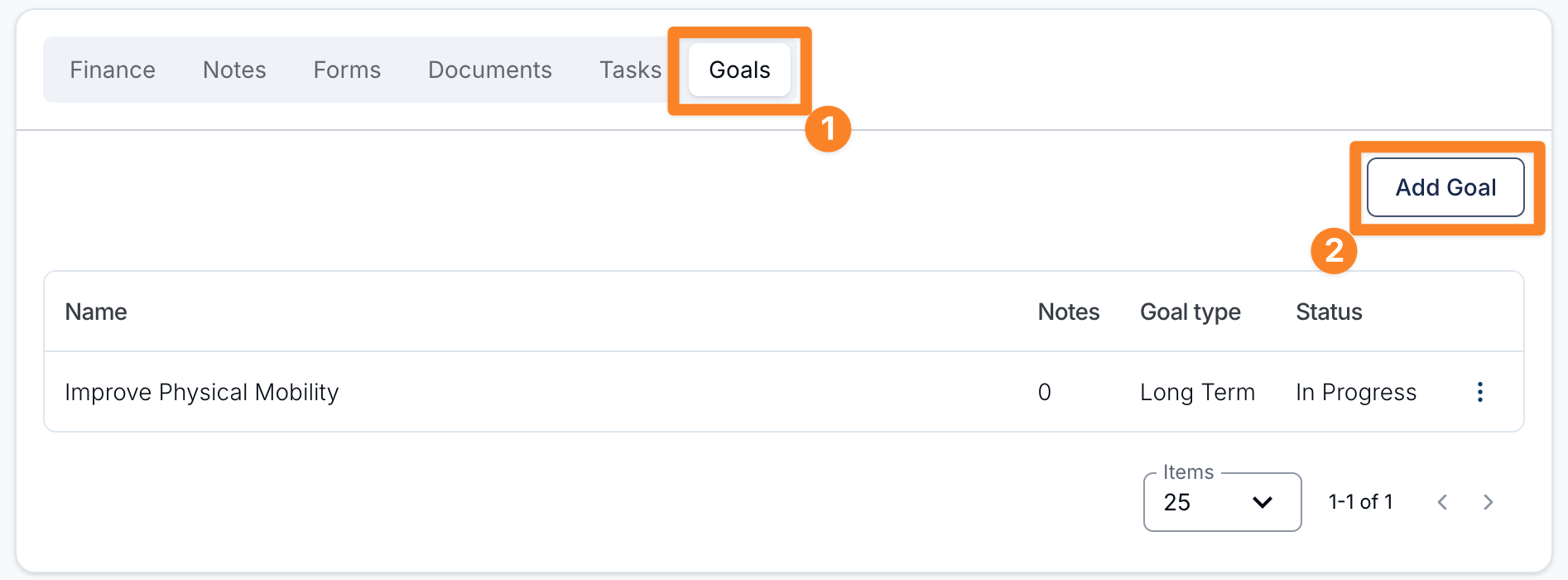
- Use the Goals tab on a Support to attach existing Participant Goals to that Support.
For non-recurring Supports, adding a Goal or uploading a Document works on the current Support only. Recurring Supports include an extra picker so you can choose whether the item should also be added to selected future Supports in the same series.
Uploading Documents to a Support
- Open the Support from the Schedule.
- Select the Documents tab.
- Click Upload Documents.
- Choose or drag in the file you want to upload.
- Edit the Document name and add Categories if needed.
- Complete the upload.
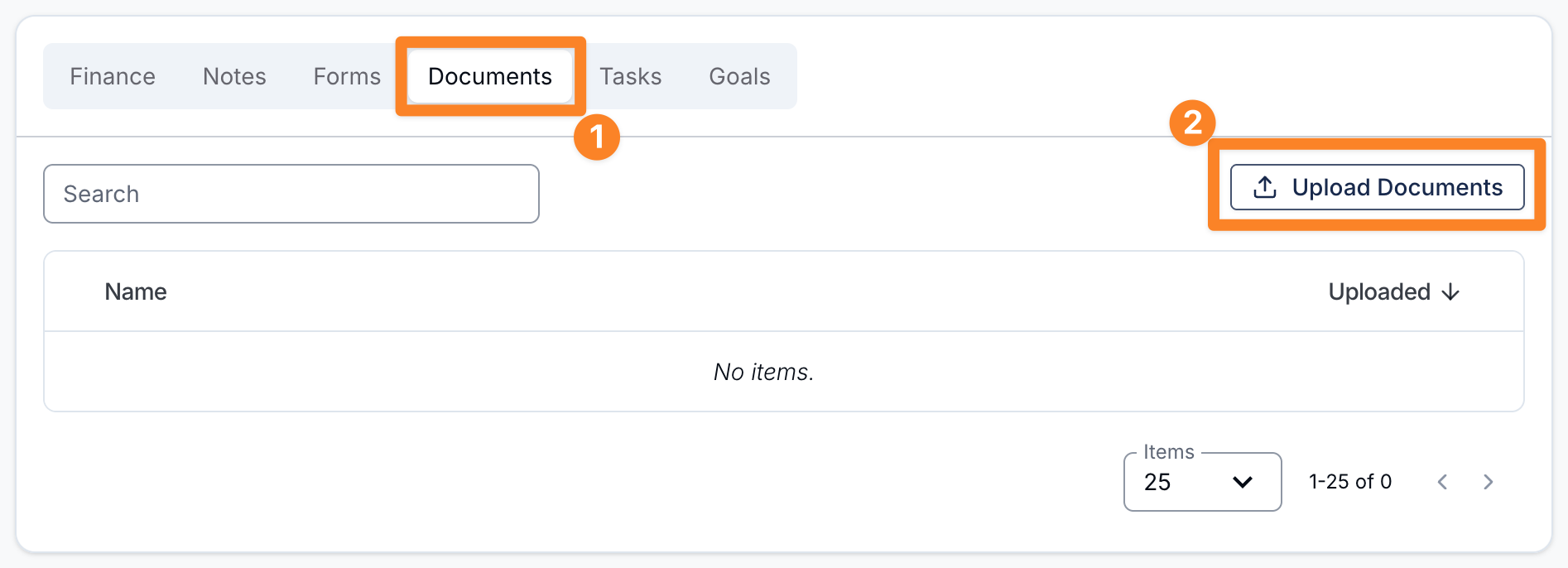
On a non-recurring Support, the Document is added to that Support only.
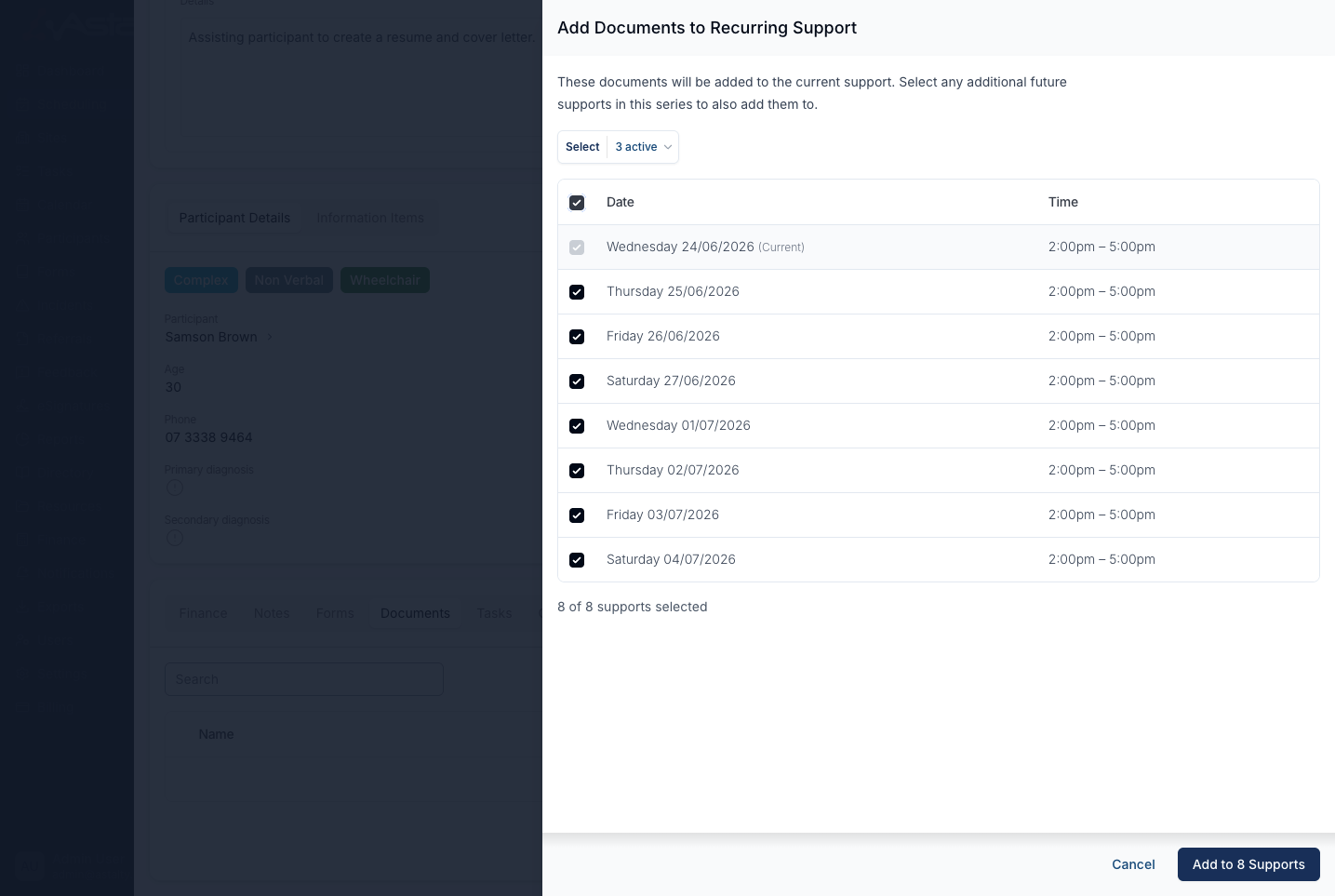
On a recurring Support, Astalty opens the Support selection step after the upload form so you can choose any selected future Supports that should also receive the Document.
Attaching Goals to a Support
- Open the Support from the Schedule.
- Select the Goals tab.
- Click Add Goal.
- Search for and select the relevant Participant Goal.
Only Goals for the Participant on the Support can be selected. Archived Goals are not available.
The tab also lists any Goal a Support Worker tagged on a case note for this Support, because tagging a Goal on a note links it to the Support as well. See Adding Goals to a Case Note.
On a non-recurring Support, the Goal is added to that Support only.
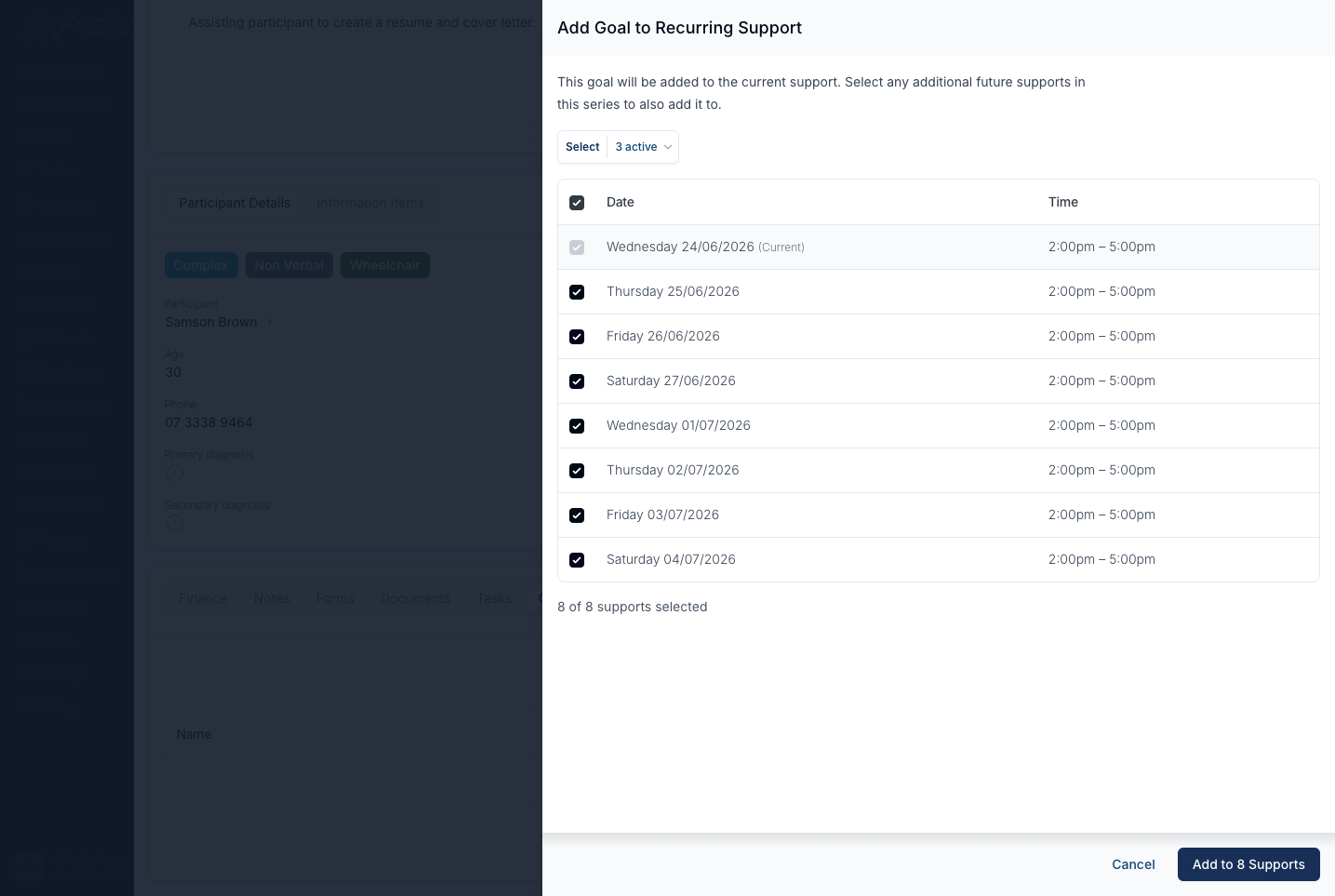
On a recurring Support, Astalty opens the Support selection step after you choose the Goal so you can choose any selected future Supports that should also receive it.
The Goal's own page lists every Support linked to it the same way - see Viewing Supports Linked to a Goal.
Adding to Selected Future Supports
When you upload Documents or add a Goal on a recurring Support, Astalty opens a recurring Support picker before saving the change.
The picker includes:
- the current Support, selected by default
- future Supports in the same recurring series
- dates and times for each occurrence
- a select-all checkbox if you want to include every listed future Support
The current Support cannot be unticked. Select any additional future Supports that should receive the same Goal or Document, then click Add to X Supports.
This lets you add the same Goal or Document to the current Support and only the future occurrences you choose. Future Supports that you leave unticked are not changed.
Group Supports
For recurring Group Supports, Goals are managed from the relevant Participant inside Supports Involved. When the picker appears, it applies the Goal to that Participant's Support in the selected future group occurrences.
Deleting or Detaching Items
- Documents - deleting a Document that was uploaded to multiple Supports removes that shared Document from every Support it was attached to.
- Goals - detaching a Goal removes it from the Support you are viewing. If the same Goal was attached to other Supports, detach it from those Supports separately. Detaching also clears that Goal from any case note on the Support where a Support Worker had tagged it.
Important Points
- Non-recurring Supports are unchanged and do not show the future Support picker.
- The picker only allows future Supports from the same recurring series.
- The current Support is always included.
- Uploading a Document to multiple selected Supports creates one shared Document attached to each selected Support.
- Adding a Goal to multiple selected Supports links the same Participant Goal to each selected Support.
For general recurring shift setup, see Recurring Shifts. Support checklist items use the same picker - see Support Tasks.