Messaging Group Support Participants via SMS
Send a one-off SMS to everyone booked on a group support - for example to let the group know a session has moved, or that a Support Worker is running late.
Overview
This is a manual, one-off send: you write the message, choose who gets it, and send it yourself. It is different from SMS Reminders, which go out automatically ahead of a scheduled support, and from Bulk Communications, which emails Participants across a whole date range their schedule as a PDF rather than texting one support's group.
Astalty pre-selects every Participant booked on the group support, so you remove anyone you don't need rather than adding people one at a time. Each message goes to the Participant individually - nobody can see who else was messaged - and replies land in your SMS inbox in that Participant's own conversation.
The message goes to Participants only. Their nominated reminder contacts are not included, even if those contacts receive SMS Reminders for the same support.
Before You Start
You'll see the Message participants via SMS action only when all of the following are true:
- Your provider has Two-Way SMS enabled with a dedicated number you can access.
- You have the Can access the SMS inbox permission. By default, only Admins have it. See Granting access to the SMS inbox.
- The group support has at least one Participant who hasn't cancelled.
Sending a Message to the Group
- Go to the Schedule and open the group support.
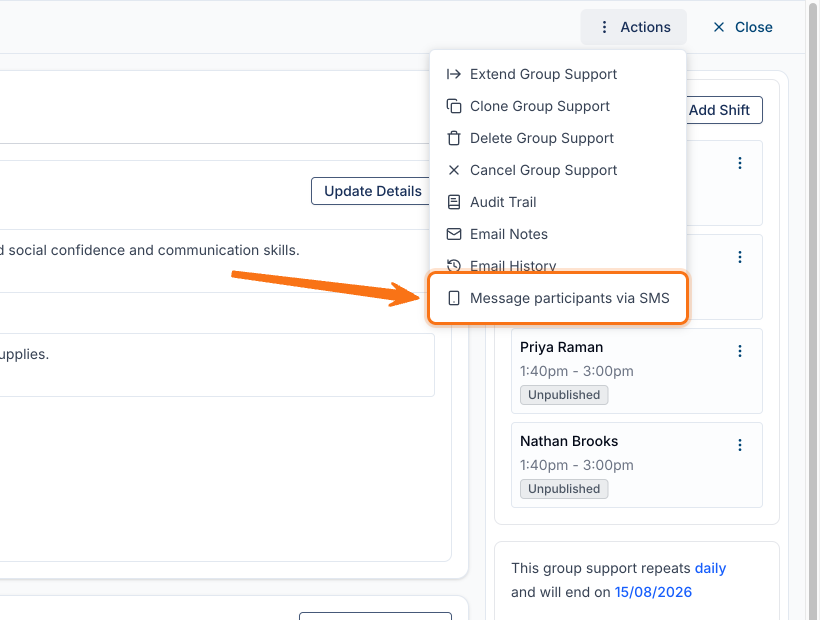
- Open the Actions menu and select Message participants via SMS.
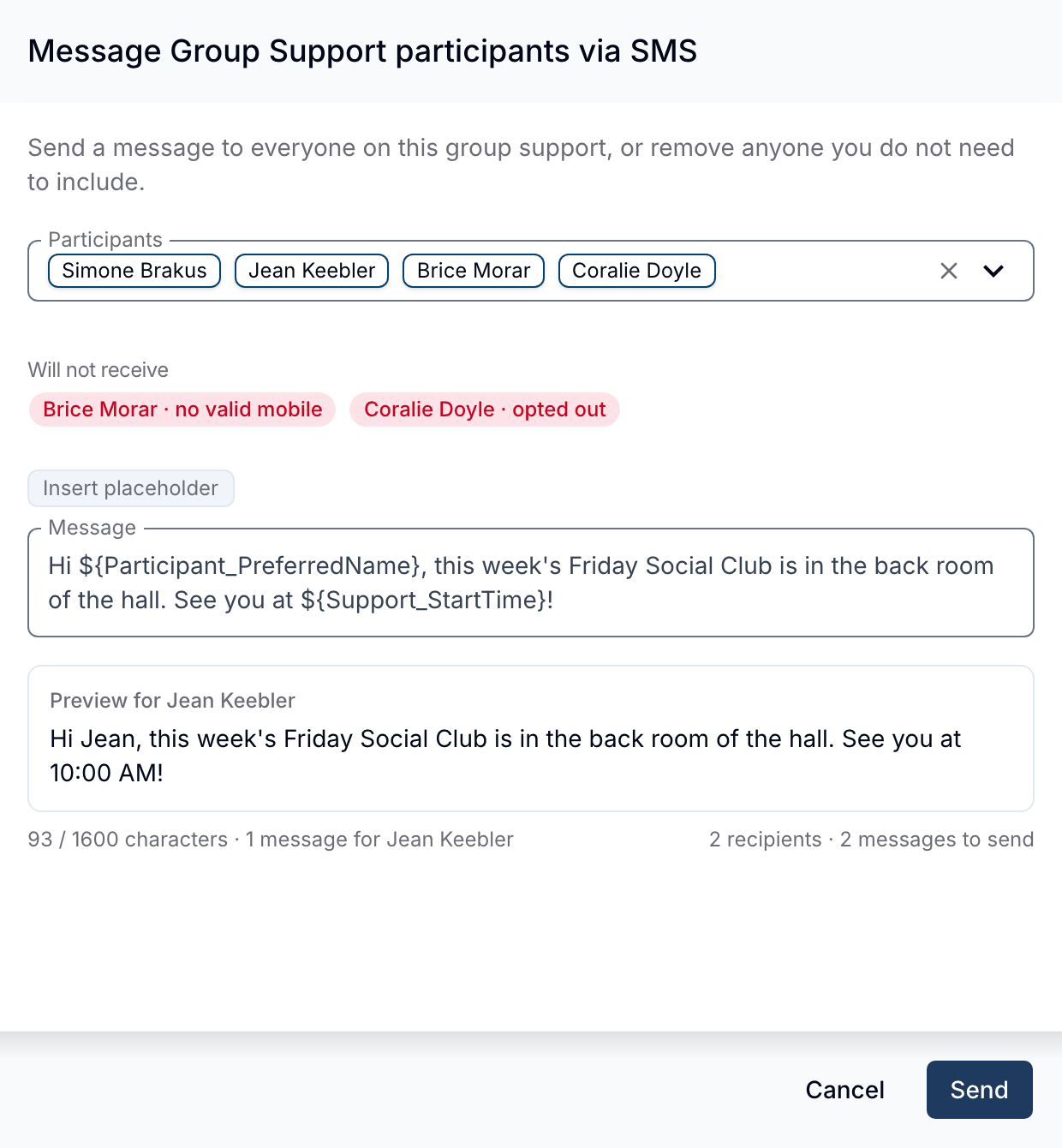
- In the Participants field, remove anyone who shouldn't receive the message. Everyone booked on the support is selected to begin with.
- Type your Message, using Insert placeholder to add any personalised fields.
- Check the preview and the Will not receive list, then click Send.
- Confirm on the Send this message? prompt, which repeats how many Participants will and won't receive it, along with the preview.
Once the messages are queued, the drawer confirms how many Participants are being sent the message and offers a Go to SMS inbox button so you can follow the conversations and any replies.
Personalising the Message
Placeholders are replaced with each Participant's own details as the message is sent, so one message can greet everyone by name. Insert them with the Insert placeholder button above the Message field, or type them exactly as written below.
| Placeholder | What it inserts |
|---|---|
${Participant_PreferredName} | The Participant's preferred name, falling back to their first name when none is recorded |
${Participant_FirstName} | The Participant's first name |
${Participant_FullName} | The Participant's full name |
${Support_Name} | The group support's name |
${Support_StartDate} / ${Support_EndDate} | The support's start and end date, e.g. "Tuesday 1 September" |
${Support_StartTime} / ${Support_EndTime} | The support's start and end time, e.g. "9:00 AM" |
Dates and times are formatted in the group support's own timezone, not your provider's - which matters when you roster across states.
The preview under the message box shows the message exactly as one recipient will receive it, with the placeholders filled in, so you can check the wording before you send. It is for whoever comes first alphabetically among those who will receive it, and it names them.
Checking Who Will Receive It
Anyone who can't be messaged appears under Will not receive, with the reason. They're never silently dropped.
| Reason | What it means |
|---|---|
| no valid mobile | The Participant has no mobile number, or the number isn't a valid mobile |
| opted out | The Participant has replied STOP (or similar) and opted out of SMS. They can opt back in by replying START |
| archived | The Participant has been archived |
| shares a number | Two Participants have the same mobile number, so only one message is sent to it |
| message too long | Once this Participant's placeholders were filled in, their message went over 1,600 characters |
You may also see a not visible to you count. These are Participants on the group support that your access doesn't let you see - they're counted so the totals add up, but they're never named and never messaged.
Things to Keep in Mind
- Cancelled Participants are excluded. A Participant whose place on the group support has been cancelled isn't offered as a recipient. A group support that has itself been cancelled can still be messaged, which is how you tell the group it's off.
- 1,600 characters is the limit. It applies both to what you type and to each Participant's message once their placeholders are filled in, so a message that's within the limit for one Participant can still be too long for another with a longer name.
- Long messages cost more. SMS is billed per segment, and the counter under the message box shows both the messages per recipient and the total messages to send. Non-GSM characters - emoji, curly quotes, em dashes - cut a segment from 160 characters to 70, so a short message with an emoji can cost double.
- You can message up to 200 Participants at once.
- The Send button waits for the preview. It stays disabled while the preview is catching up with your latest edit, and while nobody in the selection can actually receive the message.
- Sends aren't all-or-nothing. If one Participant can't be reached, the rest still go out. The confirmation counts only the messages that were queued, so if that number is lower than you expected, check the SMS inbox to see who was sent to before you try again.
- Replies go to the SMS inbox, not to you personally. Anyone with inbox access can see and answer them, so make sure somebody is watching after a send that invites a reply.
- Consent still applies. As with any SMS from Astalty, you need valid consent from each recipient - see Two-Way SMS.