- Scheduling
- Managing Availability
Managing Availability
Overview
Use Availability to record when Support Workers can work and to review their requests. Workers can submit availability and leave requests in the app. Manage one-off or recurring requests from their user profile or from Scheduling, then check how approved time off affects the roster.
Creating Availability
To add an entry for another user, open their profile under Users, select Availability, then select Create Unavailability.
Choose the Type first:
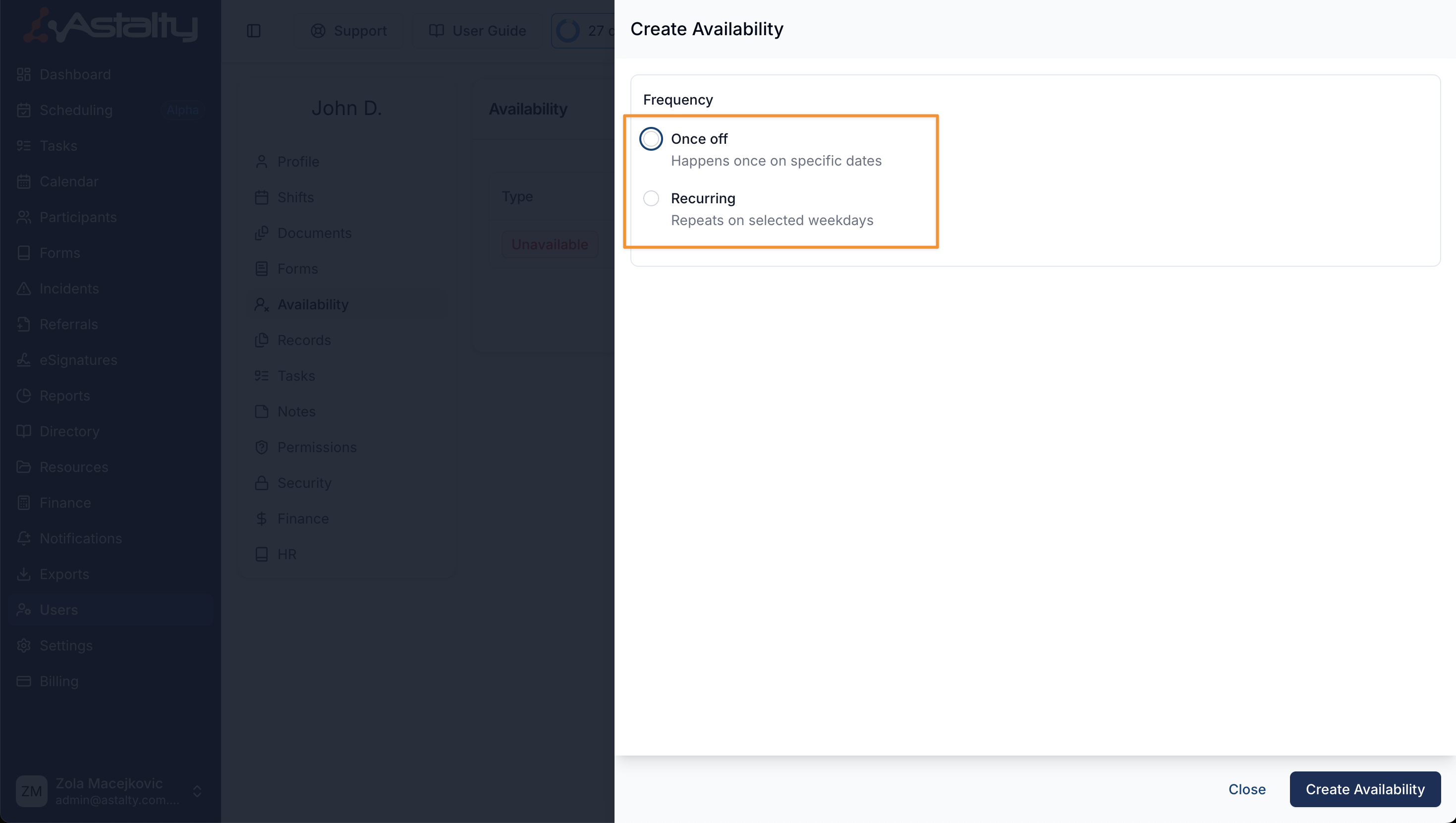
- Unavailability can be Once-off or Recurring. A once-off entry can cover one day or multiple days. A recurring entry can have an end date or be Ongoing, and can repeat every week or fortnight on selected days.
- Leave is a once-off entry. Select a Leave Type, then choose one day or multiple days. Leave cannot be recurring.
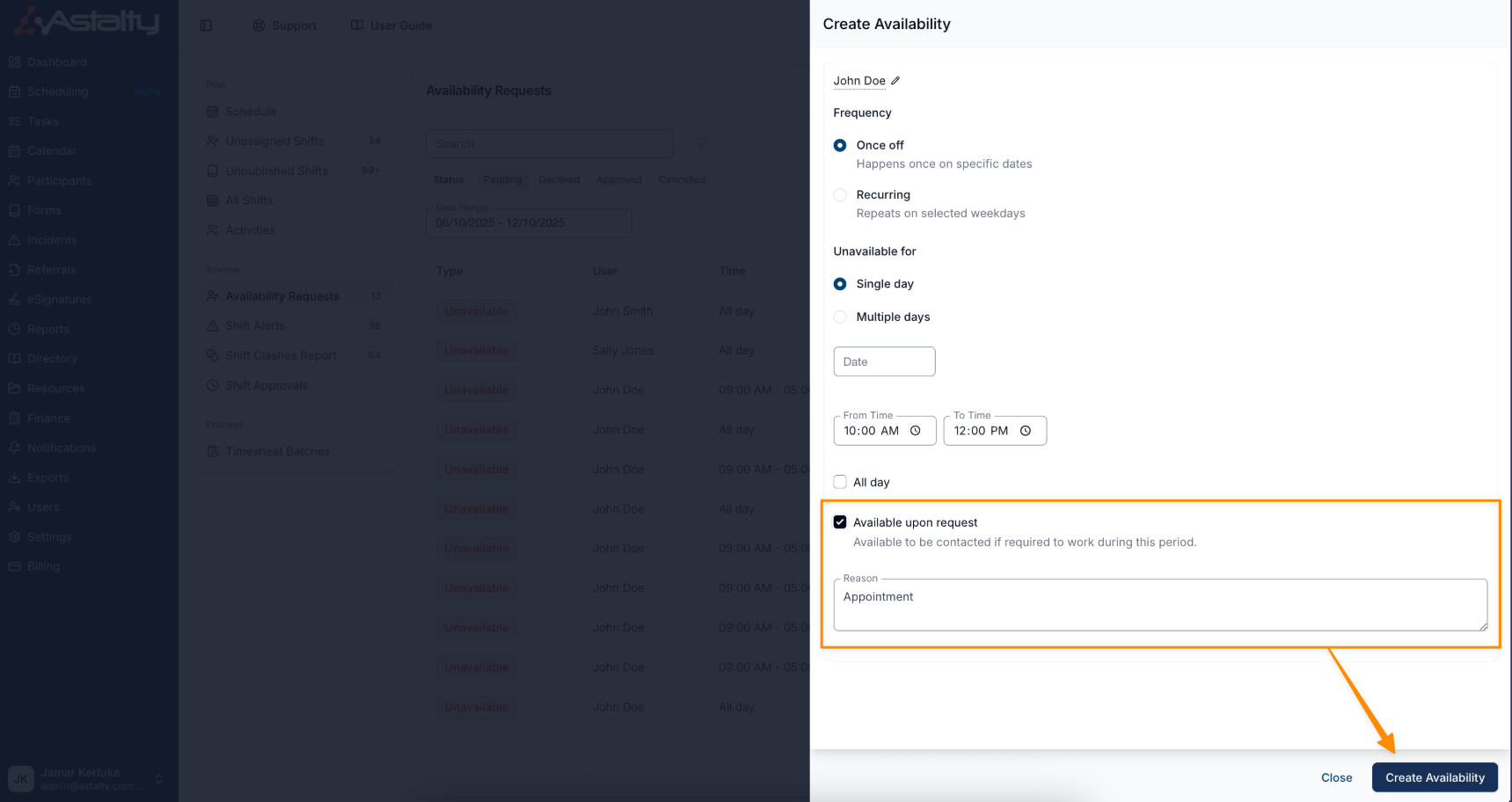
For either type, select All day or enter From Time and To Time. For Unavailability, you can also turn on Available upon request when the worker may still be contacted about work during that period.
Enter a reason, review the dates and times, then select Create.
Viewing Availability
Once submitted, availability entries appear in the Availability section of the user's profile and in Scheduling. The type is indicated by a coloured tag:
- Red ‘Unavailable’ tag, indicates the Support Worker is unavailable.
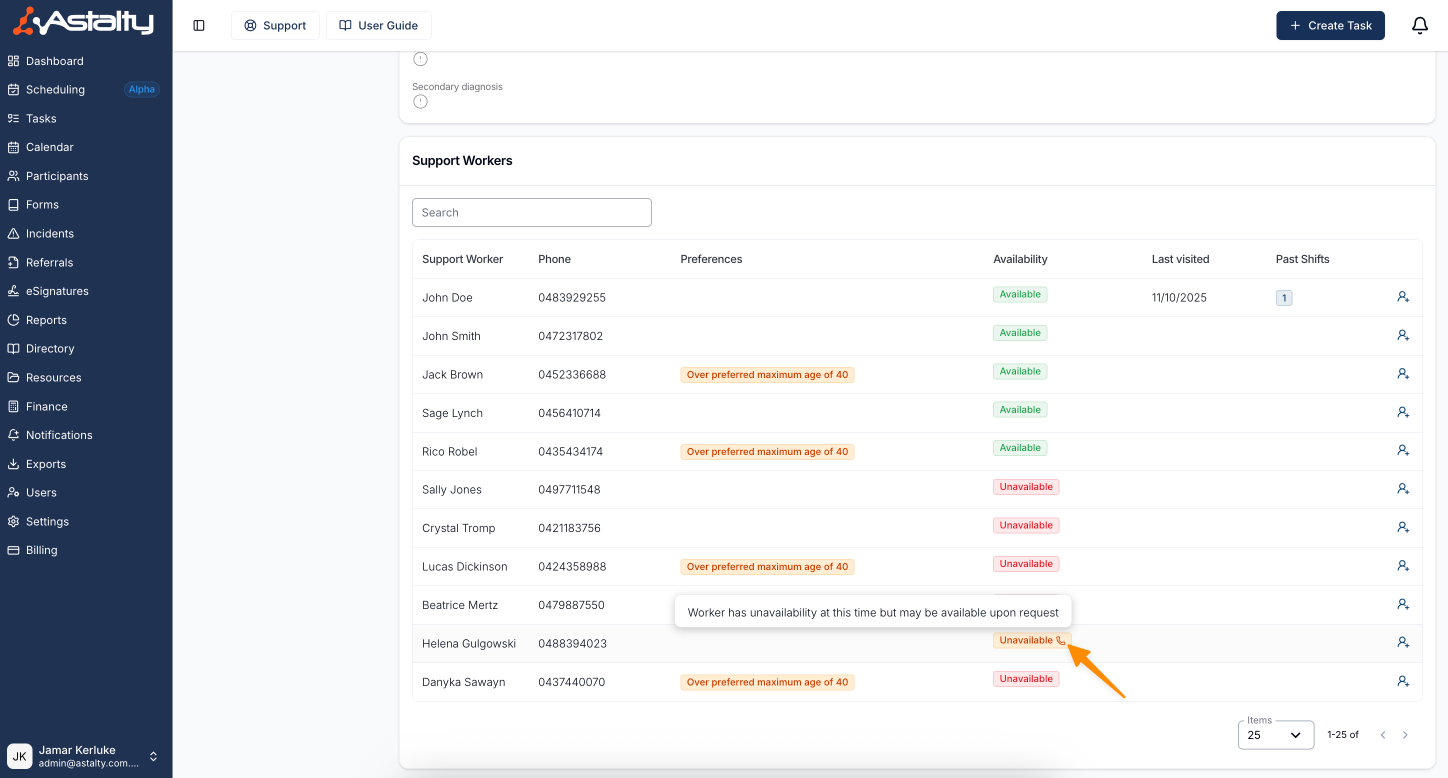
- Orange ‘Unavailable’ tag with a phone icon, indicates the Support Worker is available upon request.
- Green 'Available' tag, indicates the Support Worker has not got any conflicting availability.
Viewing Availability in the User Profile
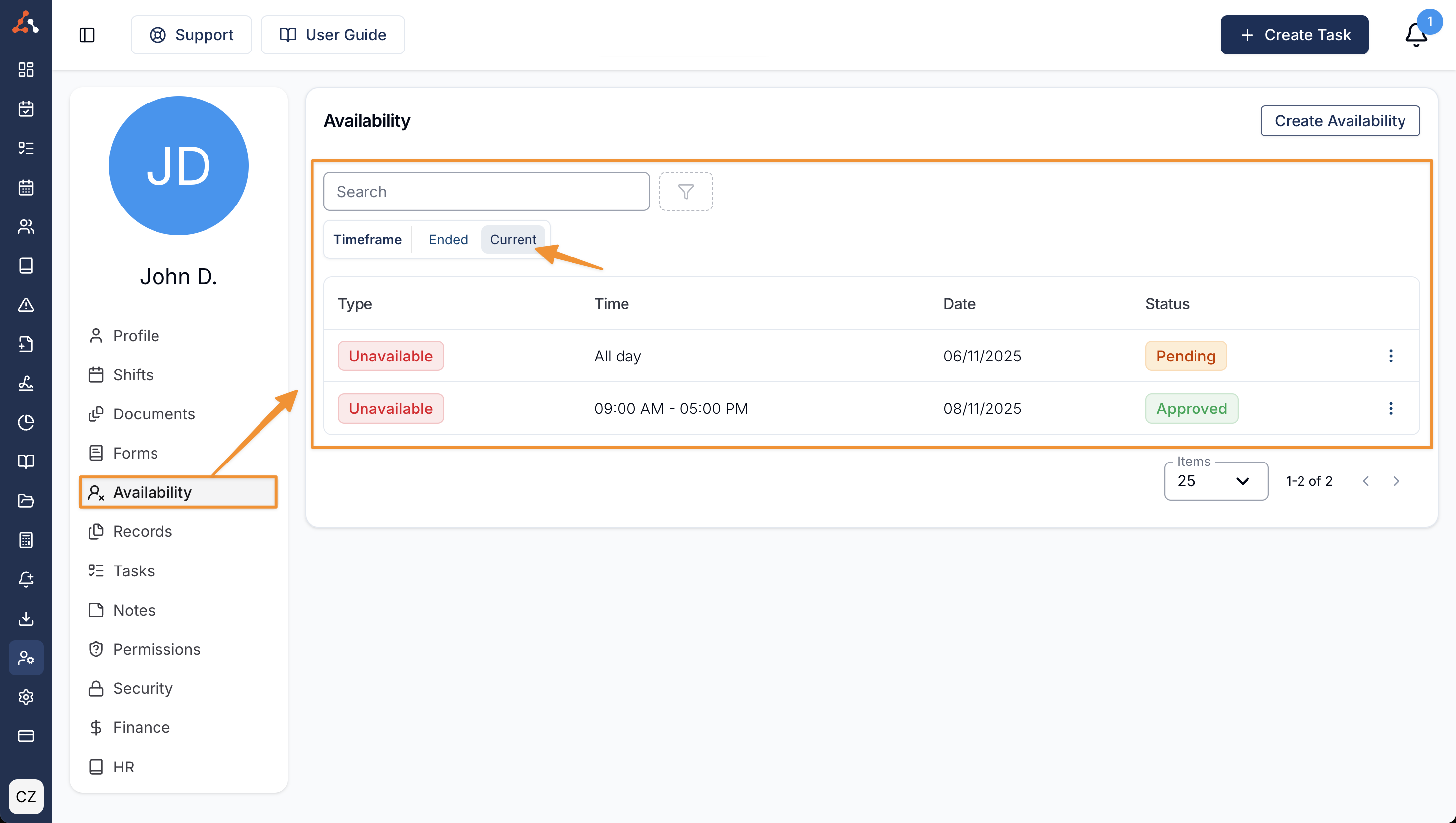
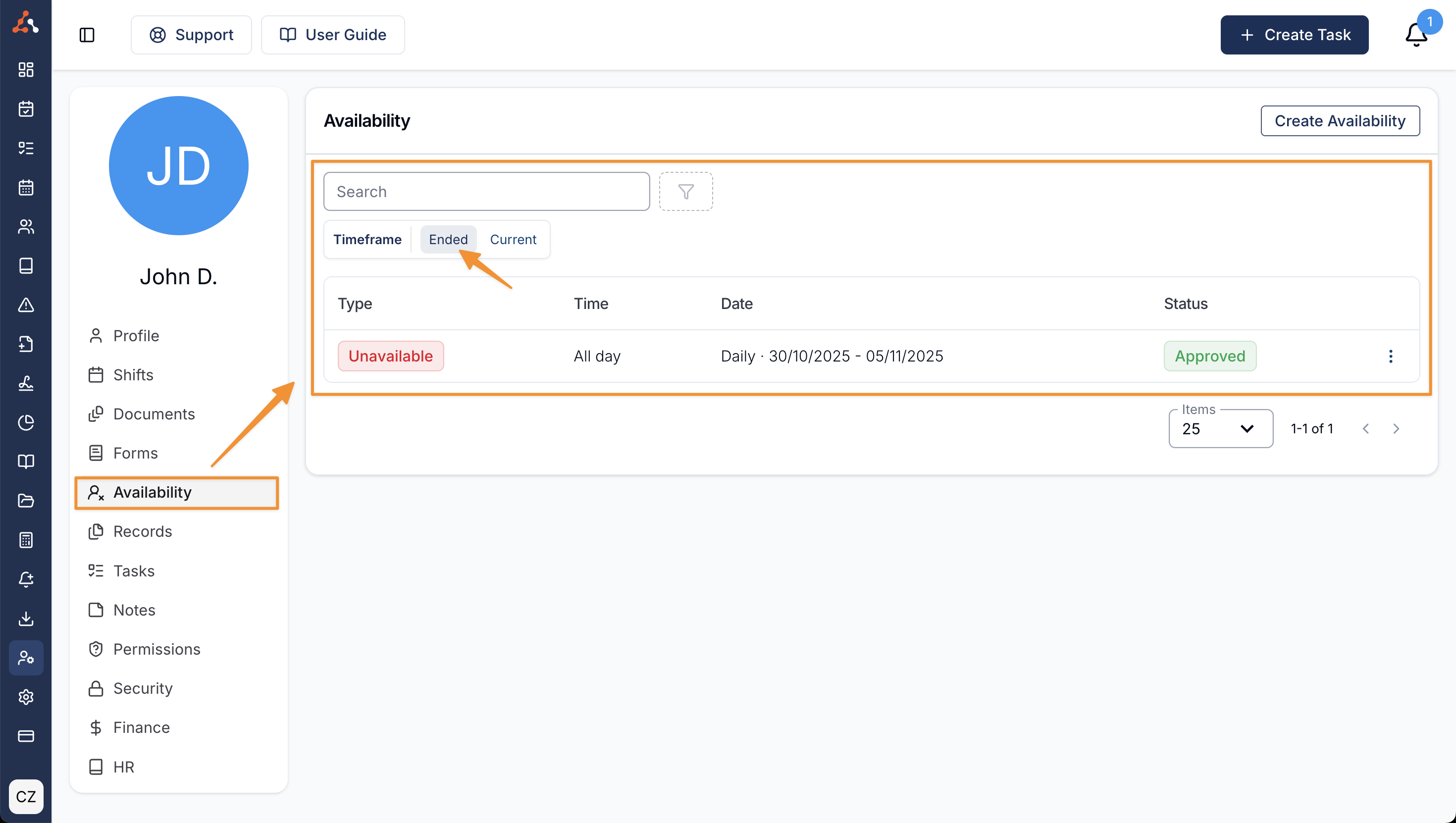
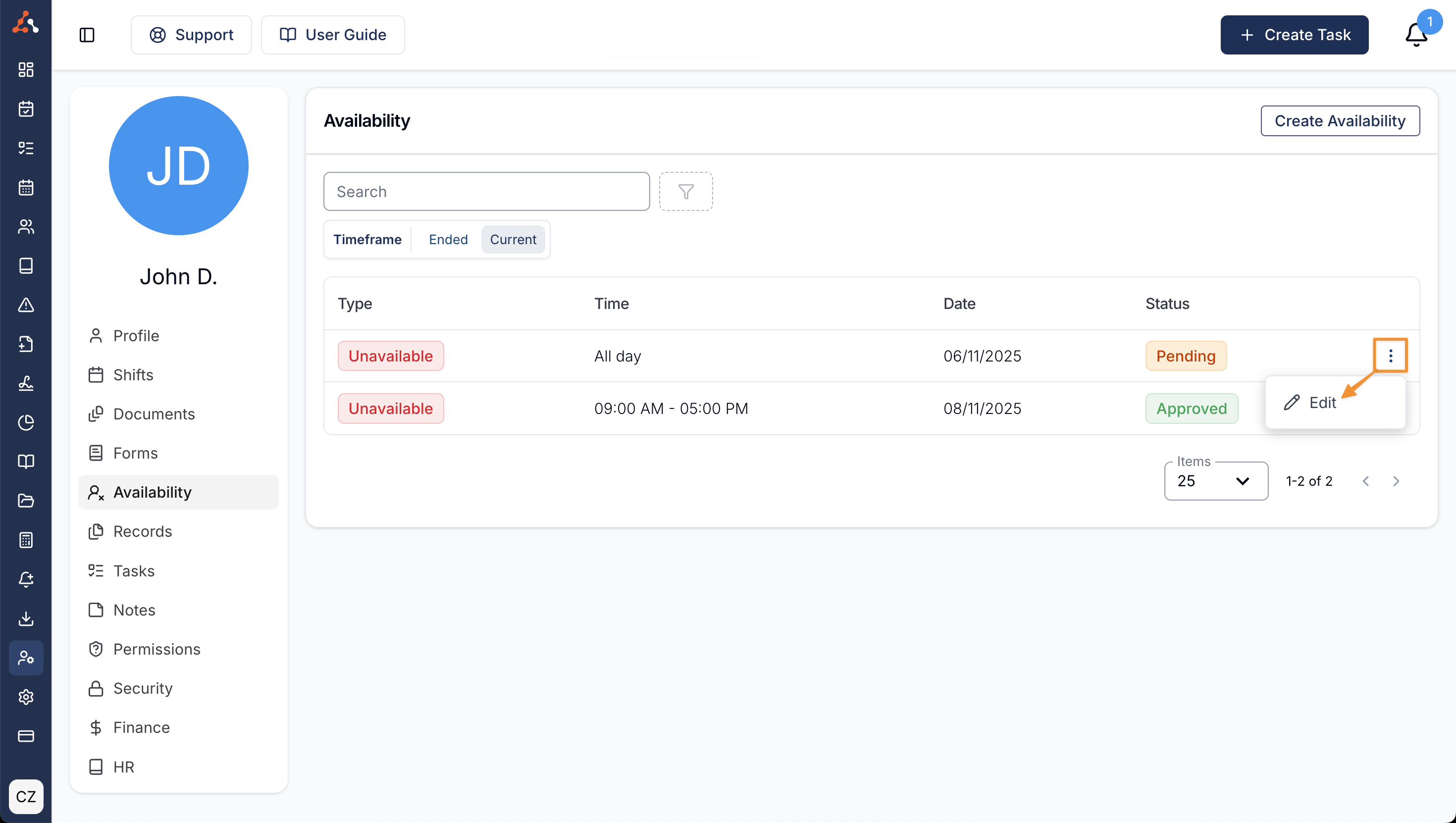
Each entry in the user's Availability section shows its type, time, date range, and status. Use the Timeframe filter to switch between Current and Past entries.
Current Availability
All current and future Availability of the User - this includes one-off and recurring entries the end either today or in the future.
Past Availability
Past one-off entries that have finished prior to today. This includes recurring Availability that have a finish recurrence date prior to today.
Editing Availability
The Availability entries found within the User Profile can be edited by selecting the 3 dot menu at the end of the row, and then 'Edit'.
Viewing Unavailability Requests
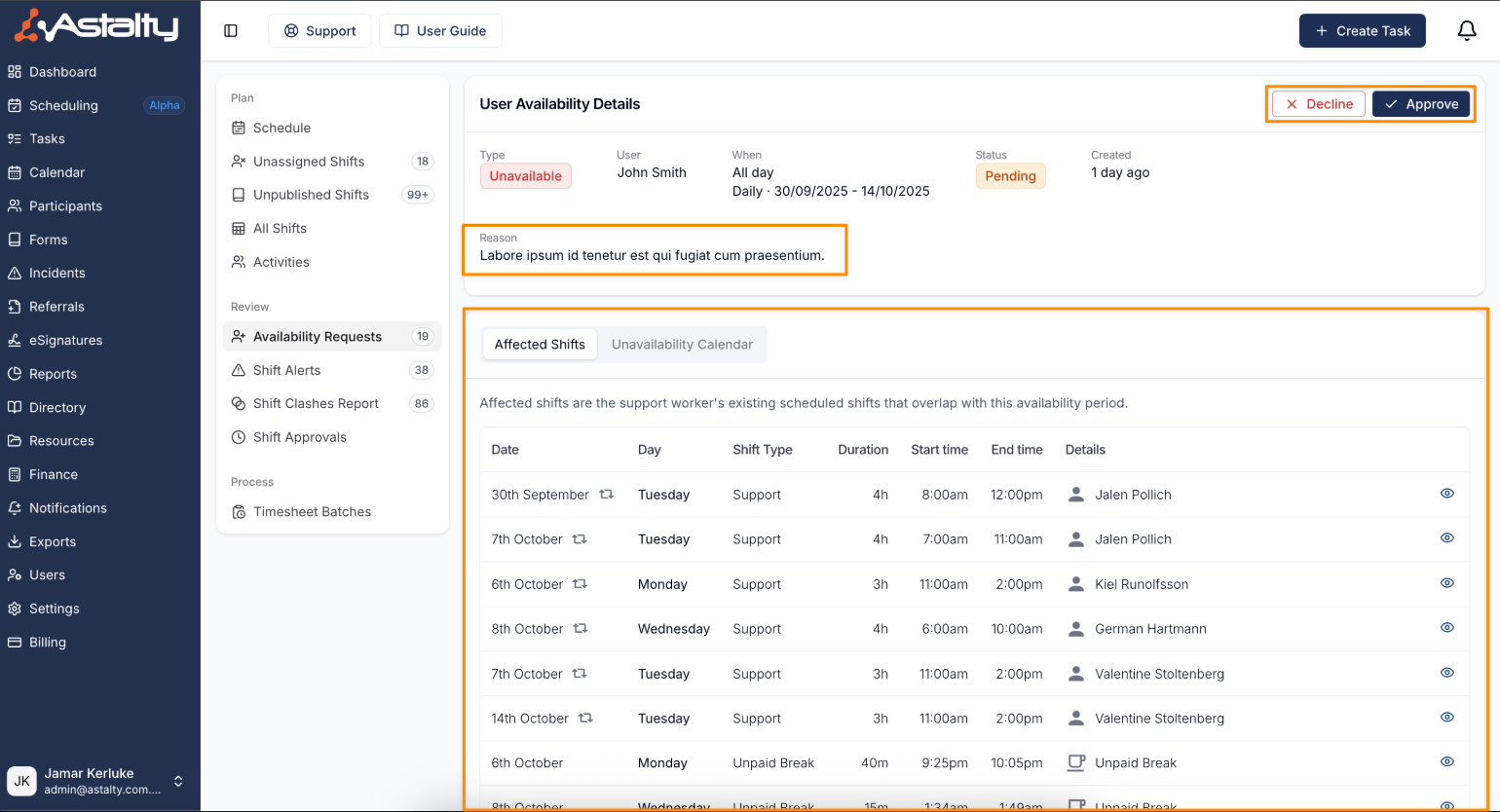
Open Scheduling > Unavailability Requests to review requests for a period. The default status filters show requests at each stage of the approval process.
The list of Unavailability Requests displays the user, time, date range, when it was created, and the current approval status.
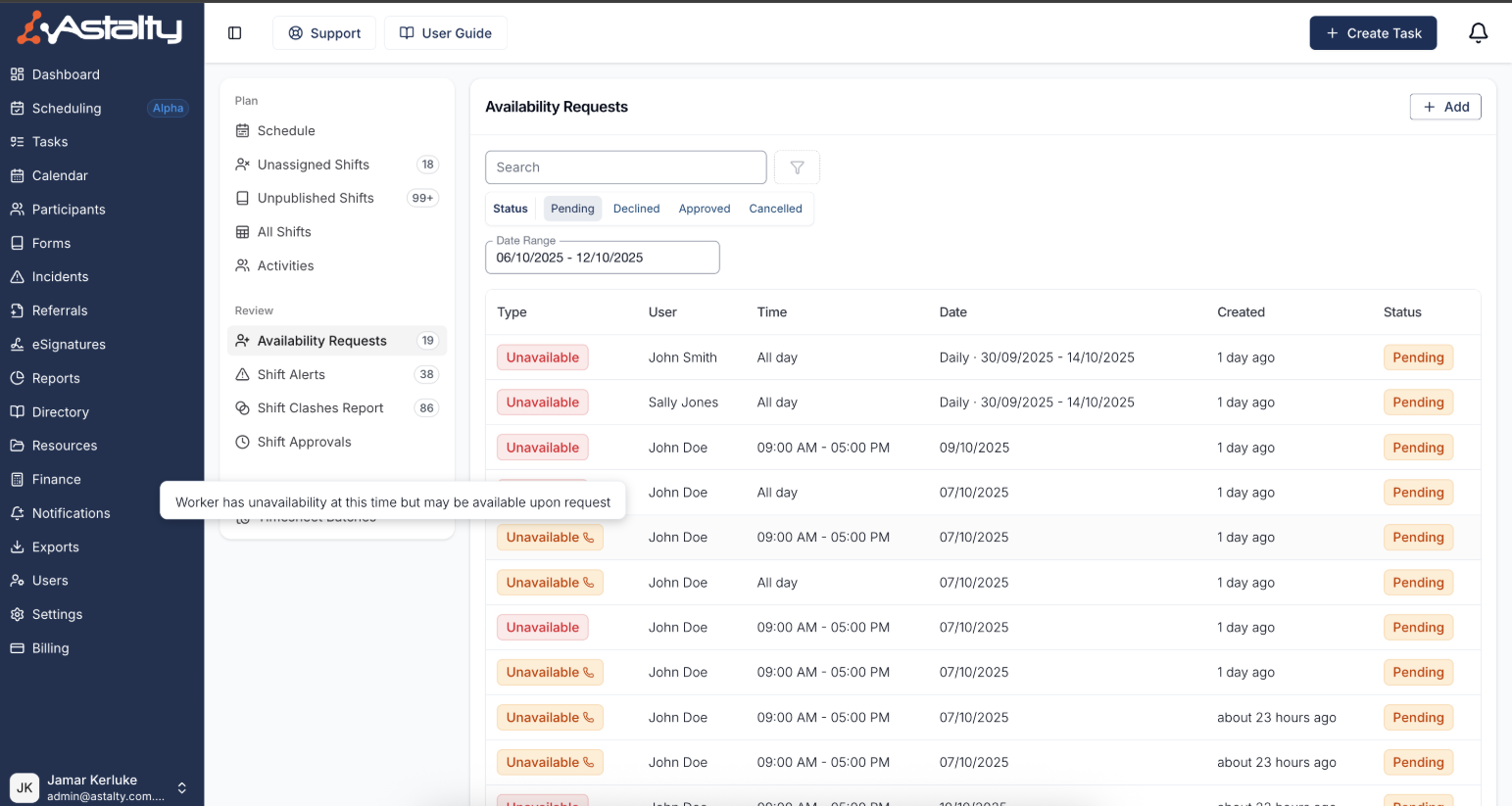
Example of hovering cursor over tag to view context
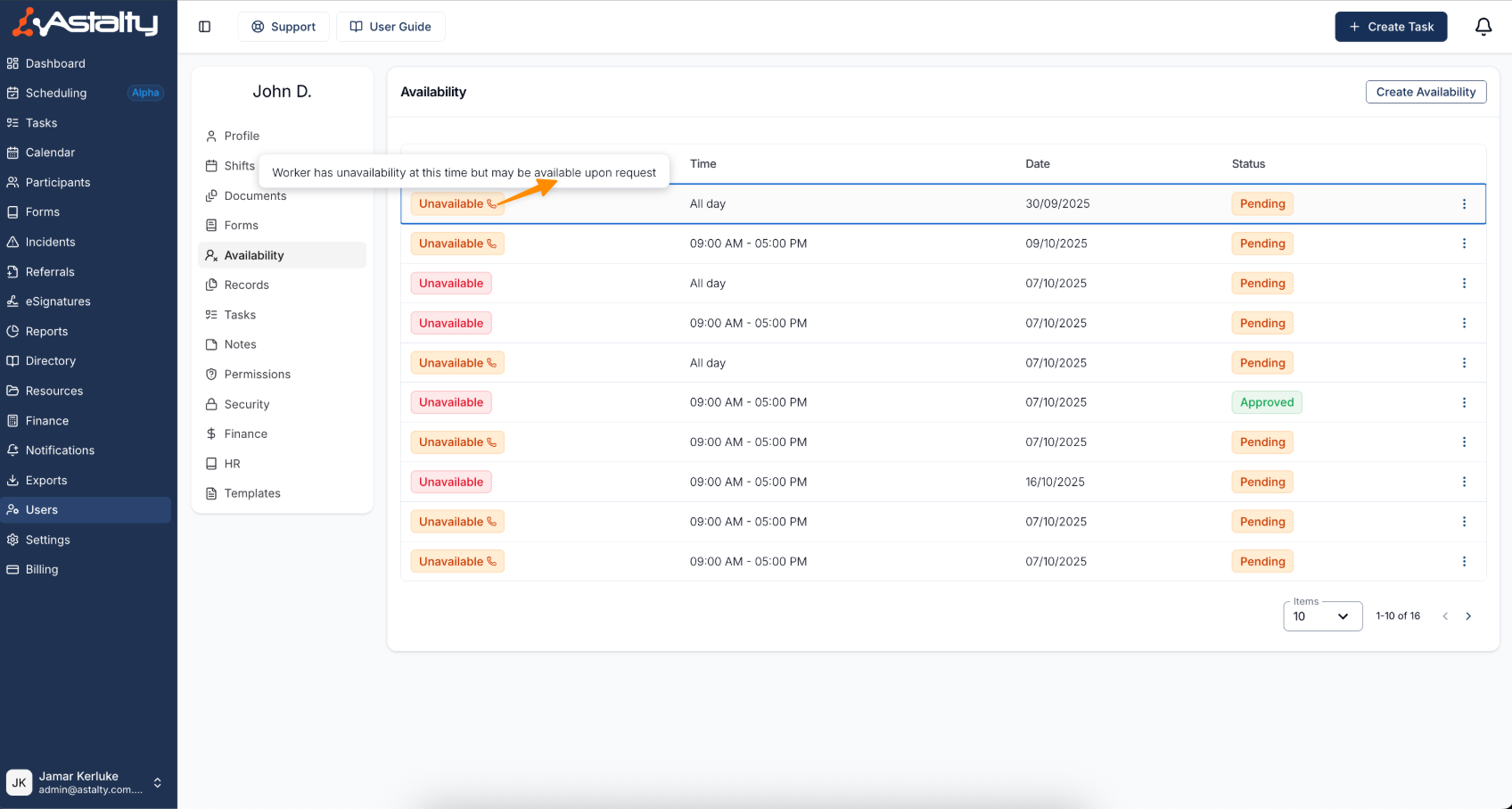
Actioning the Availability Request
Before you decide to approve or deny the request, you can select the pending Availability to view the:
- Reason for the request (alongside the other details of the request),
- Affected shifts - What rosters or Participant supports may be impacted by this availability.
- Unavailability Calendar - This view displays all current Support Workers and their availability in a calendar format. Approved leave is shown in red, pending availability requests are shown in orange, and declined availability requests are shown in grey.
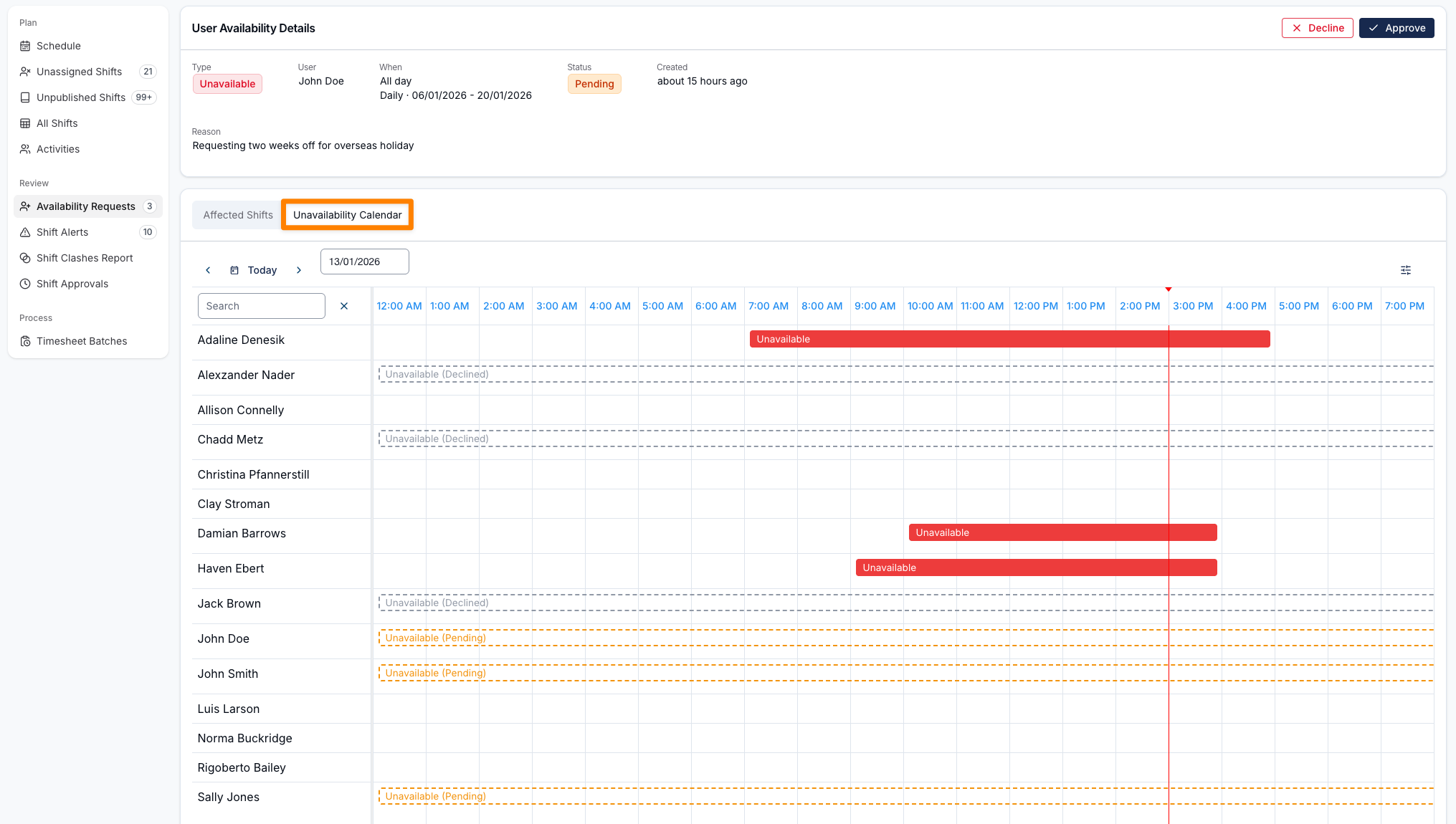
Once you have made your decision, you can choose either to Approve or Decline the request.
Broadcasting Affected Shifts to the Shift Board
If the request has future support or group support shifts, your account has the Shift Board switched on, and you can create shift broadcasts, the approval screen offers Broadcast N affected shifts to the shift board - off by default. Switching it on unassigns the worker and offers each shift to other workers in the same step, instead of broadcasting them one by one afterwards.
Eligible shifts are future shifts that aren't unpaid breaks, aren't internal shifts, haven't started, and aren't already on an active broadcast.
Shifts are grouped one row per Participant, with a recurring group support series shown as a single row. Each row shows its shift count and date range, and starts pre-selected with compatible workers - available, qualified, not marked Incompatible, and passing the Participant's preferences. Select Review workers to open the full worker suggestions table and change the selection; it counts Future shifts across every shift in that row, not just one, and leaves the worker going on leave out of the list.
Notify me when a support worker expresses interest is ticked by default, so you hear about interest as it comes in.
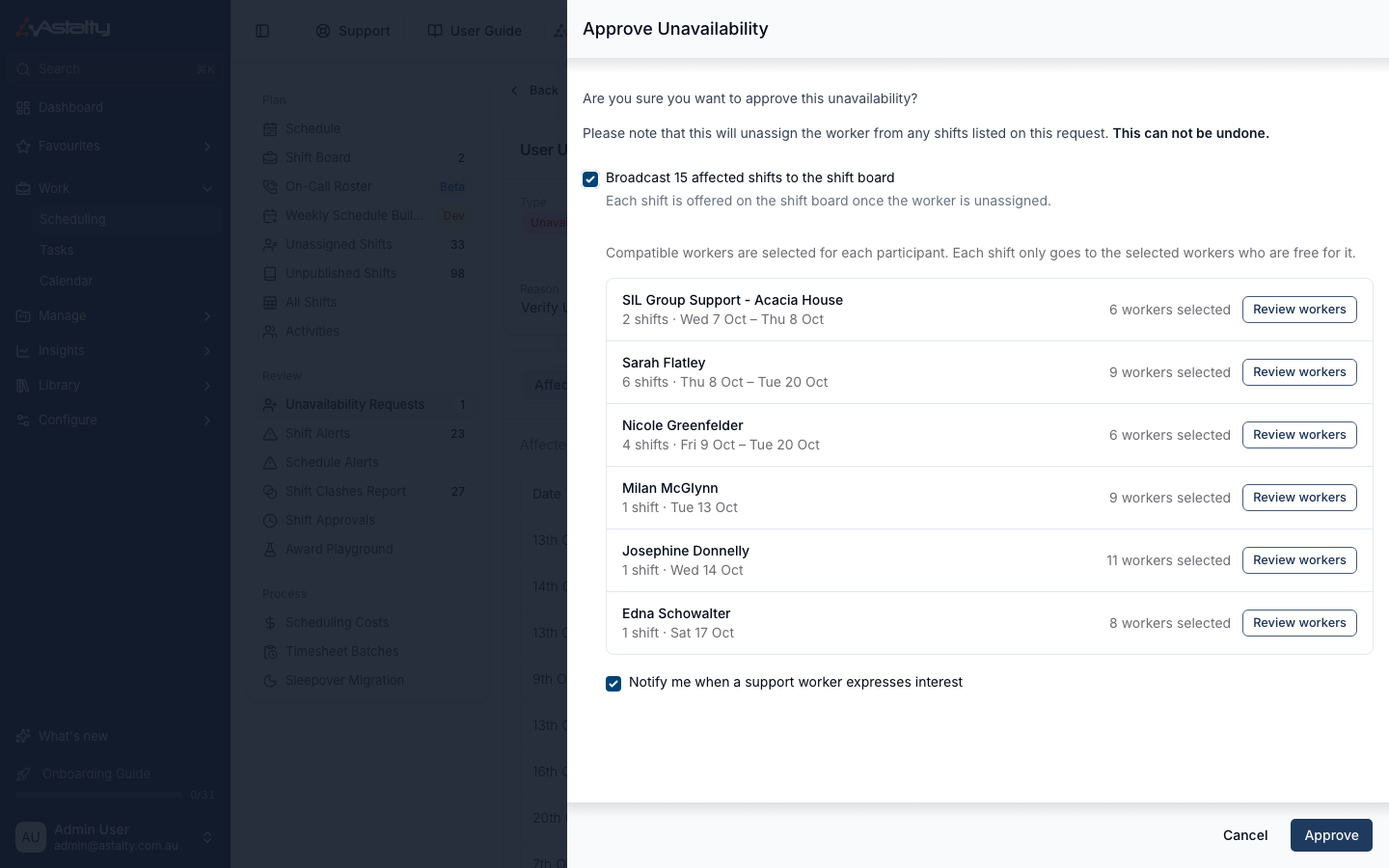
Broadcasting happens after you approve, shift by shift, earliest first. Each shift is re-checked before it goes out, so a worker you selected is skipped for a shift they've since been rostered on, gone on approved leave for, are missing a required qualification for, are marked Incompatible for, or fail a required preference for. A shift left with no eligible worker isn't broadcast.
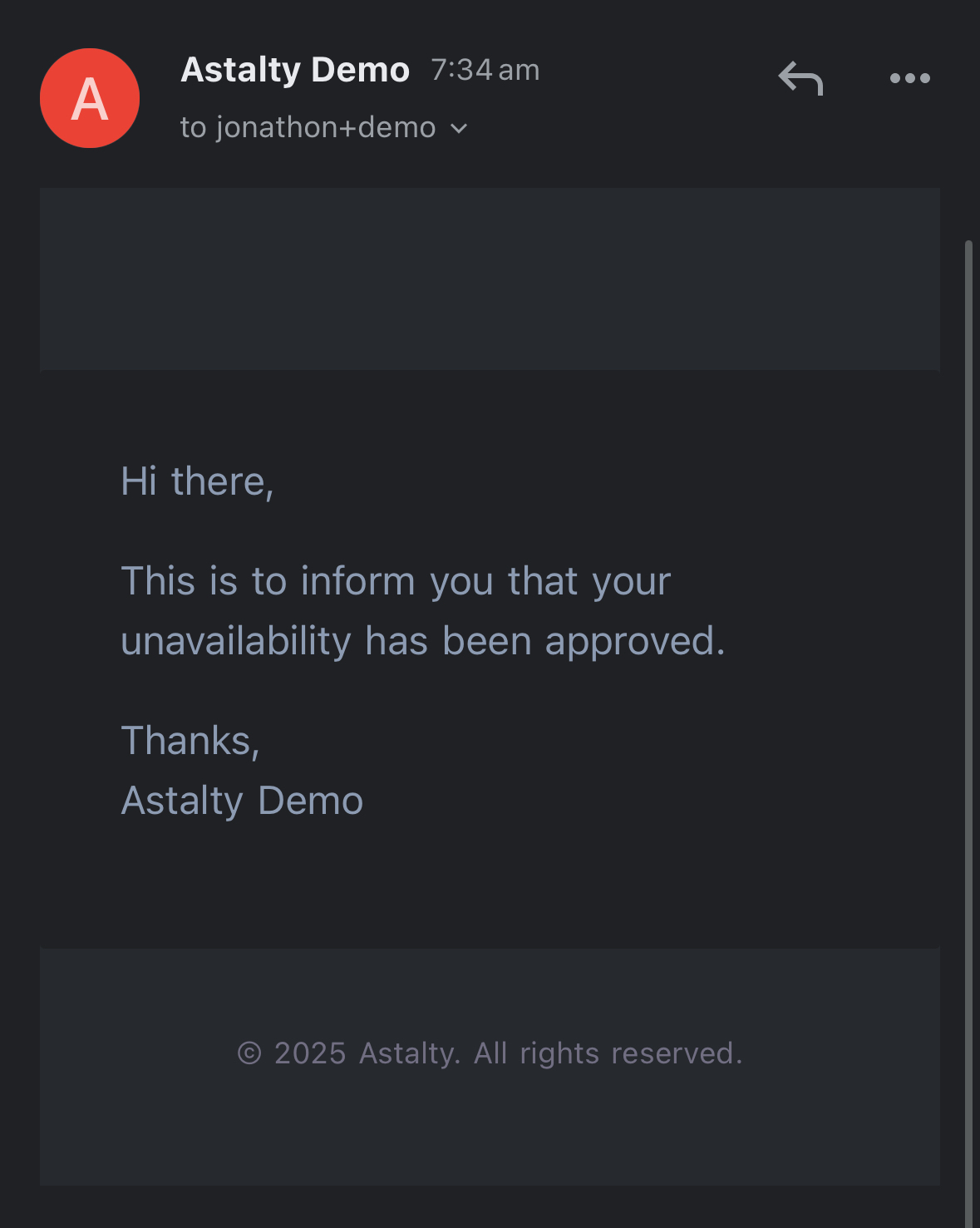
Availability Approval Notifications
When a request is approved, the worker can receive an app notification and email according to the organisation's notification settings.
Availability when assigning Staff to a Shift
The Schedule and Unassigned Shifts show availability while you assign a worker. A red Unavailable tag marks a conflict. An orange Unavailable tag with a phone icon means the worker may be available on request. Hover over the tag for the recorded reason and time.
Example via a shift in the Schedule
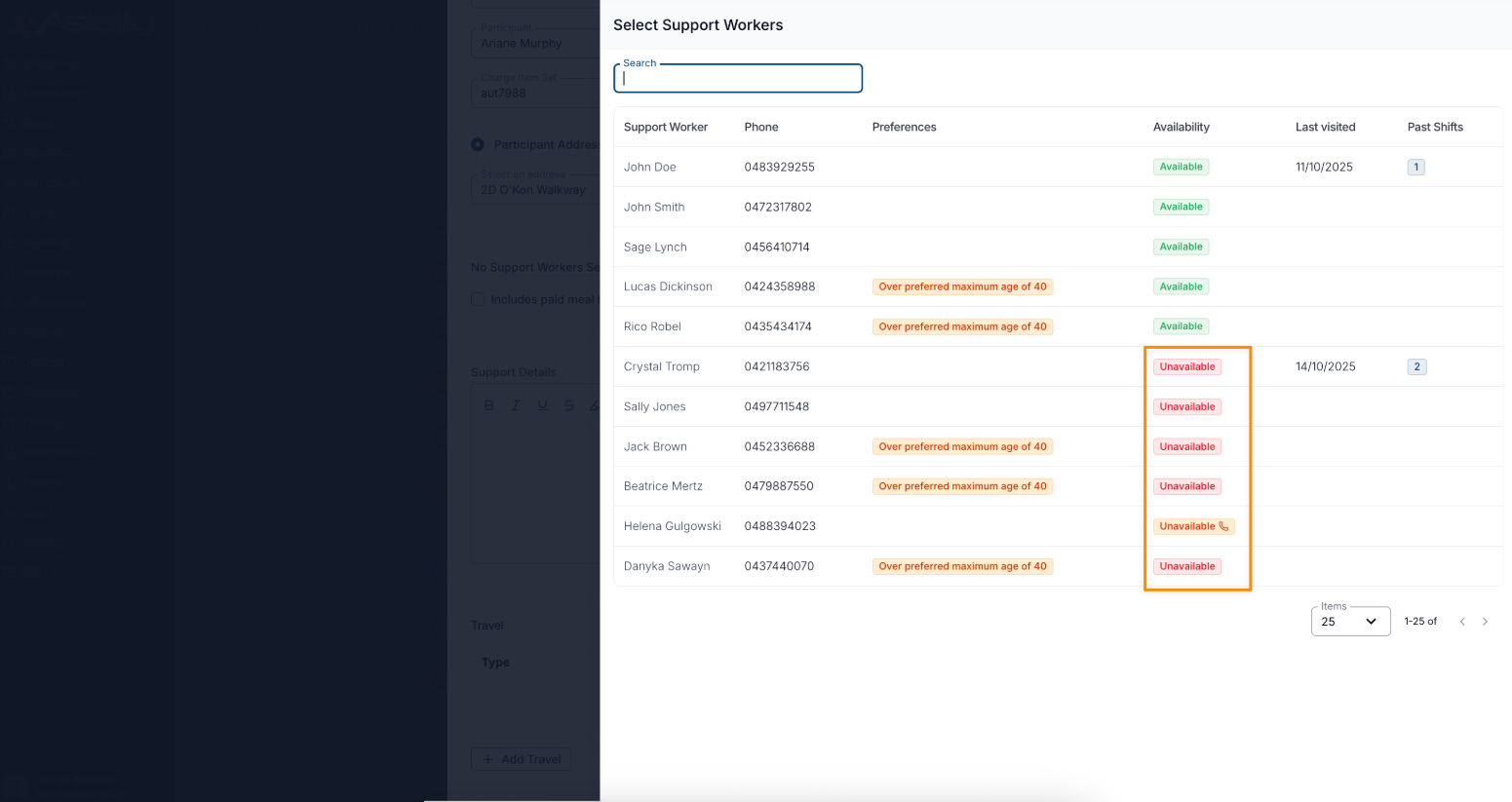
Example via the Unassigned Shifts within Scheduling
Cancelled Availability
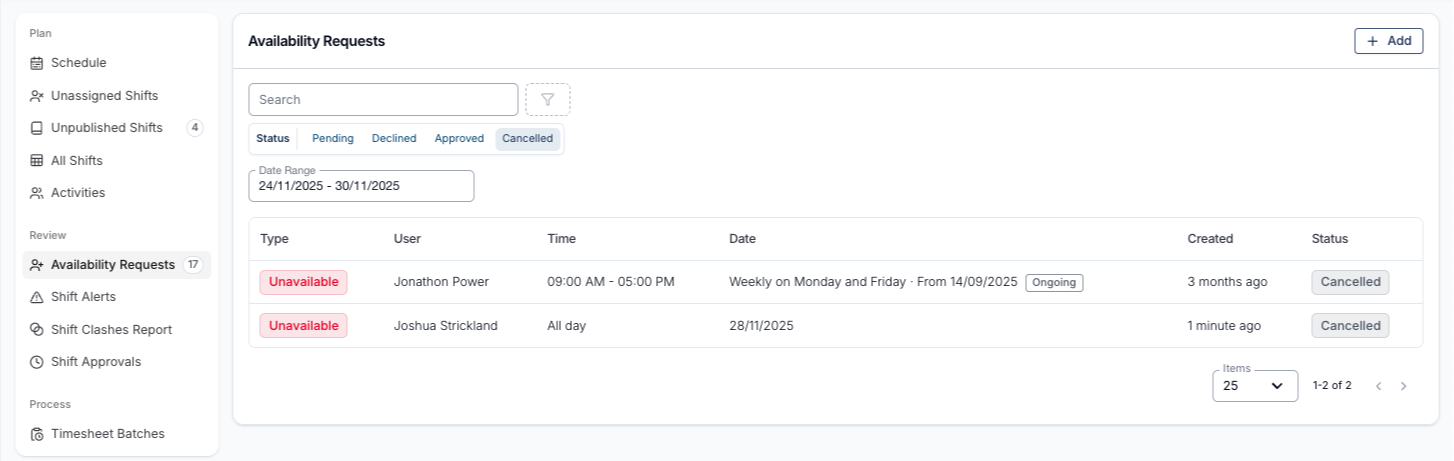
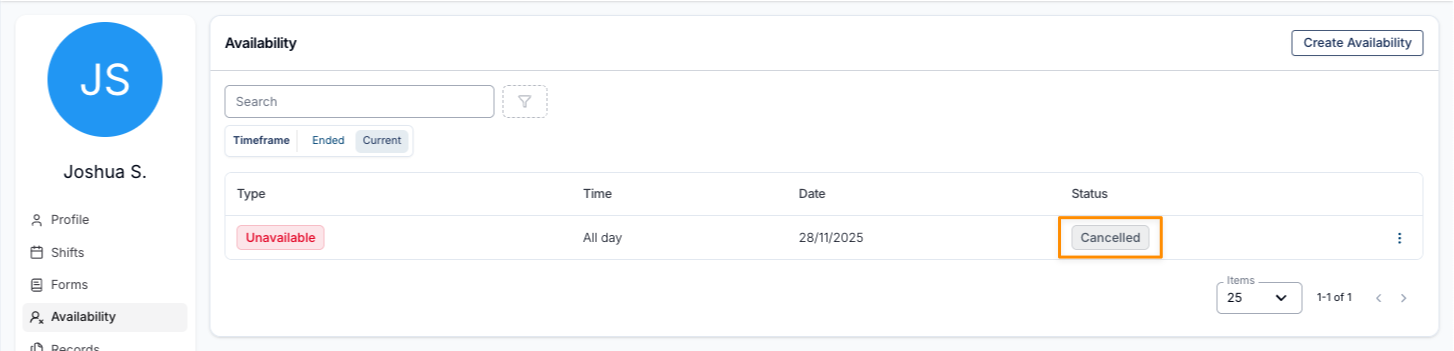
If a Support Worker has cancelled their availability (including approved requests), it will be flagged as Cancelled in the Status. You can also use the available Status Type filter to find all Cancelled availability. Once they have canceled their availability request, its disappears from their Availability Requests page in their app.
These cancelled Availability Requests can be viewed in both the:
Unavailability Requests
User Profile
Managing your Availability Requests via the App
See Availability Requests in the Support Worker App for the worker workflow.
Viewing Unavailability in the Schedule View
Approved unavailability appears directly within the Schedule view so you can see it while planning and allocating supports. Pending requests also appear on the Schedule (shown with a dashed outline and a distinct colour) and can be reviewed inline, provided the Show Pending Leave on Schedule setting is enabled. See Viewing Unavailability in the Schedule View and Pending Leave & Unavailability on the Schedule for details.
Unavailability entered for specific times sits in time order between the shifts before and after it, while All day unavailability stays at the top of the day. See Where Unavailability Sits in the Day.