Diagnosing App Issues
Overview
If the Astalty app is not working as expected, check for updates and retry before contacting support. If the issue continues, include the device details and a recording of the problem so the support team can investigate it.
1. Quick Checks
Before contacting support, try the following:
- Hard close the app, reopen it, and retry the action.
- Open the far-right Profile tab.

- Scroll to the bottom and select Run Time Version. If an in-app update is available, select Update.
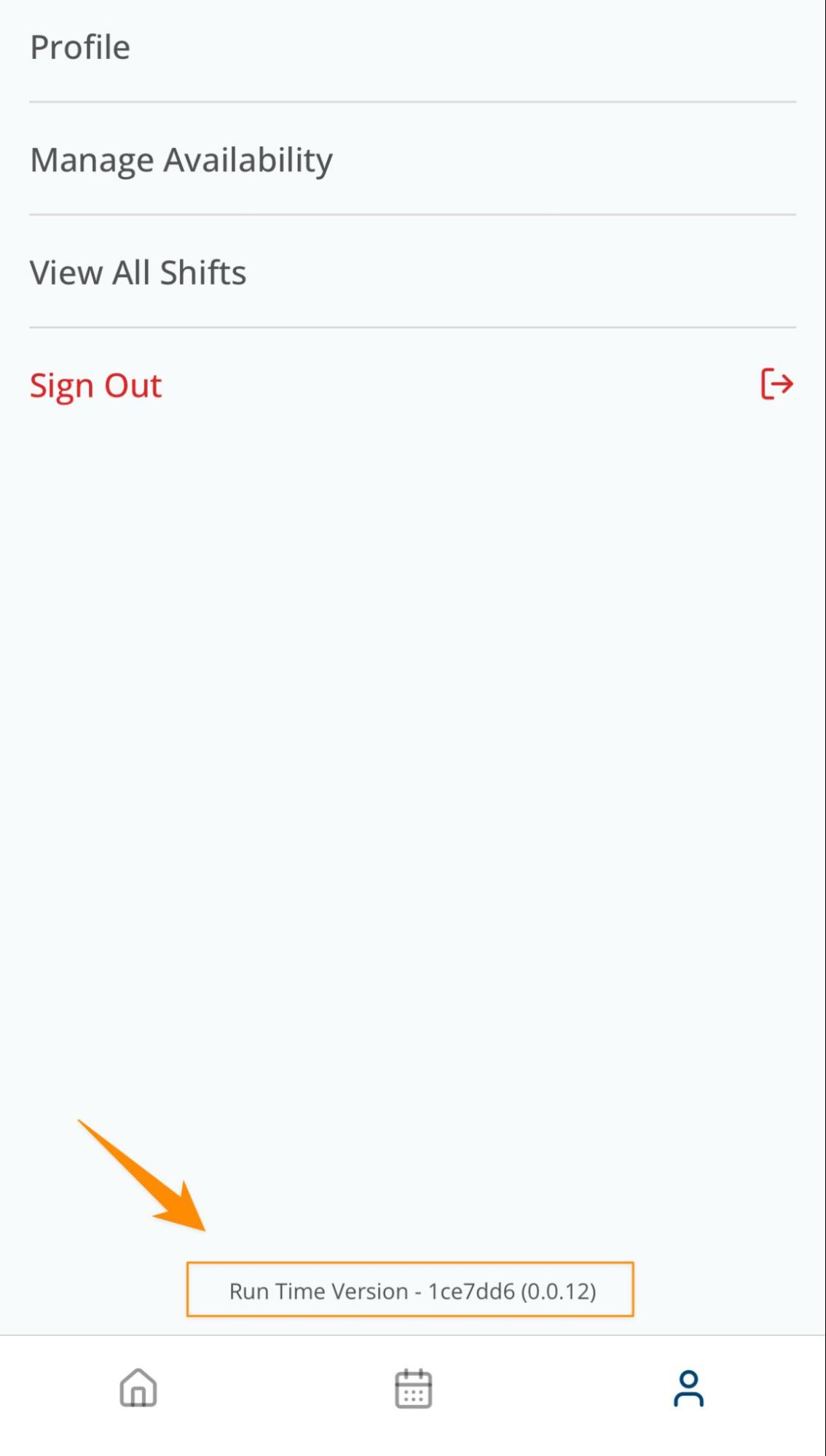
- If Update Available appears separately on Profile, select it to open the device's app store and install the native app update.
- If the issue continues, reinstall the app using the App Store or Google Play link.
2. Collecting Information
When reporting an issue, include:
- A short video recording showing the exact action that caused the issue.
- The make and model of your phone, such as iPhone 14 Pro or Samsung Galaxy S22.
- Whether the issue occurs on Wi-Fi, mobile data, or both.
- The action you expected and what happened instead.
How to Record Your Screen
If a screen recording is not possible, include screenshots.
3. Submitting Your Report
Send your report in one of two ways:
- Email the recording or screenshots and device details to support@astalty.com.au.