- Scheduling
- On-Call Roster
On-Call Roster
Overview
Use the On-Call Roster to schedule workers who are available to respond remotely after hours. While on call, a worker logs each call, meeting or training session in the Support Worker app. A coordinator reviews and approves the reported time, and approved time is paid through Timesheet Batches along with the standby allowance for being on call.
The same page records Remote Work (Not On Call): calls, meetings or training a worker did when they were not rostered on call.
Configure the On-Call Contact and Reminder
Before adding your first period, open Settings > Scheduling > General and select Edit.
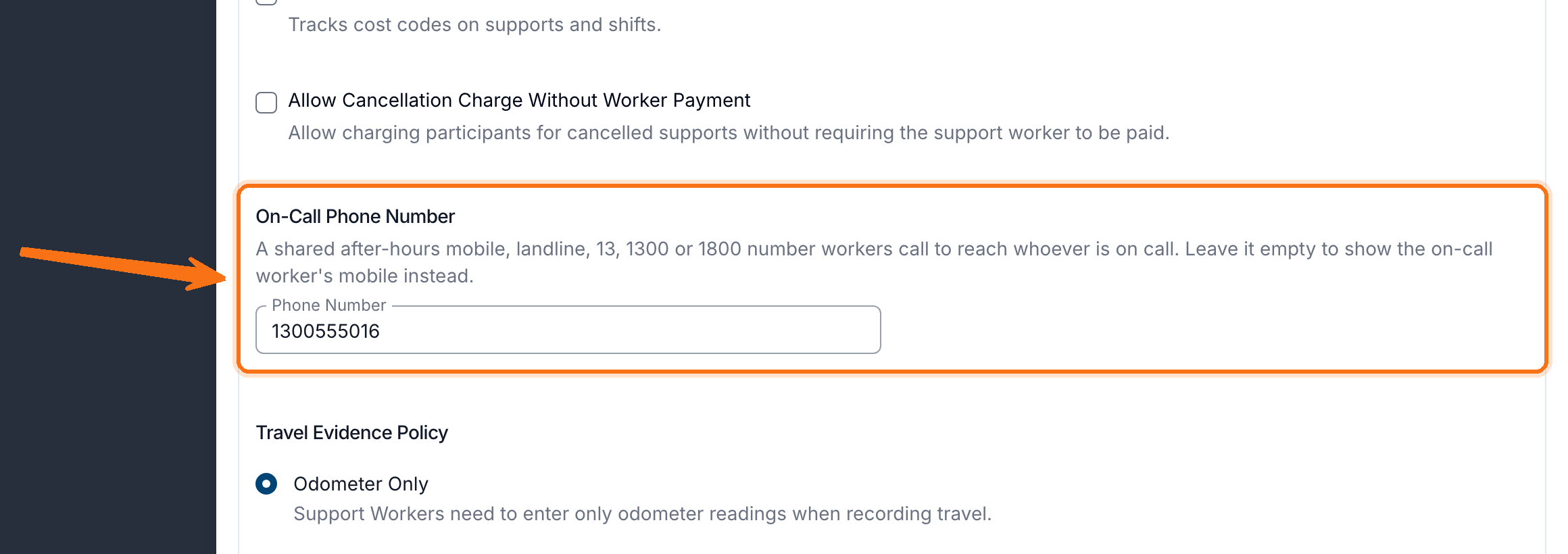
- Under Scheduling & Travel, enter an On-Call Phone Number if workers should call one shared after-hours number. It can be a mobile, landline, 13, 1300 or 1800 number. Leave it empty to show the rostered worker's own mobile instead.
- Under Approvals & Notifications, turn on Push Notifications and set the On-Call Reminder (minutes before): a whole number from 1 to 1440. New accounts start at 60 minutes.
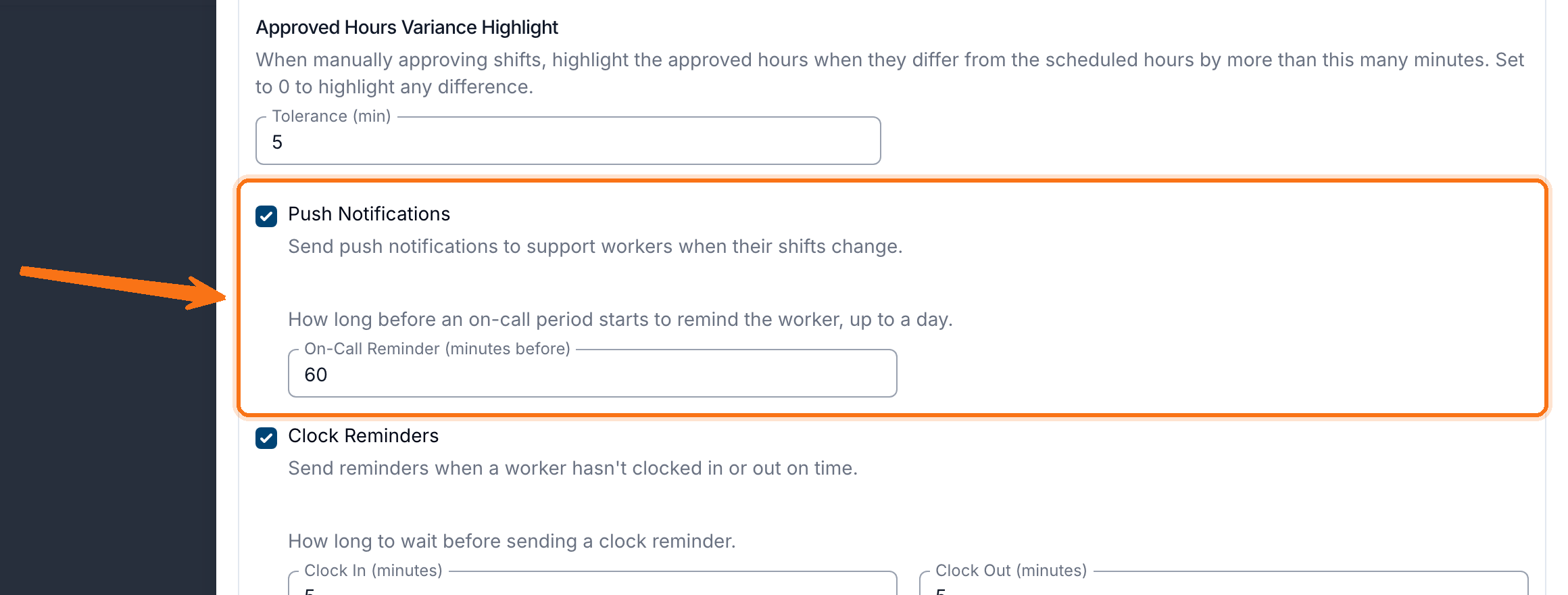
Workers get the reminder before each on-call period starts, along with a push notification when they are rostered, when a period changes and when one is cancelled. Turning off Push Notifications stops all of them.
Check What Can Be Paid
Astalty checks the award on the worker's employment contract for the date of the work.
| Contract award | Rostered on-call and activations | Remote Work (Not On Call) |
|---|---|---|
| SCHADS | Supported | Supported |
| Nurses | Supported | Not supported. |
| Health Professionals | Supported | Not supported. |
| Aged Care | Not supported. | Not supported. |
Astalty refuses a period or work record when the worker's award does not support it. A worker with no employment contract for the date can still appear on the roster, but the timesheet batch leaves their on-call out and shows a warning. Add the correct contract, then create another batch for the period.
How On-Call Is Paid
| Award | Standby allowance | Calls, meetings and training while on call |
|---|---|---|
| SCHADS | One allowance for each 24 hours on call, or part of it. It is the weekday rate only when the whole period falls between the worker finishing work on Monday and finishing work on Friday. Otherwise it is the weekend and public holiday rate. | Paid at the remote work rates. Each call earns at least 15 minutes between 6am and 10pm, or 30 minutes outside those hours. A meeting or training session earns at least 1 hour. A call that starts inside an earlier call's minimum shares it. |
| Nurses | One allowance for each 24 hours on call, or part of it, at the weekday, Saturday, or Sunday and public holiday rate. A day with no rostered shift pays the Sunday and public holiday rate. | Paid as a recall, at least 1 hour. Calls inside that hour share it. |
| Health Professionals | One allowance for each 24 hours on call, or part of it. Any time on a Sunday or public holiday pays the higher rate. | Paid as a recall at overtime rates, at least 2 hours. A call that starts inside a recall's 2 hours shares it. |
For SCHADS, Remote Work (Not On Call) is paid at least one hour. Records that start within an hour of the first record's start share that one hour; a record starting after it earns its own.
The award pages explain the rest of each award's rules: SCHADS, Nurses and Health Professionals.
Adding an On-Call Period
- Open Scheduling > On-Call Roster.
- Select Add On-Call Period.
- Choose the Worker and Timezone.
- Enter the Start Time and End Time.
- To create a series, turn on Repeat this On-Call Period. Choose how often it repeats under Every and Period, pick the days under Repeat on for a weekly series, then set Until or leave it empty to keep it ongoing.
- Add any instructions for the worker in Notes.
- Select Create.
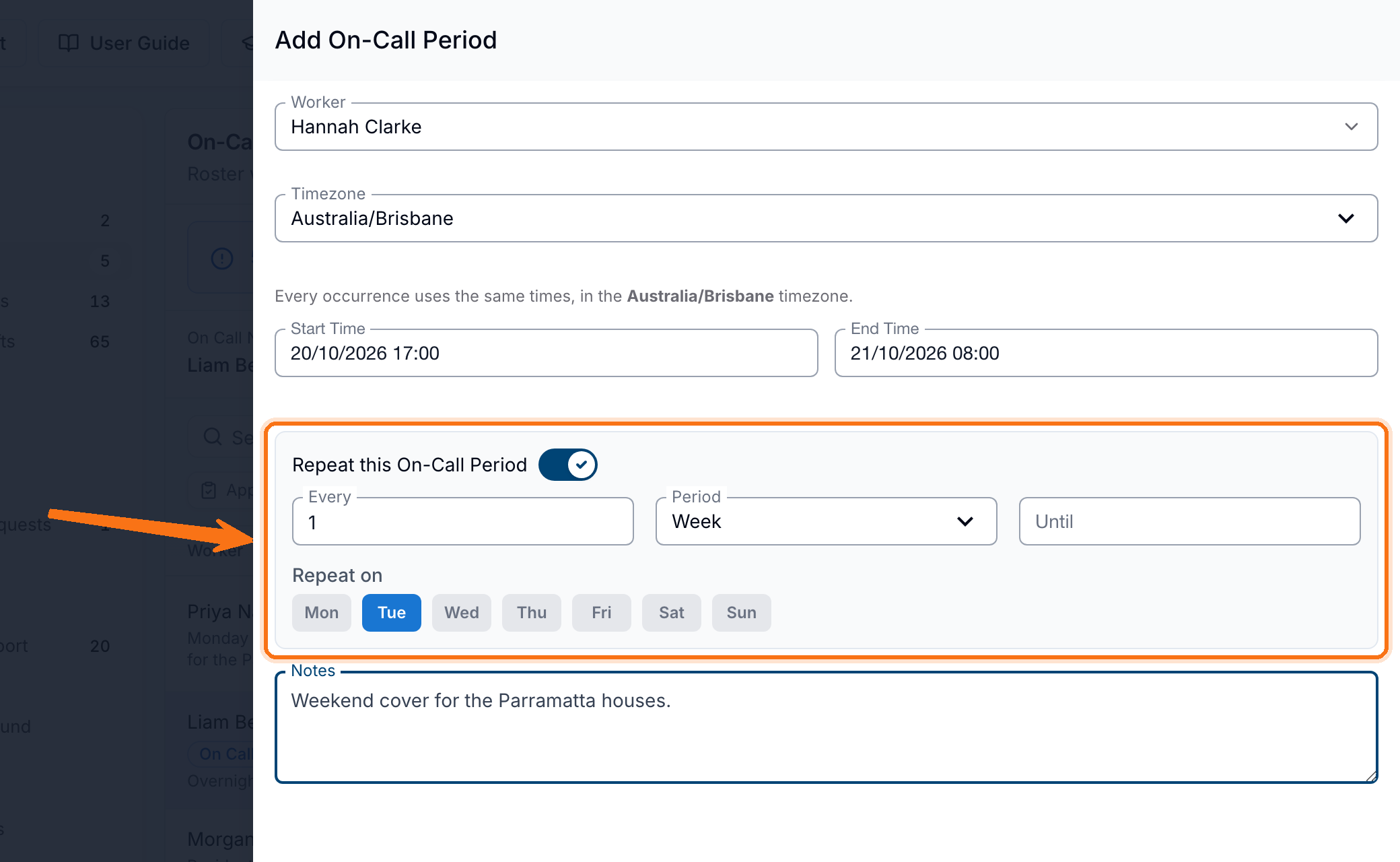
The worker gets a push notification that they are on call. On-call periods for the same worker cannot overlap, and Astalty refuses a repeating pattern whose occurrences would overlap each other or another series.
Reading the Roster
The roster lists each occurrence with its Worker, Date, Time, Activations, Duration and Repeats. A series with no end date shows Ongoing.
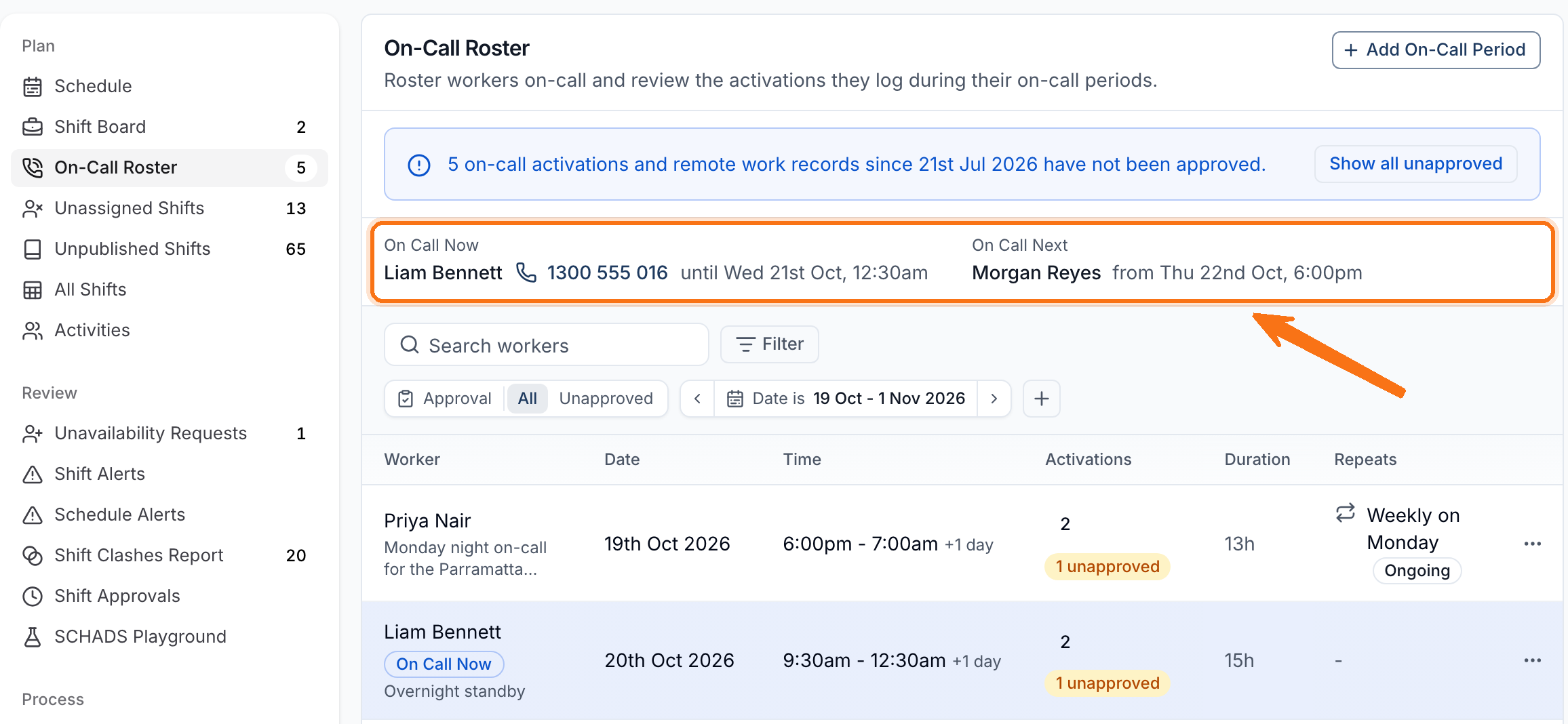
- On Call Now at the top shows who is on call at the moment and until when, with their contact number. On Call Next shows the next person rostered in the coming 14 days. When nobody is on call, it shows your shared On-Call Phone Number if you have one.
- A row on call now is highlighted and shows On Call Now. A skipped occurrence shows Skipped.
- A warning icon on a row means its on-call cannot be paid as it stands, for example because the worker's award does not support on-call or they have no employment contract for the date. Hover the icon to see why.
- The Activations count shows how many records the occurrence has, and how many are unapproved.
When activations from the last 92 days are still unapproved, the roster shows how many with a Show all unapproved button, and the On-Call Roster menu item shows the count in place of Beta.
Filter by Approval, date range and Worker, or search by worker name. The date range covers up to 92 days and starts on the current and next week.
Managing an On-Call Period
Open a row's actions menu:
- Activations - view, log, approve, edit or delete the work recorded against that occurrence.
- Edit - change a one-off period or a future occurrence of a series.
- Skip This Occurrence - take one future occurrence out of a series. The worker is not on call and no standby is paid for it. An occurrence with activations logged against it cannot be skipped.
- Restore Occurrence - put a skipped future occurrence back at the series' usual times.
- End Series After This Occurrence - keep this occurrence and the earlier ones, with their activations, and remove the later ones.
- Delete - delete a one-off period or a series that has not started yet. Every occurrence of a series is removed.
- Audit Trail - when Audit Trail is available on your account, review changes to the period and its activations.
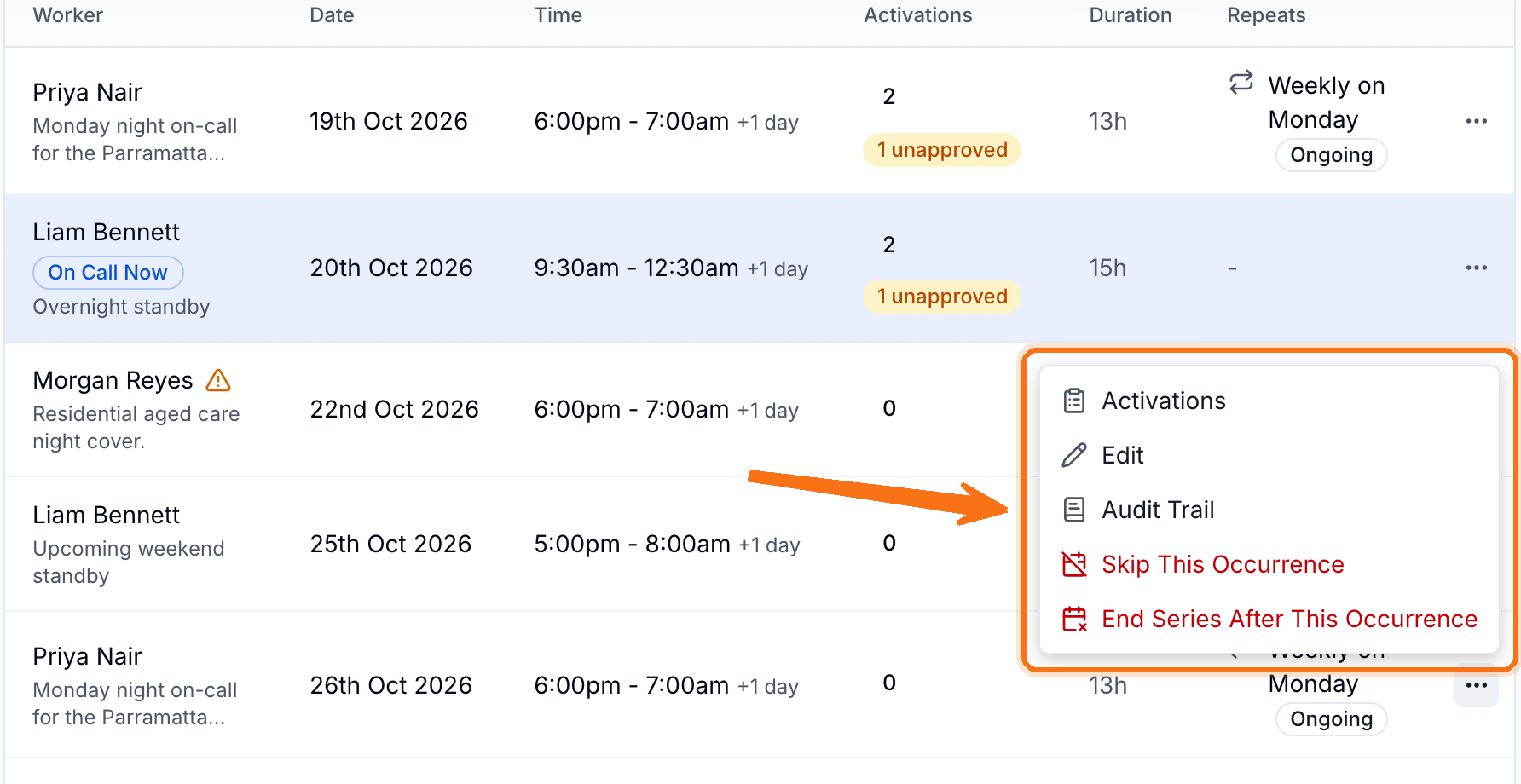
Workers get a push notification when their period is changed, skipped, restored or deleted.
Changing One Occurrence or the Rest of a Series
When you edit an occurrence of a series, choose under Apply this change to:
- This occurrence - only that date changes.
- This and following - that date and every later occurrence change. Earlier occurrences keep the times they had.
To have someone else cover one occurrence, choose This occurrence and pick a different Worker. The original worker is no longer on call that night, and the covering worker is.
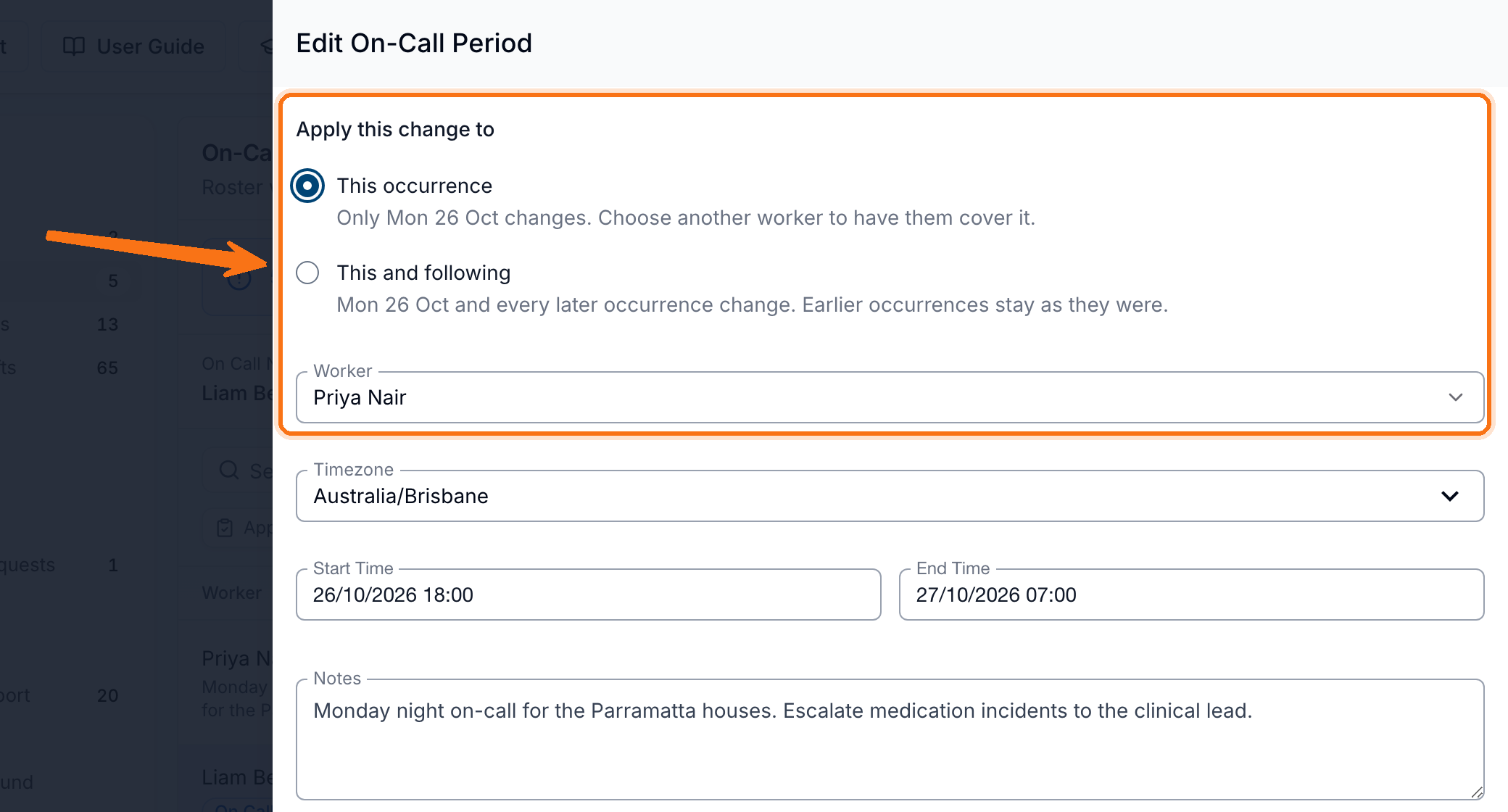
An occurrence of a series cannot be edited, skipped or restored once it has started. A one-off period can still be edited after it starts, for example to extend its end time. On-call that a timesheet batch has already paid cannot change either: for a series, choose This and following from a later occurrence to change the rest of it.
If you restore a skipped occurrence that someone else now covers, both workers are on call and both are paid standby. Delete the covering period first if you no longer need it.
Recording and Approving Activations on the Web
Select the activation count on a row, or choose Activations from its actions menu. Each record shows its Status: Approved, Awaiting approval when it is complete, or Pending when it has no end time yet. A record still in progress shows In progress under Duration.
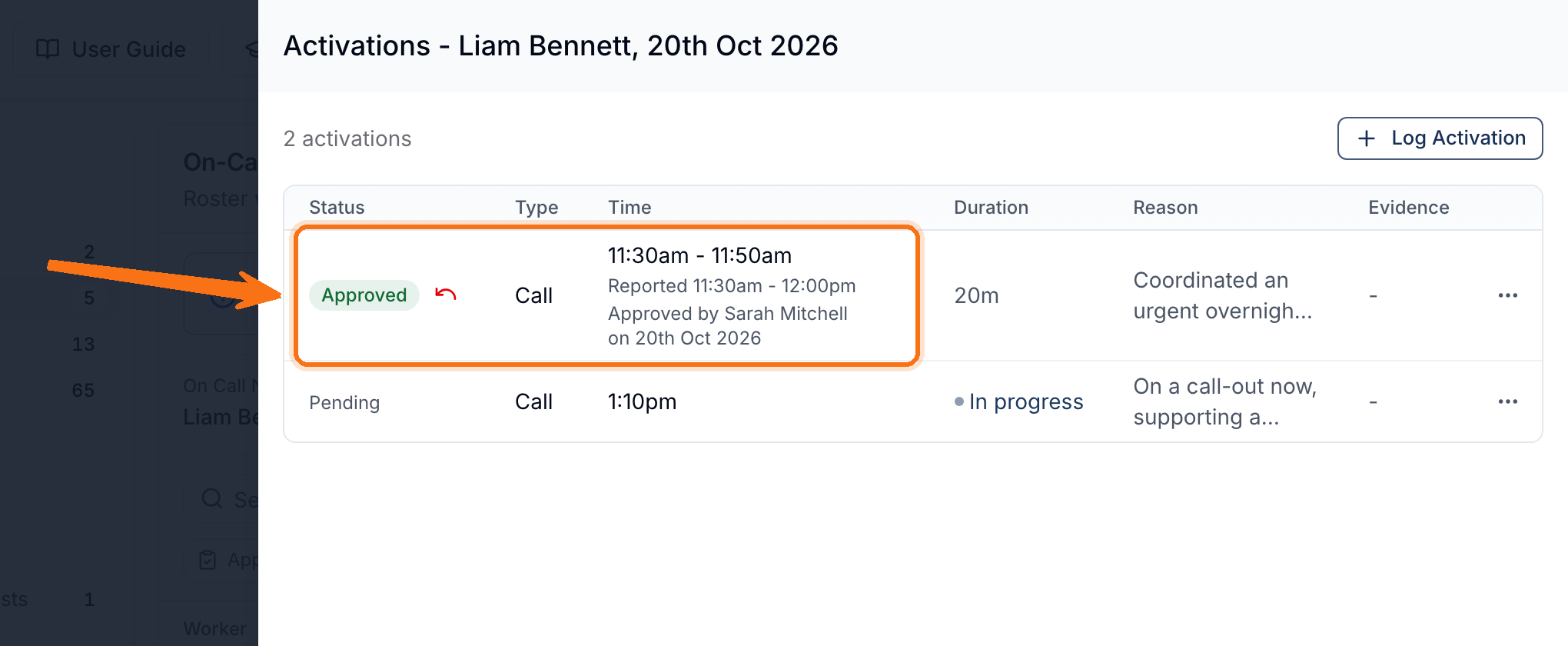
Record an Activation
Workers normally log their own activations in the app. To record one for them:
- Select Log Activation.
- Choose Call, Meeting or Training under Type.
- Enter the Start Time and End Time. In the End Time picker, 15 min, 30 min and 1 hour set the end from the start. An activation cannot start in the future.
- Describe the work under Reason for activation.
- Add evidence files if needed.
- Select Log.
To end a Pending activation, choose Edit from its actions menu and enter the End Time.
Approve Reported Time
- Select Approve on a completed record.
- Review the Reason for activation, any evidence, and the Reported time.
- Enter the Approved Start Time and Approved End Time, or select Use reported. The summary shows how far the approved time is over or under what was reported.
- Add a Note if your account uses approval notes.
- Select Approve.
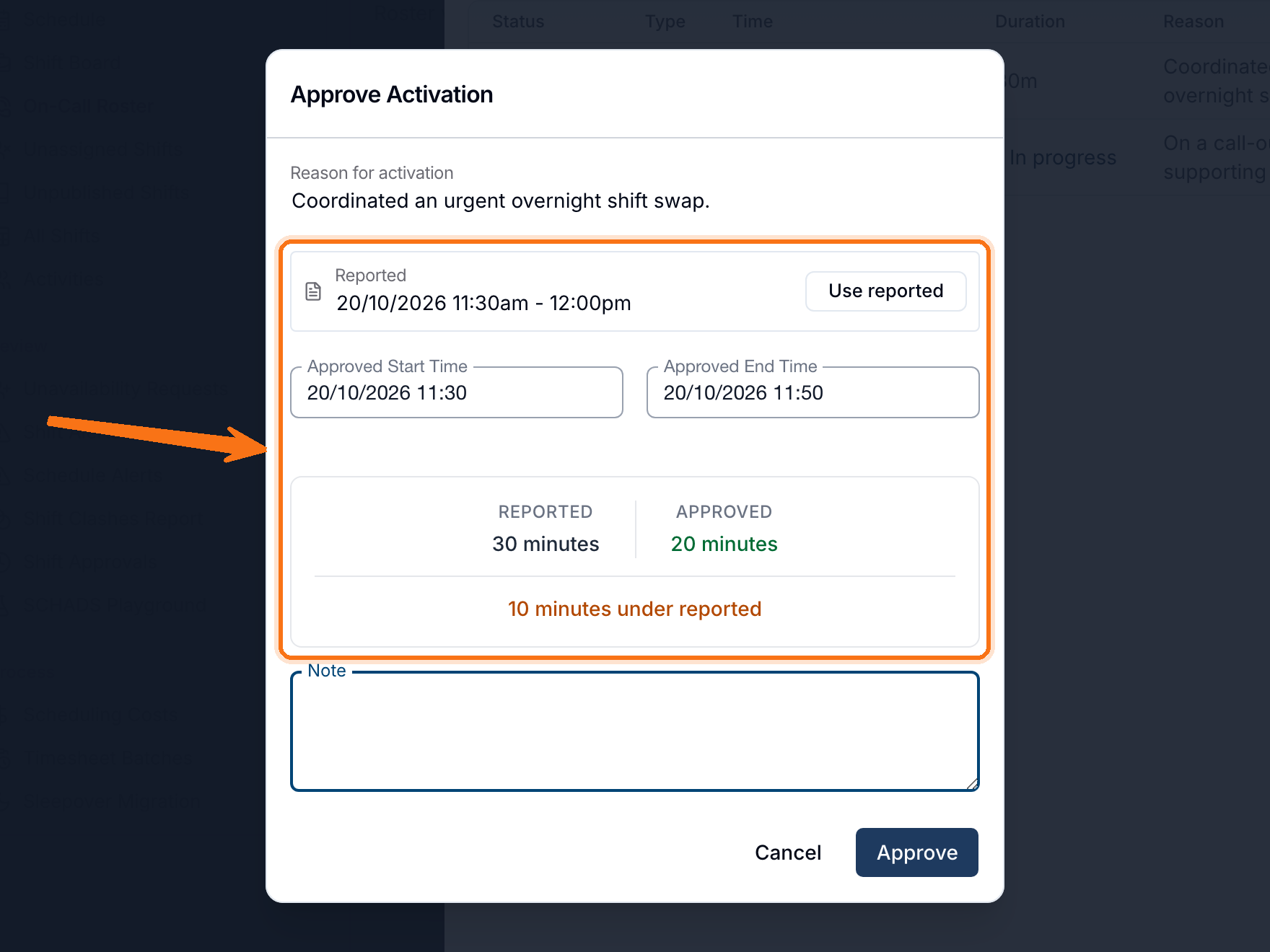
If the approved time differs from what was reported, the record shows the approved time with the Reported time beneath it, and the worker sees it as Adjusted in the app. You can Undo Approval until a timesheet batch includes the record. After that it shows Timesheet Batched and can no longer change. Choose View Timesheet Batch from its actions menu to open that batch.
Recording Remote Work Outside an On-Call Period
The Remote Work (Not On Call) table sits below the roster when your organisation has a SCHADS employment contract or already has remote work records. Use it for a call, meeting or training session a worker did when they were not rostered on call.
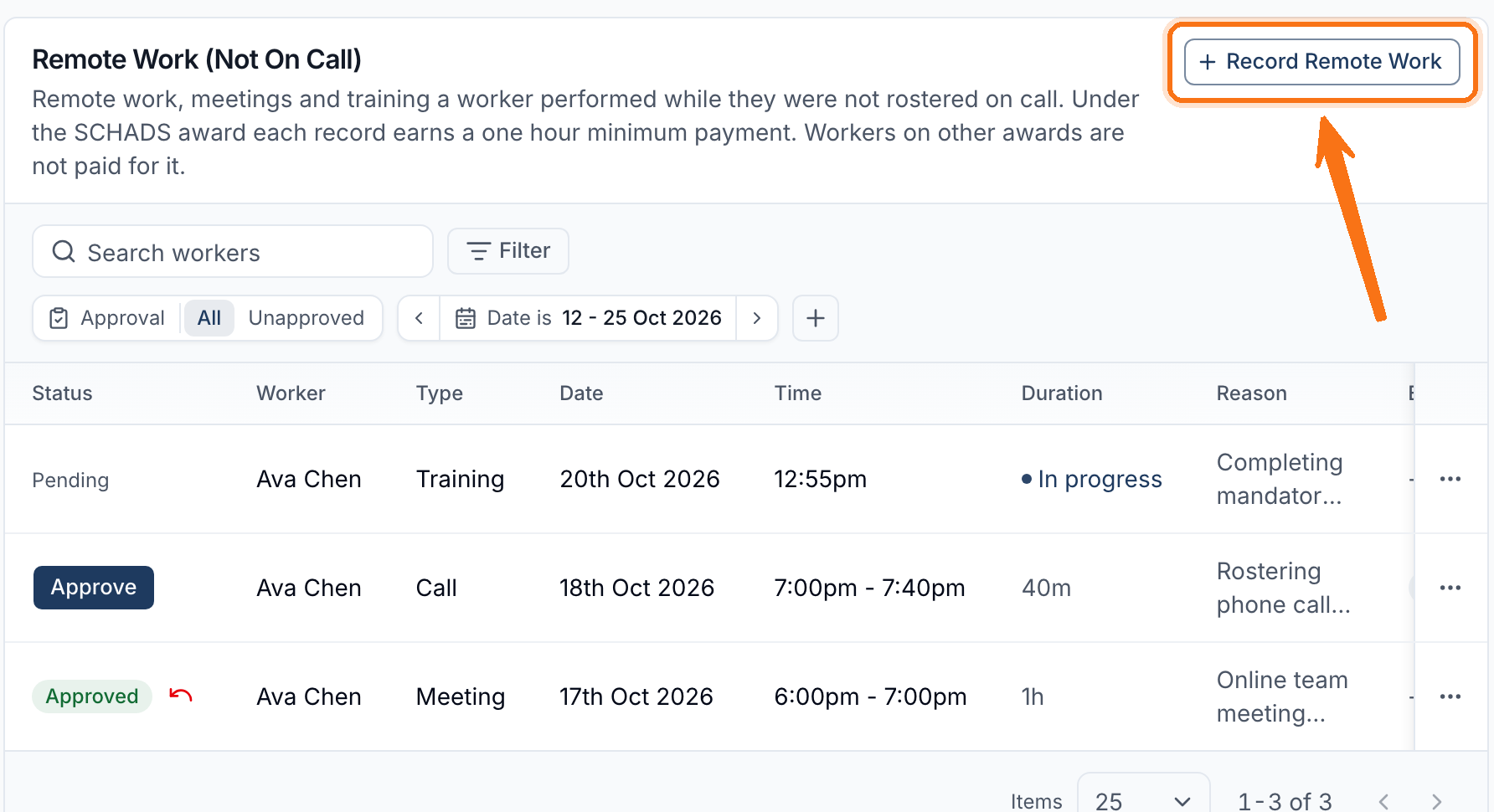
- Select Record Remote Work.
- Choose the Worker, Timezone and Type.
- Enter the Start Time and End Time.
- Complete What was the work? and add evidence if needed.
- Select Record.
Anything done during an on-call period belongs on that period instead, and Astalty refuses remote work that overlaps the worker's on-call. Remote work follows the same approval, audit and timesheet batch rules as an activation.
Mapping On-Call Pay Items
Each pay group exports on-call through its own pay items. Before the first pay run, open Settings > Scheduling > Pay Groups, select Edit Pay Item Mapping on each pay group, and map the on-call rows for its award. An export that needs an unmapped on-call row stops and names the missing item.
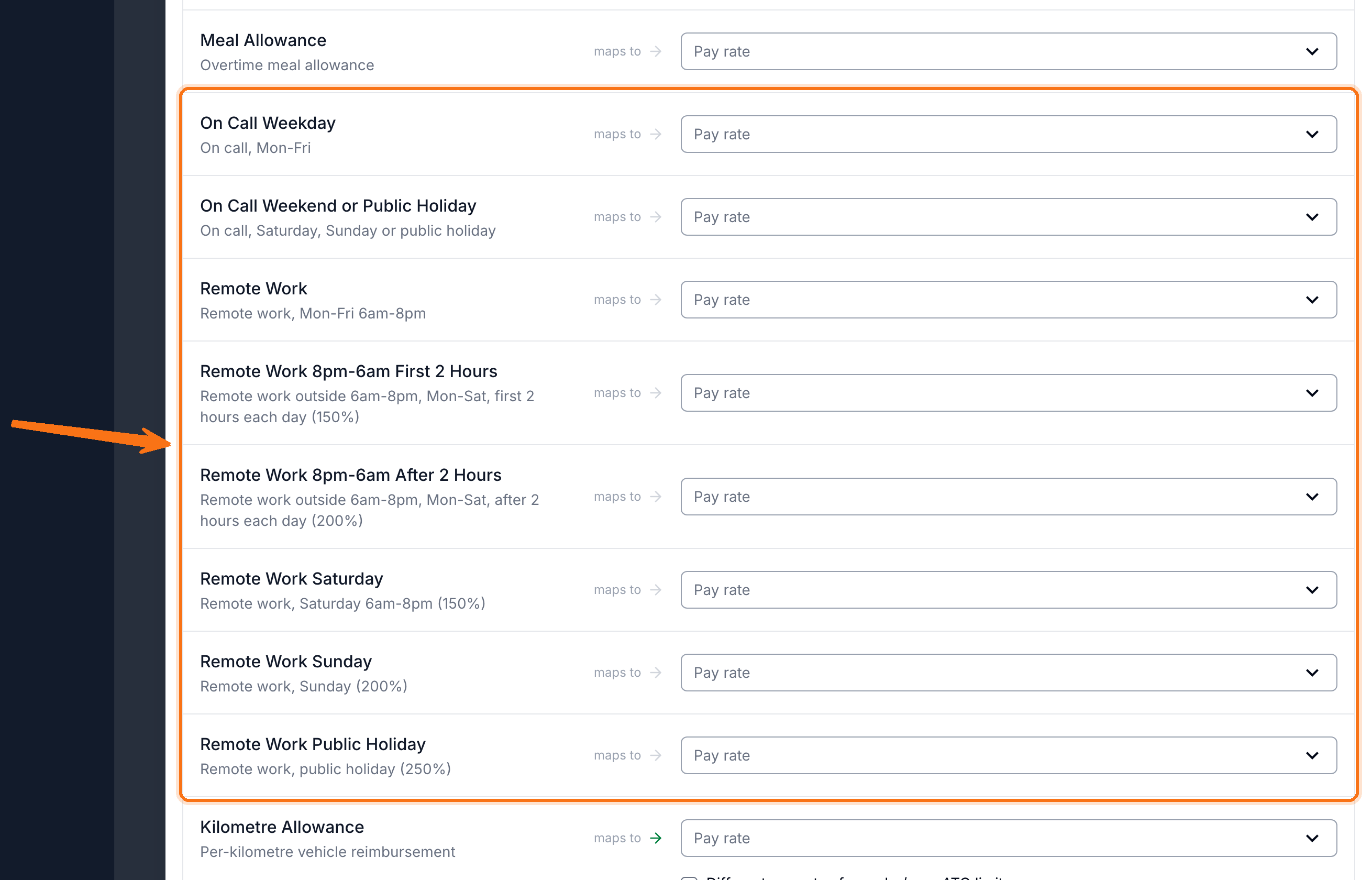
| Rows | Award | What they pay |
|---|---|---|
| On Call Weekday, On Call Weekend or Public Holiday | SCHADS | The standby allowance at each rate. |
| On Call Weekday (Nurses), On Call Saturday (Nurses), On Call Sunday or Public Holiday (Nurses) | Nurses | The standby allowance at each rate. |
| On Call Monday to Saturday (Health Professionals), On Call Sunday or Public Holiday (Health Professionals) | Health Professionals | The standby allowance, per 24 hours or part of it. |
| Remote Work, Remote Work 8pm-6am First 2 Hours, Remote Work 8pm-6am After 2 Hours, Remote Work Saturday, Remote Work Sunday, Remote Work Public Holiday | SCHADS | Calls, meetings, training and remote work at the remote work rates. |
In Xero, map the six remote work rows to ordinary time earnings rates, not overtime ones, or super is not calculated on them. If your only 150% and 200% rates are overtime rates, create new ones in Xero first.
Employment Hero, PayCat and QuickBooks Payroll also have these rows:
- On Call Overtime, for recall and remote work hours paid as overtime, on every award that supports on-call.
- On Call Ordinary, for recall by nurses at RN levels 4 and 5, who are paid no overtime.
- On Call Overtime Adjustment, for the extra shift pay when on-call hours move later shift hours into overtime or a higher overtime rate. It is sent as hours at the base rate.
Map them as follows:
- Standby rows: a work type on a fixed-rate pay category. Standby is sent as a number of allowances.
- Remote Work, On Call Overtime and On Call Ordinary: a custom work type that pays a pay category of its own, or one of the platform's own work types on a fixed-rate pay category. Weekday remote work and weekday on-call ordinary hours may instead use a custom work type on the employee's primary pay category.
- Casual pay groups: map those hourly rows to pay categories carrying the full casual percentage on the base rate, for example 175% rather than 150% for SCHADS, or 187.5% for Nurses and Health Professionals.
- On Call Overtime Adjustment: a pay category of its own with no loadings, super or leave accrual.
On-call reaches these platforms as units per day on each row's work type, not as timed lines. Validation refuses a work type that cannot price those units.
Timesheet Batch Warnings
The timesheet batch list and each batch show Standby Claims and Activations counts. A batch's Award Interpretation tab shows on-call in its own columns, such as On call (weekday) and Remote work, whenever a worker has any.
Before a batch is created, Astalty checks on-call for the period and warns about:
- Completed activations that are still unapproved. An unapproved activation is never paid.
- Activations with no end time, which cannot be approved until one is set.
- On-call that cannot be paid as it stands, because of the worker's award, a missing employment contract or the payroll platform's export.
- Approved activations held back because an approved shift that overlaps them is not in a batch yet.
- Approved activations in no timesheet batch, although a batch already covers their date.
- Workers with shifts or on-call in the period but no payroll calendar assigned in Xero.
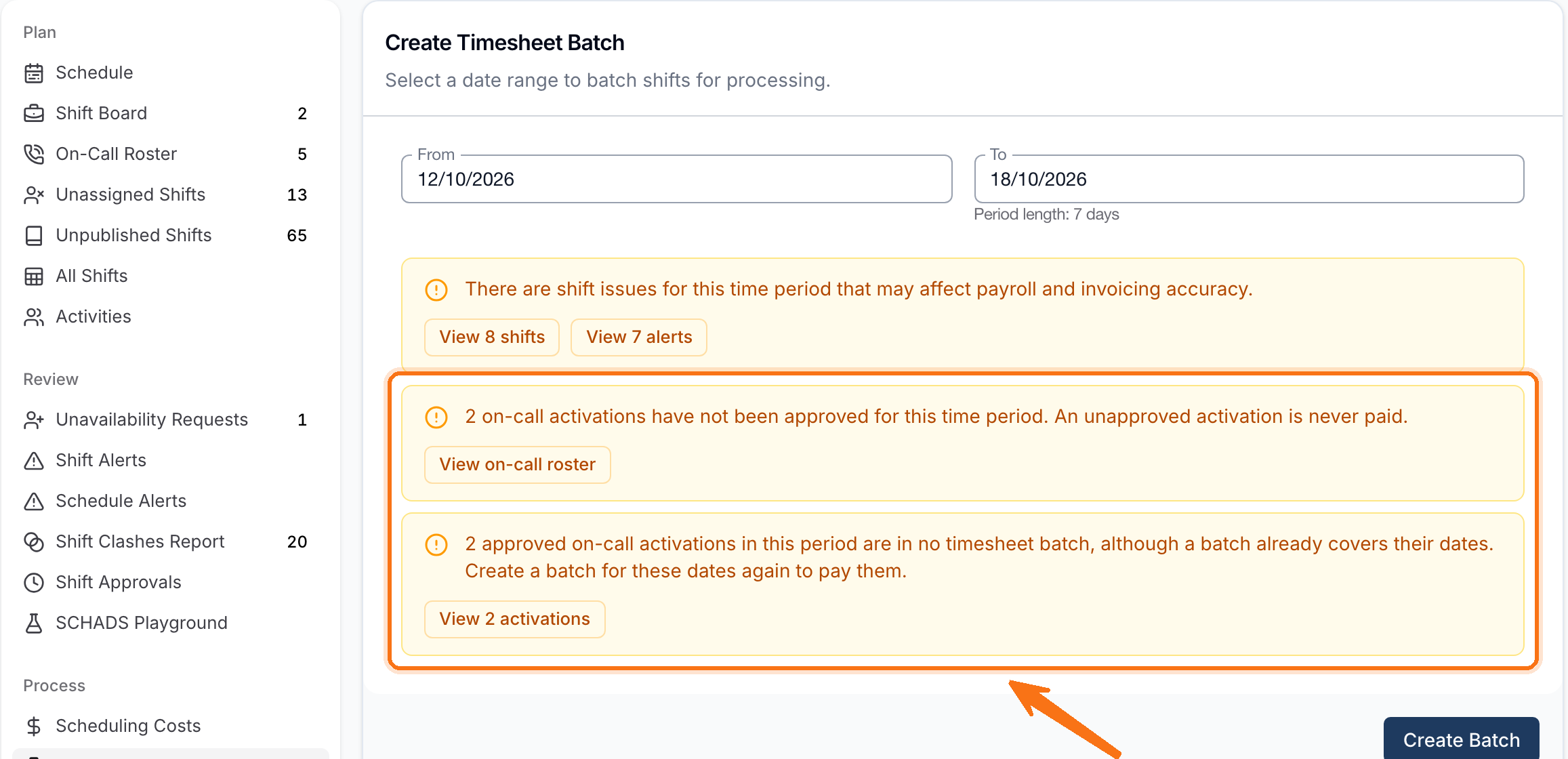
Each warning has a button to resolve it: View on-call roster opens the roster filtered to the batch dates, and the others open the records concerned. An activation held for a shift is released once that shift is batched. After resolving any of these, create another batch for those dates to pay what was left out.
Deleting a batch releases its shifts and on-call to be claimed by the next batch for those dates. A batch cannot be deleted while a later batch's on-call pay depends on it, so delete the later one first.
Using On Call in the Support Worker App
Workers see who is on call, check their own periods, and log activations and remote work from the app's Home screen. See On Call in the Support Worker App.
On-Call Report
To review rostered on-call, standby units and logged work across workers for a date range, use the On-Call Report.