- Scheduling
- Publishing Workflow
Publishing Workflow
Overview
Before publishing a roster, review the selected period so workers receive a schedule that is ready to follow. Check that:
- There are no clashes
- All the availability requests have been approved
- Any varying availability has been updated
- All of the shifts have been assigned
- the remaining shifts are ready to publish
Choose a Publishing Period
Choose a weekly or fortnightly publishing period that gives your team enough notice and time to resolve changes.
Preparation and Changes to Scheduled Shifts
Prepare and make any necessary changes to your scheduled shifts. Ideally, this should begin with enough time/days prior to the day you wish to publish so you have time to make your adjustments. Some of these steps may include:
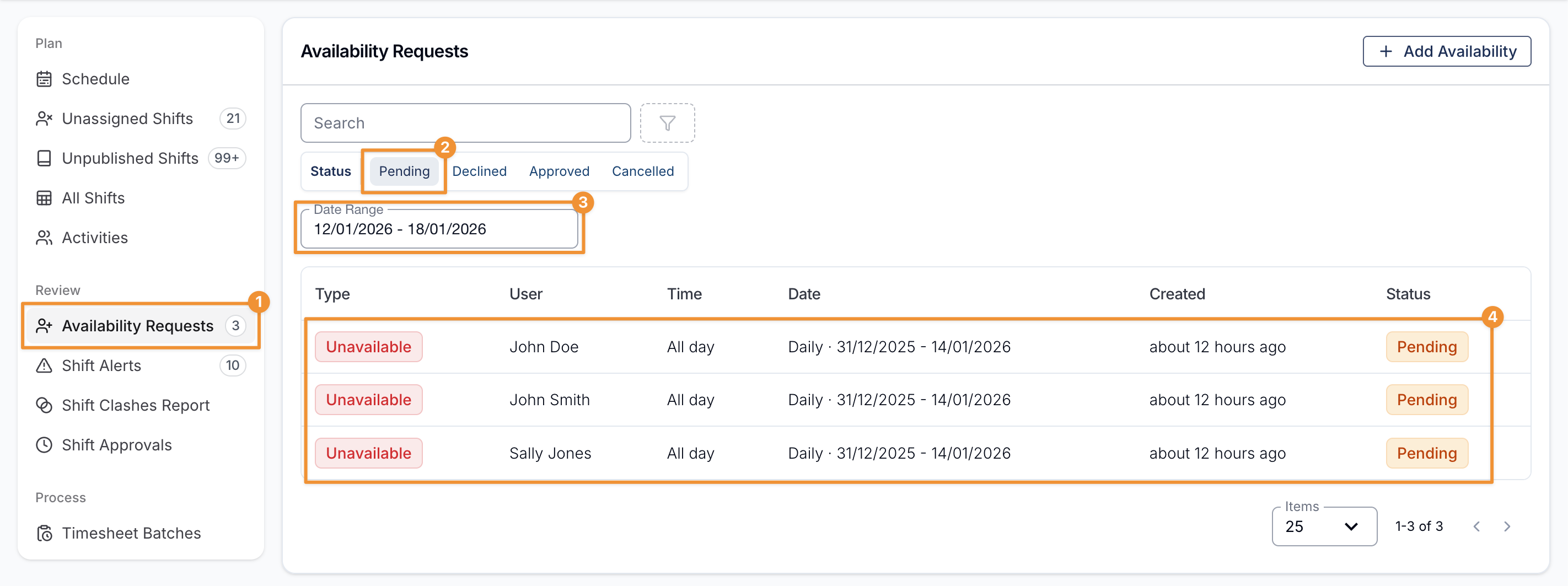
- Review and action Unavailability Requests for that period.
- Filter Pending and set the date range to the schedule period.
- Action outstanding requests.
- Unassign any impacted supports that cannot be covered by the original worker (these will then show up in the Unassigned Shifts).
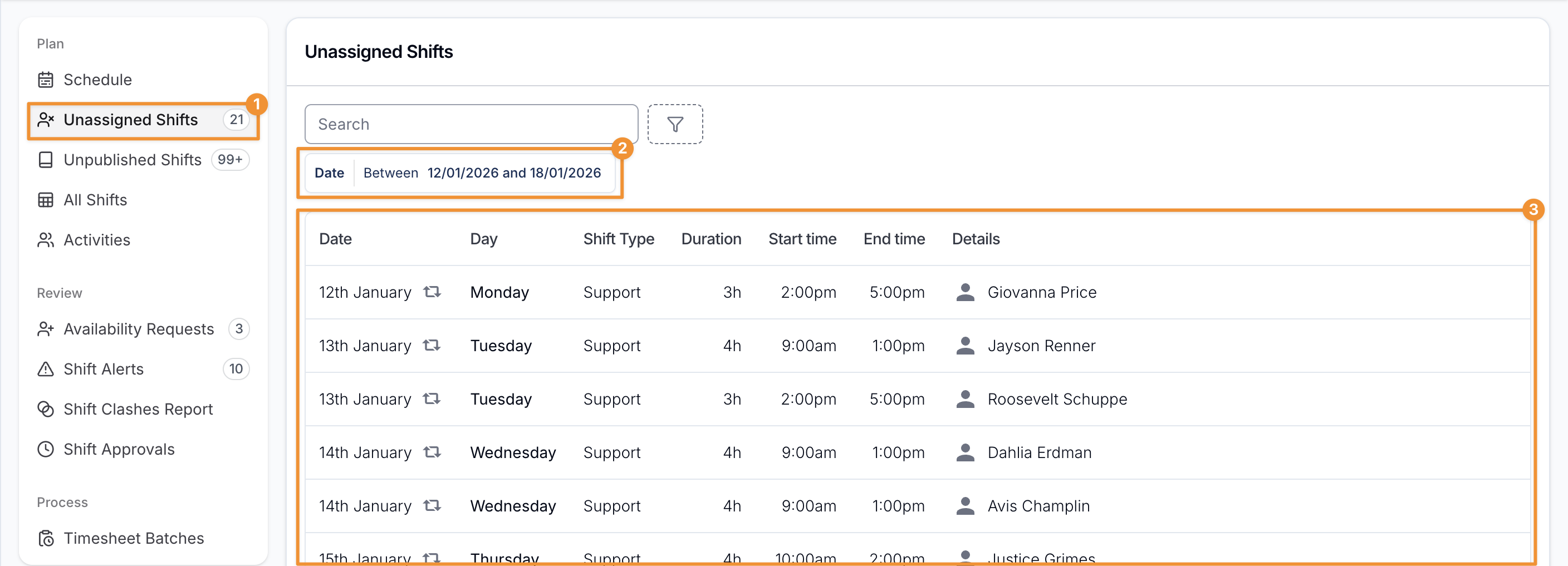
- Review and action Unassigned Shifts for that period.
- Set the date range for that period.
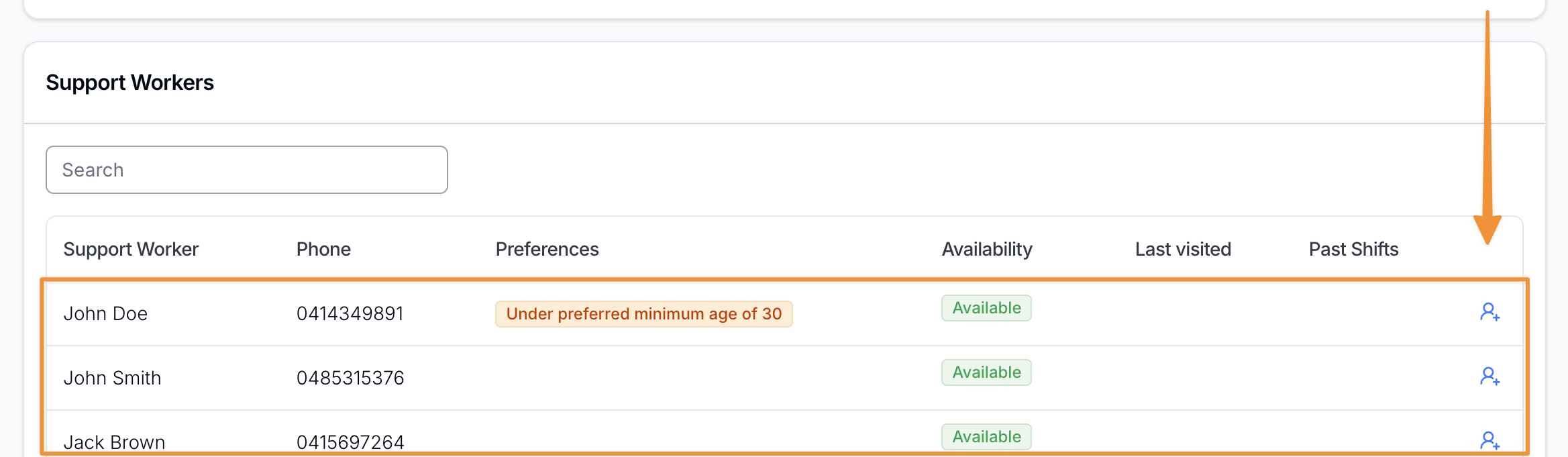
- Click into each unassigned support, scroll down to assign the Support Worker.
-
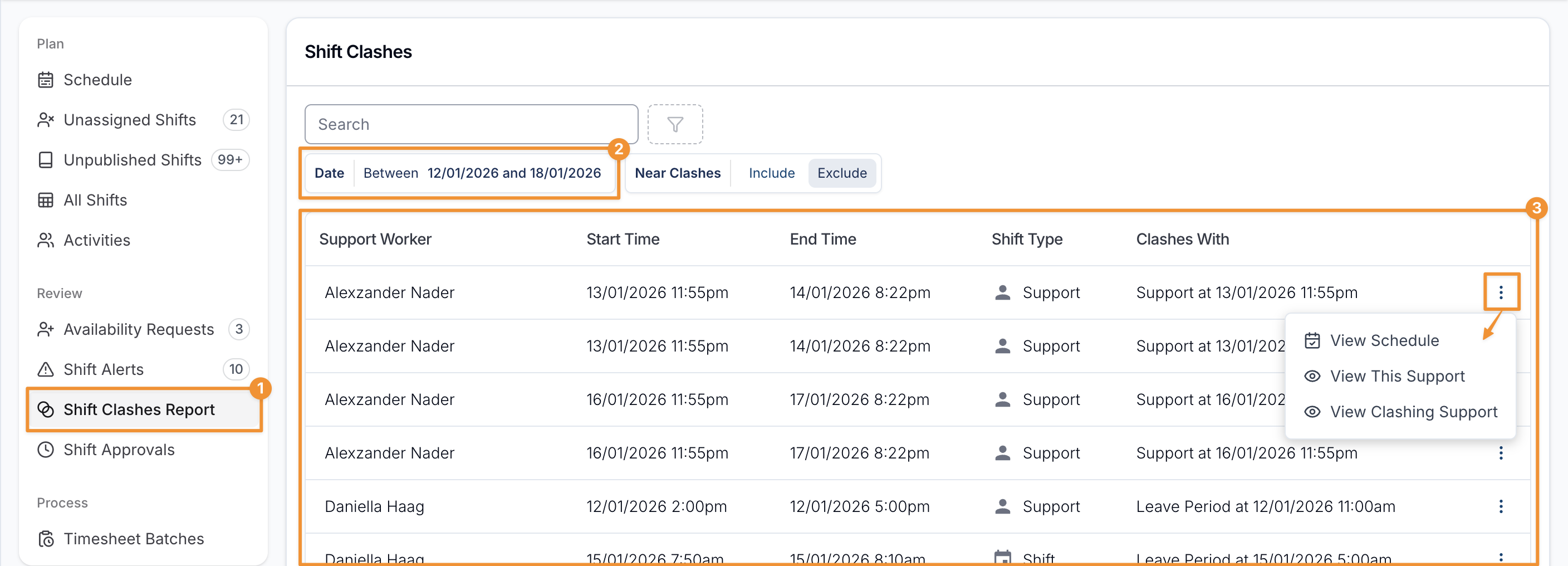
Review the Shift Clashes Report.
- Check there are no clashes for the period.
- If there are clashes, make adjustments to those supports where necessary.
-
Review Schedule Alerts if your organisation uses award alerts. These alerts are advisory and do not prevent publishing.
Ready to Publish
- Publish all shifts for that publishing period
- Open the Schedule.
- Set your View Mode to either Week or Fortnight, depending on your publishing period
- Select the week or fortnight you need to publish.
- Select Publish.
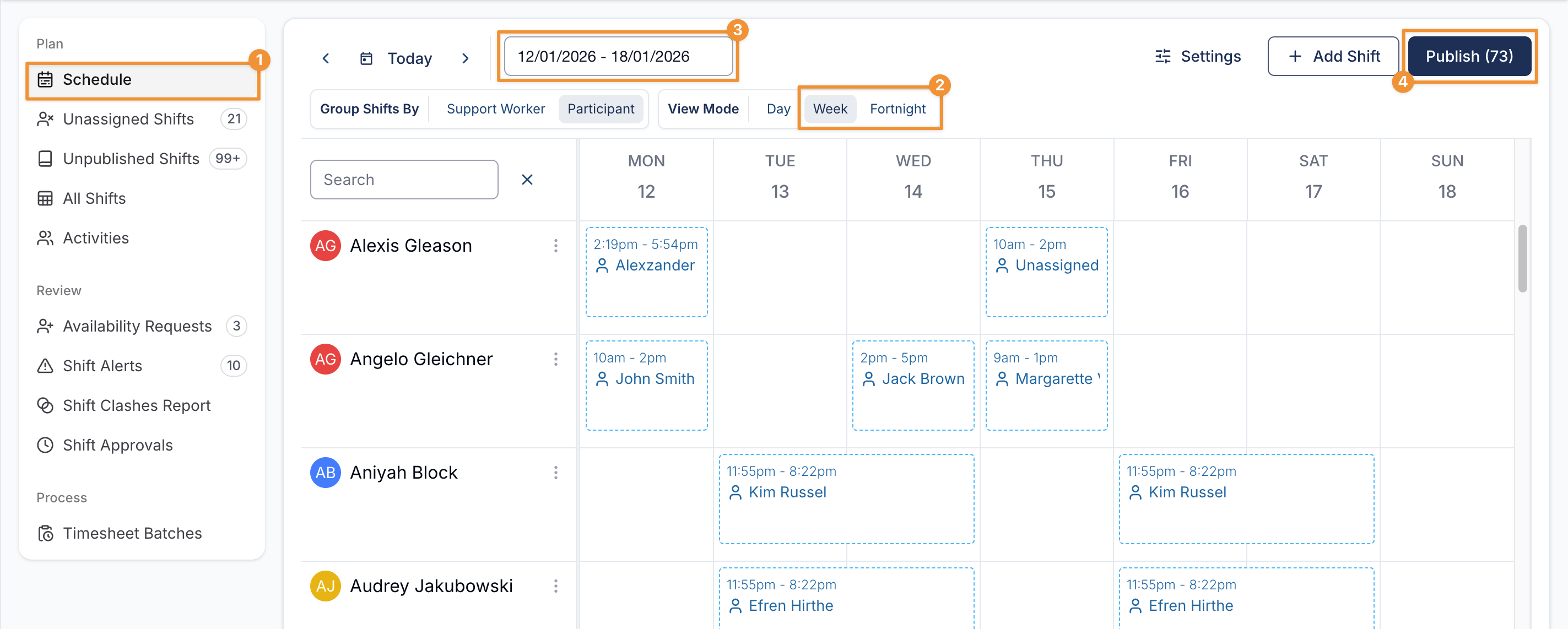
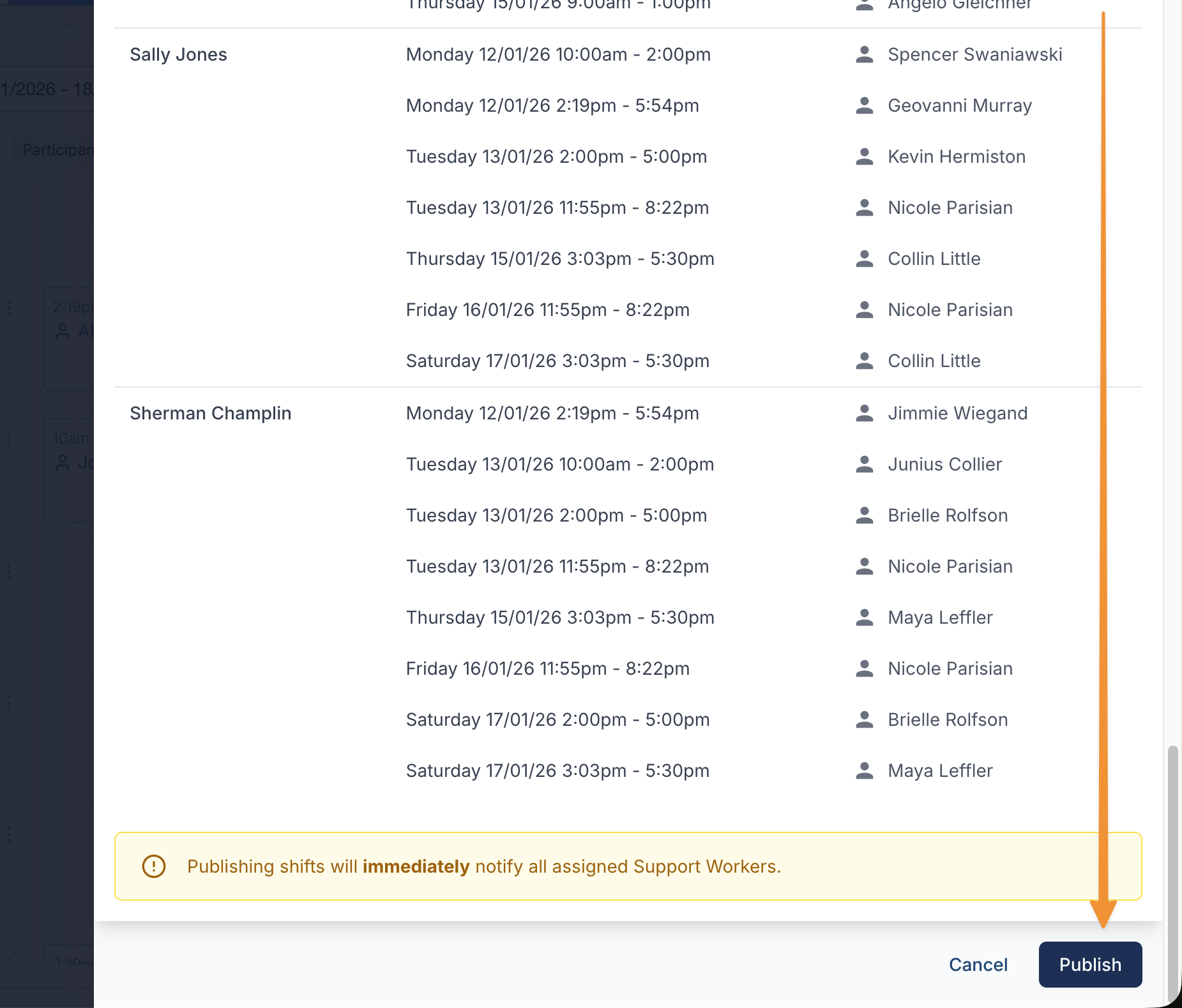
Astalty previews the shifts in the selected period, grouped by assigned worker with unassigned shifts listed separately. Review the preview before selecting Publish.
If the period contains shift clashes, Astalty links to the Shift Clashes Report and asks you to confirm before continuing. Publishing immediately notifies assigned Support Workers and adds the shifts to their schedules. Unassigned shifts remain unpublished to workers until someone is assigned.