- Scheduling
- Viewing a Support Worker's Schedule
Viewing a Support Worker's Schedule
A Support Worker who can be rostered has a Shifts tab on their profile showing everything they are scheduled on, and you can export that schedule as a PDF to print or share.
Overview
The Shifts tab is the single place to see one worker's roster, rather than picking them out of the whole schedule. Reach for it when you need to answer a question about one person - what they are working next week, whether a new shift clashes with what they already have, or what they were rostered on last month.
From that tab you can also download the roster as a PDF, which is useful when the worker needs a copy they can keep. The PDF is a plain list of dates, times, Participants and hours, so it prints cleanly and can be emailed to someone without an Astalty account.
Before You Start
The Shifts tab only appears when all of the following are true:
- Your account has the Scheduling module.
- The user is set up to be rostered on supports - see Enabling a User to be Scheduled on Supports.
- You have permission to view the Scheduling module, or you are looking at your own profile.
That last point matters for Standard Users who are rostered themselves - a coordinator or team member who also works shifts can open their own Shifts tab and export their own schedule, without being given access to anyone else's roster.
Viewing a Worker's Shifts
- From the left-hand menu, select Users.
- Select the Support Worker whose schedule you want to see.
- Select the Shifts tab.
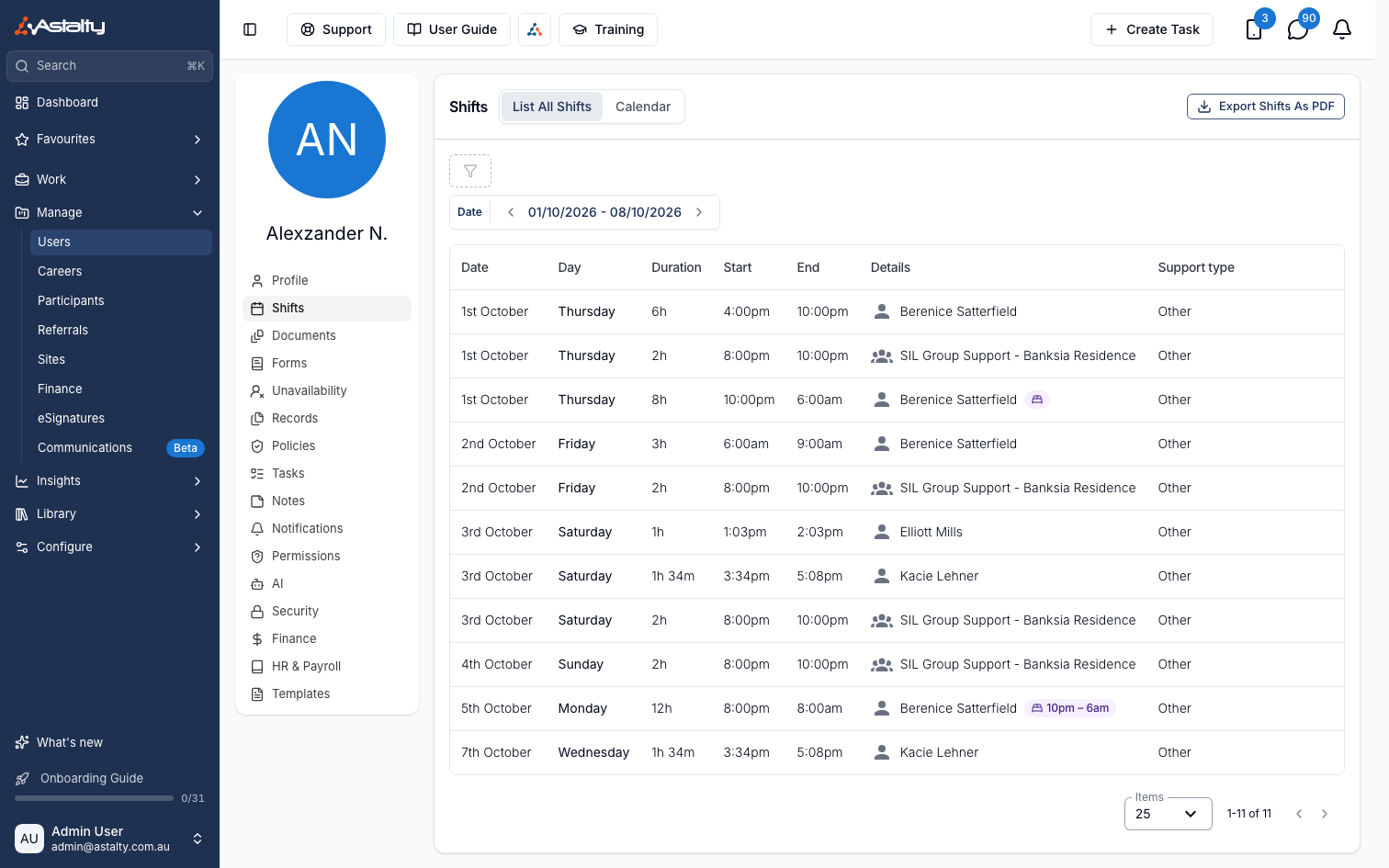
You can switch between list all shifts and calendar using the toggle at the top of the section. Astalty remembers which one you chose and shows it the next time you open the tab.
In list view, use the date filter to change the period you are looking at - it opens on the next seven days. In calendar view, move between weeks or months as you would on the main schedule.
A sleepover shift carries a bed icon in list view, in the colour set for Sleepover under Schedule Colours (blue by default). If the sleepover window doesn't cover the whole shift, the icon also shows the window as a short time range, for example 10pm – 6am - hover it to see the full Sleepover Window times. See Sleepover Window for how the window is set.
Exporting a Worker's Schedule as a PDF
- On the worker's Shifts tab, select Actions in the top right, then Export Shifts As PDF.
- Check the Date Range. It is pre-filled with the period you are currently looking at. To change it, pick the dates on the calendar, or use the presets - choose This or Next, then Week, Fortnight, Month, Quarter or Year.
- Tick Include cancelled shifts if you want cancelled shifts listed as well.
- Tick Include unpublished shifts if you want unpublished shifts listed as well.
- Select Submit.
Both tickboxes are off to begin with, so by default the PDF contains only published shifts that have not been cancelled. The wording at the top of the panel changes as you tick them, confirming what is about to be included.
The file downloads straight to your device - it is not queued on the Exports page, and nothing is emailed. It is named after the worker and the period, for example Jane Smith Shifts 01-01-2026 to 07-01-2026.pdf.
What's on the PDF
The PDF is headed Staff Schedule and carries your organisation's logo, followed by a summary of the Provider, the Worker, and the Date Range covered. Shifts are then listed oldest first, one row each:
| Column | What it shows |
|---|---|
| Date | The date the shift starts, as 24/08/2026 |
| Day | The day of the week, for example Monday |
| Time | Start and finish times, for example 9:00 am - 5:00 pm |
| Timezone | Only shown if your account uses multi-timezone scheduling |
| Participant | Who the shift is for |
| Duration | The length of the shift, for example 3h, 1h 27m or 45m |
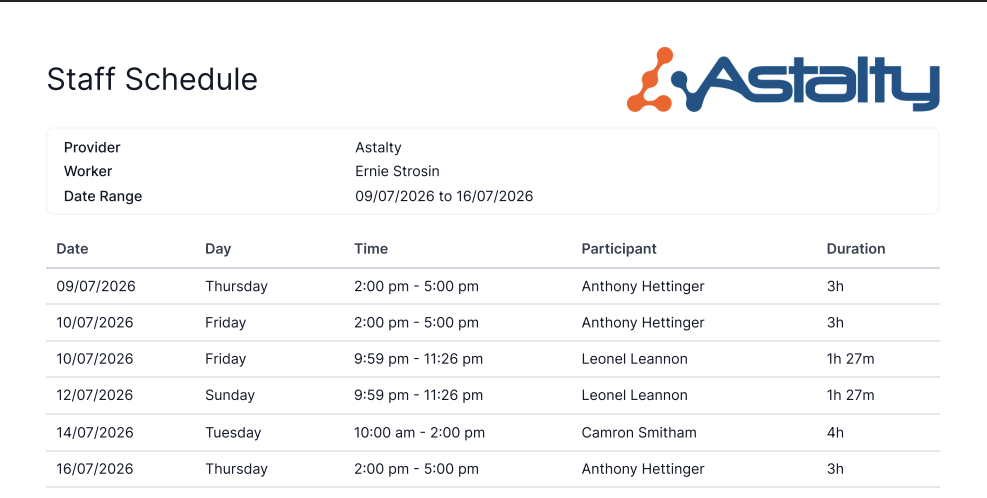
A sleepover shift shows a bed icon after its time, in the same Sleepover colour as the list view (darkened automatically if the colour set is too pale to read on white). When the sleepover window doesn't cover the whole shift, the time instead gets an outlined badge with the bed icon and the window underneath, for example 10pm - 6am.
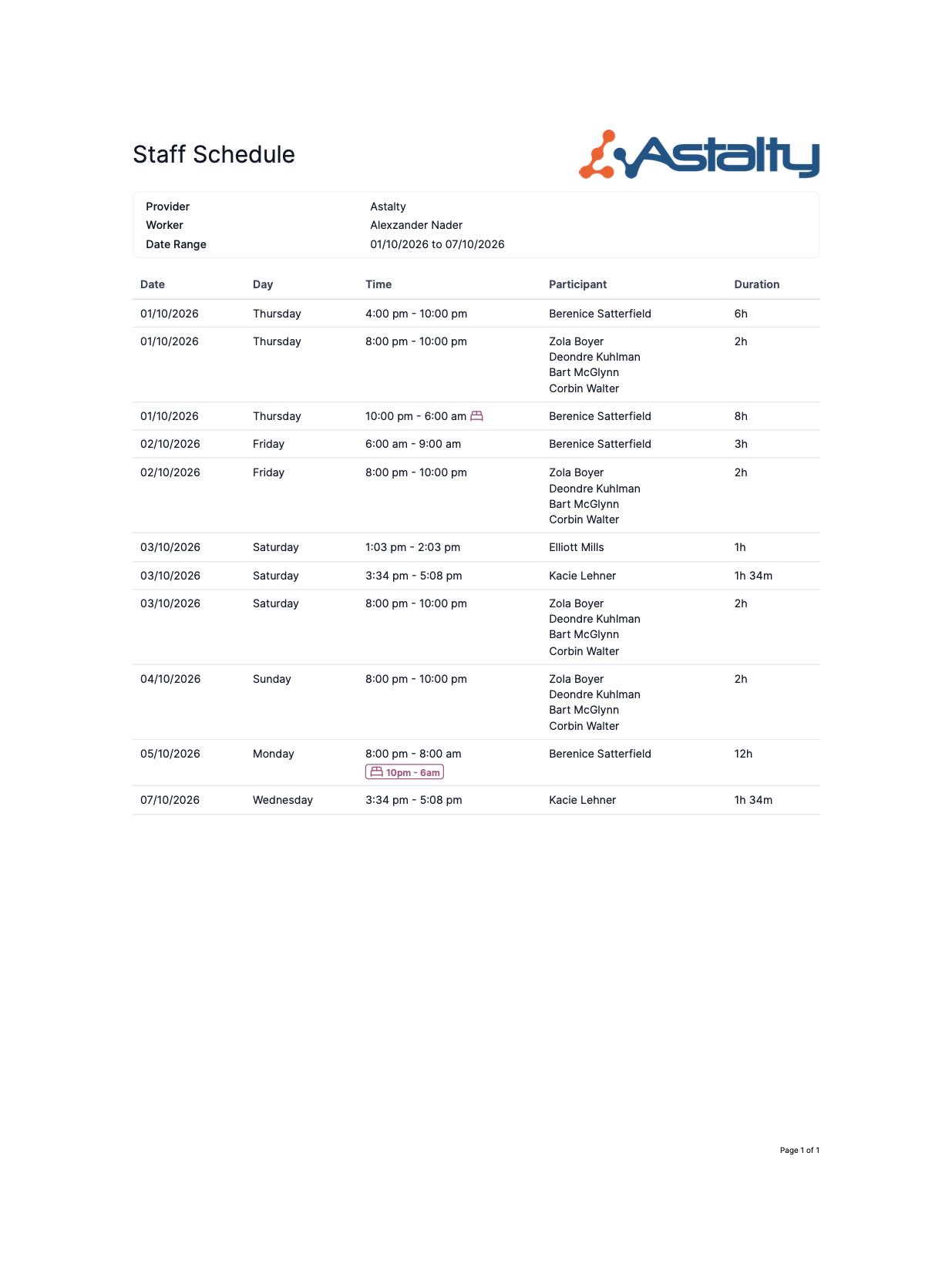
The Participant column adapts to the kind of shift:
- A support for one Participant shows that Participant's name.
- A group shift lists every Participant on the group, one per line.
- An internal or non-support shift - admin time, a meeting, training - shows the name of the event instead.
- Anything with no Participant to show displays a dash.
If there are no shifts in the range you chose, the PDF is still produced, with the message "This worker has no shifts scheduled for this time period." in place of the table.
Things to Keep in Mind
- The PDF shows full names. Both the worker's name and the Participants' full names appear. This differs from a Participant's schedule, where staff are reduced to a first name and an initial. Share a Staff Schedule PDF with care - it identifies the Participants that worker supports.
- Cancelled shifts aren't marked. When you tick Include cancelled shifts they appear as ordinary rows, with nothing to distinguish them from shifts that are going ahead. If the distinction matters, check the shifts on screen instead - see Support Cancellations.
- There is no total hours row. The PDF gives the duration of each shift but does not add them up. For totals, use the Shifts Export or the scheduling reports.
- Unpaid breaks are left out of the PDF entirely, so the durations shown are the shifts themselves.
- Leave and unavailability don't appear. Neither is a shift, so neither is included - see Leave and Managing Availability.
- Keep the date range sensible. There is no limit on how long a range you can ask for, but a very large one can produce a file too big to generate. If an export fails, try a shorter period.
Where to Go Next
- Viewing a Participants Schedule - the same idea from the Participant's side, including emailing the schedule out.
- Published and Unpublished Shifts - what publishing a roster does, and who can see what before you do.
- Shifts Export - a CSV of shift data across all workers, when you need to analyse rather than share.