- Scheduling
- Workers
- Enabling a User to be Scheduled on Supports
Enabling a User to be Scheduled on Supports
Overview
In Astalty, you can control which users can be assigned to supports and use the worker actions in the app. Set Can be Scheduled for Supports when inviting a user or later from the user's Permissions page.
Method 1: Invite a New User as a Support Worker
- From the left-hand side menu, go to Users.
- Click Invite User.
- Select Support Worker as the role.
- Turn on Can be Scheduled for Supports.
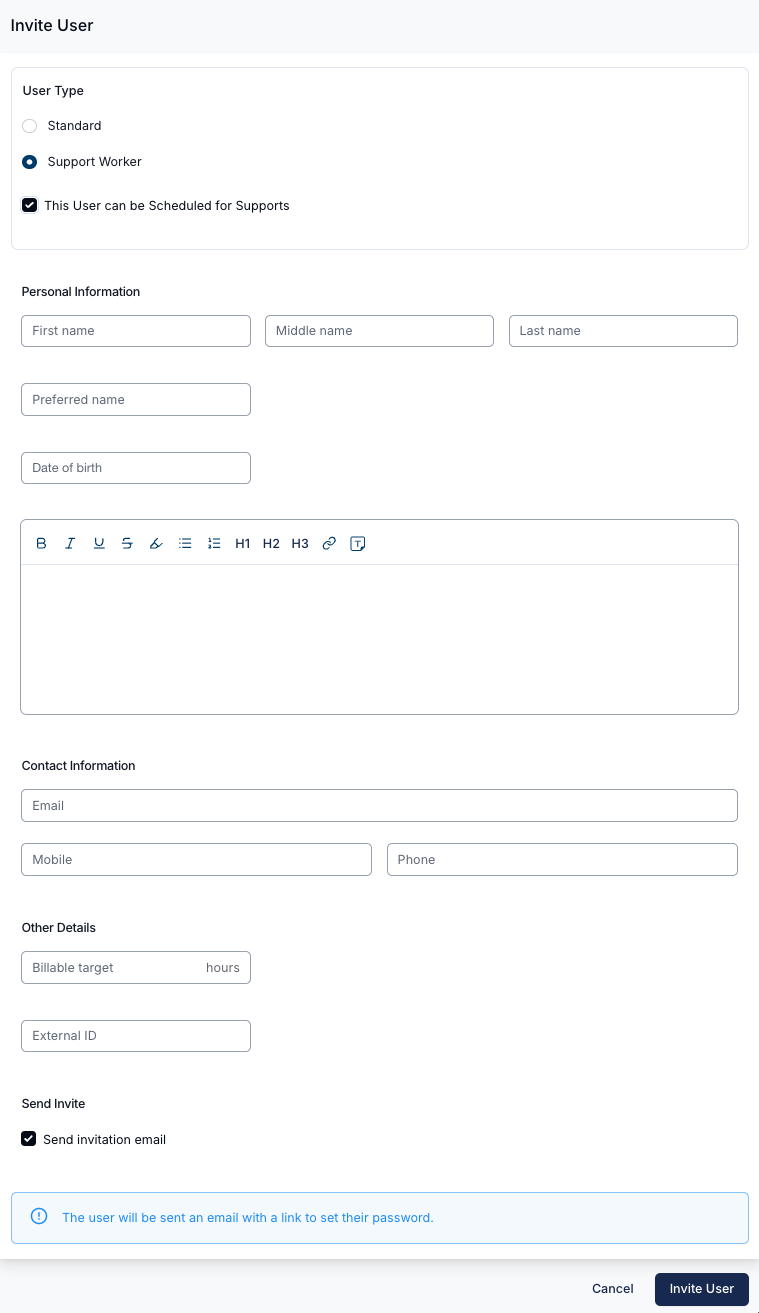
- Fill in the required information.
- Scroll to the bottom of the drawer and select Invite User.
Method 2: Update an Existing User
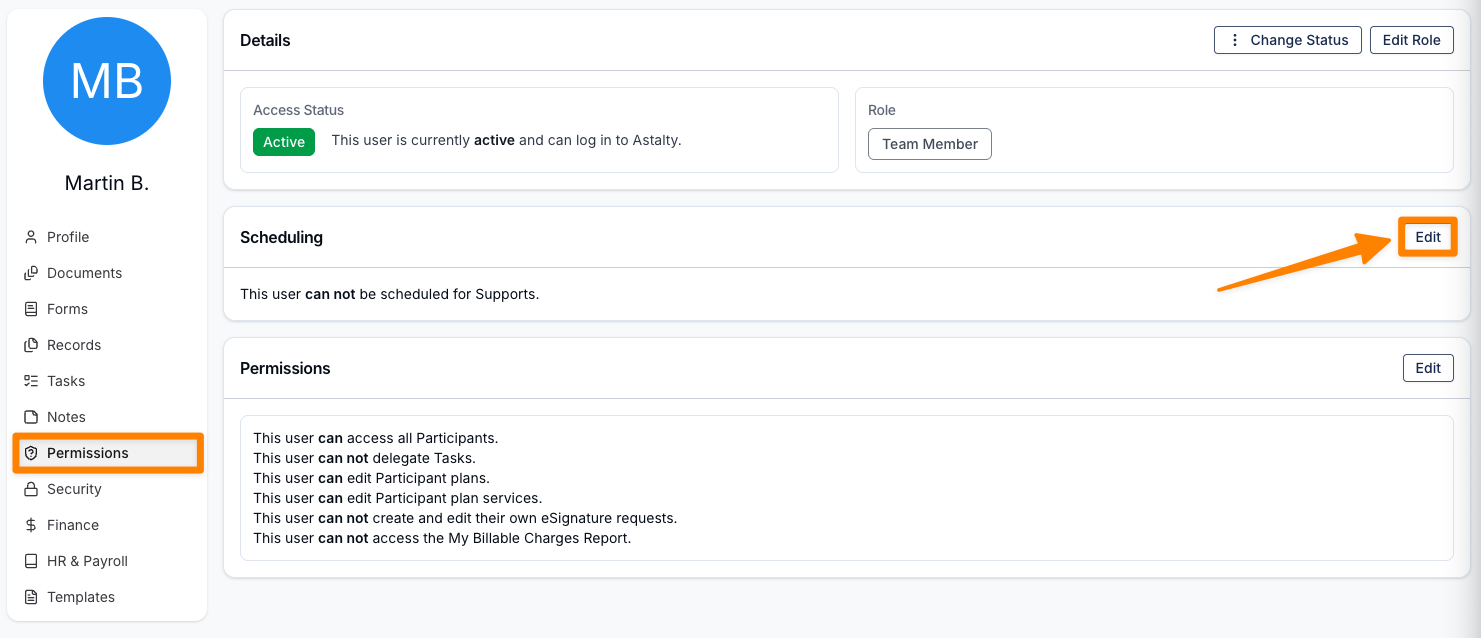
- Go to the Users section and open the profile of the team member that you want to schedule for support.
- Head to their Permissions page, and click on Edit in the Scheduling section.
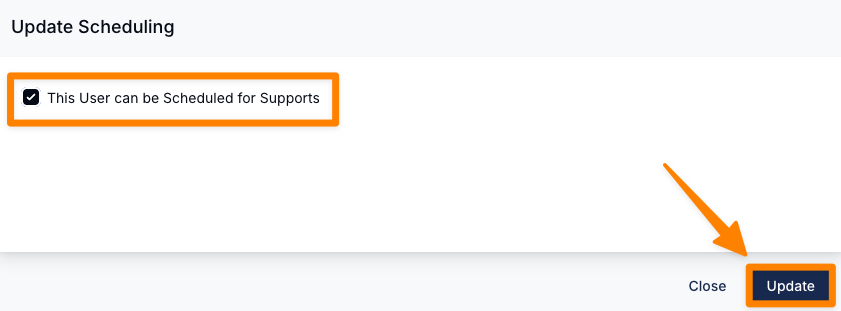
- Turn on Can be Scheduled for Supports, then select Update.
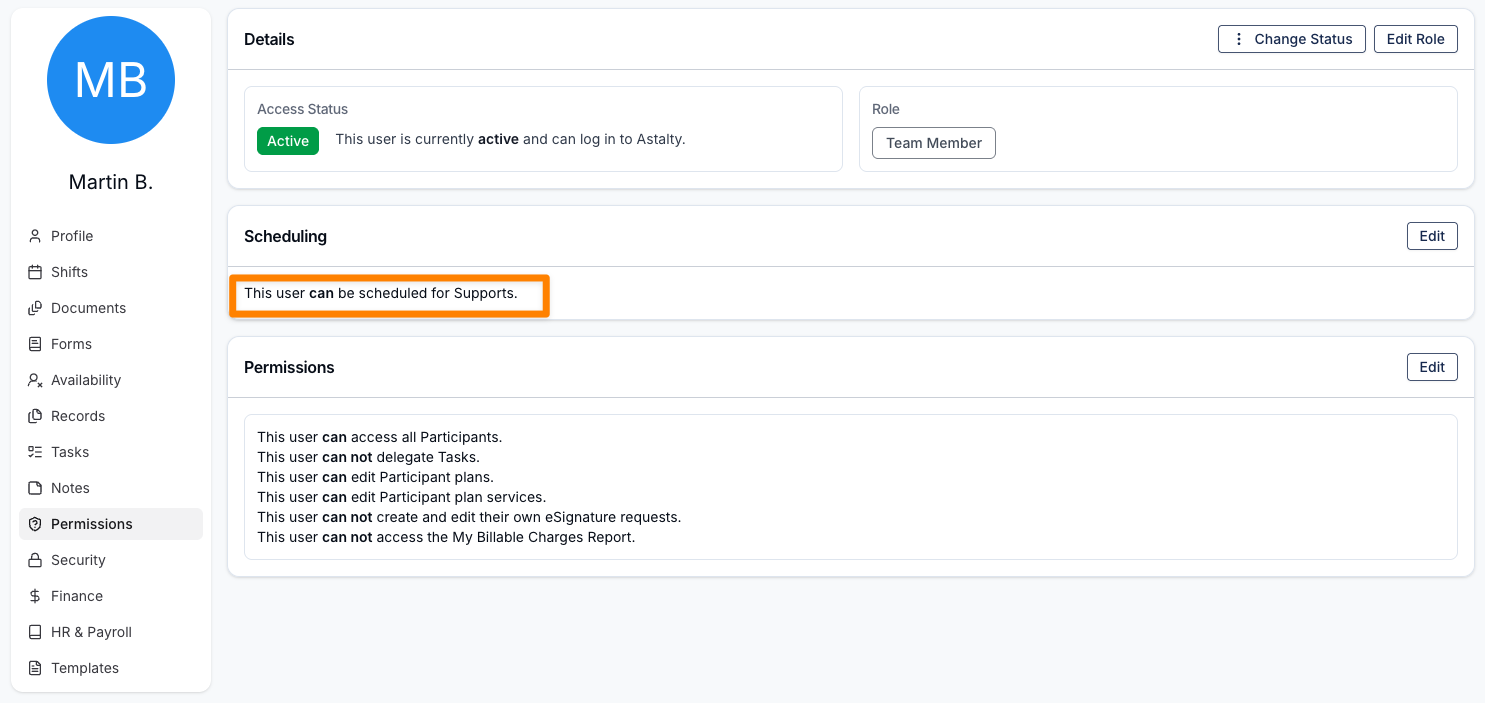
This change will be reflected on the Users Permissions page.
Inviting a Support Worker Video
The following video outlines how you can invite a Support Worker into Astalty.