- Scheduling
- On Call in the Support Worker App
On Call in the Support Worker App
When your organisation uses the On-Call Roster, the app's Home screen shows who is on call now, your own on-call periods, and a place to log remote work. Log each call, meeting or training session you do while on call, so your coordinator can approve it for payroll.
Who Is On Call Now
On call now lists each worker currently on call and when their on-call window ends. Select Call to phone them. If your organisation has set a shared after-hours number, Call dials that number instead of the worker's own mobile.
When nobody is rostered on call and your organisation has a shared number, the section shows After-hours with a Call button.
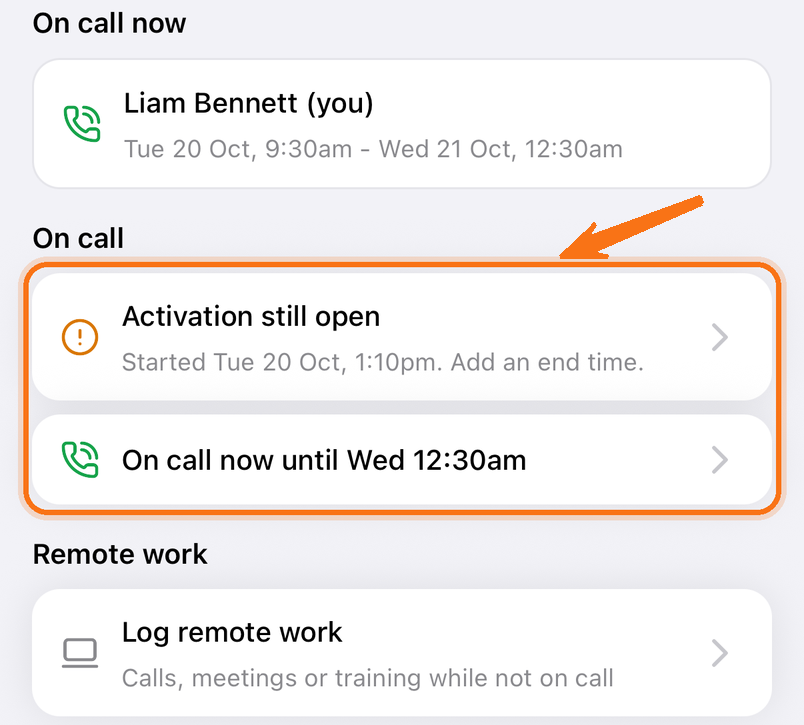
Your On-Call Periods
The On call section shows your current or next period, such as On call now until Tue 7:00am or Next: Mon 20 Oct, 6:00pm. Select it to open your current period, or your list of periods when the next one has not started yet. With only past periods, it reads View your on-call periods. The list shows Now, Upcoming and Past, and past periods go back 60 days.
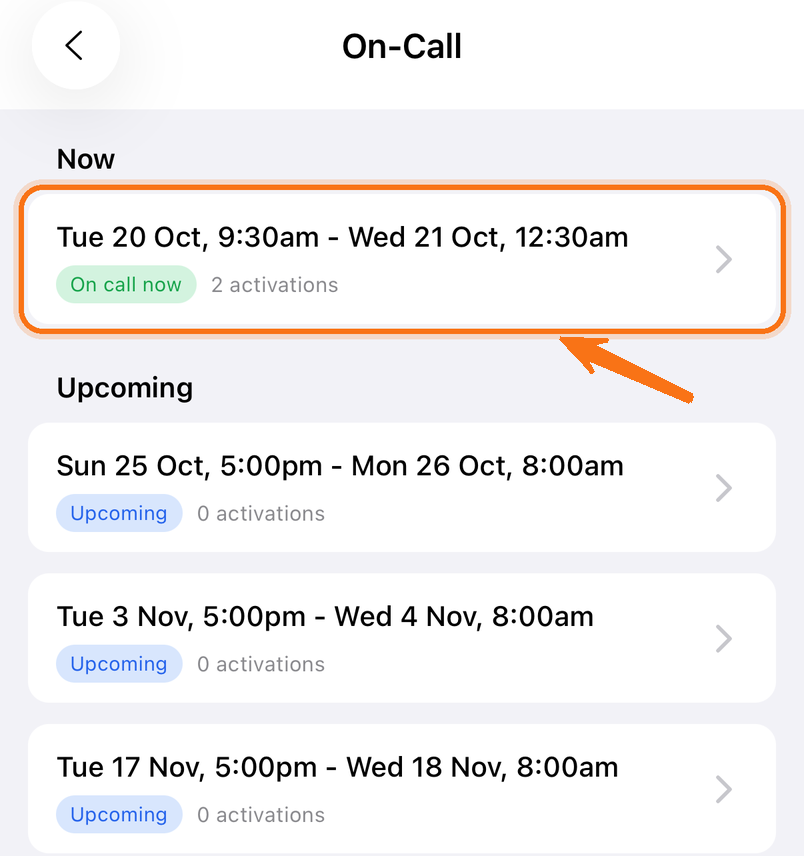
A period shows its on-call window, any notes from your coordinator, and the activations you have logged against it.
You get a push notification when you are rostered on call, when a period changes or is cancelled, and before each period starts. Your organisation sets how long before the start the reminder arrives. Tapping a notification opens that period, or your list of periods for a cancellation.
Logging an Activation
- Open the current period. You can log activations once the period has started.
- Select Log Activation.
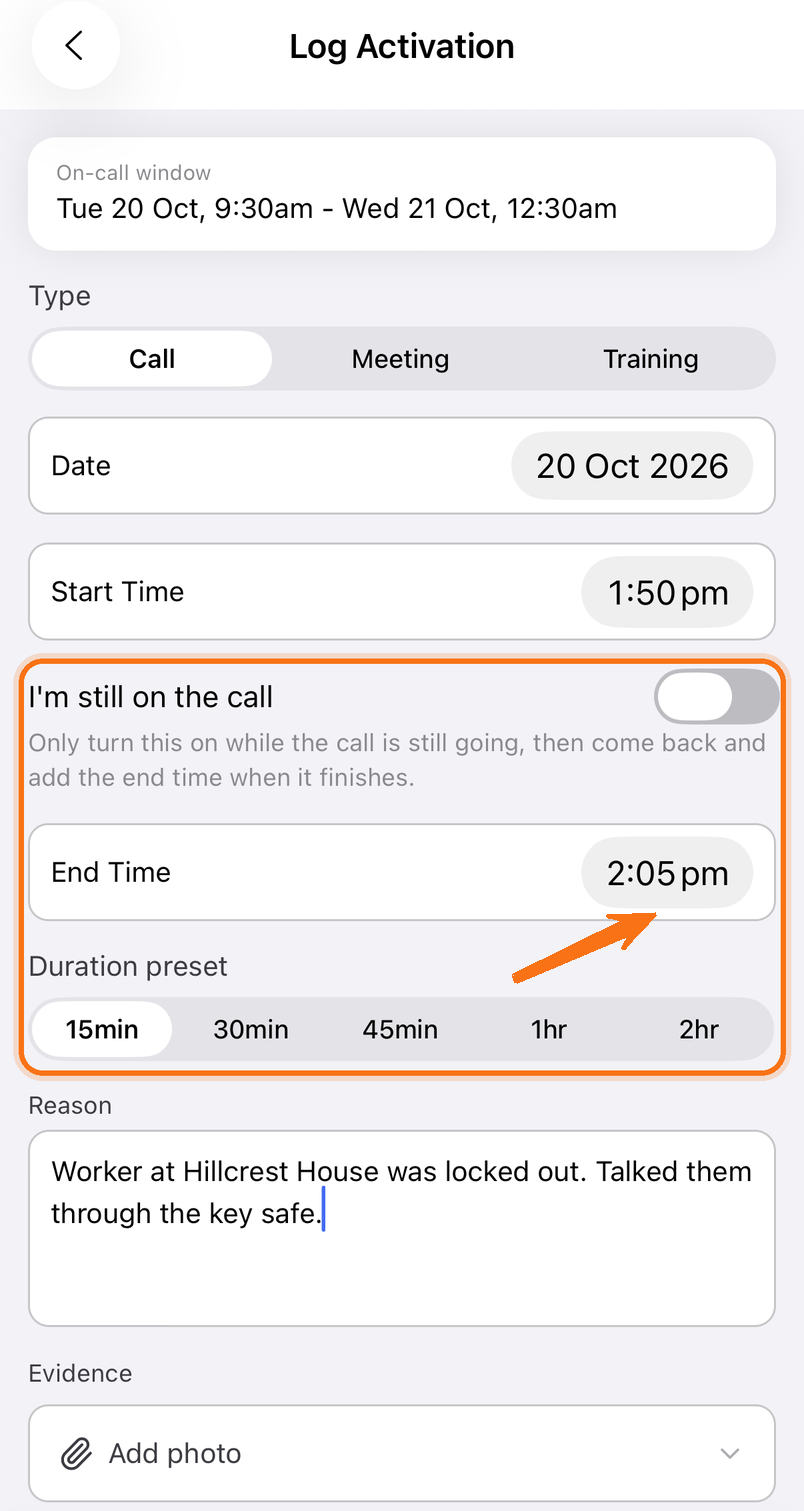
- Choose the Type: Call, Meeting or Training.
- Set the Date and Start Time.
- Set the End Time, or choose a Duration preset. If you are still on the call, turn on I'm still on the call instead and add the end time when it finishes.
- Describe what you were asked to do under Reason, and add photos under Evidence if they help.
- Select Log Activation.
Ending an Open Activation
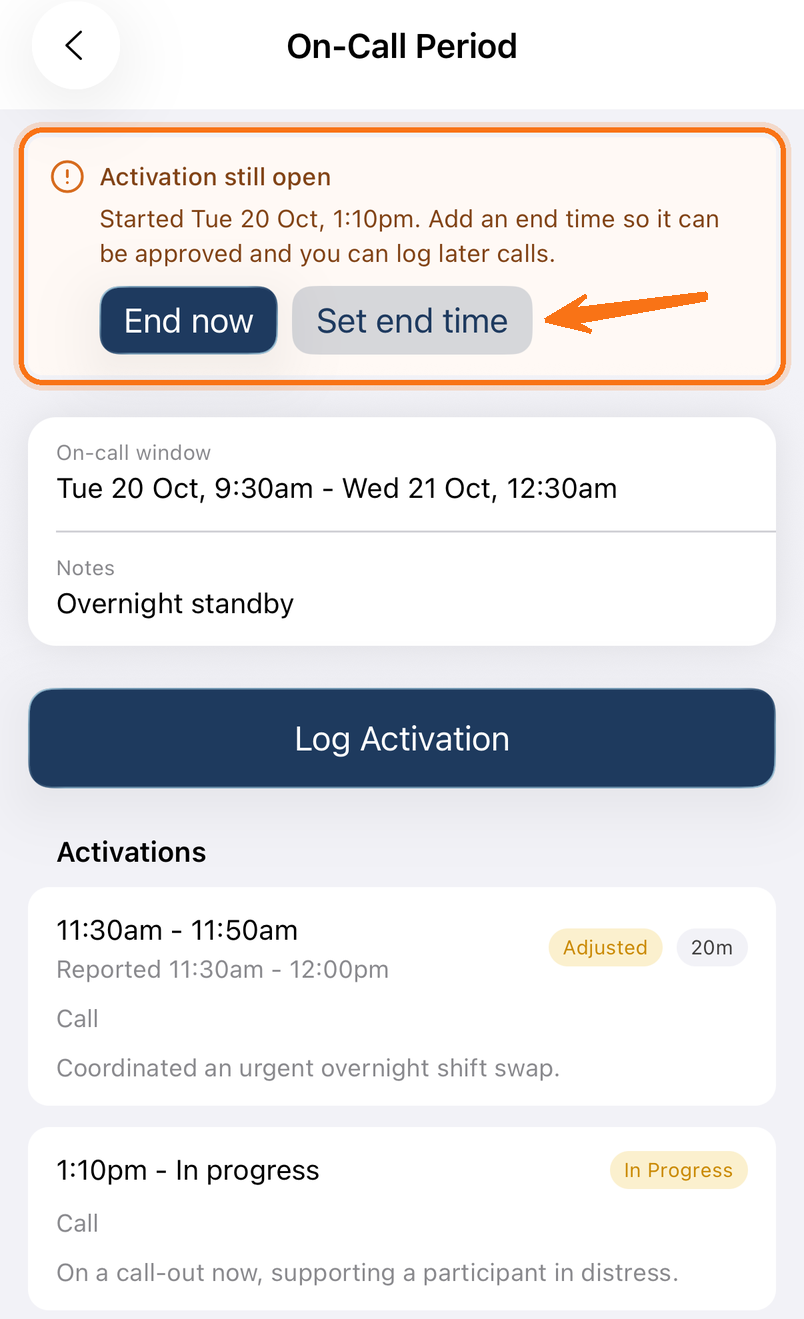
While an activation has no end time, Home and the period show Activation still open. On Home, select it to add the end time. On the period, select End now when the call finishes, or Set end time to enter an earlier time. Your coordinator cannot approve an activation without an end time, and you cannot log a later call until it has one.
If the call started more than two hours ago, End now asks you to confirm the length first.
After You Log
Your coordinator reviews each activation. Until it is approved, you can edit it or delete it from its menu. An approved activation shows Approved, or Adjusted when your coordinator approved different times. Open it to see the approved time and any approval note.
Once an activation is approved it can no longer be changed. If something is wrong, ask your coordinator.
Logging Remote Work
Use Remote work for a call, meeting or training session you did while you were not rostered on call.
- On Home, select Log remote work under Remote work.
- Select Log Remote Work.
- Choose the Type, set the date, start and end times, describe the work, and add evidence if it helps.
- Select Log Remote Work.
Anything you did during an on-call period belongs on that period instead. Remote work can be dated up to 60 days ago, and your coordinator approves it the same way as an activation.
Working Offline
When you lose your connection, the app shows a banner, and what you see may be out of date. A new activation or remote work record saves once you are back online, as long as the app stays open. If you close the app before then, the record is lost.