- Scheduling
- Commenting on Shift Broadcasts
Commenting on Shift Broadcasts
Overview
When you're filling a broadcast on the Shift Board, the decision often depends on context that isn't in the table - you rang a worker, payroll flagged an overtime issue, or the Participant's family asked for something specific.
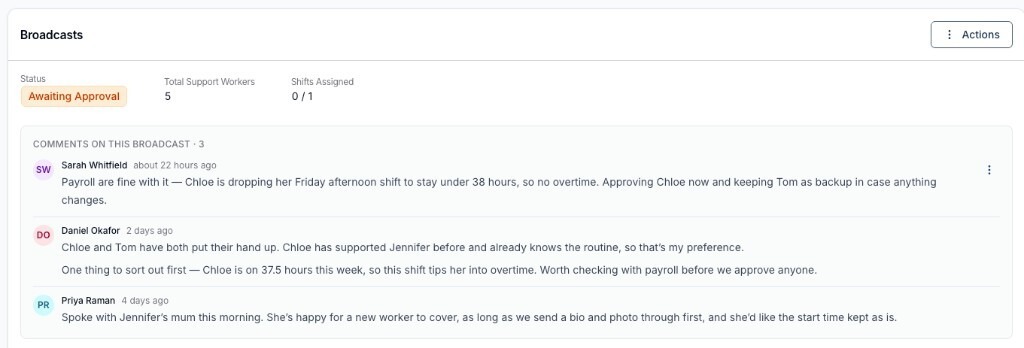
Comments let you record that context directly on the broadcast, so whoever picks the shift up next can see it. You can comment at two levels:
- On the whole broadcast - coordination notes that apply to filling the shift generally, such as payroll approvals or Participant preferences. These sit in a panel on the broadcast page.
- On an individual Support Worker - notes about one worker's availability or suitability, kept in the drawer you open with View or Approve on their row.
Commenting on the Whole Broadcast
- Open Scheduling → Shift Board and click into the relevant broadcasted shift.
- In the Broadcasts section, open the Actions menu.
- Select Add Comment.
- Type your comment and click Add Comment.
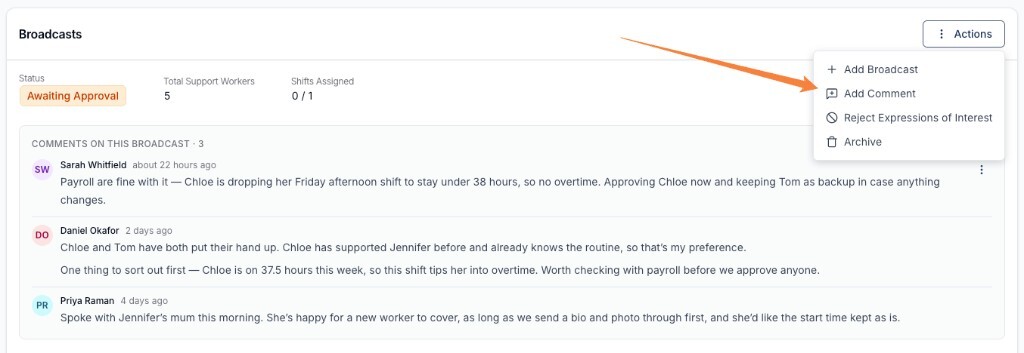
Your comment appears in the Comments on this broadcast panel, directly above the table of Support Workers, with your name and how long ago you posted it. The heading also shows a count of how many comments the broadcast has.
Commenting on an Individual Support Worker
Comments about one worker live in the same drawer you use to assess them, so you can read the context while you decide.
- Open the broadcasted shift on the Shift Board.
- In the Broadcasts table, find the worker you want to comment on.
- Open the row's actions menu (the three dots) and select View, or Approve if you're ready to assign the shift.
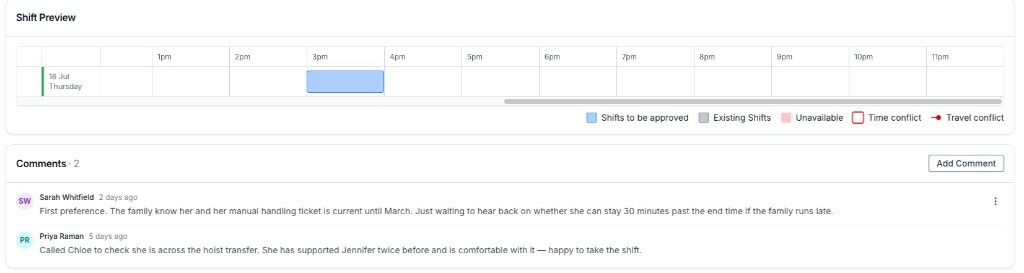
- Scroll to the Comments card, below Shift Preview, and click Add Comment.
- Type your comment and click Add Comment.
The comment drawer's title confirms who you're commenting on - for example, Add Comment on Chloe Bennett - so you can be sure the comment is going against the right worker. Approving the worker is a separate step: adding a comment doesn't approve or reject anyone.
Seeing a Worker's Comments
Each worker's comments are kept in their own thread, read from the Comments card in that worker's View or Approve drawer. The card heading shows a count of how many comments that worker has, and each comment shows who wrote it and when.
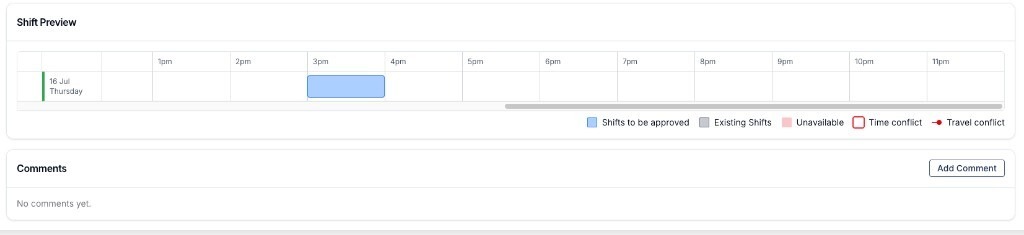
A worker with nothing recorded yet shows No comments yet.
Editing and Deleting Comments
You can change or remove a comment you wrote:
- Find the comment in the broadcast thread or the worker's thread.
- Open the actions menu on the comment itself.
- Select Edit Comment to change the wording, then click Save Comment. Or select Delete Comment and confirm.
Commenting on Archived Broadcasts
Comments stay available after a broadcast is archived. You can still read the threads and add new comments to an archived broadcast, which is useful for recording why a shift was filled outside the Shift Board. Actions → Add Comment stays in the menu, and View on a worker's row still opens their Comments card. The other actions, such as Add Broadcast and Approve, are no longer available once the broadcast is archived.
Comments Elsewhere in Astalty
Broadcast comments are for coordinating how a shift gets filled. For other kinds of notes, see:
- Internal Event Notes - a shared notes thread on internal and non-support shifts.
- Emailing Support Notes - working with the notes recorded against a delivered support.
- Messaging - direct conversations with your team and Support Workers in Chat.