- Scheduling
- Support Cancellations
Support Cancellations
Overview
Astalty gives you flexibility when cancelling a support. You can specify whether the cancellation was initiated by the Participant or the provider, set payment preferences, and choose from a range of cancellation reasons. Payment and charging options follow the NDIS Pricing Arrangements and Price Guide: if a Support Worker is assigned and you charge for the support, you must also pay them. In some situations, you may choose no charge but pay, or no charge and no payment. A cancelled Support with no Support Worker assigned is the exception - charging is still allowed even though nobody can be paid, as covered below.
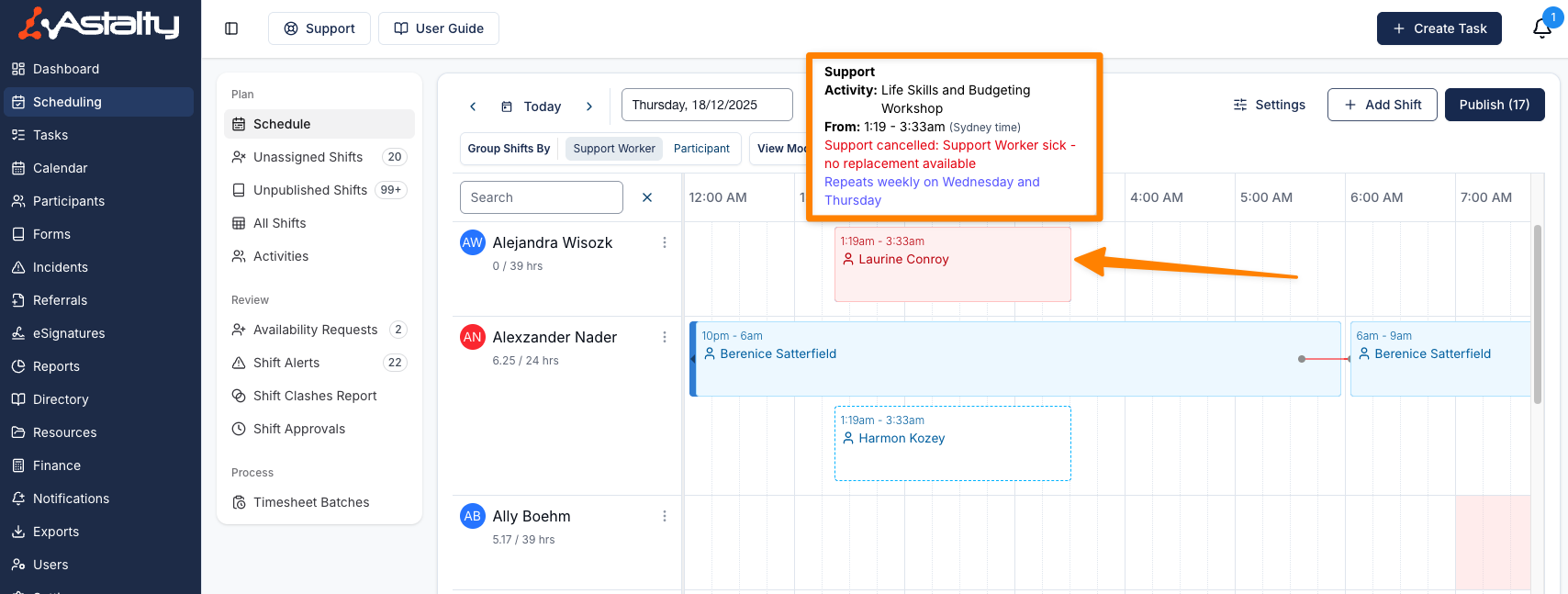
You can also add further cancellation details for context. These details and reasons are visible to Support Workers in the Astalty app, and they'll be notified when a cancellation occurs. Once cancelled, the support uses your organisation's Cancelled status colour on the Schedule, which is red by default. See Schedule Colours.
Cancelling a Support
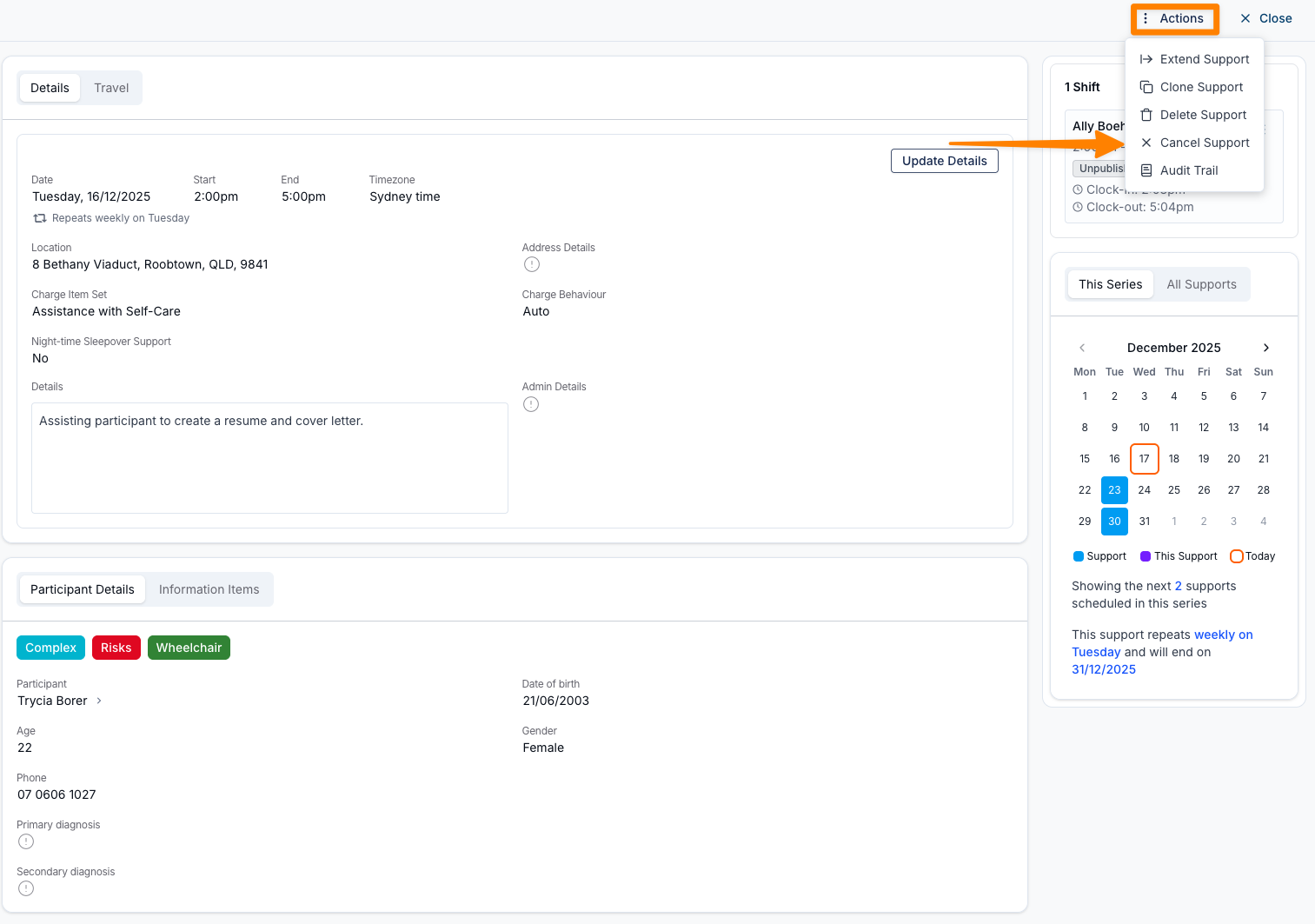
- Open the Support you wish to cancel. Click on Actions, and then Cancel Support.
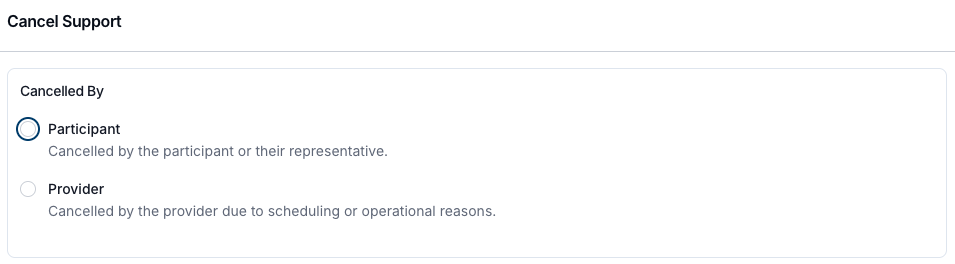
- Choose whether it is being cancelled by the Participant or the Provider.
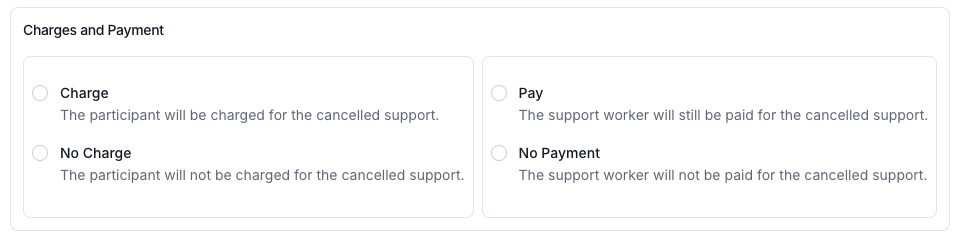
- Set your Charging and Payment preference. With a Support Worker assigned, the combinations are:
- Charge & Pay - Charge the Participant and pay the Support Worker.
- No Charge but Pay - Don't charge the Participant, but still pay the Support Worker.
- No Charge & No Payment - No charge to the Participant and no payment to the Support Worker.
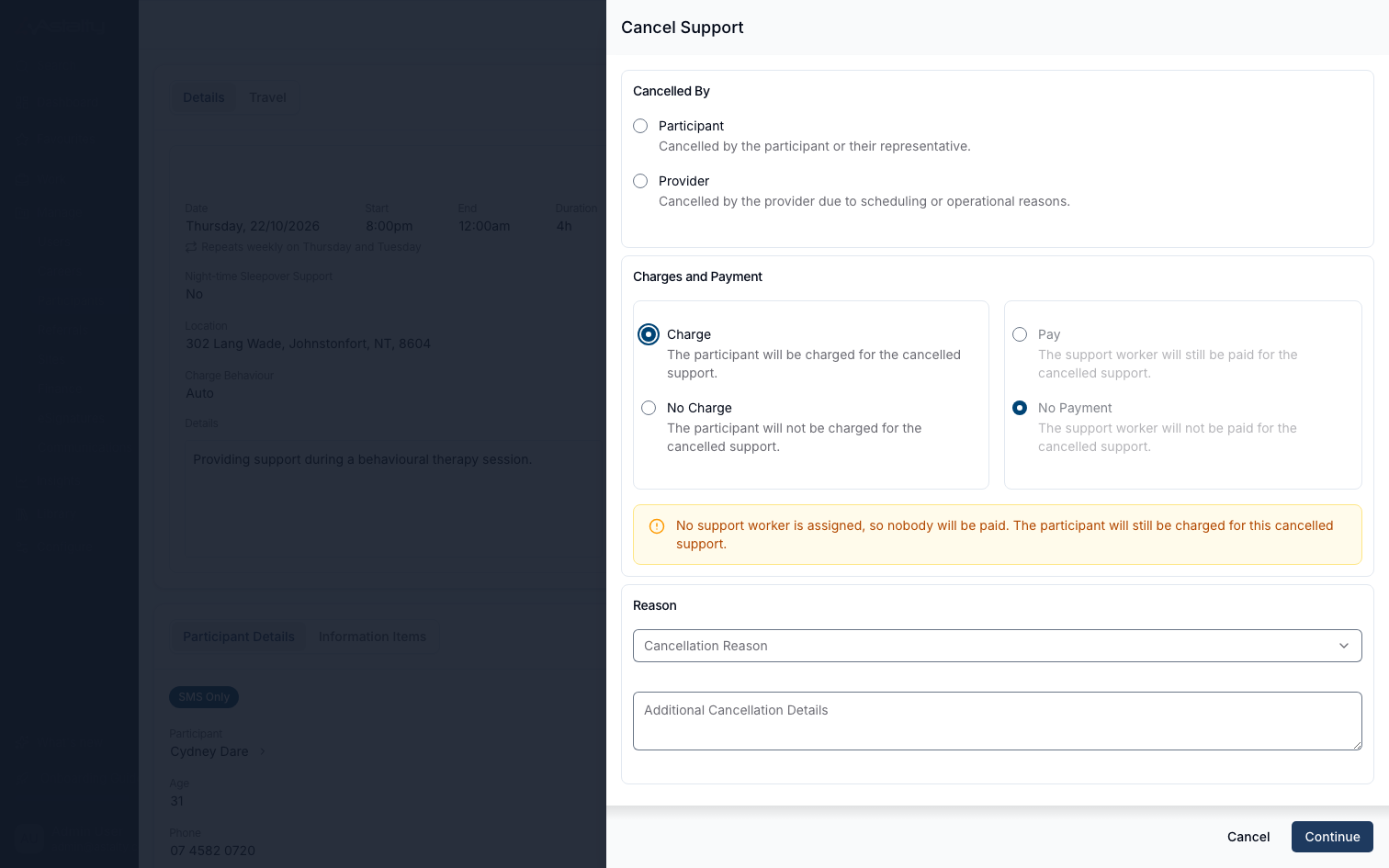
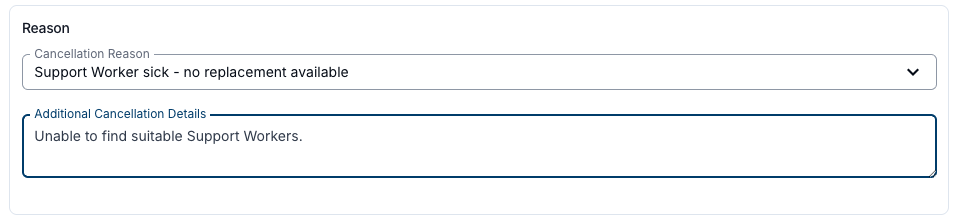
- Select a Reason from the menu.
- (Optional) Add any Additional Cancellation Details for context.
- Click Cancel Support.
The Support will now use the Cancelled status colour in the Schedule. Hovering over the support will display the cancellation details.
Open the Support to review the pay behaviour under Cancellation Details.
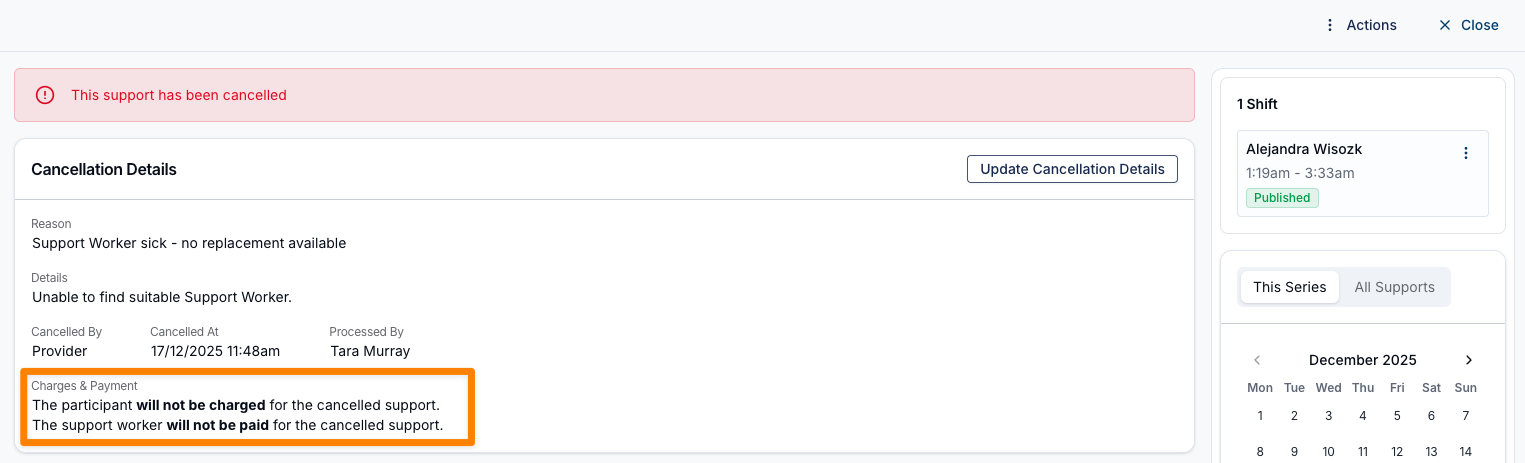
A shift cancelled with pay is sent to payroll as the shift would have been paid had it been worked, including its custom allowances. A custom allowance set to Does not pay on a shift cancelled with pay is left out.
Cancelling a Range of Supports in a Recurring Series
When the Support you're cancelling is part of a recurring series, you don't have to cancel each date one by one. Astalty asks which occurrences the cancellation should apply to, so you can cancel a block of dates - a Participant away for a few weeks, for example - while the rest of the series keeps running.
- Open the Support, click Actions, then Cancel Support, and fill in the cancellation details as above.
- Because the Support repeats, the button at the bottom of the drawer reads Continue rather than Cancel Support. Click it.
- The Cancel [Participant]'s Recurring Supports drawer lists the current Support and each future occurrence in the series, with the date and time of each.
- The current Support is ticked and locked - it's marked (Current) and is always included.
- Tick any additional future dates you want to cancel. The checkbox in the table header selects or clears every future date at once.
- The Select dropdown offers Every [Weekday] shortcuts - one for each weekday that comes up more than once in the list - so you can tick a whole weekday in one click.
- A running total, for example 4 of 12 supports selected, confirms your current selection.
- Click Cancel [n] Supports to apply.

The cancellation details you entered - cancelled by, charging and payment preference, reason, and any additional details - are applied to every date you selected.
Only the current occurrence and the dates that follow it are listed, and only occurrences from the same recurring series can be selected. Dates earlier in the series aren't shown and can't be cancelled this way.
For a Participant in a recurring Group Support, the same drawer appears and lets you pick the future Group Supports to also cancel that Participant's Support on. The other Participants on each Group Support are unaffected.
When a Date Can't Be Cancelled
Some dates can't be cancelled - most often because their charges have already been invoiced, or their shifts sit in a Timesheet Batch. Astalty flags these individually rather than skipping them quietly:
- A red alert appears at the bottom of the drawer, for example 2 supports could not be cancelled. Review the issues highlighted.
- Each affected row is highlighted in red and expands to show the specific reason, such as Cannot cancel a support that has invoiced charges.
Managing Cancellations for Invoicing
Cancelled Supports appear on Shift Alerts by default because they have no clock-in or clock-out. See Shift Alerts to review and approve a cancellation for payment.
Reinstating Cancelled Supports
Reinstating restores the support, its Participants, financial details, and assigned staff. Travel removed when the support was cancelled is not restored, so add that travel again after reinstating.
To reinstate a support, open the cancelled support, select Actions, then click Reinstate Support.
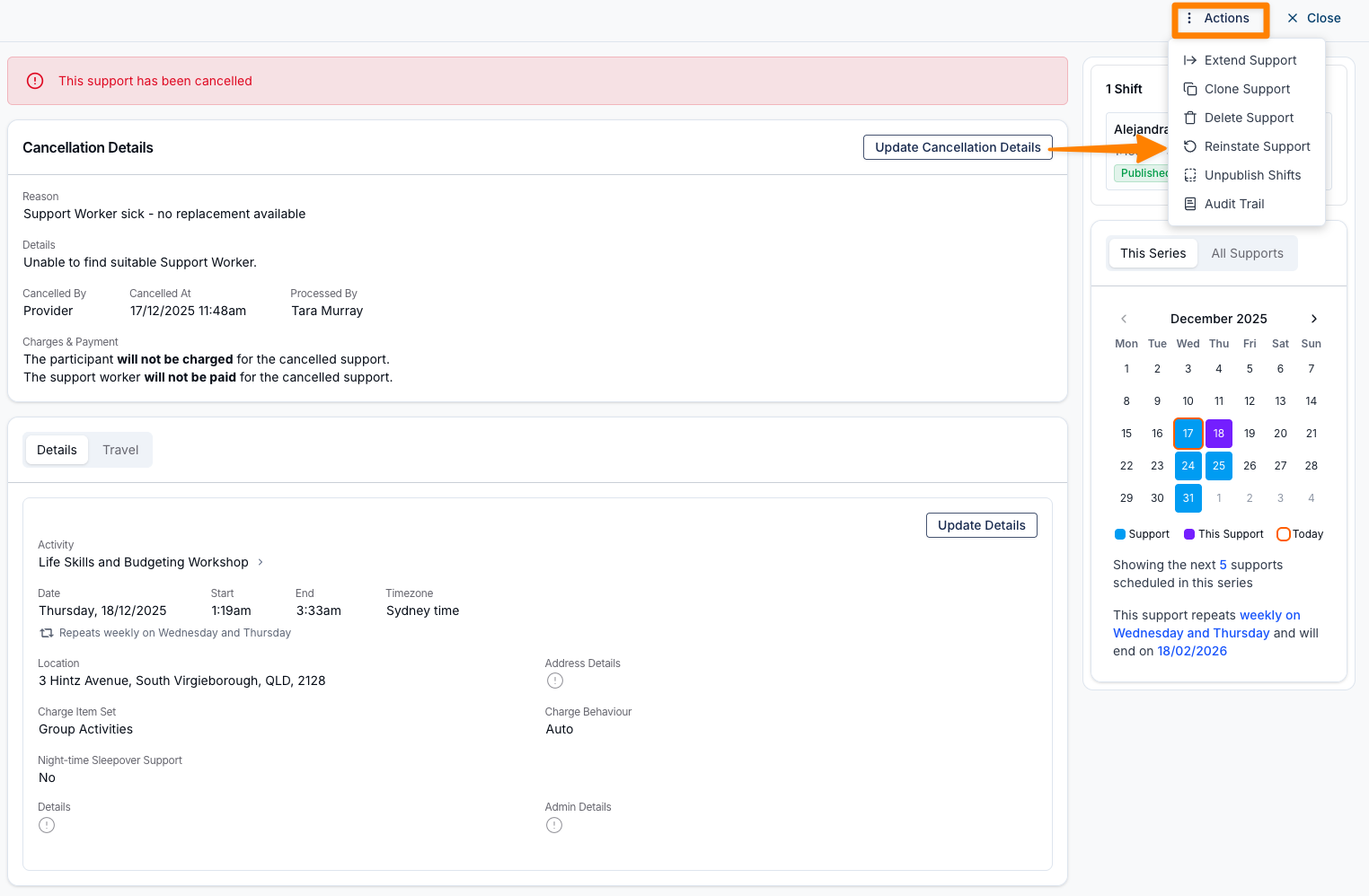
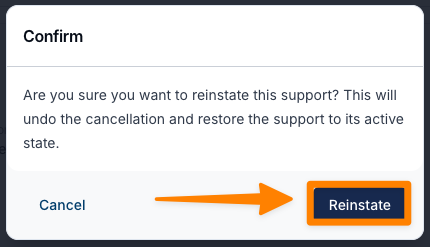
This will return the support to its most recent active state. From here, you can make changes to the Support as required.
Reinstating a Range of Cancelled Supports
If the cancelled Support is part of a recurring series and later occurrences in that series are also cancelled, Reinstate Support opens the Reinstate [Participant]'s Recurring Supports drawer instead of the simple confirmation. It works the same way as the cancellation drawer:
- Only cancelled occurrences from the same series, on or after the Support you opened, are listed - dates that are still active aren't shown, so there's nothing to untick.
- The current Support is ticked and locked. Tick any additional cancelled dates you also want to bring back.
- Click Reinstate [n] Supports to restore them all in one action.
A date can fail to reinstate for its own reasons - its charges have been invoiced, its shifts are in a Timesheet Batch, or the Charge Item Set it used has since been archived. These are flagged row by row in the same way, and, as with cancelling, the whole selection is held back until you untick the flagged dates.
Occurrences that have already finished can't be included in the selection. If the Support isn't recurring, or every later occurrence in the series is still active, you'll get the standard Reinstate Support confirmation instead.
How Cancellations Appear for Support Workers
Support Workers see the cancellation status and details in the Astalty app.
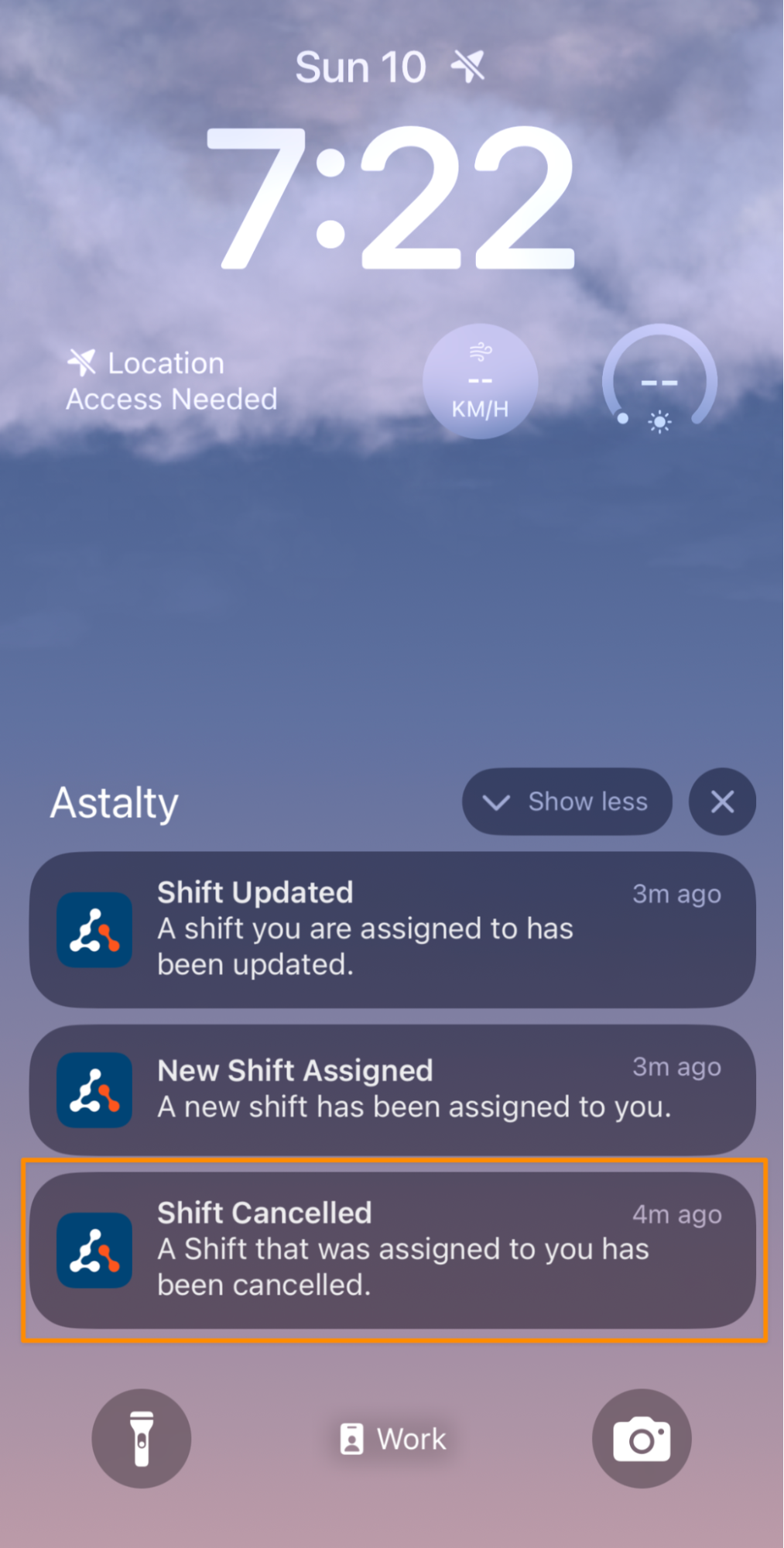
Notification - Support Workers receive an in-app notification when a shift assigned to them has been cancelled.
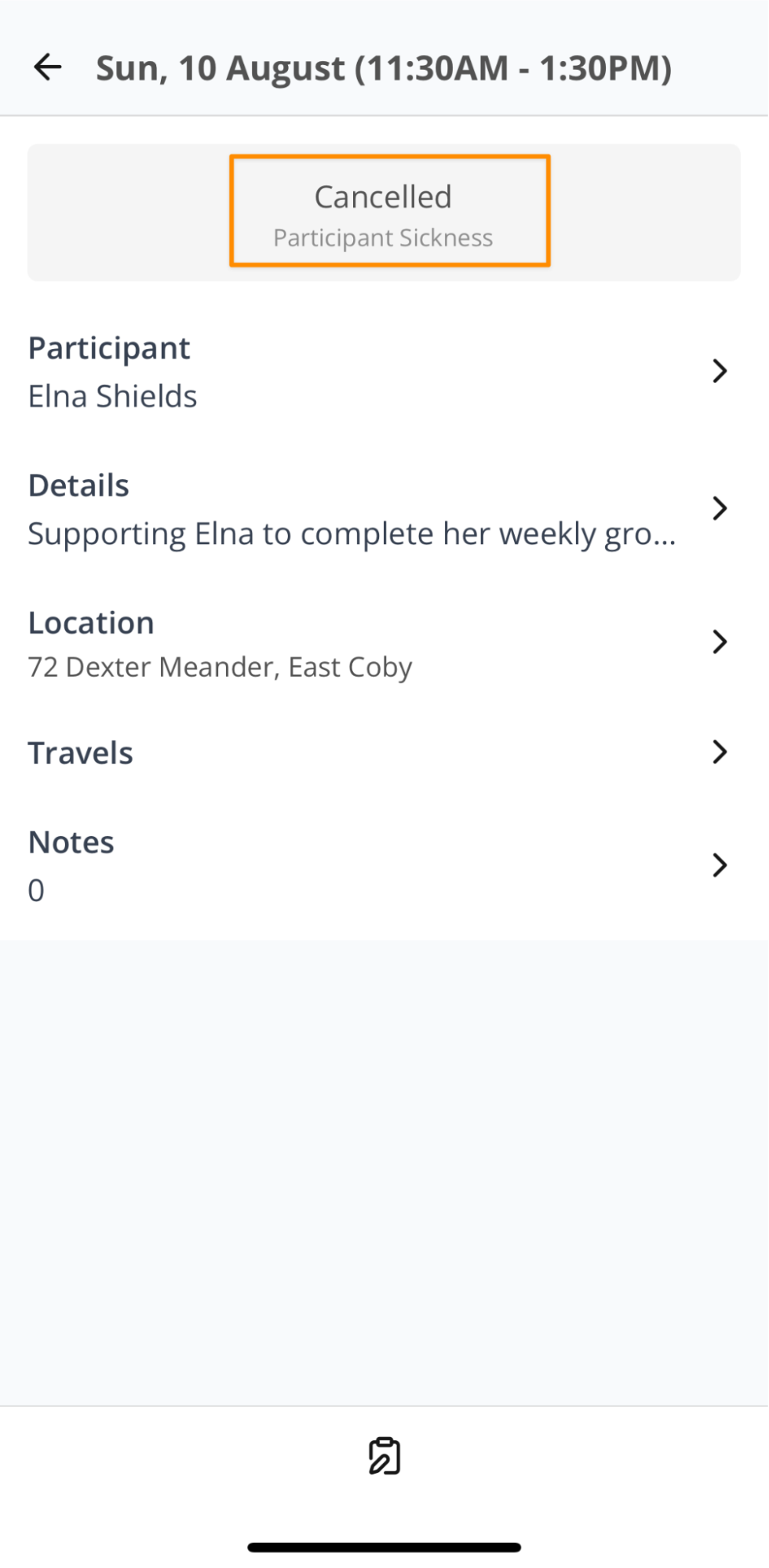
Support Details - When they tap into the support, they can view further information about the cancellation, including the reason and any additional details provided.
How Cancellations Appear on Schedule PDFs
Cancelled supports are handled differently depending on which schedule you are exporting, and a PDF never marks a cancelled support as cancelled - it appears as an ordinary row:
- A Participant's schedule includes cancelled supports unless you set the Cancelled supports filter to Exclude. See Choosing What Goes on the PDF.
- A Support Worker's roster leaves them out unless you tick Include cancelled shifts. See Viewing a Support Worker's Schedule.