- Insights
- Capacity
Capacity
The Capacity report shows how many hours each team member could bill each week, based on the funding and time left in the Services they coordinate.
Open Reports > Team > Capacity.
Report Overview
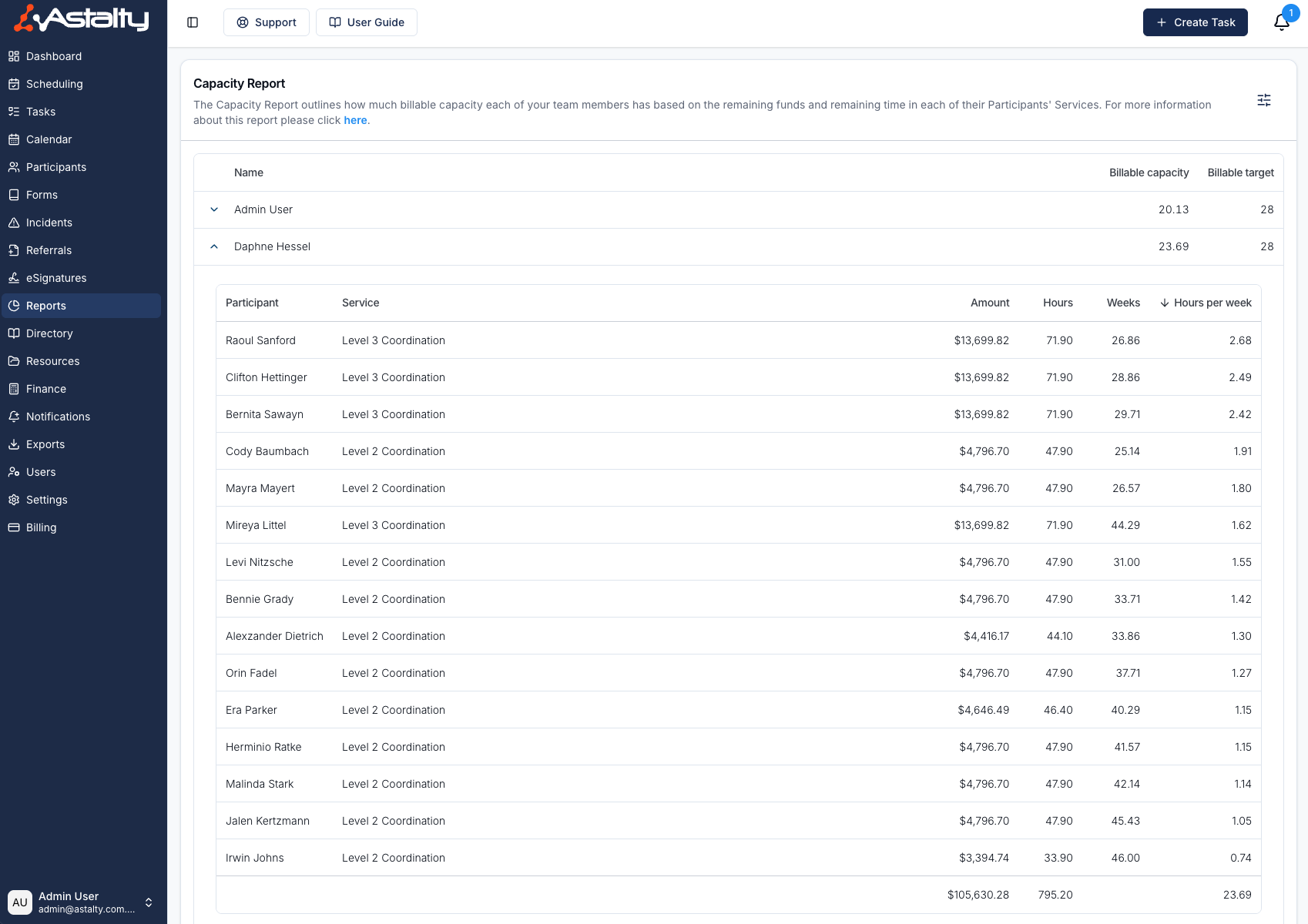
The report compares each team member's Billable target with their Billable capacity: the hours per week they could bill across the Services they coordinate, given the funding left in each Service and the weeks until it ends.
Capacity is worked out from Service funding only. Shifts, rosters and employment details do not affect it, so a future shift that hasn't been charged yet doesn't reduce a team member's capacity.
If a team member does not appear in this report, check that:
- they have a Billable Target above 0 hours, set under Other Details when you edit the user. See Updating Billable Targets.
- they are the Service Coordinator for the relevant Service, or Fallback to Primary Coordinator is on as described below.
A team member with a billable target but no qualifying Services is listed with a billable capacity of 0, unless they are deactivated.
Which Services Count
A Service counts towards a team member's capacity when all of these are true:
- The team member is the Service's Service Coordinator. If the Service has no Service Coordinator, it counts towards the Participant's Primary Coordinator only when Fallback to Primary Coordinator is on.
- The Service is current: today falls between its start and end dates.
- The Participant is not archived.
- The Service's Calculate remaining units using Charge Item is priced per hour, with a price above $0. A Service with no remaining-units Charge Item, or one that isn't priced per hour, is left out.
On some accounts the report also shows average capacity figures, and an eye icon beside each Service that excludes it from the calculation. An exclusion applies to the whole account: the Service stops counting for every team member, in this report and in My Capacity.
Settings
Include Services Under the Primary Coordinator
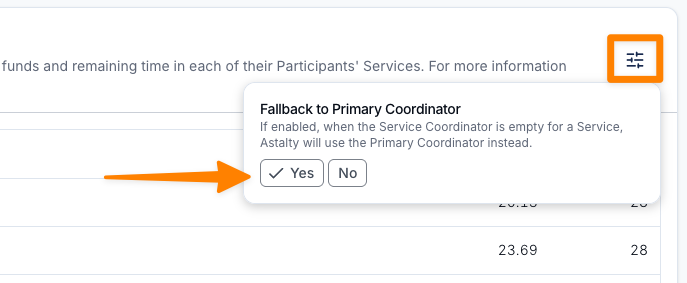
To assign a Service with no Service Coordinator to the Participant's Primary Coordinator in this report, select the settings icon in the top right and set Fallback to Primary Coordinator to Yes.
The setting starts on No and is saved in your browser, so it does not affect anyone else's report. My Capacity always includes these Services under the Primary Coordinator.
Filters
- Search finds a team member by name.
- Region narrows the list to team members in the selected Regions, and can include team members with no Region. It appears when your account uses Regions.
- Team narrows the list to selected Teams. It appears when your account uses Teams. Your Team selection is remembered in your browser.
- Team Member narrows the list to selected people. You can use it even when Teams are not enabled.
The list is sorted by Name. Click Billable capacity or Billable target to sort by that column instead.
Report Columns
Main Report
| Column | What it shows |
|---|---|
| Name | The team member. |
| Billable capacity | The total of Hours per week across the team member's Services. |
| Billable target | The team member's weekly Billable Target, in hours. |
Expand a row to see the Services behind the figure.
Within a Team Member
| Column | What it shows |
|---|---|
| Participant | The Participant the Service belongs to. |
| Service | The name of the Service. |
| Amount | The funding left in the Service: its funding, including periods not yet released, less the billable charges recorded against it up to today. See the Utilisation Report for how remaining funding is worked out. |
| Hours | The hours the remaining funding buys at the hourly price of the Calculate remaining units using Charge Item. |
| Weeks | The days until the Service's end date, divided by 7. |
| Hours per week | Hours divided by Weeks. When 1 to 6 days remain, it is capped at Hours. On the Service's end date, Weeks and Hours per week are 0. |
The rows are sorted by Hours per week, highest first, and every column can be sorted. A totals row shows the combined Amount, Hours and Hours per week.
Exporting the Report
There's no download button on the report itself. The CSV is generated from a separate screen. See the Capacity Export.
Related Guides
- Capacity Export - the CSV version.
- My Capacity Report - the personal version, scoped to Services you coordinate.
- Updating Billable Targets - set each team member's weekly target.