- Forms & Quality
- Participant Incidents
Participant Incidents
Overview
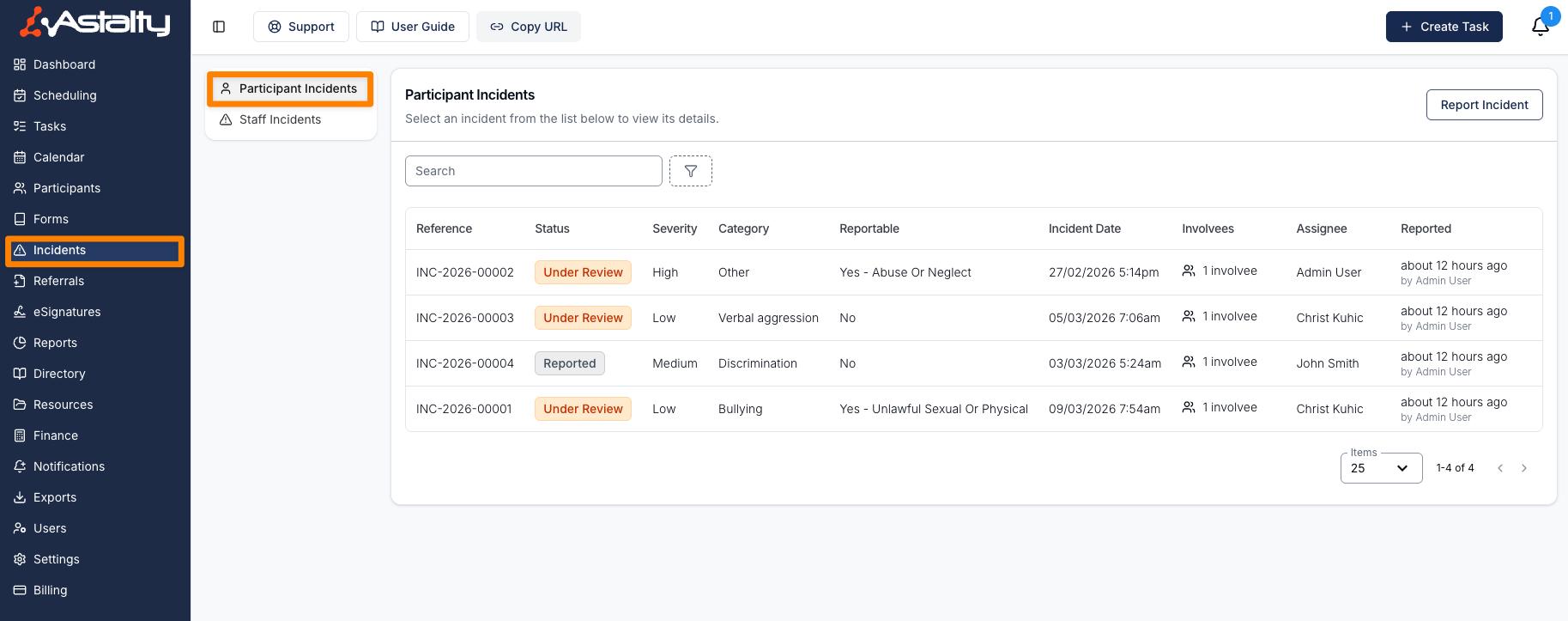
The Participant Incident menu will give you an overview on the Participant Incidents reported. Within this screen you can also report an incident, search for a particular incident and filter the menu by the filter options. You can also click into an incident to complete the follow up necessary for the incident.
When viewing all Participant Incidents, you can view each incident's:
- Reference
- Status
- Severity
- Category
- Whether it's Reportable
- Incident Date
- Involvees
- Site (for providers with Scheduling turned on)
- Assignee
- Collaborators
- When it was Reported
You can also sort your Incidents by Status or Incident Date.
The Severity column shows the level set during review — Low, Medium, High or Extreme — and stays blank until someone sets it. Extreme is listed separately from High, so the most serious incidents can be picked out of the register on their own. See Incident Follow Up for how severity is set.
Search
The search field will allow you to enter words, numbers or phrases associated to the Incidents - the fields where these can be searched are:
- Incident Reference numbers
- Involvee names
- Details (within Update Incident)
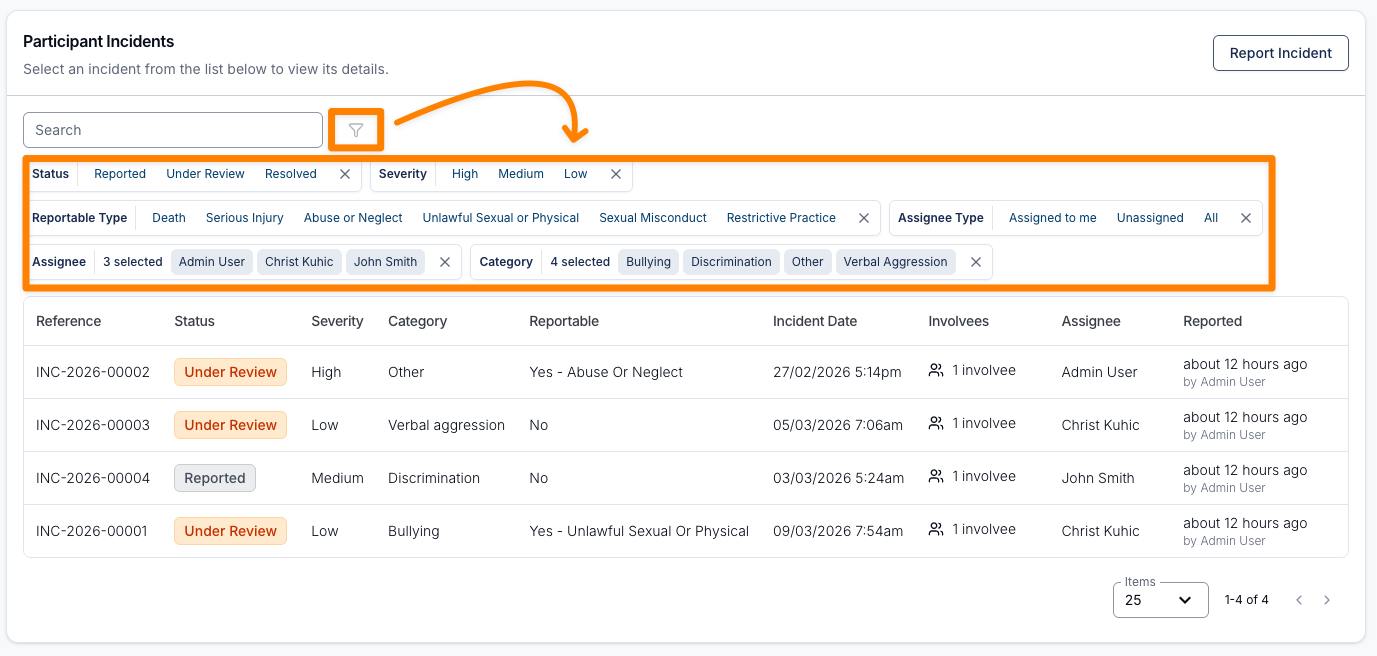
Filter Options
You can filter this menu by;
- Status
- Severity: Extreme, High, Medium, or Low.
- Reportable: reportable or non-reportable.
- Reportable Type
- Assignee Type: Assigned to me, Unassigned, or All.
- Archived: Active or Archived.
- Assignee: available when you can view all users and Participant filters are enabled.
- Support Worker: available when you can view all users.
- Participant
- Site: available with Scheduling and site access.
- Incident Categories
- Incident Date: a date range.
How to report a Participant Incident
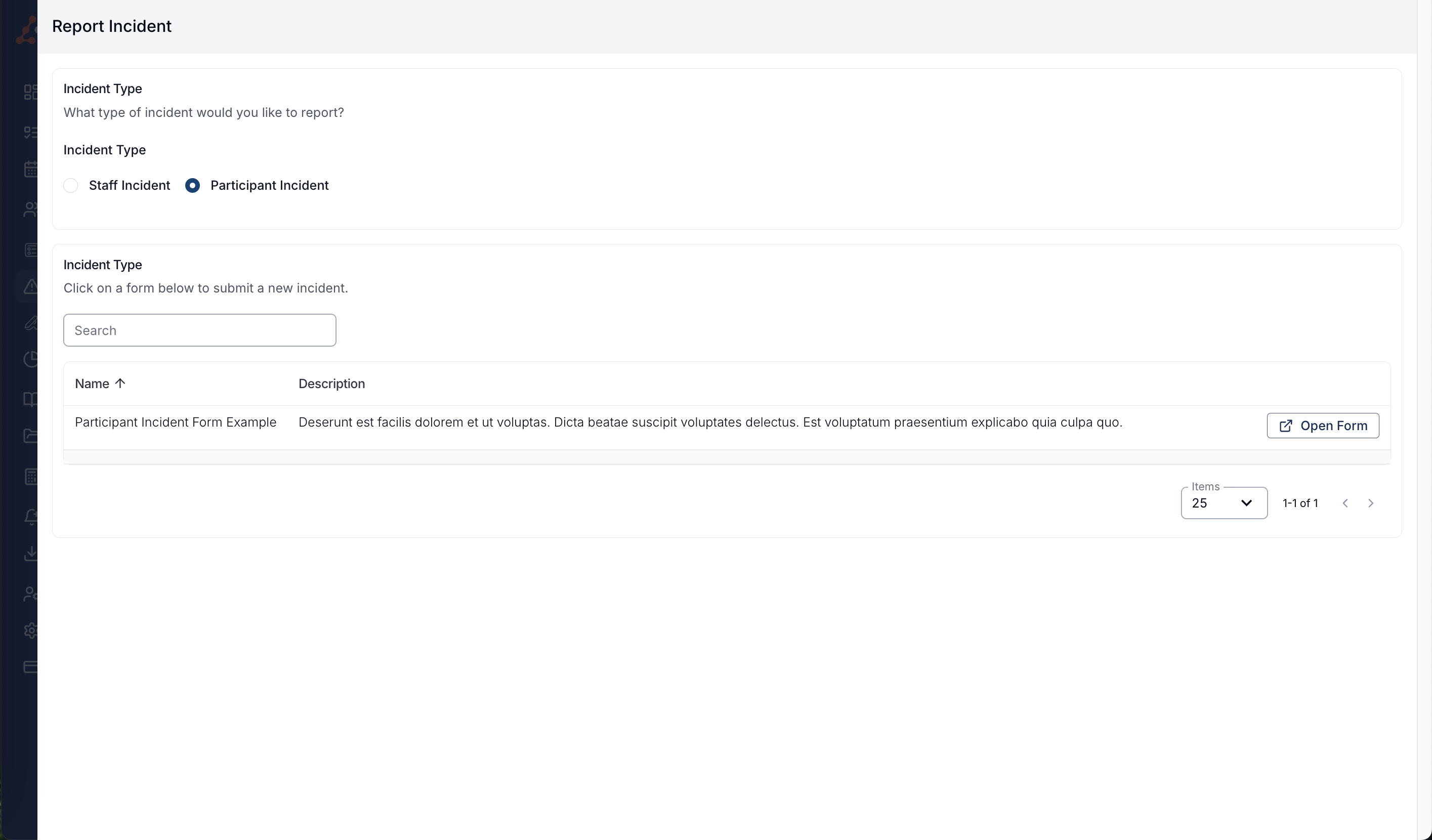
To report an incident click Report Incident in the top right corner. When you have selected the Report Incident Button you will see the following screen. Within this screen you can select the incident type and to select from the published form that you would like to complete with the incident usage type that you have selected.
You can allow Support Workers to have visibility of the Participant Incident Form by updating the Form Settings. See the Form Settings guide for more information on how to do this.
To see how Incident Forms appear to Support Workers, click here.
Email notifications
When a Participant incident is reported, configured Incident Notifications are sent to the relevant users and groups. The notification email includes the incident reference number in the subject line and a summary of key details — type, occurred time, reporter, category, severity, status, and NDIS reportability — so staff can act without logging in. See Incident Notifications for full details on configuring and understanding these emails.
Incident Follow Up
See Incident Follow Up to update an incident, change its status, and export it.