- Administration
- Directory
- Contacts
Contacts
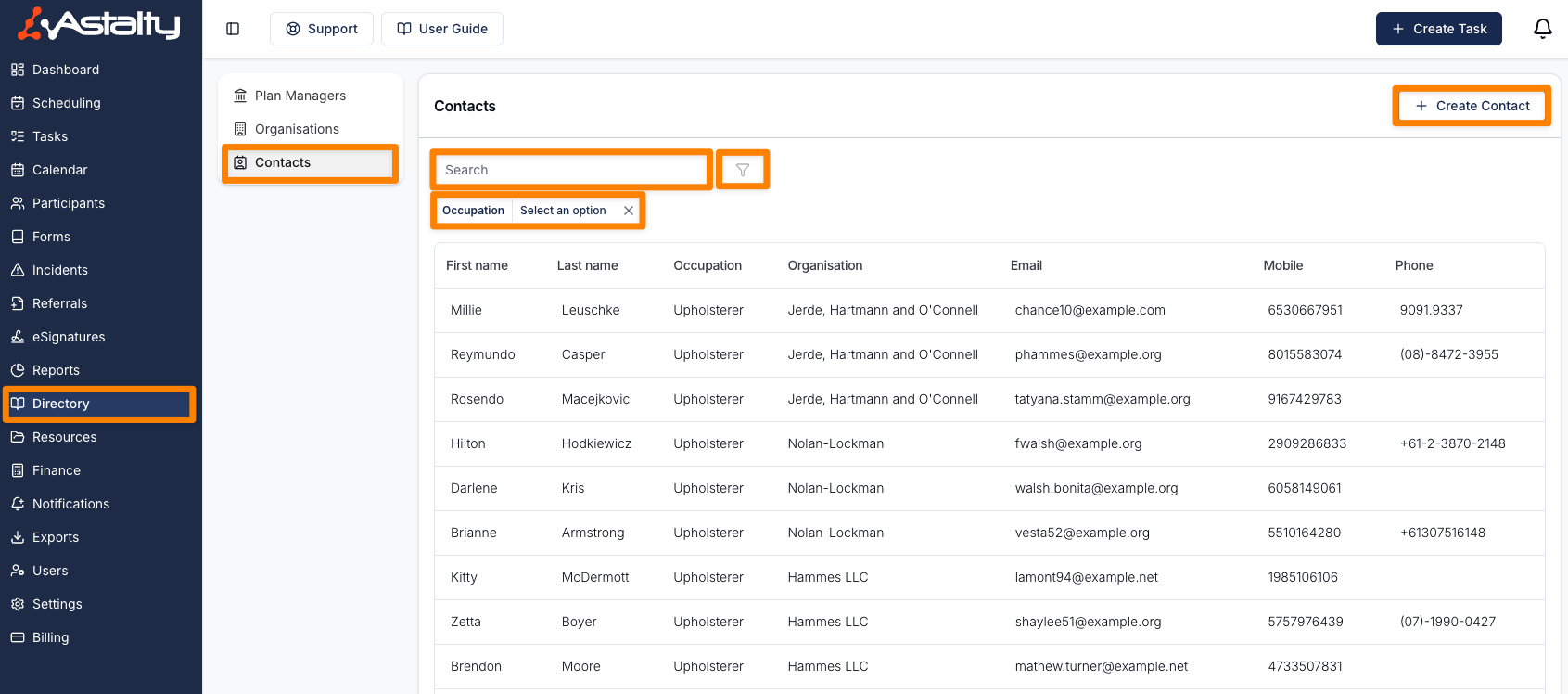
Open Directory > Contacts to manage individual people such as family members, guardians, stakeholders, and professional contacts. You need permission to view all Contacts. Creating, editing, archiving, restoring, and deleting Contacts use separate permissions.
The list supports search and filters for Occupation, Archived, and Tags. Its columns include First name, Last name, Occupation, Organisation, Email, Mobile, Phone, and Tags.
Creating Contacts
Select Create Contact. First Name is required; the remaining fields are optional.
Personal Information
Enter First Name, Last Name, and Date of Birth.
Contact Details
Enter Email, Mobile, Phone, and Preferred Contact Method as needed. A mobile number must be unique within your provider. Email addresses can be shared by multiple Contacts.
When the Contact is linked to a Participant, the preferred method helps staff identify how to contact that person.
Occupation
Use Occupation to describe the Contact's role. It is also available as a Contacts list filter.
Organisation
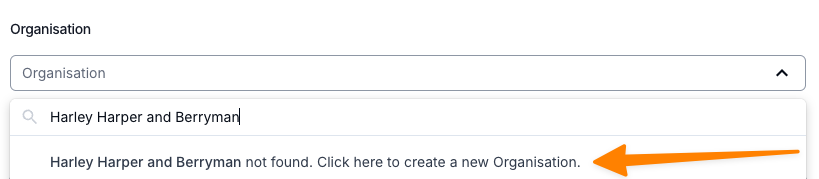
Select an existing Organisation. If your role can create Organisations, you can type a new name and use the create option without leaving the Contact form.
Additional Information
Use Additional Information for relevant notes about the Contact.
Viewing Contacts
Select a row to open the Contact profile. Active Contacts can show Edit and Actions > Update Address when your role has the required permissions. Actions > Archive hides a Contact from active results and removes the Contact from reminder nominations. Use the Archived filter to find an archived Contact and Restore it.
The Delete action requires you to type the Contact's exact name. It removes the Contact from Participant associations and implementations, and the current interface does not offer a way to undo it. Use Archive when you may need the Contact again.
Overview
The Overview tab shows the Contact's personal details, contact methods, address, Organisation, and Tags.
Participants
The Participants tab shows Participants linked to the Contact and the relationship recorded for each link. The tab requires permission to view a Contact's Participants. Manage these associations from the Participant's Contacts page.
Documents
The Documents tab stores files associated with the Contact. Available upload, view, download, email, archive, delete, category, and audit actions depend on your document permissions. See Document Settings for document categories.