- Forms & Quality
- Incident Follow Up
Incident Follow Up
Overview
Open an entry in the relevant Incident register to assign follow-up work, record who was involved, set the incident category and severity, add review details, and move the incident through to resolution. The workflow is the same for Participant Incidents and Staff Incidents.
Incident Menu Permissions
By default, Admins can view and update all Participant and Staff Incidents, and Managers can view and update Participant Incidents but not Staff Incidents. Collaborators can view and update the incident. Assigning someone follow-up work does not let them open a Participant Incident they could not already see, and listing someone as involved does not let them open a Staff Incident. The Incidents Overview has the full access rules.
Menu Options
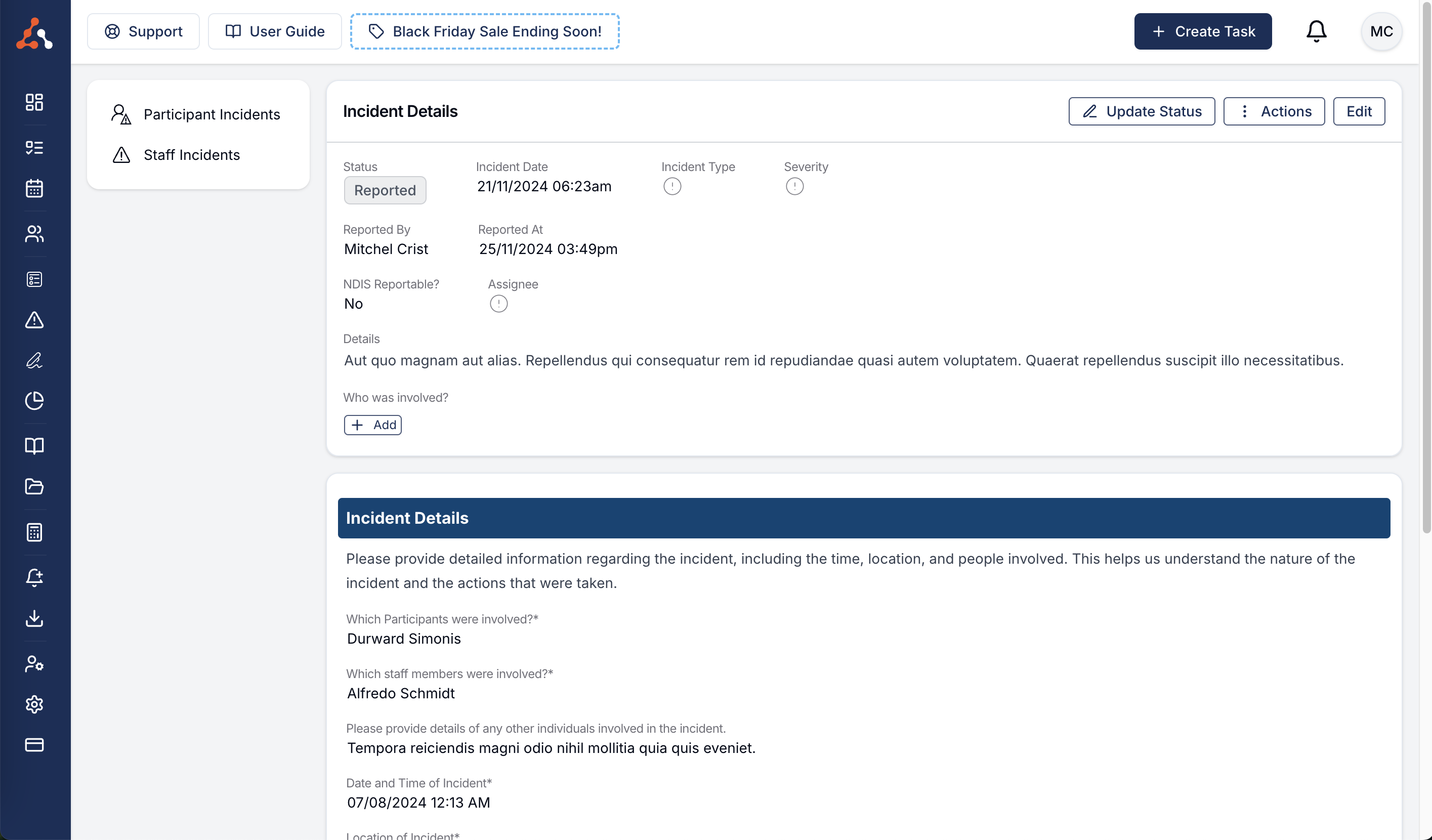
Select an incident to open its follow-up page. From there you can update the status, view the activity log, record involved people and select Edit to update the incident details.
Status Update
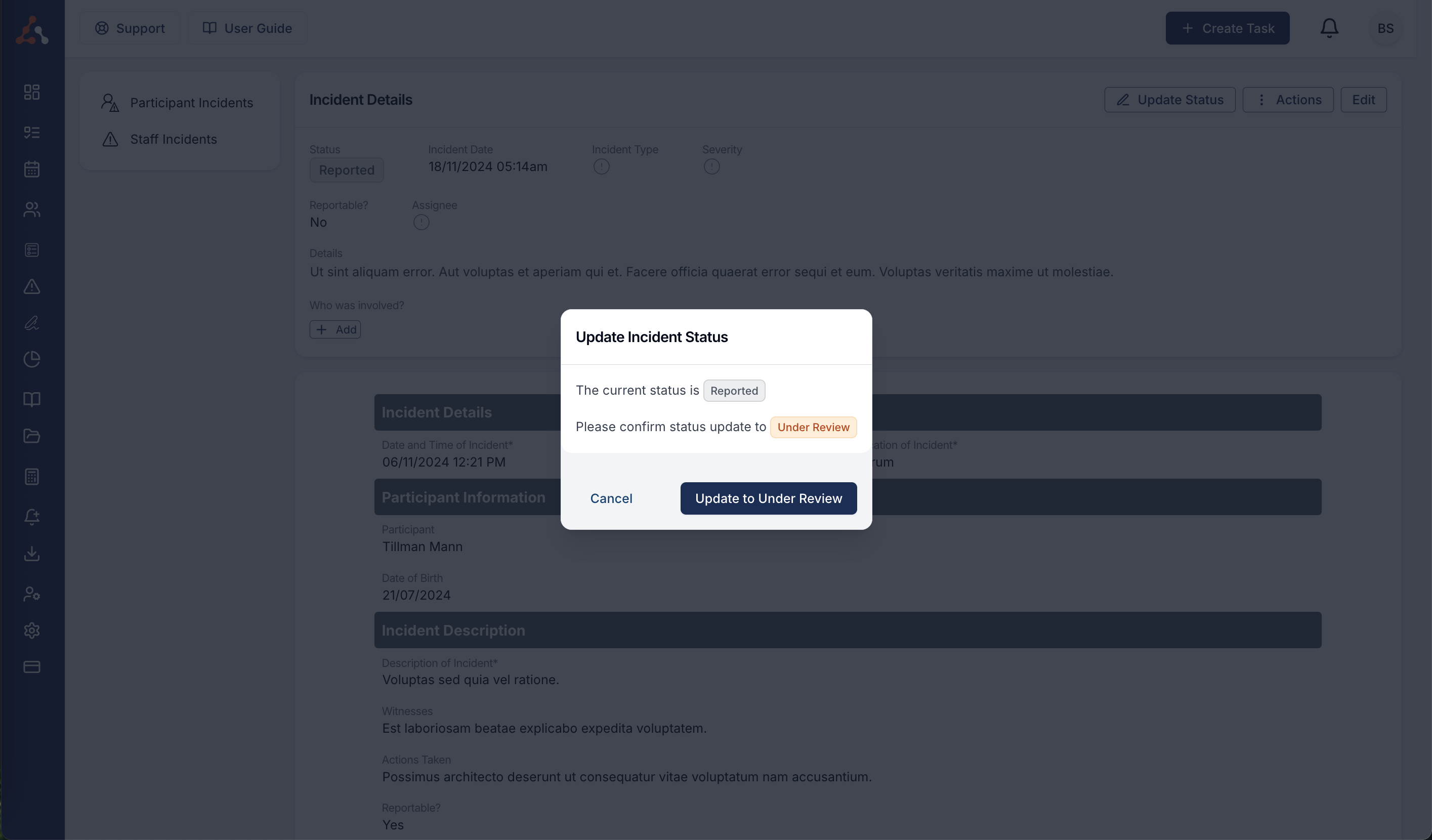
Select Update Status to change the incident's status.
The first update will update the status of the reported incident to under review.
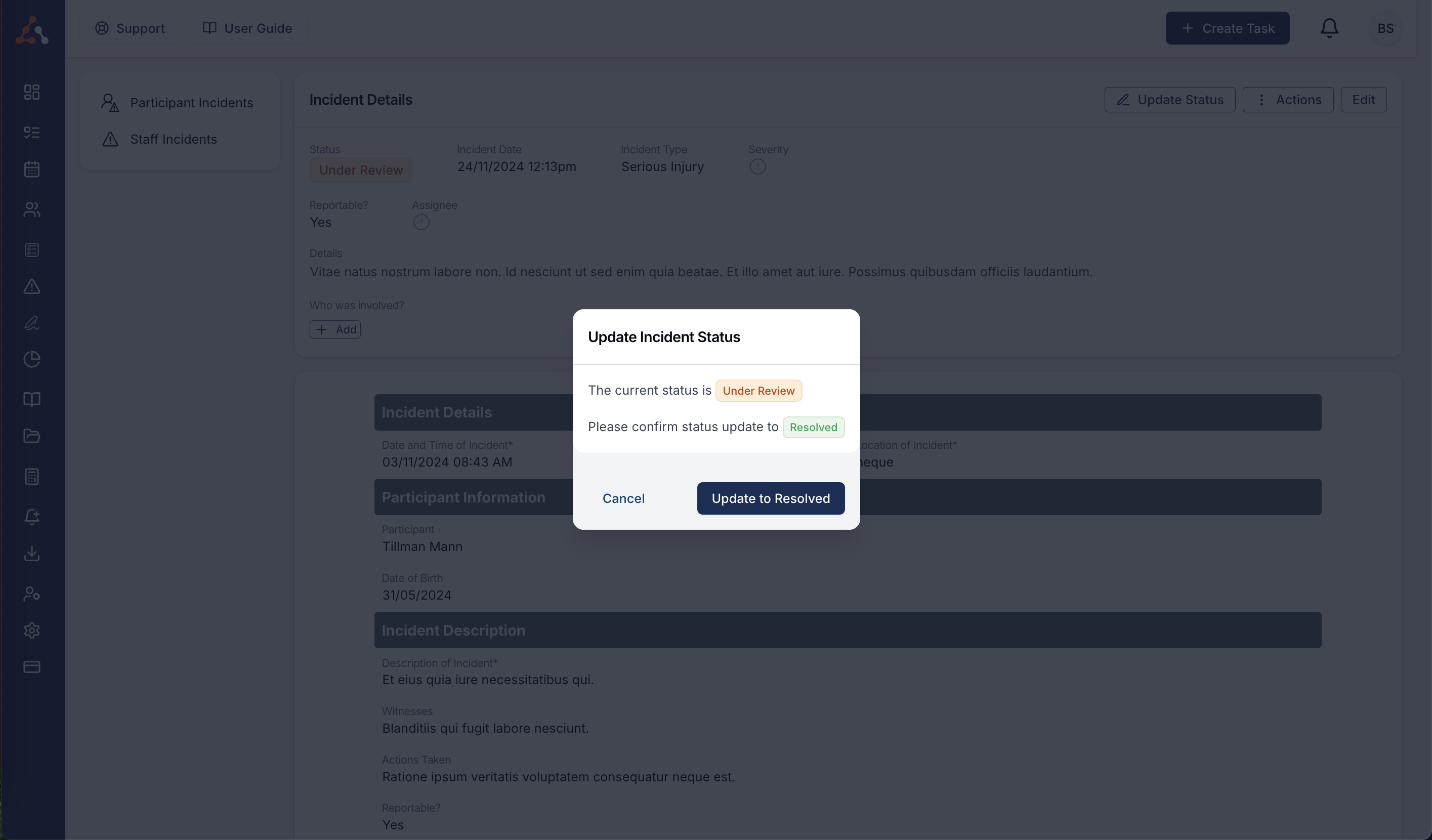
From Under Review, update the status to Resolved when the review is complete. A Resolved incident can be moved back to Under Review if more work is needed.
Activity Log
Select Actions, then Activity Log, to review the status history.
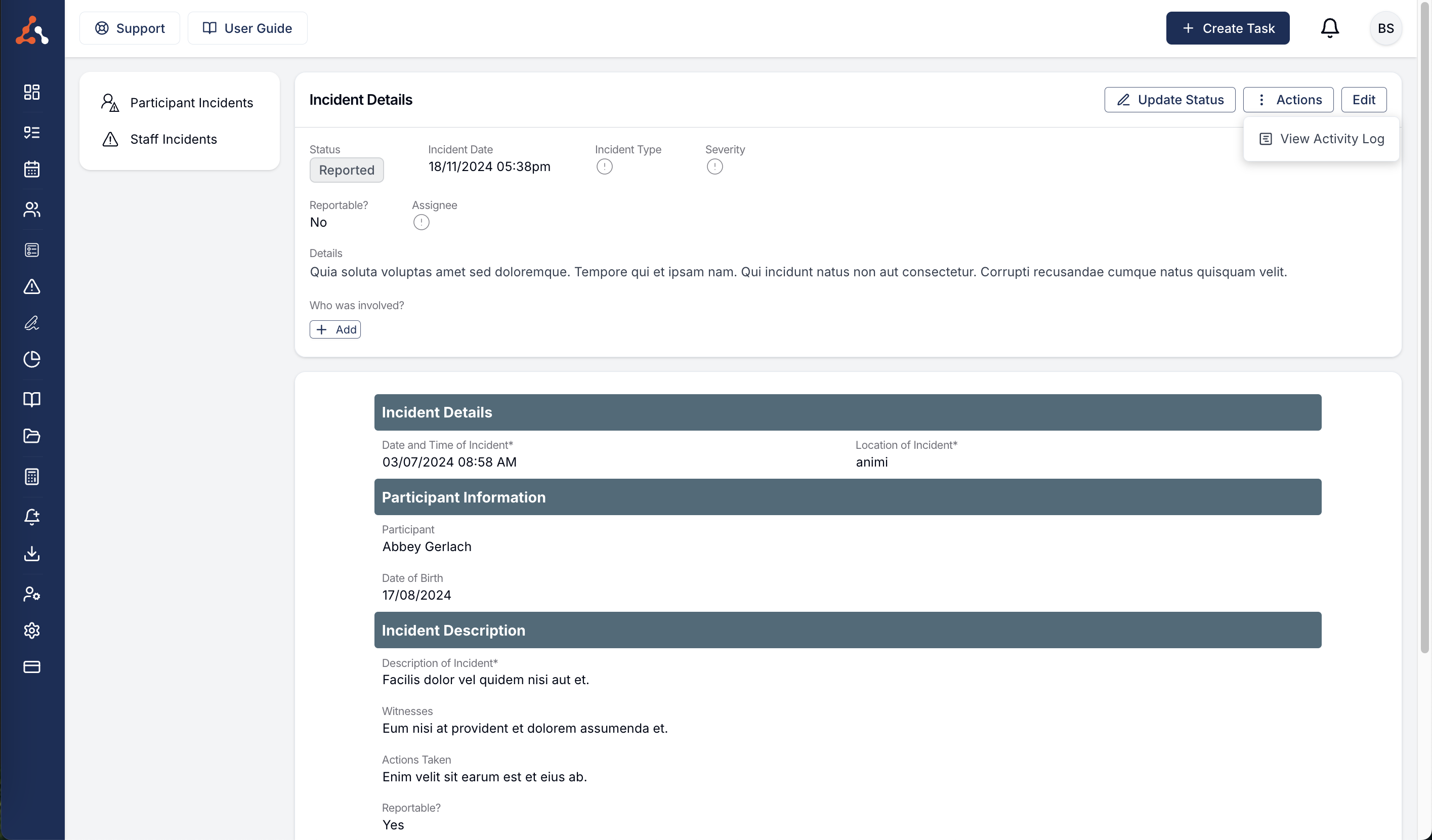
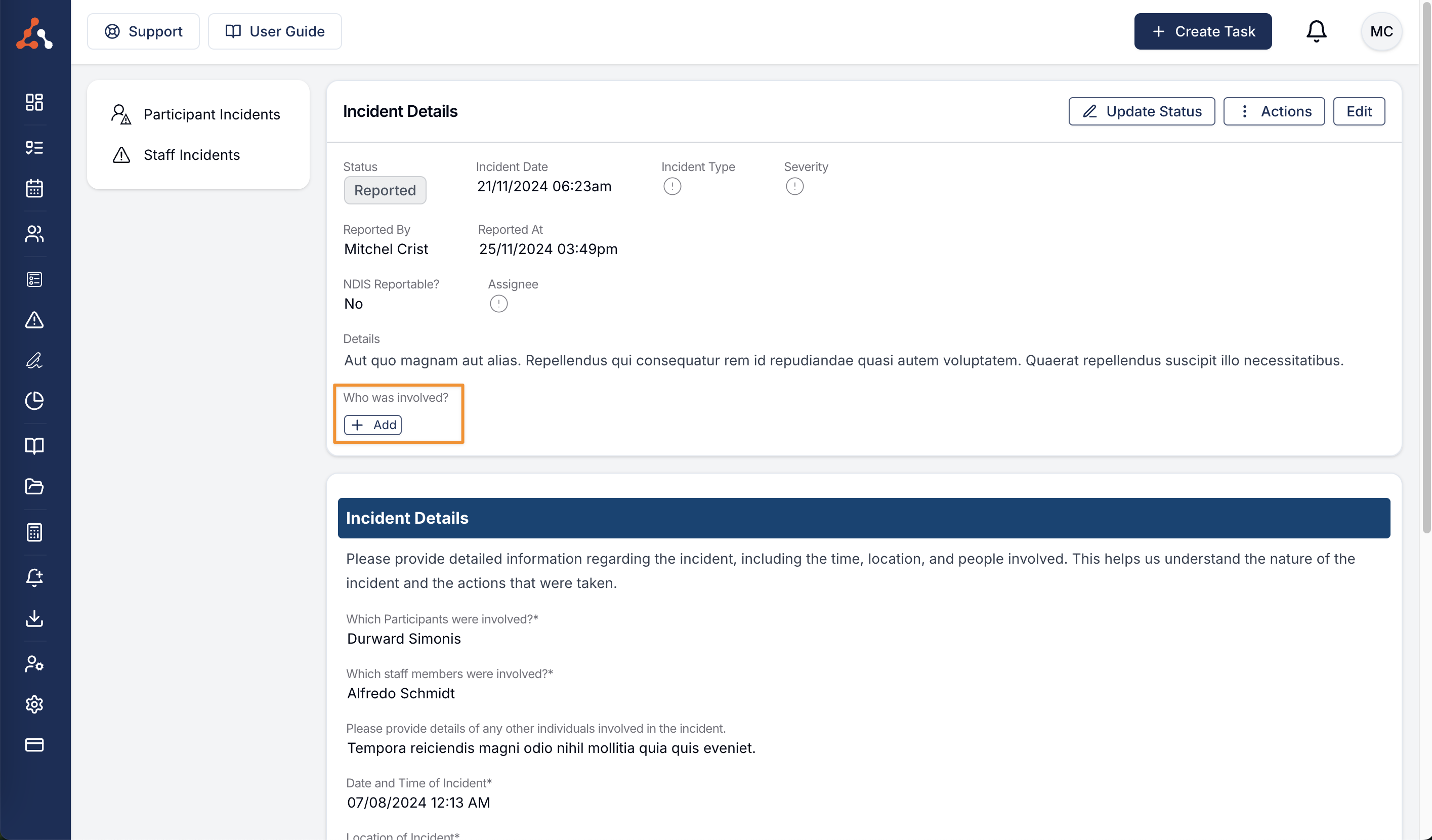
How to add an Involved Person
To assign a person to a reported incident, select Add under Who was involved?.
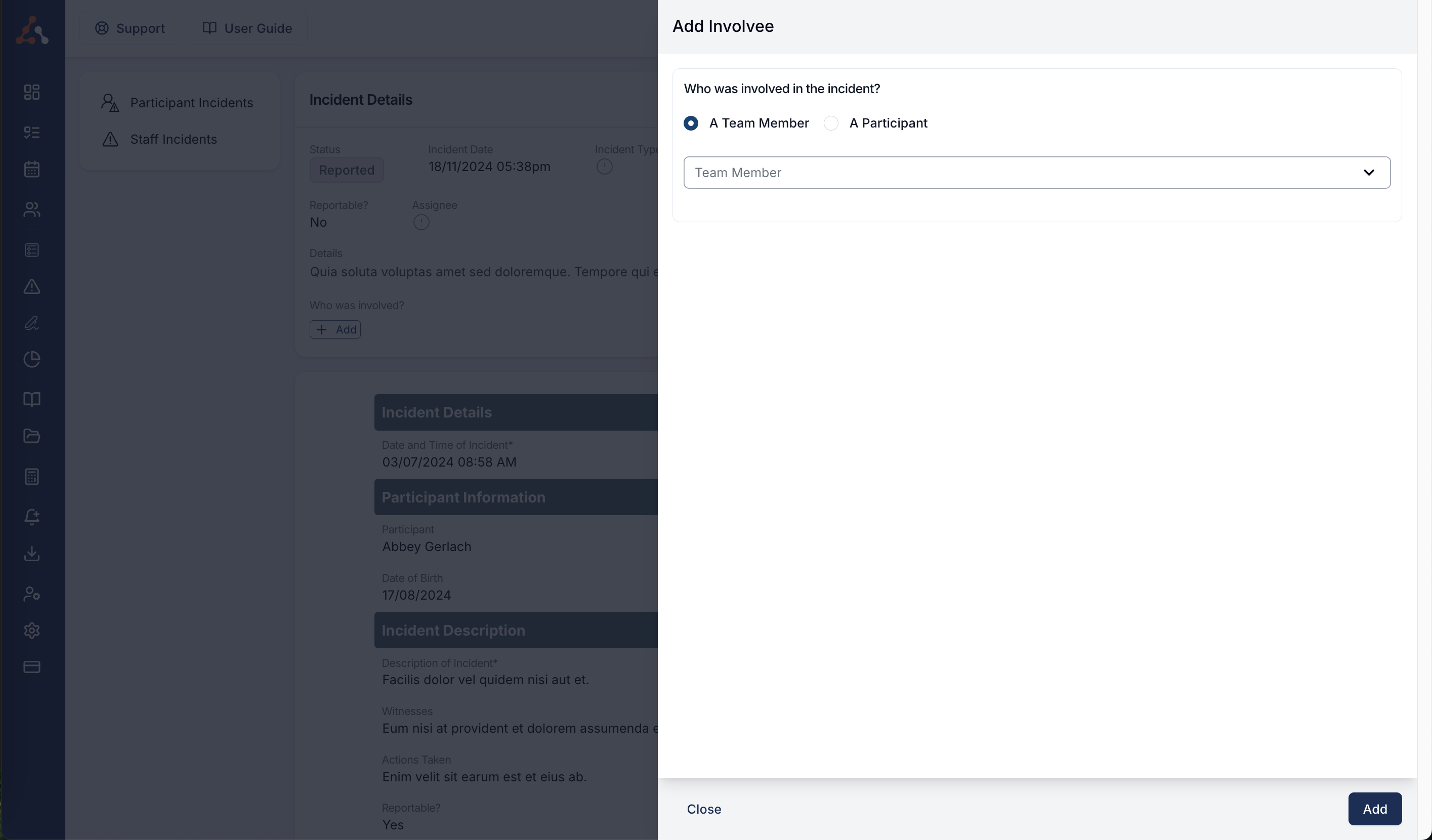
Choose Team Member or Participant, then select the person who was involved.
Team Member
Choosing Team Member lists the users set up in your Astalty organisation, so you can record which staff were involved.
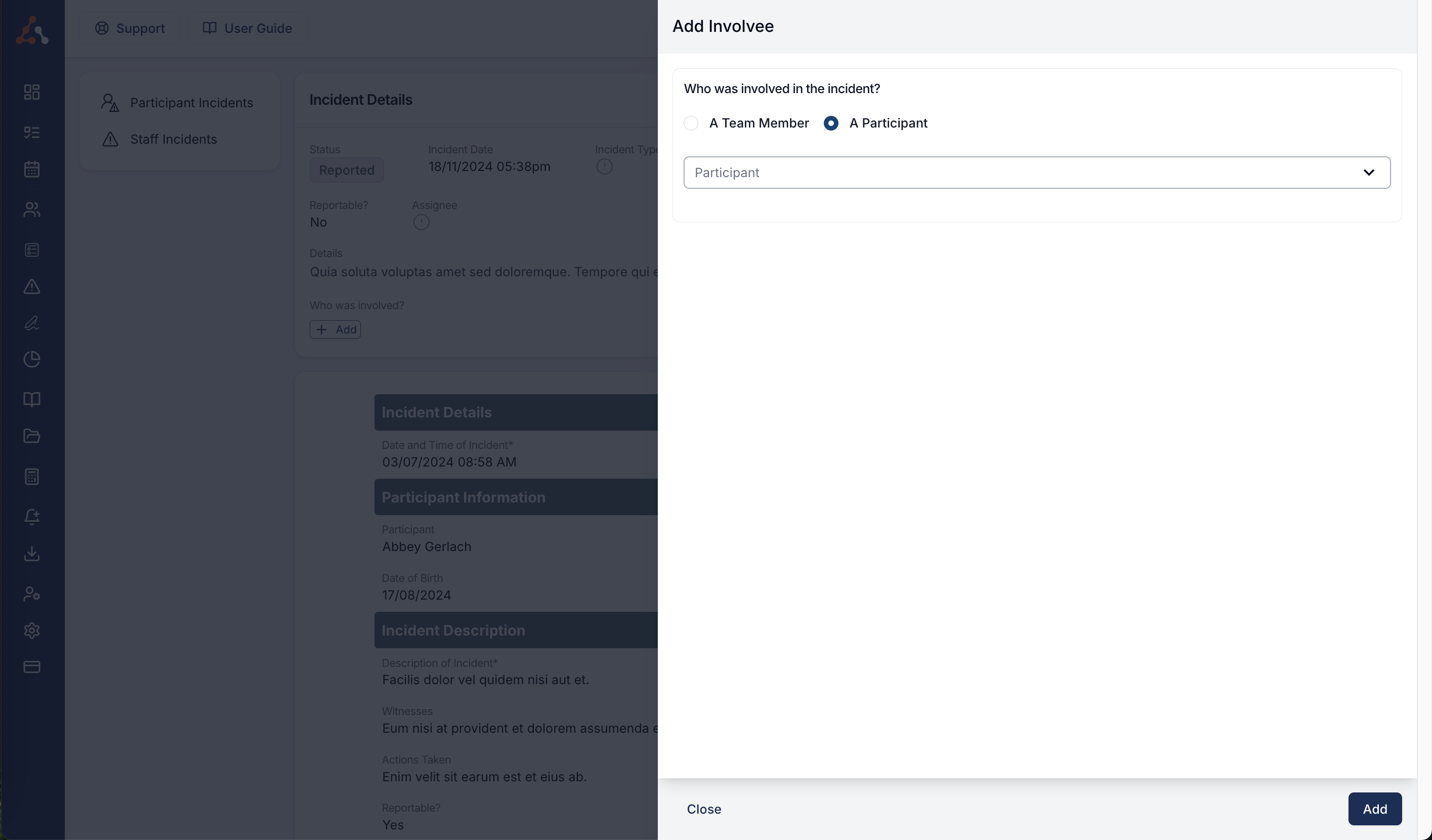
Participant
Choosing Participant lists the Participants set up in your Astalty organisation, so you can record which of them were involved.
To record follow-up information, click Edit to open Update Incident.
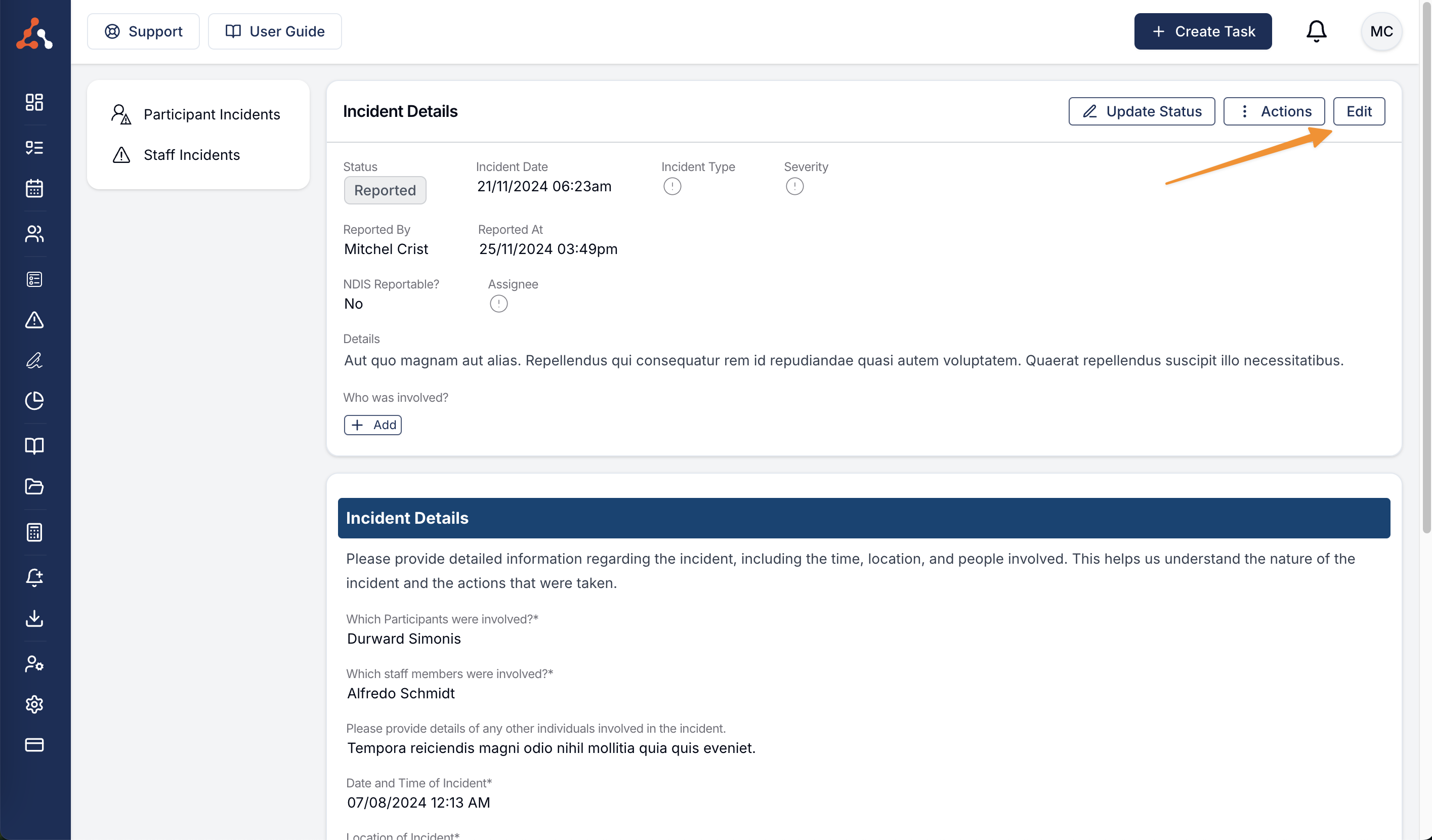
Recording an Incident Follow Up
Select Edit to update:
- Assigned To
- Incident Date
- Incident Category/Type
- Severity
- Reportable or Non Reportable Incident
- Follow Up Details
- Details
Assigned To
Use Assigned To to choose the team member responsible for the follow-up.
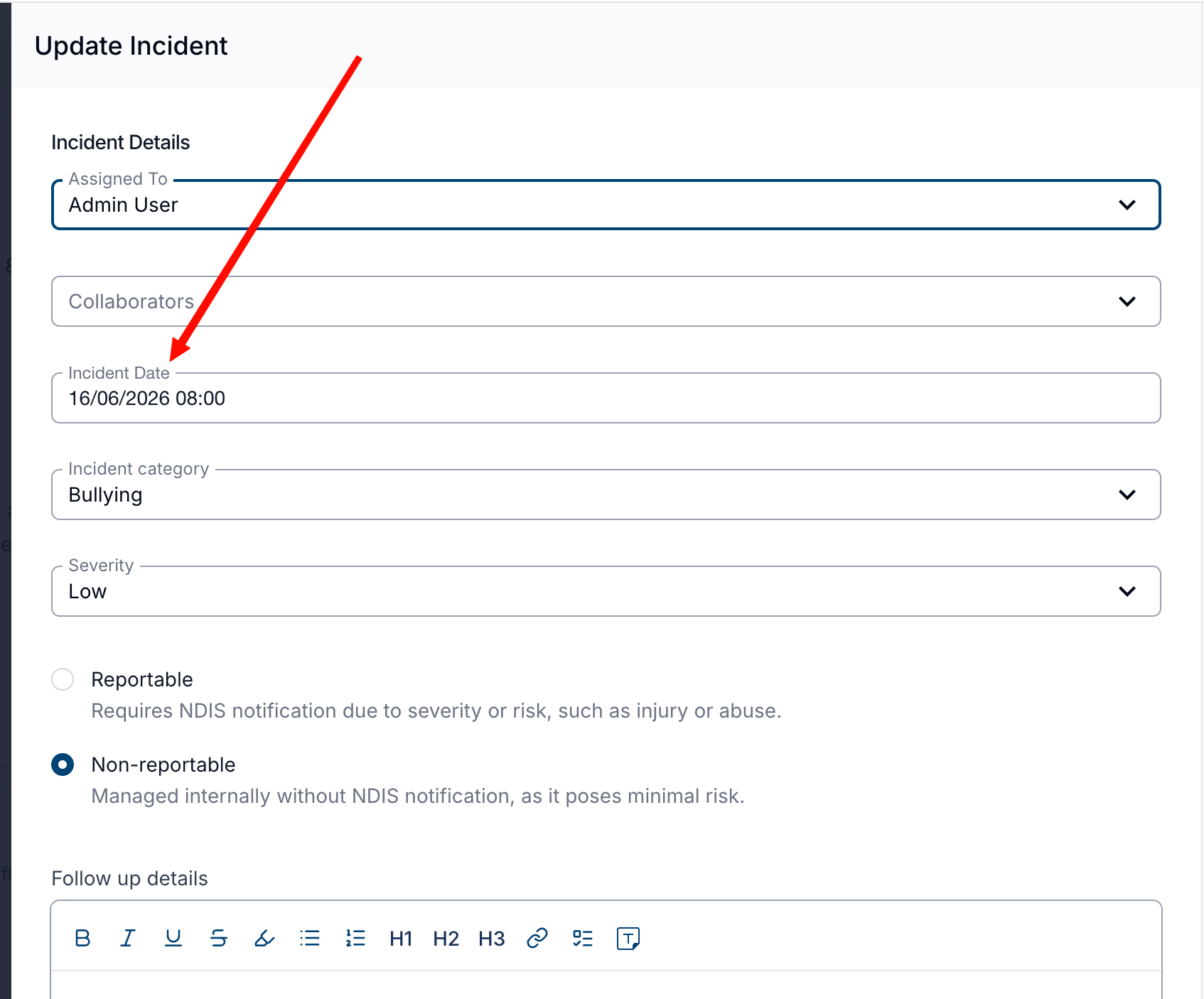
Incident Date
The Incident Date field lets you correct the date and time an incident occurred, directly from the Update Incident drawer. This is useful when an incident was reported with the wrong date or time. Editing the incident date works the same way for both Participant and Staff incidents.
Incident Category or Type
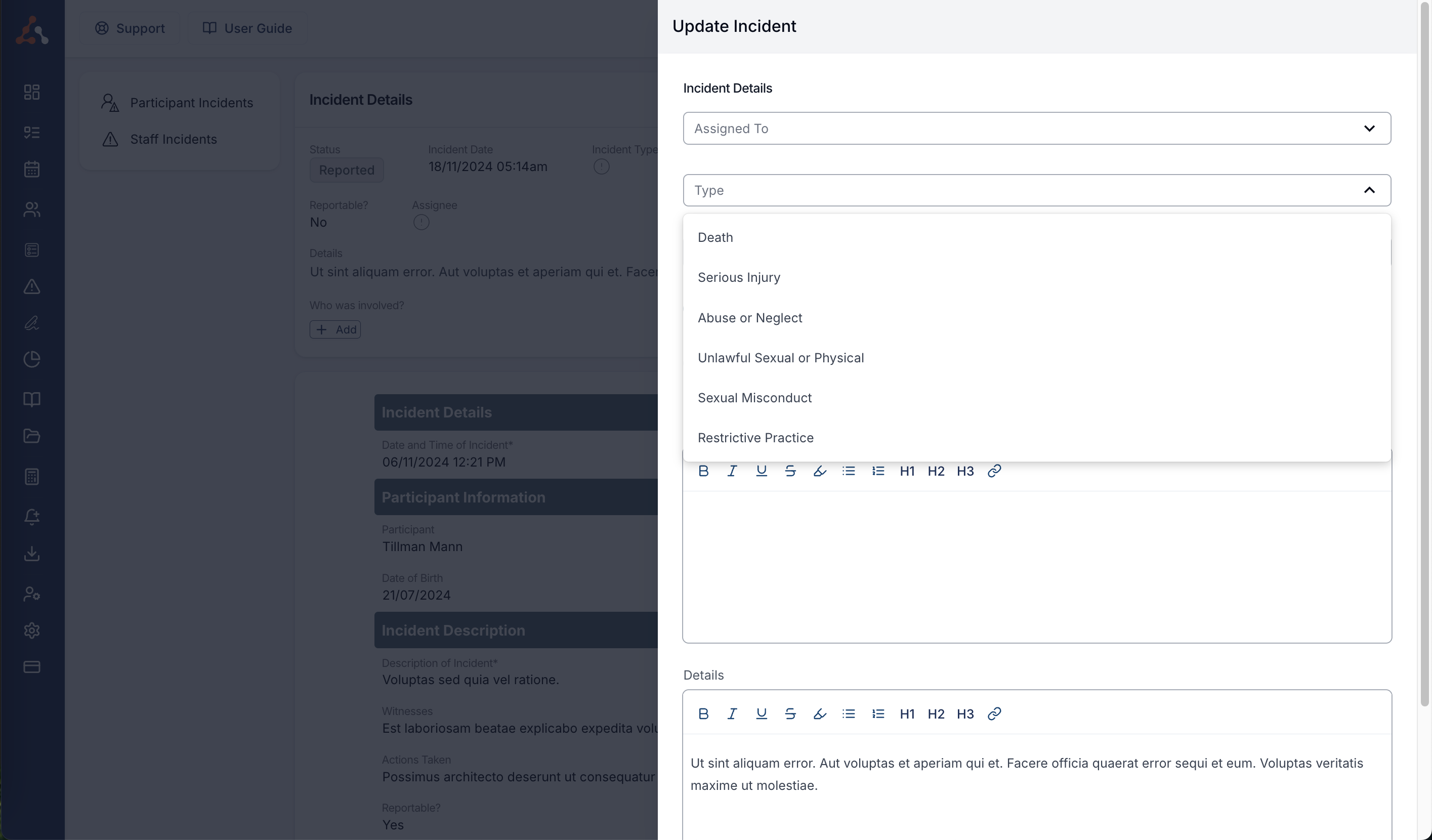
Choose whether the incident is Reportable to the NDIS Commission or Not reportable to the NDIS Commission. Astalty then shows the incident categories available for that follow-up type.
Non Reportable
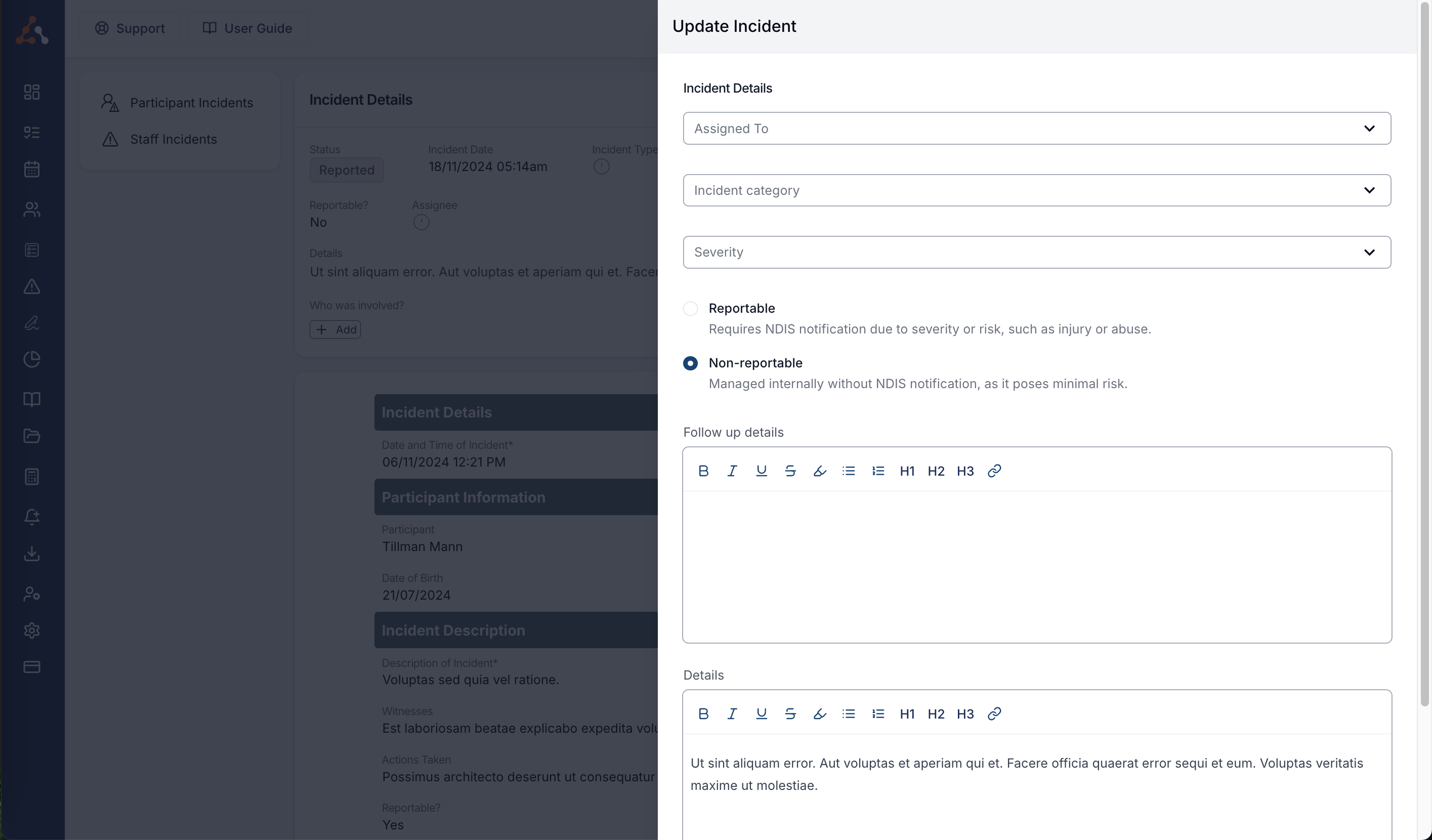
Admins can customise non-reportable categories in Incident Settings.
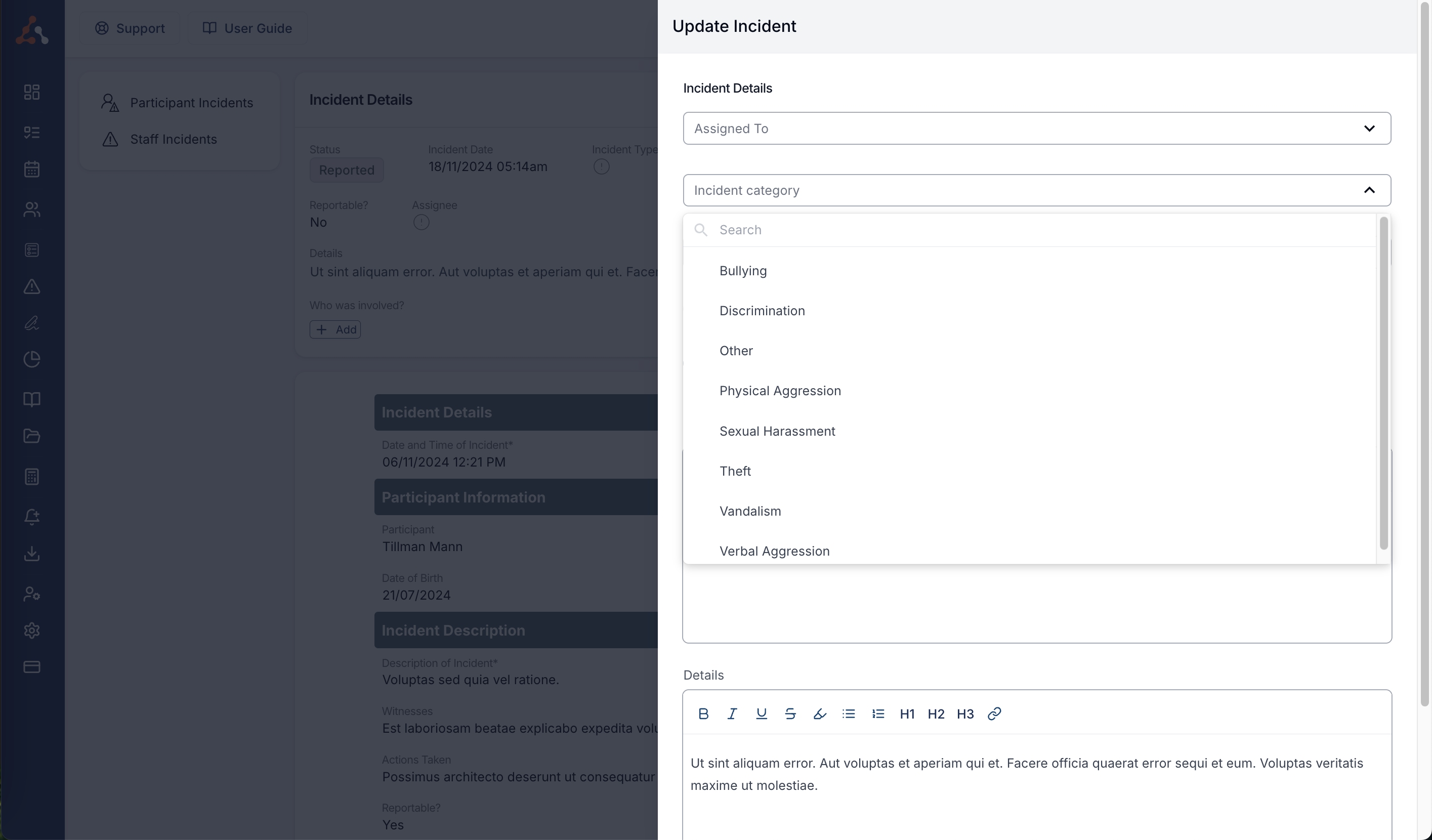
Reportable
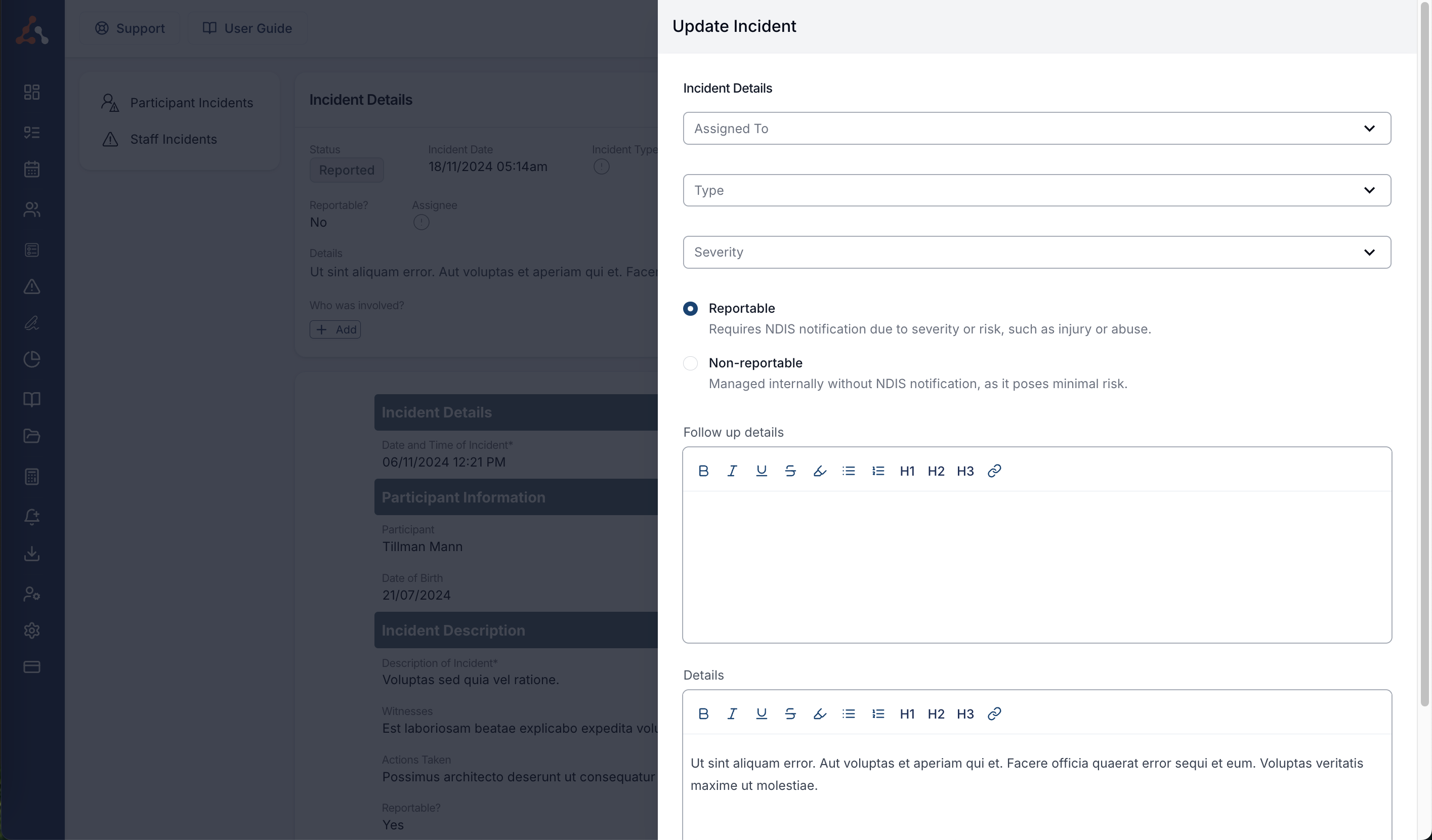
The reportable incident types are as outlined by the NDIA and cannot be edited.
Severity
The Severity dropdown records how serious the incident was. There are four levels, listed from least to most serious:
- Low
- Medium
- High
- Extreme
Extreme sits above High, so the most serious incidents stay distinct instead of being grouped in with everything else marked High. It is available on every Astalty account and there is no setting to turn on.
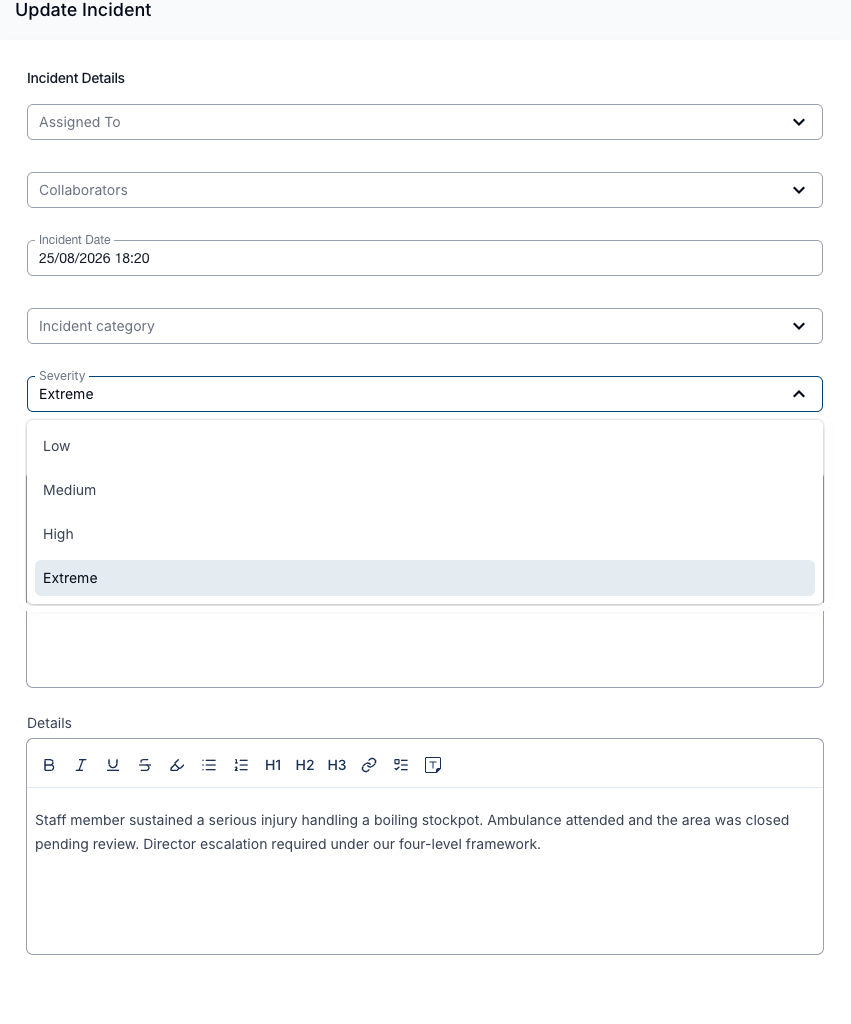
Severity is set here, during review. A newly reported incident has no severity until someone selects one, so the Severity column in the register stays blank until then. Once saved, the severity flows through to the register and its Severity filter, the Incidents Export and the incident report PDF.
Follow Up Details and Further Details
When Action Items are not enabled, use Follow up details to record the review and actions taken. Use Details to correct or add to the incident description.
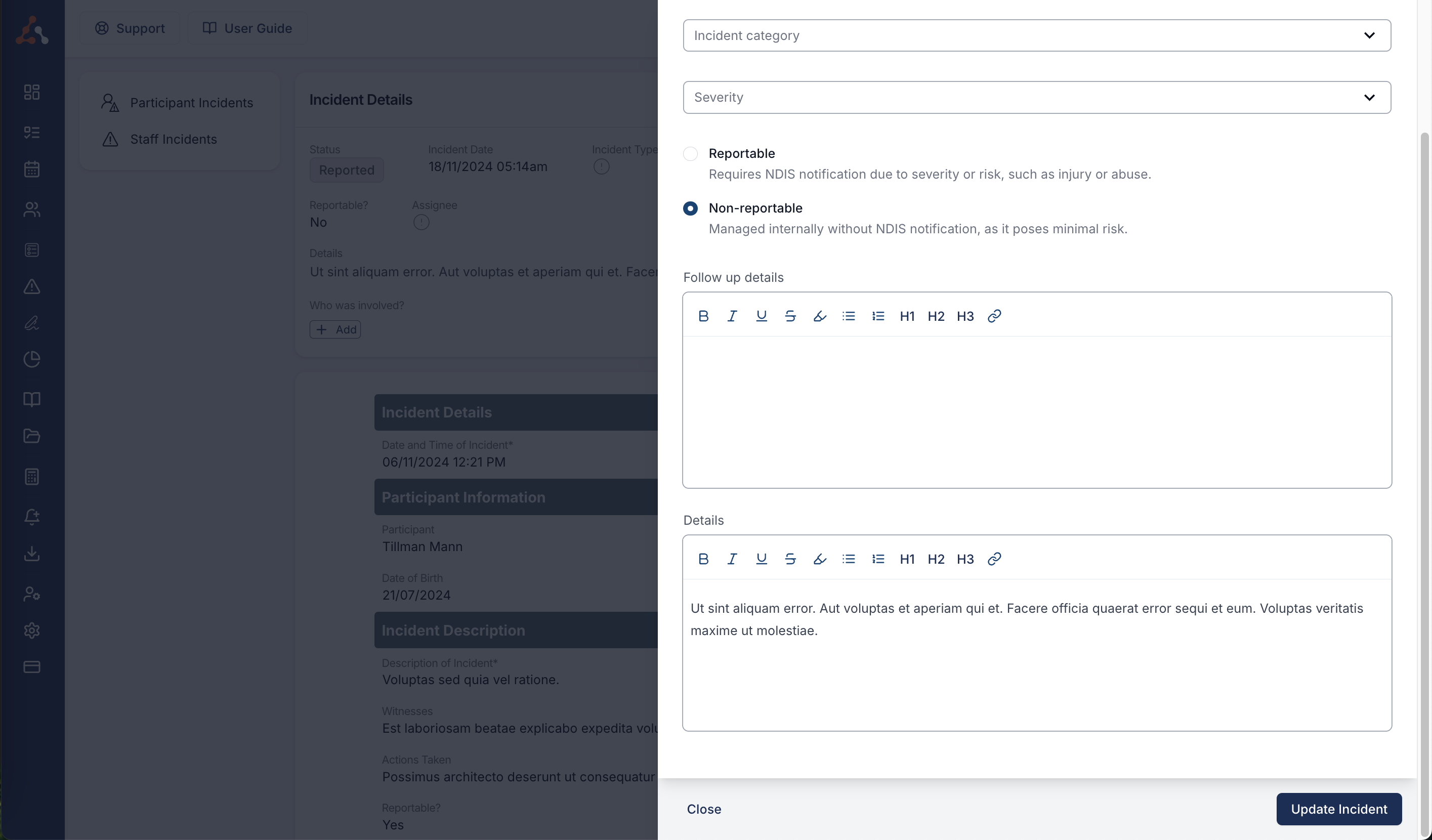
Completing the Follow Up
Click Update Incident to save the changes.
Exporting an Incident Report (PDF)
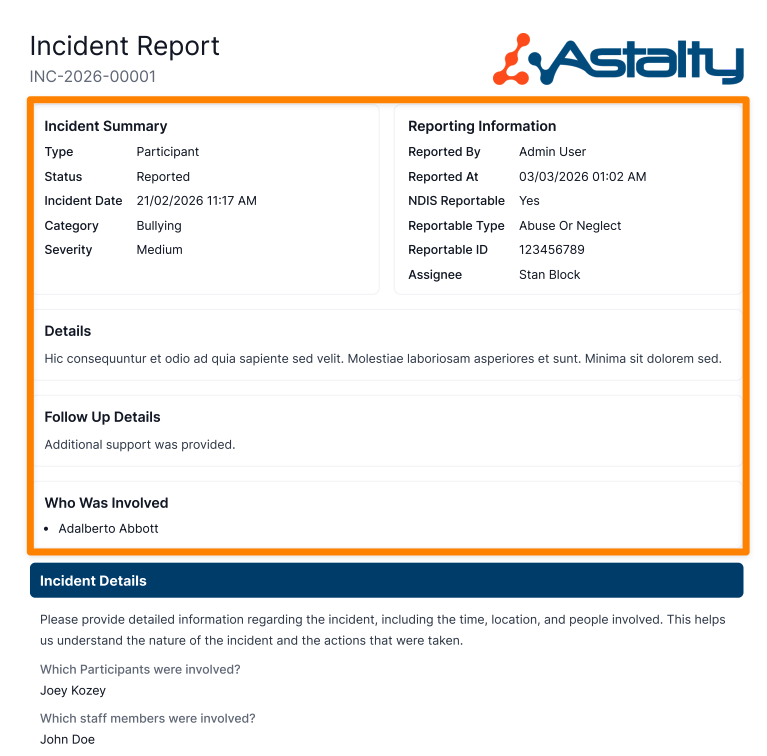
The Incident Report can be exported as a PDF to create a complete, shareable record of the incident.
The PDF includes the Incident Details. Review the export options before downloading if you also need the action plan or attachments.
Information Included in the PDF Export
The exported document contains:
Incident Summary
- Type
- Status
- Incident Date
- Category
- Site (for providers with Scheduling turned on)
- Severity
- Completed Date
Reporting Information
- Reported By
- Reported At
- NDIS Reportable details (Reportable Type and Reportable ID)
- Assignee
Incident Details
- All information entered by Astalty users
Follow-Up Details
- Actions taken
- Updates recorded
- Review information
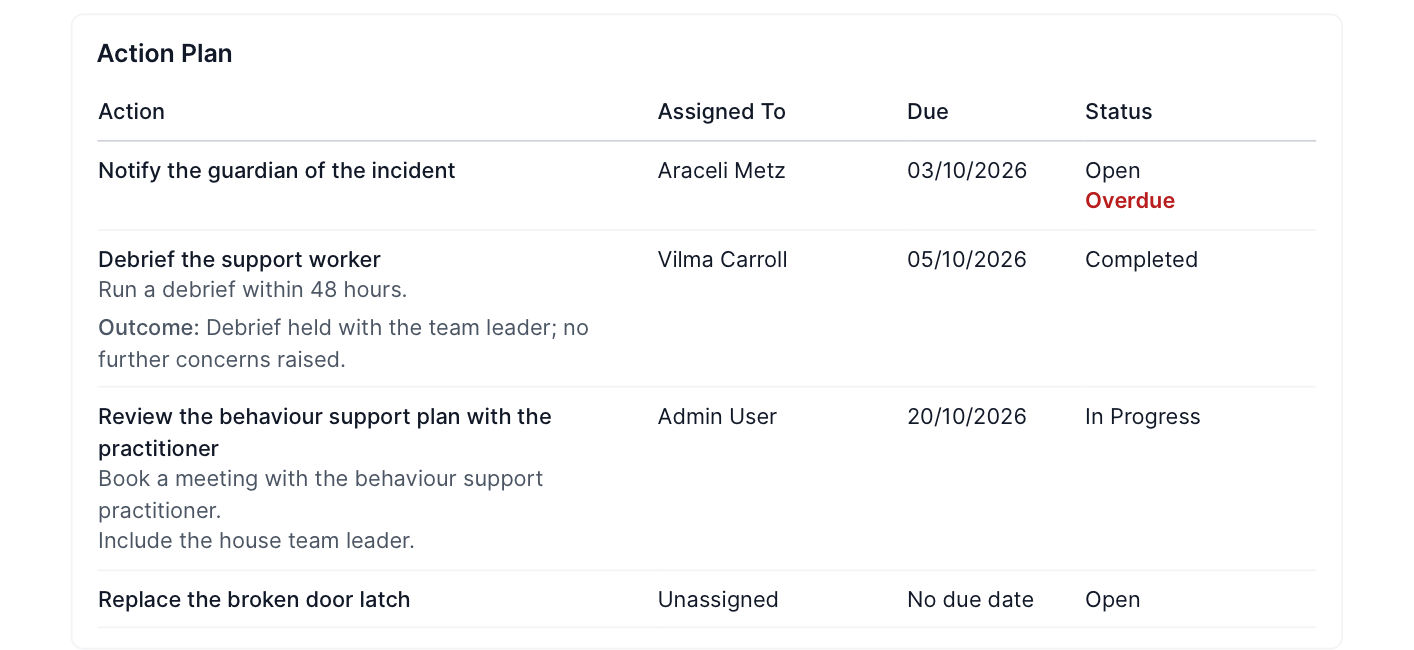
Action Plan
- Each action's title, description and outcome (once closed)
- Assignee, due date and status, with an Overdue marker for overdue actions
- Only included when Action Items is enabled and the incident has at least one action item; otherwise the section is left out
Who Was Involved
- Individuals selected as involved in the incident
Including follow-up actions, reviews, and outcomes in the export ensures that stakeholders receive a complete and accurate record of the incident.
How to Export an Incident Report
- Navigate to the Incidents Register.
- Select the relevant incident.
- Click Actions and select Export as PDF.
- In the Export Incident Report dialog, choose your export options, then click Export:
- Exclude staff surnames - abbreviates staff names to a first name and last initial throughout the report.
- Include attachments - lists files attached to the incident in the report and downloads them together as a ZIP.
- Include action plan - on by default. Lists the incident's action items in the report. Only shown when Action Items is enabled.
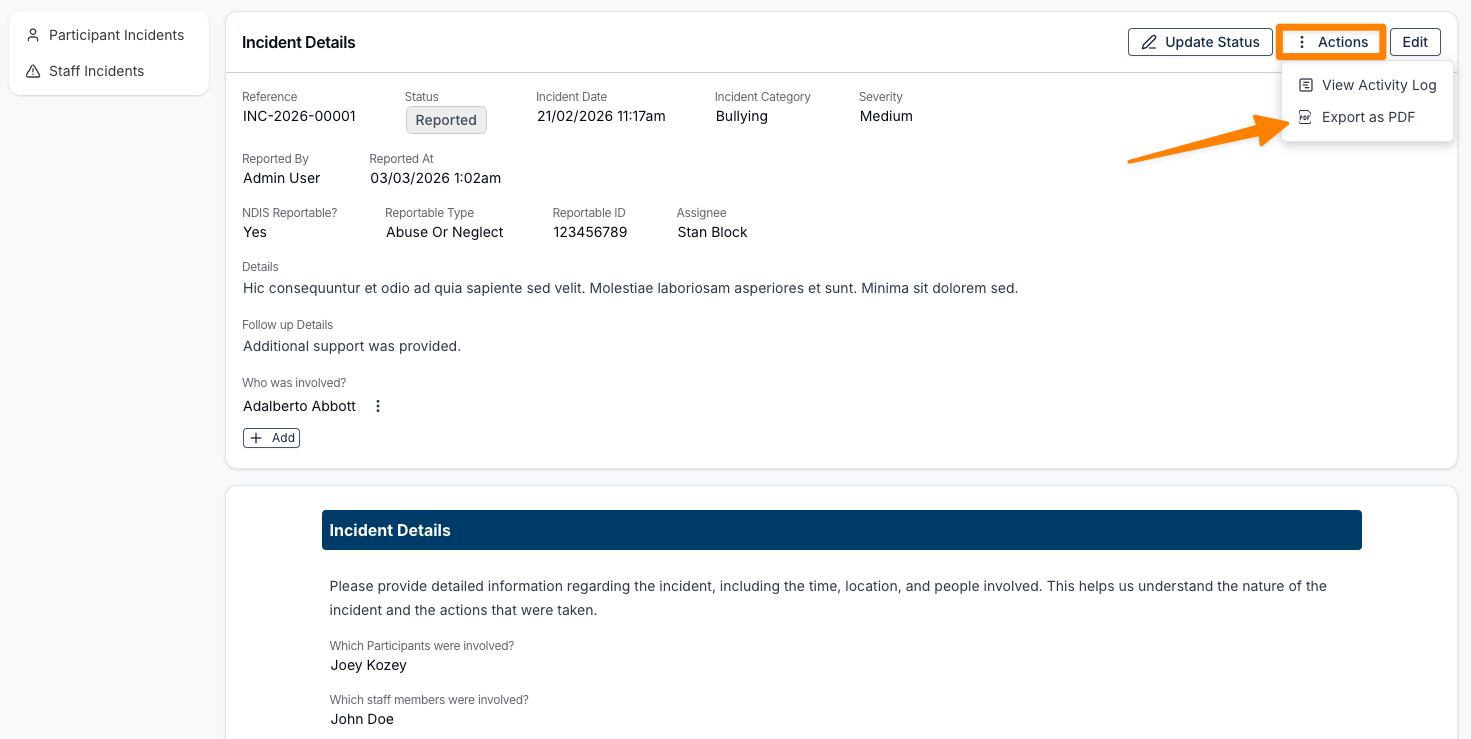
The PDF will download to your device's Downloads folder. You can then open and print or securely share the document as required.