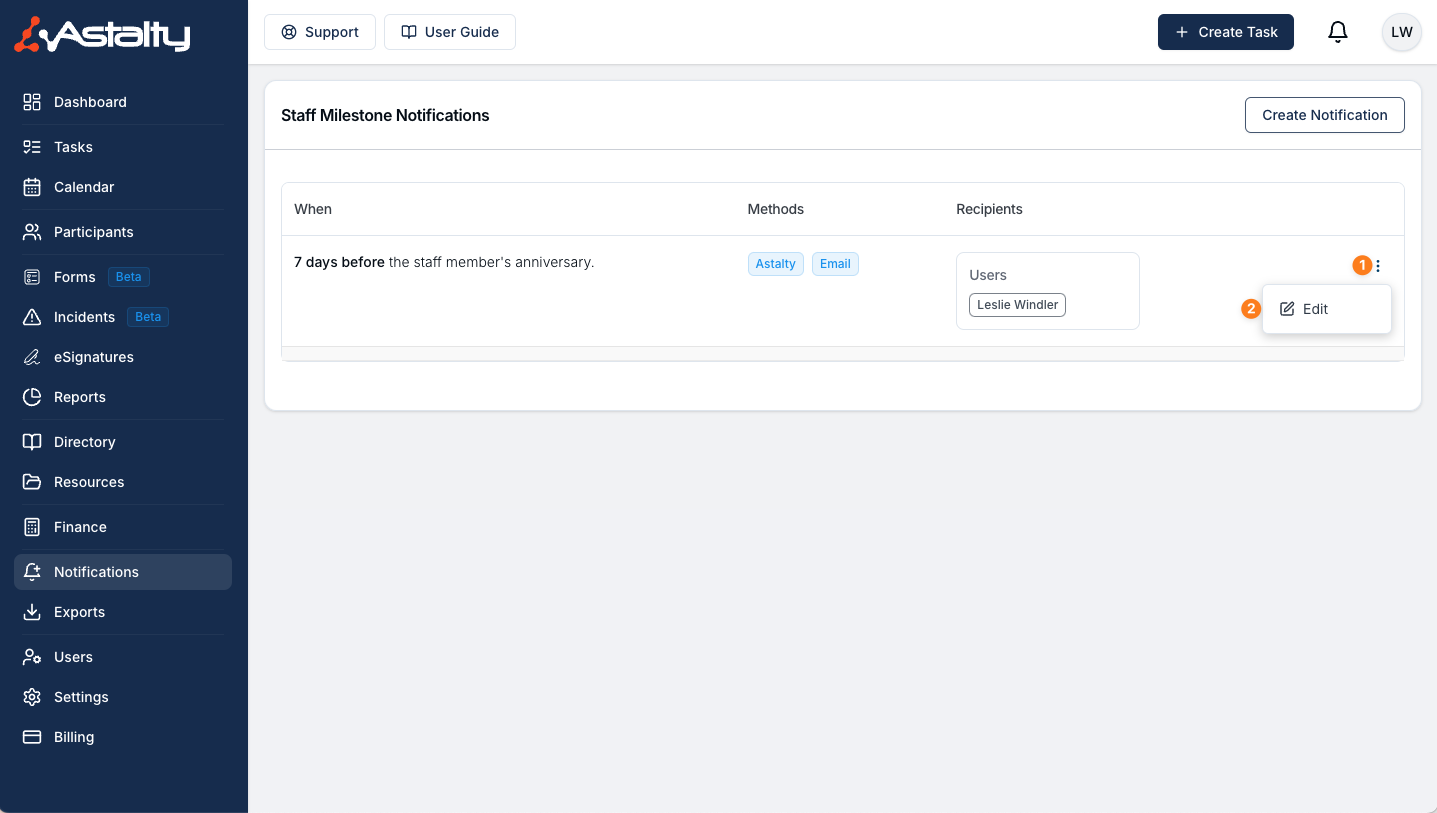
Staff Milestone Notifications
Overview
Create a Staff Milestone Notification to remind selected people when a team member reaches a set point in their employment or an annual anniversary. Astalty calculates each milestone from the Employment Start Date on the team member's profile and can send the reminder by email, within Astalty, or both.
Staff Milestones is in the Team group on the Notifications page. Only Admins can manage these notifications. This can't be changed per user.
Create a Staff Milestone Notification
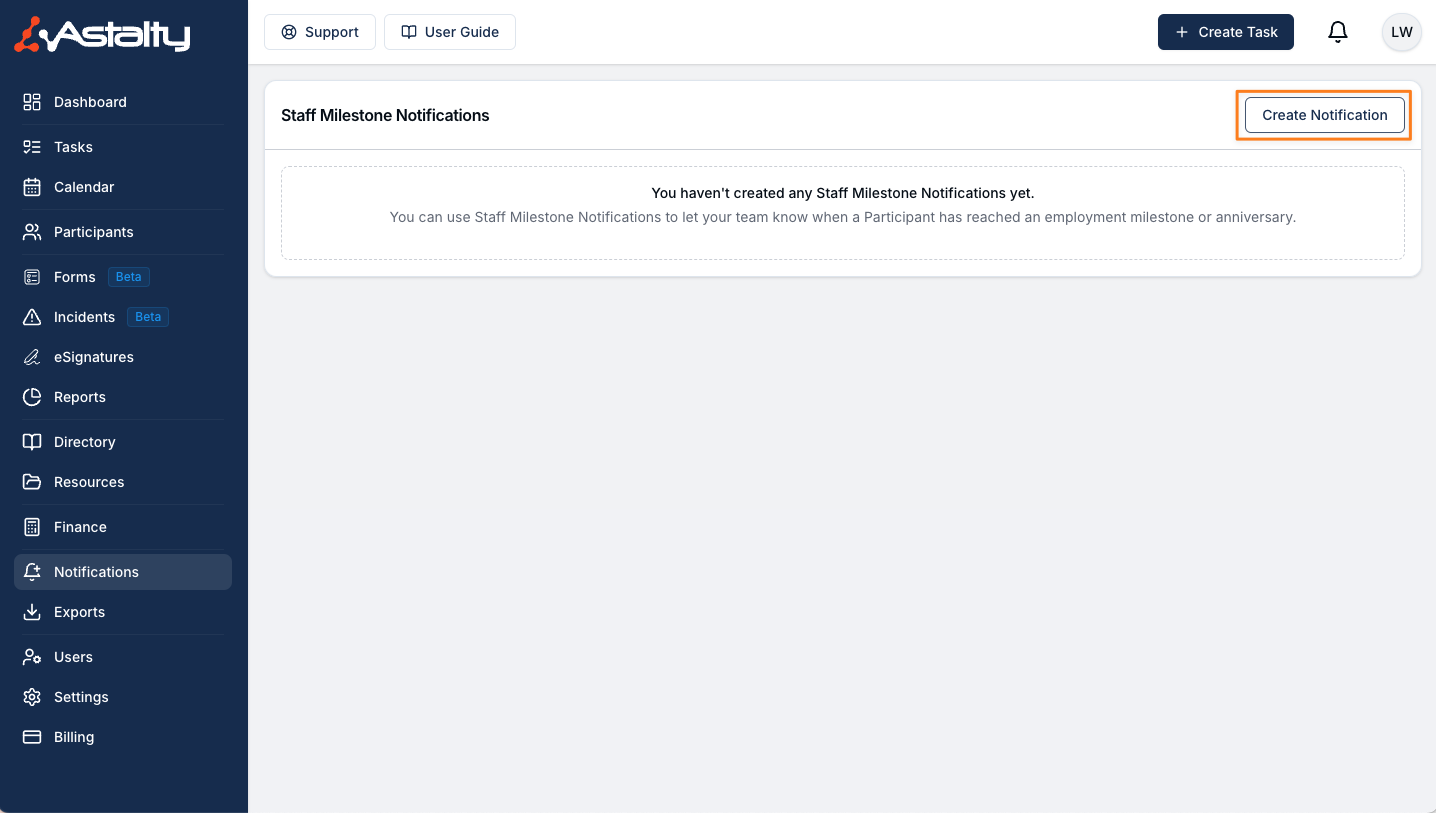
On the Staff Milestone Notifications page, click Create Notification. A new notification starts at 7 days after the start date, with Within Astalty and Email both ticked.
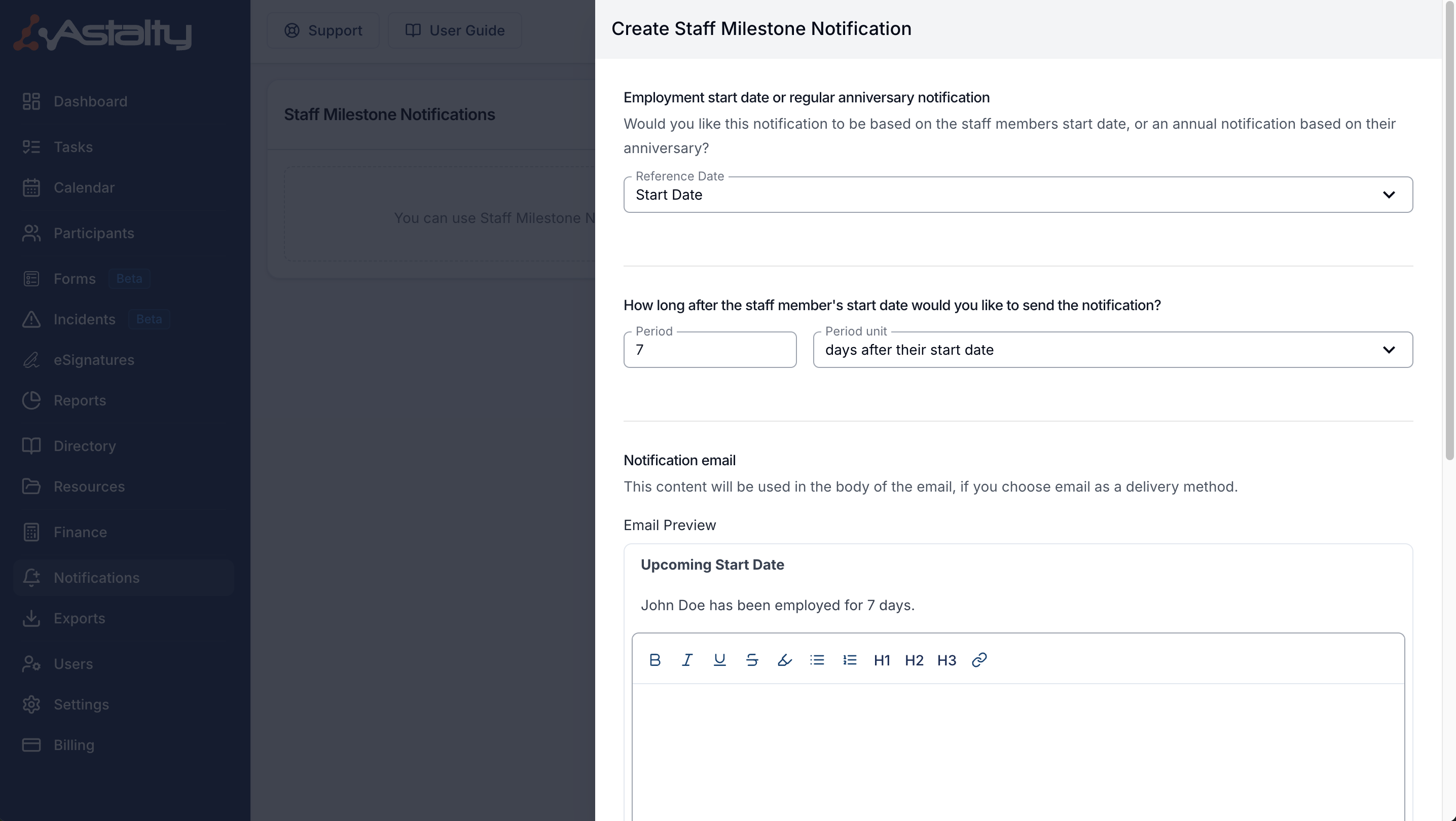
Selecting the Reference Date
Choose the Reference Date:
| Reference Date | Sends |
|---|---|
| Start Date | Once, a set number of days, weeks or months after the staff member's employment start date. Useful for probation or 3-month check-ins. |
| Anniversary Date | Every year, on or a set time before the anniversary of their employment start date. |
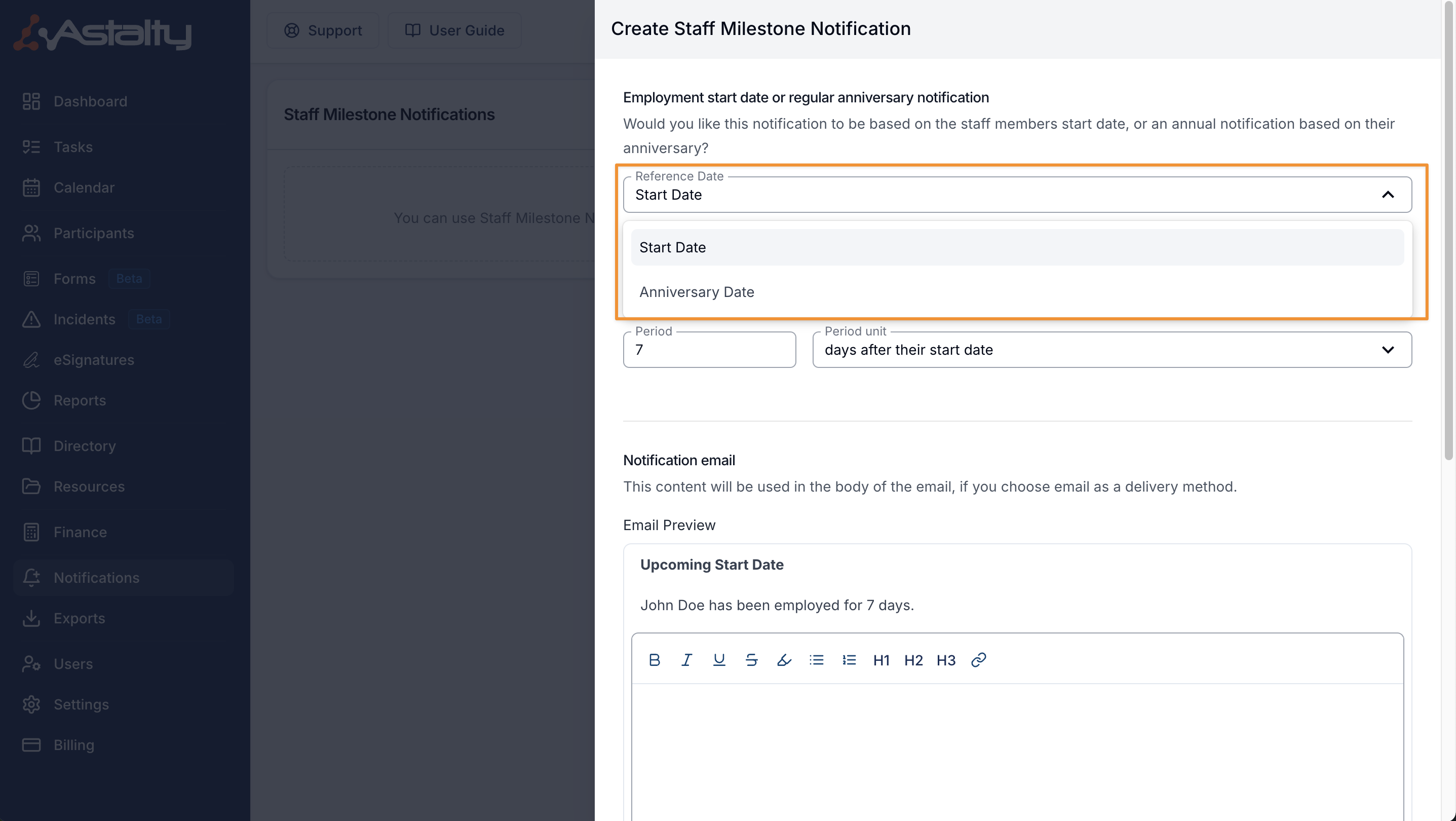
Selecting the Notification Period
The timing options depend on the Reference Date.
If you have selected Start Date as the reference you will have the following selections:
- days after their start date
- weeks after their start date
- months after their start date
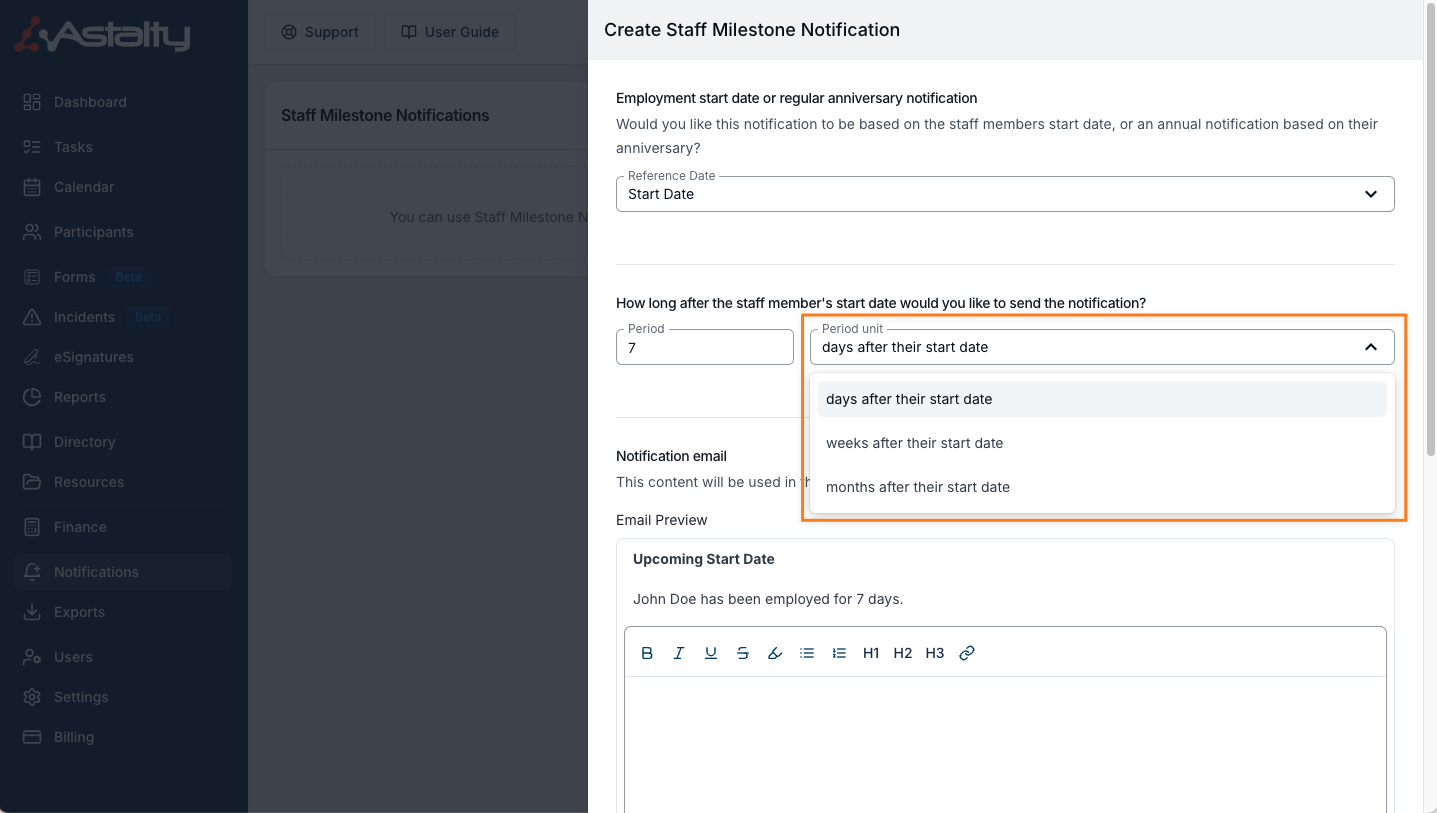
If you have selected Anniversary Date as the reference you will have the following selections:
- on the day
- days before their anniversary
- weeks before their anniversary
- months before their anniversary
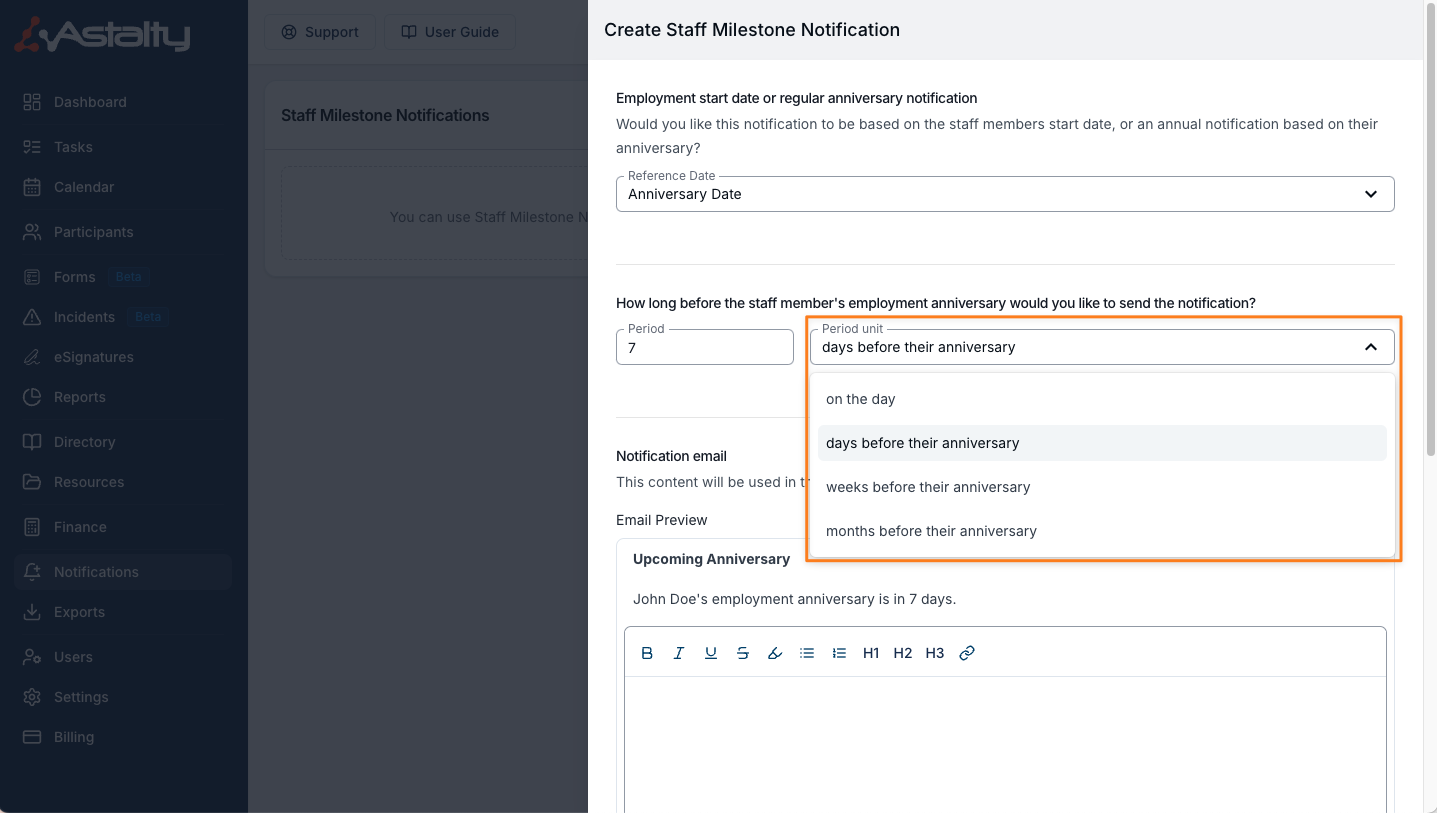
Once you have selected the period unit, enter the Period (1 to 365). The field is disabled for on the day.
Astalty checks once a day, at about 9:30am Brisbane time. Deactivated users are skipped. For month-based timing, a start date on a day the target month doesn't have (such as the 31st) is matched on that month's last day.
Notification Email Content
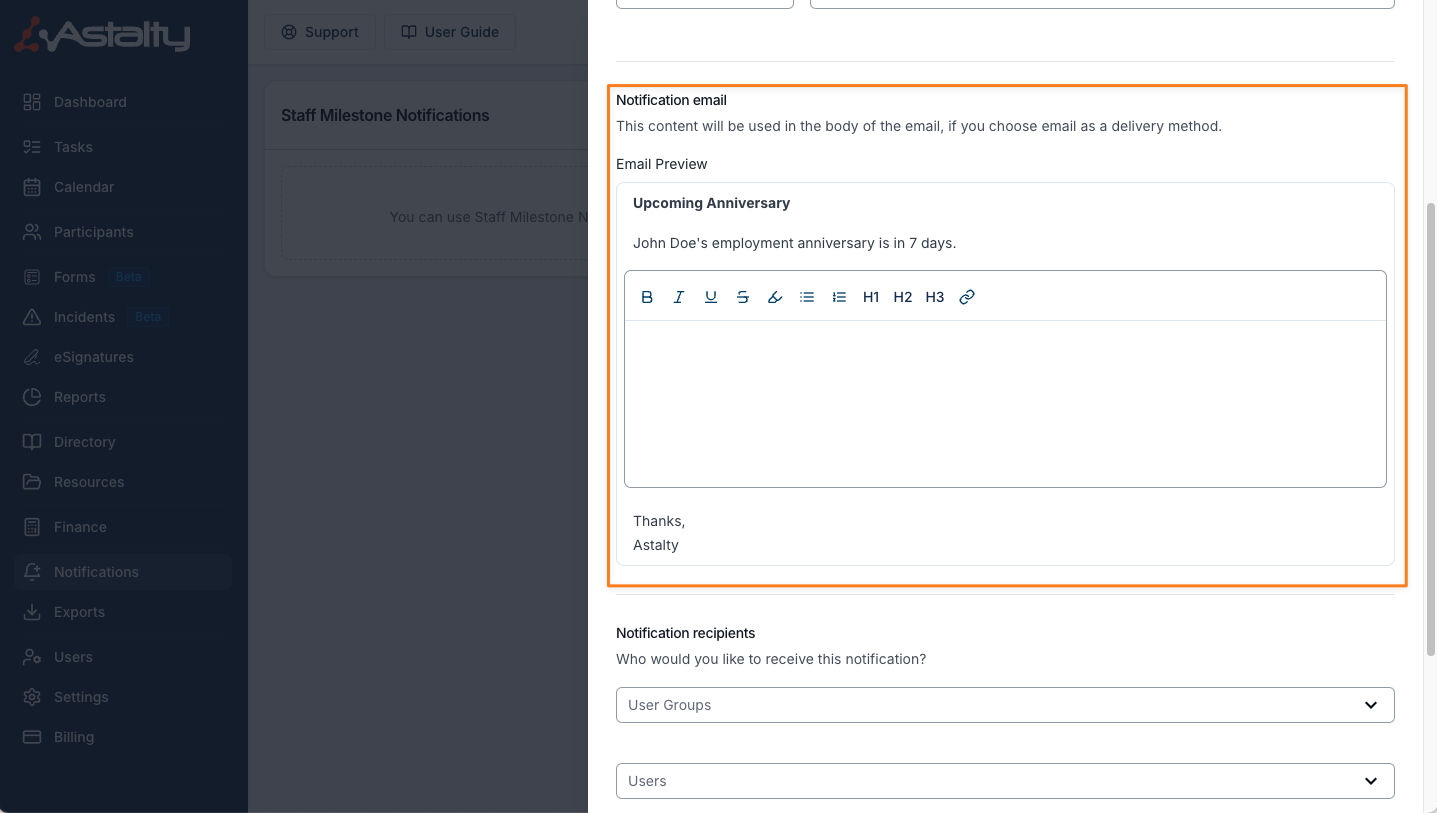
Add up to 1,000 characters of optional content. The Email Preview shows where your content appears below Astalty's standard message.
For a milestone due today, the email and in-app notification use Staff Milestone followed by the team member's name. An advance anniversary reminder uses Upcoming Employment Milestone instead. The standard message gives the milestone date and the tenure the team member reaches on that date. A notification sent on their employment start date says that it is their first day. The email includes your optional content and a View User button, while the in-app notification links to the team member's profile.
Notification Recipients
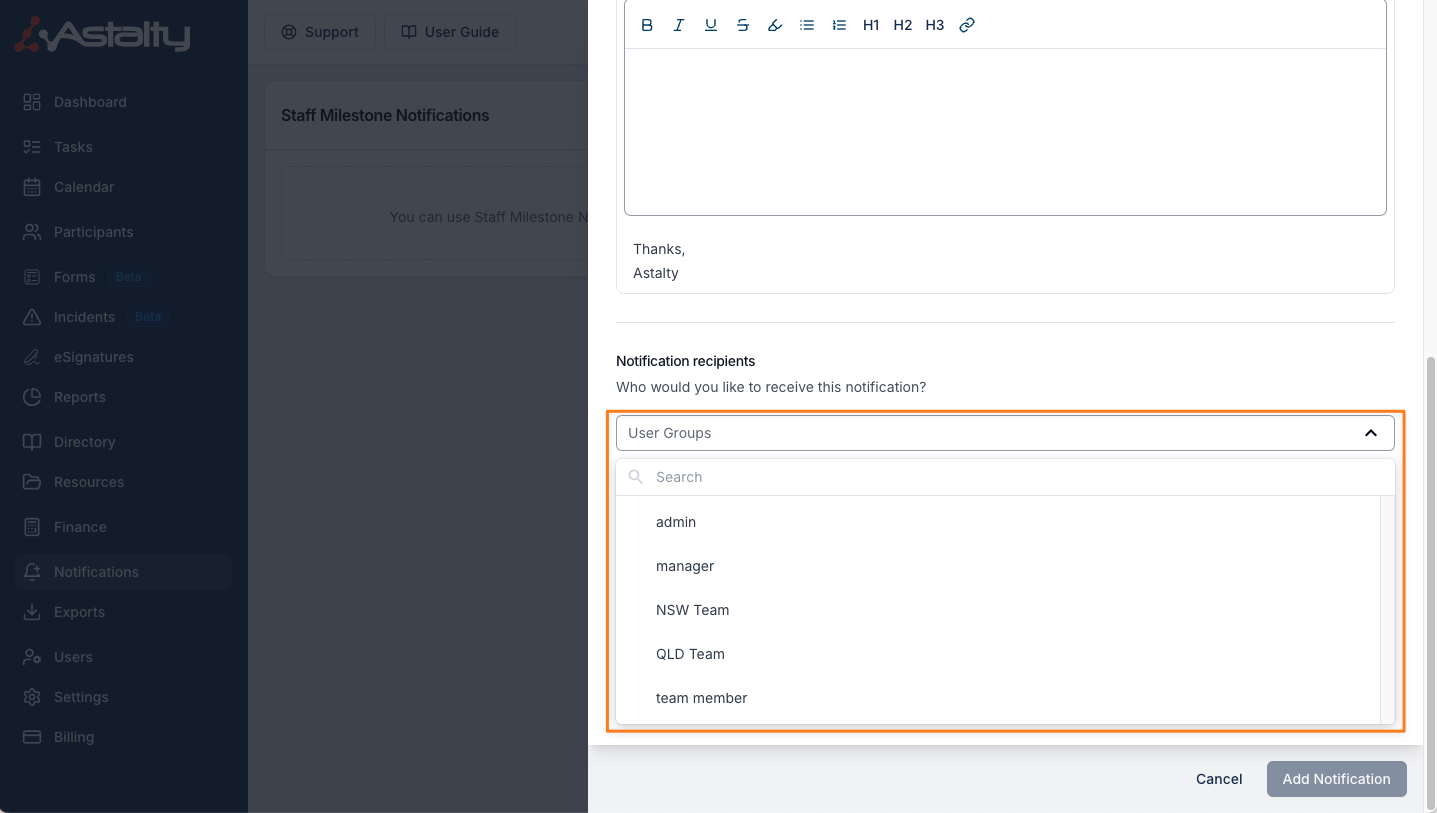
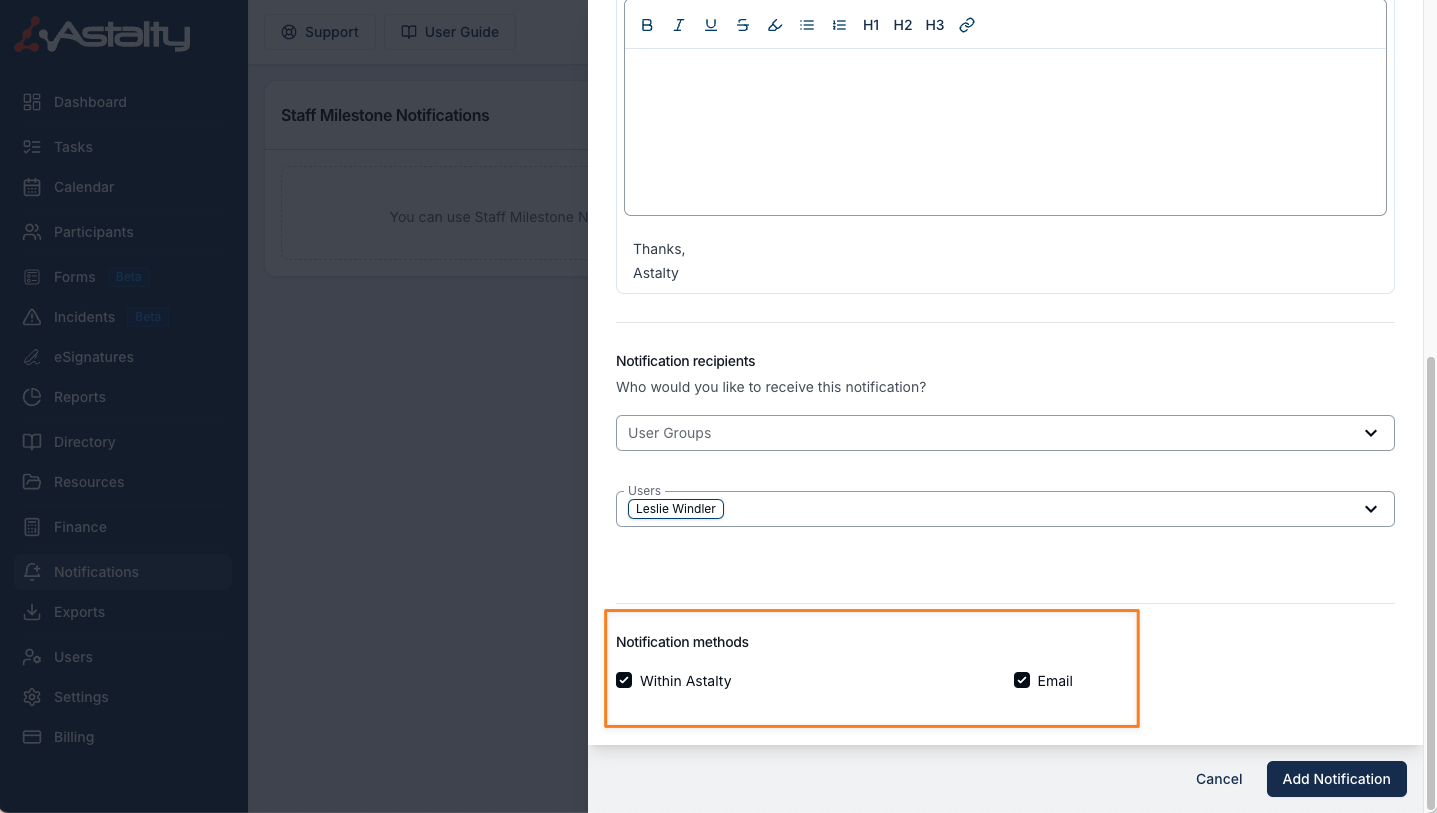
Select at least one recipient: one or more User Groups, or individual Users. Every group is offered, including Support Worker and All Users.
Notification Type
Choose how the notification is sent: Email, Within Astalty, or both. At least one is required.
Editing a Staff Milestone Notification
The list shows each notification's timing under When, its Delivery methods and its Recipients. Click a row, or click the 3 dots to the right of the entry and select Edit, to open the notification. The same menu has Clone, to start a new notification from this one, and Delete.