Getting Started With The Calendar
The Astalty Calendar is where you book appointments and meetings, link them to tasks, and see your own and your colleagues' events in one place.
Calendar Overview
Admins, Managers and Team Members can use the Calendar, and each of them can create, edit and delete their own events. Support Workers do not have the Calendar. Open it from Calendar in the left-hand menu.
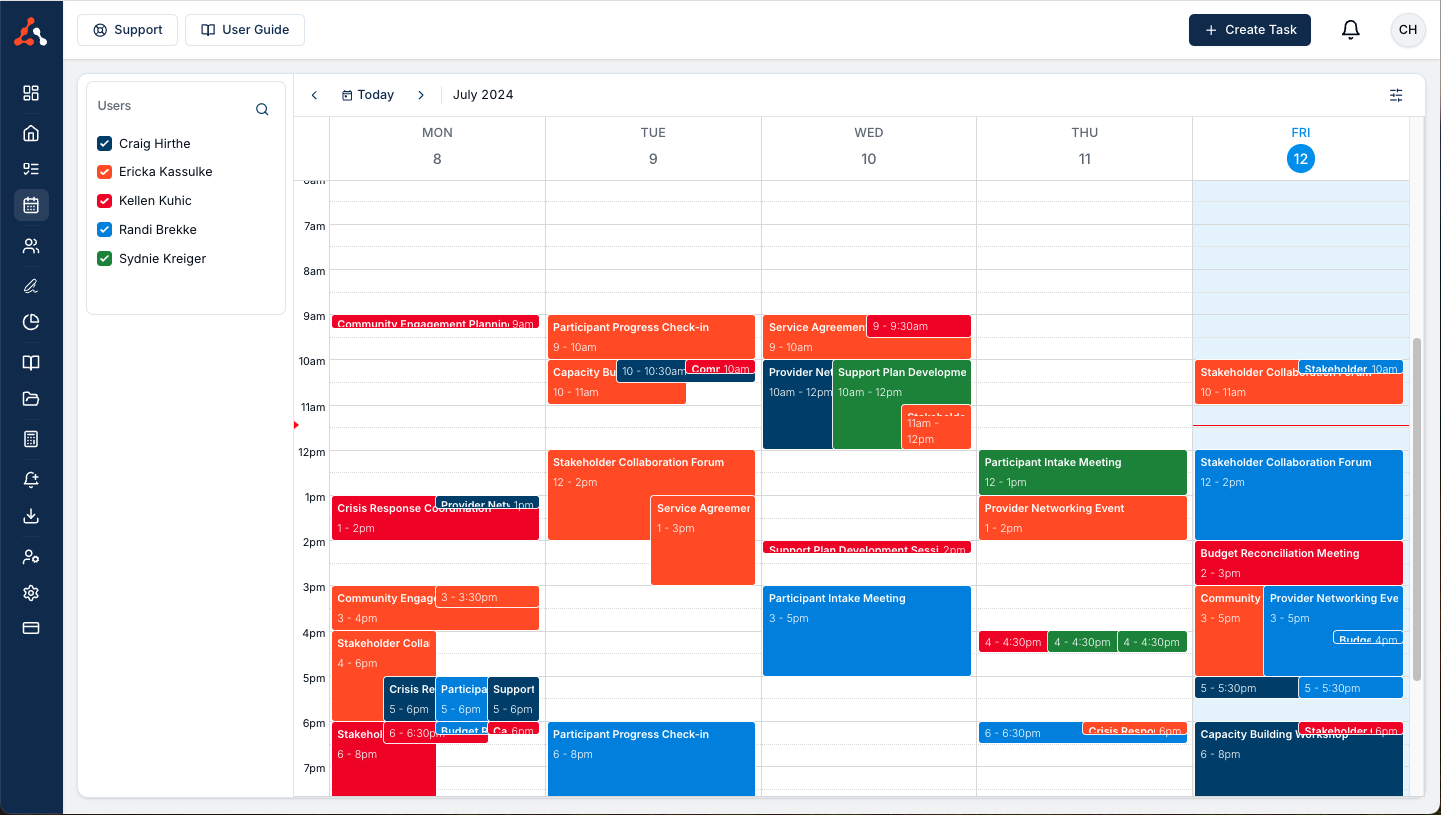
The Calendar shows three kinds of entries, each listed in the side panel:
| Side panel section | What it shows | Who sees it |
|---|---|---|
| Users | Events created in Astalty, including any linked task. | Anyone who can see that user's calendar. A Private event shows to everyone except its owner as Busy, without its details. |
| External Calendar | Events from the Google or Outlook calendars you have connected and enabled. These are read-only in Astalty. | Only you. Colleagues who view your calendar see only your Astalty events. |
| Other Calendars | All-day entries for Participant birthdays, plan expiry and record expiry. | You, for the Participants you coordinate. |
Shifts and supports from Scheduling do not appear on the Calendar.
Which colleagues' calendars you can see depends on your role. See User Navigation.
Google and Outlook Calendar Integration
Each user can connect their own Google or Microsoft account from My Profile > Integrations. Once connected, Astalty:
- Shows events from the external calendars you enable, alongside your Astalty events.
- Sends each event you create in Astalty to your one Main External Calendar, and sends later edits and deletions you make in Astalty to that copy.
- Lets you invite attendees and add a Google Meet or Microsoft Teams meeting, when your main calendar supports meetings.
Changes made in Google or Outlook to the copy of an Astalty event do not come back to Astalty, so always edit those events in Astalty. You do not need an external calendar to use the Astalty Calendar: without one, your events stay in Astalty only.
To set it up, see Calendar Set Up. For exactly what is read and sent, see Seeing Your External Calendar In Astalty.
Using The Calendar
- Calendar Set Up: connect an external calendar and choose your main calendar.
- Calendar Events and Tasks: create, edit, repeat and delete events, and link them to tasks.
- Navigating the Calendar Interface: whose calendars you can see, views and display settings.
- Creating an Event Using the Outlook Calendar Integration: attendees and Microsoft Teams meetings.
- Creating an Event Using The Google Calendar Integration: attendees and Google Meet meetings.
Video Walkthrough
The Calendar walkthrough video covers setting up the Calendar. It was recorded during the Calendar beta, so some screens and labels differ from the current Calendar. Where they differ, follow the written steps in this section.