- Day-to-Day
- Filtering Conversations
Filtering Conversations
Your chat list can be narrowed two ways: by conversation type, using the All, Direct and Groups tabs, and by read state, using the unread filter. The two work together, so you can get to something like "unread group channels only" in a couple of clicks.
The All, Direct and Groups Tabs
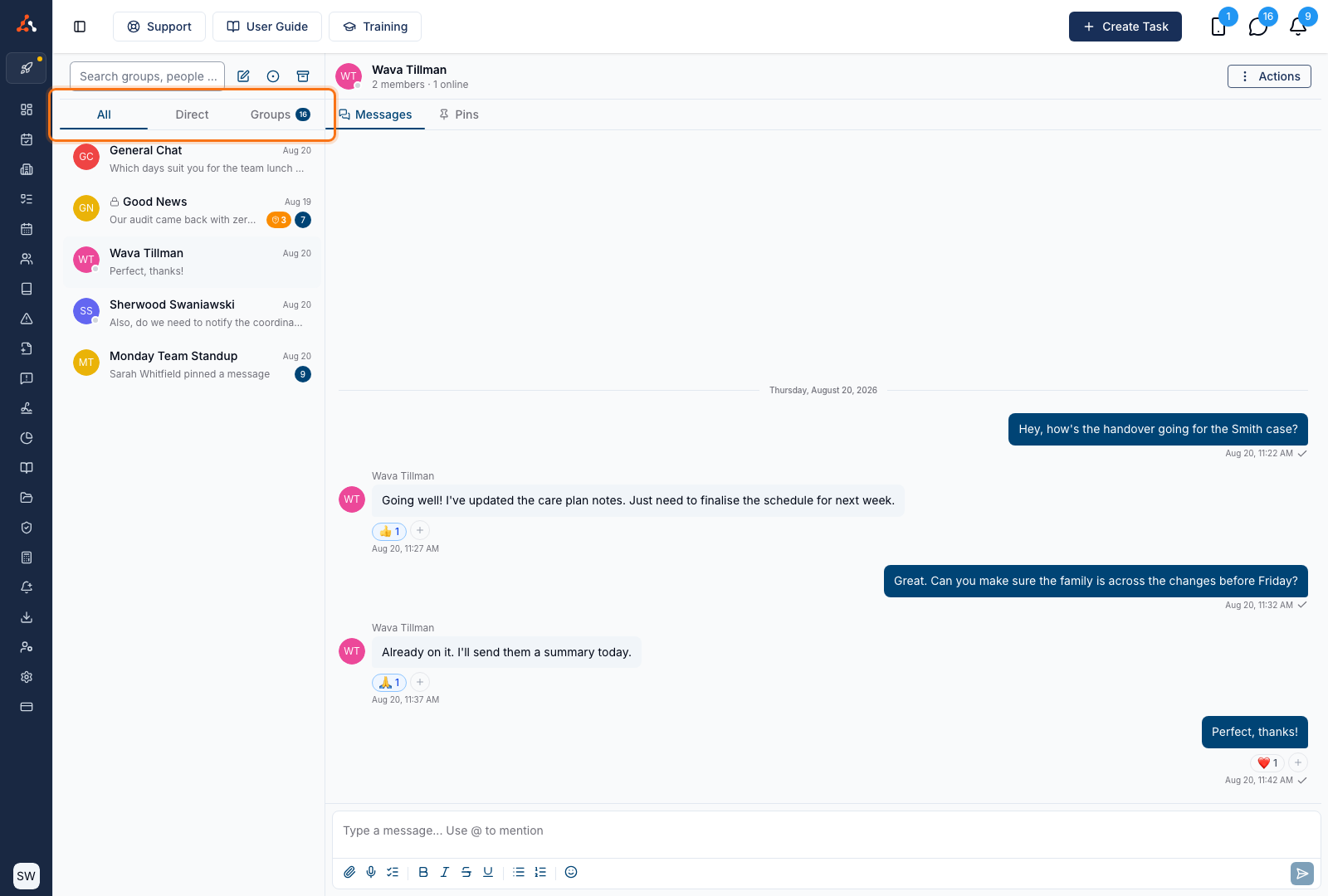
Your conversations are split across three tabs above the chat list:
- All - every conversation you are part of, direct messages and group channels together.
- Direct - only your one-on-one direct messages.
- Groups - only your group channels.
All is the default, and shows exactly the same conversations Chat has always listed, so nothing changes until you choose a different tab.
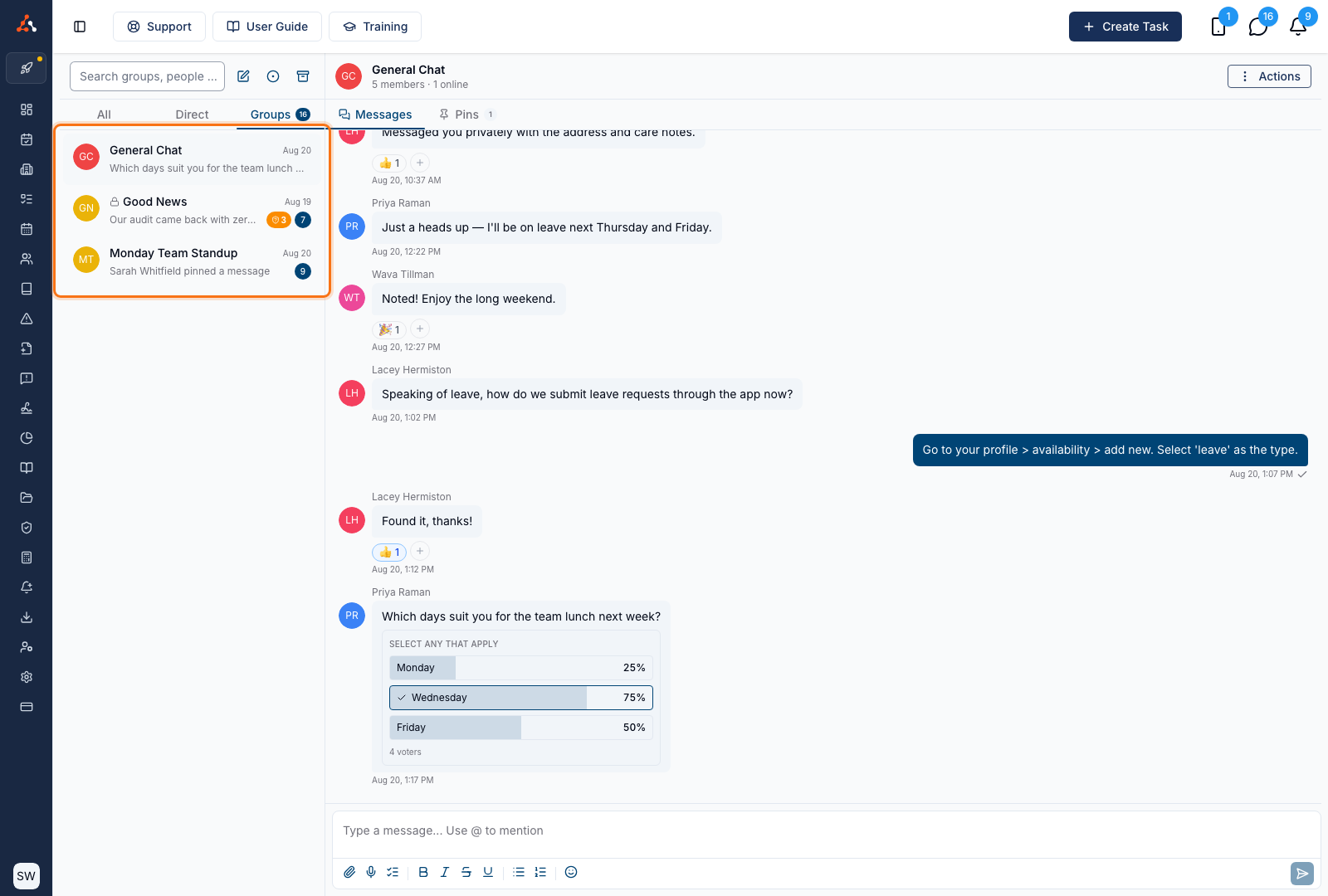
Selecting Groups leaves only your group channels in the list, which is useful when you are checking a team-wide or Participant-specific channel for follow-ups and do not want one-on-one messages mixed in. Selecting Direct does the same for your direct conversations.
Unread Counts and Mentions on the Tabs
Direct and Groups each show how many unread messages are waiting in that tab, so you can tell where your unread messages are without switching tabs. A count above 99 is shown as 99+.
All never carries a count, because it hides nothing - in your normal chat list, the Direct and Groups counts add up to the unread total shown on the Chat icon.
A yellow dot beside a tab name means at least one conversation in that tab has an unread message that mentions you.
Showing Only Unread Conversations
To hide every conversation you have already read, click the Show unread only icon at the top of your chat list. Click it again to go back to showing all conversations.
The unread filter and the tabs are independent, so they combine - with Groups selected and the unread filter on, you see only group channels with unread messages.
Your Tab Choice Is Remembered
The tab you select is saved for your account in the browser you are using, so Chat opens on the same tab next time. It is saved against your user, so someone else signing in on a shared computer starts them on All rather than handing them your filter.
If you open a conversation that the selected tab would hide - from a link, a notification, or from a shift - Chat falls back to All for that conversation so it is visible in the list beside it. Your saved tab isn't changed, and it comes back as soon as you open a conversation that matches it again.
Filtering Archived Conversations
The tabs and the unread filter also apply to your archived conversations, so you can look through archived group channels without your archived direct messages in the way.