- Day-to-Day
- Action Items
Action Items
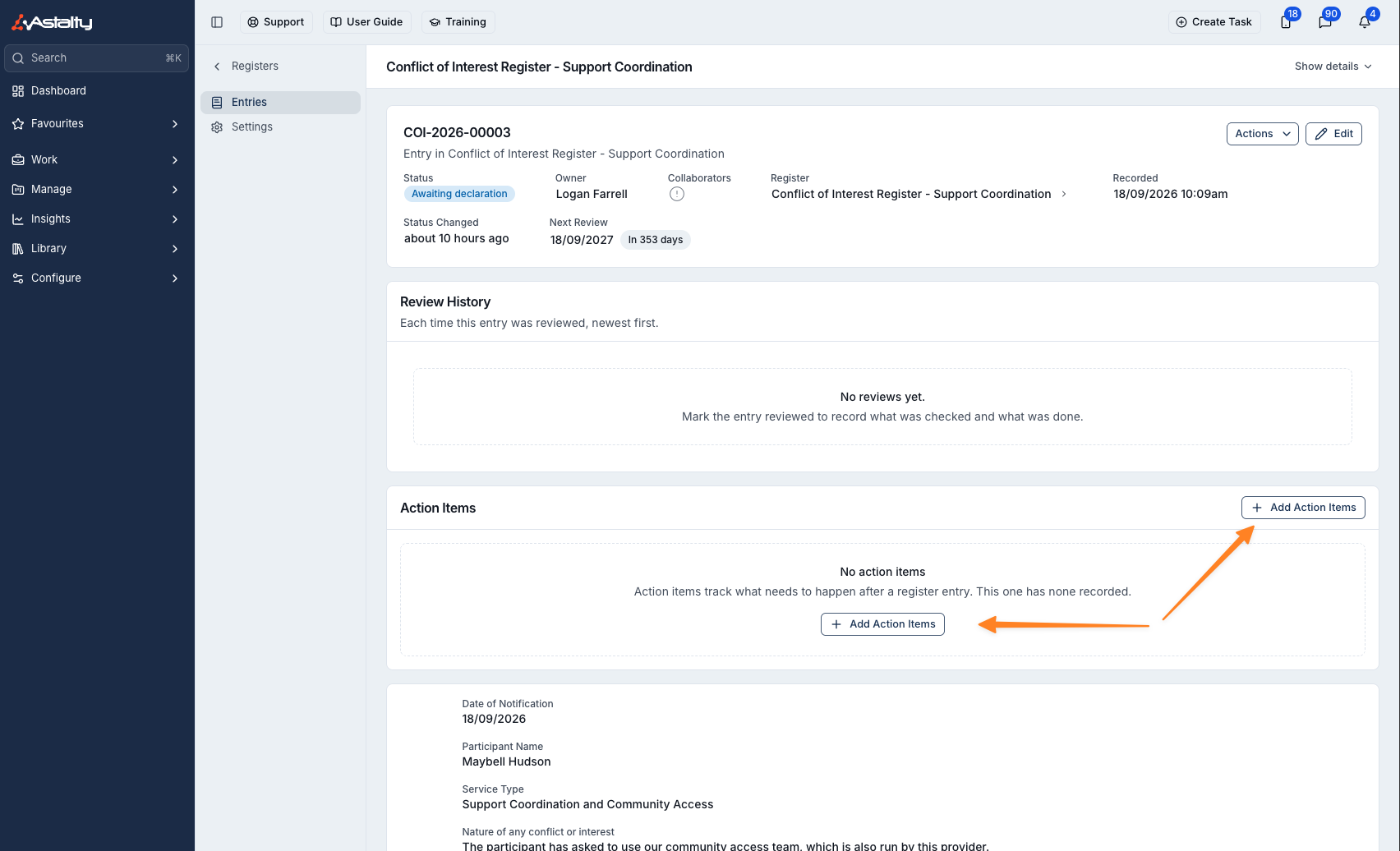
Action items record what needs to happen after an incident, a piece of feedback, a referral or a register entry, who is doing it and by when.
Overview
An action item has a title, details, an assignee, a due date and a status:
| Status | Meaning |
|---|---|
| Open | Not started |
| In Progress | Being worked on |
| Completed | Done |
| Closed - Not Actioned | Closed without being done |
Completed and Closed - Not Actioned items count as closed. An open item past its due date shows how many days overdue it is.
Adding Action Items
Open the incident, feedback record, referral or register entry, then:
- On the Action Items card, click Add Action Items.
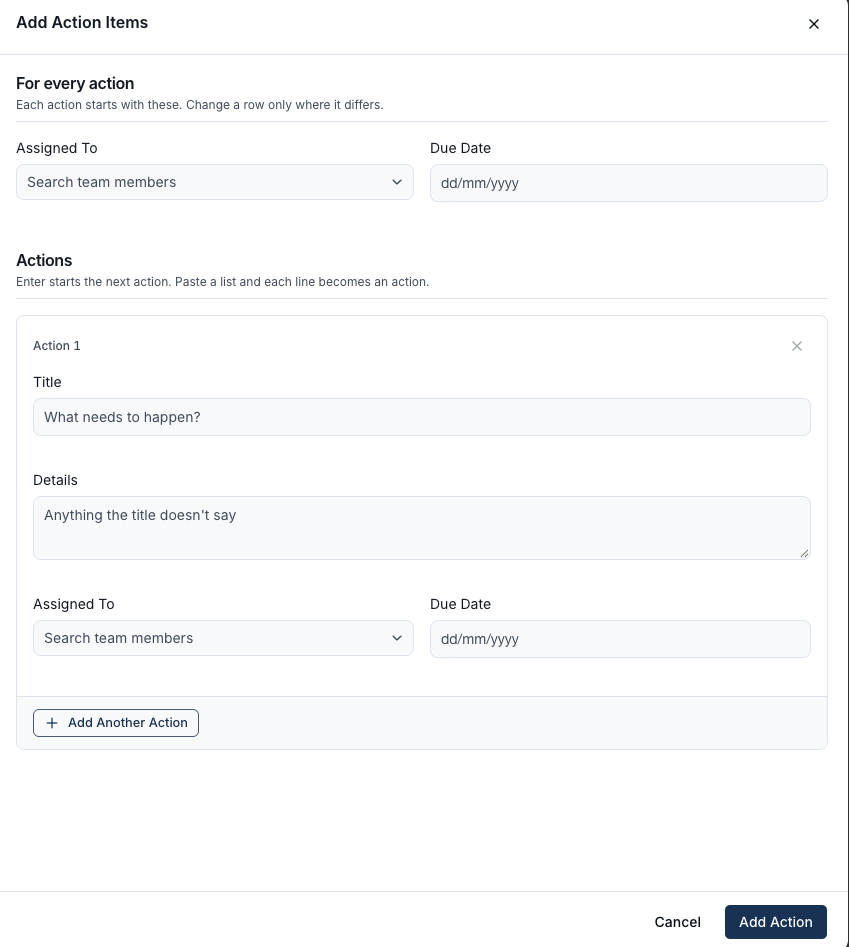
- Under For every action, set an Assigned To and Due Date to apply to every action. Change a row only where it differs.
- Enter each action's Title, and Details if needed. Press Enter to start the next action, or paste a list. Each line becomes an action.
- Click Add Action. When you've entered several, the button shows the count, for example Add 3 Actions.
Updating an Action Item
Select an action item to open it. From there you can:
- change its Title or Description
- change its Status, Assigned To or Due Date. Moving a due date asks why, and the reason is added to the comments
- record an Outcome once it is closed
- click Mark Complete
- Add Comment and attach Evidence
- Archive it. Archived items leave the list but stay on the record's audit trail, and can't be restored.
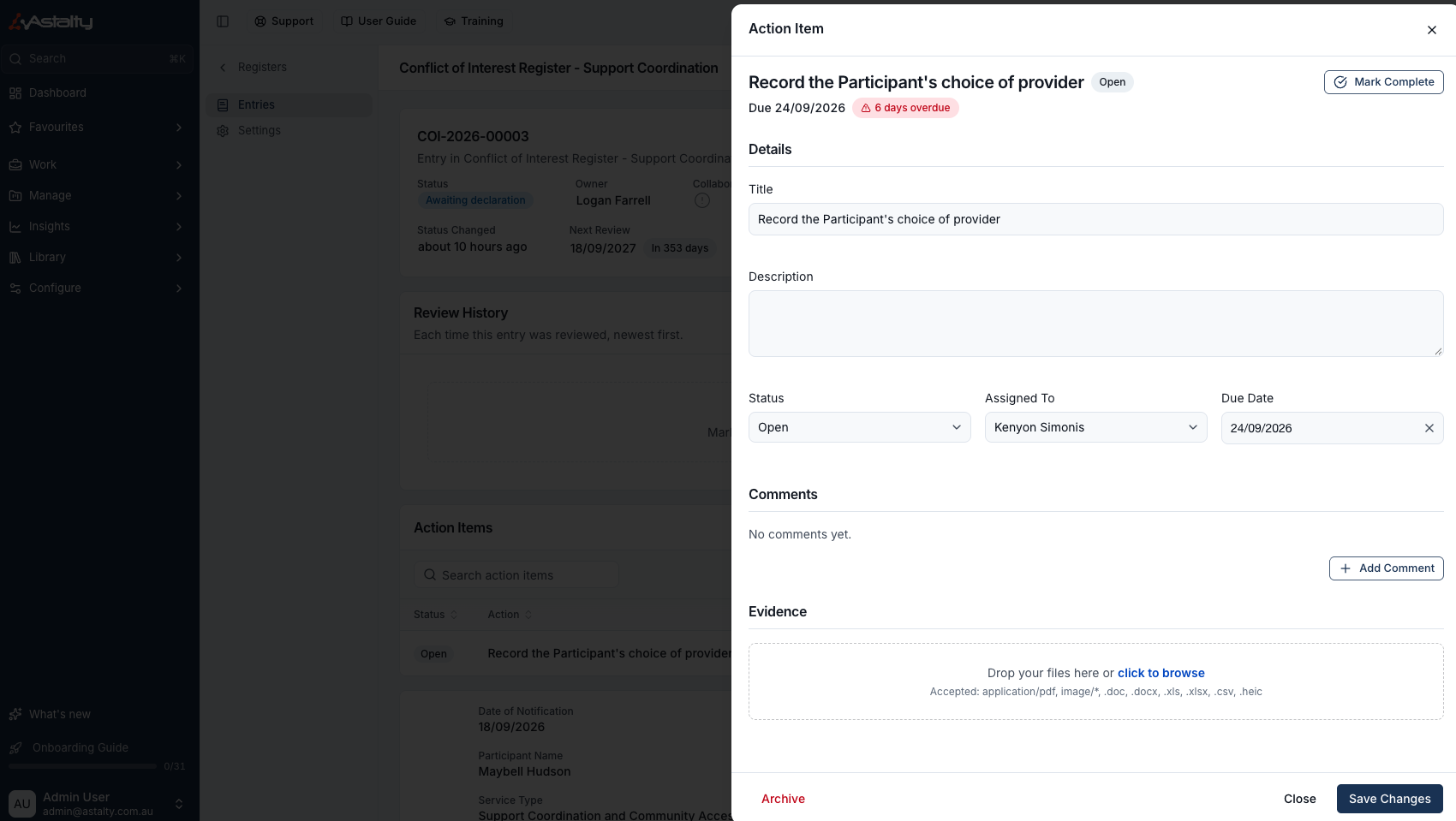
If an action item is assigned to you, you can update it, mark it complete, add comments or evidence, and archive it without permission to edit the original record. Assignment does not override a complaint's privacy restrictions.
The Action Items Page
From the left-hand menu, select Action Items (under Work when your menu is grouped into sections). The page lists the action items assigned to you, plus those on any incident, feedback record, referral or register entry you can view.
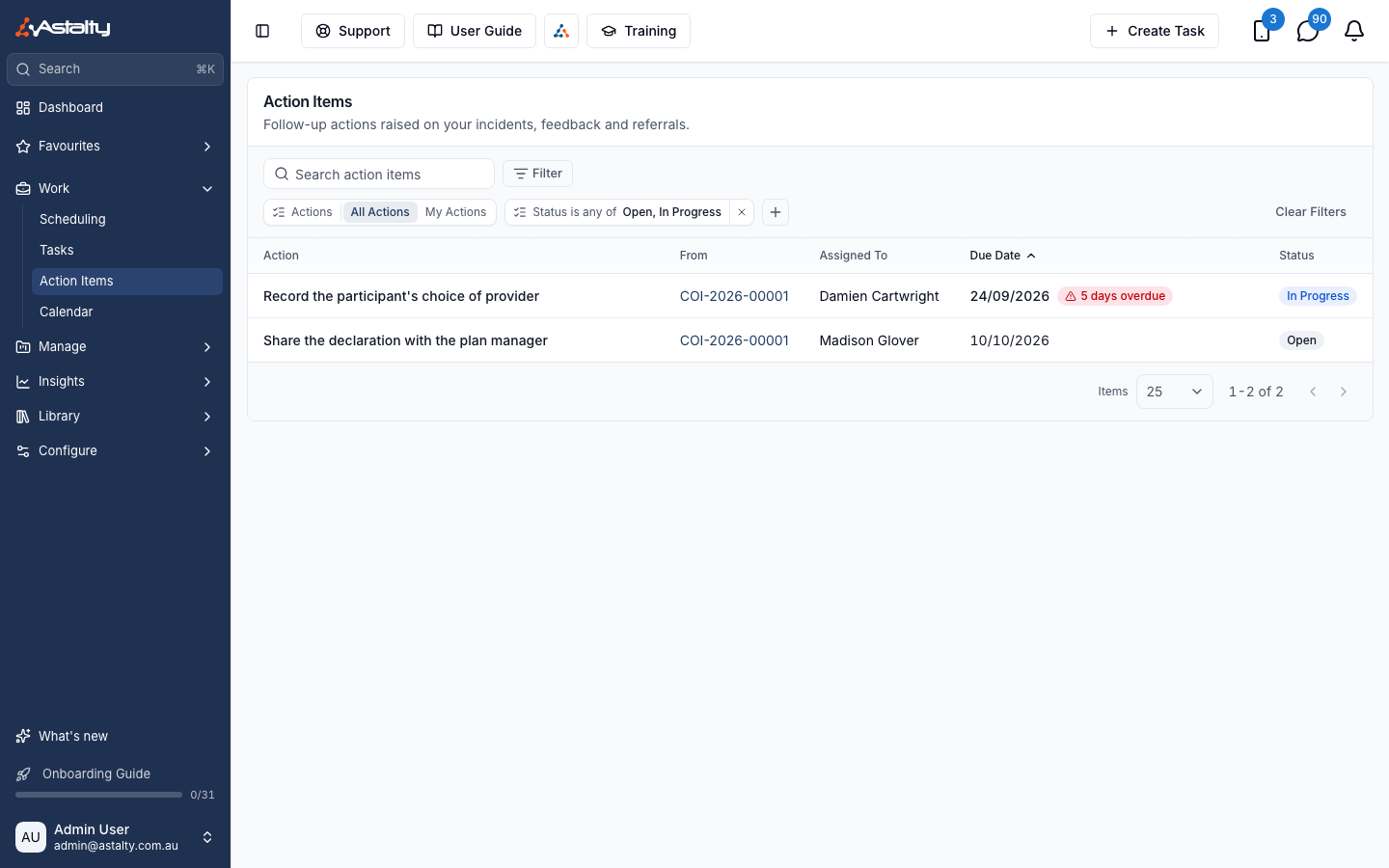
| Filter | Narrows to |
|---|---|
| Actions | All Actions, or My Actions assigned to you. If you can only see your own records, it starts on My Actions. |
| Register | Participant Incident, Staff Incident, Feedback, Referral or Custom Register |
| Status | Open and In Progress by default |
| Due Date | Overdue, due today, this week, this month or next month |
The search box matches an action's title and details.
Select an action to open the record it came from. If you can't view that record, the action opens on its own instead.