Status and Availability
Your Chat status tells the rest of your team whether you are around. You set your own availability, an optional emoji and message, and how long the status should last - and anyone opening a conversation with someone who is away, busy or on approved leave sees it above the message box before they send.
Before You Start
Anyone who can use Chat can set their own status and see everyone else's.
Setting Your Status
Your own status sits at the top of your chat list, under the search box, showing your name and your current status.
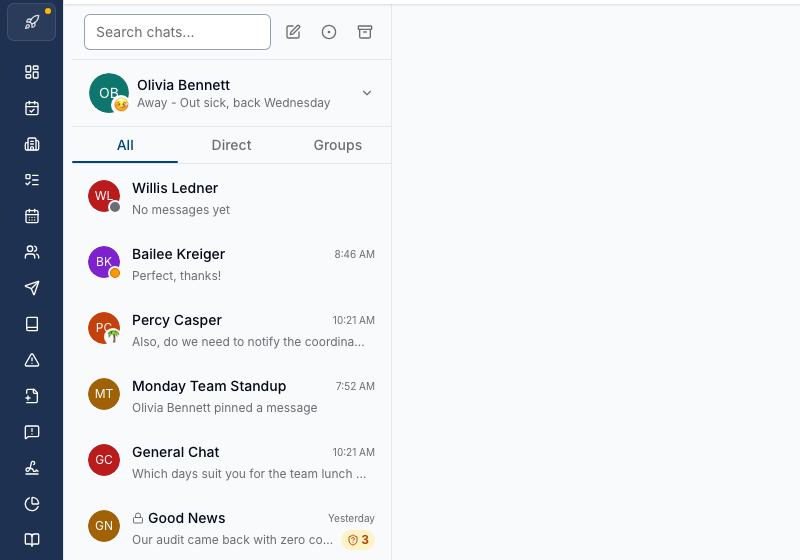
- Navigate to Chat
- Click your name at the top of the chat list
- Under Availability, choose Active, Away, Busy or Do not disturb
- Optionally add an emoji and a Status message
- Choose when it should lift under Clear after
- Optionally nominate someone under Who to contact instead
- Click Save
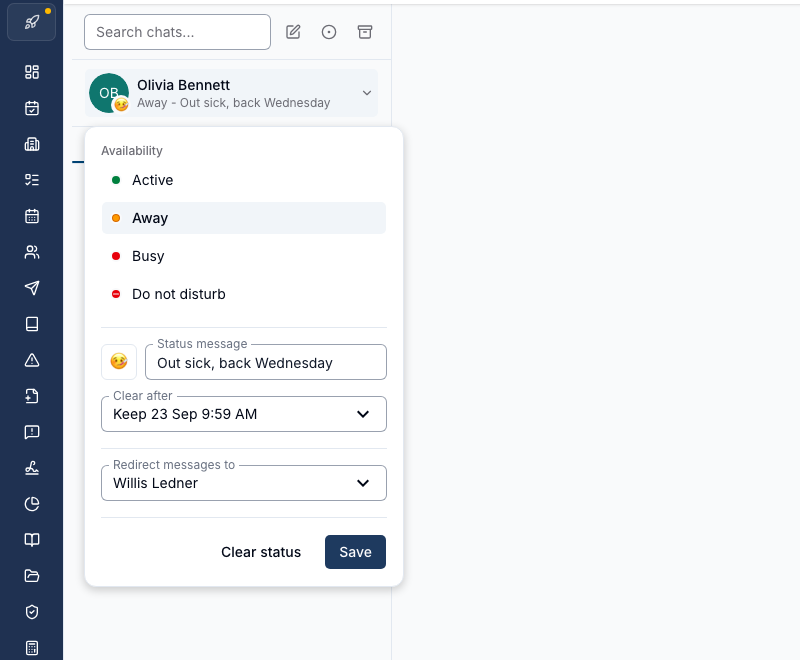
Clear status returns you to Active and removes your emoji, message, clear-after time and redirect in one go.
Availability
| Availability | Indicator |
|---|---|
| Active | Green dot |
| Away | Amber dot |
| Busy | Red dot |
| Do not disturb | Red dot with a bar through it |
Choosing Active is the same as having no status at all - it does not pin you as available. Astalty still shows you as Away once you go idle, and as offline when you close Astalty.
Status Message and Emoji
The Status message is free text up to 255 characters - "In a review meeting", "Back Wednesday". It appears next to your availability wherever your status is shown.
The emoji comes from a fixed set of twelve. Click the emoji button beside Status message to open them, and click the one you have chosen again to remove it.
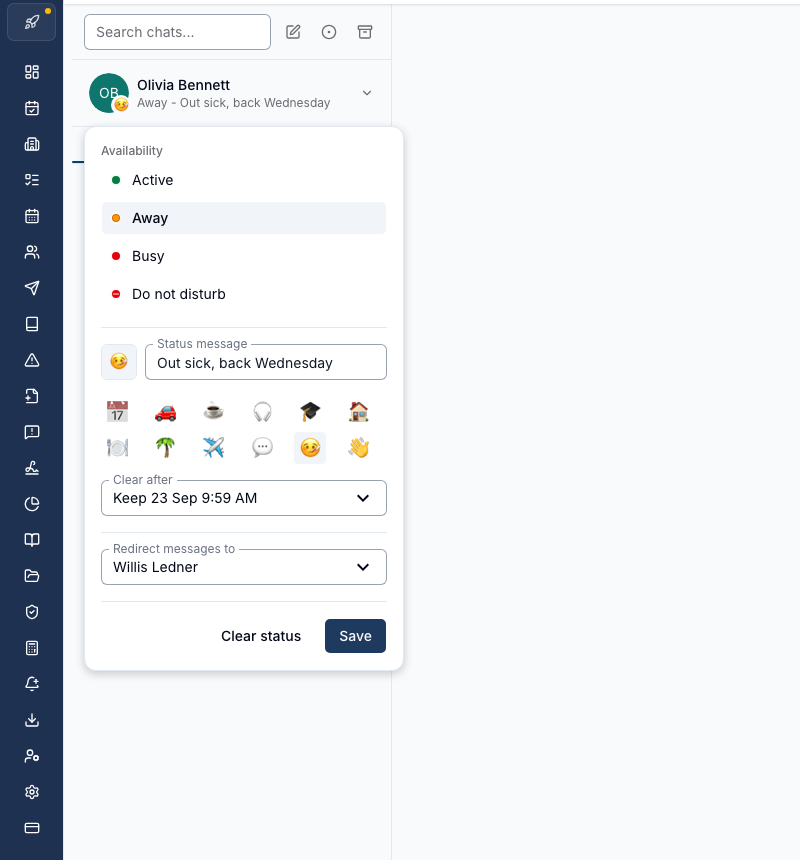
An emoji replaces your coloured dot on your avatar rather than sitting beside it, so a colleague sees the emoji and reads the availability from the tooltip or your profile card.
Clear After
Clear after decides when the status lifts by itself:
| Option | When it clears |
|---|---|
| Don't clear | Never - it stays until you change it |
| 30 minutes | 30 minutes from when you save |
| 1 hour | An hour from when you save |
| Today | End of today |
| This week | End of Sunday |
Once a clear-after time is set, the dropdown also offers Keep, followed by that date and time, so you can edit the rest of your status without resetting the clock.
Redirecting Messages
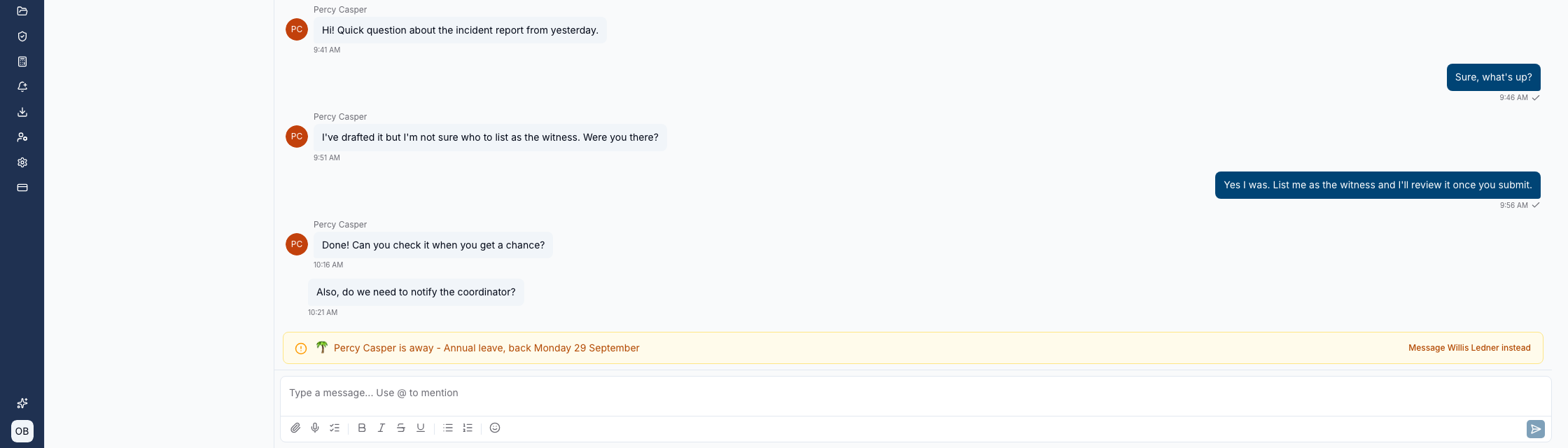
Who to contact instead nominates one colleague to contact in your place. Anyone opening a conversation with you then sees who to go to, with a button that opens a chat with that person.
Seeing Someone Else's Status
A coloured dot - or the person's emoji - sits on their avatar in your chat list, in a direct conversation header, and against each member of a group channel. Clicking someone's picture opens their profile card with their availability, their message, their return date if they are on leave, and a button to message the colleague they nominated instead.
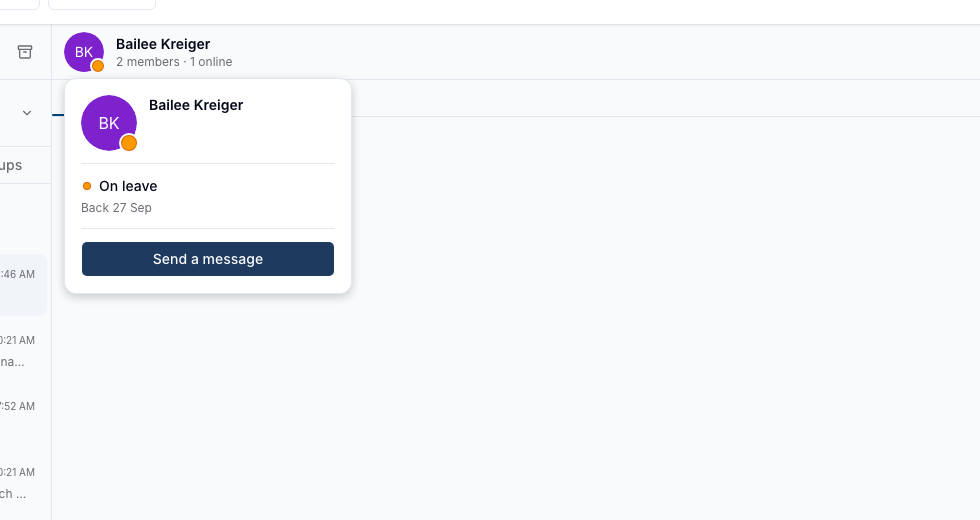
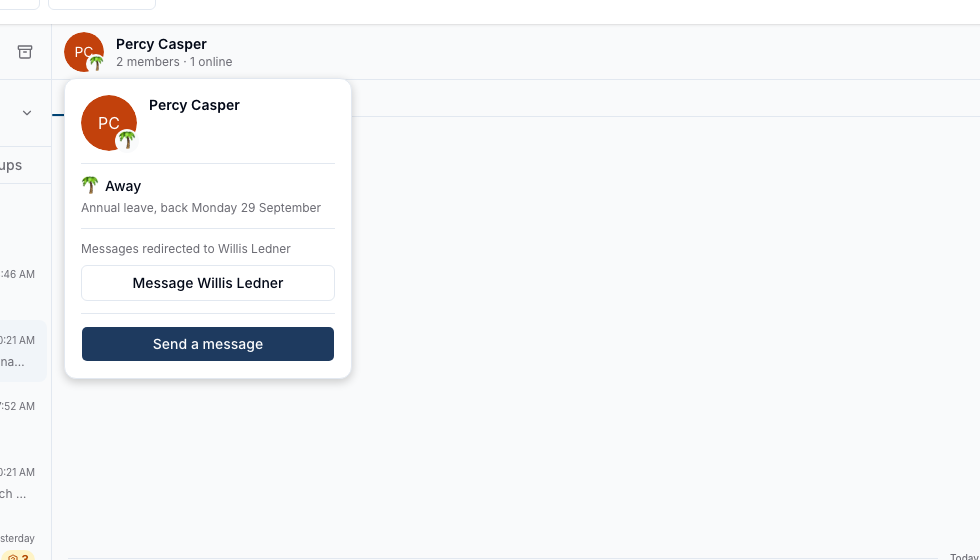
The header of a direct conversation also shows how many of its members are online.
The Notice Before You Send
When you open a direct conversation with someone who is away, busy, on Do not disturb or on leave, a notice appears directly above the message box naming their status - their own words if they wrote a message, otherwise the status and their return date. It appears when you start a new conversation too, before you have sent anything.
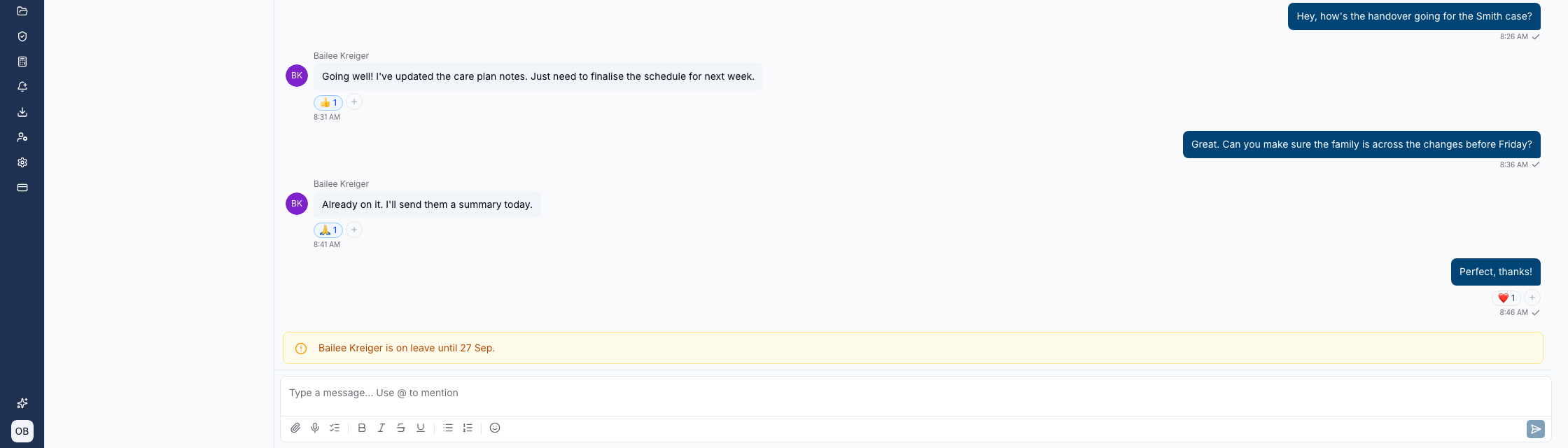
The notice does not block the message. You can still send it, and Astalty delivers it and sends notifications as usual. The notice never appears in group channels or for someone who is offline without an availability status.
Approved Leave Sets Itself
Nobody has to remember to update anything before going on leave. Where someone has approved leave or unavailability covering right now, Chat shows them as On leave or Unavailable with their return date, and that beats whatever availability they last chose.
It lifts by itself when the leave period ends.
Two limits are worth knowing:
- Only approved, one-off leave and unavailability count. Leave still awaiting approval, cancelled leave, and recurring unavailability patterns never show in Chat.
- The leave label wins, but a status message someone typed themselves wins over the return date. If they are on leave and have written "Back Wednesday", senders see their words rather than the date Astalty holds.
When Astalty Sets Your Status For You
Two things move your status without you touching it:
- Idle - ten minutes without activity in the browser shows you as Away until you come back. On the Support Worker app, switching to another app does the same.
- Offline - closing Astalty shows you as offline with a grey dot.
Neither overrides an availability you chose yourself: a manual Away, Busy or Do not disturb stays until you change it or it clears. Because idle looks the same as a status you set, a colleague who stepped away from their desk ten minutes ago produces the same notice as one who deliberately marked themselves Away.
Status in the App
Support Workers set the same status from the Support Worker app: open Chat, tap the smiley icon at the top of the screen, and fill in Your status. The availabilities, the twelve emoji, the Clear after options and Who to contact instead are all the same, and a status set in the app shows on the web and the other way around.
Two differences:
- The app has no profile card. Tapping someone's picture gives you their dot or emoji, not their message or return date - open Chat in a browser for that.
- The notice about a recipient's status appears in an existing conversation, but not on the app's new-message screen.