- Day-to-Day
- Messaging
Messaging
Chat provides a rich messaging experience with formatting options, file attachments, mentions, and more.
Sending a Message
To send a message:
- Open the conversation (direct message or group channel)
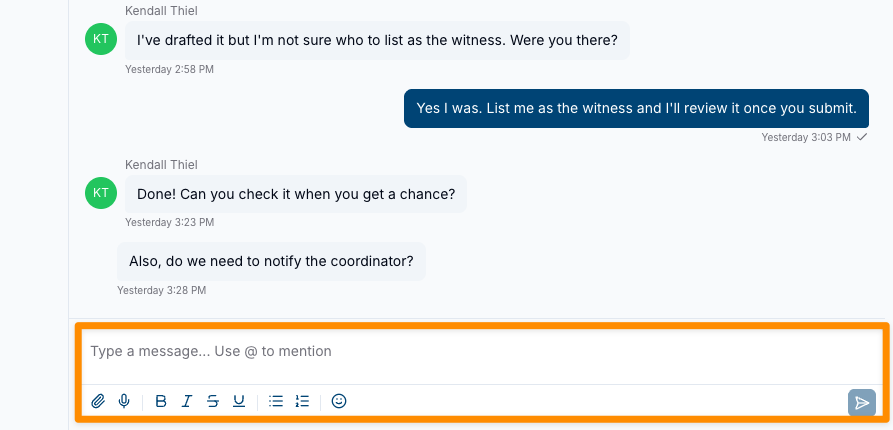
- Click into the compose area at the bottom of the message thread
- Type your message
- Press Enter or click the send button
Rich Text Formatting
The message composer supports rich text formatting. You can use the formatting toolbar to:
- Bold text
- Italic text
- Create bullet lists
- Create numbered lists
- Add code formatting
- Add links
Replying to a Message
You can reply directly to a specific message in a conversation. Your reply shows the original message quoted above it, so it is clear which message you are responding to. Replies work in both direct messages and group channels.
Sending a Reply
To reply to a message:
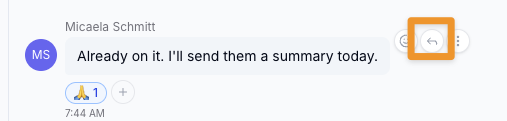
- Hover over the message you would like to reply to
- Click the Reply icon from the message actions
- A Replying to preview appears above the compose area, showing a snippet of the original message
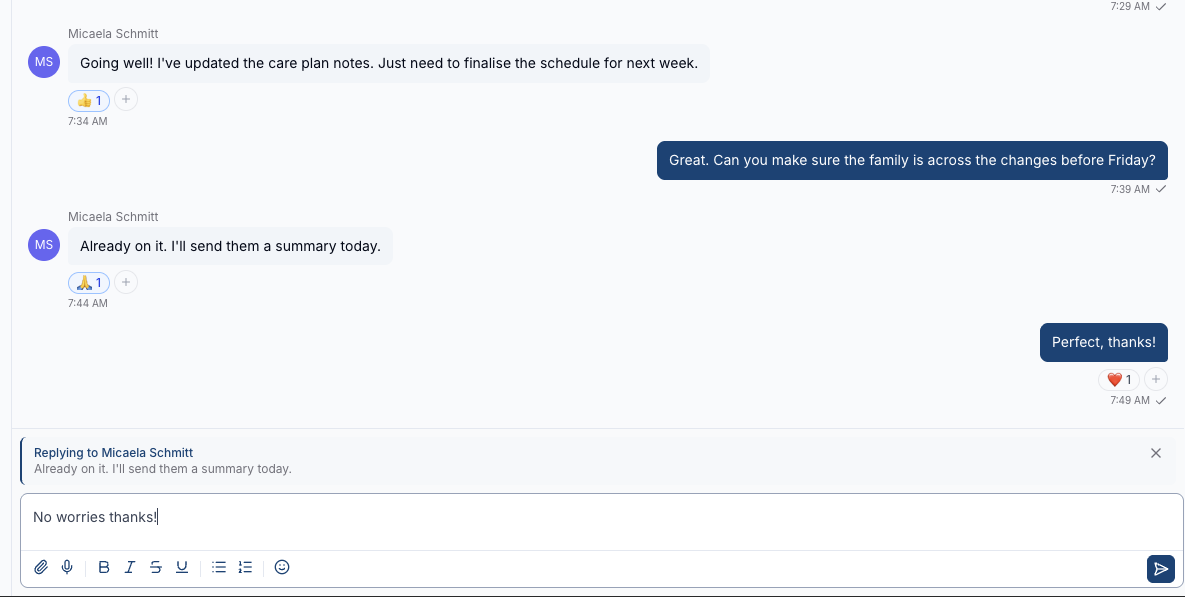
- Type your reply and press Enter or click the send button
Your reply is posted with the original message quoted above it.
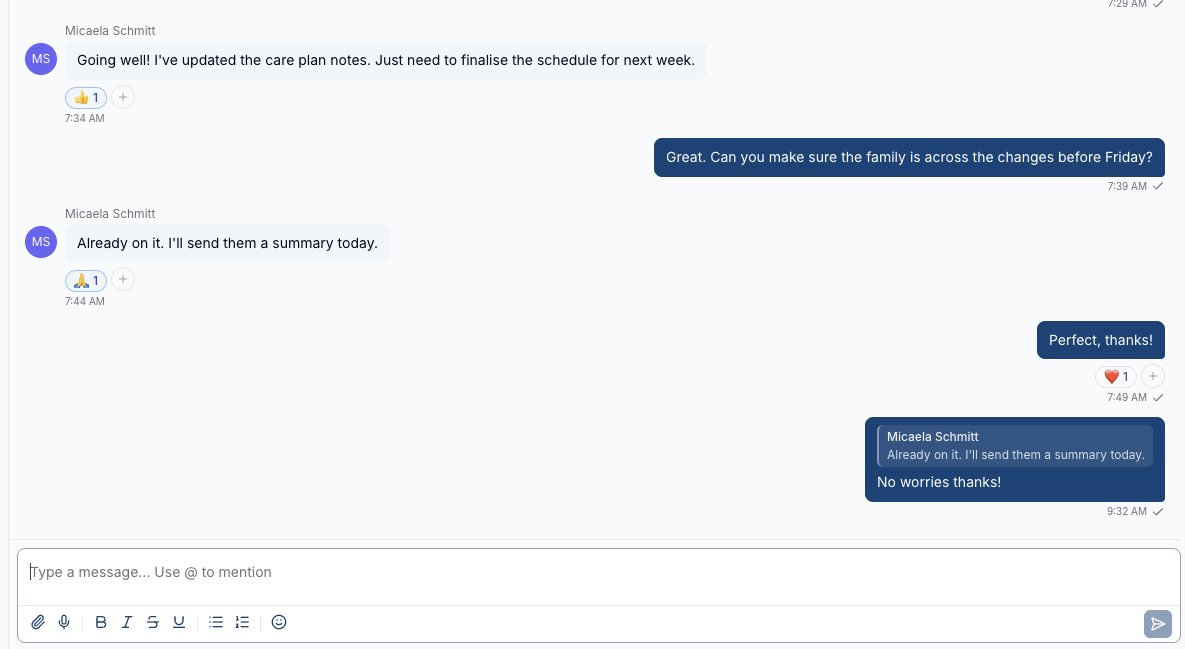
To cancel a reply before sending, click the X on the Replying to preview.
Jumping to the Original Message
Click the quoted message above a reply to jump to the original message in the conversation. The original message is briefly highlighted so you can find it easily.
If the original message is too far back in the conversation to load, you will see a notice letting you know the message could not be jumped to.
Editing a Message
If message editing is enabled by your administrator, you can edit your own messages after sending them.
To edit a message:
- Hover over the message you wish to edit
- Click the Edit option from the message actions menu
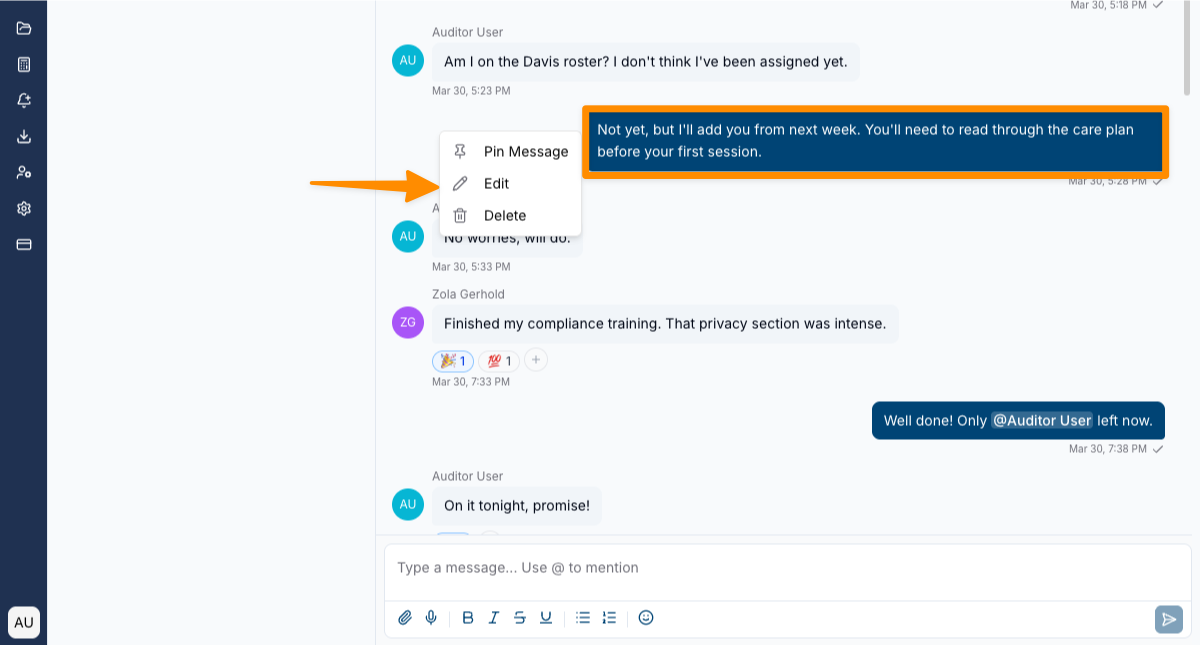
- Make your changes in the compose area
- Press Enter or click the save button to confirm
Edited messages will display an "edited" indicator so other team members can see the message has been modified.
Deleting a Message
If message deletion is enabled by your administrator, you can delete messages.
To delete a message:
- Hover over the message you wish to delete
- Click the Delete option from the message actions menu
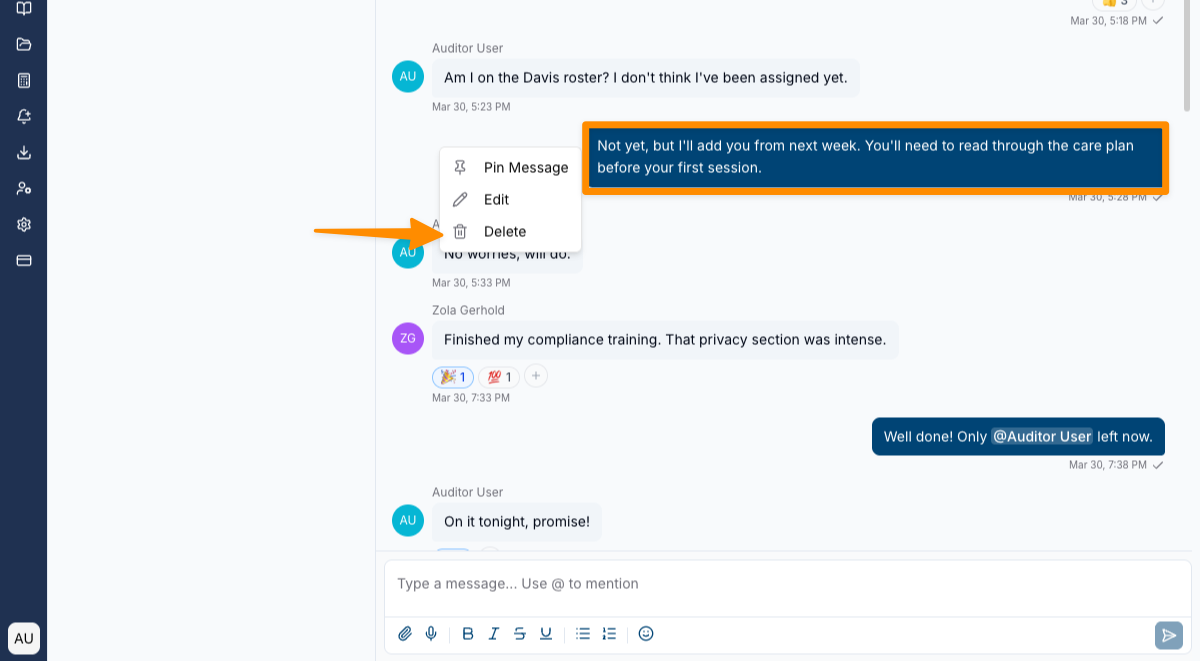
- Confirm the deletion
Deleted messages will be removed from the conversation. If the deleted message was pinned, the pin will also be removed.
System Messages
System messages are automatic notifications that appear in a conversation when certain events occur. These are not sent by any user and are displayed differently from regular messages.
System messages are generated for the following events:
- A group channel is created or renamed
- A member is added to or removed from a group channel
- A member is allowed to post in a read-only channel, or has that access removed
- A User Group is linked to or unlinked from a channel
- A message is pinned or unpinned
- Read-only mode is turned on or off
- Posts for approval are turned on or off
Your administrator can hide any of these notices for the whole organisation. See Hiding System Messages.
Mentions
Mentions allow you to directly notify a team member or a group of team members within a conversation. When you mention someone, they will receive a notification drawing their attention to your message.
Mentioning a User
To mention a specific team member:
- Type the @ symbol in the compose area
- Start typing the team member's name
- Select the team member from the suggestion dropdown that appears
- Continue typing your message and send as normal
The mentioned team member will receive a notification alerting them to your message.
Mentioning a User Group
You can also mention an entire User Group. This will notify all members of that User Group who are also members of the current channel.
To mention a User Group:
- Type the @ symbol in the compose area
- Start typing the User Group name
- Select the User Group from the suggestion dropdown
- Continue typing your message and send as normal
Only members of both the mentioned User Group and the current channel will receive a notification.
Mention Notifications
When you are mentioned in a message, you will receive:
- An in-app notification within Astalty
- A push notification (if push notifications are enabled)
Channels where you have been mentioned will display a mention badge in the channel list, making it easy to find conversations that need your attention.
Reactions
Reactions let you respond to a message with an emoji without needing to type a reply. They are a quick way to acknowledge a message, show agreement, or express a response.
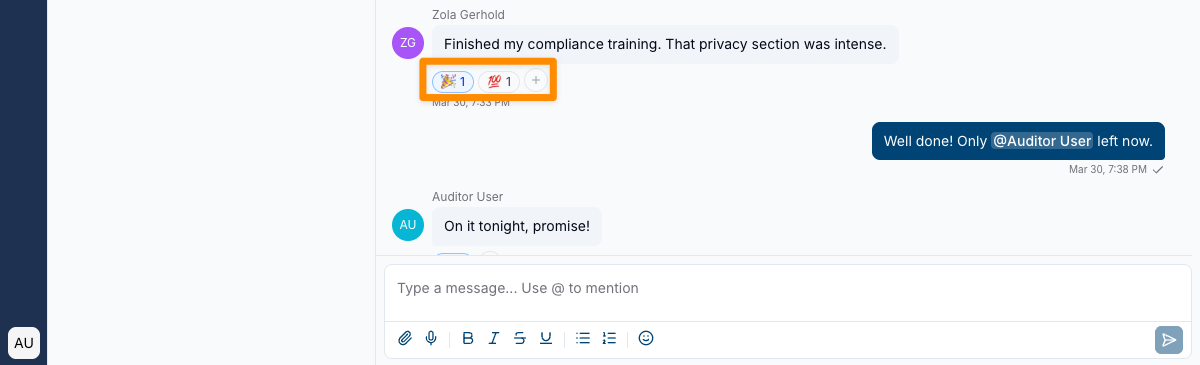
Adding a Reaction
To add an emoji reaction to a message:
- Hover over the message you would like to react to
- Click the Reaction icon (smiley face) from the message actions
- Select an emoji from the picker
Your reaction will appear below the message. If other team members have already reacted with the same emoji, your reaction will be grouped with theirs, showing a count.
Removing a Reaction
To remove your reaction, simply click on the same emoji reaction again. Reactions work as a toggle.
Viewing Who Reacted
You can see which team members have reacted by hovering over the reaction emoji below the message. A tooltip will display the names of the users who reacted with that emoji.
Pinned Messages
Pinning a message allows you to highlight important information within a channel so that it is easy for all members to find.
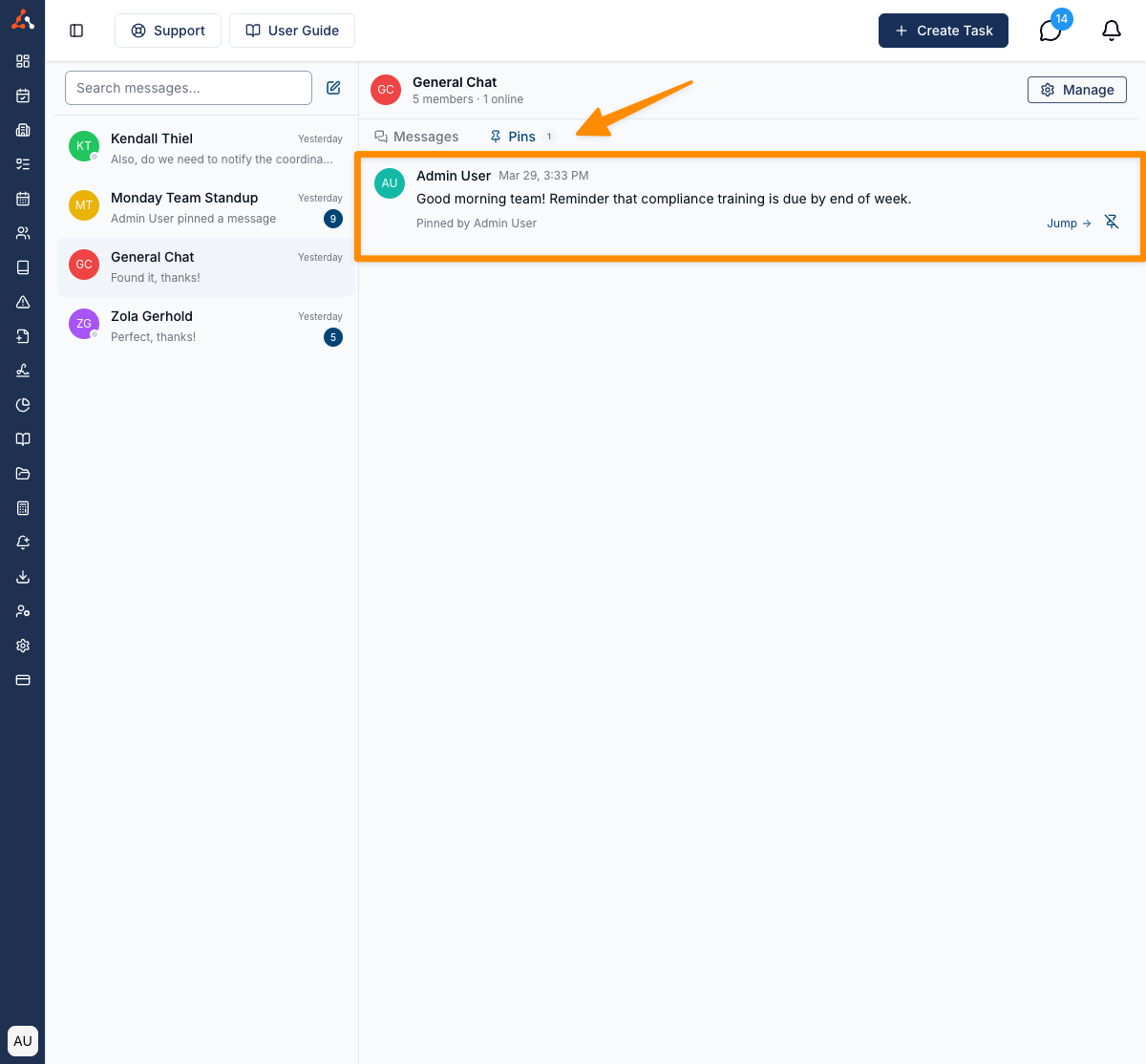
Pinning a Message
To pin a message:
- Hover over the message you would like to pin
- Click the Pin option from the message actions menu
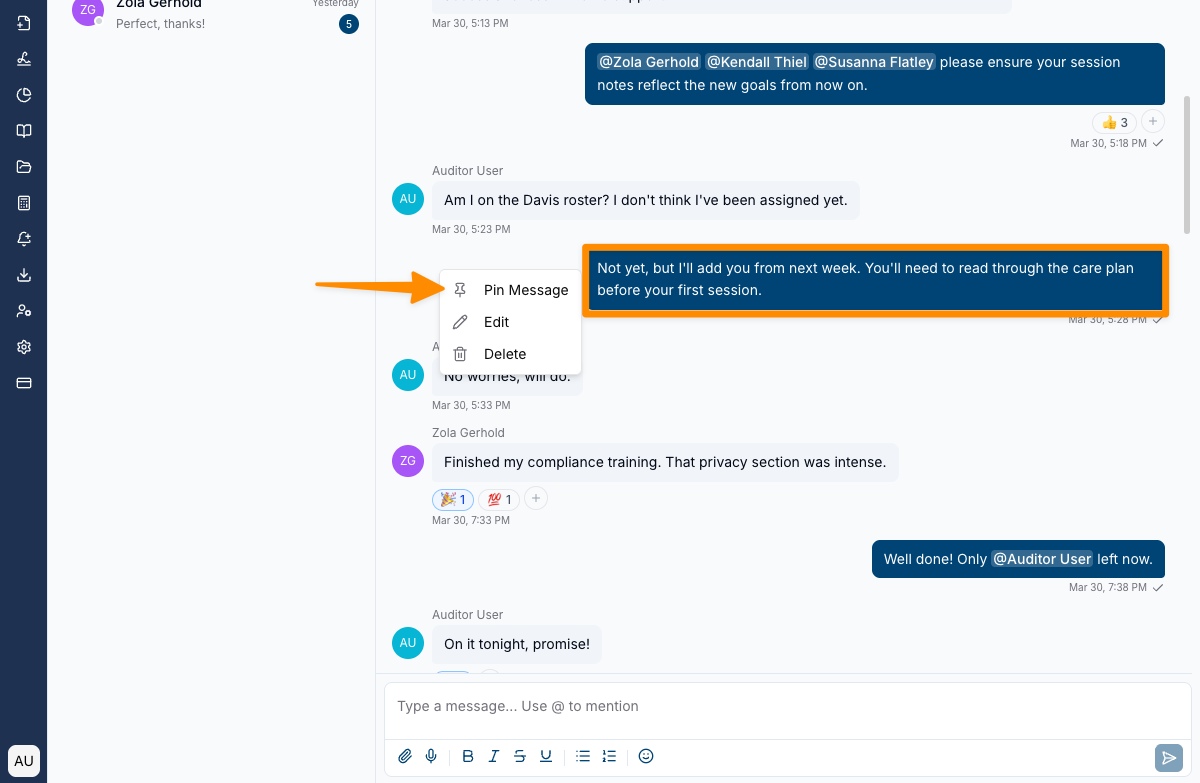
- The message will be pinned to the channel
Unless your administrator has hidden Message pinned, a system message will appear confirming that the message has been pinned.
Unpinning a Message
To unpin a message:
- Hover over the pinned message
- Click the Unpin option from the message actions menu
- The message will be unpinned
Unless your administrator has hidden Message unpinned, a system message will appear confirming that the message has been unpinned.
Viewing Pinned Messages
There are two ways to view pinned messages:
Pinned Message Banner
The most recently pinned message is displayed as a yellow banner at the top of the message thread. You can click on this banner to jump to the pinned message in the conversation.
Pinned Messages Dialog
To view all pinned messages in a channel:
- Open the channel
- Click the Pinned Messages option in the channel header
- A dialog will open displaying all currently pinned messages
- Click on any pinned message to jump to it within the conversation
Attachments
You can share files with your team by attaching them to messages.
Uploading an Attachment
To attach a file to a message:
- Click the Attachment icon (paperclip) in the compose area
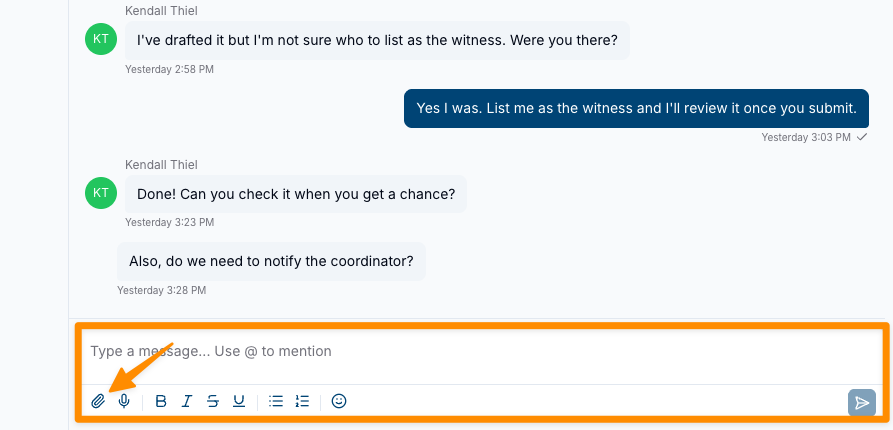
- Select the file(s) you would like to attach from your device
- A preview of the attached file(s) will appear above the compose area
- Type an optional message to accompany the attachment
- Press Enter or click the send button to send
You can attach multiple files to a single message.
Downloading an Attachment
To download an attachment:
- Find the message containing the attachment
- Click on the attachment or the download icon
- The file will be downloaded to your device
Search
Chat search allows you to find specific messages across all of your conversations. Search only covers conversations you are a member of — it does not return messages from other people's conversations. See Chat Privacy and Visibility.
Searching for Messages
To search for messages:
- Navigate to Chat
- Click the Search icon in the chat interface
- Enter your search term
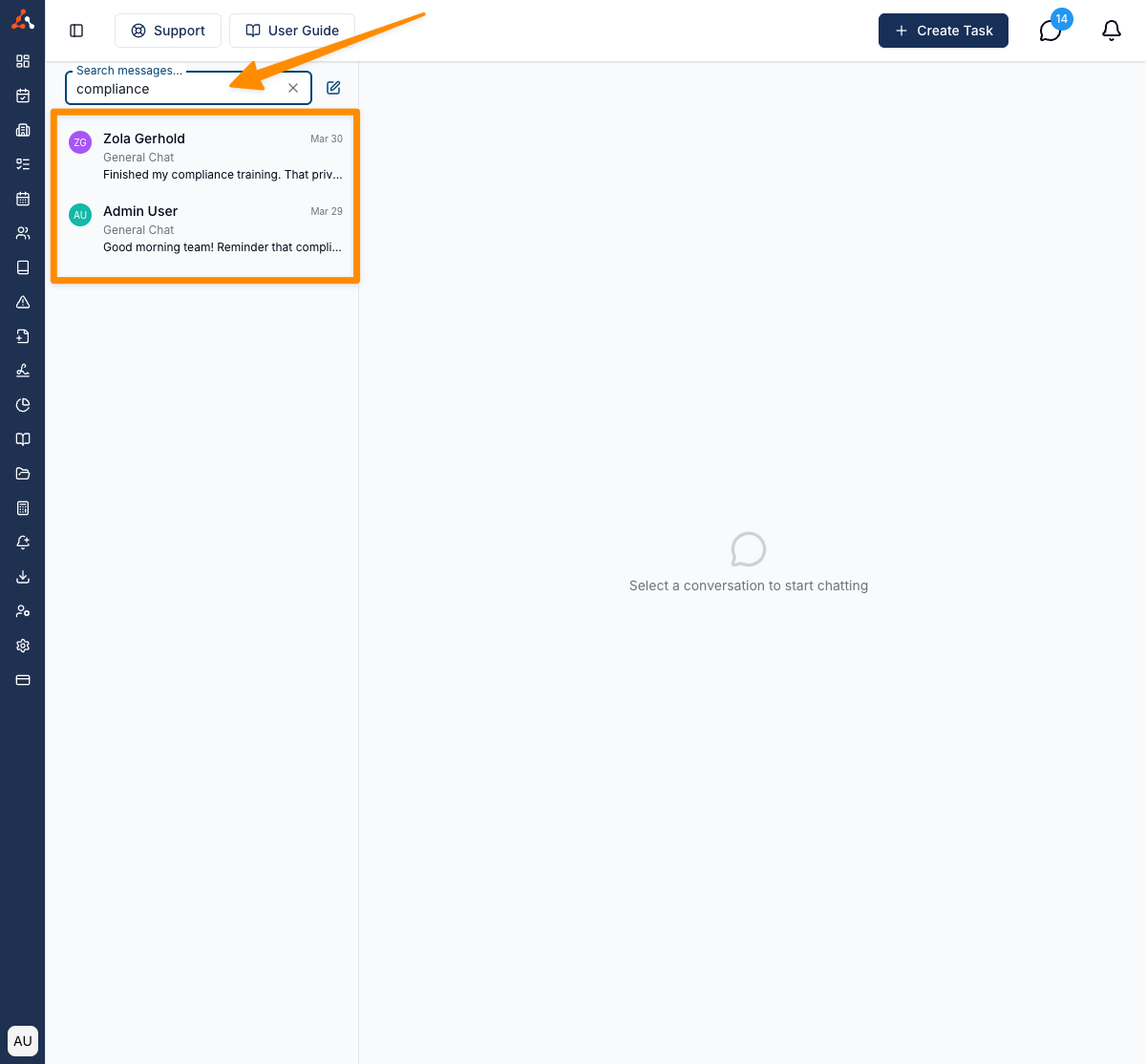
- Results will appear showing matching messages across your conversations
Navigating to a Search Result
When you find the message you are looking for:
- Click on the search result
- The conversation will open and automatically scroll to the matching message, highlighted in context
This allows you to see the full conversation around the message.