Archiving Conversations
Archiving lets you remove a conversation from your chat list to keep it tidy, without deleting any messages. You can archive both direct messages and group channels, and bring them back at any time.
Archiving a Conversation
To archive a conversation:
- Open the direct message or group channel you would like to archive
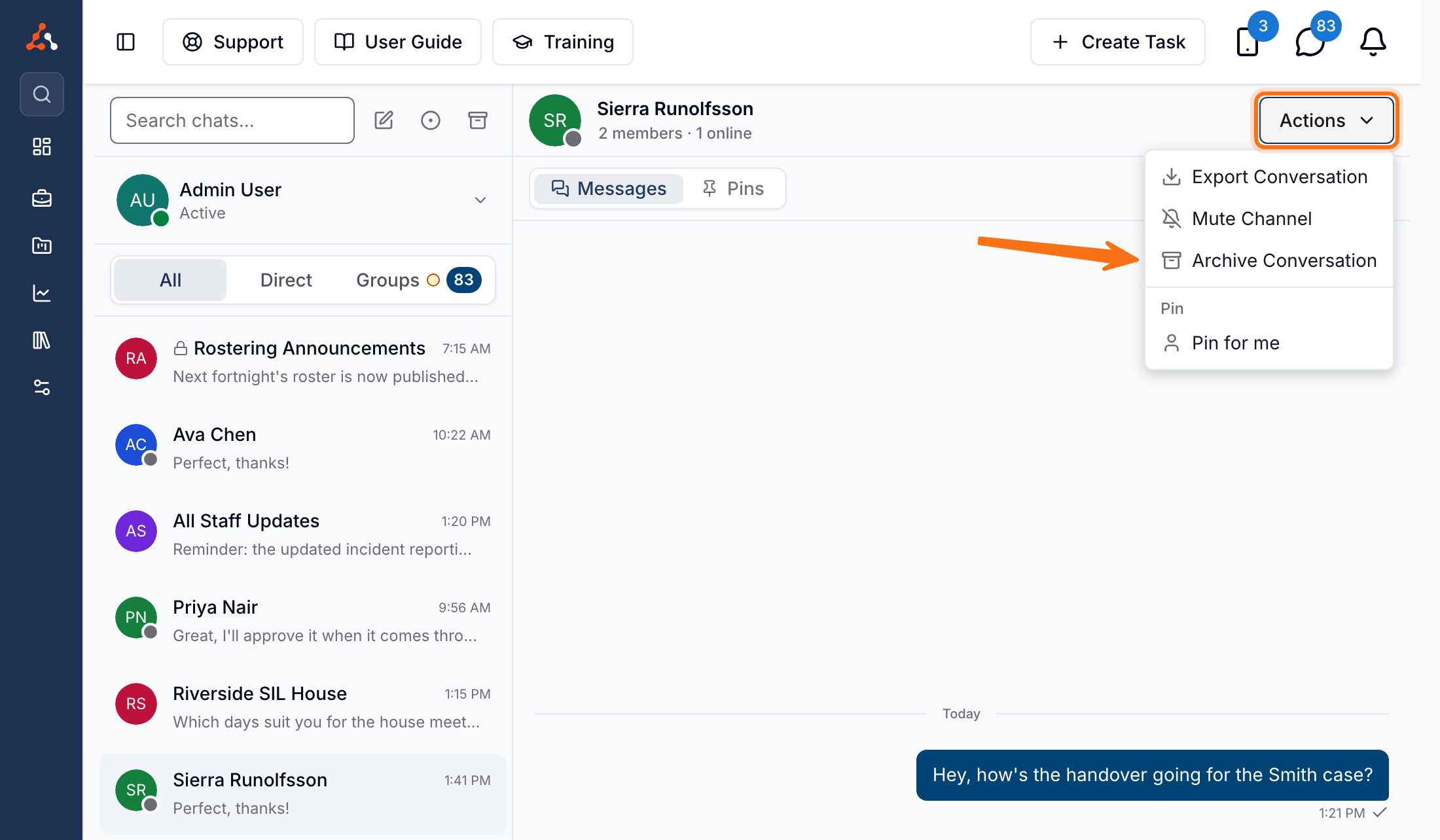
- Click the Actions menu in the conversation header
- Select Archive Conversation
- A confirmation will appear explaining that the conversation will be hidden from your chat list. Click Archive to confirm
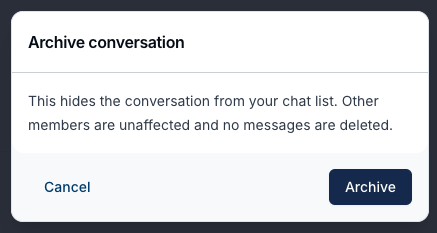
The conversation will close and be removed from your chat list.
What Happens When You Archive
- The conversation is hidden from your chat list only
- Other members are unaffected and continue to see the conversation as normal
- No messages are deleted - the full history is kept
- Archived conversations no longer count towards your unread message badge
Viewing Archived Conversations
Archived conversations are moved out of your main chat list, but you can still find them:
- Navigate to Chat
- Click the Archived chats icon at the top of the chat list
Your archived conversations will be displayed. You can open one to read the full history and unarchive it if needed. The All, Direct and Groups tabs apply here too, so you can narrow the archive to just archived group channels or just archived direct messages - see Filtering Conversations.
Unarchiving a Conversation
To bring an archived conversation back into your chat list:
- Open the Archived chats view
- Open the archived conversation
- Click the Actions menu in the conversation header
- Select Unarchive Conversation
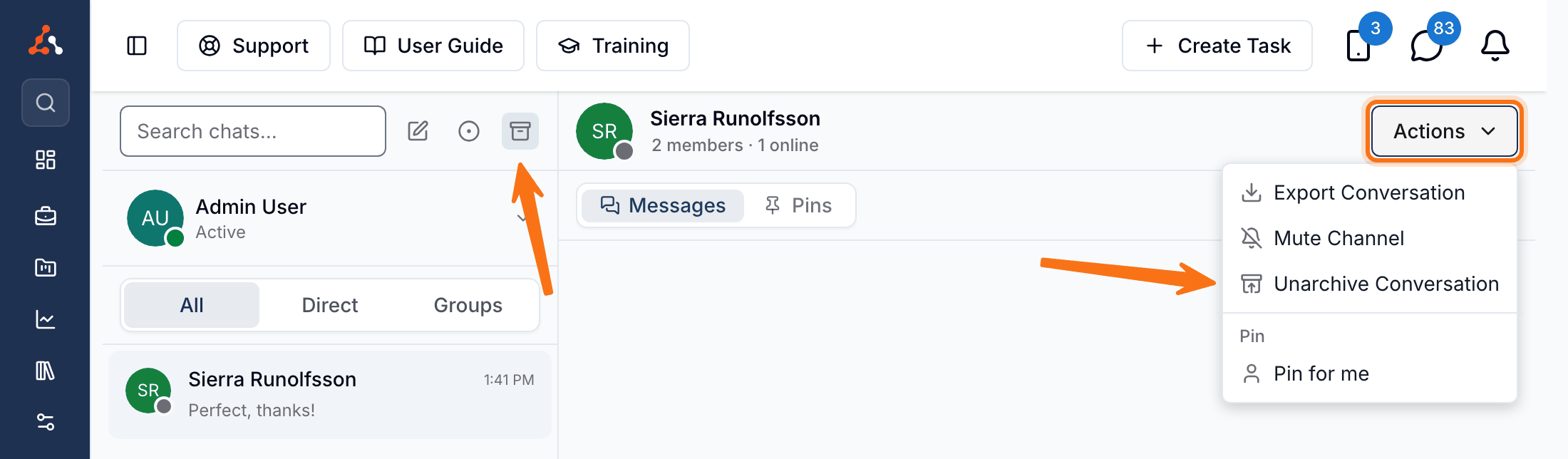
The conversation will return to your main chat list.
Automatic Unarchiving
You don't have to manually unarchive a conversation to keep receiving messages. If a new message is sent to an archived conversation, it will automatically reappear in your chat list. Sending a new message to a person you previously archived a direct message with will also bring that conversation back.