Polls
Polls let you ask a quick question inside a chat conversation and collect answers in one place, instead of chasing people for a reply one by one. They work in both direct messages and group channels, and results update live for everyone as votes come in.
Polls are included with Chat - there is no extra setting to switch on.
Creating a Poll
A poll is sent as a message, and the message itself is the question. There is no separate question field.
To create a poll:
- Open the direct message or group channel you would like to poll
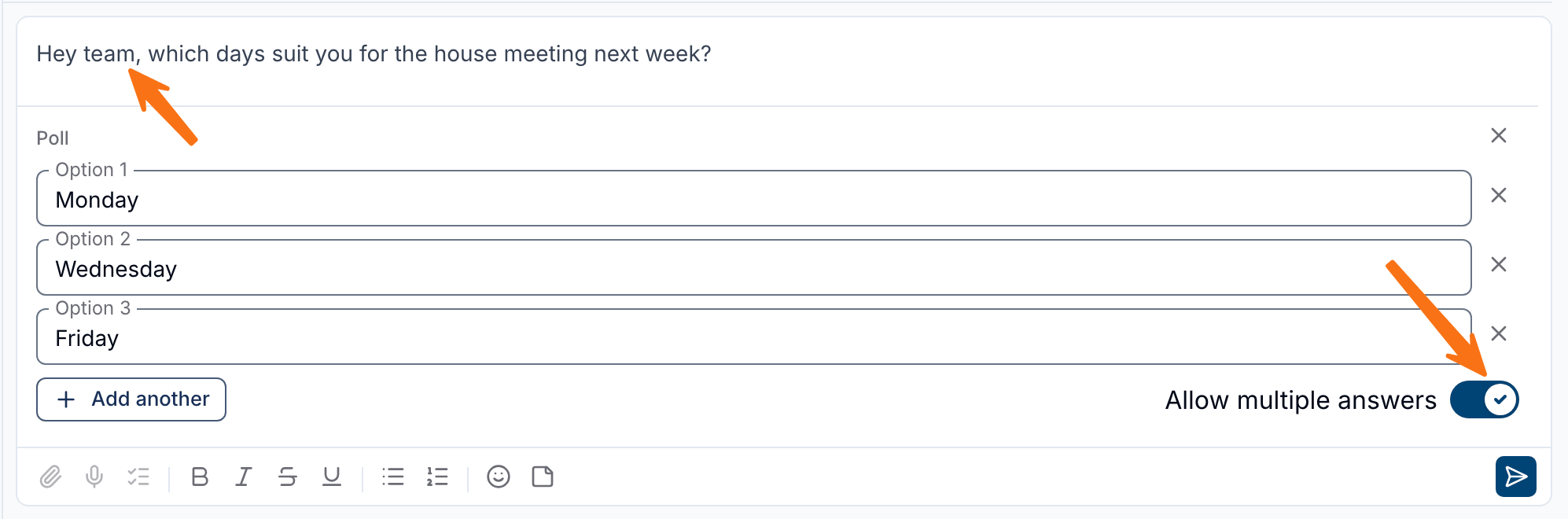
- Type your question in the message box
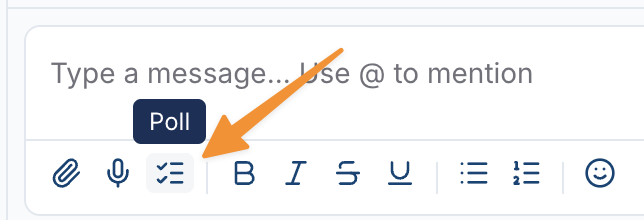
- Click the Poll icon in the formatting toolbar below the message box
- A Poll panel appears with two blank answers. Fill in Option 1 and Option 2
- Click Add another to add more answers (up to 10 in total)
- Turn on Allow multiple answers if people should be able to pick more than one
- Press Enter or click the send button
The poll is posted to the conversation and everyone in it can vote straight away. Like any other message, it triggers the usual chat notifications, and the question text is what appears as the conversation preview in the chat list.
To abandon a poll before sending it, click the X at the top right of the Poll panel.
Voting in a Poll
Anyone in the conversation can vote, including the person who created the poll. You do not need to vote to see the results.
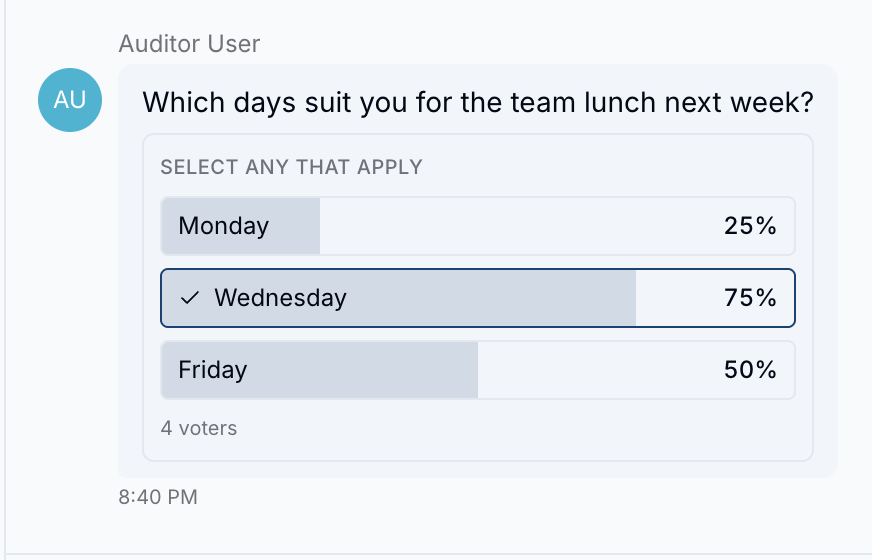
To vote, click (or tap on mobile) the answer you want. Your choice is marked with a tick.
The poll shows how many answers you can pick:
- SELECT ONE - you can choose a single answer. Picking a different answer moves your vote
- SELECT ANY THAT APPLY - you can choose as many answers as you like
You can change your mind at any time while the poll is open. Click an answer you have already chosen to take your vote back, or click a different answer to move it. Votes work as a toggle, in the same way as reactions.
Voting on the Mobile App
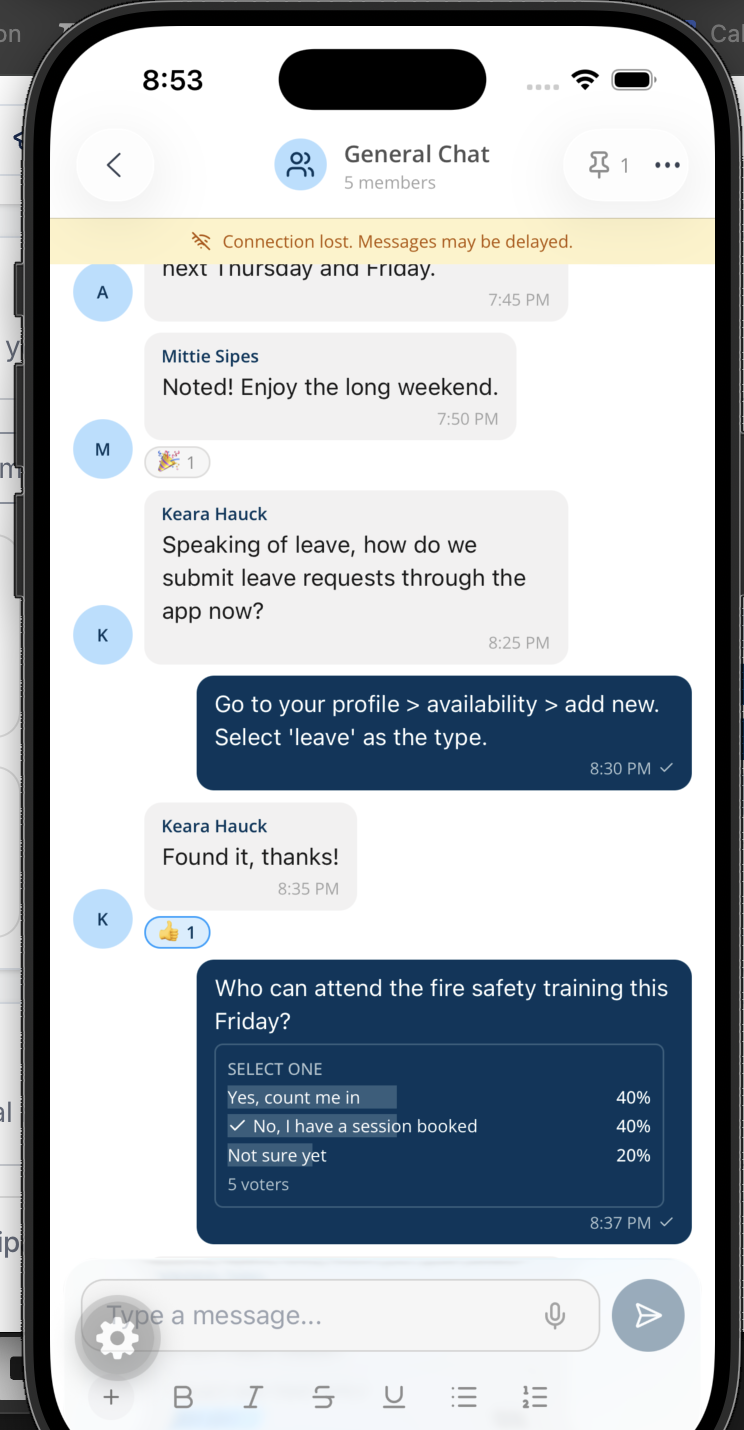
Support Workers can vote in a poll from the mobile app by tapping an answer. The percentages, the total number of voters and the closed status all update live, exactly as they do on the web app.
Viewing the Results
Results are visible to everyone in the conversation from the moment the poll is sent, and they update live as people vote - no need to refresh.
Each poll shows:
- A percentage and a progress bar for each answer
- The total number of people who have voted, for example 4 voters
- A tick against the answer or answers you chose
On the web app, hover over an answer to see the names of the people who chose it. Your own vote appears as You. If nobody has chosen that answer yet, the tooltip shows No votes yet.
Closing a Poll
Closing a poll locks the results in so no one can vote or change their answer.
To close a poll:
- Find your poll in the conversation
- Click Close poll at the bottom of the poll
- Confirm by clicking Close poll in the confirmation window
Once closed, the answers can no longer be clicked and the poll shows Poll closed along with the total number of voters. The results and the names of who voted stay visible to everyone.
Editing and Deleting a Poll
A poll cannot be edited after it has been sent - neither the question nor the answers. If you need to change something, delete the poll and send a new one.
Polls are deleted in the same way as any other message: hover over the poll, then choose Delete from the message actions. Deleting removes the poll and its votes from the conversation. See Deleting a Message for more detail.