- Day-to-Day
- Assigning and Reassigning Tasks
Assigning and Reassigning Tasks
Overview
Assign a new task to the person who will complete it, or reassign an existing task when responsibility changes. Astalty adds the task to that person's Task Board and sends them a notification.
You can assign a task to an active Admin, Manager or Team Member who has access to the task's Participant. Support Workers can't be given tasks.
Assigning Tasks
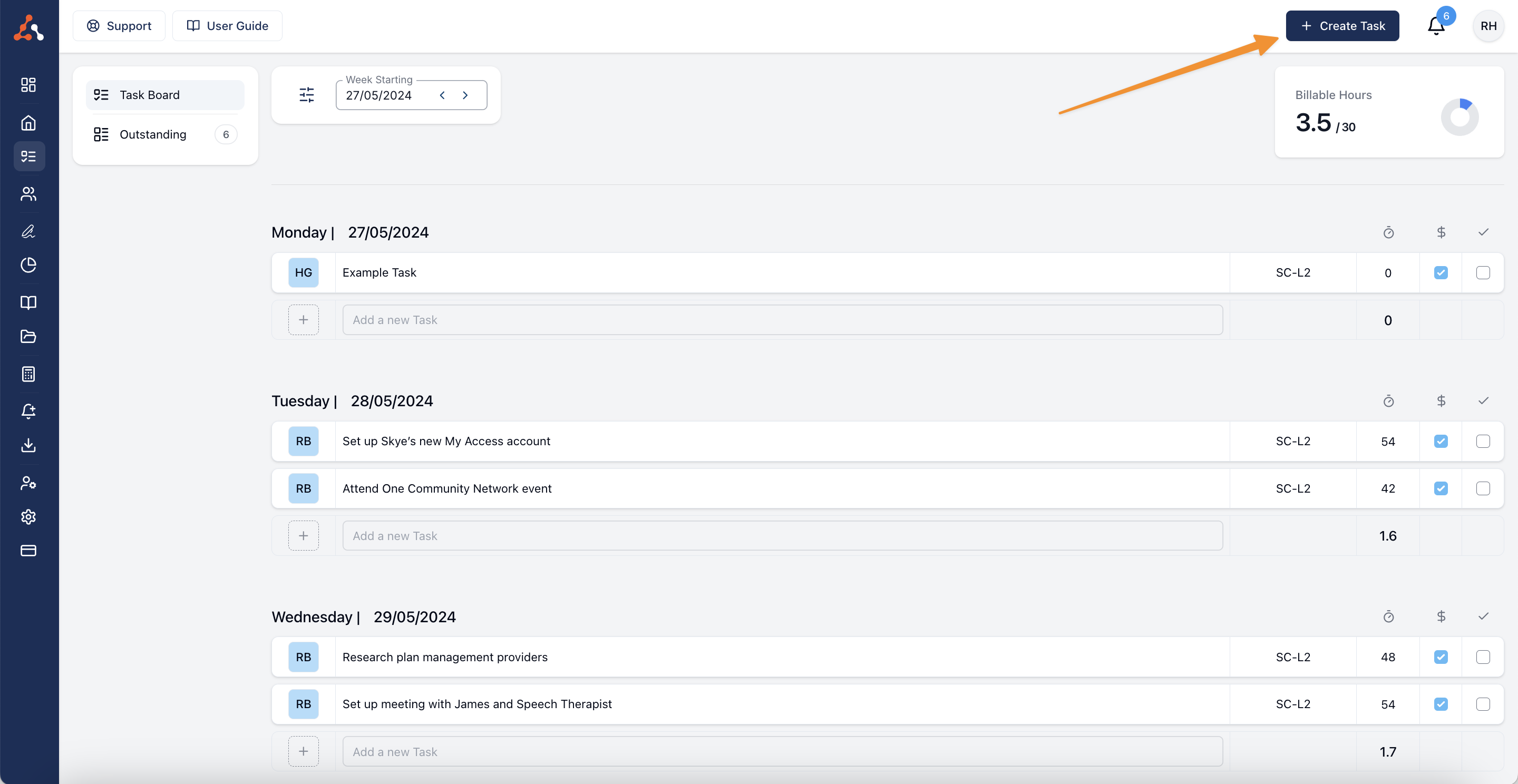
Select + Create Task from any page in Astalty.
Choose the Team Member who should be responsible for the task.
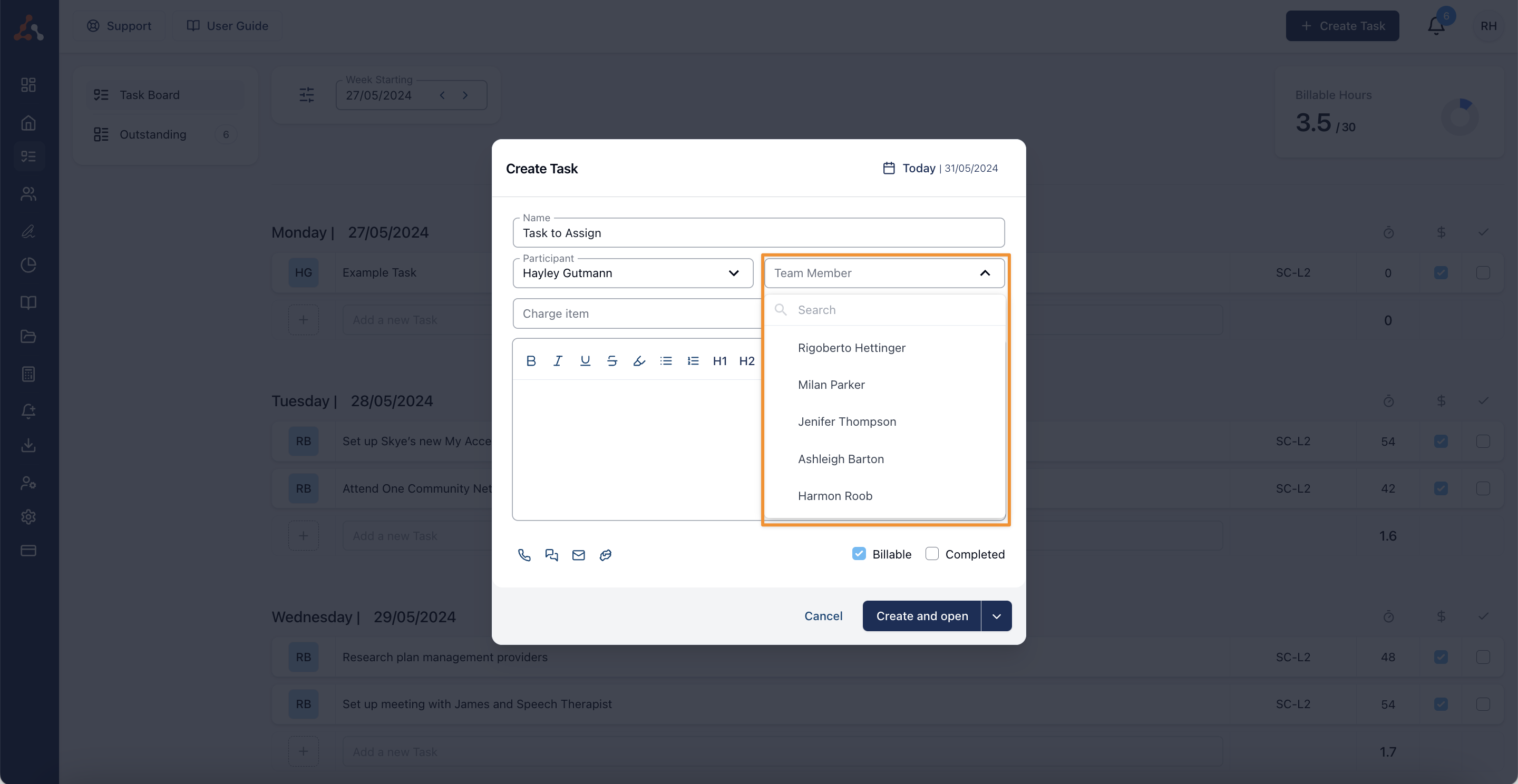
Select the person in the Team Member field. The Team Member field is also on the form for cloning a task.
When you create a task for someone else, they are notified. A note you write while creating it is recorded under your name.
Reassigning Tasks
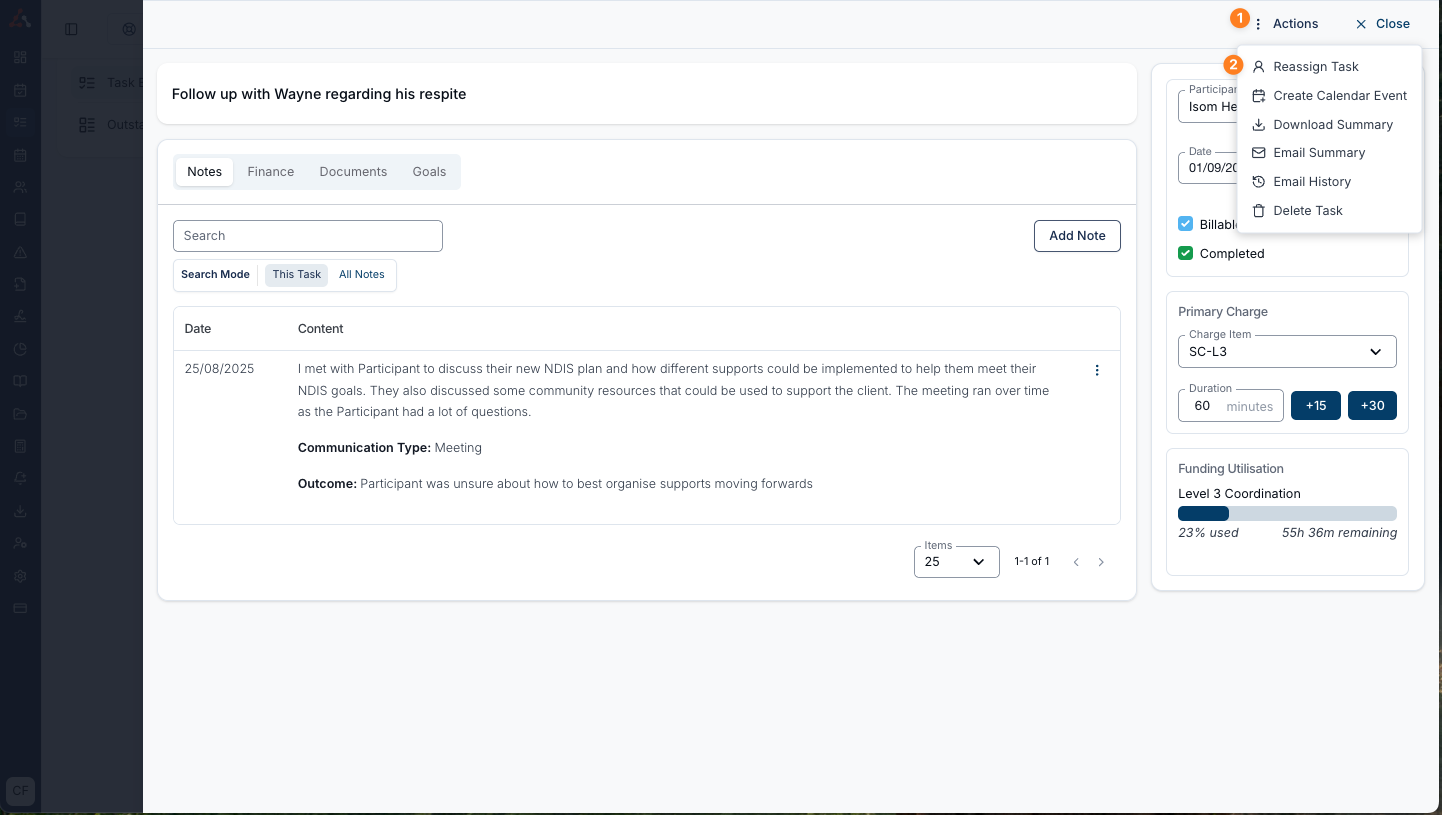
Open the task, select Actions, then Reassign Task.
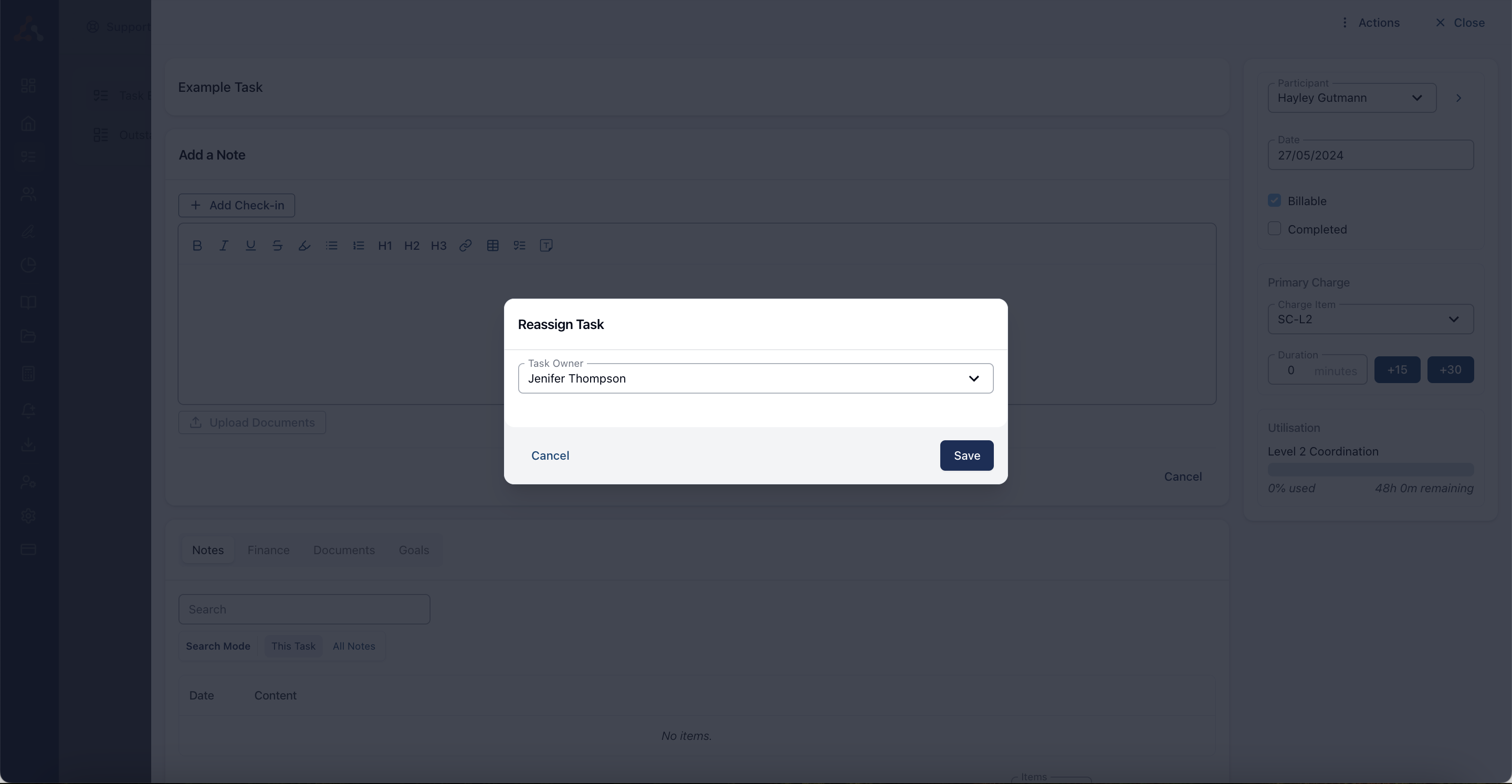
The Reassign Task window asks you to choose the new owner.
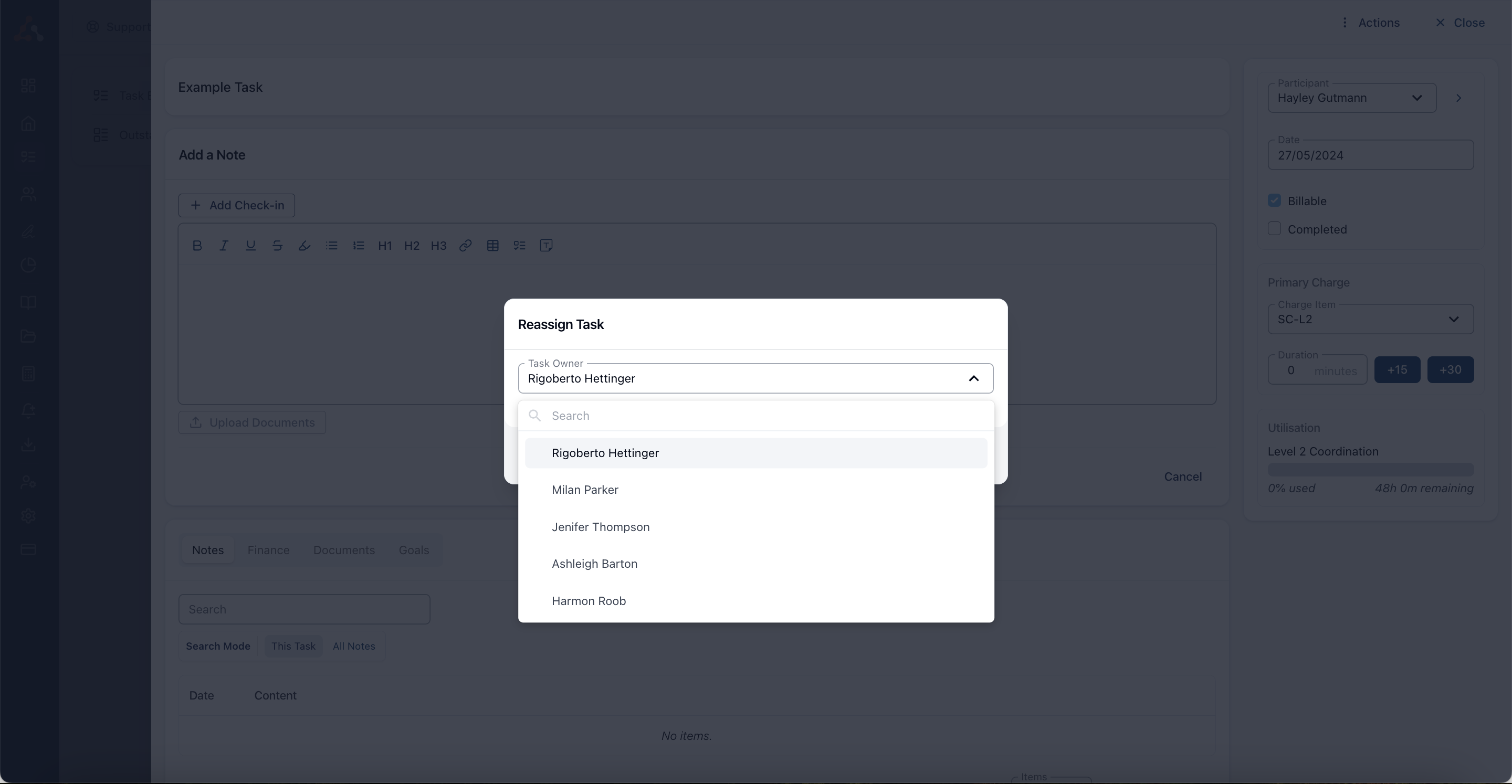
Select the new owner in Task Owner, then click Save.
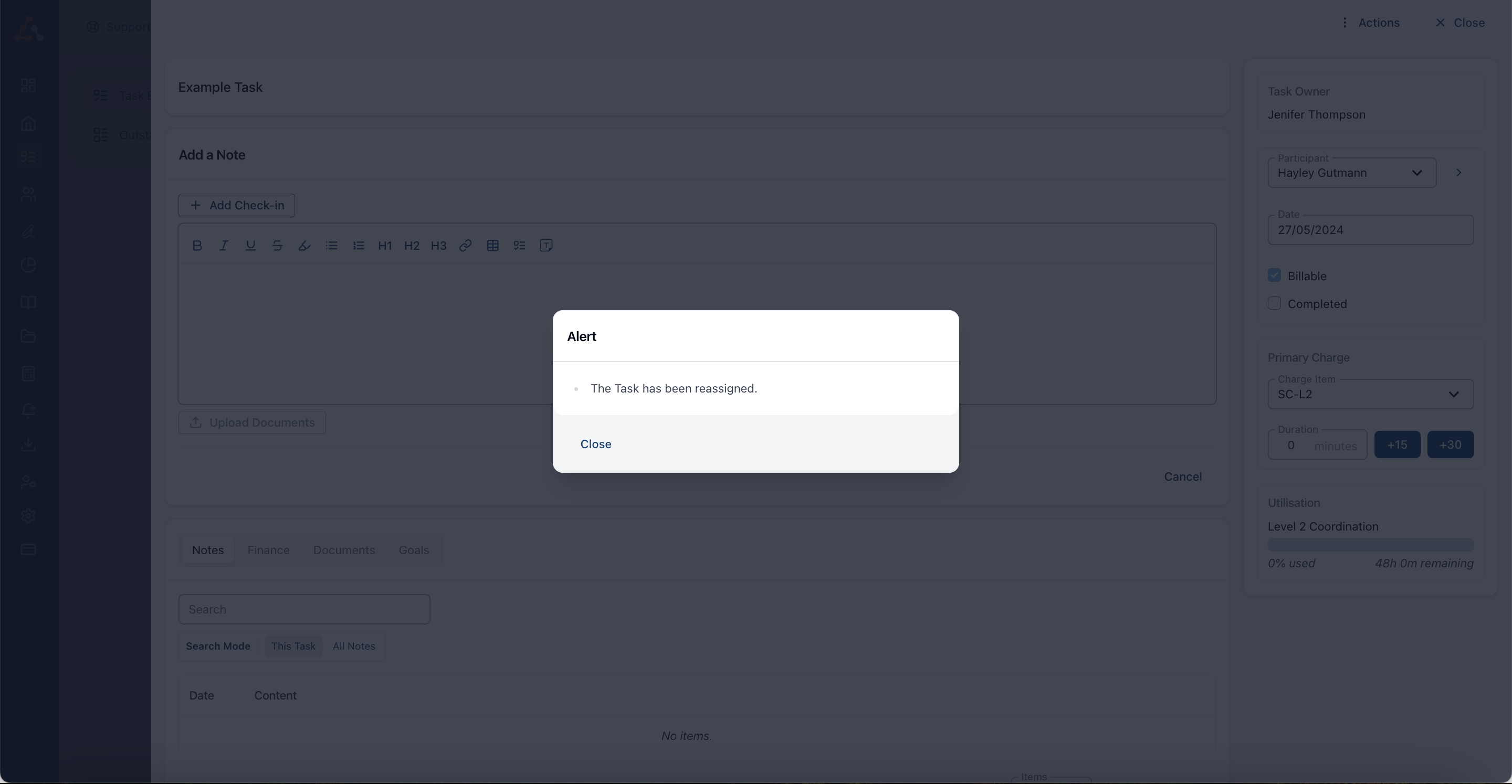
After saving, Astalty confirms The Task has been reassigned.
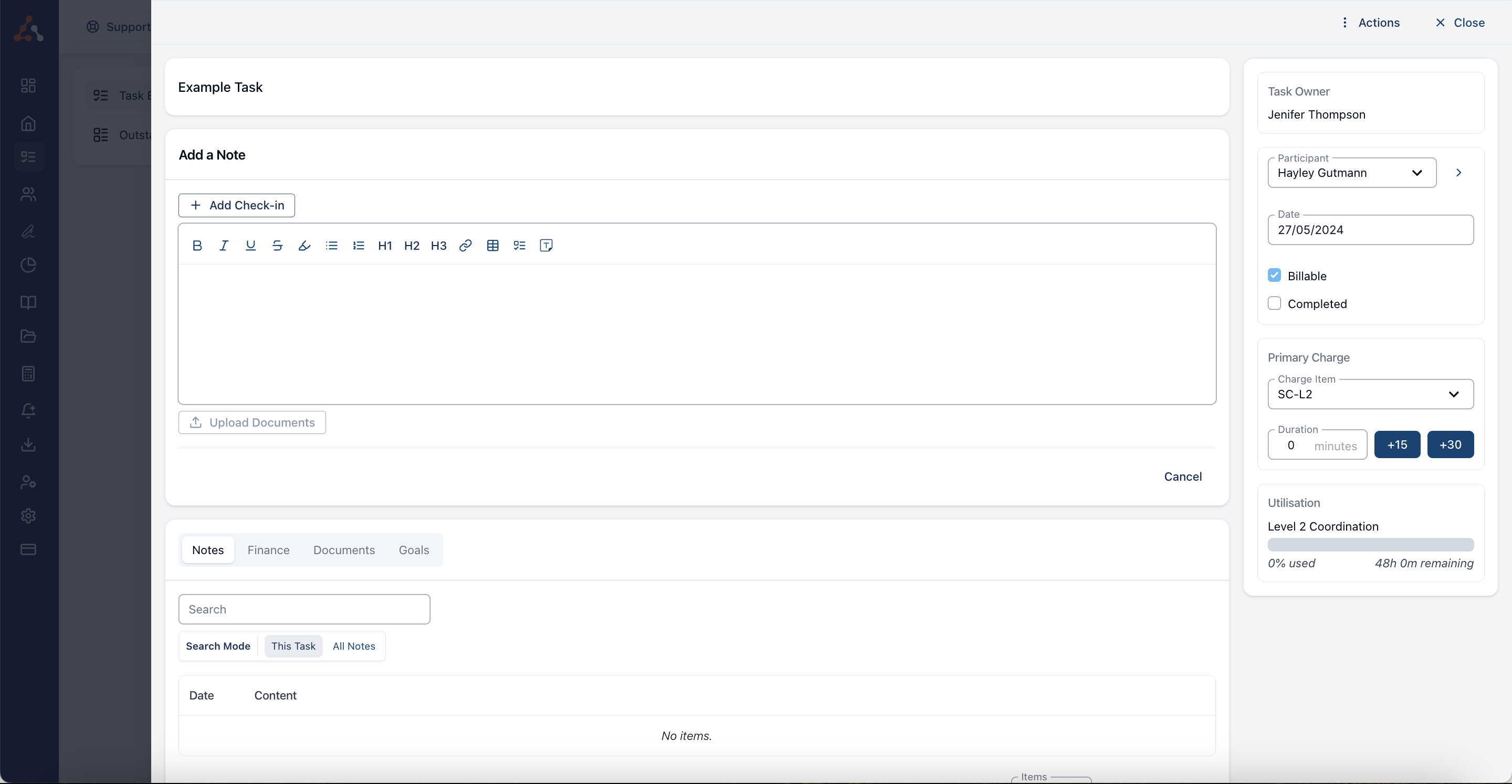
The task then appears on the new assignee's Task Board.
To reassign a task, all of these conditions must be met:
- The Task does not have any time assigned to it.
- The Task does not have any charges attached or all charges have a quantity of 0.
- The Task is not marked as Complete.
- The Task is not associated with a Calendar Event.
The new owner must also have access to the task's Participant. If any condition isn't met, the Reassign Task window lists the conditions instead of the Task Owner field.
Assignment Notifications
Whenever a task is assigned or reassigned to someone else, they receive a notification in Astalty. They also receive an email when Send an email to the assignee is switched on for your account. The same setting also covers calendar events - see Assignment Notifications.
Reassigning Tasks to another Participant
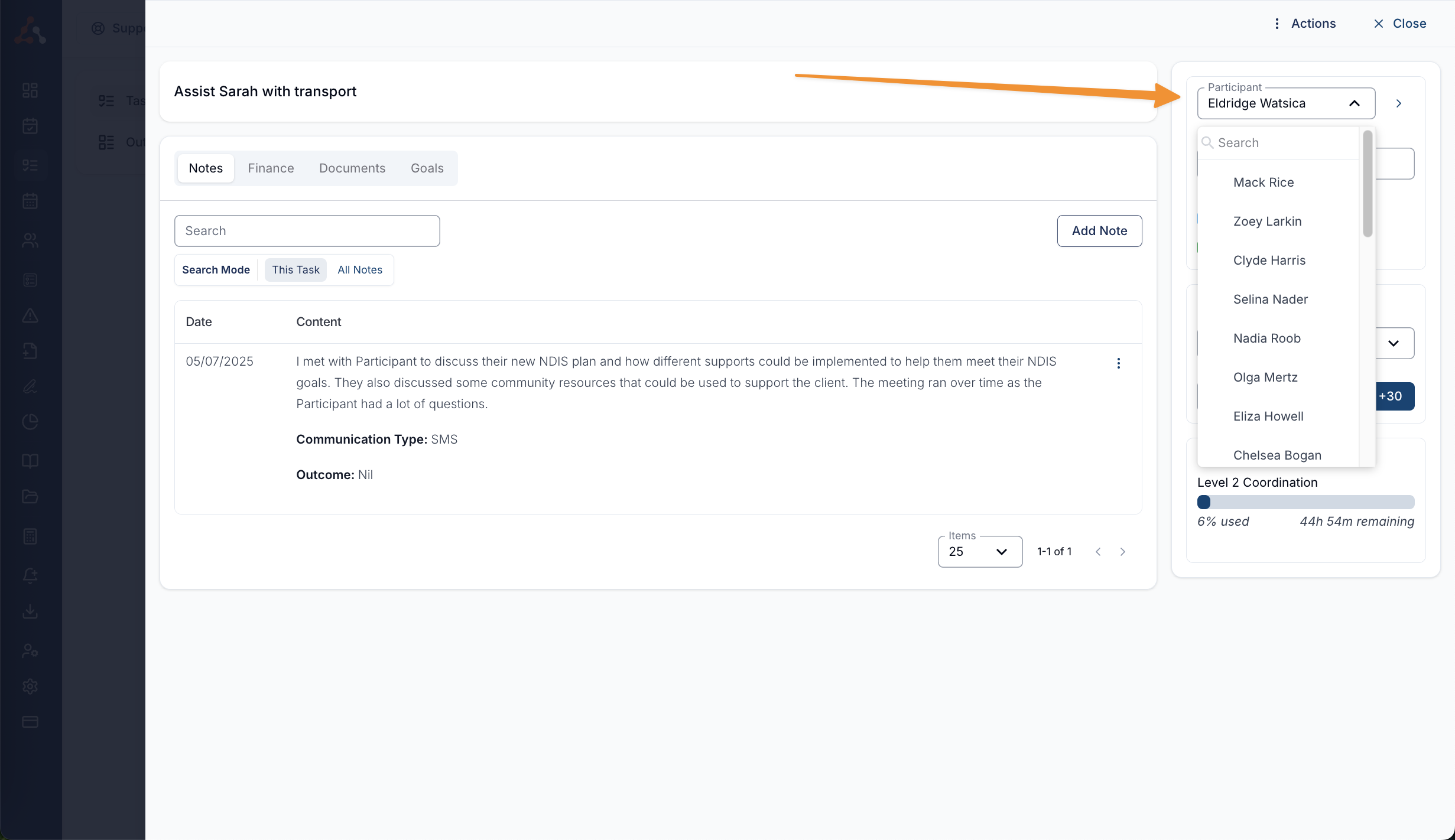
From the task view, open the Participant list and choose the Participant to associate with the task.
On the Task Board, you can also select the Participant's initials and choose a new Participant.
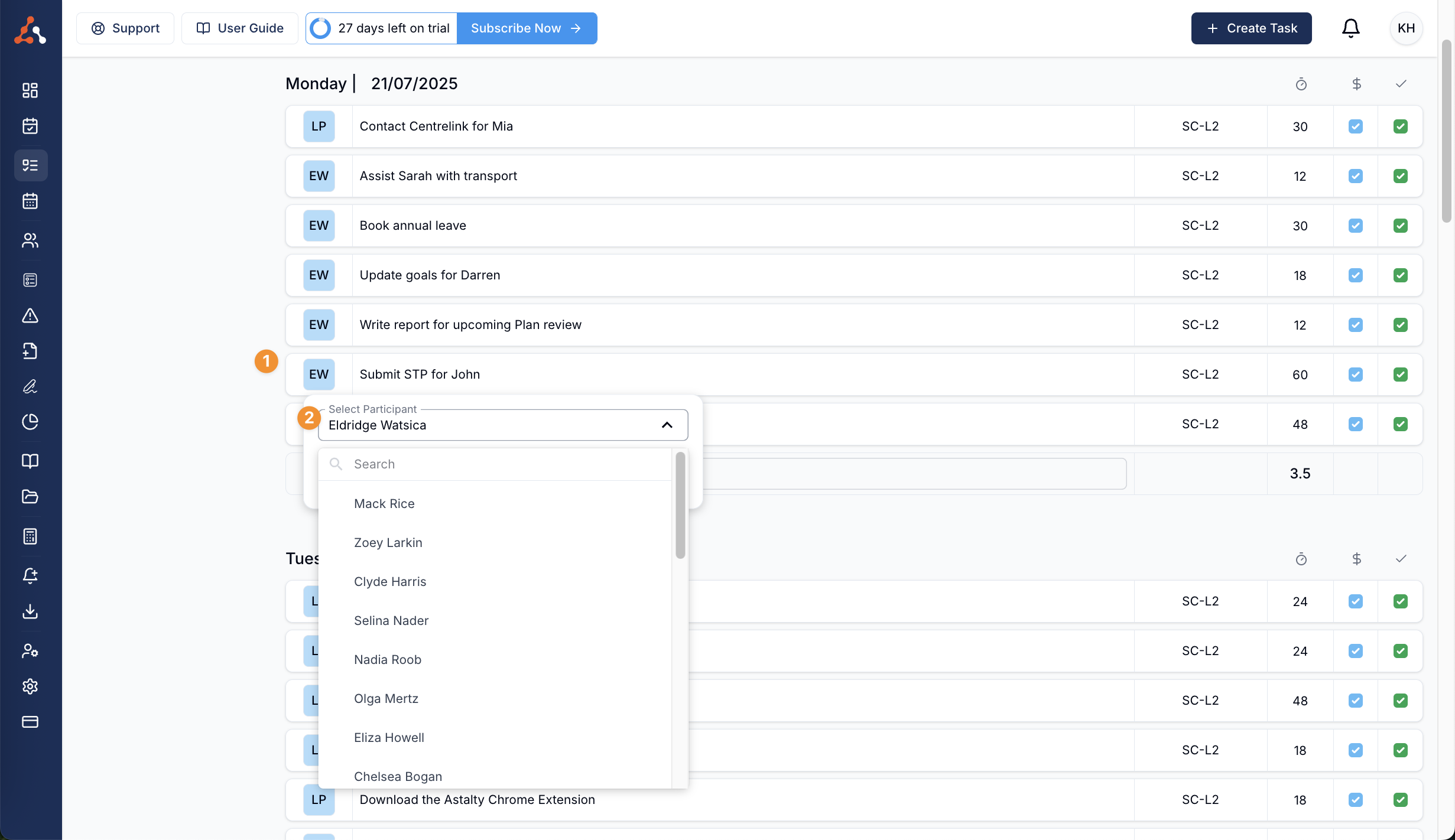
Astalty asks you to confirm before it changes the Participant. When you do:
- The task's notes, check-ins and documents move to the new Participant.
- Goals that belong to the previous Participant are removed from the task. The Goals remain on that Participant's profile.
- All of the task's charges are deleted, including the Primary Charge and any additional charges such as kilometres. If the new Participant has a Default Charge Item, Astalty adds it as the Primary Charge using the task's duration. Add any other charges again from the Finance tab.
- The task's owner must have access to the new Participant.
Once any of the task's charges has been invoiced, the Participant can't be changed.