Task Forms
Overview
A task's Forms tab lists the form submissions completed for that task - a home visit checklist, for example - and lets you fill out another one from the task itself.
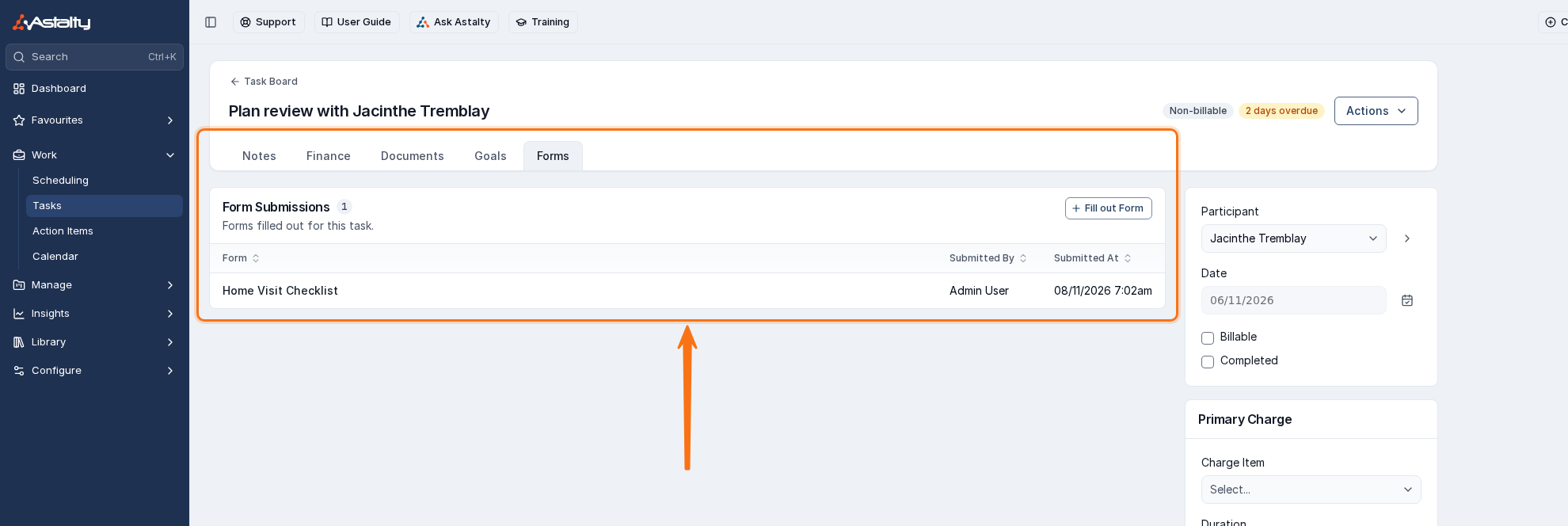
The Forms tab appears when Forms is enabled for your account.
Form Submissions
Form Submissions lists the submissions linked to the task, with the form's name, who submitted it and when. Use the Active/Archived filter to switch between current and archived submissions. Select a submission to open it.
Filling Out a Form From a Task
- Open the task and select the Forms tab.
- Select Fill out Form.
- Choose a form from the forms you can submit. Select Preview to check it first.
- Select Complete Form to open and fill it in.
The form picker offers every published form you can submit, the same as filling out a form from a Participant's profile - there is no task-specific list. Once submitted, the form is linked to the task automatically and appears in its Form Submissions table.
Opening the Task From a Submission
A submission linked to a task lists the task in its Associations panel. Open the row's action menu (⋯) and select View Task to open it. See Managing Form Submissions for the Associations panel and the rest of what you can do with a submission.