- Day-to-Day
- Sites Settings
Sites Settings
Accessing Sites Settings
Navigate to Settings in the left-hand menu, then select Sites. The Sites settings page has three sections: Site Information Types, Site Record Types, and Site Tags.
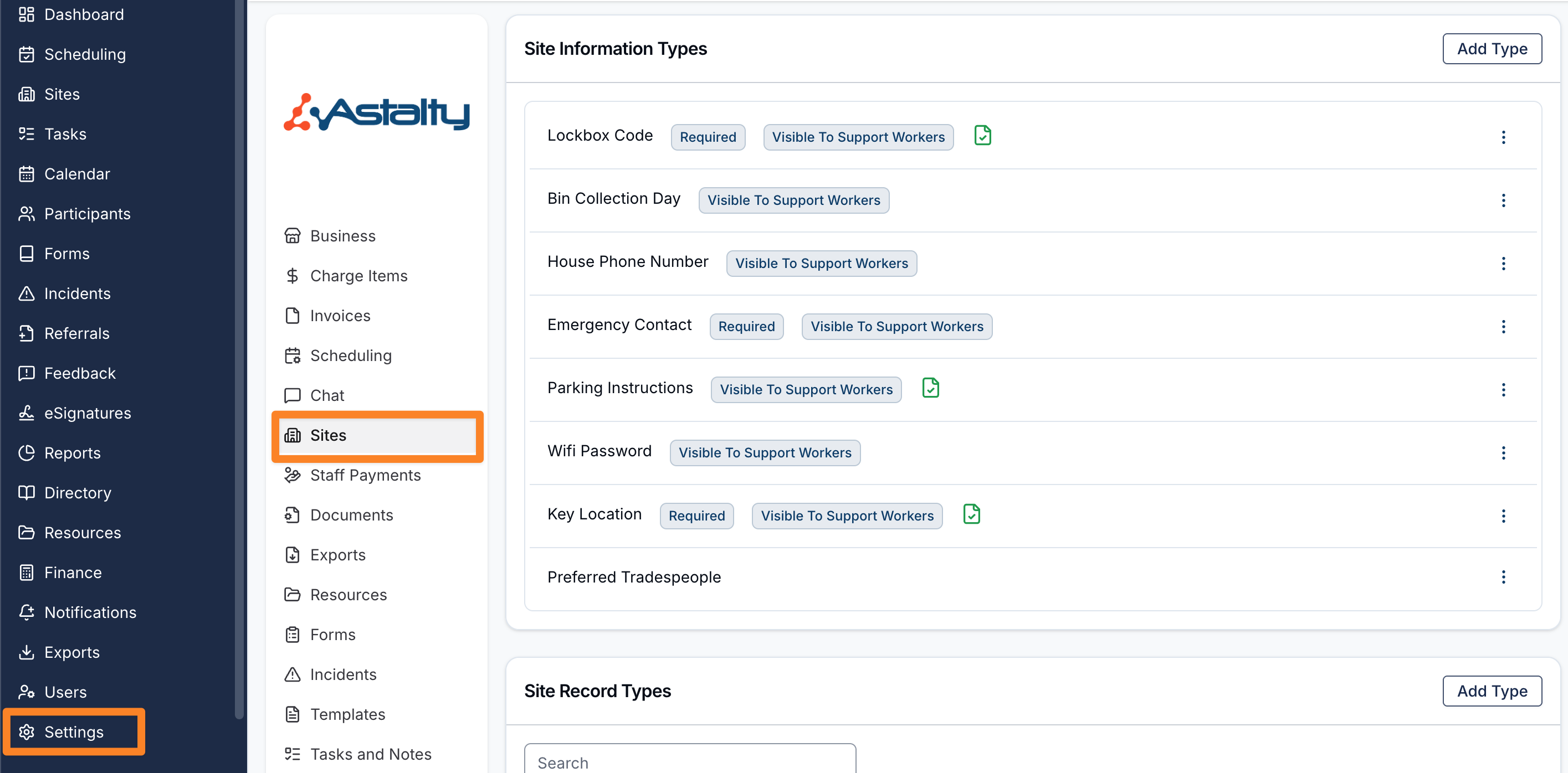
Site Information Types
Information types define the information items that can be stored on sites — for example "Lockbox Code", "Bin Collection Day", or "Preferred Tradesperson". Once created, these types are available when adding information items to any site.
Adding an Information Type
To add an information type:
- Click Add Type in the Site Information Types section
- Enter a Name
- Tick Required if an information item of this type must be filled in on every site
- Tick Documents Allowed to let users attach files to information items of this type
- Tick Visible to Support Workers to make items of this type visible to on-shift Support Workers
- Optionally fill in Default Content — rich text that will pre-fill new items of this type when they're created on a site
- Save
Editing an Information Type
To edit an existing information type, click Edit next to it and update the fields.
Site Record Types
Record types define the compliance records that can be stored on sites — for example "Fire Safety Certificate", "Building Insurance", or "Pest Inspection Report". Once created, these types are available when adding records to any site.
For record types that track an expiry date, you can set up Site Record Notifications to alert your team before or after a record expires.
Adding a Record Type
To add a record type:
- Click Add Type in the Site Record Types section
- Enter a Name
- Tick Has expiry date if records of this type should track an expiry date
- Tick Required record if every site must have a record of this type — sites missing a required record will show it in their Missing Records section
- Tick Documents required if records of this type must have at least one attached document before they can be saved
- Tick Visible to Support Workers if on-shift Support Workers should be able to view records of this type on mobile
- Save
Editing a Record Type
To edit an existing record type, click Edit next to it and update the fields.
Site Tags
Tags are custom, colour-coded labels that can be applied to sites to group, categorise, and filter them. Common uses include flagging sites under audit, marking priority sites, or grouping sites by region or service type.
Creating a Tag
To create a tag:
- Click Create Tag in the Site Tags section
- Enter a Name
- Choose a colour from the palette, or pick a custom colour
- Save
Once created, tags are available to select when creating or editing any site. For more on applying and filtering by tags, see the Creating and Managing Sites page.