- Day-to-Day
- Site Records
Site Records
Overview
Site records are compliance documents stored against a site — for example a fire safety certificate, building insurance policy, or pest inspection report. Each record has an issue date, an optional expiry date, an optional reference number, and one or more attached documents.
Astalty automatically tracks each record's status:
- Current — the record is active and has not expired
- Expired — the record's expiry date has passed
- Archived — the record has been manually archived
- Missing — the site is required to have a record of this type, but no record has been created yet
Site Record Types
Before you can create records on a site, an administrator needs to define the record types your organisation uses — for example "Fire Safety Certificate" or "Building Insurance". Record types are managed from Settings → Sites → Site Record Types. See the Sites Settings page for details.
Viewing Records
To view records for a site:
- Open the site from the Sites list
- Click the Records tab
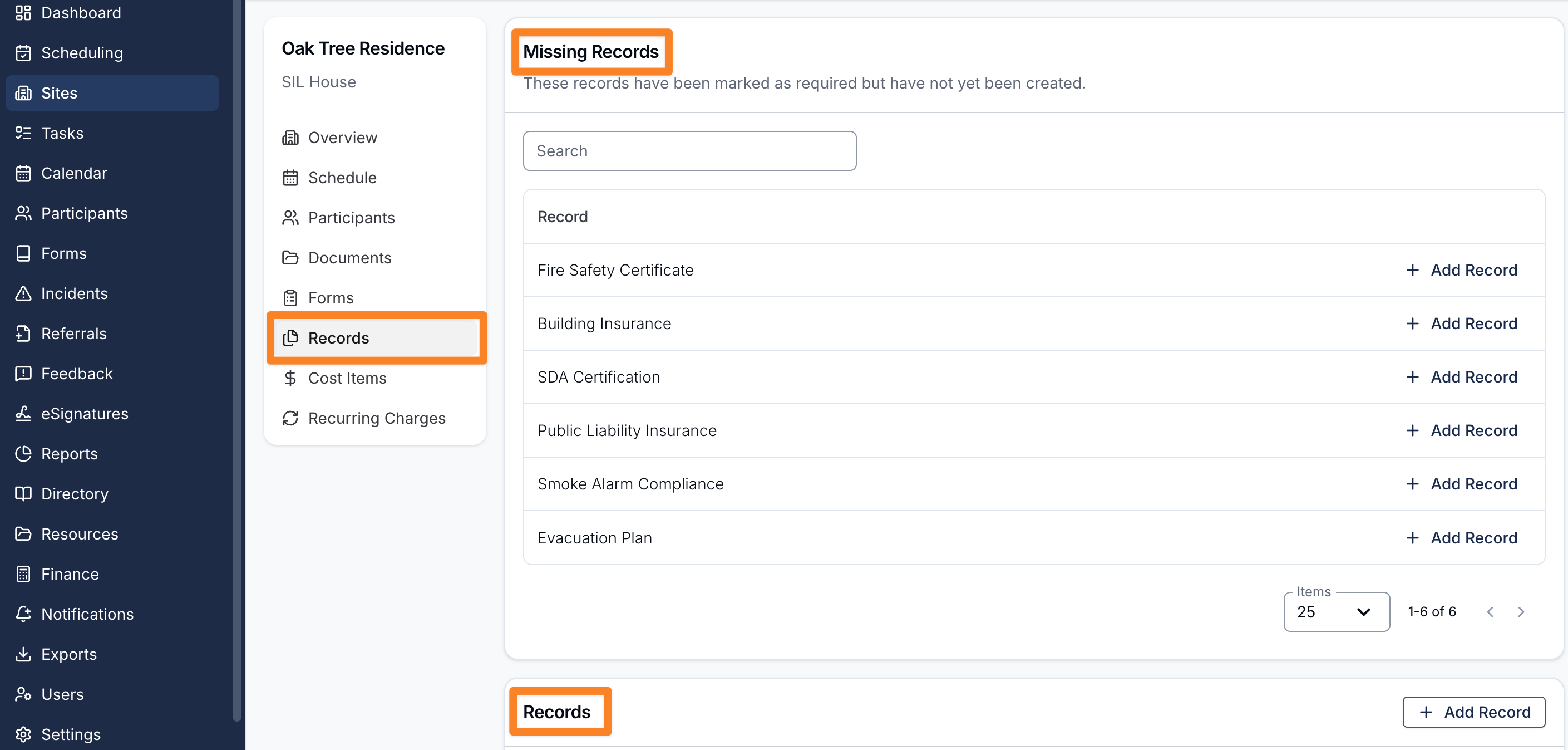
The Records tab shows two sections:
- Missing Records — record types that are marked as required but have no record created for this site yet
- Records — records that exist on this site, with columns for Status, Record name, and Expiry Date
Creating a Record
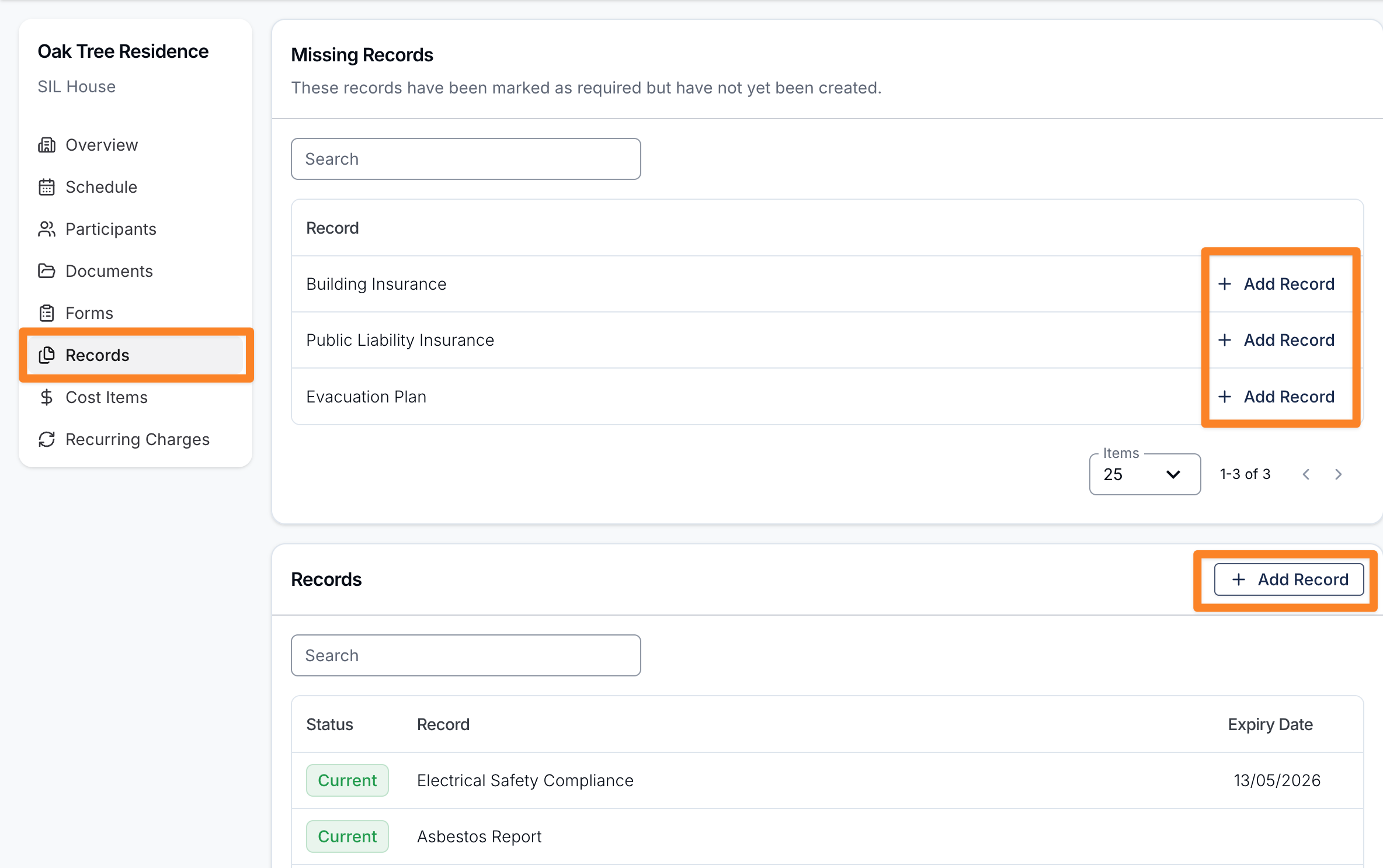
To create a record:
- Open the site and go to the Records tab
- Click Add Record
- Select the record type
- Fill in the issue date, expiry date (if applicable), reference number, and upload any required documents
- Save
If the record type has been marked as requiring documents, you will not be able to save the record without uploading at least one document.
Editing a Record
To edit a record:
- Open the site and go to the Records tab
- Click the record you'd like to edit
- On the record detail page, click Edit
- Update the fields and save
Archiving a Record
Archiving is used when a record is no longer active — for example when a certificate has been superseded by a newer version. Archiving preserves the record for historical reference without deleting it.
To archive a record:
- Open the record
- Use the archive action from the record detail page
Archived records will no longer appear in the Current or Expired views and their status will show as Archived.
Emailing a Record
You can email a site record — along with its attached documents — to an external recipient, for example an auditor, landlord, or contractor. Astalty tracks the history of every email sent for each record.
To send a record by email:
- Open the site and go to the Records tab
- Click the record you'd like to send
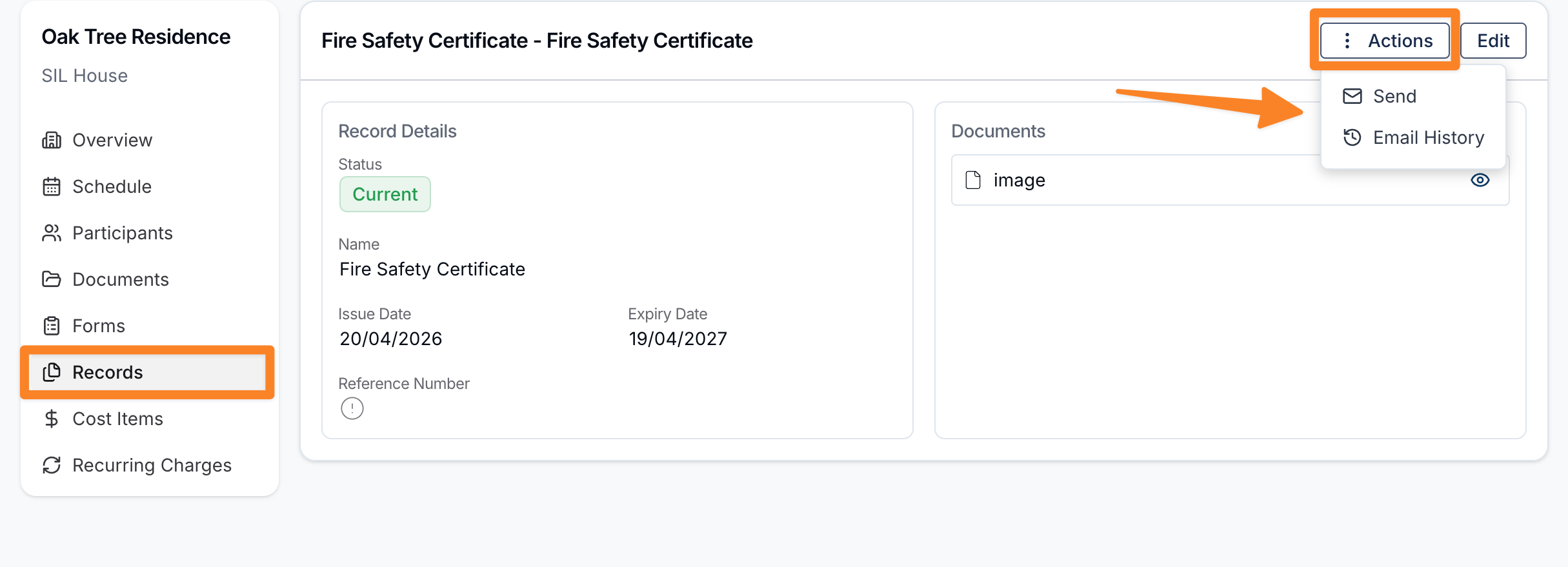
- On the record detail page, click Send
- Enter the recipient email addresses
- Enter a subject and message
- Review the documents attached to the record
- Click Send
Viewing Email History
To see which emails have been sent for a record, open the record and click Email History on the record detail page. Astalty displays every email sent from this record, including who sent it and when.
Records on Mobile
Support Workers can view a site's records from inside the shift they're rostered on, via the shift's Site screen. Each record appears as a row showing the record type name and, if set, the record name. Tapping a record with attached documents opens a list of those documents to view. Records without documents are not tappable.
The mobile view is read-only — status indicators, expiry dates, and email history are not visible to Support Workers. Only record types marked Visible to Support Workers are shown in the app. Creating, editing, archiving, and emailing records can only be done from the Astalty web app.