- Day-to-Day
- Site Utilisation
Site Utilisation
Overview
The Utilisation tab compares active Plan Services for Participants assigned to a Site. It is available for either Site type when your role can view Site Utilisation and you have access to that Site.
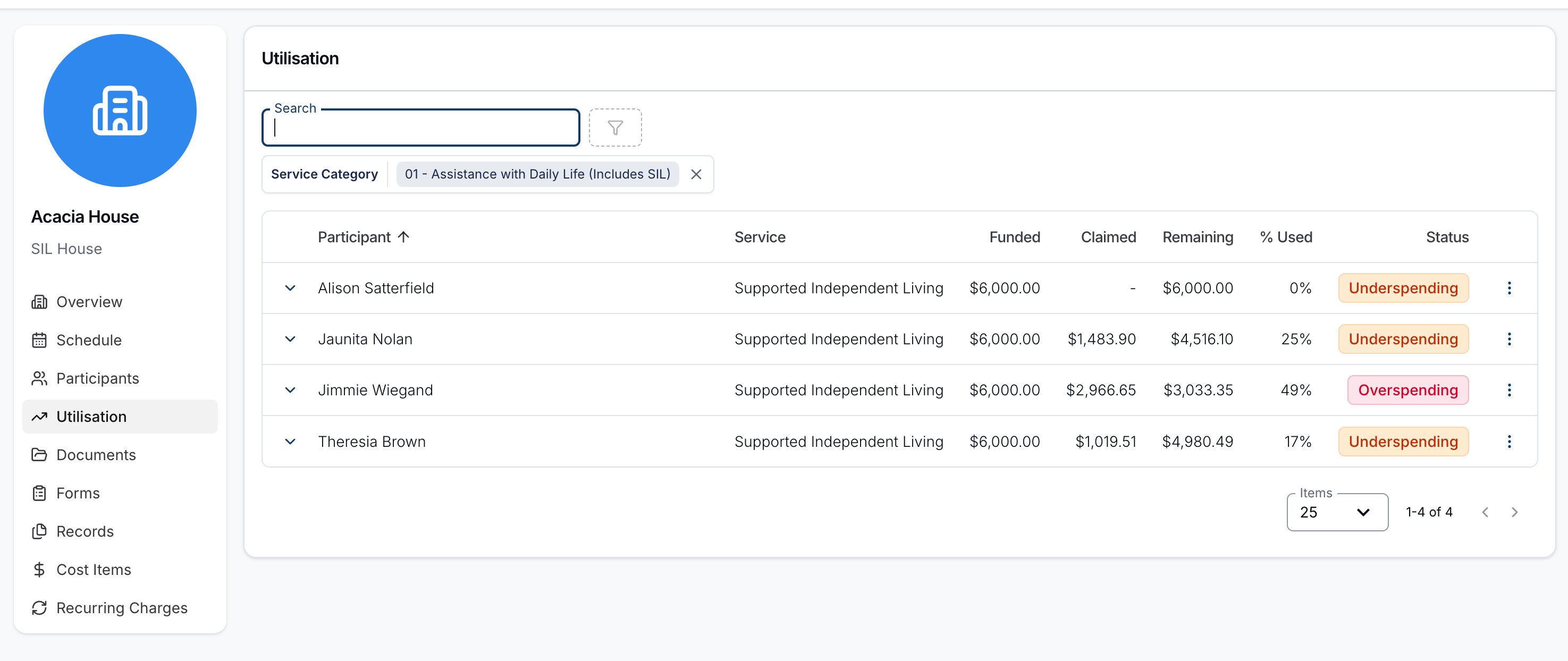
Viewing Utilisation for a Site
Open a Site and select Utilisation. Choose a Service Category. The table shows an active Plan Service row for each assigned Participant with funding in that category. If no matching active Plan Service exists, there is no row for that Participant and category.
The Utilisation Table
Each row shows:
- Participant and Service
- Funded, the full total funding on the active Plan Service
- Claimed, the released funding used to date, including relevant billable charge and reconciliation calculations
- Remaining, the released funding still available to date
- % Used, calculated from the displayed funded and claimed amounts
- Status, which compares use against the expected pace through the current released funding period
Funded can cover the full Plan Service while Claimed and Remaining reflect funds released to date. Therefore, Remaining is not always a simple full-service Funded minus Claimed calculation.
Understanding the Status
- Overspending means use is ahead of the expected pace.
- Underspending means use is behind the expected pace.
The comparison uses the elapsed portion of the applicable funding period. It is not based only on the raw % Used value.
Filtering by Support Category
Use Service Category to select the category being reported. The tab initially selects 01 - Assistance with Daily Life (Includes SIL) and remembers the most recently selected category for each Site in that browser.
Use Search Participants to narrow the displayed rows.
Expanding a Row
Expand a row to inspect the funding period or schedule breakdown used for that Plan Service's totals.