Task Types
Task Types let you label each task with the kind of work it records, such as Admin, Travel, Team Meeting or Annual Leave. You create the list yourself, your team picks a type on each task, and the Tasks Report and Tasks Export then break time down by type.
Use Task Types when billable and unbillable are not enough to answer questions such as "how many hours did each coordinator spend on leave, training and admin this week?". A Task Type is only a label: it does not change whether a task is billable, its charges or how it is invoiced.
How Task Types Work
- The Account Owner turns on Task Types in Optional Features.
- You add your types in Settings > Tasks and Notes. Astalty does not create any types for you.
- Your team sets a type on each task from the Task Board, the task page or the Create Task form.
- You review time by type in the Tasks Report, and download hours by type and team member in the Tasks Export.
Until at least one active type exists, the Type column and fields stay hidden on the Task Board and task forms, so turning the feature on changes nothing for your team until you are ready.
Turning On Task Types
The Account Owner turns on Task Types:
- Go to Settings > Optional Features.
- On the Task Types card, select Enable.
- Select Enable Task Types, then confirm.
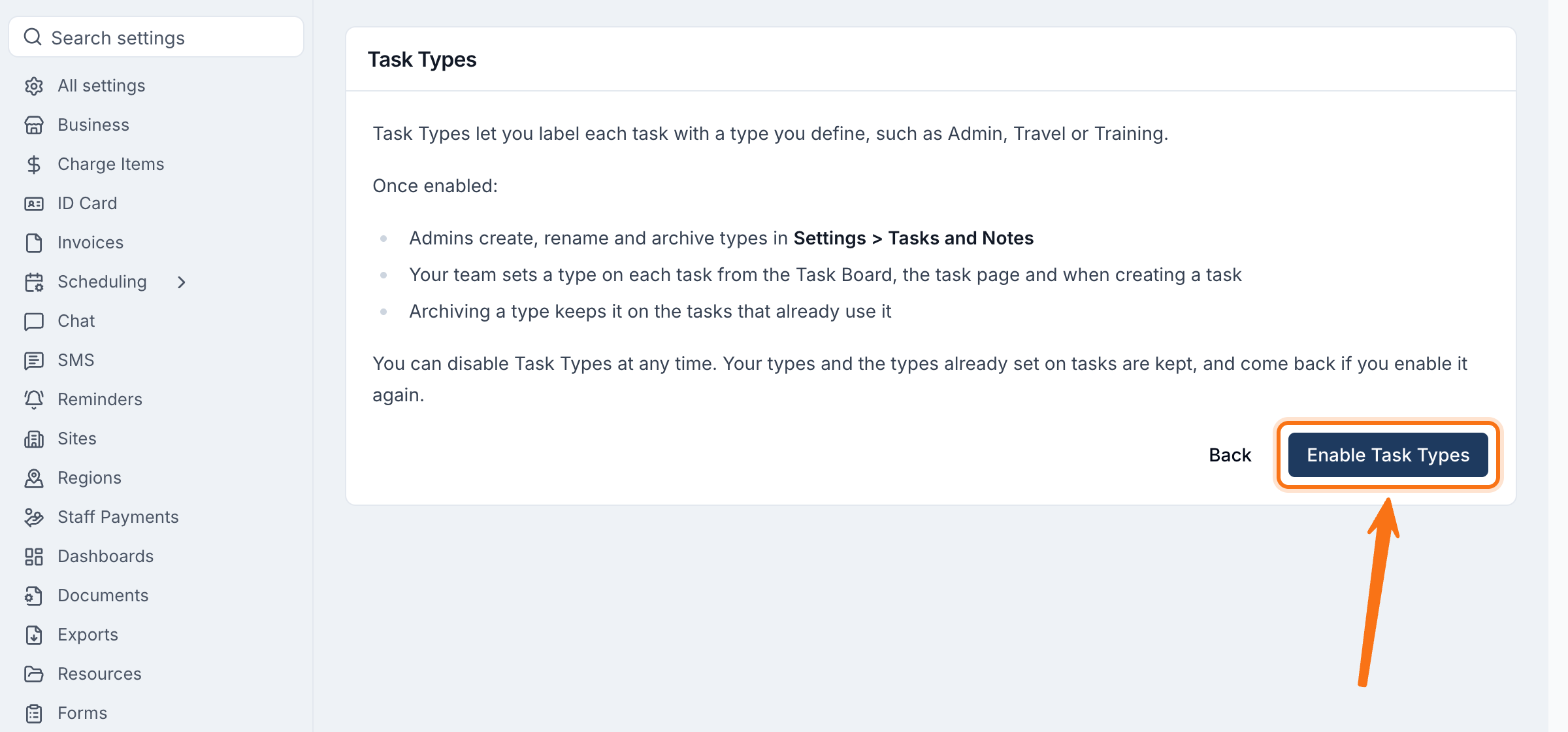
You can disable Task Types from the same card at any time. Your types, and the types already set on tasks, are kept and come back if you enable it again. See Optional Features.
Adding Task Types
- Open Settings > Tasks and Notes and find the Task Types table.
- Select Add Task Type.
- Enter a Name, then select Create. Each name can only be used once.
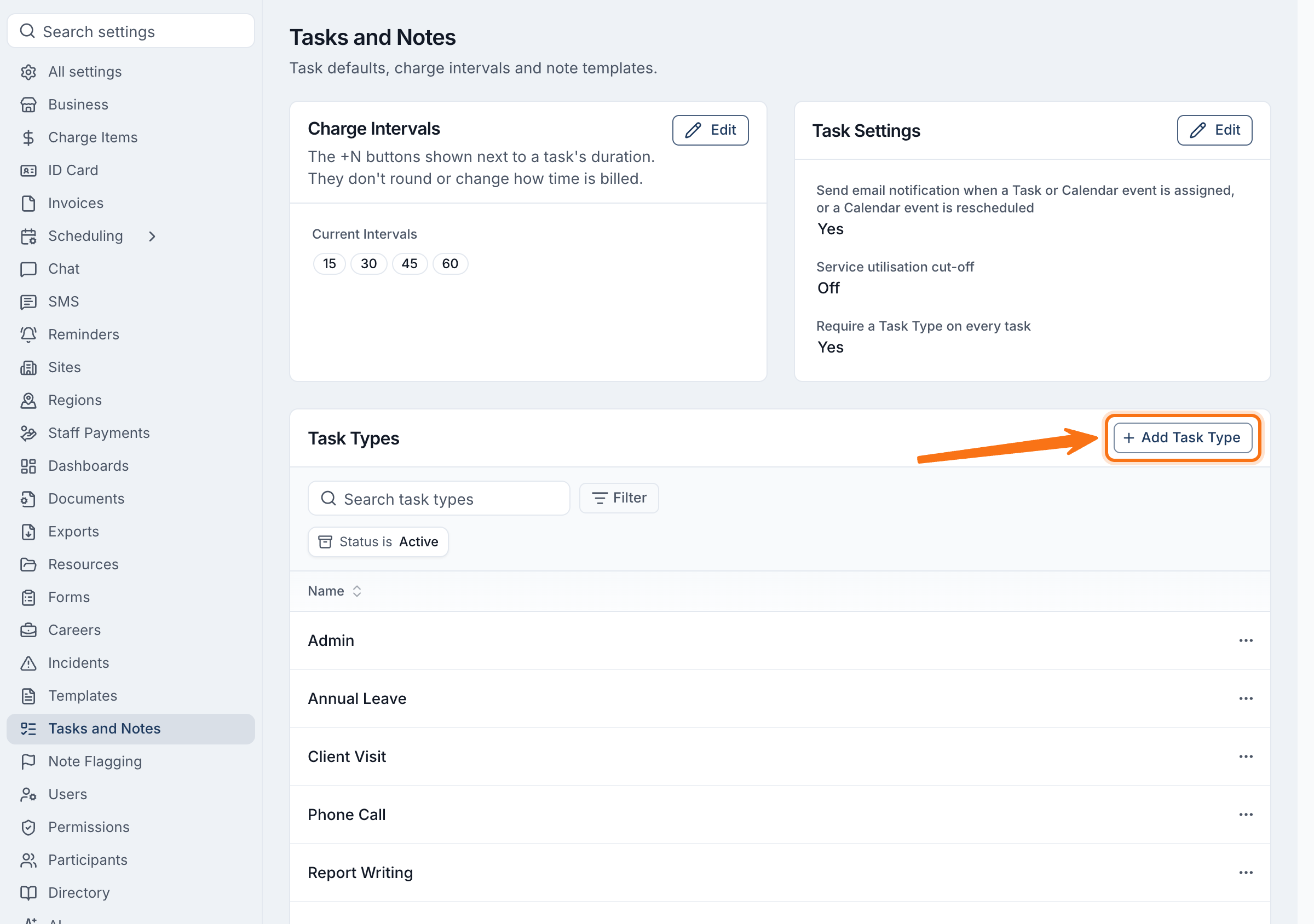
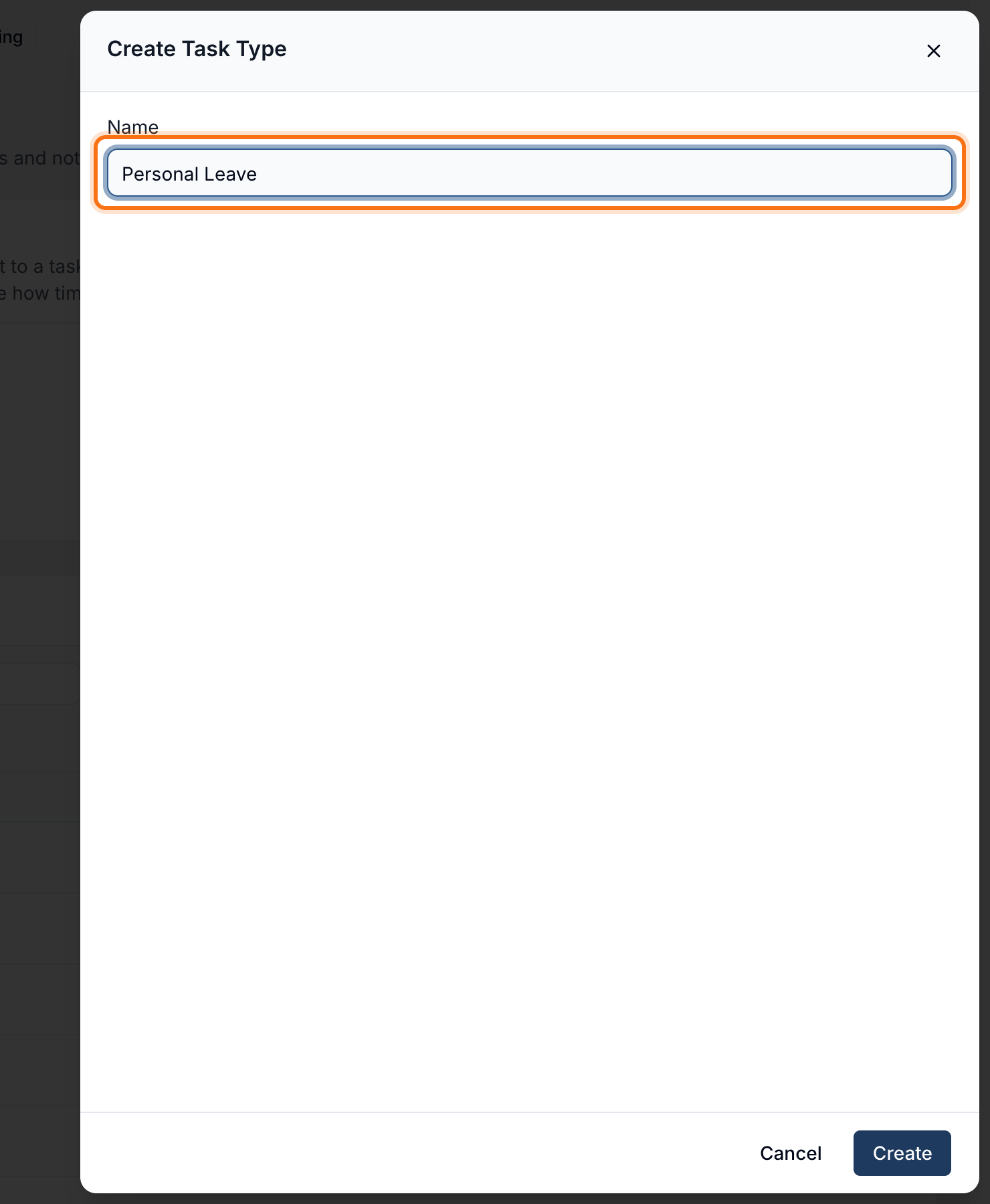
The new type is available straight away wherever your team sets a type. Only people who can edit your organisation's settings can add, rename or archive types; everyone can choose them on a task.
To rename a type, open its actions menu, select Edit, change the Name and select Update. The new name shows on every task that already uses the type, including in reports and exports.
Requiring a Task Type
You can make your team choose a type on every new task:
- In Settings > Tasks and Notes, select Edit on the Task Settings card.
- Under Task Types, turn on Require a Task Type on every task.
- Select Update.
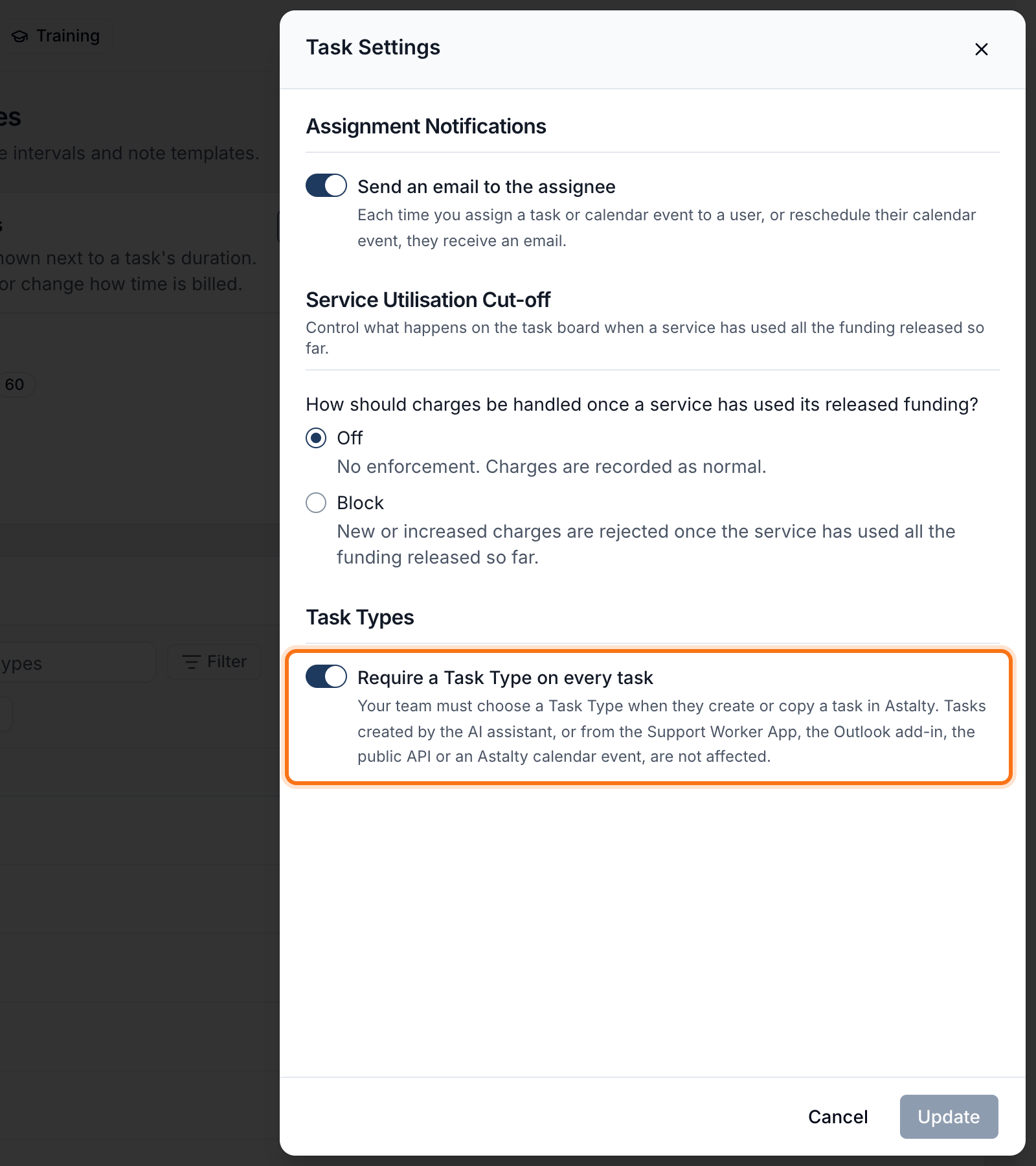
When this is on, the Type field is marked as required, and a task cannot be created or cloned in Astalty without a type. Your team also cannot clear the type from a task that has one; they can only change it to another active type. Tasks created before you turned it on keep no type until someone sets one.
The requirement only applies while you have at least one active type. It does not apply to tasks created by the AI assistant, from the Support Worker app, the Outlook add-in or the public API, or from an Astalty calendar event, so those tasks can still arrive without a type.
Setting a Type on a Task
Your team can set or change a task's type in each of these places:
- Task Board: the Type column. Select Set Type, or the current type name, and choose a type. Select Clear Task Type to remove it. The Add a new Task row has its own Set Type button for the task you are about to add. See Task Board.
- Task page: the Type field in the right-hand panel. The change saves straight away. See Task View.
- Create Task form: the Type field. See Creating Tasks.
- Cloning a task: the copy keeps the original task's type, as long as that type is still active.
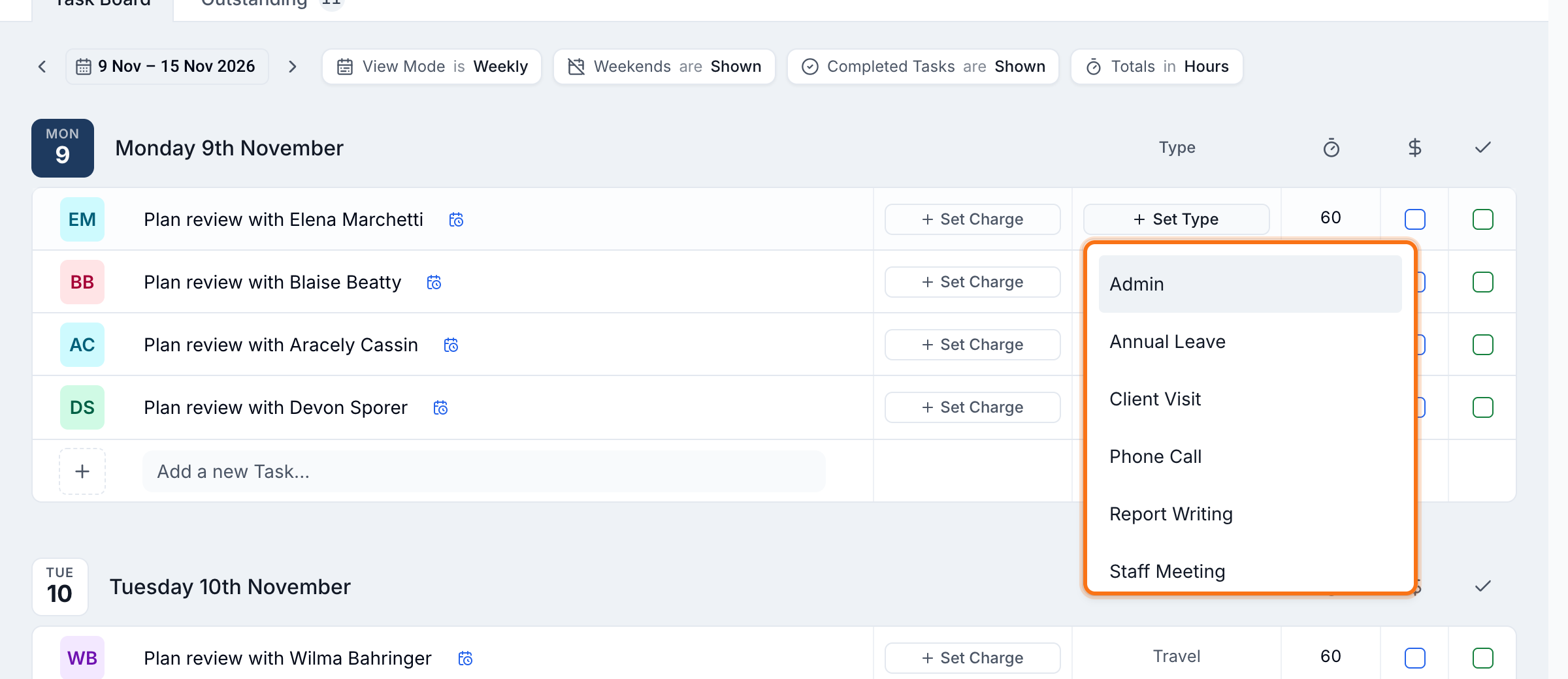
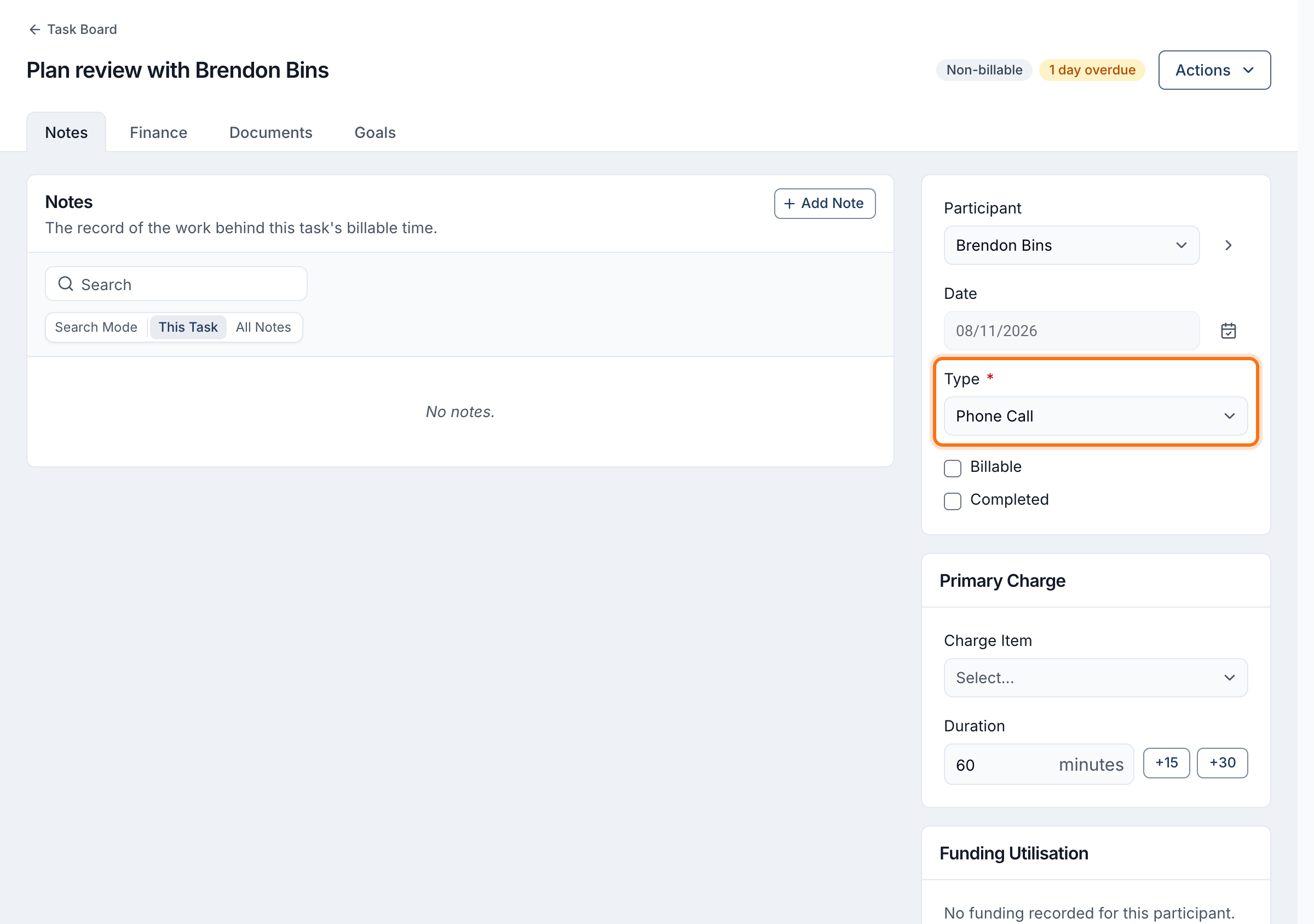
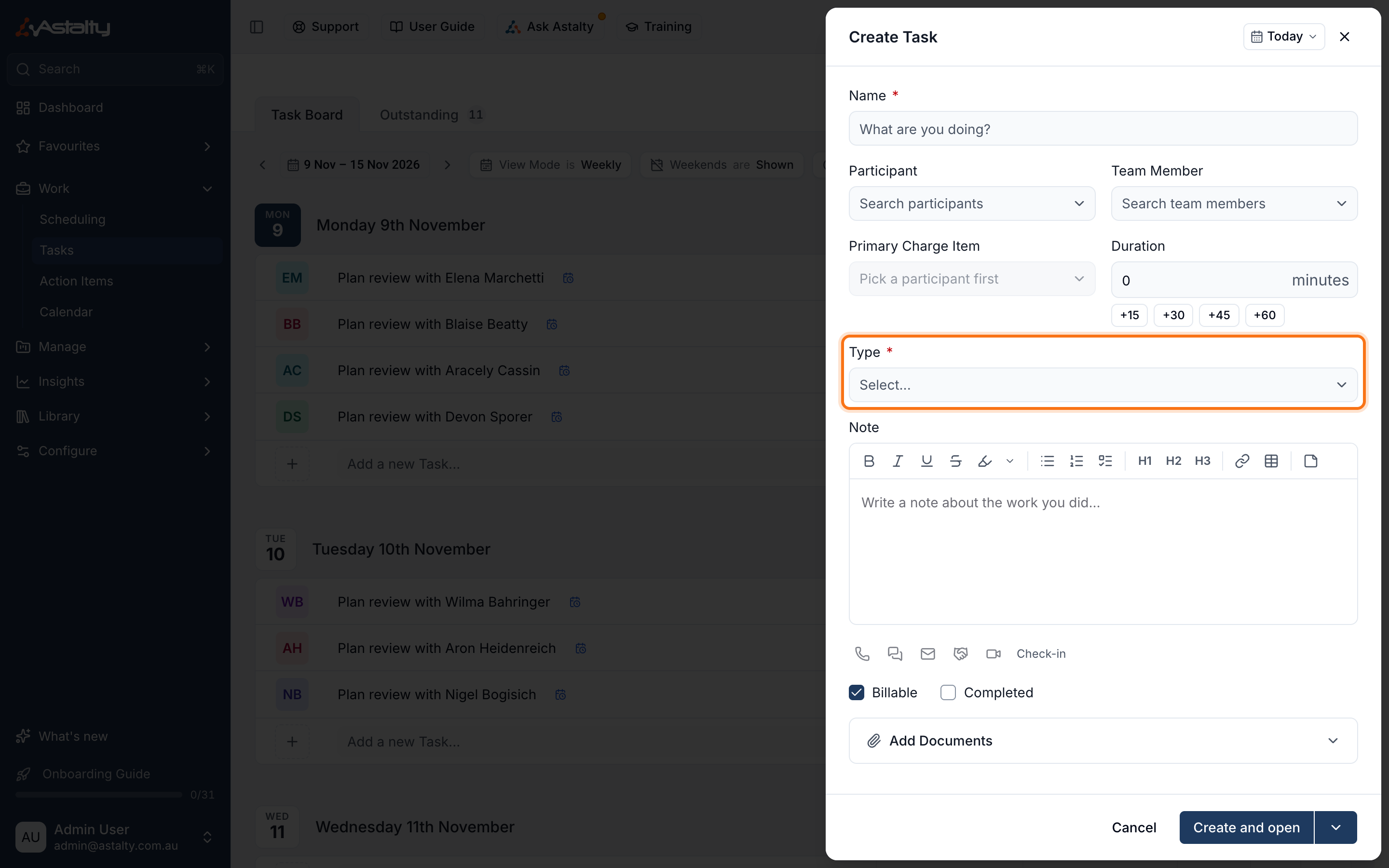
Only active types are offered. If a task already has an archived type, it keeps showing that type until someone changes it.
Archiving a Task Type
Archive a type you no longer want your team to choose. You cannot delete a type, because past tasks still use it.
- In the Task Types table, open the type's actions menu and select Archive.
- Confirm.
An archived type is no longer offered when anyone creates or edits a task. Tasks that already use it keep it, and it still appears in the Tasks Report filter and the Tasks Export, so your history stays complete.
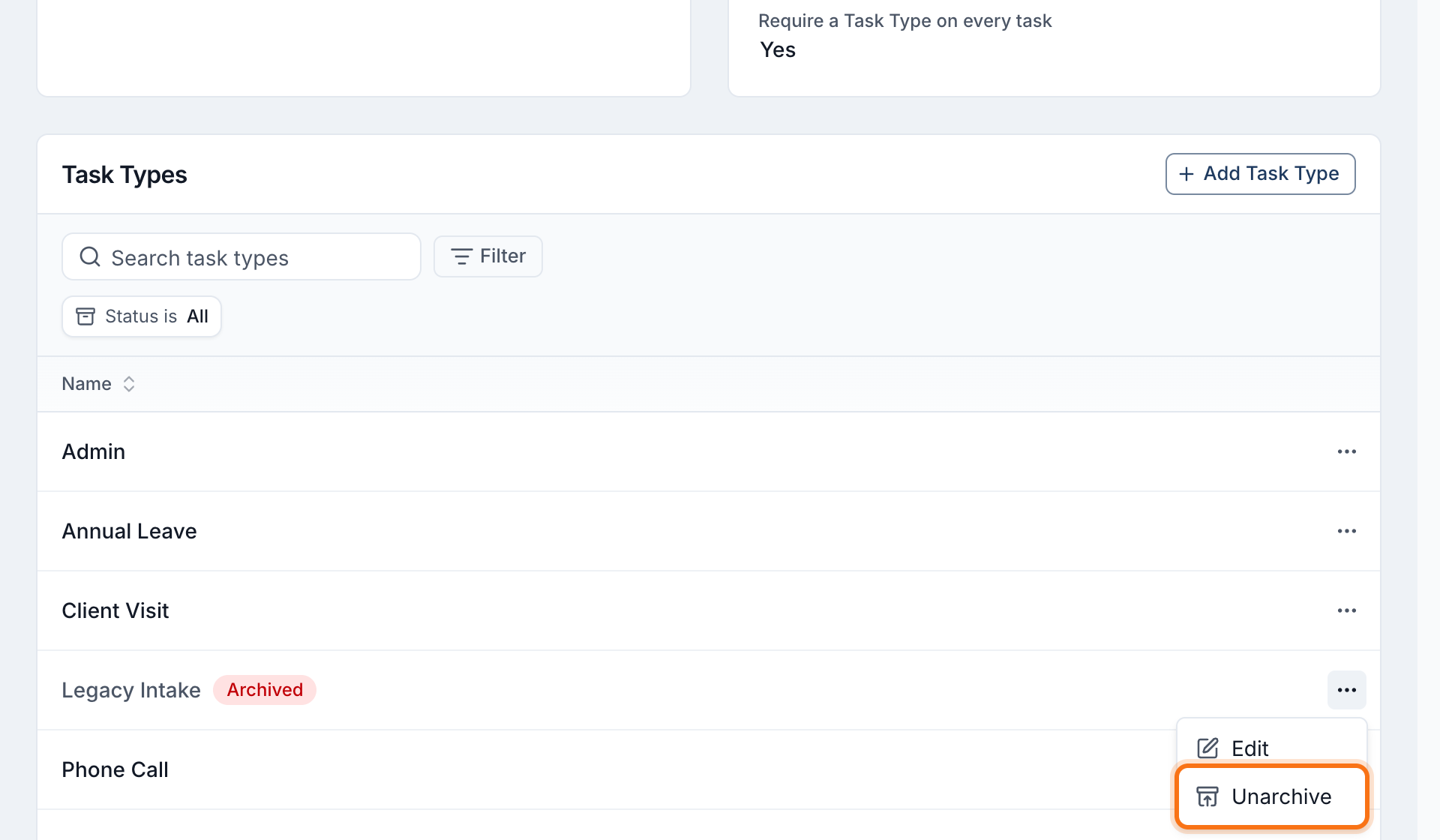
To bring an archived type back, change the table's Status filter to Archived or All, open the type's actions menu and select Unarchive.
Reviewing Time by Task Type
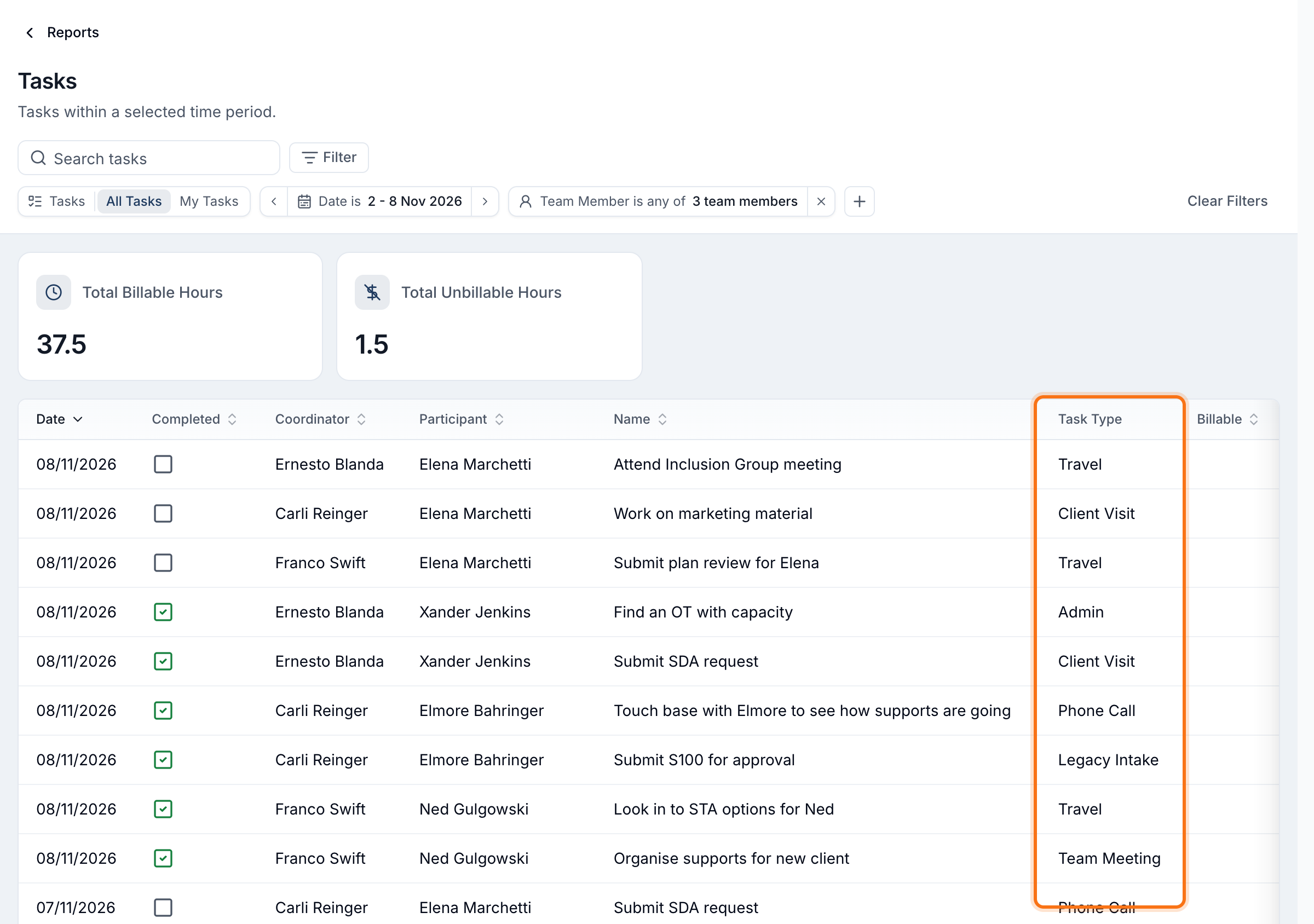
The Tasks Report shows a Task Type column, and its Task Type filter narrows the report to one or more types, or to No Task Type. Combine it with the Team Member filter and the date range to see, for example, every Annual Leave task one coordinator recorded last month. The Total Billable Hours and Total Unbillable Hours cards update to match.
Exporting Hours by Task Type
When Task Types is on, the Excel Tasks Export adds a Task Type column to its Tasks sheet, and two more sheets:
- By Task Type lists each team member's task count and hours for every type they used.
- Hours By Task Type has one row per team member, with a column of hours for each type, then their billable, non-billable and total hours.
Set From and To to a single week, and the Hours By Task Type sheet works as a weekly timesheet for each team member.