Post Approvals
Post approvals let members who cannot post in a read-only channel submit a post instead. It stays hidden until someone who can post approves it, so an announcements channel can collect stories from the whole team without opening up to general chatter.
Post approvals are included with Chat. They work on group channels only, and only while the channel is read-only.
Turning On Post Approvals
Only the person who created the channel can turn post approvals on, and only once the channel is read-only.
- Open the group channel
- Click Actions > Manage Channel
- Turn on Read-only channel if it is not already on
- Turn on Allow posts for approval
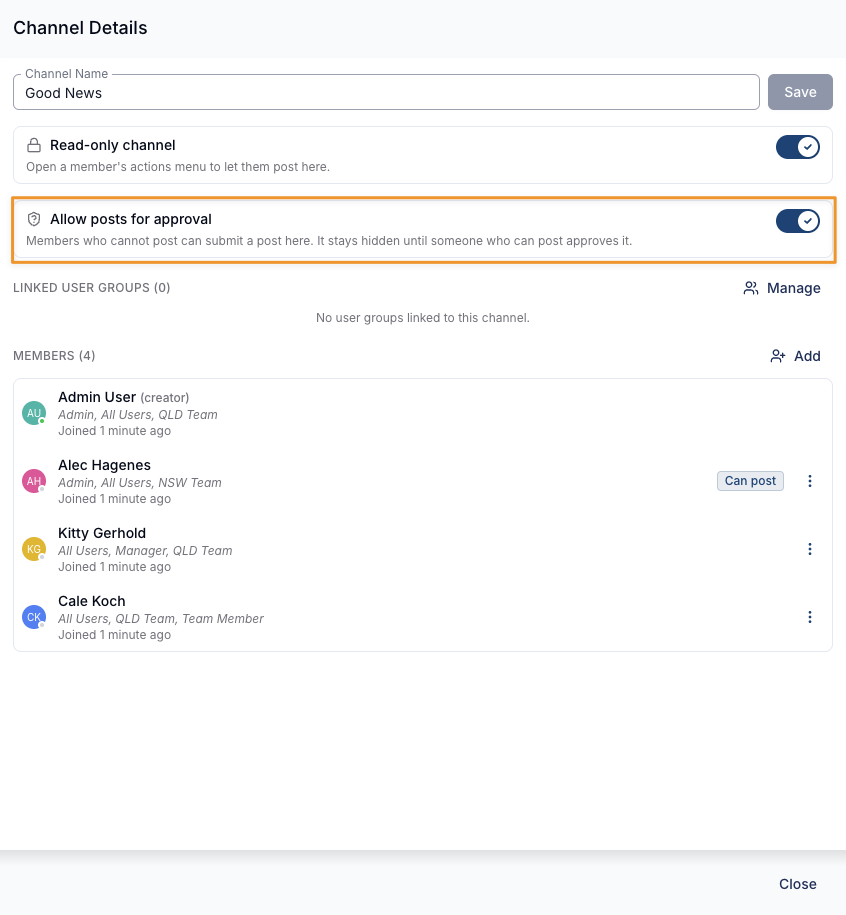
A system message records the change in the channel, and another records it being switched off.
Submitting a Post
Members who cannot post get a message box that submits for approval instead of sending. Anyone who can already post sends messages as normal and never submits.
- Open the channel
- Write your post in the message box
- Attach files if you need to
- Click the send button, or press Enter
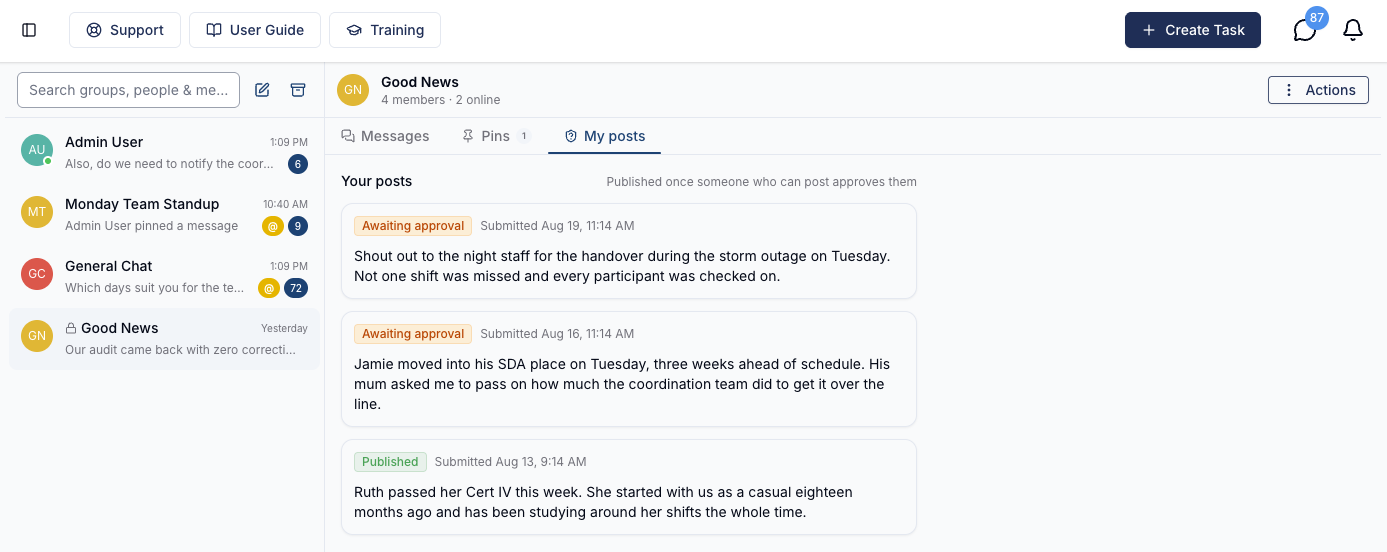
Astalty opens the My posts tab so you can see what you submitted. Polls cannot be submitted for approval.
Nothing appears in the channel until a post is approved - a waiting post stays out of the message list, chat search, exports and everyone's unread count.
Reviewing Posts
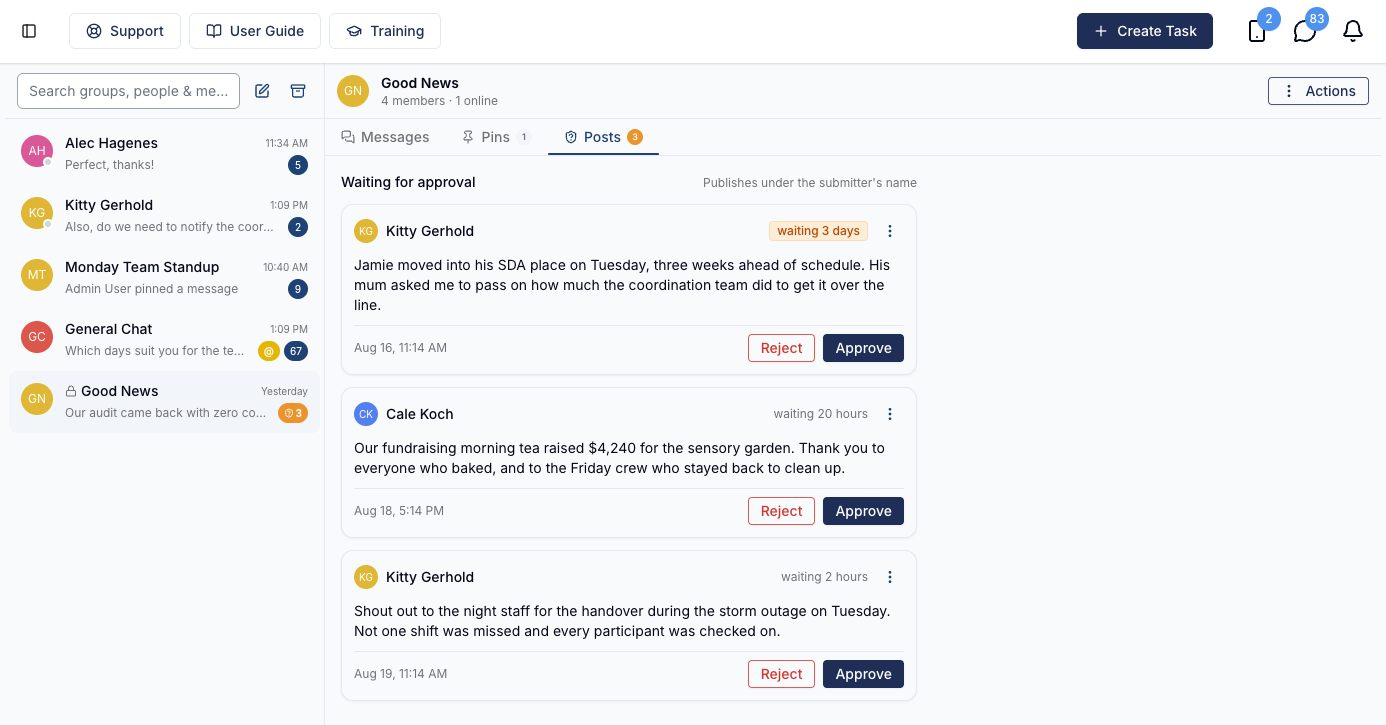
Posts waiting for approval collect in the channel's Posts tab, beside Messages and Pins, with a badge showing how many are waiting. The same count appears against the channel in your chat list.
Posts are listed oldest first, each showing who submitted it, the post itself with any attachments, and how long it has been waiting. Anything waiting more than 24 hours is highlighted.
Who can review:
- The person who created the channel
- Members granted Can post on the channel
- Users whose role lets them create and manage channels - Administrators by default. See Roles and Permissions
Approving a Post
Click Approve, then Publish to confirm. The post appears in the channel as the newest message, under the name of the person who submitted it, and everyone in the channel is notified as they would be for any message.
Rejecting a Post
Click Reject, optionally give a reason, then click Confirm rejection. The post is not published, and the submitter is told - including your reason, if you gave one.
Editing a Post Before Publishing
To fix a typo or trim a post before it goes live, open the post's actions menu (three dots) and click Edit before publishing. Your edited version is what publishes, still under the submitter's name.
Seeing Your Own Posts
Everything you have submitted to the channel is in the My posts tab, newest first, with its status:
| Status | What it means |
|---|---|
| Awaiting approval | Nobody has reviewed it yet |
| Published | It has been approved and is now in the channel |
| Not published | It was rejected. Any reason the reviewer gave is shown under the post |
Notifications
- Reviewers get a Post Awaiting Approval notification each time someone submits. Muting the channel silences it - see Muting Conversations
- The submitter gets a Post Reviewed notification once their post is published or turned down
- Approving also sends the channel's usual new-message notifications to everyone in it
On the Mobile App
Support Workers can submit posts from the channel in the mobile app in the same way. To review, open the channel, tap Actions, then Posts awaiting approval - or My posts to check your own.