- Day-to-Day
- Chat Overview
Chat Overview
Overview
Chat is Astalty's built-in messaging feature that allows your team to communicate directly within the platform. Whether you need to have a quick one-on-one conversation with a colleague or collaborate with a group of team members, Chat keeps your communication organised and in one place.
With Chat, you can:
- Send direct messages to individual team members
- Create group channels for team-wide or topic-based conversations
- Share files, mention colleagues, react to messages, and pin important information
- See exactly who has and has not read a message you sent
- See who is online in real time
Key Concepts
Direct Messages
A direct message is a one-on-one conversation between you and another team member. Only those two people are members, so the conversation only appears in their normal Chat lists and search results. The Admin role also has account-wide permissions that can allow an Admin to open and export a conversation they have not joined. See Chat Privacy and Visibility.
Group Channels
A group channel is a conversation with multiple team members. Group channels have a name (e.g., "Team Standup" or "SIL House A") and can have members added or removed at any time. You can also link User Groups to a channel so that membership stays in sync automatically.
Accessing Chat
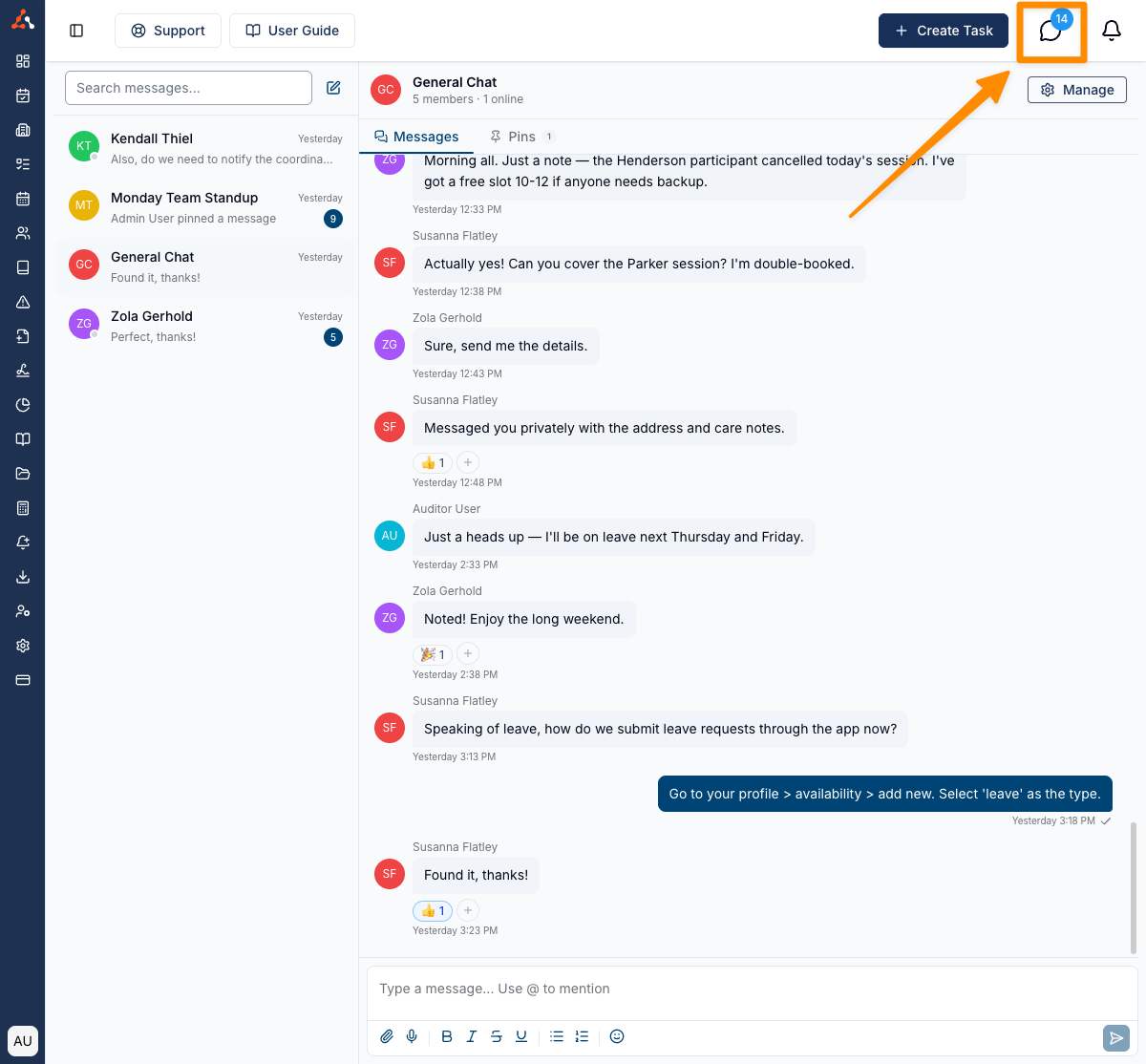
To access Chat on the web browser version of Astalty, click the Chat icon at the top right of your browser. You can access Chat directly here.
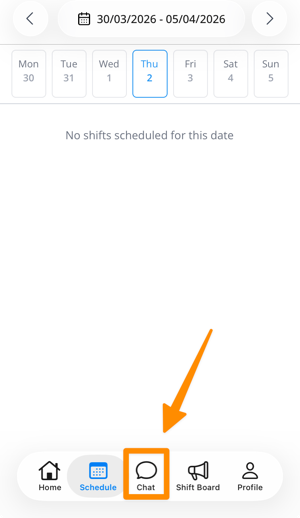
To access Chat on the app, click the Chat icon at the bottom of the screen.
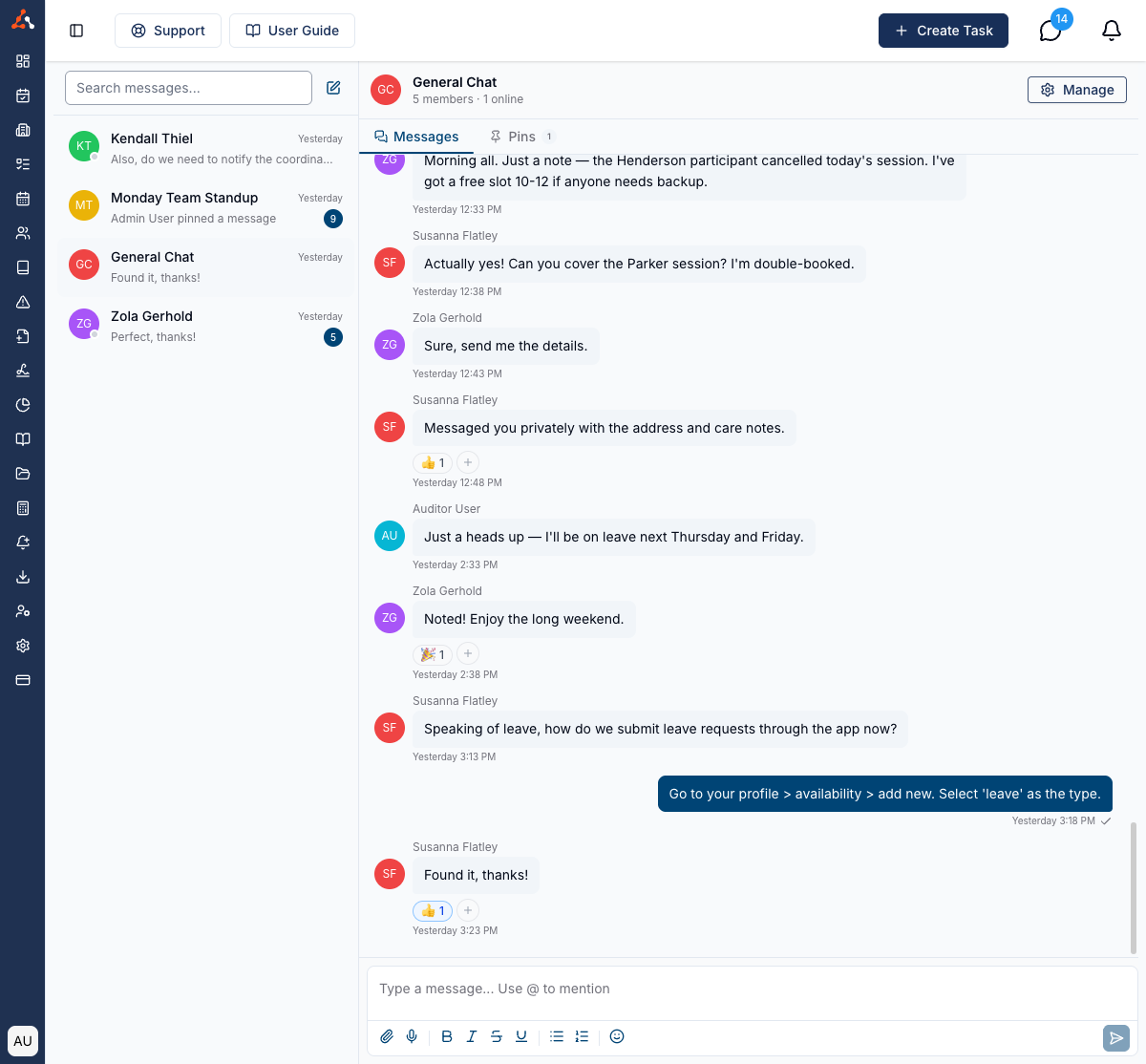
The Chat Interface
The Chat interface is split into two main areas:
Channel List (Left Panel)
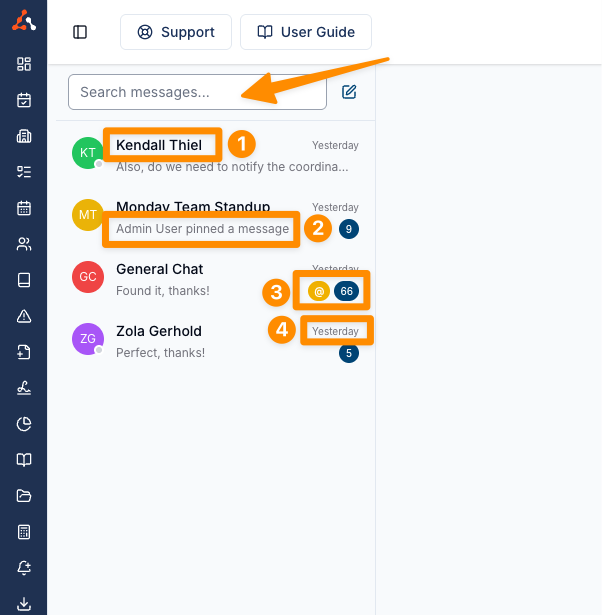
The left panel displays all of your conversations, including both direct messages and group channels. Each conversation shows:
- The name of the channel or the other team member (for direct messages)
- A preview of the latest message
- An unread indicator if there are messages you haven't read yet
- A timestamp showing when the last message was sent
You can scroll through your conversations to find the one you are looking for, or use the search feature to find specific messages.
The All, Direct and Groups tabs above the list let you view your group channels and your one-on-one messages separately, and you can narrow the list further to conversations with unread messages. See Filtering Conversations.
Message Thread (Right Panel)
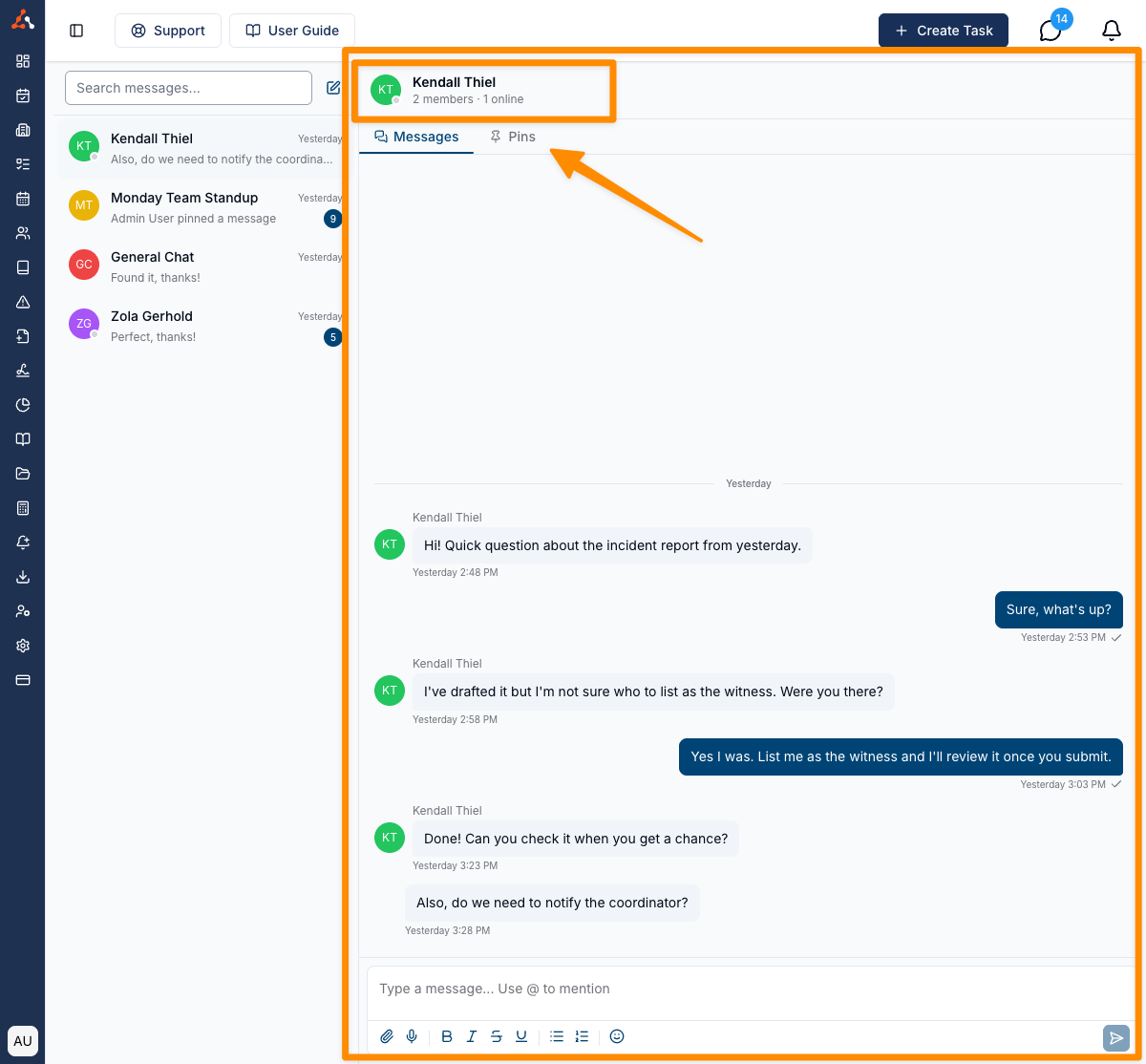
When you select a conversation from the channel list, the message thread opens in the right panel. This displays the full conversation history, with the most recent messages at the bottom.
At the top of the message thread, you will see the channel header, which shows the channel name (or the other team members's name for direct messages) and options such as viewing members and pinned messages.
Compose Area
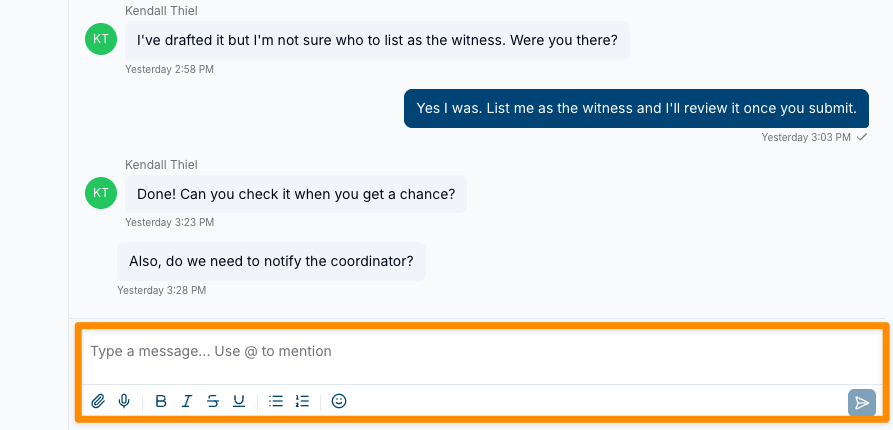
At the bottom of the message thread is the compose area, where you can type and send messages. The compose area includes a rich text editor with formatting options, file attachments, and the ability to mention other team members.
Online Presence
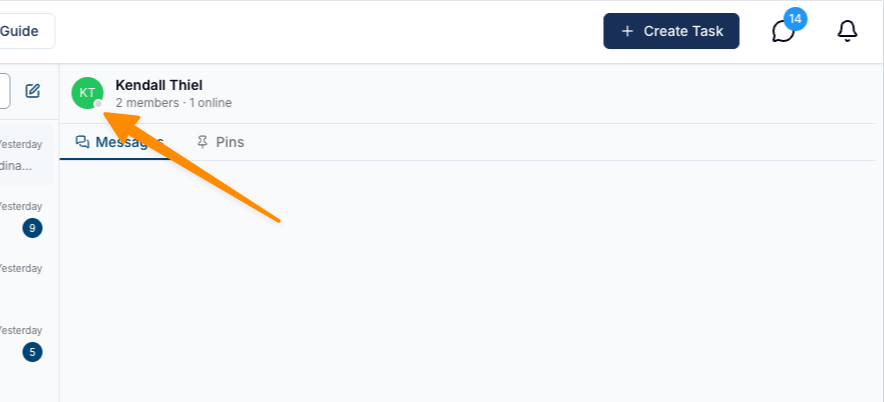
When you are in Chat, you can see which of your team members are currently online. Online team members will have a green presence indicator next to their name or avatar.
On the Premium plan, that indicator also carries a status each person sets for themselves — away, busy or do not disturb, with an emoji, a message and a time to clear — and approved leave sets it automatically. See Status and Availability.
Chat in the App
To learn how Chat works for Support Workers within the app, refer to the Chat in the App guide. Admin users have additional functions in the app, covered in Chat Configuration.
In this section
- Status and Availability — set your availability, emoji and message, and see who is away or on leave before you message them
- Direct Messages — start and view one-on-one conversations
- Group Channels — create channels and manage members
- Messaging — sending, mentions, reactions, pins, attachments, and search
- Read Receipts — see exactly who has and has not read a message you sent
- Filtering Conversations — the All, Direct and Groups tabs, and showing only unread conversations
- Archiving Conversations — hide conversations from your chat list and bring them back
- Pinning Conversations — keep important chats at the top of your chat list
- Notifications — desktop pop-ups, sounds, and the browser-tab unread count
- Chat Configuration — admin settings and app management