- Scheduling
- Chat in the App
Chat in the App
Overview
Chat is Astalty's built-in messaging feature for team conversations in the app.
With Chat, you can:
- Send direct messages to individual team members
- View and respond to chats that you are a member of for team or topic-based conversations
- Start a conversation with an allowed User Group, if Admin has enabled this for your role
- Share files, mention colleagues, react to messages, and pin important information
- See a colleague's current Chat status when the presence feature is available
Key Concepts
Direct Messages
A direct message is a private, one-on-one conversation between you and another team member. Only the two members can see the messages in a direct conversation.
Group Channels
A group channel is a conversation with multiple team members. Group channels have a name (e.g., "Team Standup" or "SIL House A") and can have members added or removed at any time. If your role is allowed to start chats with a User Group, you can select that group when creating a new conversation so everyone in the group is included from the start.
Using Chat
Accessing Chats
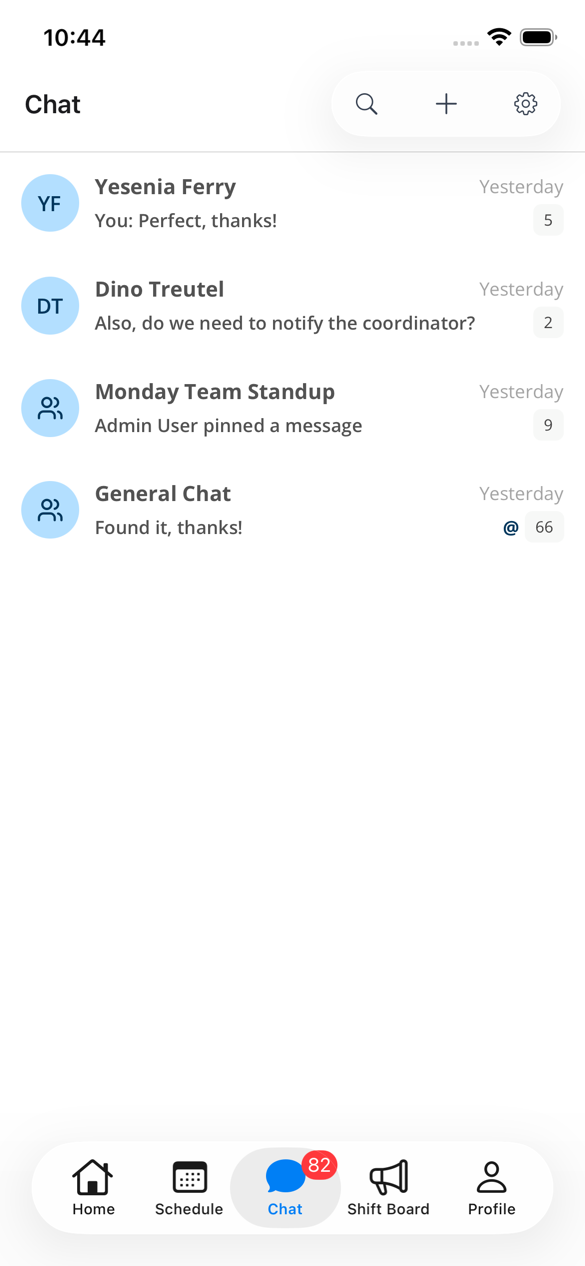
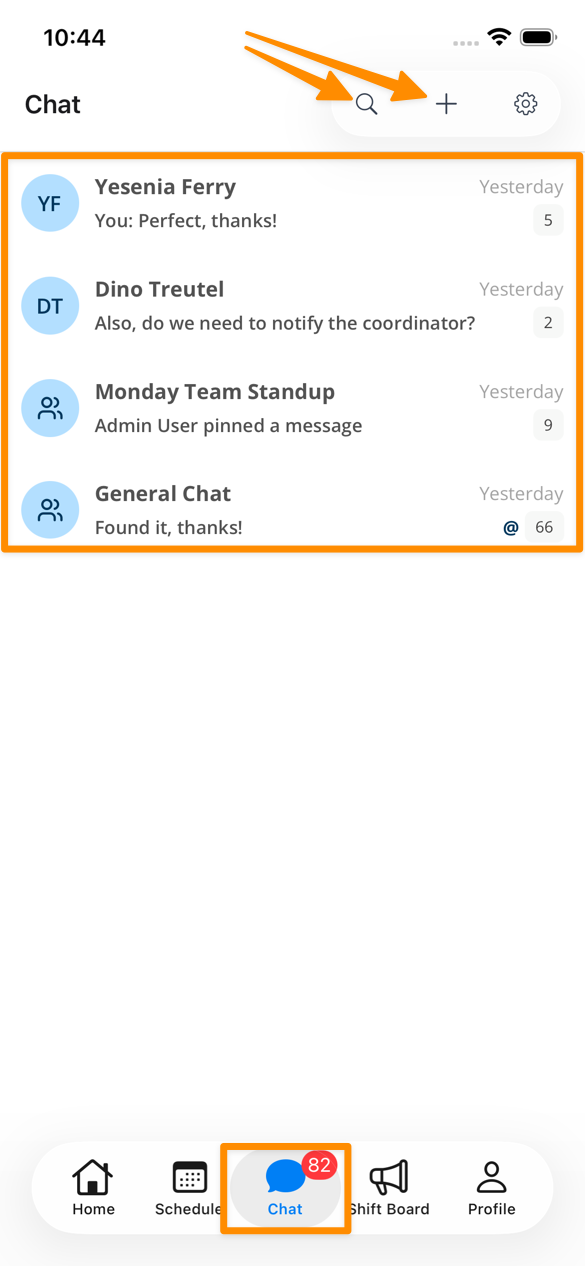
To access Chat, navigate to the Chat icon at the bottom of the app. The Chat icon will display how many unread messages there are.
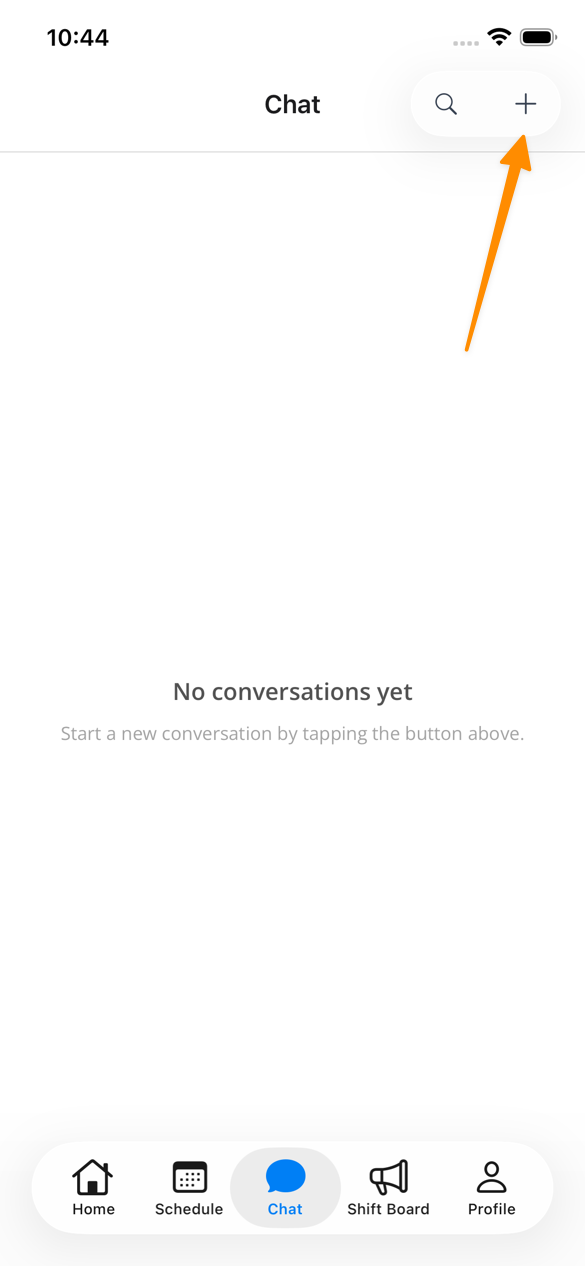
On this page, you'll be able to see any existing chats, create a new chat by clicking on the + at the top right of the screen (depending on your permissions), or search within Chats.
Replying in Conversations
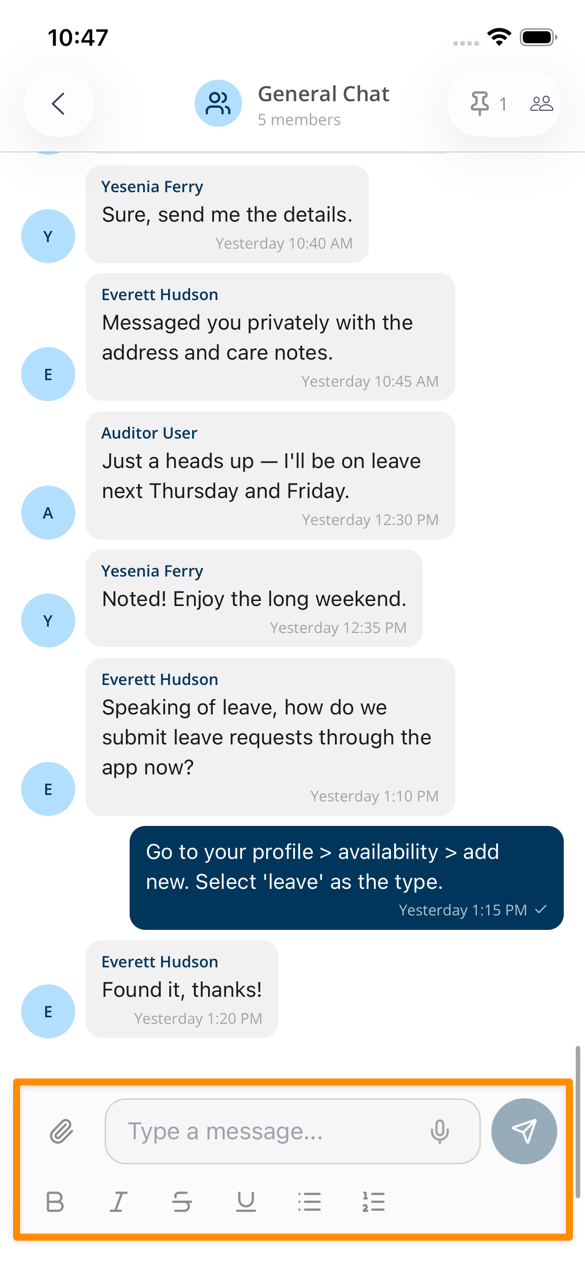
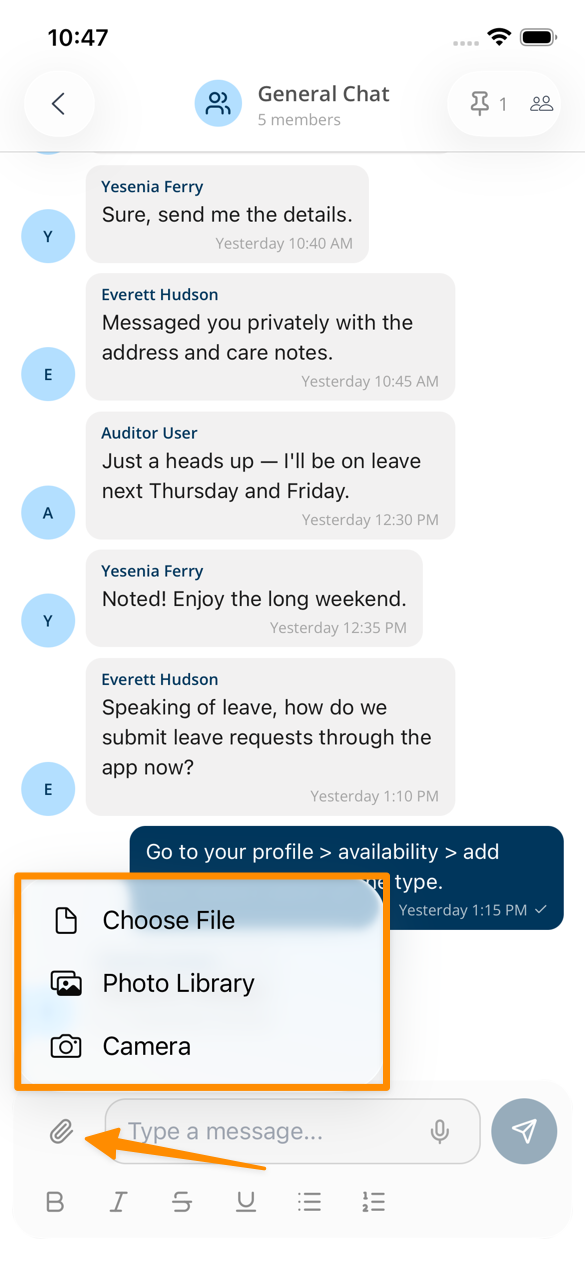
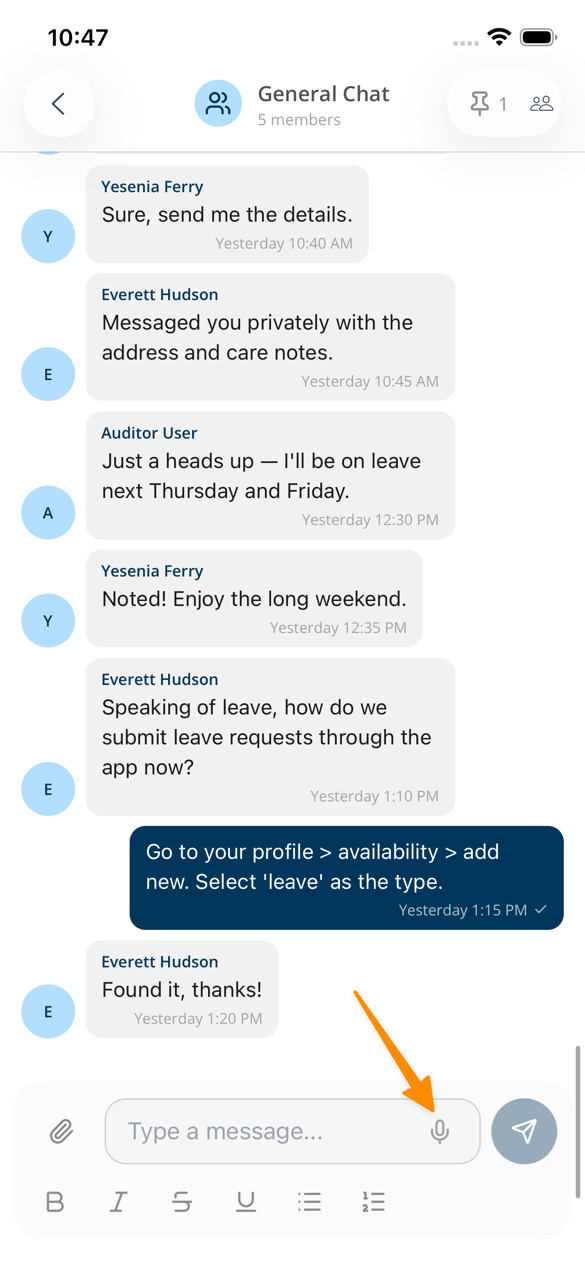
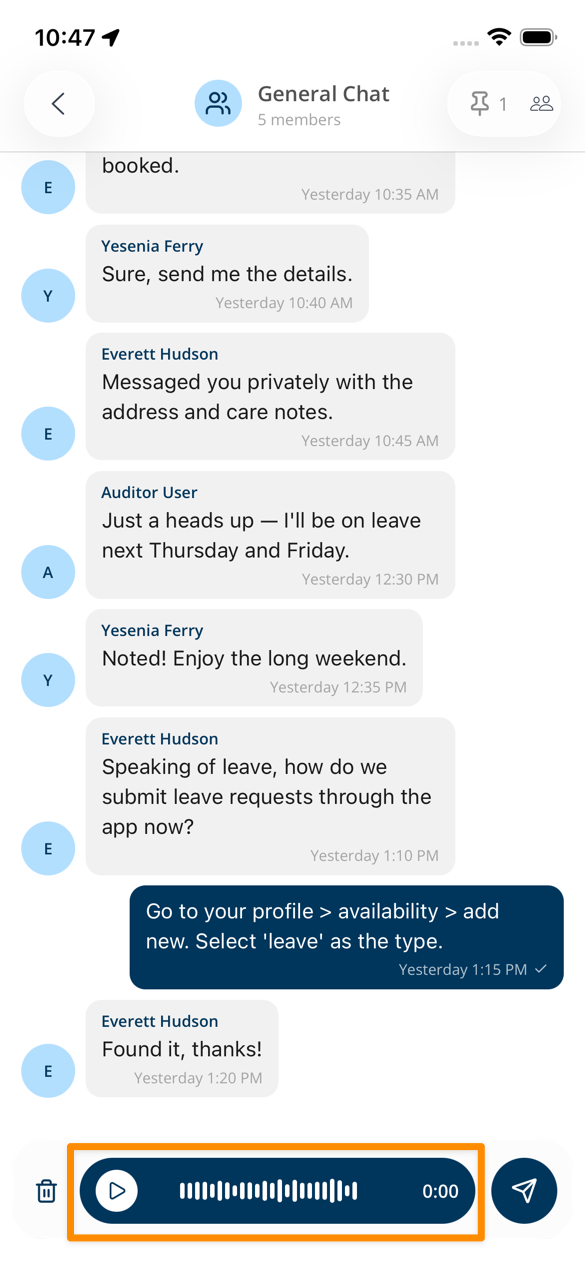
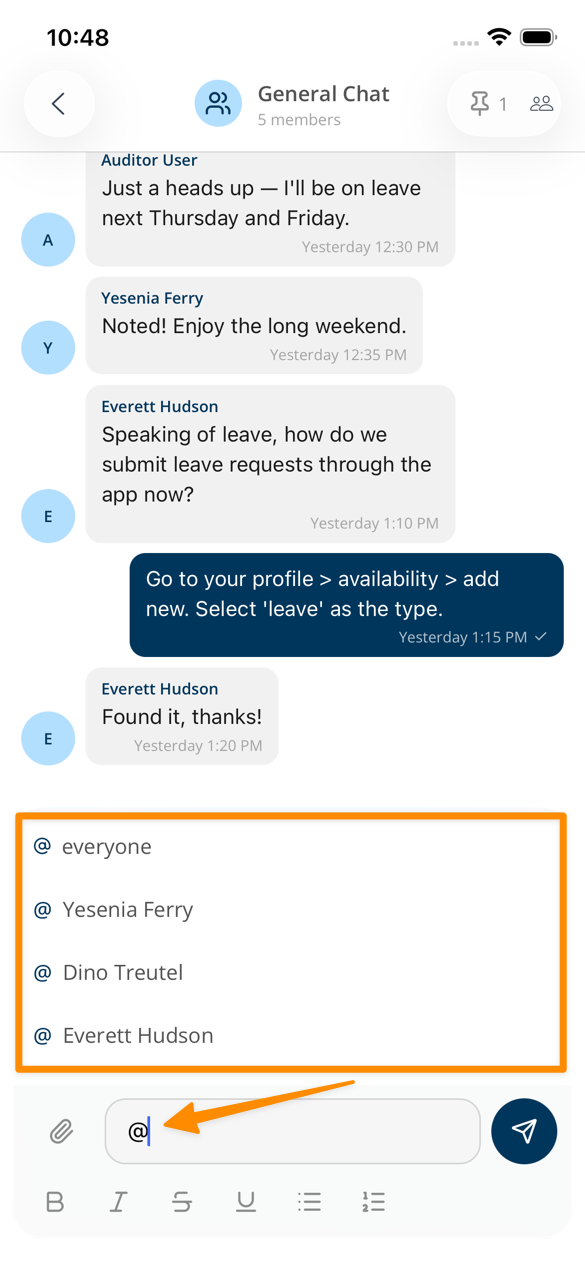
Open a conversation and enter your reply in the message field. Use the paperclip to attach images, videos, or PDF files, or use the microphone to record a voice message. A message can have up to 10 attachments. Type @ and select a member to mention them.
Voting in a Poll
If someone sends a poll to a conversation, you can vote from the app by tapping the answer you want. The results update live, and you can change or take back your vote while the poll is open.
Polls can only be created and closed from the web app. See Polls for the full detail.
Message Actions
Press and hold a message to open the actions available to you. Depending on the message and your permissions, you can:
- Add a reaction or open the full reaction picker.
- Reply to the message.
- Copy a text message.
- Pin or unpin a message when you have permission.
- Edit a text message you sent when message editing is enabled.
- Delete a message you sent when message deletion is enabled.
Deleting a message is permanent. Poll messages cannot be edited in the app.
Creating New Conversations
To start a new conversation:
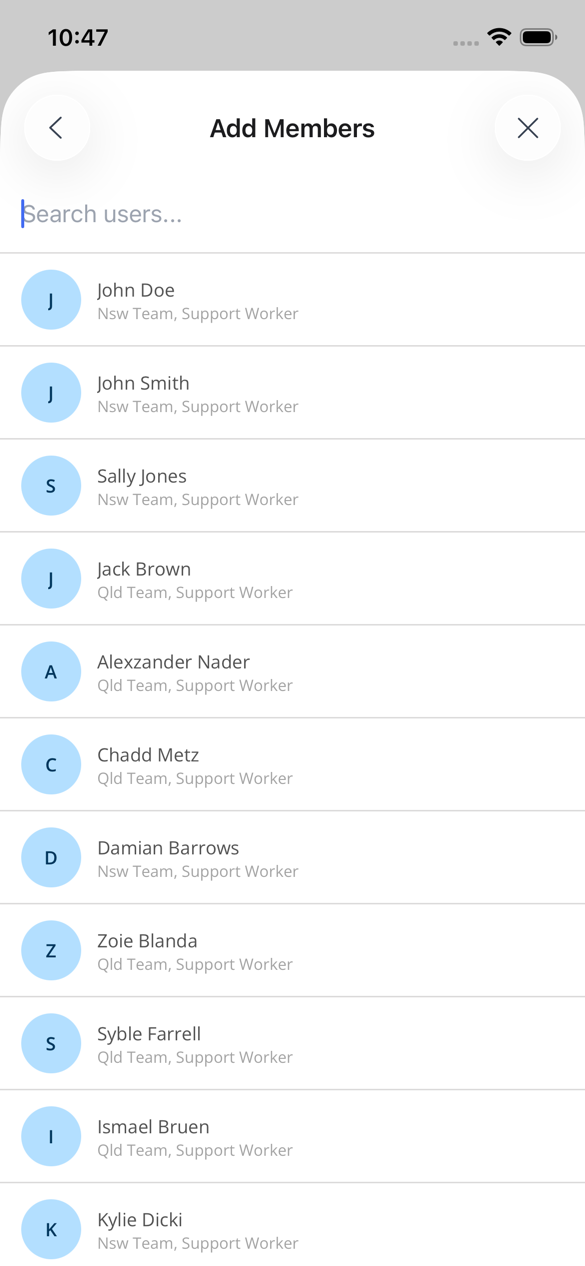
- Tap the + button at the top right of the Chat screen
- Select one or more available User Groups, if they appear for your role
- Search for and select any individual users you also want to include
- Add a group name if you are creating a group chat
- Tap the tick icon to create the conversation
When you select a User Group, everyone in that group is added to the conversation automatically.
Pinned Messages
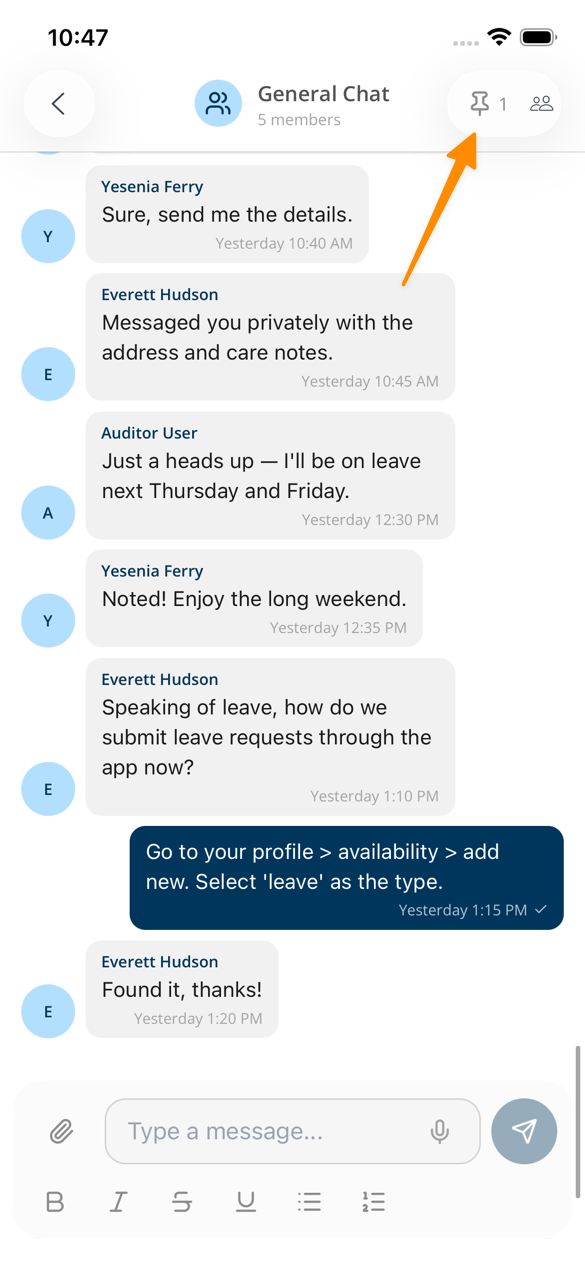
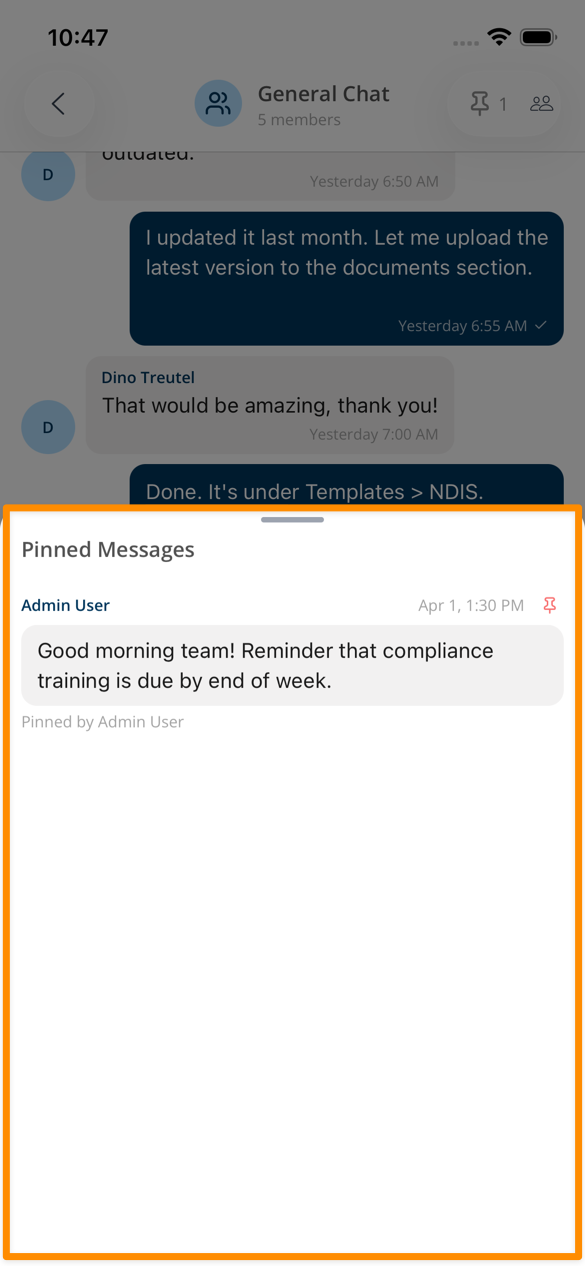
To see pinned messages, select the Pin icon at the top of the Chat.
Searching in Chats
To search your conversation list, select the Search icon at the top of the Chat screen and enter a keyword. Matching conversations are displayed for selection.
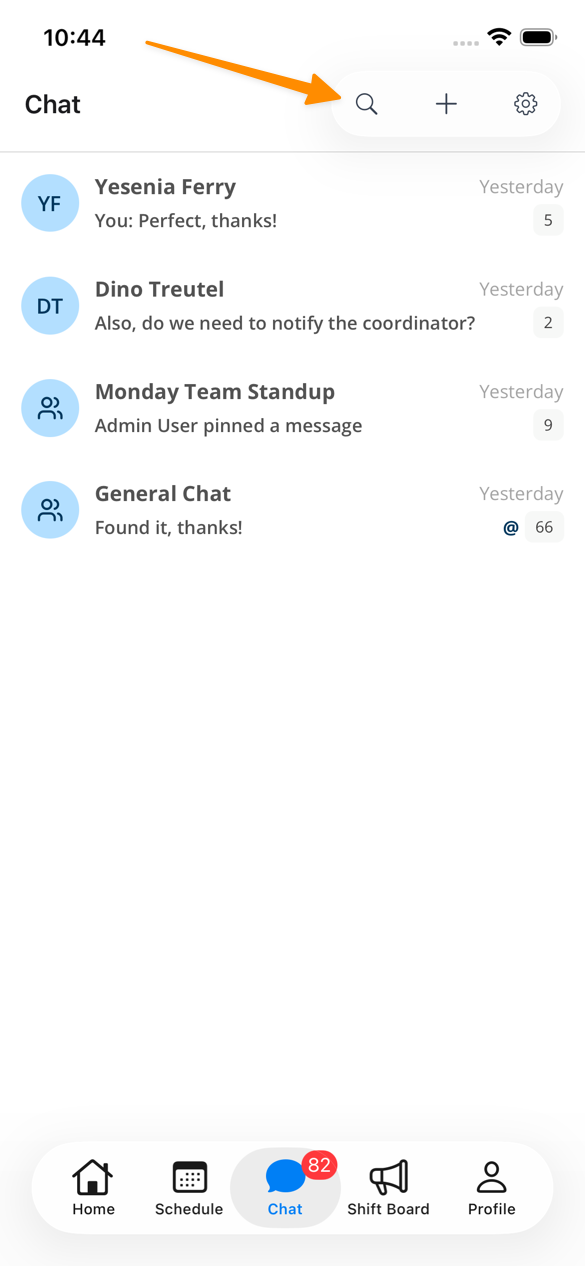
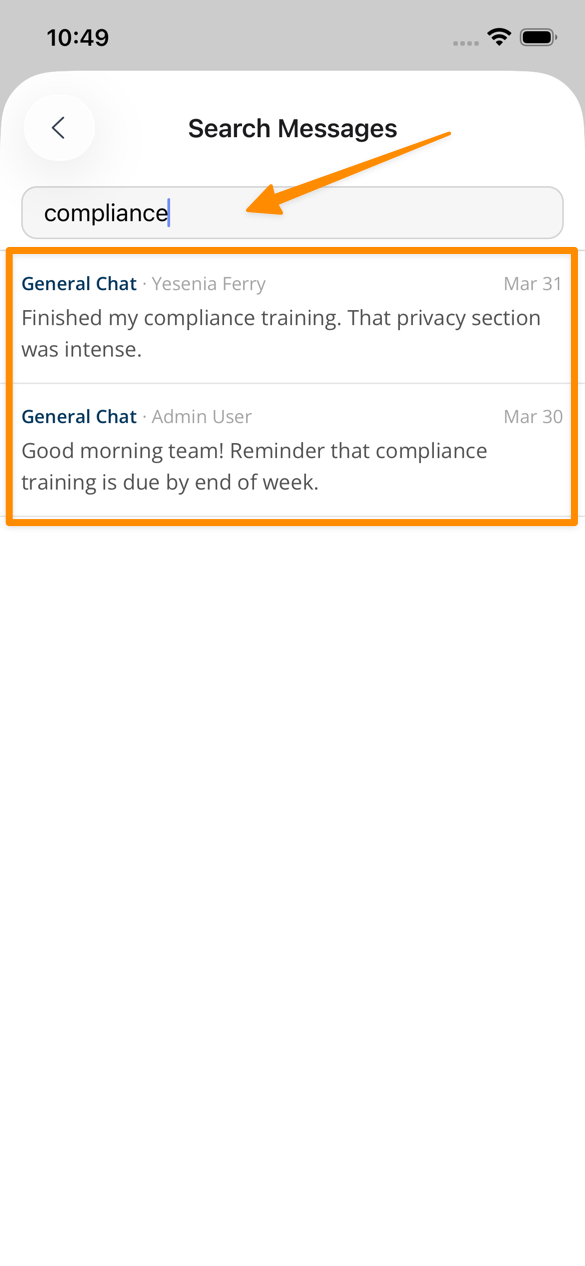
Tap on the relevant Chat to view the feed and send a reply.