- Day-to-Day
- Chat Configuration
Chat Configuration
The Chat Settings page allows administrators to configure how Chat behaves across your organisation.
Accessing Chat Settings
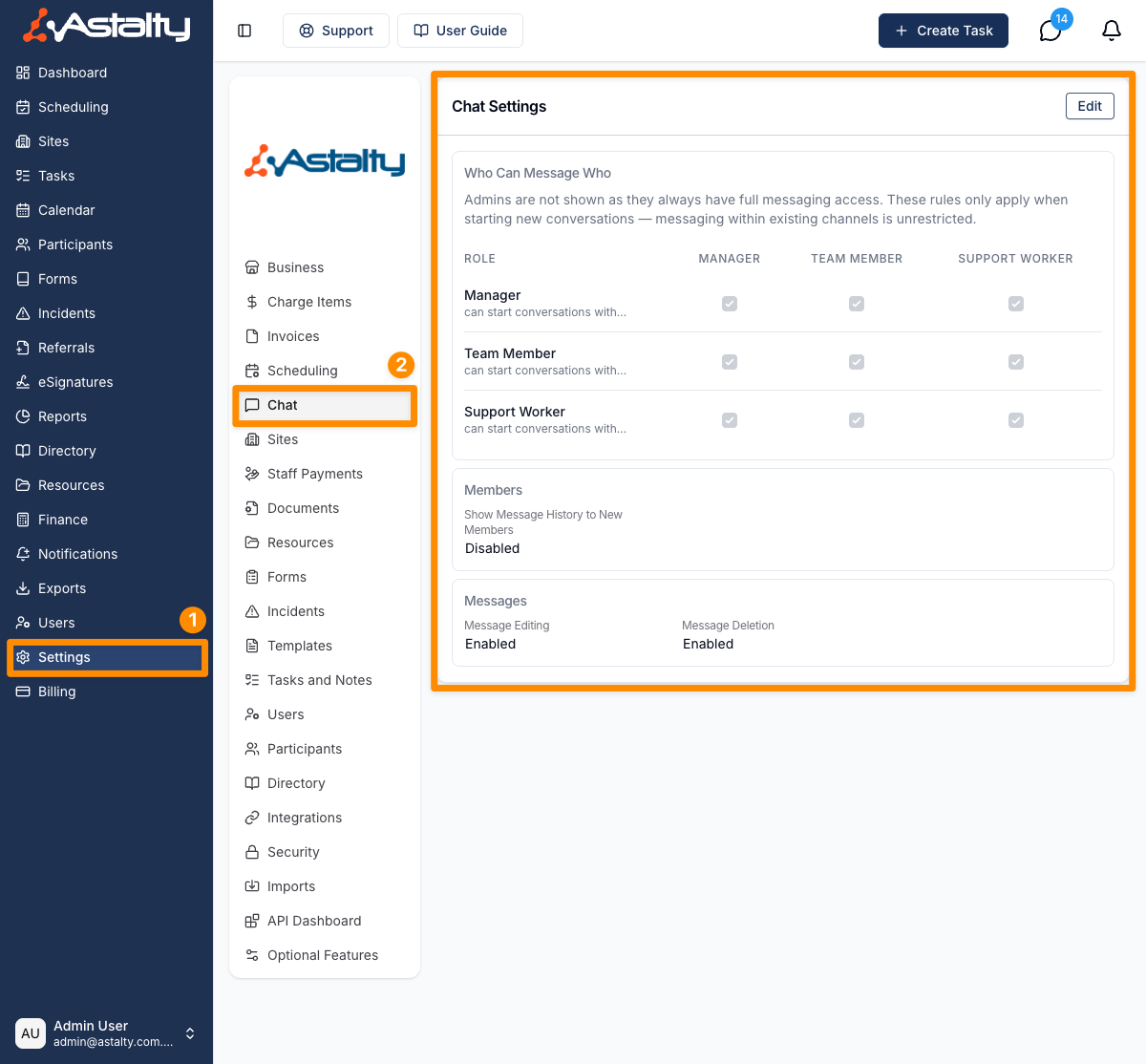
Navigate to Settings in the left-hand menu, then select Chat. You must have the appropriate administrative permissions to access this page.
Available Settings
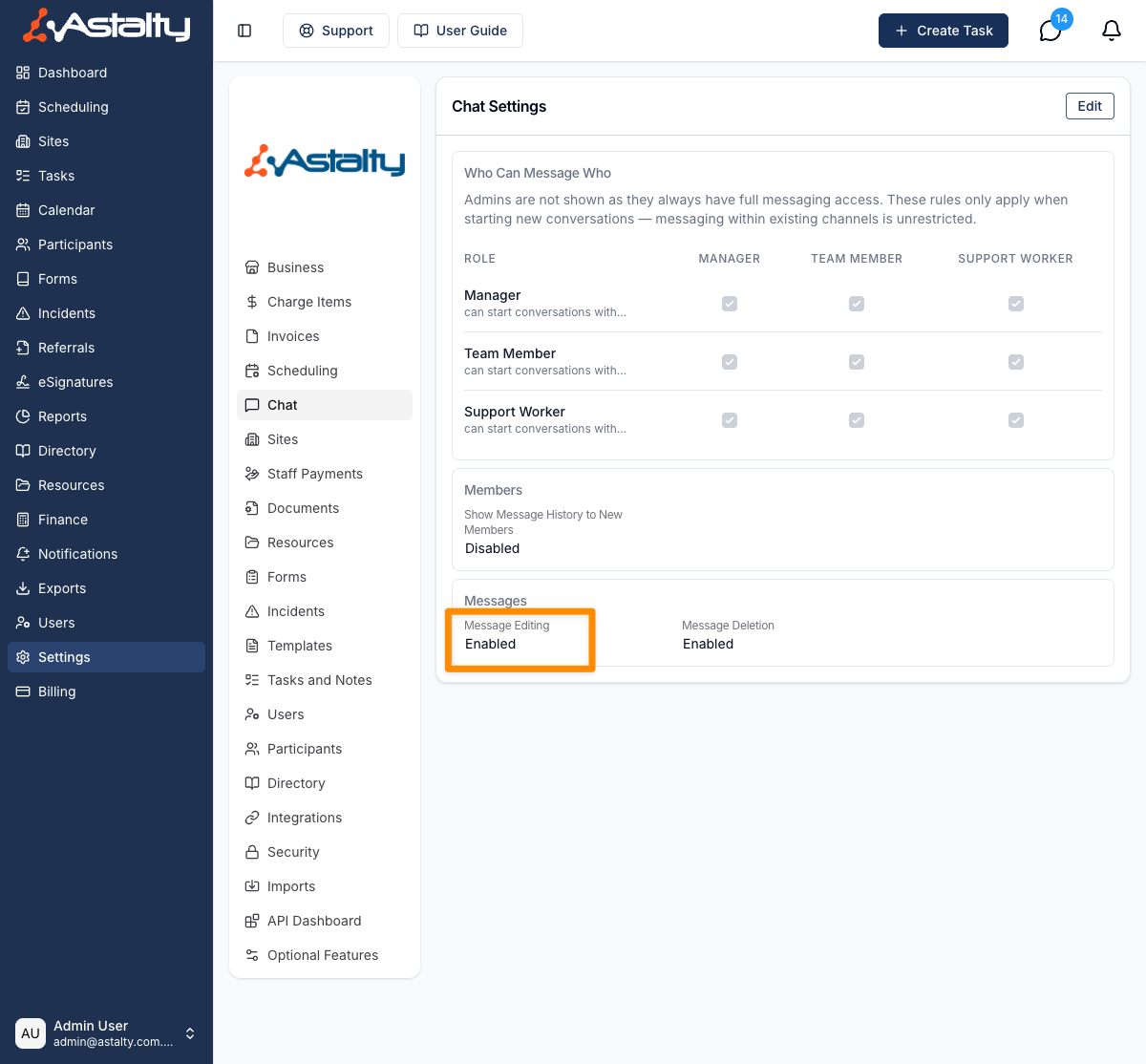
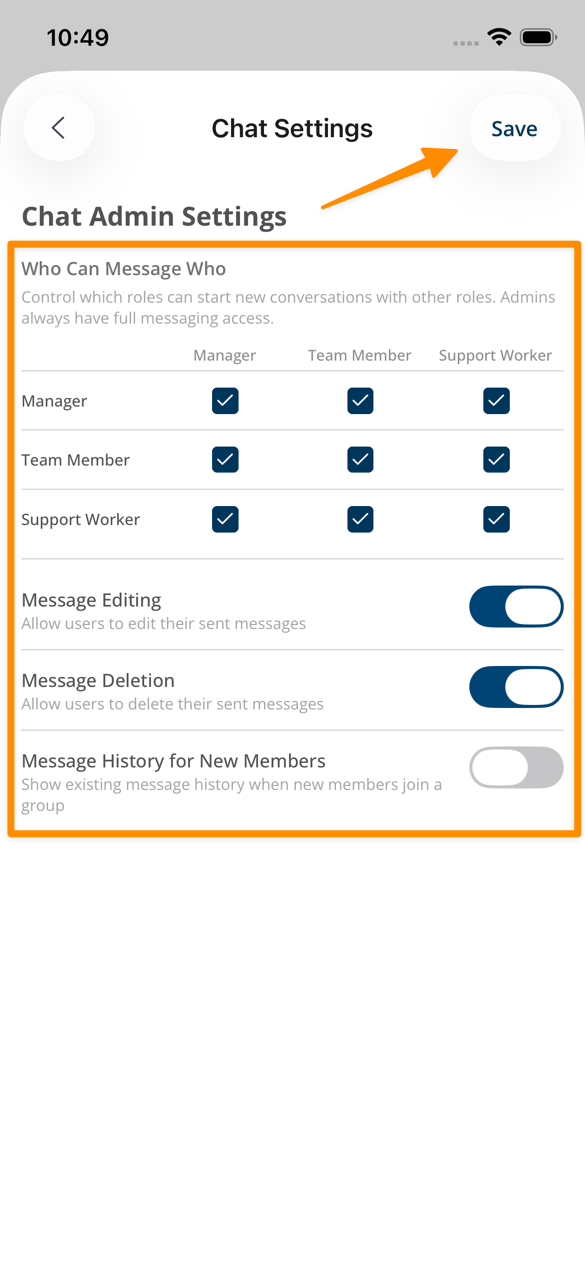
Allow Message Editing
When enabled, users with the appropriate permission can edit their own messages after they have been sent. Edited messages will display an "edited" indicator.
When disabled, no users will be able to edit messages, regardless of their individual permissions.
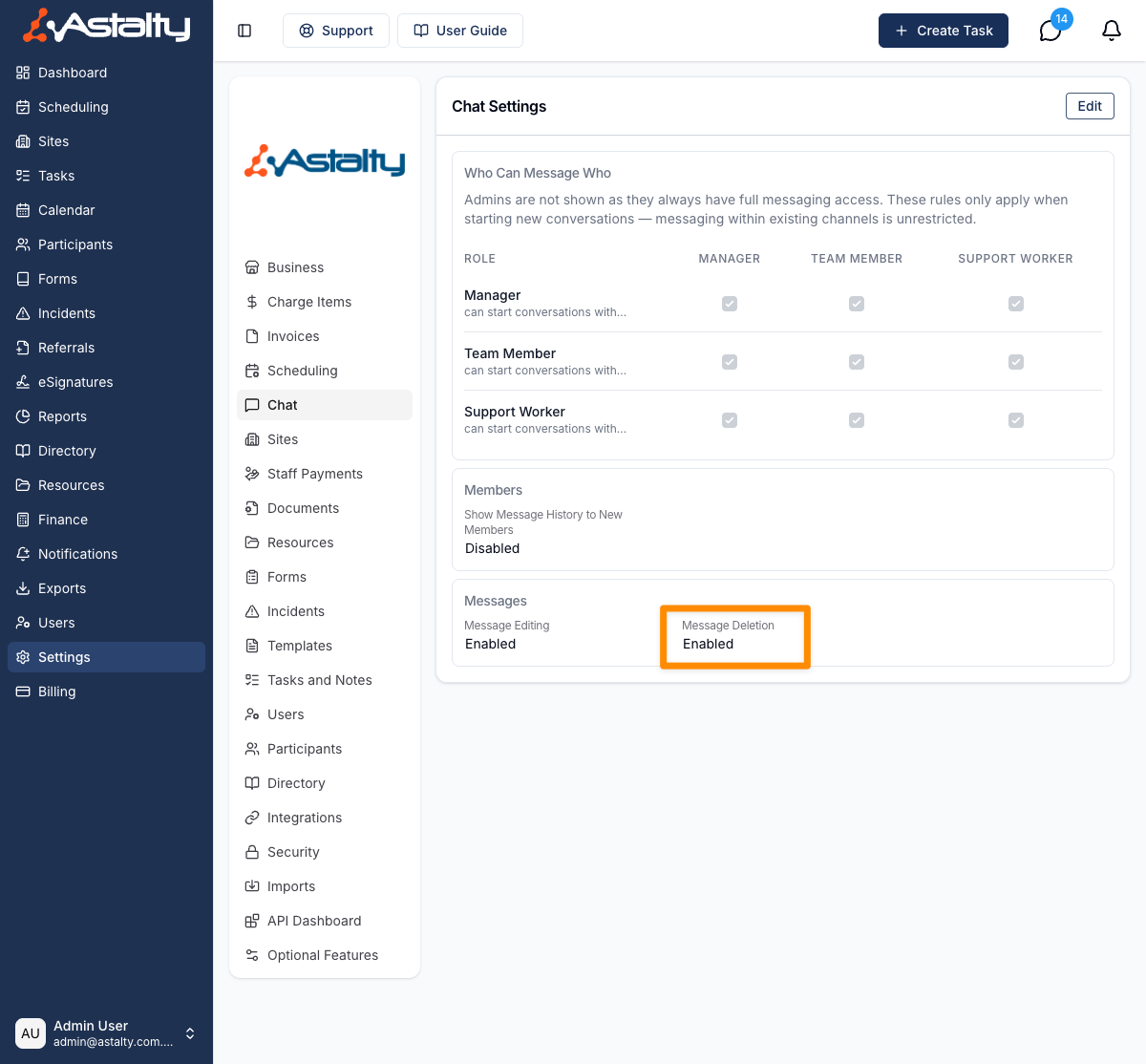
Allow Message Deletion
When enabled, users with the appropriate permission can delete messages. Depending on their permission level, users may be able to delete only their own messages or any message in the channel.
When disabled, no users will be able to delete messages, regardless of their individual permissions.
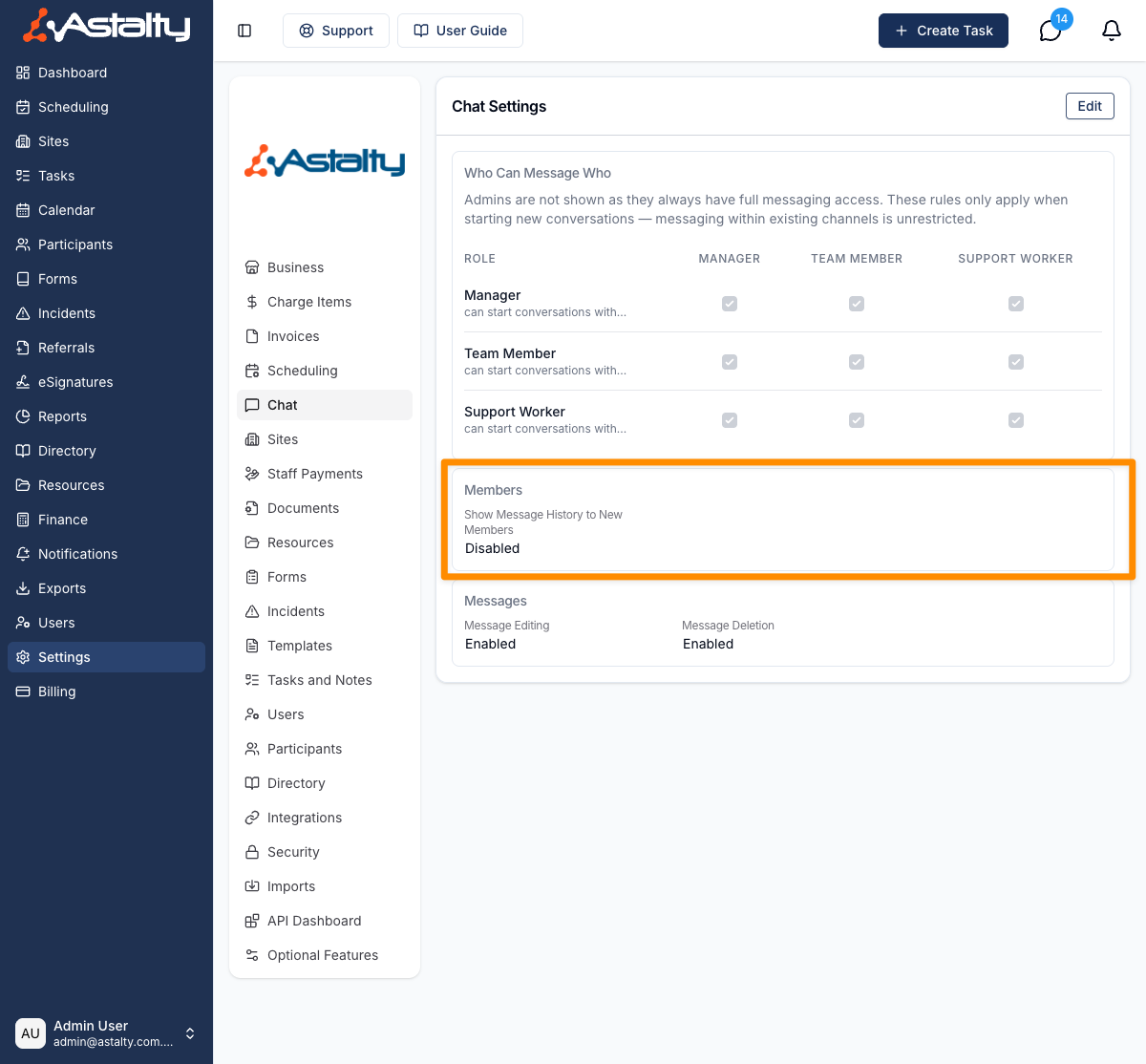
Show Message History to New Members
This setting controls whether new members added to a group channel can see messages sent before they joined.
- Enabled: New members can see the full conversation history
- Disabled: New members will only see messages sent after they were added
Pinned messages are an exception. Current members can see every pinned message and its attachments, including pins sent before they joined. See Pinned Messages.
Hiding System Messages
System messages are the automatic notices in a chat, such as "Jane Doe removed John Smith from the group". You can stop any of them being posted.
- Navigate to Settings in the left-hand menu, then select Chat
- Click Edit
- Under System Messages, tick each notice you want hidden
- Click Save
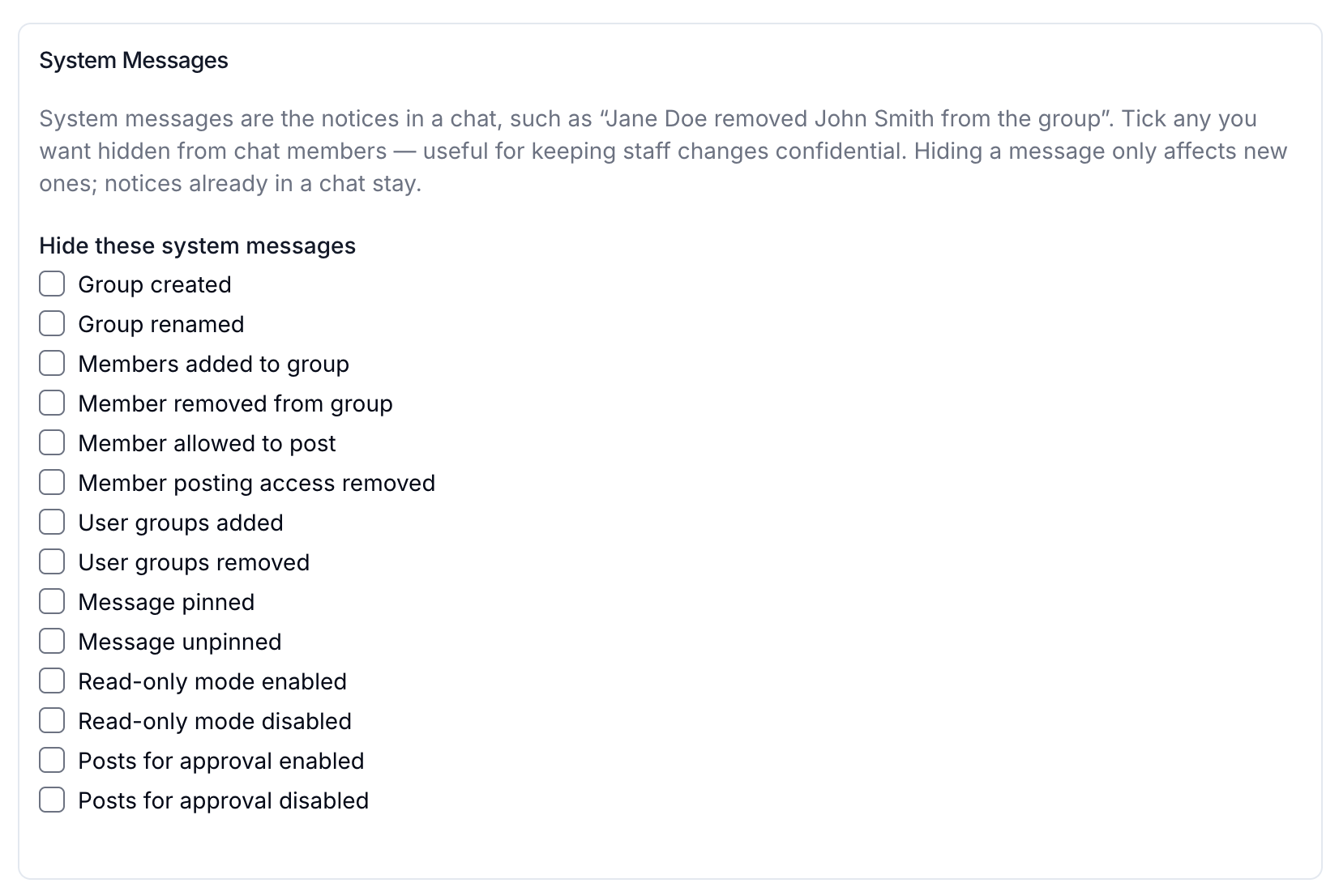
Nothing is hidden until you tick it, so chats you already have keep behaving exactly as before.
Hiding is organisation-wide and applies to every conversation. A hidden notice is never posted at all, so no one sees it — Admins included — and it never reaches a conversation export. Hiding affects new notices only: anything already in a chat history stays. The change applies to both the browser and the Astalty app as soon as you save.
The action itself still happens. Hiding Member removed from group removes the member as normal, it just does not announce it. That is the usual reason to use this setting: when someone is removed from a group channel during a termination, or because they have moved off a SIL house, the removal is no longer announced to everyone left in the chat.
The Chat Settings page lists whatever you have hidden under Hidden System Messages, or None if you have hidden nothing.
Notices You Can Hide
- Group created
- Group renamed
- Members added to group
- Member removed from group
- Member allowed to post
- Member posting access removed
- User groups added
- User groups removed
- Message pinned
- Message unpinned
- Read-only mode enabled
- Read-only mode disabled
- Posts for approval enabled
- Posts for approval disabled
Conversation Permissions
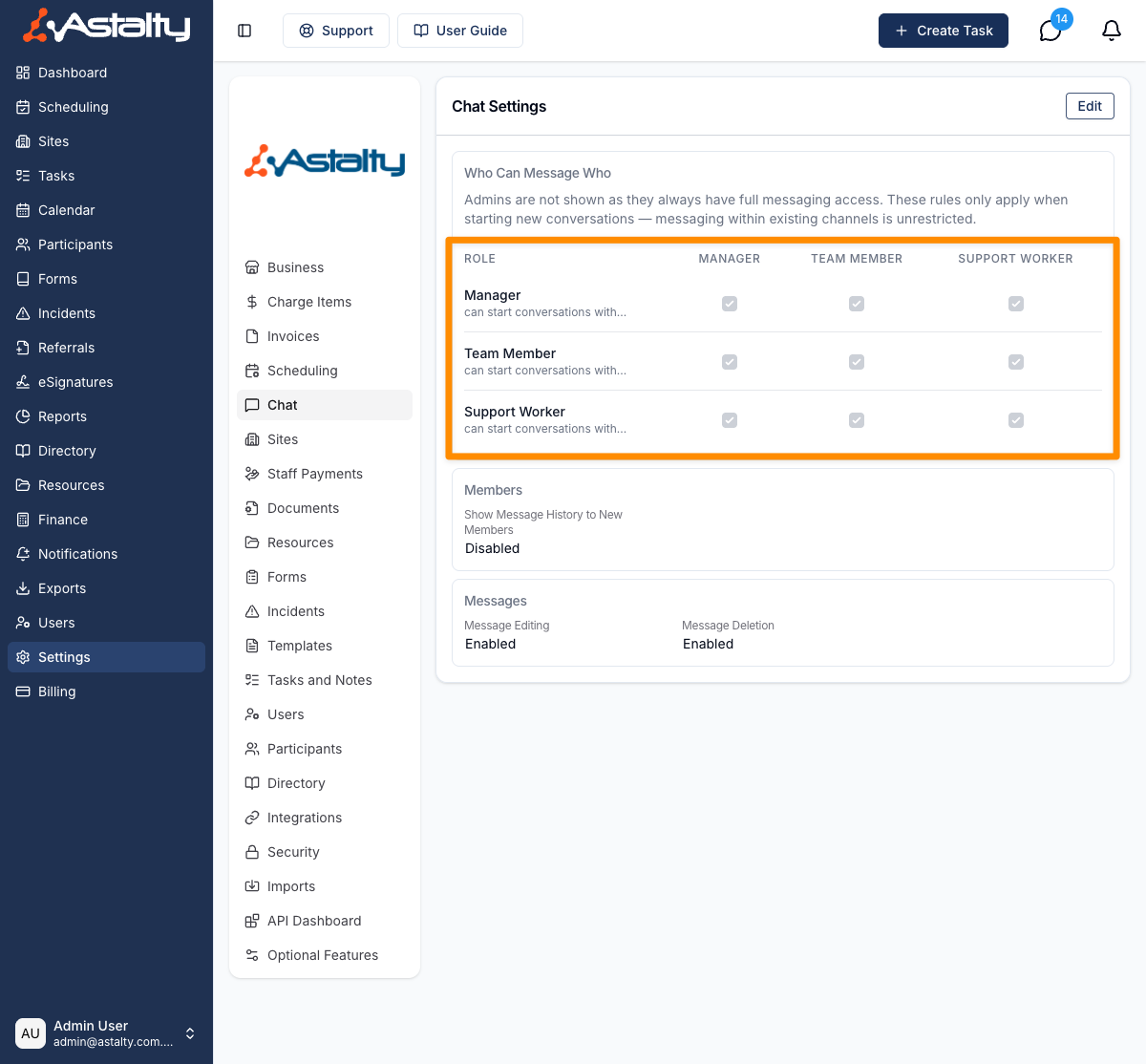
Chat Settings also includes permission options for starting new conversations. These rules apply when someone creates a new chat; once a person is already in a channel, they can continue messaging in that channel.
- Managers
- Team Members
- Support Workers
Admins are not listed as a source role because they can always start a conversation with anyone. This controls who an Admin can message. The Admin role also has separate account-wide permissions to view and export conversations. See Chat Privacy and Visibility.
Who Can Message Who
Use the Who Can Message Who matrix to choose which roles Managers, Team Members, and Support Workers can start conversations with.
Allowed Recipients (Exceptions)
Use Allowed Recipients (Exceptions) to choose specific people each role can always direct message, even if the matrix would otherwise block that conversation.
Allowed User Groups (Exceptions)
Use Allowed User Groups (Exceptions) to choose which User Groups each role can start chats with.
When a role is allowed to start chats with a User Group, users in that role can select the group when creating a new conversation. Everyone in the selected User Group is added to the chat automatically, even if the role-to-role matrix would otherwise block messaging some members of that group.
Viewing other people's conversations
The normal Chat list and Chat search only show conversations the signed-in user has joined. There is no organisation-wide browsing screen in Chat.
The Admin role has separate View Any Conversation and Export Conversations permissions. These allow an Admin to open a conversation in the account from a direct link and read or export it even if they have not joined. Managers, Team Members and Support Workers do not have these permissions by default.
Use group channels when a wider team needs to find and continue a conversation in their normal Chat list. Chat Privacy and Visibility explains membership, account-wide Admin access and conversation exports.
Managing Chat in the App
In addition to the standard actions available to Support Workers in the Chat in the App guide, Admin users have access to additional functions within the app.
Chat Settings
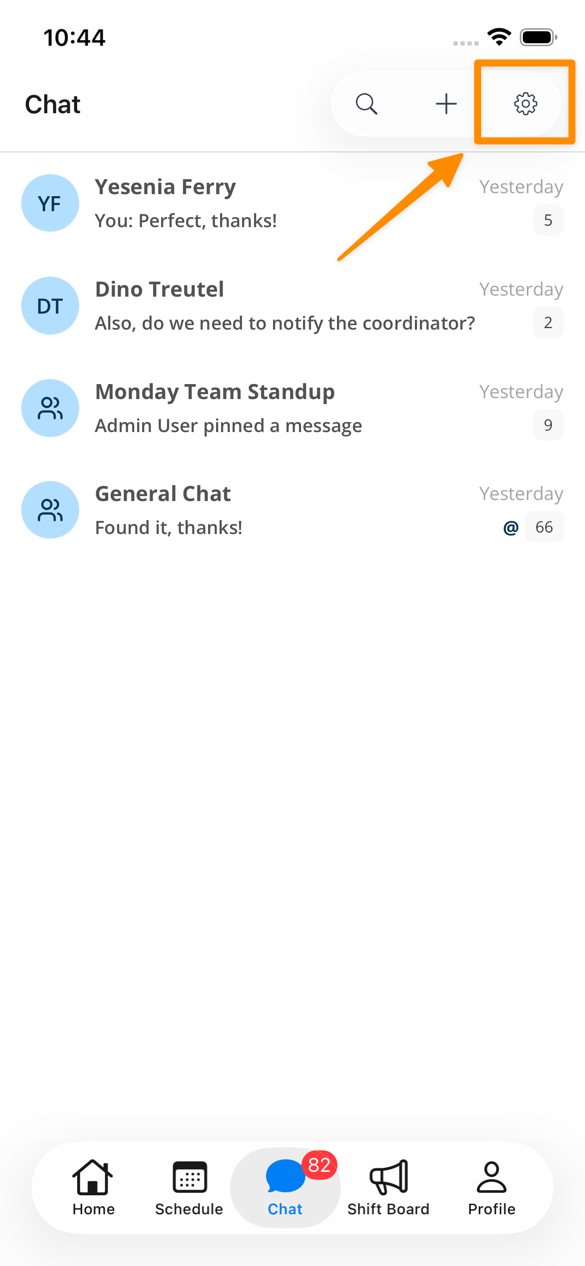
To adjust settings within the app, tap the Settings icon in the top-right corner of the screen.
From here, you can update your settings in the same way as in the browser-based version of Astalty. Be sure to tap Save to apply any changes.
The one exception is Hiding System Messages, which the app does not offer. Anything you hide in the browser still applies in the app.
Editing Groups
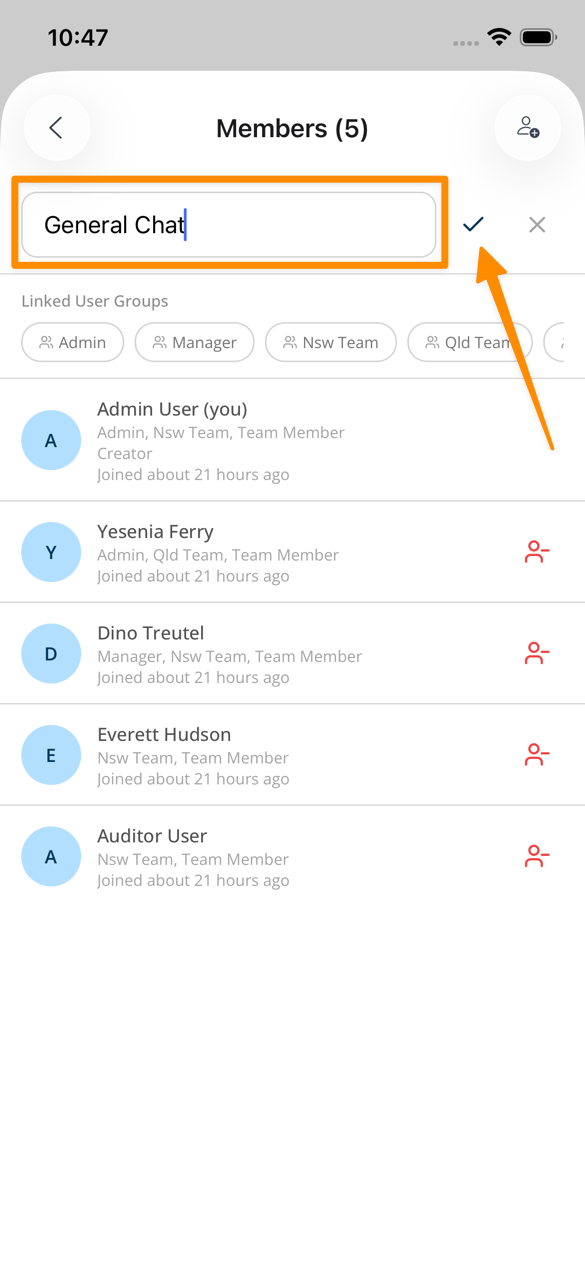
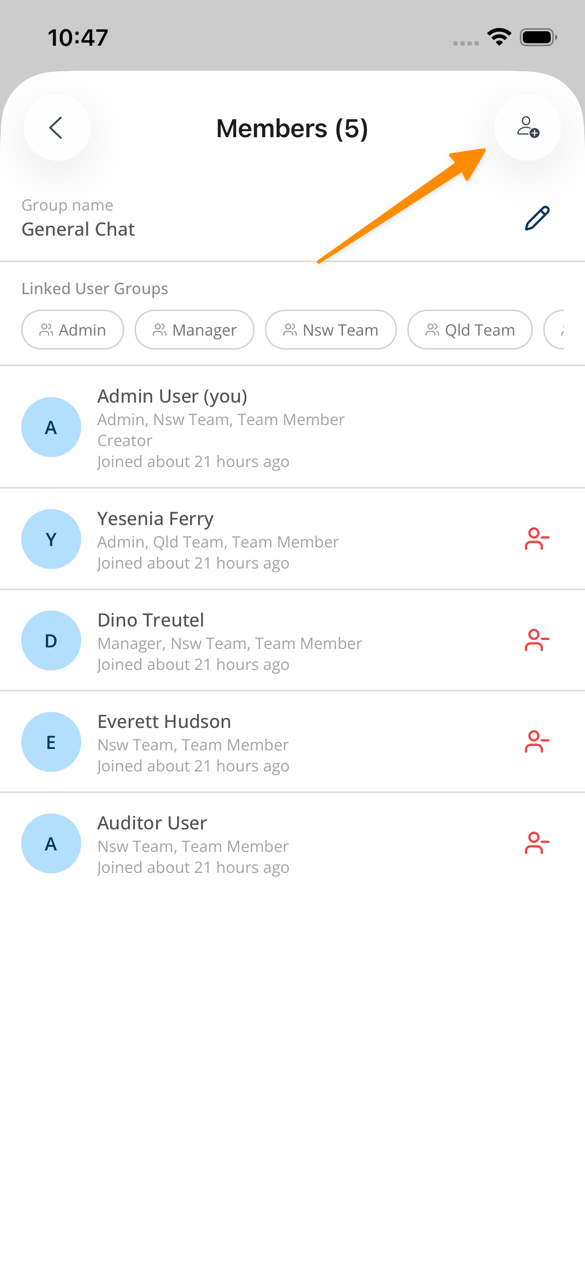
Within the app, Admin users can update Group Chats, including the group name and members.
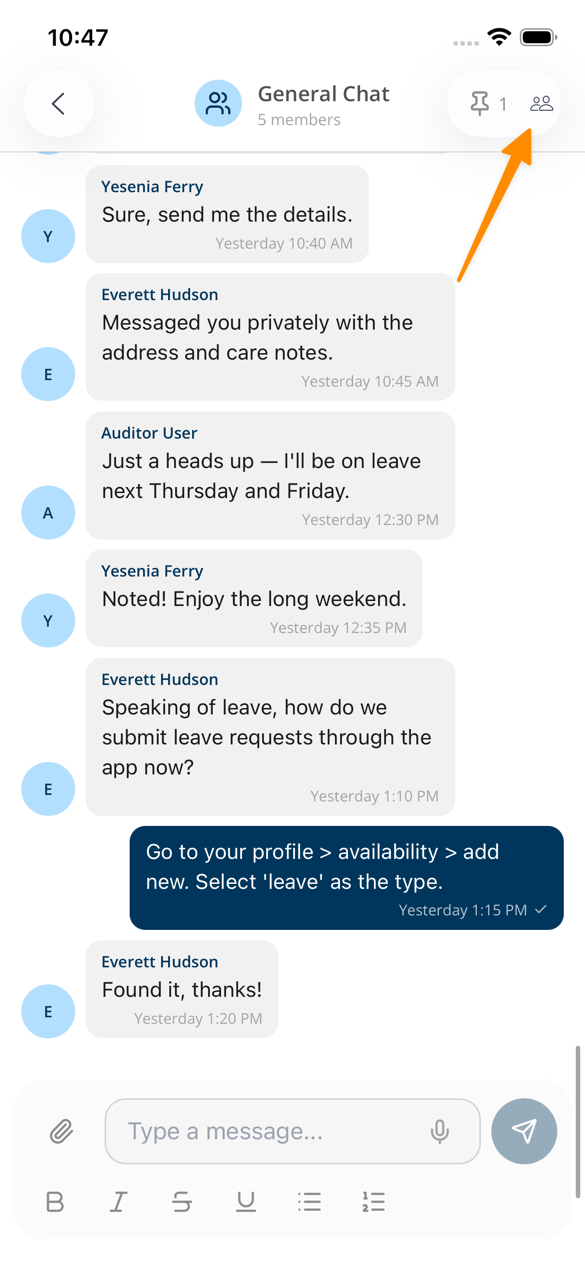
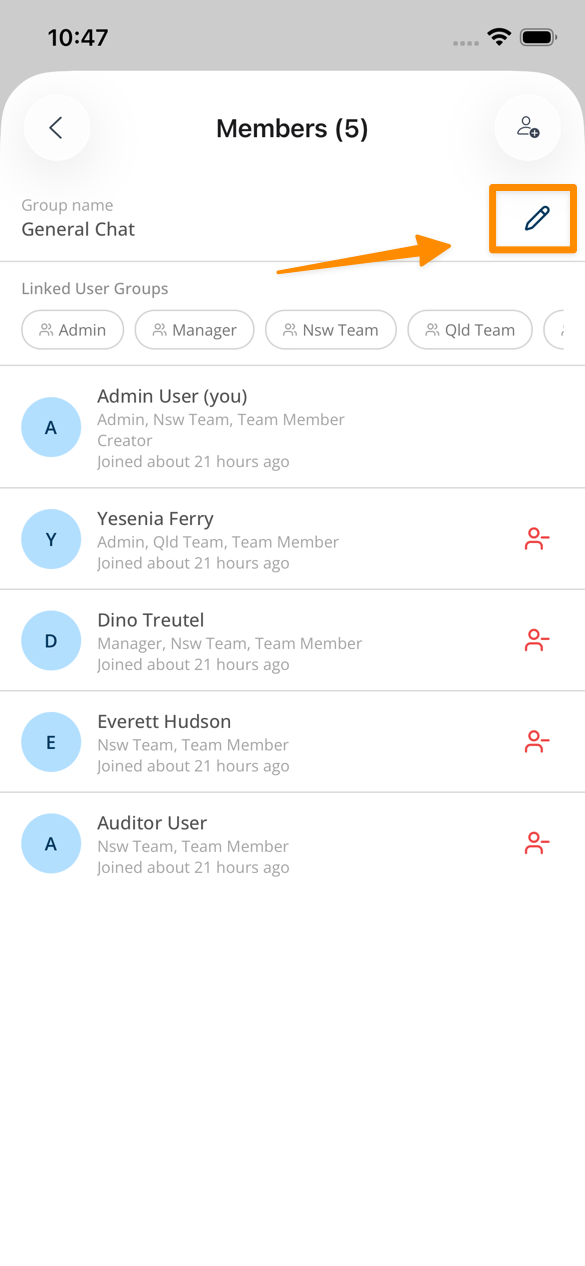
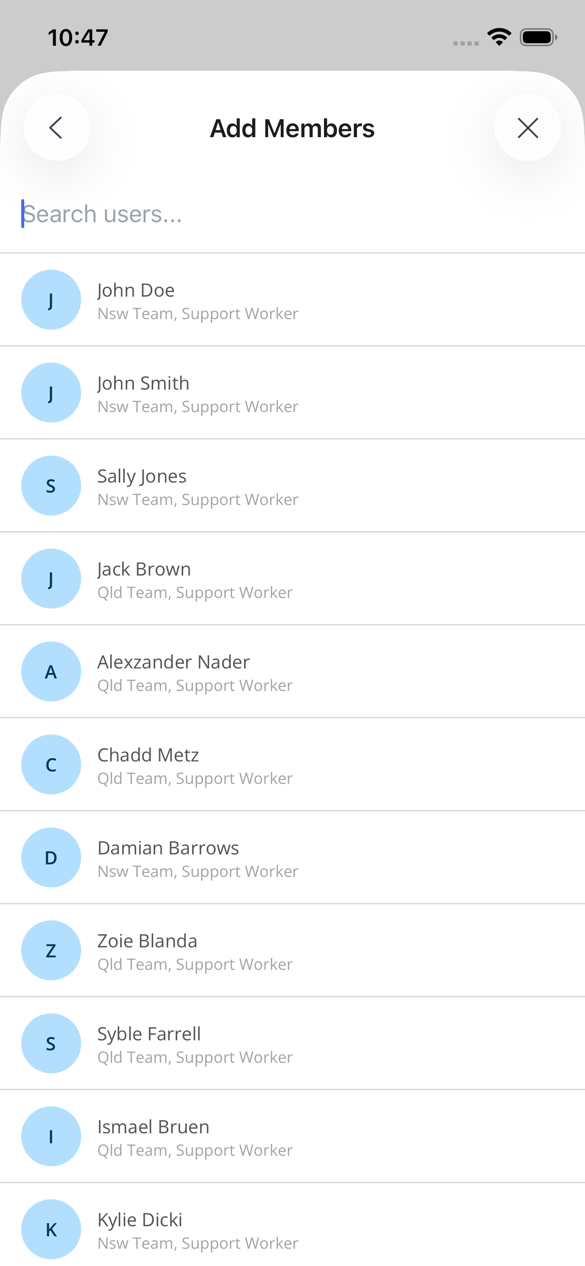
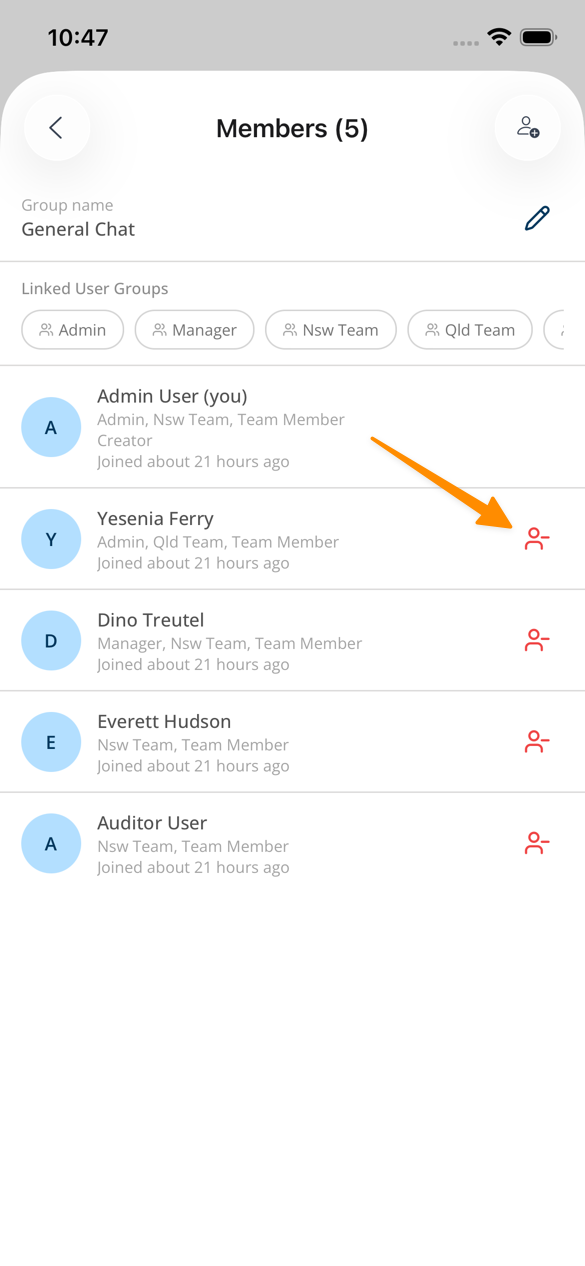
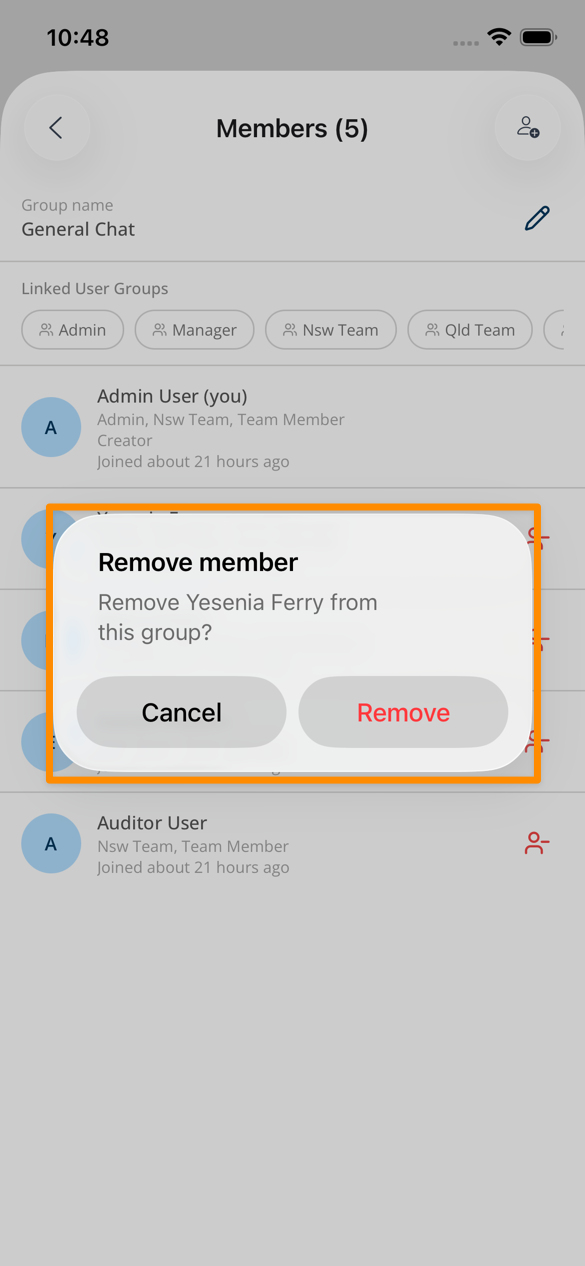
Tap the Group Members icon at the top of the screen. From here, you can:
- Tap the Edit icon to update the group name
- Tap the Add Member icon to include additional members
- Tap the icon next to a member’s name to remove them from the group
Creating Chats
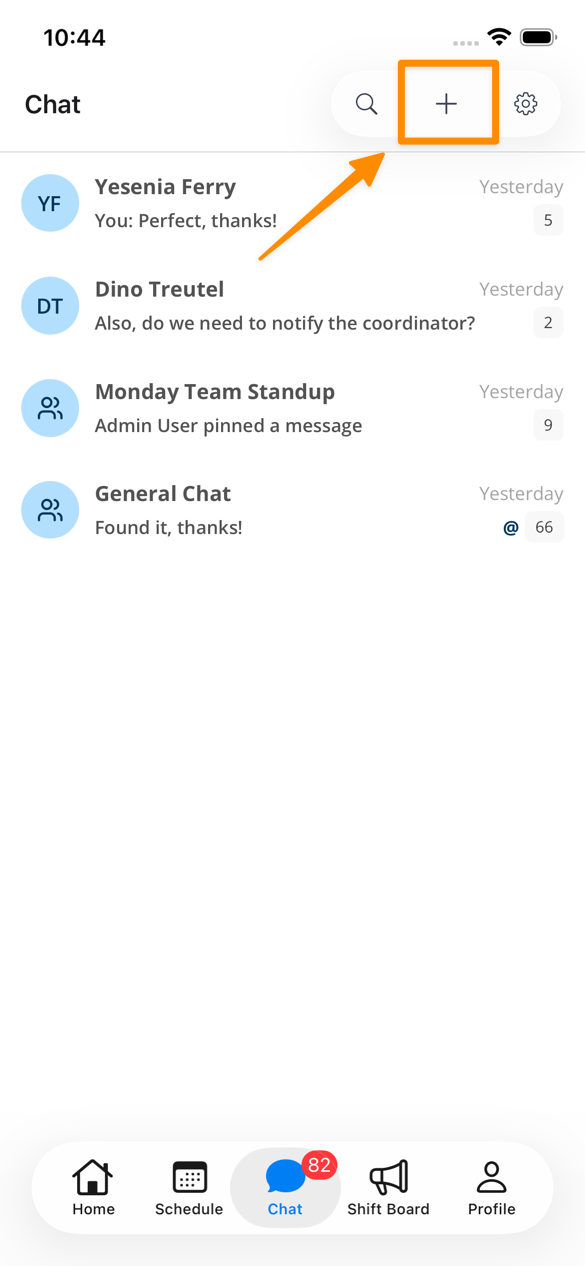
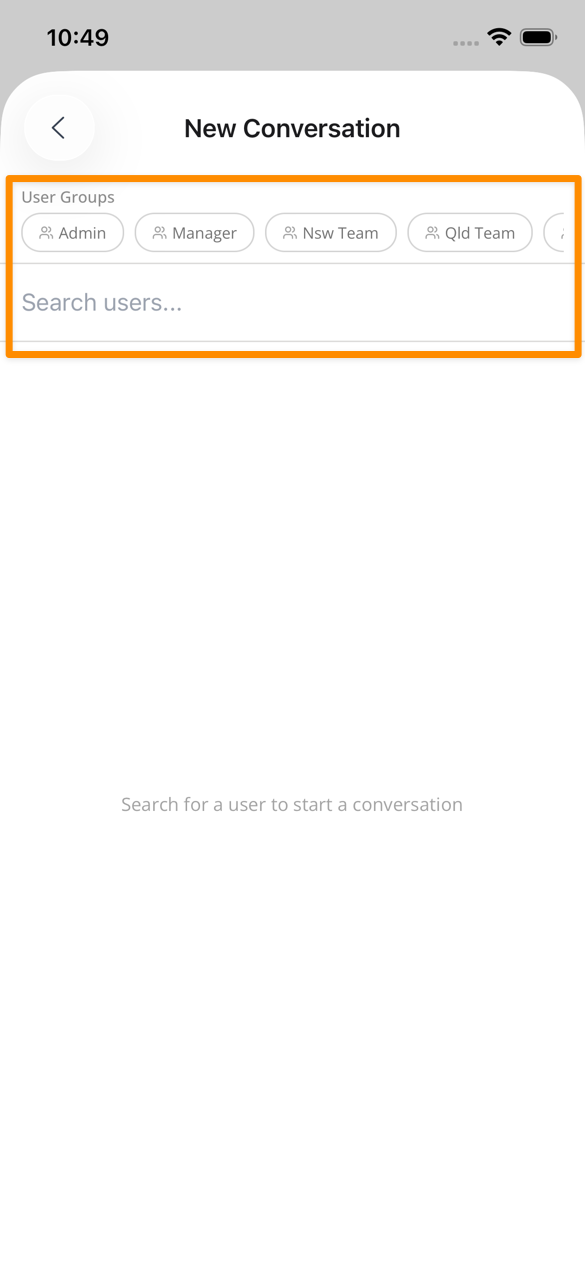
Tap the + icon in the top-right corner of the screen to create a new Chat Group. You can then choose to add User Groups within Astalty as well as individual users.