- Scheduling
- Funding Utilisation on Supports
Funding Utilisation on Supports
Astalty shows a Participant's Funding Utilisation on each support and while you book one, so you can see whether their funding covers the hours before you commit to them. This page covers what is specific to supports. For how to read the card itself, including spent, booked, what is left and funding periods, see Funding Utilisation.
On a Support
Open a support from the Schedule. The Funding Utilisation card is in the support's sidebar, with one row for each Service the support's charges draw on.
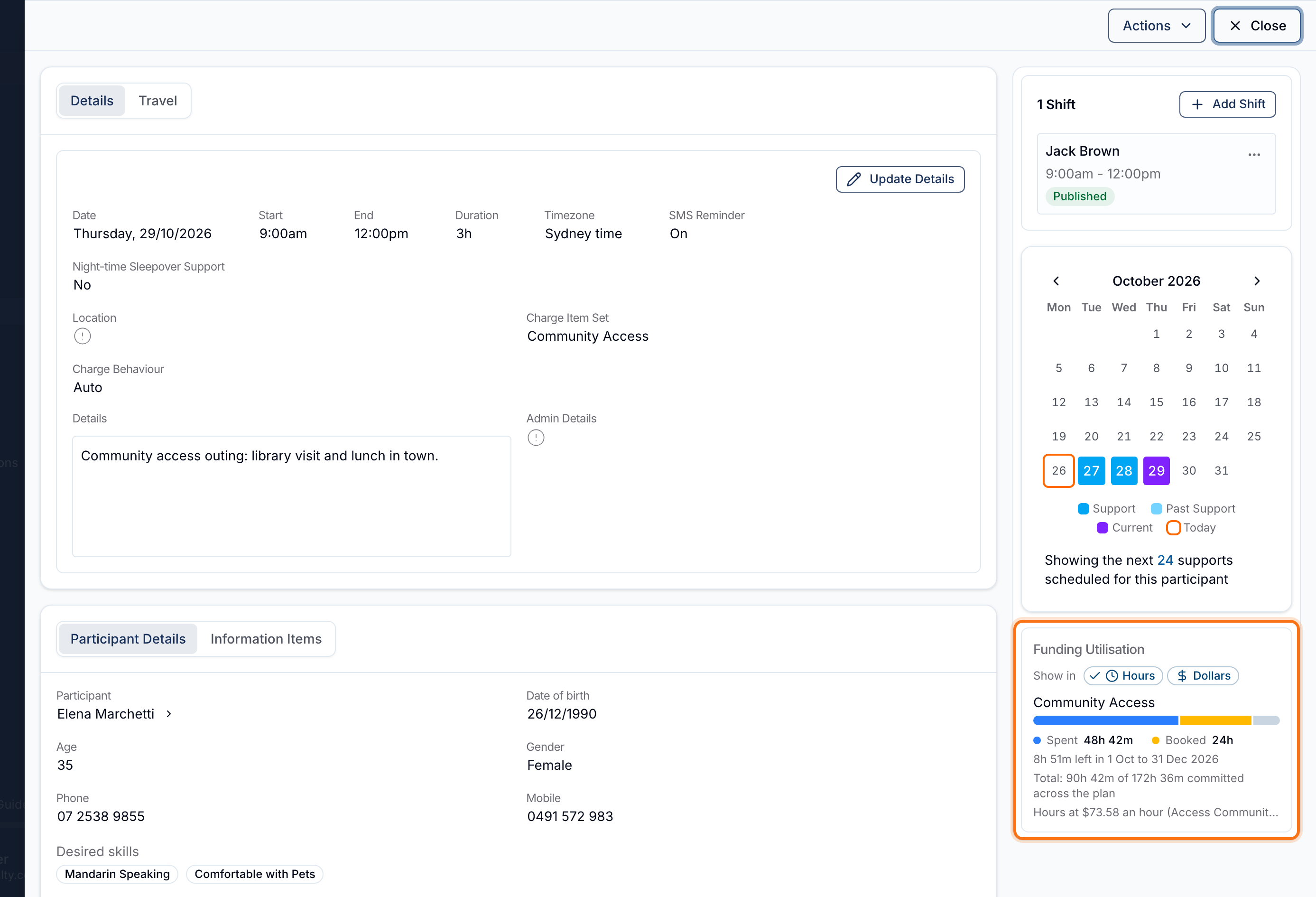
The figures cover the whole Service, not only this support: every task and support charged to the Service counts. Booking a recurring series creates the charges for all of its supports, so each support in the series shows the same figures.
On a group support, the card has a section for each Participant, headed with their name.
The card does not appear when none of the support's charges are funded by one of the Participant's Services.
Checking Funding While You Book
When you create or clone a 1:1 support, the card appears in Service & Billing once you have chosen the Participant and the Charge Item Set. On a group or flexible support, it appears in Participants, with a section for each Participant you add. It shows each Participant's funding from the plan in force on the support's date.
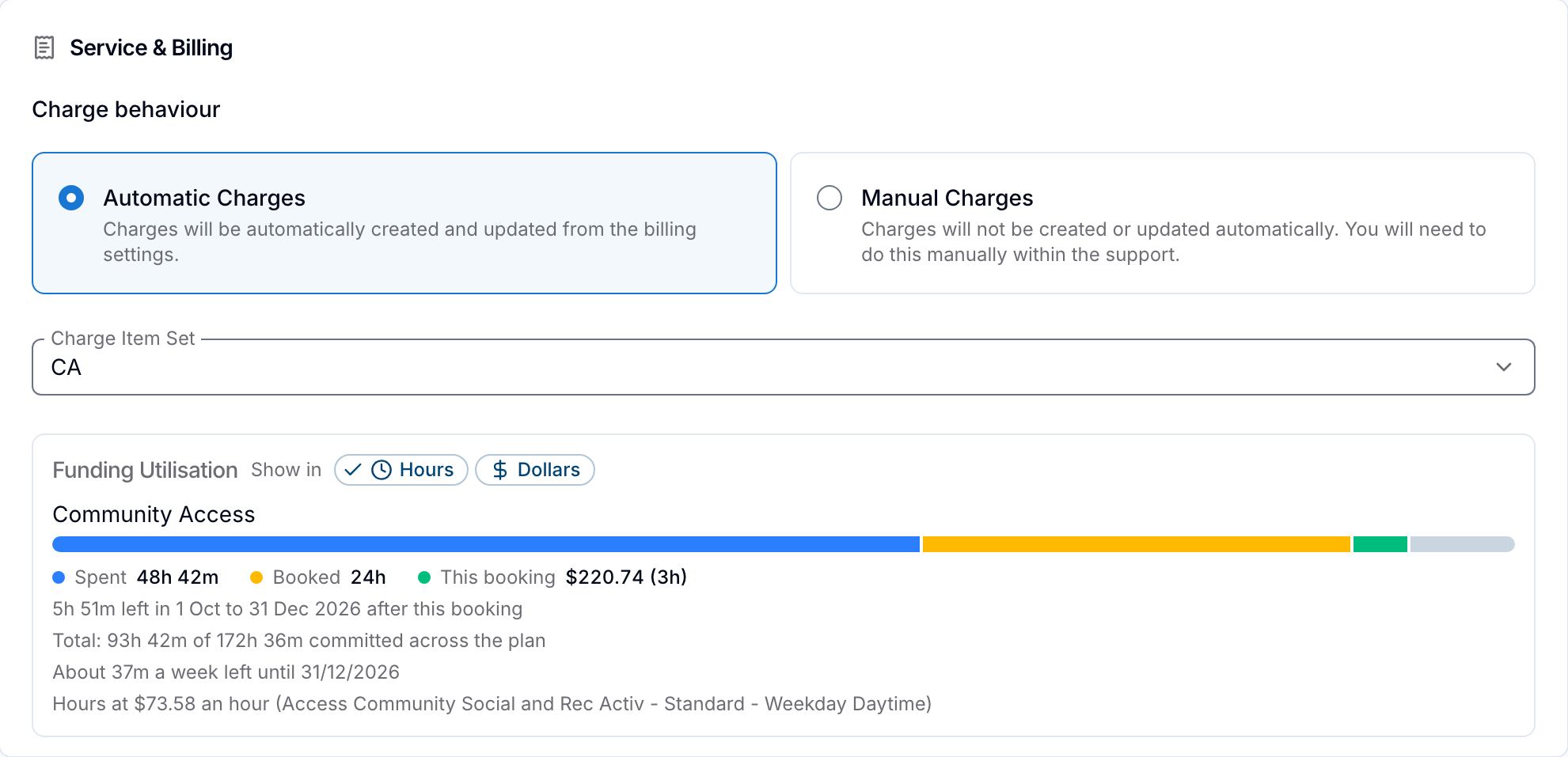
With Automatic Charges, the card also works out what the booking adds before you save it:
- This booking is added to the bar, showing what the booking adds up to the end of the funding period named under the bar. Hover over the Service to see what the whole booking adds.
- The line under the bar ends with after this booking. When the booking takes a funding period over, it reads Over by the amount with this booking, and adds how far over the period already was, if it was.
- No funding period covers a date means part of the booking falls on a date that none of the Service's funding periods covers.
- About 37m a week left until 31/12/2026 is how much more you could book each week, on average, until that date without taking that funding period or any later one over. It appears only when the Service has a Charge Item in Calculate remaining units using, and not once nothing is left.
Recurring Supports, Limits and Manual Charges
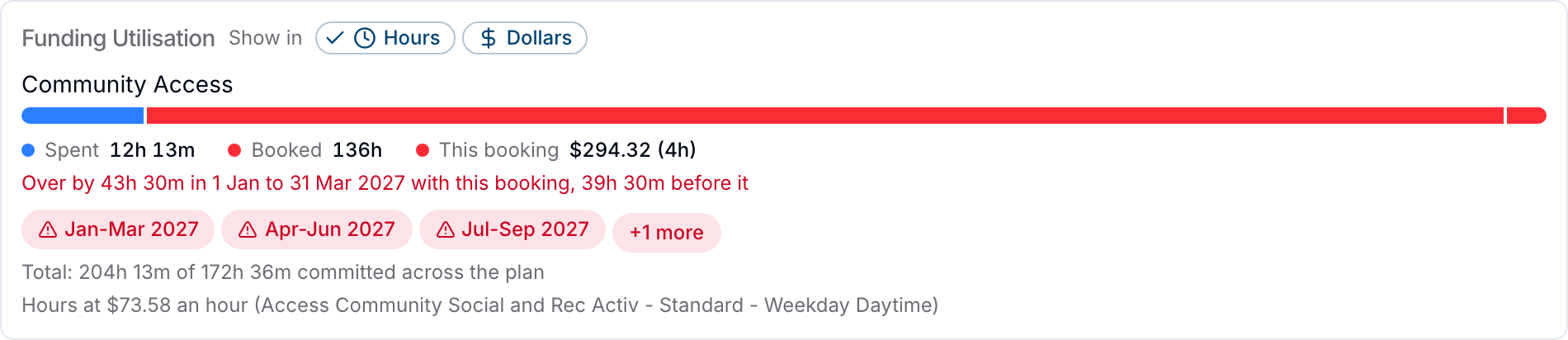
For a recurring support, every support in the series up to its end date is included, split across funding periods and plans. If part of the series falls in a plan or Service that is not on the card, a line underneath says what the booking adds there, or warns that it takes that Service over.
The card updates a moment after you stop changing the form. Until the form is complete, it shows the Participant's current funding only. If the support cannot be saved as entered, it shows What this booking adds will show once it can be saved.
The card is a check, not a limit: it never stops you saving a support. The Service Utilisation Cut-off applies to tasks only, so it does not block supports either.
With Manual Charges, the card does not count what the booking adds, including any Additional Charges you enter. A 1:1 support does not show the card, and group and flexible supports show the Participants' current funding only.
When a Change Takes a Service Over
The card is not shown when you edit an existing support. Instead, Astalty checks each Service after you save. If the change takes a Service further over a funding period, a Funding over-committed message names the Participant, the Service, the amount and the period, for example After this change, Elena Marchetti's Community Access funding is $350.00 over what is released for 1 Jan to 31 Mar 2027. The amount is how far the whole period is over, not only the part your change added. When more than one Service goes over, the message says how many others are over too.
Astalty runs this check when you edit a support, extend or change the days of a series, add shifts or reinstate a support. On a group support, it also runs when you add Participants. The change is saved either way, and only people who see booked charges on the card get the message.
Related Pages
- Funding Utilisation - how spent, booked and left are worked out, and how funding periods affect them.
- Adding a 1:1 Shift - book a support.
- Utilisation Report - find every over-committed Service.
- Funding Over-commitment Notifications - alert staff when a Service goes over.