Availability Request Notifications
Overview
Leave requests and availability requests in Astalty follow the same process. To ensure these requests are actioned, you can configure notifications so that the appropriate person or team is alerted whenever a Support Worker submits a request.
Notifications alert recipients; they do not grant permission to approve a request.
Setting Up an Availability Request Notification
- From the left-hand menu, go to Notifications.
- Scroll down to the Scheduling Notifications section.
- Select Unavailability Requests.
- Click Create Notification.
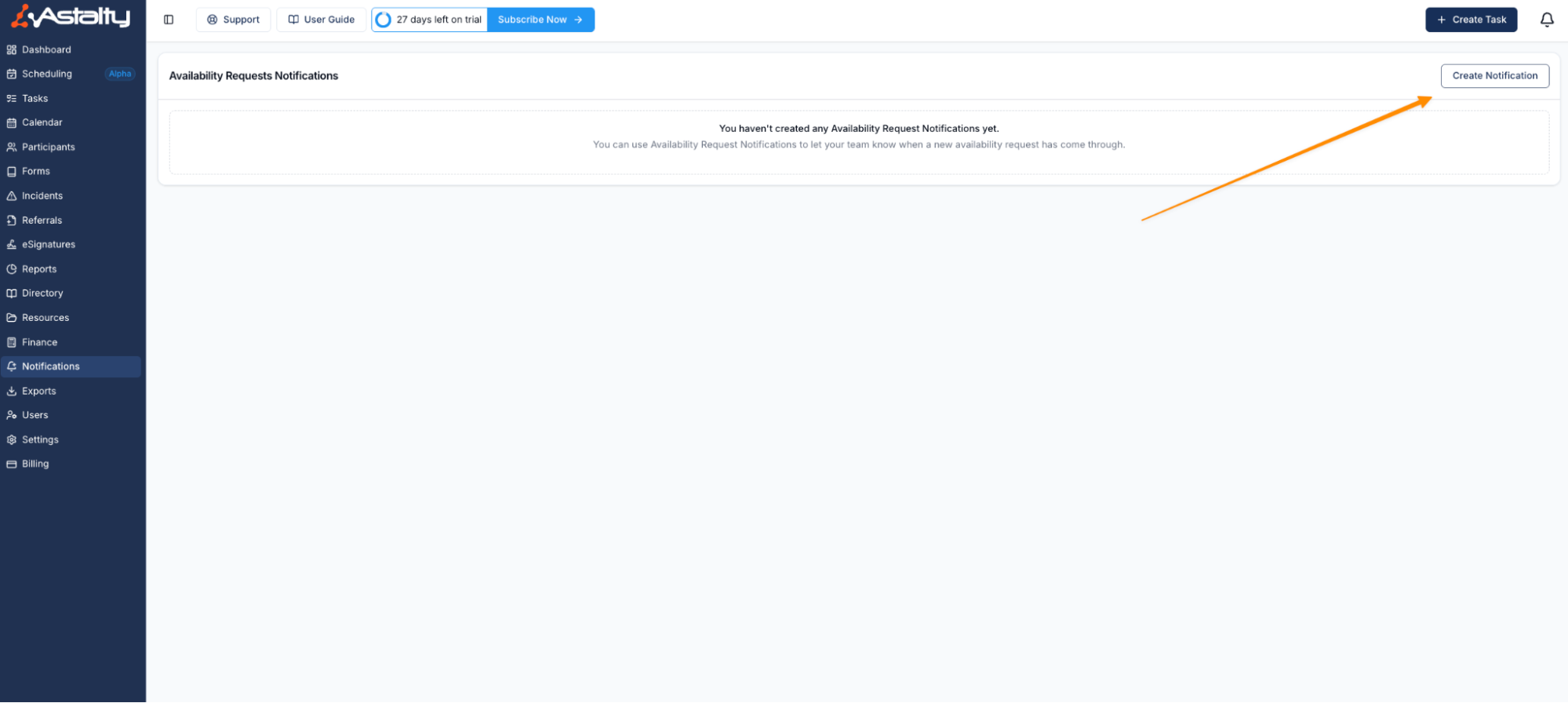
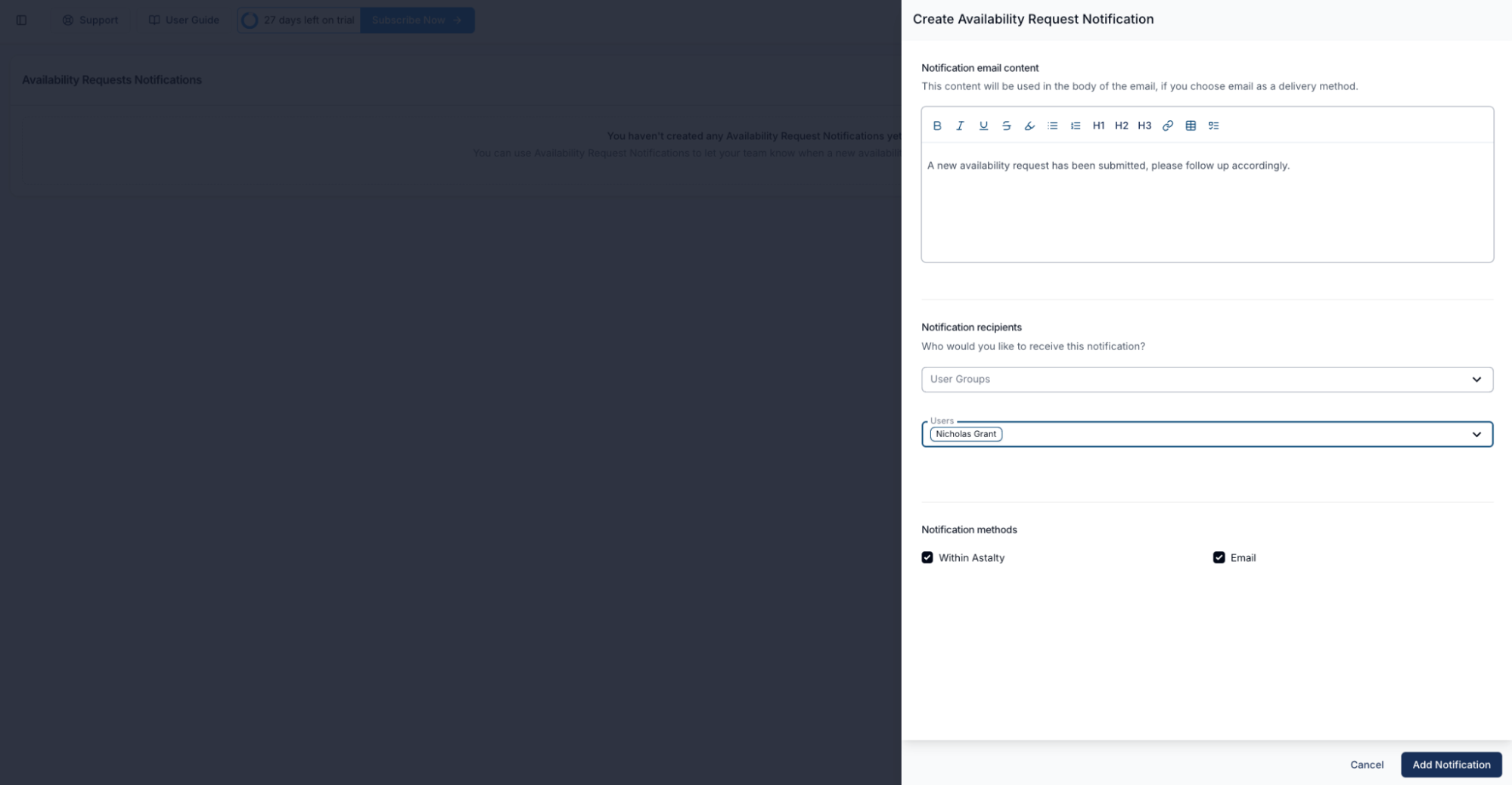
- In the Text Box, enter the message you want included in the notification email.
- Choose who should receive the notification:
- User Groups (e.g., a rostering team)
- Individual Users (e.g., a manager)
- Select the Notification Method:
- Within Astalty
- Select at least one recipient and delivery method, then click Add Notification to save.
Notifying the Requester's Team Leader
If your organisation uses Teams, you can route a notification to the requester's Team Leader instead of a fixed list of people. Each request then reaches only the person responsible for that staff member, rather than the same recipients for every request.
On the notification form, select The requester's Team Leader. The User Groups and Users you choose below become fallback recipients - they are only notified when the requester has no Team Leader who can approve the request, for example because the requester isn't on a Team, their Team has no Team Leader, or the Team Leader's account has been deactivated. If the Team Leader is a Manager, they also need Access Scheduling Module turned on (see Roles & Permissions) to approve the request - without it, the fallback recipients are notified instead. Because the fallback can still be needed, you must keep at least one User Group or User selected while this option is on.
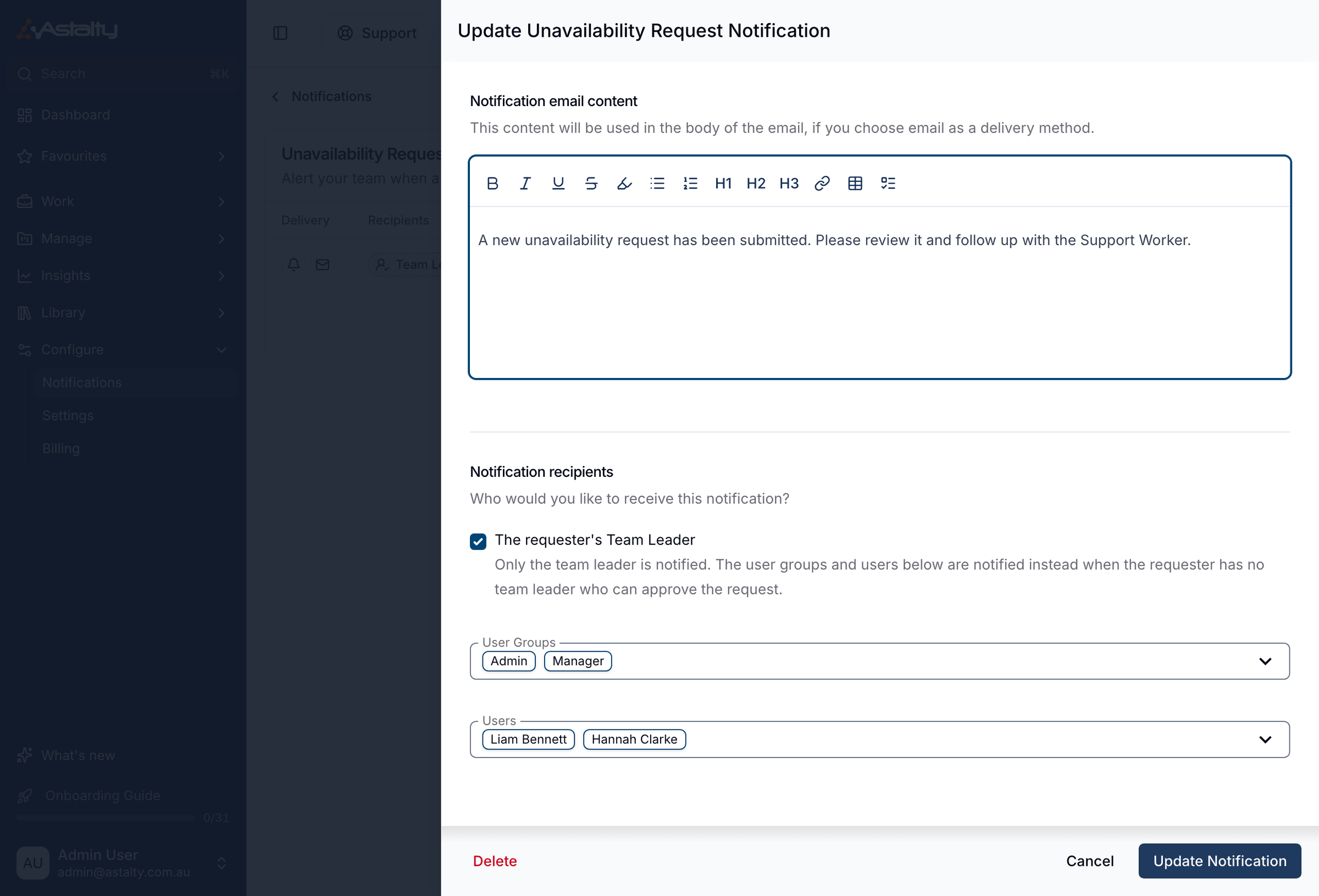
This option is off by default, and only appears for organisations using Teams. Existing notification rules keep working exactly as before unless you turn it on.
Editing Availability (Team Members)
On desktop, open Users, select the person, then open Unavailability.
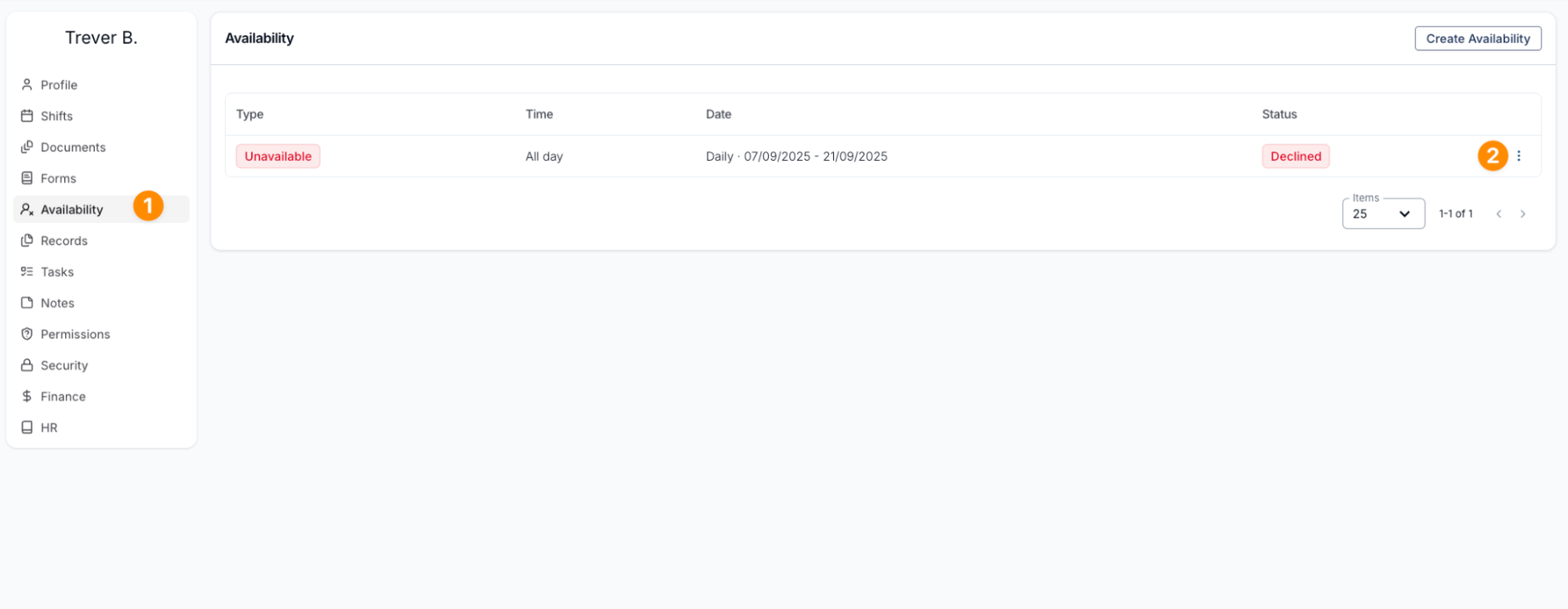
Here you will see all existing leave requests.
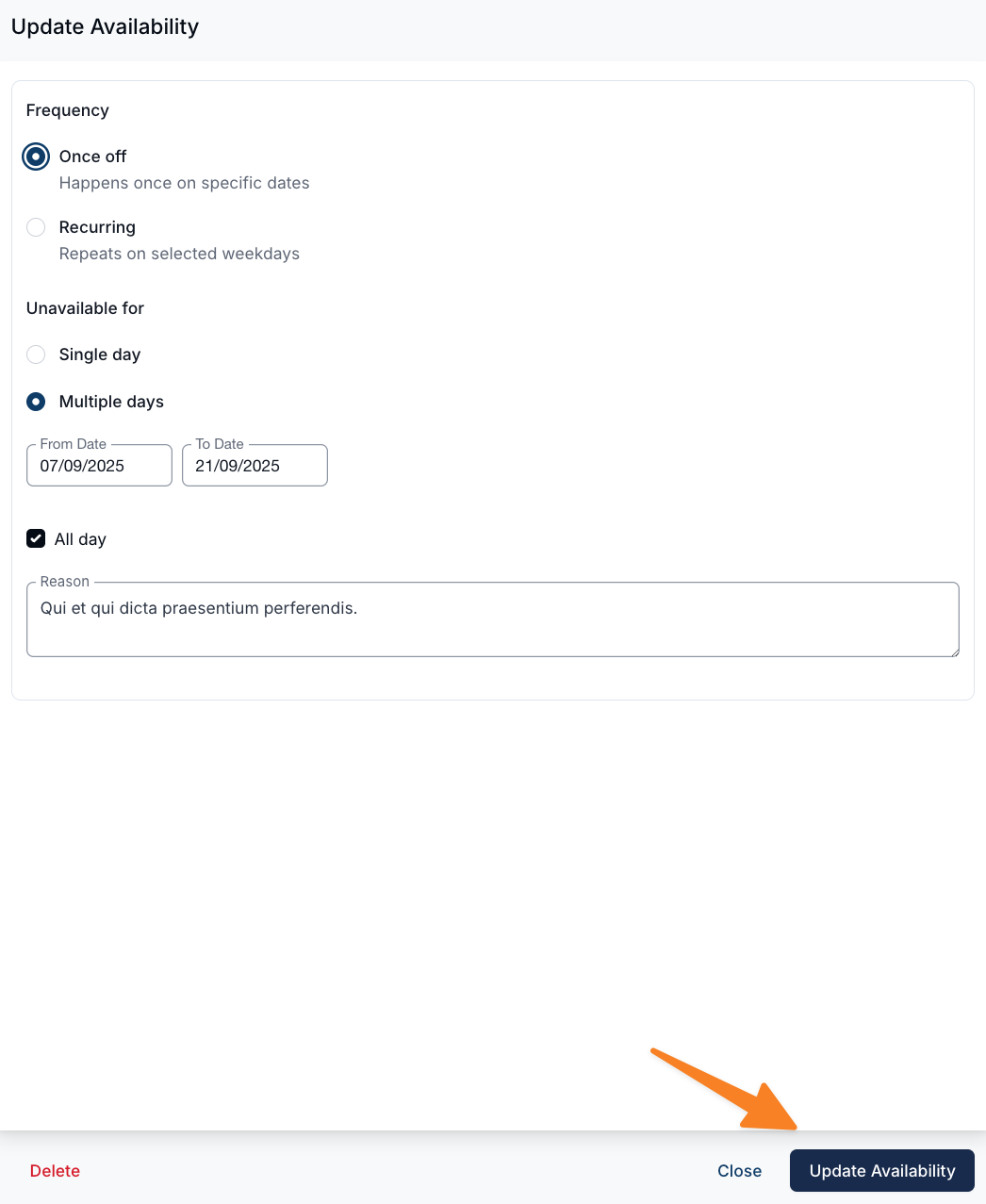
To edit a request, click the three dots, make the necessary changes, and then select Update Unavailability (Update Leave for a leave request).
Video Overview
The following video provides an overview of how to create availability notifications.