- Scheduling
- Timesheet Batches
Timesheet Batches
Overview
This page will walk you through how to create Timesheet Batches of all the shifts created in Scheduling. The Timesheets can then be exported as a CSV or Excel file to import into your preferred staff payment software, or pushed straight to Xero or Employment Hero through an integration.
Accessing Timesheet Batches
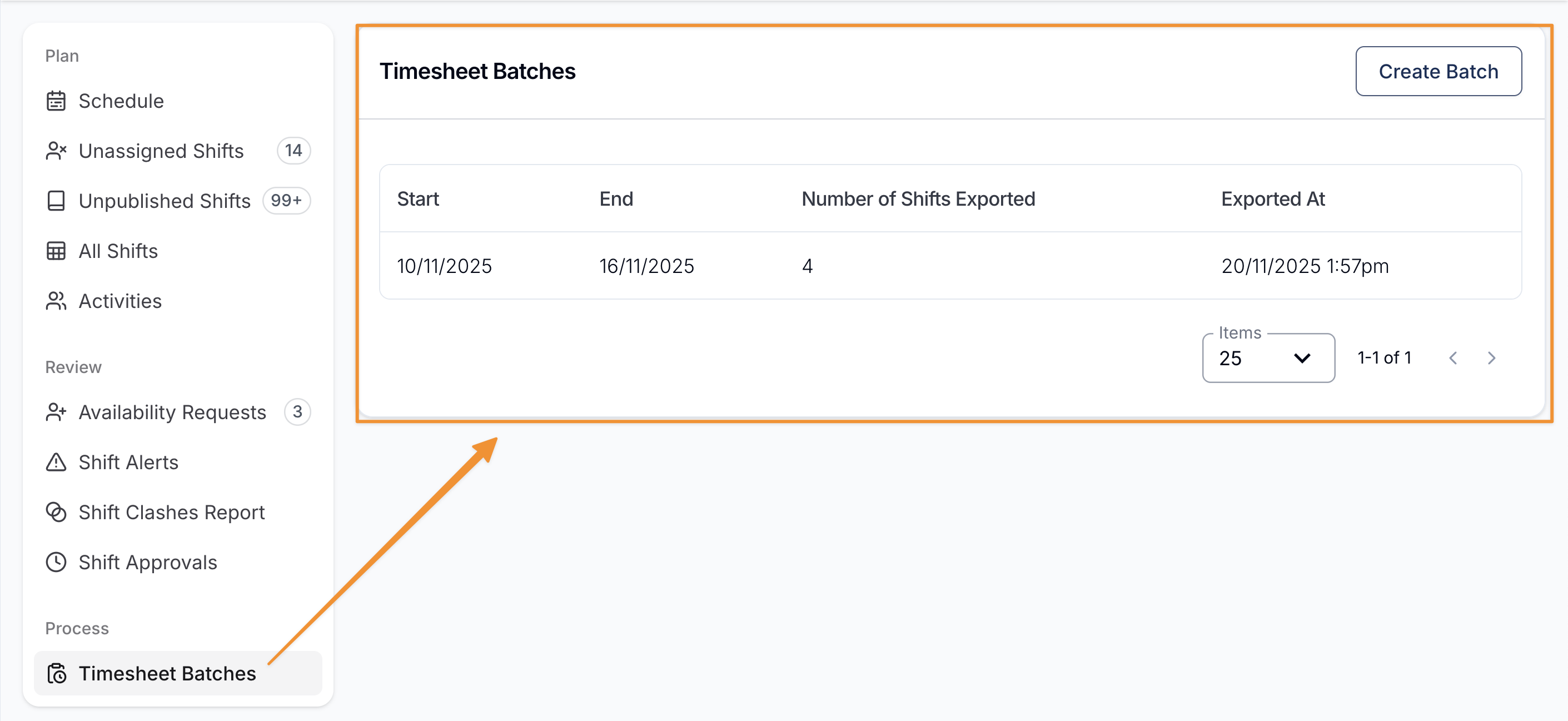
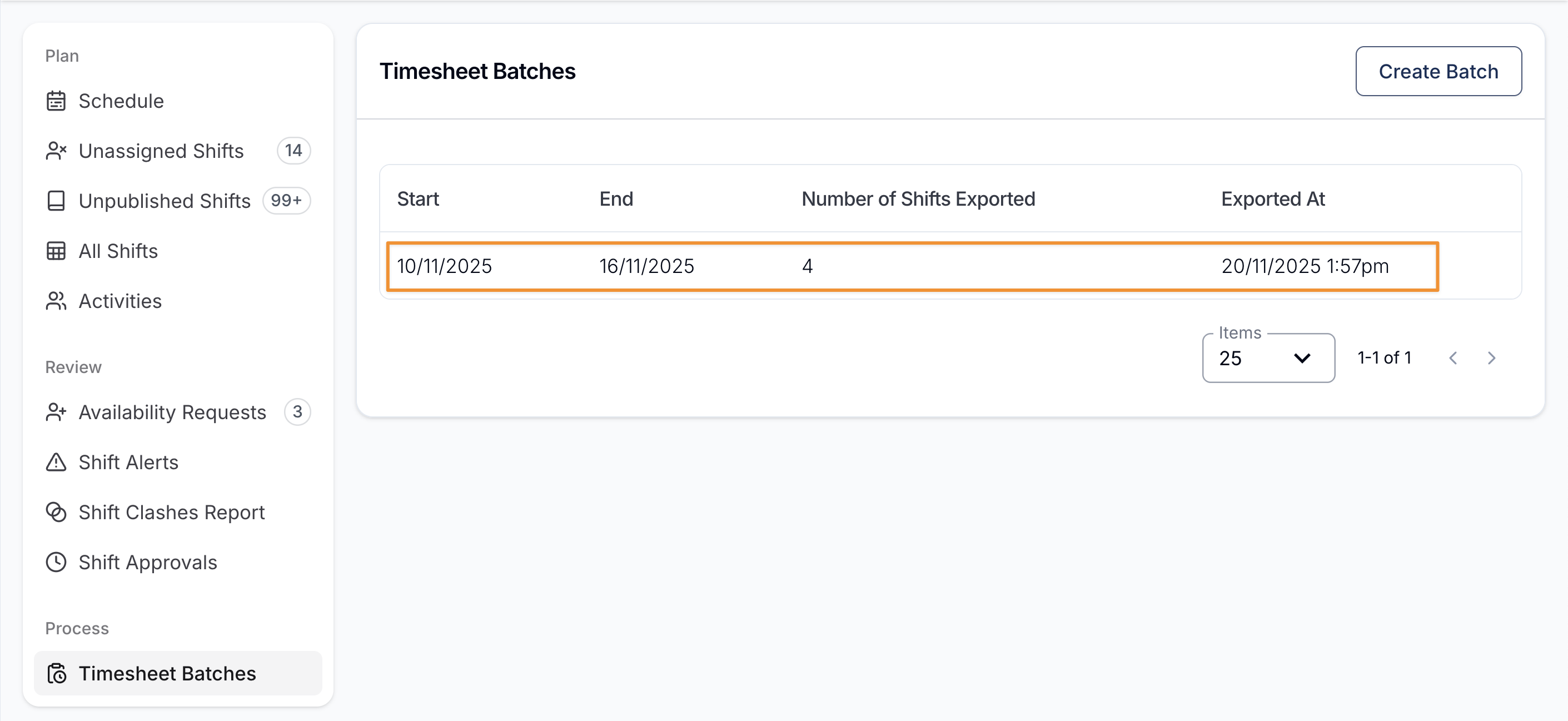
Timesheet Batches can be found in Scheduling within the Process section of the menu.
This page displays any batches created to date, including the date range, the Payroll Calendar the batch was generated from (a dash if it was created from a manual date range), number of shifts exported and when it was exported. You can also filter the list by payroll calendar. It also includes the button to generate a new timesheet batch - 'Create Batch'.
Creating Timesheet Batches
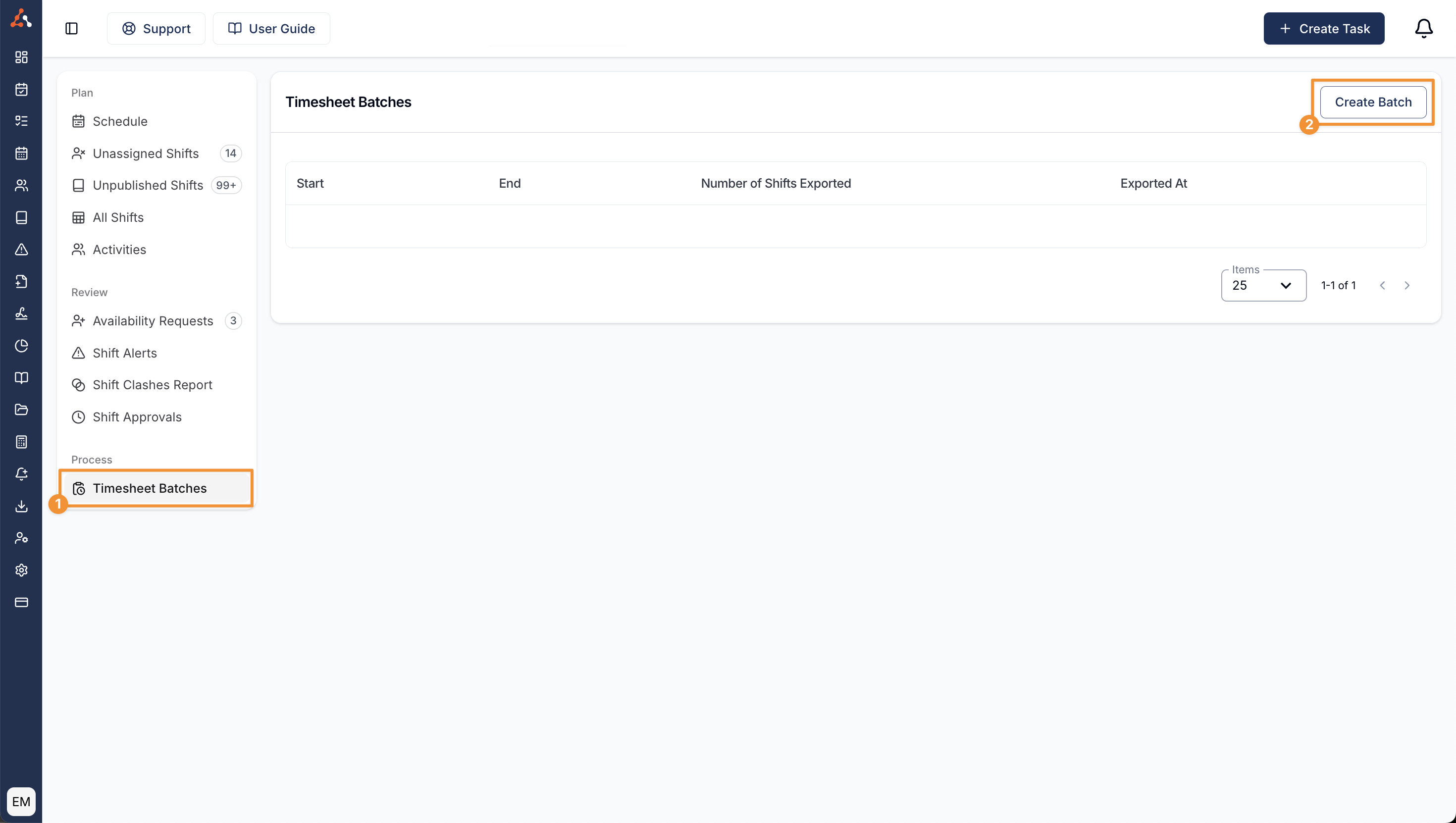
To create a Timesheet Batch, navigate to Scheduling and select Timesheet Batches, then select Create Batch.
Choosing How the Batch Is Generated
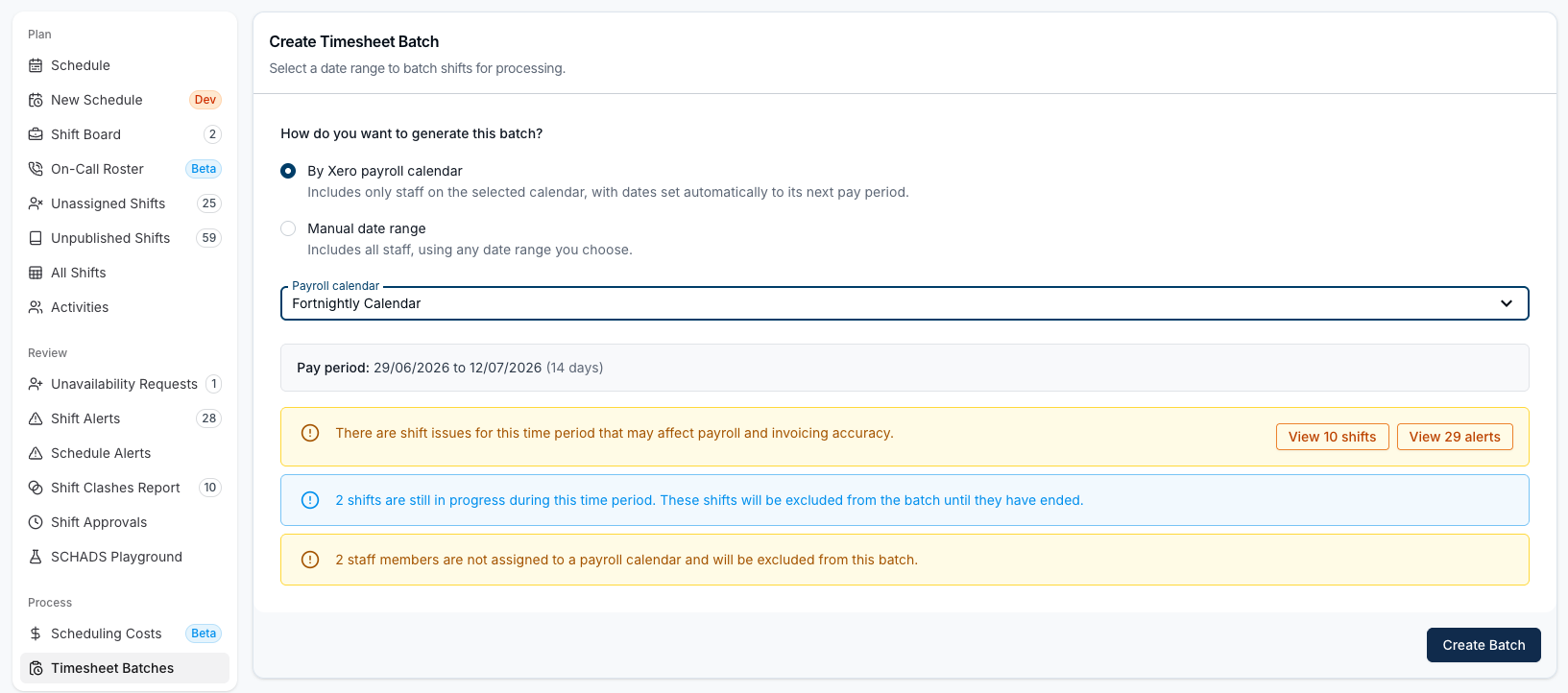
If your payroll platform is Xero and at least one payroll calendar has been synced from Xero, the form asks How do you want to generate this batch? and offers two options:
| Option | What it does |
|---|---|
| By Xero payroll calendar | Includes only staff on the selected calendar, with dates set automatically to its next pay period. |
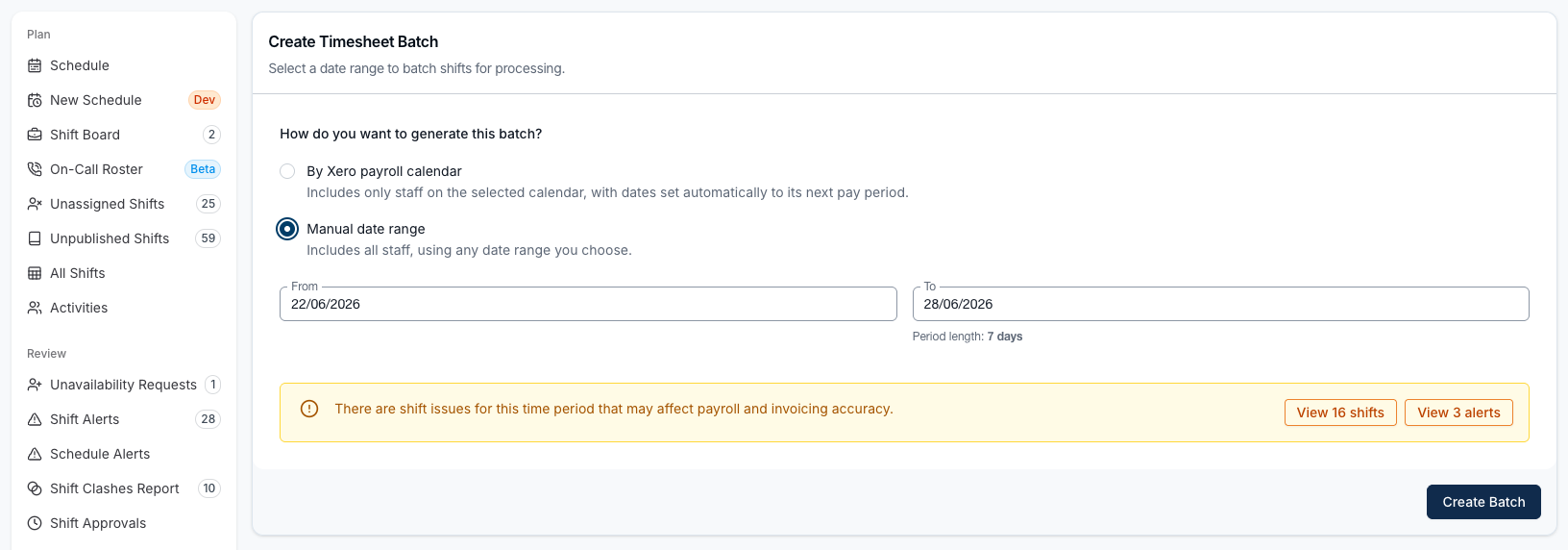
| Manual date range | Includes all staff, using any date range you choose. |
You need to pick one before Create Batch becomes available.
By Xero payroll calendar
Choose the Payroll calendar you're paying. If only one calendar has been synced, it is selected for you.
Astalty reads that calendar's next pay period from Xero and applies those dates for you. They appear as Pay period, along with the length in days, and can't be edited by hand - switch to Manual date range if you need a different period.
Only staff who are assigned to the selected calendar in Xero are included in the batch. Anyone with shifts in the period who isn't on a payroll calendar is flagged in the warnings and left out.
Manual date range
Select the From and To dates of when the shifts occurred. The length of the period is shown beneath the To field, and the From date picker carries shortcuts for This week, Last week, Last Fortnight, Last month and Last quarter.
Every staff member with eligible shifts in the range is included, whether or not they're on a payroll calendar.
How Overnight Shifts Are Assigned to a Period
However the dates are set, a shift belongs to the period its start falls in. A support running 4:00 PM Sunday to 9:00 AM Monday is picked up by a batch ending on the Sunday, and the same rule decides the warning counts below. See Date Ranges and Overnight Supports.
Warnings Before You Create the Batch
Once the dates are settled, Astalty checks the period and shows anything that could affect the batch. These are warnings rather than blockers - you can still create the batch - but it's worth clearing them first.
| Warning | What it means | What to do |
|---|---|---|
| There are shift issues for this time period that may affect payroll and invoicing accuracy | Shifts in the period are unapproved - missing an hours, travel or active overnight approval - or have open shift alerts | Use View n shifts or View n alerts to open Shift Approvals or Shift Alerts in a new tab, already filtered to these dates |
| n shifts are still in progress during this time period | Those shifts hadn't ended when the check ran, so they're excluded from the batch until they have | Wait until they've ended and create the batch then, or pick them up in a later period |
| n staff members have shifts in this period but no payroll calendar assigned in Xero | Those staff aren't linked to a Xero employee, or aren't assigned a payroll calendar in Xero, so their shifts are excluded | Select View staff to open the Staff without a payroll calendar drawer and resolve them - see Staff Without a Payroll Calendar |
Select Create Batch to confirm. The button reads Validating... while these checks run.
Your newly created batch will now appear in the Timesheets Batches. You can view the batch by selecting it.
Once inside the Timesheet Batch, you can access the Actions menu. Which options appear depends on the payroll platform set for your account:
| Action | When it appears |
|---|---|
| Export Timesheet as Excel | Always - opens the three file-based export options |
| Export Employment Hero Timesheet (CSV) | Your payroll platform is Employment Hero (or PayCat / QuickBooks Payroll) |
| Send to Employment Hero and Replace in Employment Hero | The Employment Hero integration is connected and a business has been selected |
| Export Xero Timesheet (API) | Your payroll platform is Xero |
| Delete | Always |
Export Timesheet as Excel
Selecting Export Timesheet as Excel opens a page with three export options. Choose the one that matches what you need to do with the file.
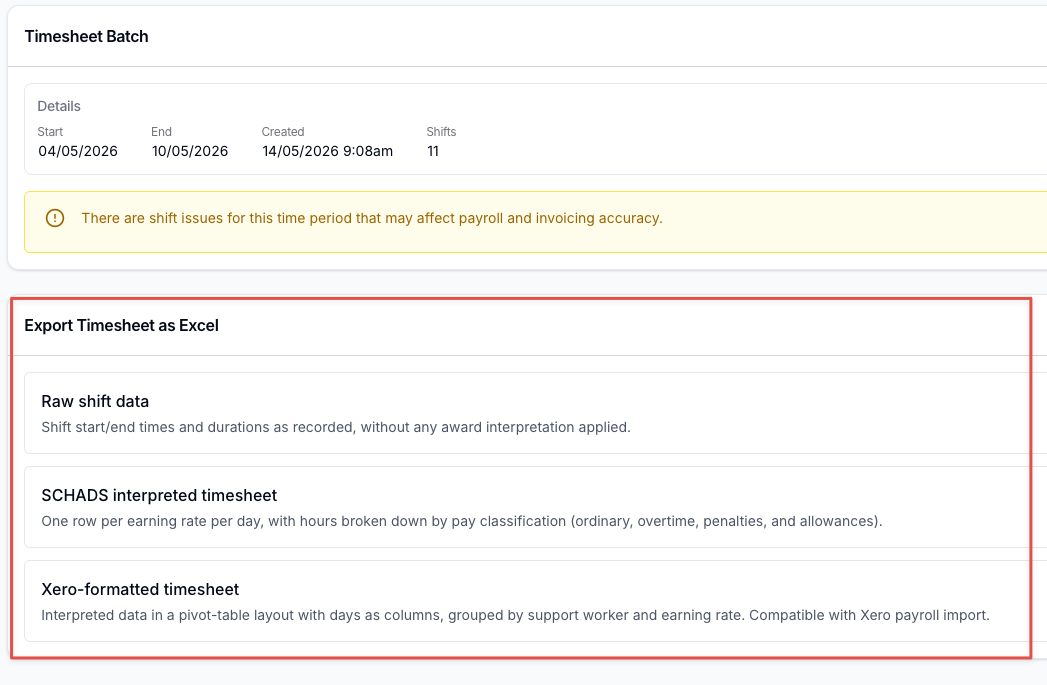
| Option | What you get |
|---|---|
| Raw shift data | Shift start/end times and durations as recorded, without any award interpretation applied. |
| SCHADS interpreted timesheet | One row per earning rate per day, with hours broken down by pay classification (ordinary, overtime, penalties, and allowances). |
| Xero-formatted timesheet | Interpreted data in a pivot-table layout with days as columns, grouped by Support Worker and earning rate. Compatible with Xero payroll import. |
All three run in the background. Once the file is ready it appears on the Exports page, where you can select Download to save it to your device.
Raw shift data
A generic CSV of the batch that you can tailor for importing into your preferred staff payment software. Nothing is interpreted - the times are exactly as approved on the shift.
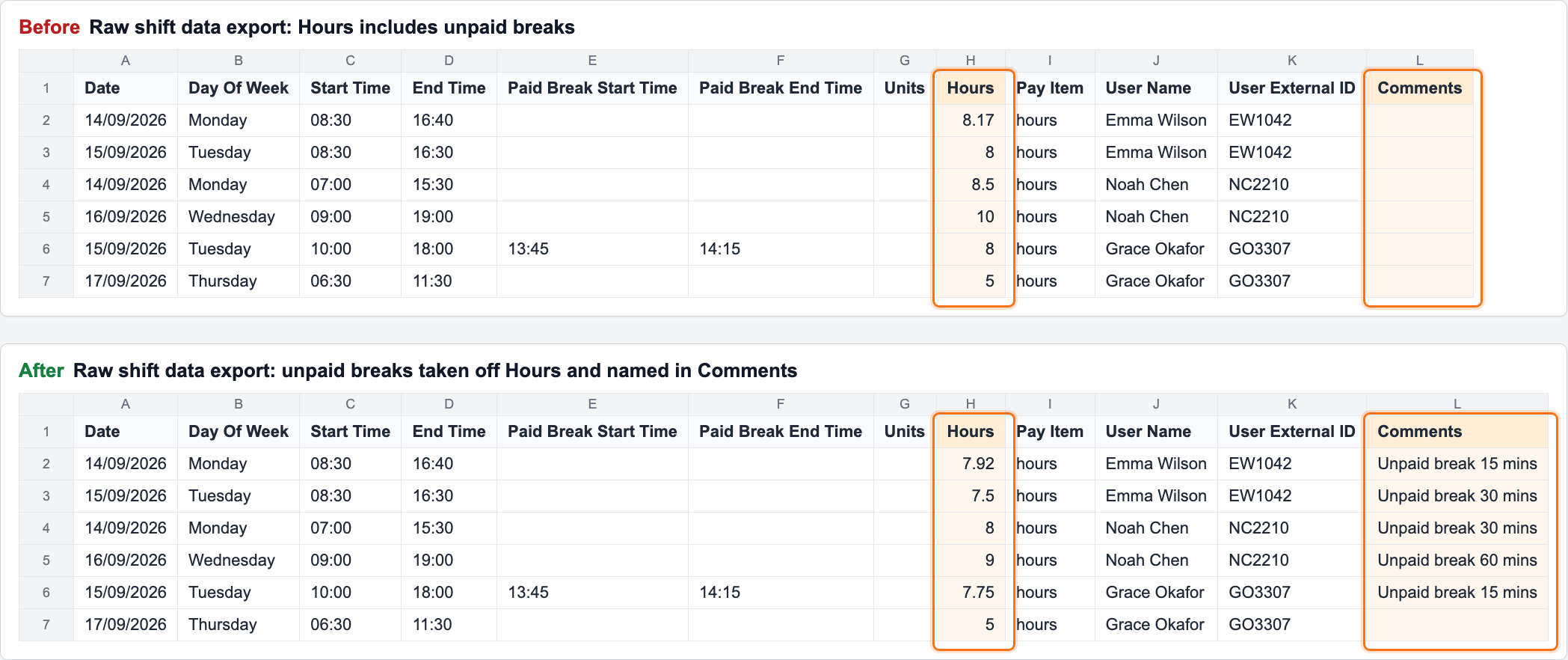
The file contains one row per line of shift activity, with these columns:
- Date, Day Of Week, Start Time, End Time
- Paid Break Start Time, Paid Break End Time
- Units, Hours
- Pay Item -
hours,kilometres,travelorunpaid_break - Cost Code - only when your account uses cost codes
- User Name, User External ID, Comments
Hours has any unpaid breaks added to the shift taken off, floored at 0 - it's not the full approved start-to-end span. Comments names the deduction, for example Unpaid break 30 mins; a paid cancellation reads Paid cancellation. Unpaid break 30 mins. Paid breaks are never subtracted. A sleepover row's own hours are unchanged - an unpaid break inside the sleepover window is called out on that row instead, as Unpaid break 30 mins not deducted from sleepover.
There is no validation step on this export. Select Create Export and the file is queued straight away.
SCHADS interpreted timesheet
An Excel (.xlsx) file of interpreted shifts and quantities, named Award Timesheet Export followed by the batch's start and end dates. It has one row per Support Worker, per day, per earning rate, with these columns:
- Support Worker, Date, Pay Group
- Cost Code - only when your account uses cost codes
- Earning Rate, Units
Allowances appear as their own rows alongside the pay lines, and any line that works out to zero units is left out. Rows are ordered by Support Worker, then date, then earning rate.
Select Validate & Export to run the interpreted timesheet validation checks and then queue the file.
Xero-formatted timesheet
The same interpreted data as above, but laid out as a pivot table ready for Xero's payroll import. It is an Excel (.xlsx) file named Xero Timesheet Export followed by the batch's start and end dates, with these columns:
- Support Worker
- Earning Rate
- One column per day in the batch, headed with the day and date (for example, Mon 04 May)
Each Support Worker's rows are grouped together with a blank row between workers, and earning rates with no units anywhere in the period are left out entirely. Units from a shift that runs past midnight on the final day of the batch are counted in the last date column.
Select Validate & Export to run the interpreted timesheet validation checks and then queue the file.
Export Employment Hero Timesheet (CSV)
This produces a CSV of the Timesheet batch that is ready for importing into Employment Hero. If the integration is connected, the Actions menu also offers Send to Employment Hero and Replace in Employment Hero, which push the timesheets across without a file. See Employment Hero.
Export Xero Timesheet (API)
This opens the Export for Xero panel, where you can validate the batch and push it directly to Xero via the API. The panel also has an Export as Excel button in its top-right corner, which queues the same Xero-formatted timesheet file described above.
For more on the Xero integration for scheduling, see Xero Integration in Scheduling.
Delete
Within the Actions Menu, you can use the Delete option to remove the Timesheet Batch. You'll be asked to type the number of shifts in the batch to confirm. Use of this function cannot be undone.
Resolving Timesheet Batch Validation Errors
Before a batch can be exported, Astalty validates it. If anything would stop the export, the panel lists each problem against the worker it affects, and most rows include a Fix issue button (wrench icon) that opens the exact screen where you can resolve it - so you don't have to work out which setting is at fault.
Which errors you see depends on how you're exporting:
| Where you validate | Errors you'll see |
|---|---|
| Export Xero Timesheet (API) > Validate - syncs the batch to Xero through the integration | Xero validation errors |
| Export Employment Hero Timesheet (CSV) > Validate, or Send to your platform | Employment Hero validation errors |
| SCHADS interpreted timesheet or Xero-formatted timesheet > Validate & Export - produces a file | Interpreted timesheet validation errors |
The Raw shift data export has no validation step, because nothing is interpreted - it exports the approved shift times as they stand.
When the Fix issue button doesn't appear
Not every row has a Fix issue button. It's absent when:
- The error has to be fixed by editing the shift. Problems such as a zero-length shift, a break that falls outside the approved shift times, or overlapping timesheet lines can only be corrected on the shift itself. Go back to the schedule, open the affected shift, and correct its approved start/end times or breaks - see Shift Approvals.
- The error has to be fixed in your payroll platform. For example, if a worker isn't on the batch's payroll calendar in Xero, or their employee record isn't active in Employment Hero, the change has to be made in Xero or Employment Hero - Astalty can't do it for you.
- You don't have the required permission. The Fix issue button for the Shift has no cost code error only appears if you have permission to create cost codes. If you can't see the button on that row, ask an Admin to either grant you the permission or resolve the error for you. More generally, the button takes you to a settings or HR page, so you need access to that page for the fix to be useful.
- The error isn't tied to a specific worker. Some Employment Hero errors need a linked worker on the row before Astalty can build a destination link.
Xero validation errors
| Error | Where Fix issue takes you |
|---|---|
| User is missing a Pay Group | The worker's HR tab, with the Update payroll drawer open |
| User is missing a Xero Employee ID | The worker's HR tab, with the Update payroll platform drawer open |
| The award on the worker's contract doesn't support sleepovers | The worker's HR tab |
| Pay Group is missing Xero configuration, or is missing a pay item | Xero Pay Groups settings, usually opened ready to edit that pay group's pay item mapping |
| Cost code is missing a Xero payroll tracking option | Xero Cost Codes settings |
| Shift has no cost code, but your Xero organisation requires a tracking category on timesheets | Settings > Scheduling > Cost Codes, with the Re-evaluate Existing Records drawer open and scoped to this batch's date range |
| Two or more workers share the same Xero employee | The worker's HR tab, with the Update payroll platform drawer open. The message names everyone sharing that employee - each needs their own Xero employee before the batch can be exported |
| Xero already holds a timesheet for this worker for this period | Manage Xero Timesheets, filtered to that worker and pay period - but only if the existing timesheet is a draft. The row also shows its status in Xero, period and hours. Anything already approved, awaiting approval or in a pay run has to be dealt with in Xero; see Timesheet Already Exists |
Which pay items get checked
The pay items a pay group is checked for depend on the award on each worker's employment contract, so two pay groups can fail on different items for the same batch.
Every pay group is checked for Weekday Daytime, Night, Saturday, Sunday, Public Holiday, Overtime First Period and Overtime Last Period, whatever the award.
The award then adds its own:
| Award | Also checked |
|---|---|
| SCHADS | Afternoon, Sleepover Allowance, Broken Shift (1 Break), Broken Shift (2 Breaks) - plus First Aid Allowance where the contract carries that entitlement |
| Nurses | Afternoon |
| Aged Care | Afternoon, Early Morning Shift, Early Afternoon Shift, Sleepover (Aged Care), Broken Shift Double Time |
| Health Professionals | Overtime Sunday, Overtime Public Holiday |
Allowance pay items are checked on any award, but only when they apply:
| Also checked | When |
|---|---|
| Laundry Allowance, Uniform Allowance | The worker's contract carries that entitlement |
| Meal Allowance | Automatic meal allowances are turned on |
| Meal Allowance (Second) | Automatic meal allowances are on and the award is not SCHADS |
| Kilometre Allowance | The shift has kilometres recorded on it |
24-hour Care is checked only when a SCHADS home care worker has a 24-hour care shift in the batch.
Each award page lists the pay items and suggested multipliers for its own pay group - see SCHADS, Nurses, Aged Care and Health Professionals.
A pay group's mapping encodes one award's rates, so a pay group holding workers on two awards stops the export and names both - see Setup Pay Items and Employee Templates in Xero.
Two Xero errors have no Fix issue button:
- User is not on this timesheet batch's payroll calendar in Xero. This can only be fixed in Xero - assign the employee to the batch's payroll calendar there, then re-run the export.
- User does not have an employment contract within the timesheet batch period. Add the contract on the worker's HR tab before exporting.
For the two cost code errors, the row also lists the affected shifts as clickable dates and times - selecting one opens the shift viewer on the same page, so you don't lose your place. Six are shown at a time; if there are more, select +2 more (the count varies) to reveal the rest, then Show fewer to collapse them again.
Employment Hero validation errors
Employment Hero validation splits results into Errors, which must be fixed before you can export, and Warnings, which don't block the export. If there are warnings and no blocking errors at all, an Export anyway button appears so you can proceed - but Employment Hero may still reject overlapping lines when the pay run is processed.
Each row also shows a plain-English explanation beneath the error, telling you what triggered it.
Fix issue takes you to the worker's HR tab for:
| Error | Drawer opened |
|---|---|
| Not yet linked to an Employment Hero employee | Update payroll platform |
| Linked, but the employee couldn't be found in Employment Hero | Update payroll platform |
| Not assigned to a pay group | Update payroll |
| No employment contract for the batch period | Update payroll |
| The award on their contract doesn't support sleepovers | (no drawer - the HR tab itself) |
Fix issue takes you to Employment Hero Pay Groups settings for:
- The pay group has no Employment Hero work type mappings yet
- A required work type isn't mapped - Ordinary Hours, KMs Travel, Paid Meal Break, Unpaid Meal Break, Sleepover, Active Overnight, or Paid Cancellation
- 24-hour Care isn't mapped and a home care worker has a 24-hour care shift in the batch that wasn't cancelled with pay
- Only one of Pre-Sleepover and Post-Sleepover is mapped (a warning) - map both, or clear both to keep the previous behaviour
- A work type mapped in Astalty no longer exists in Employment Hero
Fix issue takes you to Employment Hero Cost Codes settings for:
- A shift's cost code hasn't been mapped to an Employment Hero location
- A mapped location no longer exists in Employment Hero
These errors have no Fix issue button - correct the shift instead:
| Error | What to do |
|---|---|
| The approved start and end times are identical, giving zero hours | Review the shift's approved times |
| A calculated value came out negative (such as travel kilometres or sleepover units) | Review the shift's approved details |
| A paid break starts or ends outside the approved shift times | Review the shift's break times and approved start/end times |
| A shift falls outside the batch's date range (common when a shift crosses midnight near the batch boundary) | Adjust the shift, or the batch date range |
| Timesheet lines overlap (a warning) | Review the approved times on the overlapping shifts |
| The employee exists in Employment Hero but isn't active | Update their status in Employment Hero, or exclude them from the export |
Interpreted timesheet validation errors
The two interpreted file exports - SCHADS interpreted timesheet and Xero-formatted timesheet - validate against the award interpretation. Here the fix control is a wrench icon rather than a labelled button; hover it to see the Fix issue tooltip.
| Error | Where the wrench takes you |
|---|---|
| User is missing a Pay Group | The worker's HR tab, with the Update payroll drawer open |
| No employment contract for the batch period | The worker's HR tab, with the Update payroll drawer open |
| The award on their contract doesn't support sleepovers | The worker's HR tab |
If the batch contains no shifts to export at all, No shifts found to export is shown on its own instead of against a worker, with no wrench icon.
Managing Xero Draft Timesheets
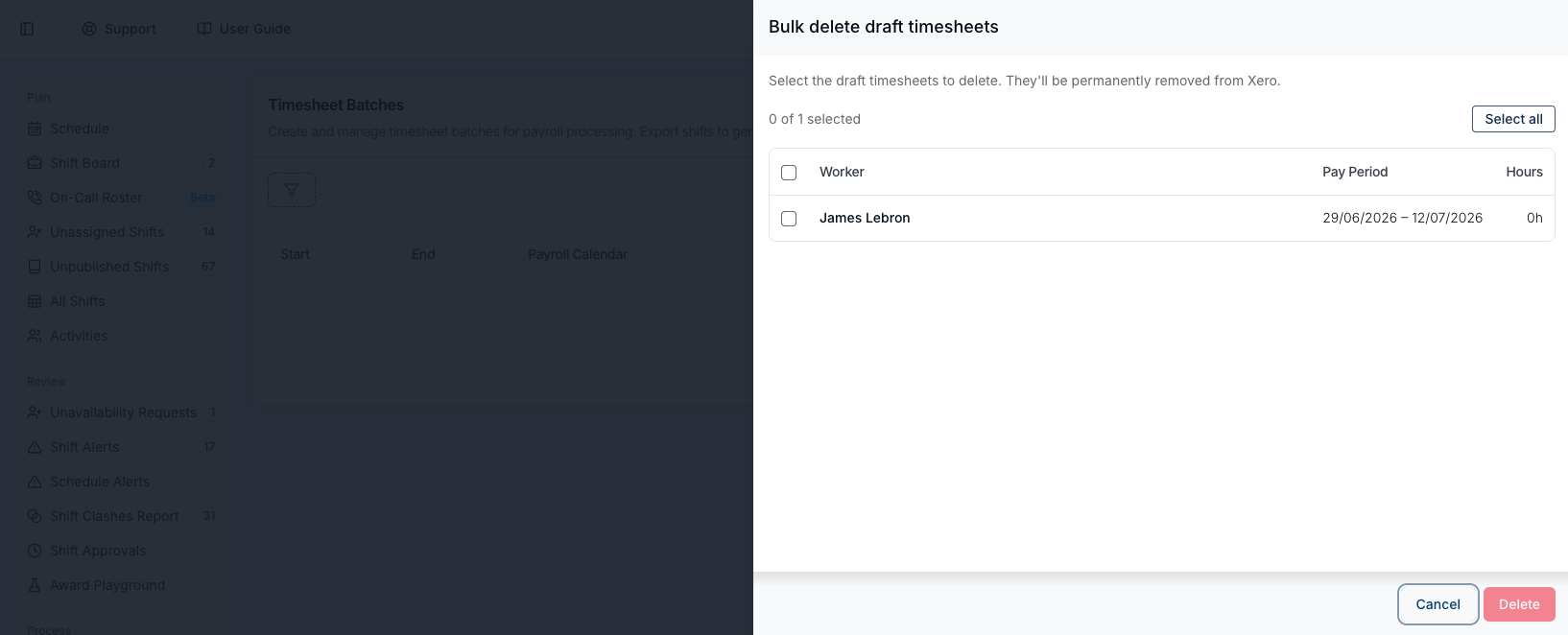
If your account uses Xero for payroll, you can review and bulk delete the draft timesheets currently sitting in Xero. This is handy when you need to clear out drafts before re-exporting a corrected batch. There are two ways to reach this tool.
From the Timesheet Batches page
From Timesheet Batches, select the Actions menu next to Create Batch, then choose Manage Xero Timesheets.
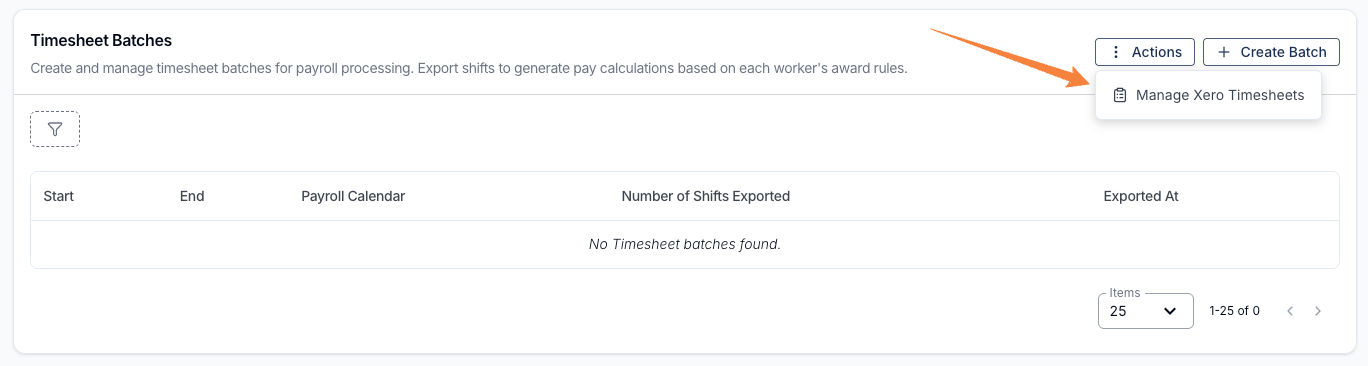
The Bulk delete draft timesheets panel opens, listing the draft timesheets currently in Xero with the Worker, Pay Period and Hours. Select individual timesheets, or use Select all, and then select Delete to remove them.
From Settings
You can also reach the same tool through Settings:
- Go to Settings > Integrations.
- On the Xero card, select View Details.
- In the Xero settings menu, open Manage Timesheets.
- Select Actions > Bulk delete, then choose the draft timesheets to remove and select Delete.
This page also shows a full table of the draft timesheets currently in Xero, so you can review them before deleting.
Deletion runs in the background, so you can keep working while it completes. Once finished, you'll see how many were deleted and any that failed, so you can retry or remove them directly in Xero.
Award Interpretation
Each worker in the batch is interpreted under the award on their employment contract. For supported rules and manual checks, see SCHADS, Nurses, Aged Care and Health Professionals. For the full standalone report documentation, including pay period requirements, stat cards, filtering, and excluded employees, see the Award Pay Report.
After selecting the Timesheet Batch to view, navigate to the Award Interpretation menu to view the Interpretations made on the shifts within this batch. On Employment Hero, PayCat and QuickBooks Payroll, your payroll platform calculates award pay itself from the timesheets Astalty sends, so what it pays can differ from these figures.
Use a complete pay period and review all adjoining work at its boundaries. Current interpretation can restart shift and daily counters at the boundary, so overnight work across two batches can require manual adjustment. Check Pay Period Settings and compare the final payroll amounts after export.
Viewing the Interpretations per Support Worker
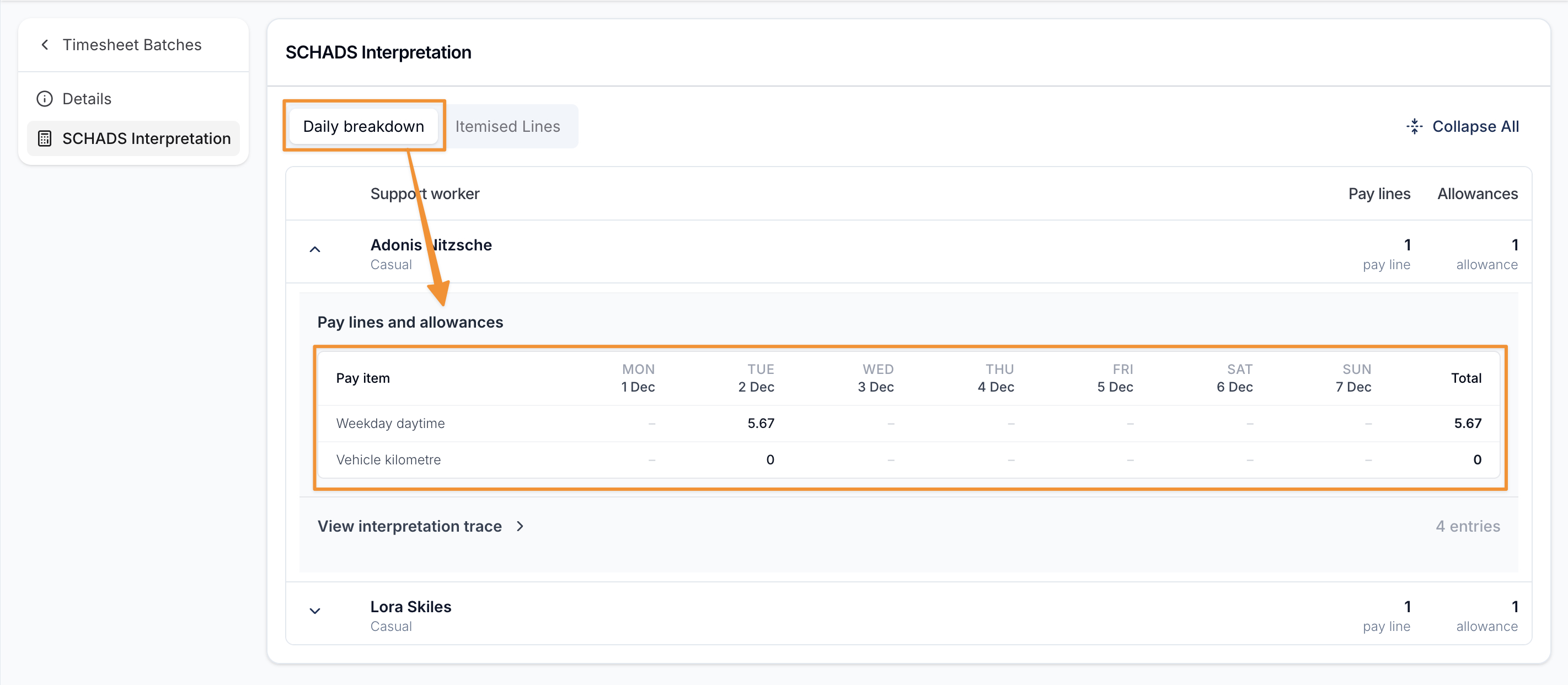
This page provides the user with an interpretation for each Support Worker's shifts that are within the timesheet batch. The shifts within each Support Worker can be grouped by either a daily view or by an itemised view
By Daily Breakdown
If you are viewing by Daily Breakdown you can view the different pay line totals applied per days, and you then group each of the pay lines across the pay cycle to display the total accumulated amounts of that pay line in the pay cycle.
By Itemised Lines
If you are viewing by Itemised Lines you can view it grouped by the Paylines and Allowances, which will then provide you with the date of support, Pay rate or Allowance, and the amount of units.
Exporting to CSV
Select Export CSV to queue a CSV of every employee interpreted for this batch - including anyone hidden by the table's search. If your organisation requires a reason for exports, an Export reason box appears; enter at least 10 characters before selecting Create export.
The file is queued in the background and appears on the Exports page as Award Interpretation Export followed by the batch's start and end dates. Its columns match the Award Pay Report's CSV export.