Cancellation Reasons
Overview
In Astalty, you can create and manage your own cancellation reasons. These reasons will appear whenever a support is cancelled, ensuring that cancellations are tracked consistently and accurately across your organisation.
Adding a Cancellation Reason
- Go to Settings.
- Select Scheduling.
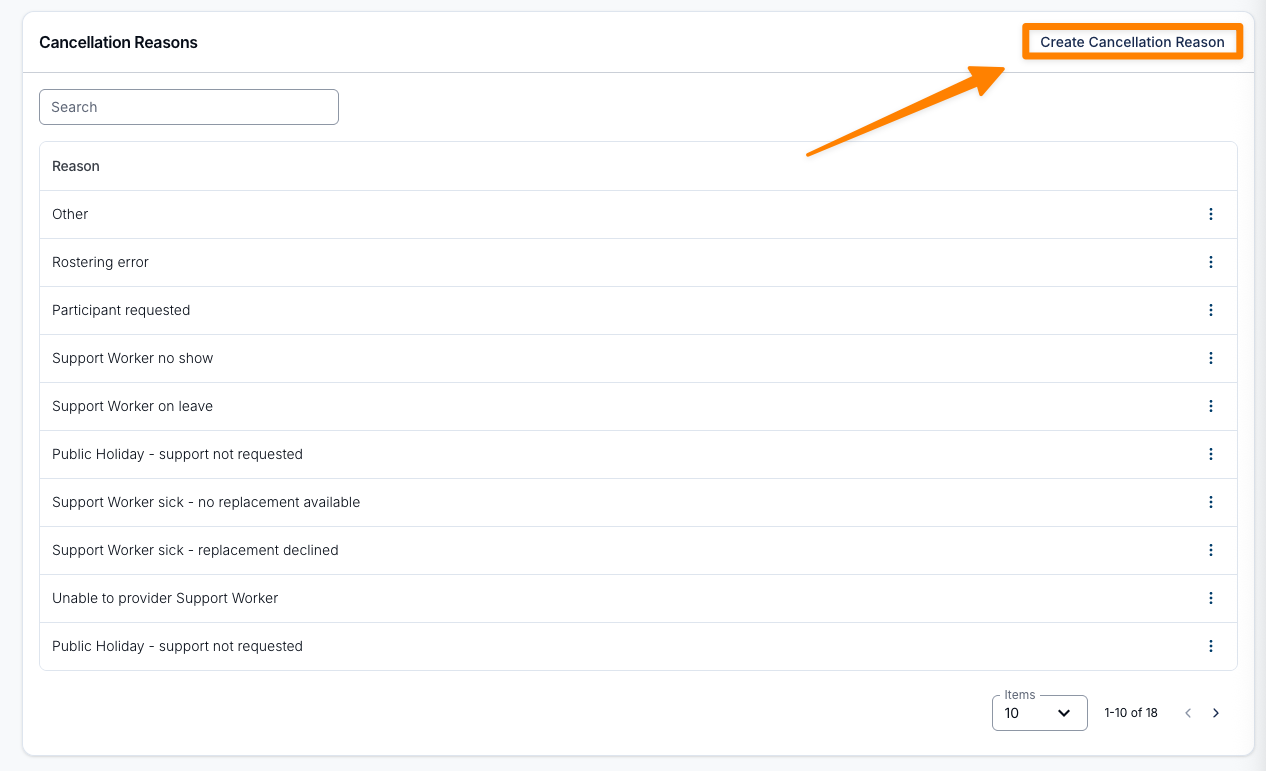
- Choose Cancellation Reasons from the submenu on the left, then click Create Cancellation Reason.
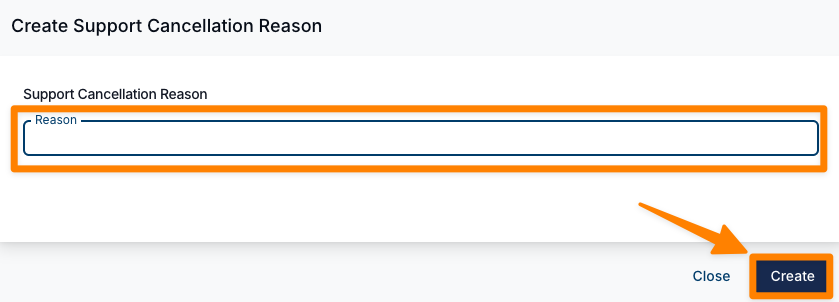
- Enter the reason (e.g., Rostering Error) and click Create to save.
Editing or Updating Reasons
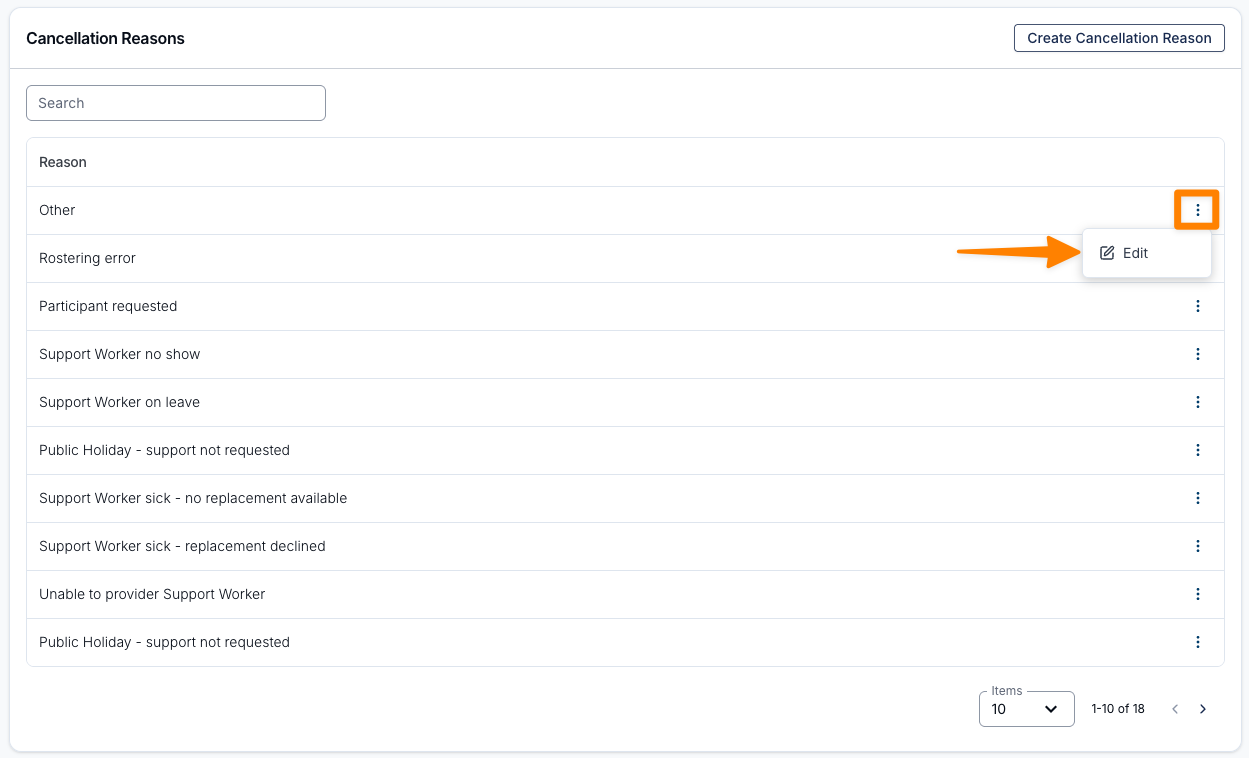
To edit an existing cancellation reason:
- Click the three dot menu next to the Reason and click on Edit.
- Update the details as required and click Update to save the changes.
Using Cancellation Reasons
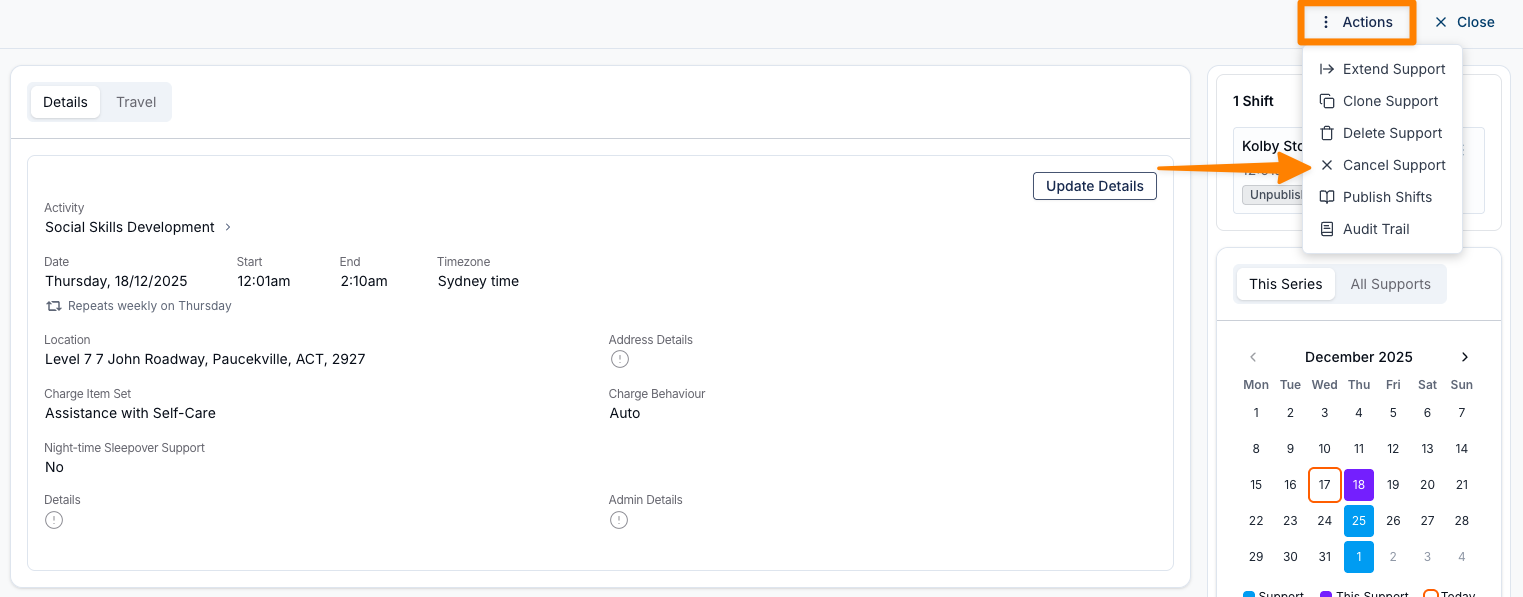
- Open the support you want to cancel.
- Select Actions > Cancel Support.
- Follow the prompts.
- From the dropdown list, select the appropriate cancellation reason.
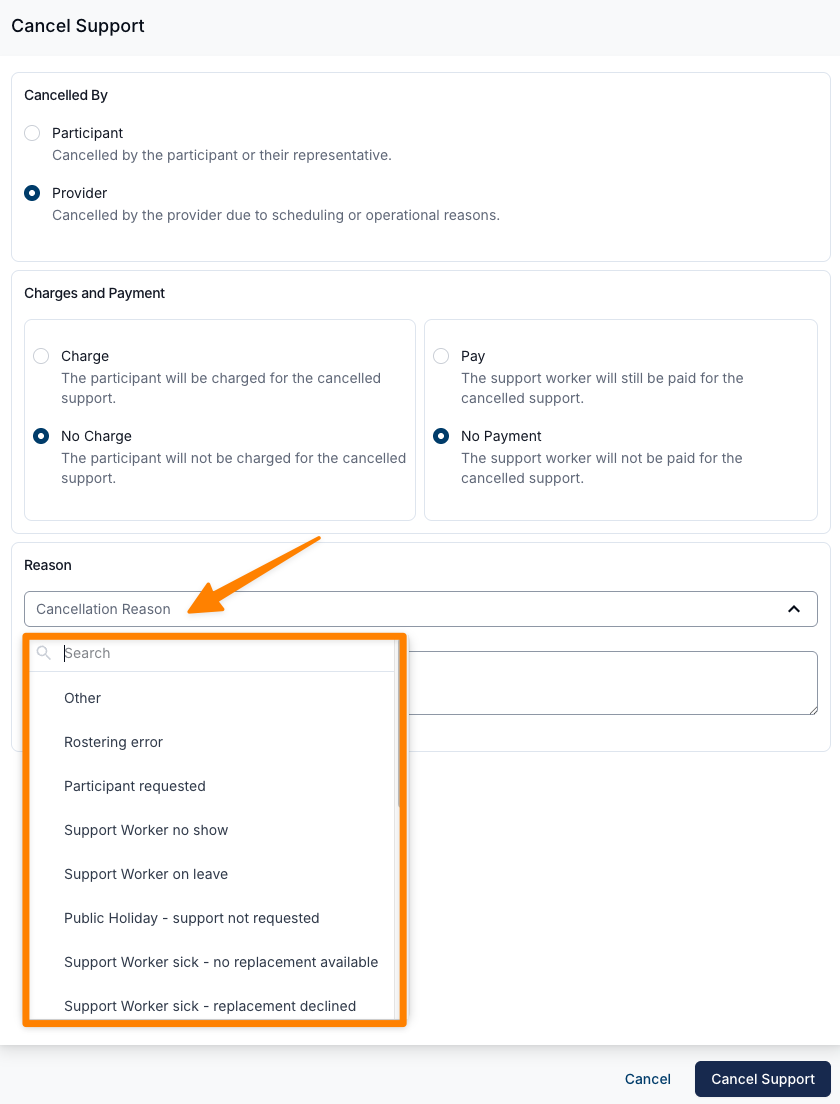
The cancellation will be recorded with the selected reason. Click Cancel Support to save.
Video Overview
The following video provides an overview of Cancellation Reasons.
Deleting an Unused Reason
Use the reason's delete action only when it is no longer needed. Astalty blocks deletion if any cancellation still uses the reason, including historical cancellations. Renaming an existing reason is different from deleting it; review its past usage before changing its meaning.