Support Time Segments
Overview
Support Time Segments let you split one support's time into windows that each bill their own way. A segment can either:
- bill through a different Charge Item Set - for example, charge 12:00pm-3:00pm through a different set to the rest of the support, or
- be marked No charge, so those hours are not billed at all.
Any time not covered by a segment is charged through the support's primary Charge Item Set. The one exception is segment-only billing on a group support, where the Participant has no primary set and uncovered time is not billed at all.
Use this when one rostered support should bill through more than one Charge Item Set, or when part of a support should not be charged, without creating separate supports for each portion of the day.
The Charge Item Sets selected for segments must be available to the Participant on the support date.
Support Time Segments are a finance and billing setting for planners. They are not Support Worker-facing - workers do not see segments in the Support Worker app, and the rostered shift experience is unchanged.
Adding Support Time Segments
- Go to Schedule.
- Create or open a support that uses automatic charging.
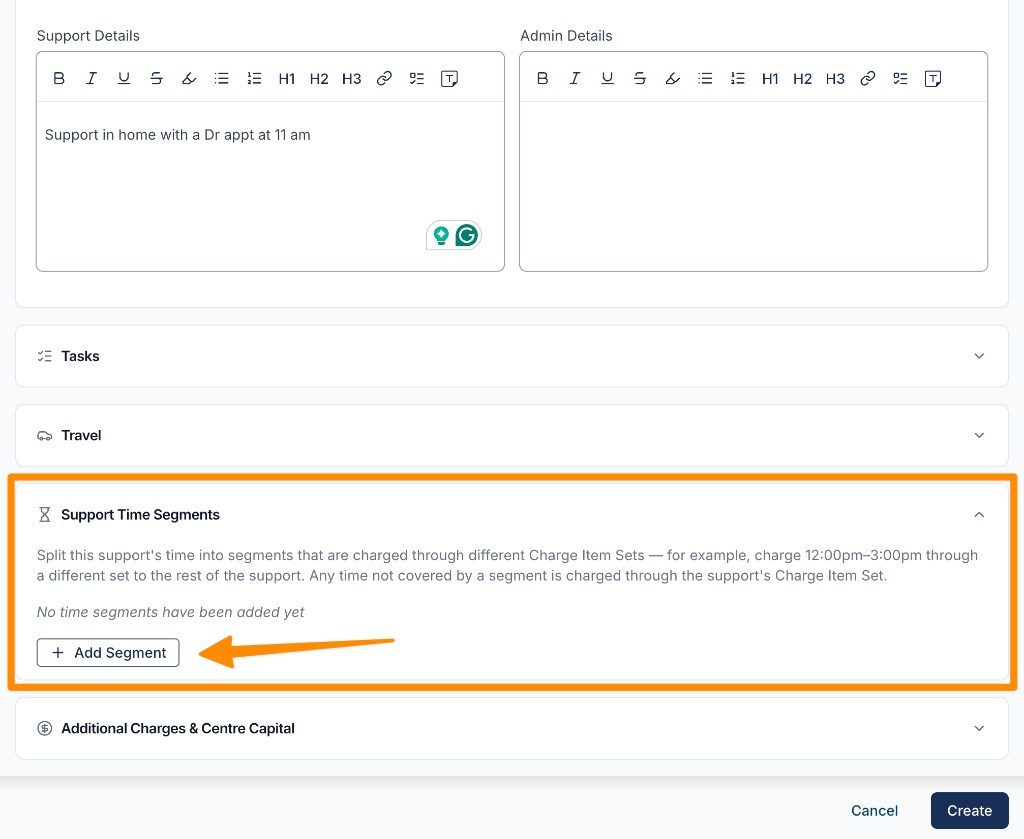
- In the Support Time Segments section, select Add Segment.
- Set Segment starts and Segment ends. Astalty shows the span length under the end time (for example, 2 hours span).
- Choose how the segment bills - either tick No charge, or select a Charge Item Set.
- Add further segments if needed (up to 10 per support).
- Save the support.
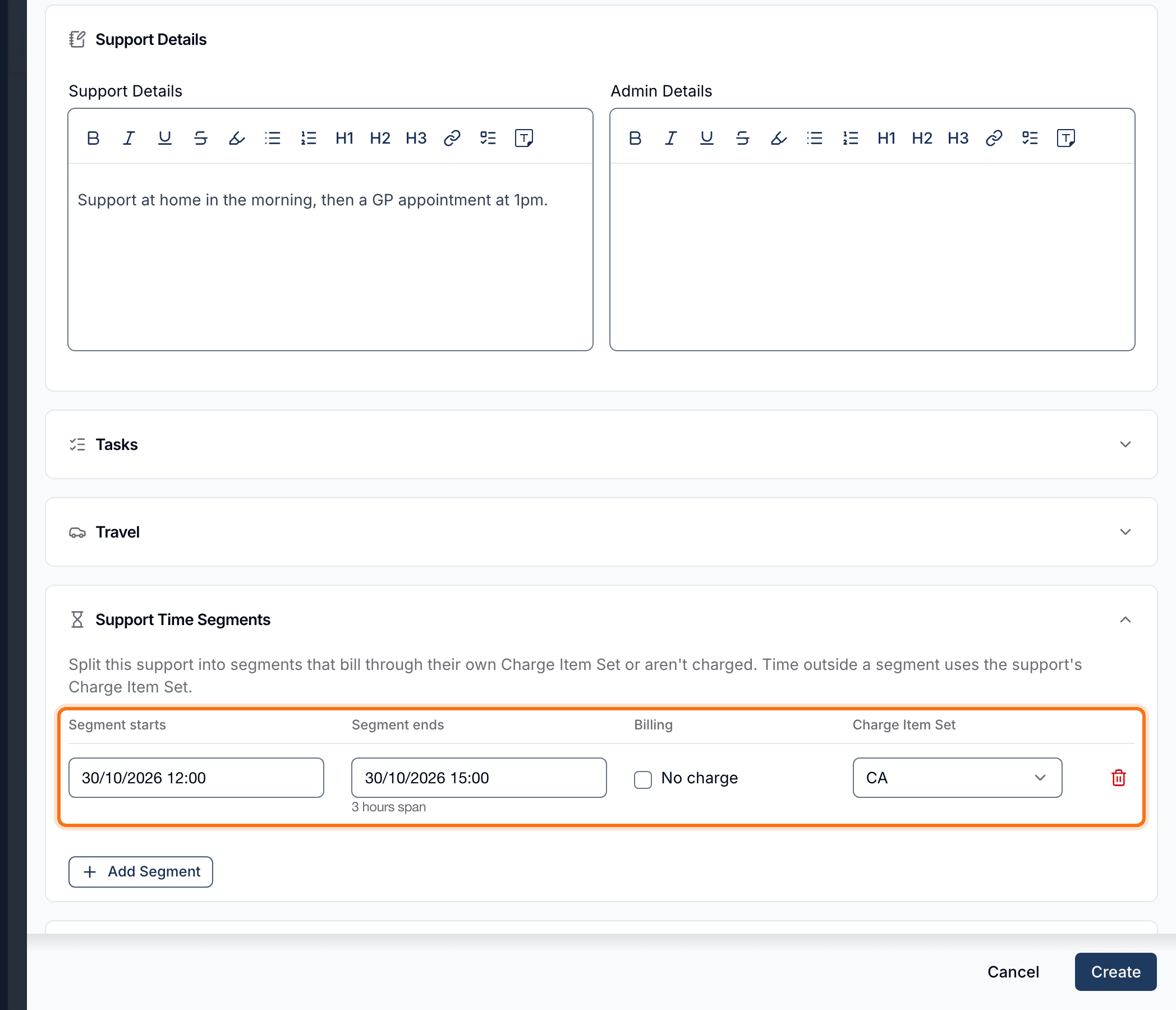
Every segment needs an explicit billing choice - you cannot leave both No charge unticked and the Charge Item Set empty. Ticking No charge clears and disables the Charge Item Set picker for that row, so the two are mutually exclusive.
The Charge Item Set picker offers the sets available for the Participant on the support date. This includes the support's own primary set - segmenting alone can change the result, because each segment resolves its rate against its own end time and dates its charge line by its own start.
No Charge Segments
Tick No charge in the Billing column to exclude a segment's hours from billing. Astalty creates no hourly charge line for that window, including no zero-dollar line, so those hours do not appear on the support's charges.
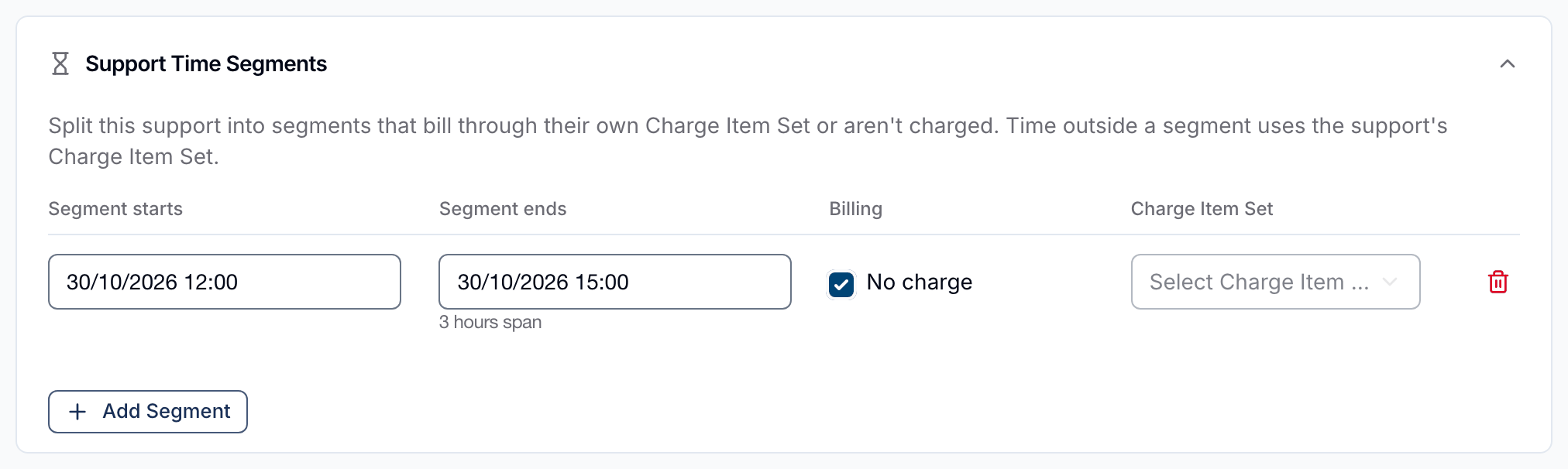
Time outside the no-charge segment still bills through the support's primary Charge Item Set. The no-charge window is not absorbed back into the primary set, so those hours are not billed.
The one exception is approved times: if a shift's approved start and end times no longer cover the no-charge window, the primary set bills that time instead. See Billing Behaviour below.
The Support Worker is unaffected too. The shift is still rostered and worked in full, and payroll and Support Worker pay do not change.
Segment Rules
A support time segment must:
- fall within the support start and end times
- end after it starts
- have an explicit billing choice - either No charge or a Charge Item Set, never both and never neither
- not overlap another segment (segments that meet exactly end-to-end are fine)
- sit entirely outside the Sleepover Window, on a sleepover support
Support Time Segments also:
- require automatic charging - they are not available when the support uses manual charges
- need a Sleepover Window to be set first on a sleepover support - see Sleepover Supports
- are limited to 10 segments per support
Billing Behaviour
When automatic charges sync, Astalty bills each segment through its chosen Charge Item Set. Uncovered time bills through the support's primary Charge Item Set.
| Portion of the support | How it bills |
|---|---|
| Inside a segment with a Charge Item Set | Through that segment's Charge Item Set |
| Inside a No charge segment | Not billed - no hourly charge line is created |
| Outside any segment | Through the support's primary Charge Item Set |
| Outside any segment, with segment-only billing | Not billed - there is no primary Charge Item Set |
| Inside a Sleepover Window | One flat Night Time Sleepover charge - segments never apply here |
On the support's Finance tab, Astalty lists each segment window and shows the matching charge line for that portion of the support. Each segment appears as a chip labelled with its time range and either the Charge Item Set name or No Charge - so a no-charge window is still visible on the Finance tab even though it has no charge line:
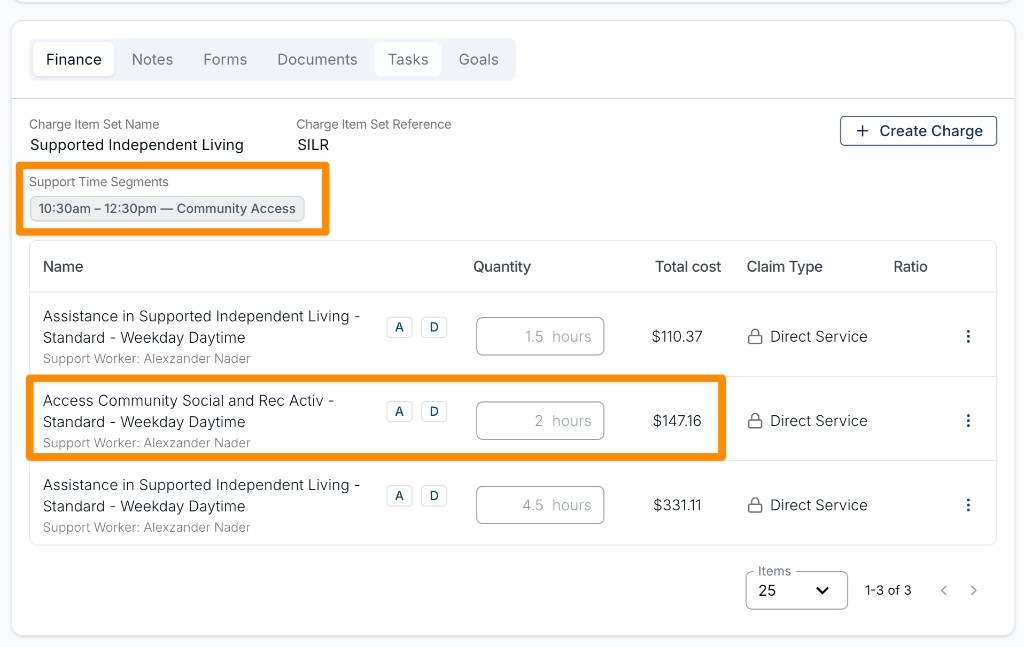
Each segment resolves its own rate and Charge Item from its Charge Item Set (including that set's rate pattern). If the chosen set has no Charge Item for the rate Astalty needs for that segment, charge syncing fails for the support until the set includes the required item or you change the segment.
The following stay on the support's primary Charge Item Set for the whole support, even when segments are present - including across No charge windows:
- travel (including KM)
- centre capital costs
Support Time Segments are billing-only. They affect how the support is charged on the Finance tab and invoices. They do not change payroll, Support Worker pay, or anything Support Workers see when working the shift.
Cost Previews
The weekly schedule cost preview excludes no-charge hours from the charge total, so the preview matches what the Participant will actually be billed.
Support hours and worker hours in that preview are not reduced - the time is still rostered and still worked. Expect hours and dollars to move independently once a no-charge segment is in place.
Sleepover Supports
A sleepover support that has a Sleepover Window set can also carry Support Time Segments. Use this where part of the waking evening or morning either side of the sleepover should bill through a different Charge Item Set to the rest of the active hours - for example, a 6:00 PM - 10:00 AM overnight support where the evening hours bill through a community access set and the morning hours bill through the support's usual set.
Every segment must sit entirely outside the sleepover window - wholly in the active hours before it, or wholly in the active hours after it. A segment that overlaps the window at all is refused:
A support time segment must sit outside the sleepover window.
A segment that meets the window exactly is fine. A segment can end at the moment the sleepover starts, or start at the moment it ends, in the same way two segments can meet end-to-end.
Set the Sleepover Window First
A sleepover support with no sleepover window cannot carry segments. Its whole span bills as one flat sleepover charge, so there is nowhere for a segment to sit. Astalty refuses to save with:
Set a sleepover window before adding support time segments.
Set the sleepover window first, then add the segments. On a group support, the Support Time Segments section stays hidden until the sleepover window is filled in.
Adding a Segment on a Sleepover Support
Add Segment is sleepover-aware - Astalty pre-fills each new row so it already sits outside the window:
- while there is still unsegmented time before the sleepover starts, the new segment runs from there to the start of the sleepover window
- otherwise it starts at the end of the sleepover window, or the last segment's end if that is later, and runs to the support end
On a 6:00 PM - 10:00 AM support with a 10:00 PM - 6:00 AM sleepover window, the first Add Segment offers 6:00 PM - 10:00 PM, and the next offers 6:00 AM - 10:00 AM. You can still shorten either row - the pre-fill is a starting point, not a fixed choice.
How a Combined Support Bills
Astalty splits the support by the sleepover window first, then applies your segments inside the active regions either side:
| Portion of the support | How it bills |
|---|---|
| Before the sleepover window, inside a segment | Through that segment's Charge Item Set, or not at all for No charge |
| Before the sleepover window, outside any segment | Through the support's primary Charge Item Set |
| The sleepover window | One flat Night Time Sleepover charge |
| After the sleepover window, inside a segment | Through that segment's Charge Item Set, or not at all for No charge |
| After the sleepover window, outside any segment | Through the support's primary Charge Item Set |
The sleepover window is never subdivided, and the flat sleepover charge is unchanged by any segment. Because segments split the active hours further, a combined support can create more than the three charge lines a sleepover window alone produces.
Travel on a support with a sleepover window is rated against the active hours either side of the sleepover rather than the sleepover rate - travel anchored to the start of the shift takes the rate of the first active portion, and travel anchored to the end takes the rate of the last. The travel Charge Item still comes from the support's primary Charge Item Set, as it does on any segmented support.
Finding Segmented Supports on the Schedule
To see which shifts use Support Time Segments, apply the Support Time Segments filter on the Schedule - select the filter icon, choose Support Time Segments, then pick With or Without. See Support Time Segments filter for what each option includes.
A support switched to manual charging shows under Without, because its segments no longer apply to billing.
Group Supports
On group supports, segments are set on each Participant's child support, not once at the group level. There are no group-level segment rows. This means you can mark one Participant's time as No charge while the other Participants on the same group support continue to bill normally.
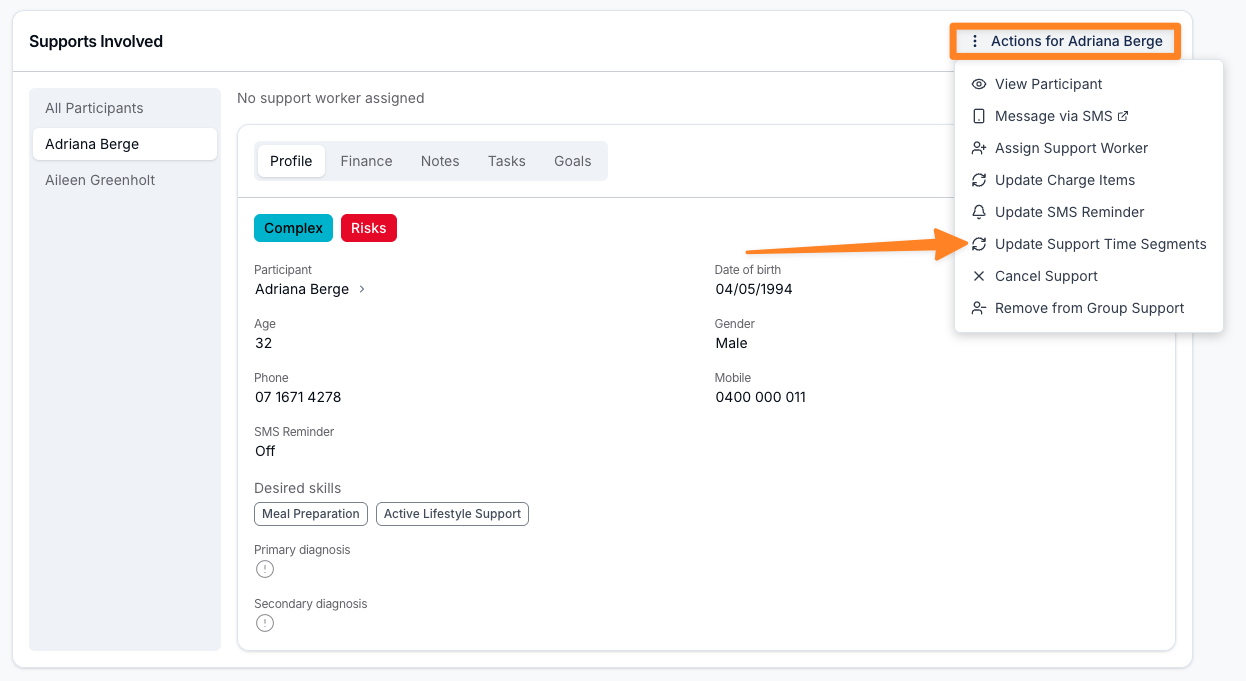
There are two ways in, and both open the same Update Support Time Segments window for that one Participant:
- On the Participant, select Actions and then Update Support Time Segments.
- Or select Update Details on the group support, and select Edit Segments against the Participant.
Only One Support Worker
A group support that uses Support Time Segments can have at most one Support Worker. This is a hard rule rather than a warning you can dismiss, and it applies from both directions - you cannot add segments to a group support that already has two workers, and you cannot add a second worker to a group support that already has segments.
Astalty blocks the action wherever a second worker could arrive: creating the group support, updating it, changing a shift's Support Worker, approving a shift broadcast, and adding Participants. In each case it refuses with:
Support time segments are only available for group supports with a single support worker.
Where the group support already has more than one Support Worker, Edit Segments is disabled and the same message explains why. Until the group support has a Support Worker, the segment options, including Bill only through Support Time Segments, stay disabled with the message Support time segments will be enabled when there is a single support worker.
If you need segments on a group that runs with two Support Workers, set it up as two separate Group Supports instead - see Two separate Group Supports.
Setting a Charge Ratio on a Segment
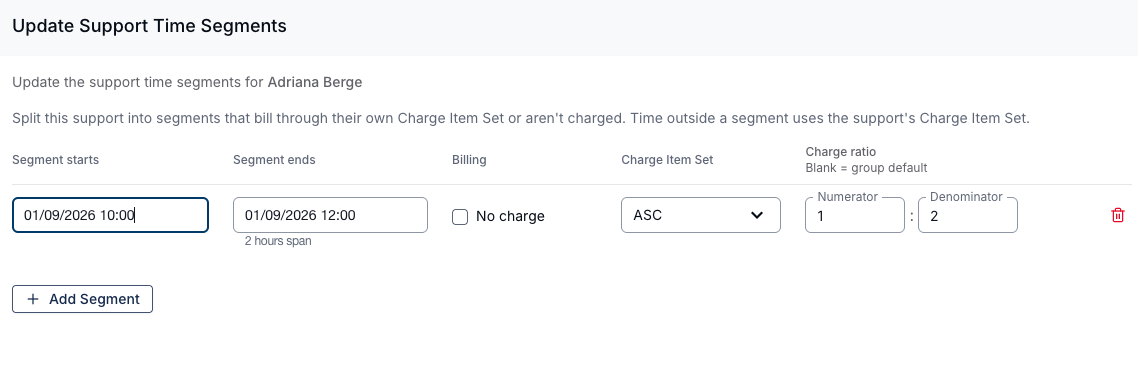
On a group support, each segment row gains a Charge ratio column holding a Numerator and a Denominator. Use it when part of a Participant's time is delivered at a different ratio to the rest of the session - for example a 1:3 group where one Participant is supported one-to-one for an hour in the middle of it.
- Open the group support and select Update Details.
- Against the Participant, select Edit Segments.
- Add a segment, or open the one you want to change.
- Enter the Numerator and Denominator under Charge ratio.
- Select Apply Segments, then Update to save the group support.
Leave both fields blank to use the group's ratio - the column header says as much, Blank = group default.
Coming in from the Participant's Actions menu instead, the segments save on their own and the button reads Update Segments rather than Apply Segments.
Which Ratio Applies
A group support already has a Group Billing Ratio, and per-Participant ratio overrides. A segment ratio sits on top of those, and only ever affects its own segment:
| Charge line | Ratio used |
|---|---|
| A segment with a Charge ratio entered | That segment's ratio |
| A segment with Charge ratio left blank | The group ratio |
| Time outside any segment | The group ratio |
| Travel and centre capital costs | Not affected - ratios only apply to hourly charges |
Charge Ratio Rules
- Enter both numbers or neither - "Enter both a numerator and denominator, or leave both blank."
- The numerator cannot be greater than the denominator - "The ratio numerator cannot be greater than the denominator." As elsewhere in Astalty, a ratio can only reduce a charge.
- The numerator can be
0. The denominator must be at least1. - A No charge segment cannot carry a ratio - "A no-charge segment cannot use a charge ratio." Ticking No charge clears the ratio, because there is no charge line for it to apply to.
Segment-Only Billing
Normally the time outside a Participant's segments bills through their primary Charge Item Set. Segment-only billing removes that fallback for one Participant: only their segments are billed, and the rest of the session is not billed at all.
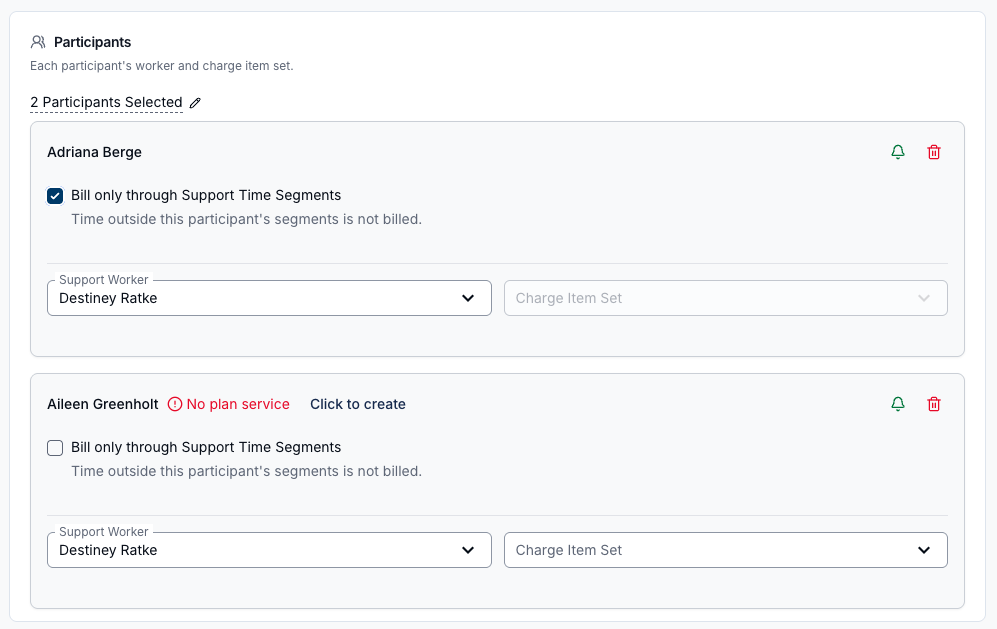
On the Participant's row, tick Bill only through Support Time Segments. The description under it reads "Time outside this participant's segments is not billed."
A Participant using segment-only billing has no primary Charge Item Set - the field must be left empty, or Astalty refuses to save:
Leave the participant Charge Item Set blank for segment-only billing.
Reach for this where a Participant's funding only covers defined windows of a longer session - the group runs 9:00am-3:00pm, but this Participant's plan funds two specific hours of it. Without segment-only billing you would need a primary Charge Item Set covering the other four hours, and those hours would bill.
When Every Participant Uses Segment-Only Billing
Two further rules apply to the group support as a whole once every Participant on it uses segment-only billing:
- The segments must cover the full group support time, with no gaps. Nothing falls back to a primary Charge Item Set, so uncovered time would silently disappear from billing. Astalty refuses to save it: "Together, Support Time Segments must cover the full Group Support time without gaps."
- Travel cannot be charged. Travel rates against the primary Charge Item Set, and there is no longer one. You can still record travel on the support - the charge options for it are unavailable: "Travel cannot be charged when the Group Support uses segment-only billing."
Both rules are group-wide. If even one Participant on the group support still has a primary Charge Item Set, neither applies.
Recurring Supports
When a support repeats, Astalty re-anchors the segment start and end times onto each occurrence so the same relative windows apply to every date in the series. A No charge segment carries across occurrences the same way, so every date in the series repeats the unbilled window.
Tips
- Plan Charge Item Sets and plan coverage first - the segment set must be available for the Participant on the support date.
- Prefer segments that meet end-to-end when you want continuous alternate billing without leaving gaps on the primary set.
- Use No charge for goodwill or unbillable time you still want rostered and paid, rather than shortening the support - the Support Worker keeps the full shift and their pay is unchanged.
- If you switch a support to manual charging, the Support Time Segments section is hidden. Segment settings require automatic charging again before they apply to billing.