- Scheduling
- Custom Allowances
Custom Allowances
Custom allowances are allowances you define yourself, such as a working from home or remote area allowance, for anything your payroll pays that Astalty doesn't already work out from the award. You add them to a worker's shift, and Astalty sends each one to payroll as its own timesheet line with a number of units. Your payroll platform sets the amount paid for each unit.
Before You Start
Your payroll platform must be able to receive them. Custom allowances are sent to Employment Hero, PayCat and QuickBooks Payroll, and are included in the Raw shift data export from a timesheet batch on any platform. An account whose payroll platform is Other can use them too, and gets them only through the Raw shift data export. They are not sent to Xero or MYOB yet, so an account whose payroll platform is Xero or MYOB cannot add them to shifts. The platform is the Platform setting under Payroll & Awards in Scheduling Settings.
Who can use them:
- Admins can create, edit, archive and map custom allowances.
- Managers with access to Scheduling can see custom allowances and add them to the shifts they create or edit, but cannot create, change or map them.
- Team Members and Support Workers cannot see custom allowances, including on their own shifts and in the Support Worker app.
See the Scheduling permissions for the full role matrix.
How a Custom Allowance Is Paid
Astalty sends units, not dollar amounts. Each custom allowance on a shift becomes one timesheet line for that shift's worker, dated on the shift's approved start date, with no start or end time. Payroll multiplies the units by the rate of the work type the allowance is mapped to. The allowance never changes the shift's own hours lines.
You choose how the units are counted when you create the allowance:
| Paid | Units sent for each shift |
|---|---|
| Per shift | The fixed number of units set on the allowance, however long the shift is |
| Per hour | One unit for each paid hour of the approved shift - see How Per Hour Units Are Worked Out |
Creating a Custom Allowance
- Go to Settings > Scheduling > Custom Allowances.
- Select Create Custom Allowance.
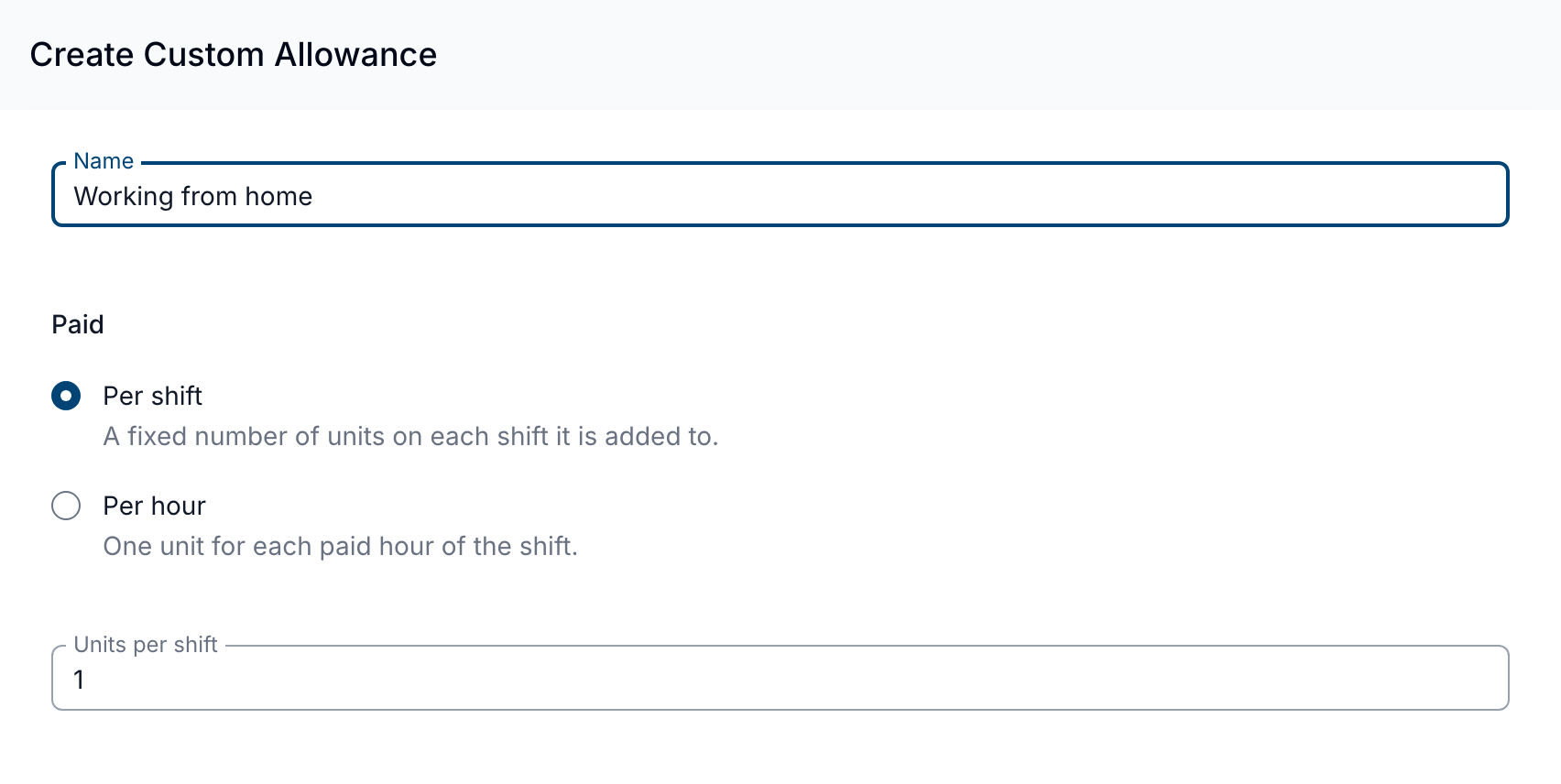
- Enter a Name. Your team chooses the allowance by this name, and payroll receives it as the line's comment. Each active allowance needs a different name.
- Under Paid, choose Per shift or Per hour.
- For a per shift allowance, enter the Units per shift. It starts at 1 and can be any amount above 0, up to 999.99 with two decimal places.
- Select Create.
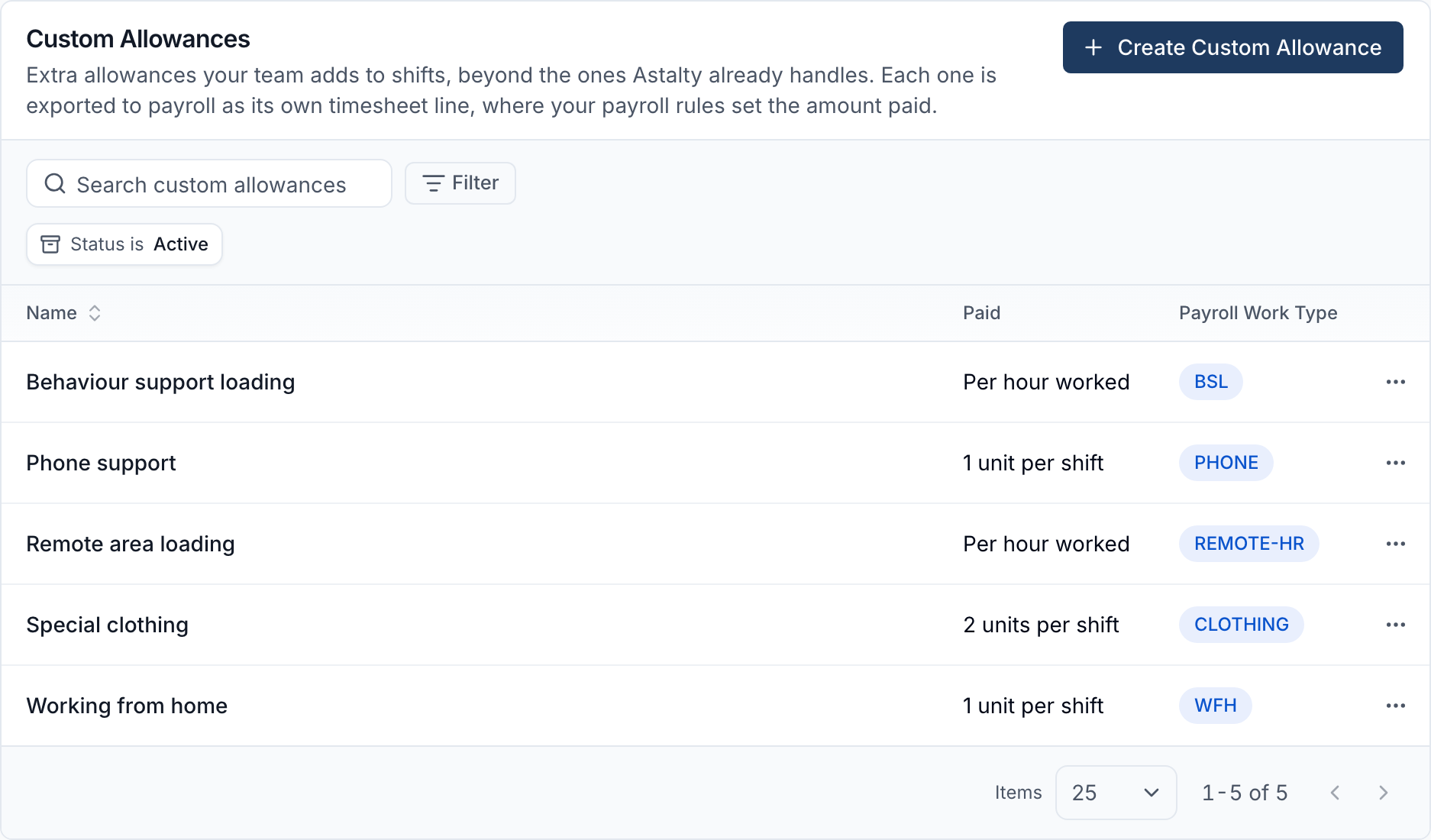
The Custom Allowances list shows each allowance's name and how it is Paid. On an Employment Hero, PayCat or QuickBooks Payroll account it also shows the Payroll Work Type the allowance is mapped to, or Not Linked when it has none. The list shows active allowances by default; change the Status filter to Archived or All to see archived ones.
Mapping an Allowance to a Payroll Work Type
On Employment Hero, PayCat and QuickBooks Payroll, every custom allowance on a shift in a timesheet batch needs a work type before you can send the batch to payroll or export its payroll CSV. The Raw shift data, SCHADS interpreted timesheet and Xero-formatted timesheet exports don't need the mapping.
Set up the payroll side first. In your payroll platform, create a pay category for the allowance with the rate you pay per unit, then a work type that pays that pay category, and give the work type an External ID. Then map it in Astalty:
- Go to Settings > Integrations, select Configure on your payroll integration, and open Custom Allowances.
- Open the allowance's actions menu and select Edit Employment Hero Work Type Mapping. The option is named after your payroll platform.
- Choose the Employment Hero Work Type. The list comes from your payroll business, so connect the integration first. If your plan doesn't include the payroll integration, enter the work type's External ID in Employment Hero Work Type External ID instead. Both fields are named after your payroll platform.
- Select Save.
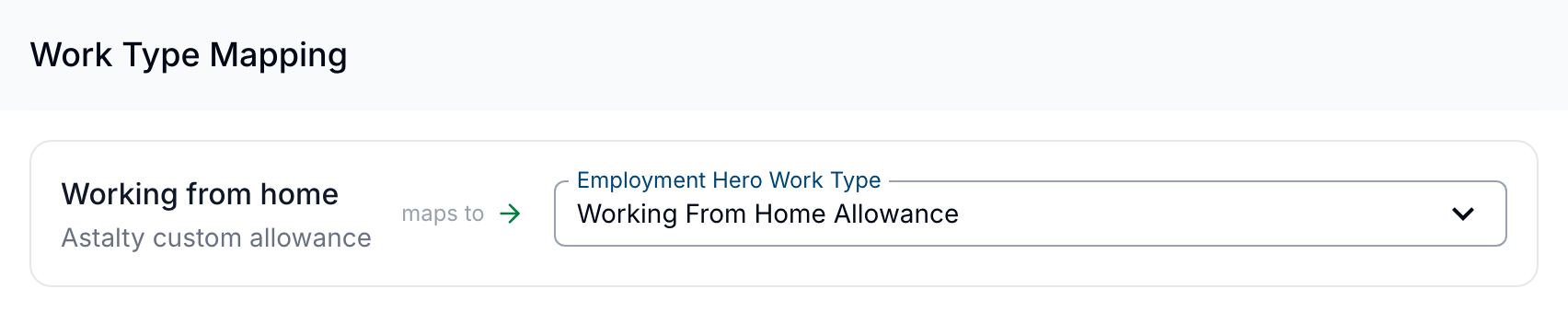
The same mapping option is in each allowance's actions menu on Settings > Scheduling > Custom Allowances.
Adding Custom Allowances to a Shift
Custom allowances belong to one worker's shift, not to the support, so each worker on a support can have different allowances. A shift can carry up to 20.
When Creating a Support
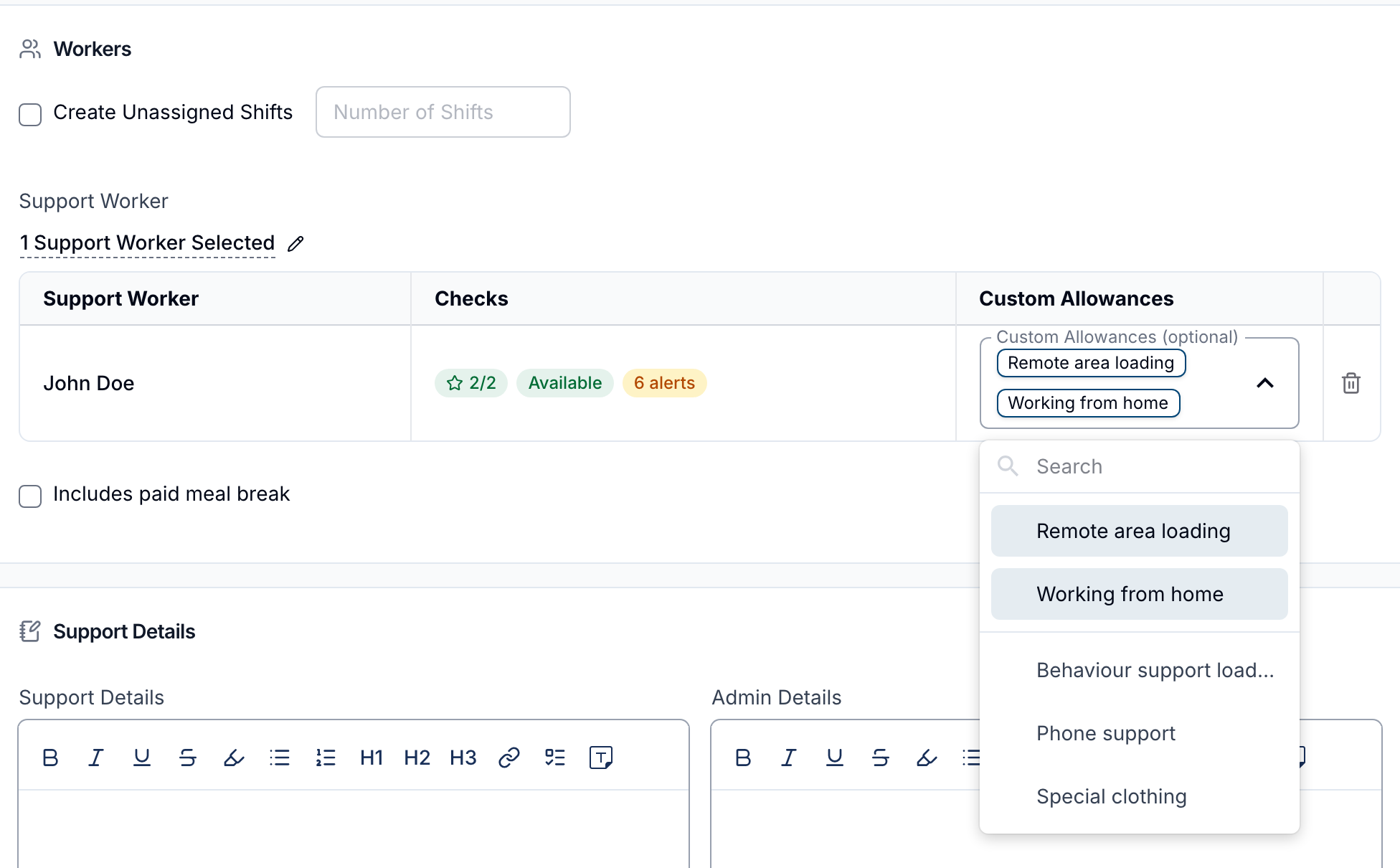
When you create a Direct Support, Group Support, Flexible Group Support or internal event, the table of selected workers has a Custom Allowances column. The same column appears when you use Add Attendees on an existing internal event. Choose the allowances for each worker in their Custom Allowances (optional) field. Each worker's choices go on their own shift, and on every shift in the series when the support repeats.
On an Existing Shift
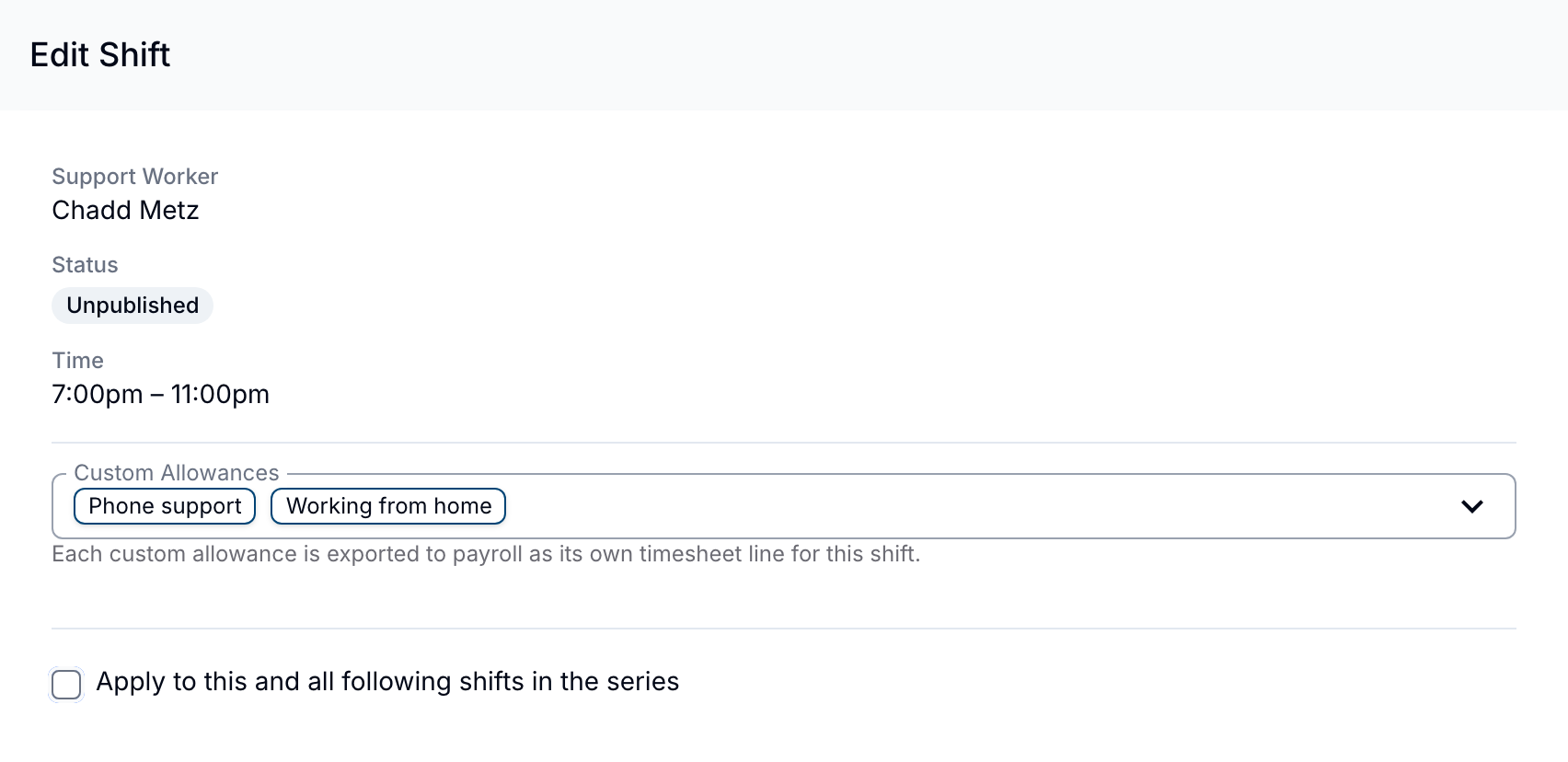
- Open the support, select the three-dot menu next to the worker's shift and select Edit Shift.
- Add or remove allowances in Custom Allowances.
- For a shift in a recurring series, tick Apply to this and all following shifts in the series to give the following shifts the same allowances. Leave it unticked to change only this shift.
- Select Update Shift.
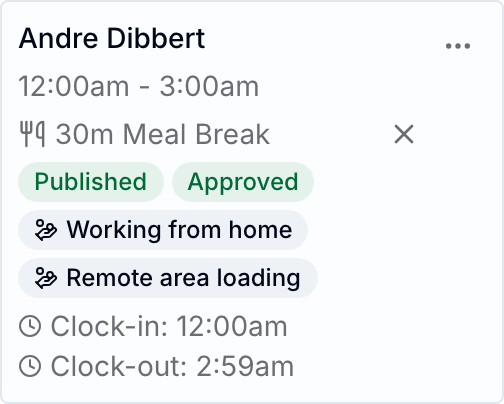
Each allowance then shows as a badge on the worker's shift card.
Duplicating, Extending and Reassigning
- Duplicating a support or cloning an internal event copies each worker's custom allowances to the copy, except archived allowances.
- Extending a recurring series gives the new shifts the worker's active custom allowances.
- Reassigning a shift to another worker keeps its custom allowances, so the new worker is paid them. After a reassignment, check any allowance that depends on the person, such as working from home.
When an Allowance Can't Be Added
The Custom Allowances field lets you remove allowances but not add them when:
- the allowance is archived
- custom allowances have been switched off for your account
- your payroll platform is Xero or MYOB
- the shift is an unpaid break, which is never paid
Once a shift is in a timesheet batch, its custom allowances are locked and cannot be added or removed.
How Per Hour Units Are Worked Out
A per hour allowance counts the shift's paid hours from its approved times, so approve the shift's hours in Shift Approvals before the batch is created.
| Shift | Units |
|---|---|
| Most shifts | The approved start to end time, less any unpaid breaks. Paid breaks count. Across a daylight saving change, the hours actually worked are counted. |
| A shift with no approved times | 0 units, and no line is sent |
| A sleepover with a sleepover window | The active hours before and after the window, plus any approved active overnight periods inside it, less unpaid breaks |
| A sleepover support with no sleepover window | Only the approved active overnight periods. A sleepover with none gets 0 units. |
| A SCHADS home care worker's 24-hour care shift | 8 units, plus any approved time past the 24-hour period |
For example, a sleepover support from 3:00 PM to 9:00 AM with a 10:00 PM to 6:00 AM sleepover window and a 30-minute unpaid break gets 9.5 units: 7 hours before the window and 3 hours after it, less half an hour.
Units are rounded to two decimal places. A per shift allowance always sends its fixed units, whatever these rules give.
Approving and Exporting Shifts With Allowances
When you expand a shift in Shift Approvals, its Custom Allowances are listed with the shift hours. They cannot be changed from there.
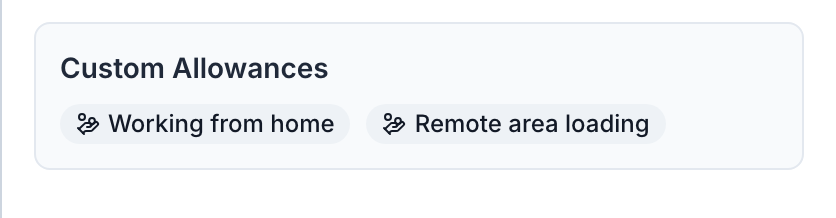
Custom allowances are sent with the rest of the shift when you send or export a timesheet batch:
- Send to your payroll platform, or Export Employment Hero Timesheet (CSV), includes one line per allowance per shift. Both actions are named after your payroll platform. Validation stops the export when an allowance on a shift in the batch has no work type mapped, and its Fix issue button opens the integration's Custom Allowances page. See Employment Hero validation errors.
- Raw shift data adds a row for each allowance, with its units and the allowance name in Comments.
- SCHADS interpreted timesheet and Xero-formatted timesheet do not include custom allowances.
Sending a batch again adds a second copy of every line, including allowance lines. To correct a batch you have already sent, use Replace instead.
Cancelled Shifts
A shift cancelled with pay keeps its custom allowances and sends the units it would have sent had it been worked. If an allowance covers a cost the worker didn't have because the shift didn't go ahead, such as working from home, remove it from the shift before the shift goes into a timesheet batch.
A shift cancelled with No pay is left out of timesheet batches, so its allowances are never sent. See Support Cancellations.
Changing or Archiving a Custom Allowance
To rename an allowance, select Edit from its actions menu. You can rename it at any time.
Once an allowance is on any shift in a timesheet batch, its Paid and Units per shift can no longer change, because a batch works out the units from them each time it is exported. To pay it differently, archive it and create a new allowance. The new allowance can reuse the archived one's name.
To stop an allowance being used, select Archive from its actions menu and confirm. An archived allowance cannot be added to shifts, but shifts that already have it keep it and still export it. Remove it from those shifts if it should not be paid. To bring it back, filter the list to Archived and select Unarchive. Unarchiving is refused while an active allowance has the same name.
Where Else Custom Allowances Appear
- Shifts Export and Completed Shifts Export add a Custom Allowances column listing each shift's allowances, once your account has shifts with allowances.
- The shift's audit trail records each time allowances are added or removed, and who made the change.
- Sleepover Migration does not merge supports whose shifts have custom allowances.
Astalty doesn't hold a rate for custom allowances, so they are not included in Scheduling Costs, the Award Interpretation tab of a timesheet batch, or Staff Payments.
If Custom Allowances Are Switched Off
If custom allowances are switched off for your account after they have been used, nothing already on a shift is lost:
- Shifts that already have custom allowances keep them and still export them. You can remove allowances from a shift, but not add them.
- The Custom Allowances settings page becomes read-only, and payroll work type mappings can still be changed.
- Creating a timesheet batch warns you when shifts in the period still have custom allowances, so you can remove any that should not be paid.
If You Change Your Payroll Platform to Xero or MYOB
Xero and MYOB don't receive custom allowances yet, so after a switch to either one:
- Allowances already on shifts stay there but are not sent. Creating a timesheet batch warns you about the shifts that have them, so you can add them in payroll by hand.
- You can remove allowances from shifts, but not add them.
- You can still create, edit and archive allowances on the Custom Allowances settings page, but the payroll work type mapping is no longer shown.