Paying different rates for different shifts
In some cases, you may want to pay Support Workers different rates for different shifts. Astalty supports this when using the Xero integration or Employment Hero export for your payroll. (PayCat and QuickBooks Payroll are the same integration as Employment Hero - the same steps apply.)
Default Pay Group
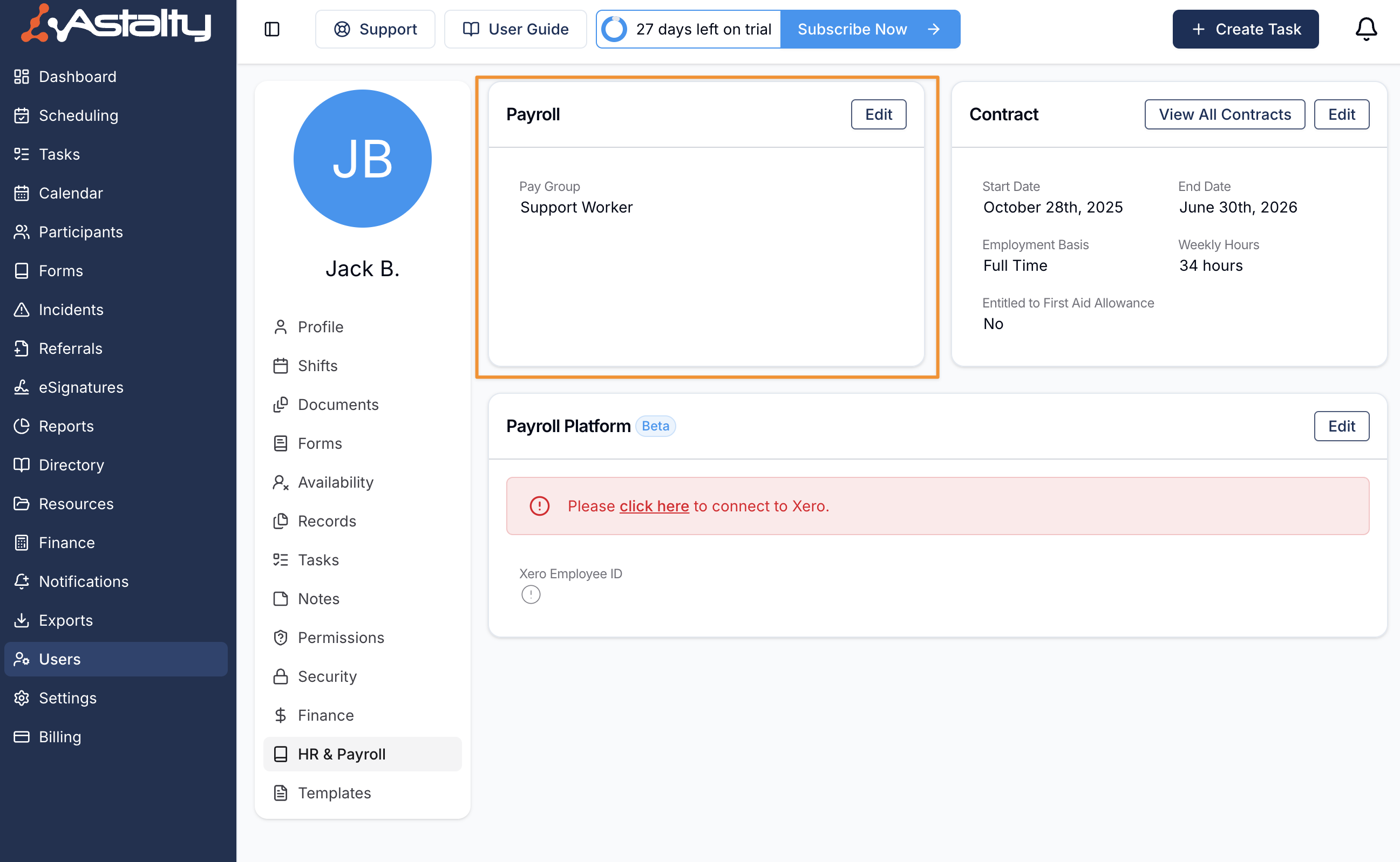
By default, an employee will be paid in line with the pay group configured on their profile in the HR & Payroll section.
Enabling Pay Group Overrides
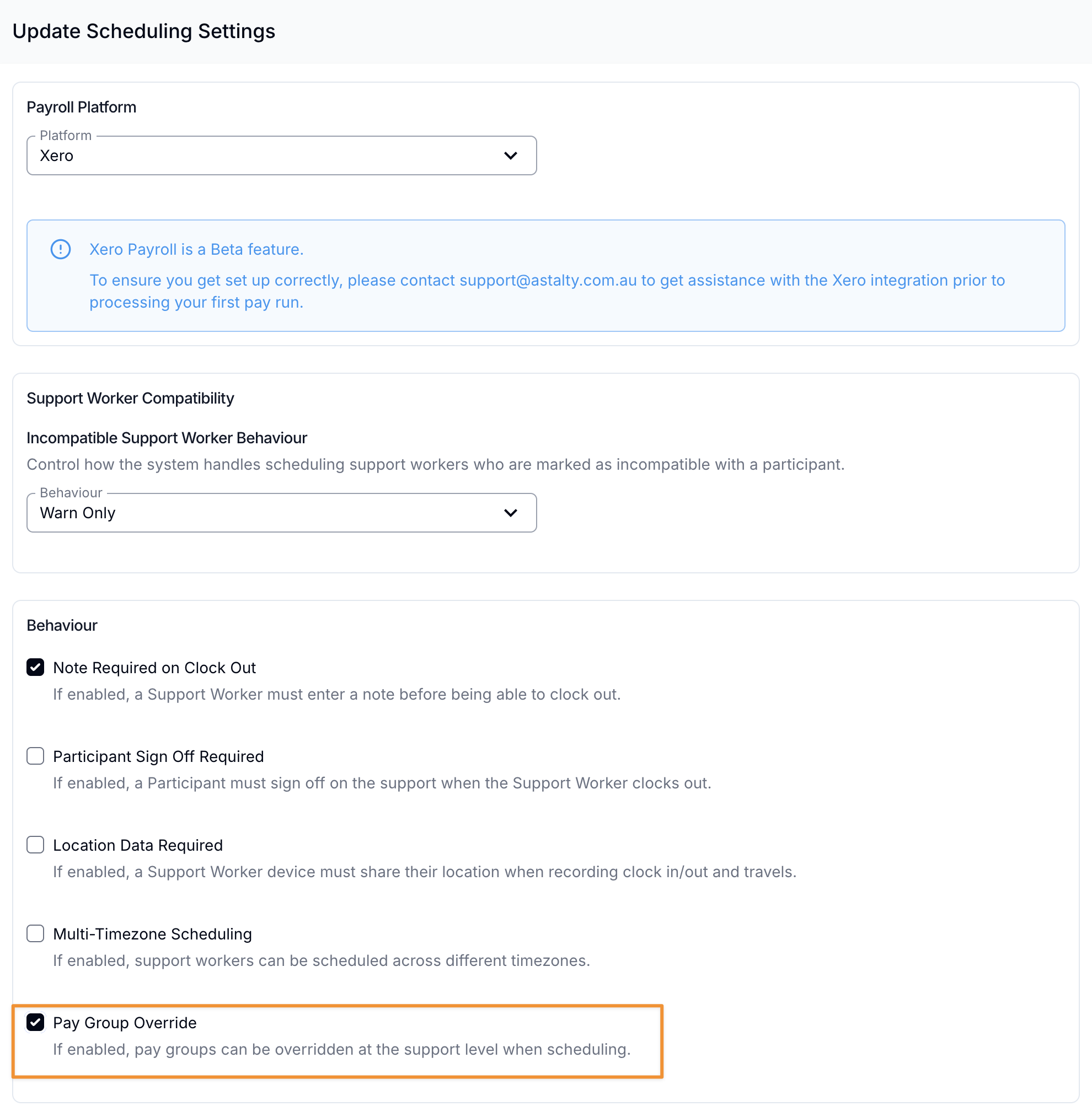
In Scheduling Settings, select Edit on the Scheduling & Travel card, tick Pay Group Override, then select Update.
Adding a Pay Group Override
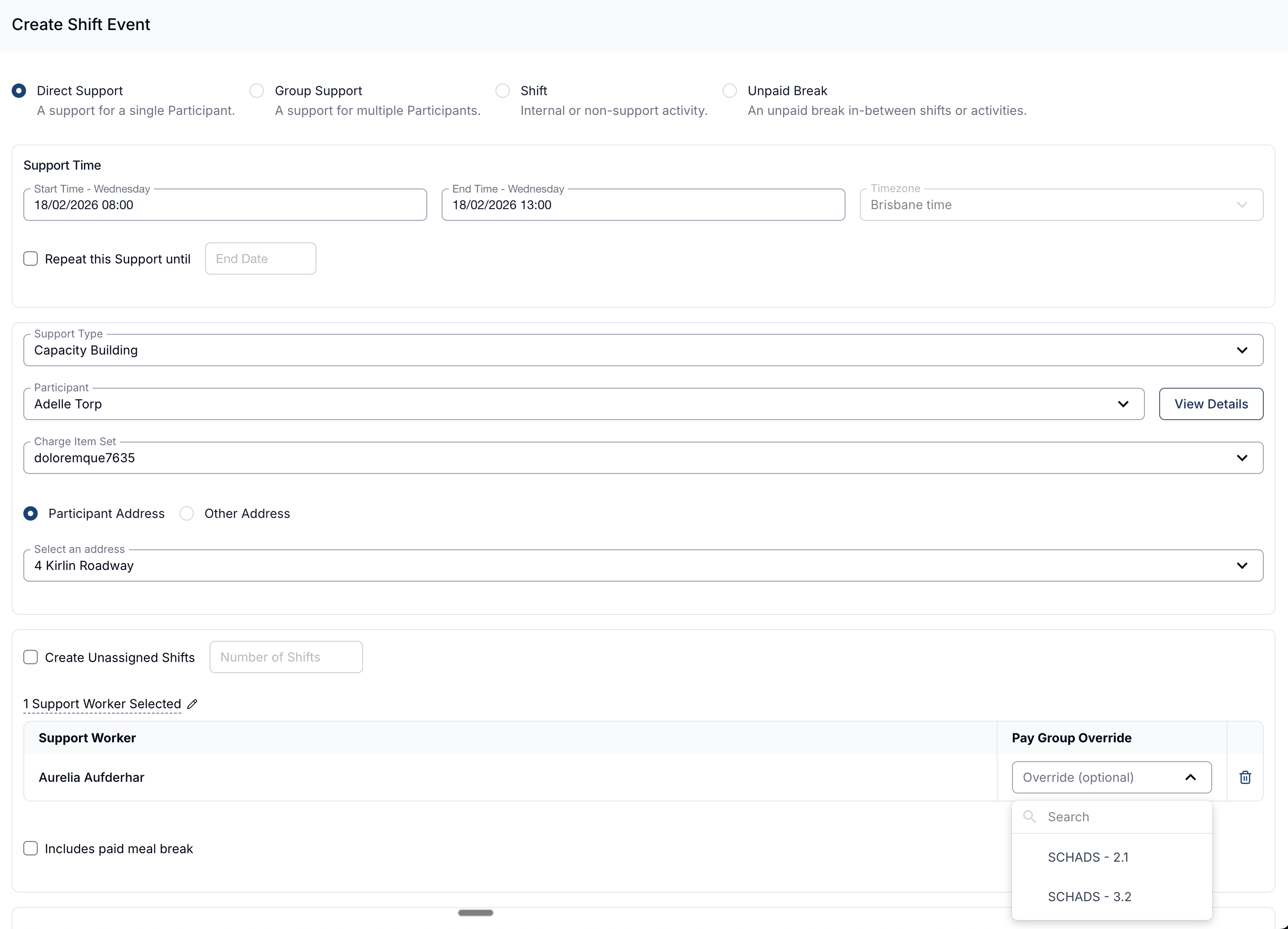
After enabling the setting, choose the Pay Group for the worker while creating or editing a shift.
Now when the timesheets are exported to Xero, the pay group override will be used when adding timesheet lines. Configure the mapping using Xero Integration in Scheduling.
Changing a Pay Group Override on an Existing Shift
- Click the three-dot menu next to the shift and select Edit Shift.
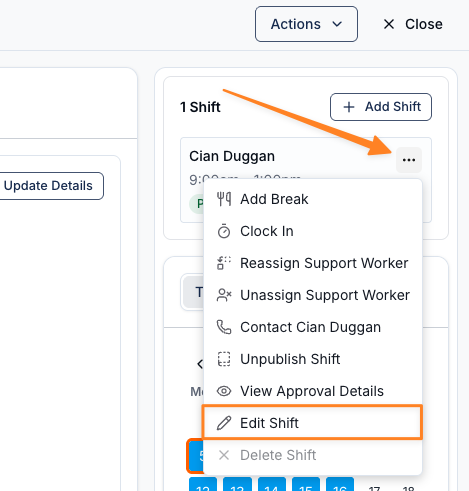
- Select the pay group from Pay Group Override, then click Update Shift.
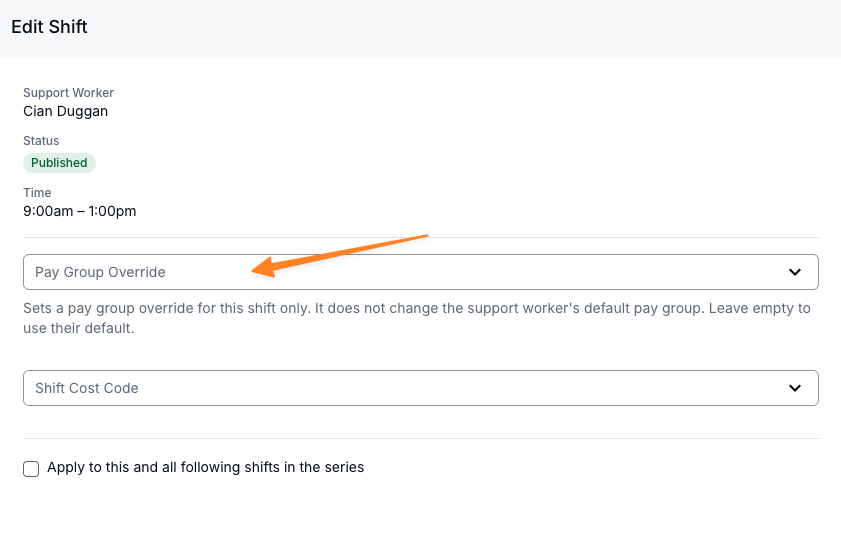
Clearing the field removes the override and reverts the shift to the worker's default pay group. For a shift in a recurring series, tick Apply to this and all following shifts in the series to carry the change forward; leave it unticked to change only that occurrence.
What the Override Changes
A Pay Group Override changes the payroll mapping for the shift and its associated payable travel and kilometre lines. Map the travel and allowance items on the override group as well.
The override must use the same award as the worker's contract. It does not change the award, classification or Base Hourly Rate used for Astalty costing. If the Xero group pays a different fixed rate, the payroll amount can differ from the Astalty cost estimate.
To pay an extra allowance on top of the shift's normal pay rather than a different rate, add a custom allowance to the shift instead.
Astalty does not automatically apply higher-duties provisions to the rest of a shift or day. Check the applicable award before using a per-shift override for higher-paid work. See Setup Pay Groups and Employees.
Changes to the Shift Date
The override is checked against the worker's award on the shift date. A recurring change must be compatible across the affected dates. When you change a shift's times, Astalty checks the override against the contract applicable on the new date. It removes mismatched overrides from affected shifts that are not already in a timesheet batch. Review the resulting pay group before the next export.