Creating a Service
Overview
Astalty supports two types of services - Scheduled and Unscheduled.
- Scheduled Services - Used for supports such as Community Access, Group Activities, Supported Independent Living, or another support you roster in Astalty.
- Unscheduled Services - Often used for supports such as Support Coordination, Recovery Coaching, or Allied Health services.
See Services and Charge Items for how Services control budgets, billing and available Charge Items.
Before You Start
Scheduled services require Scheduling to be available.
Services
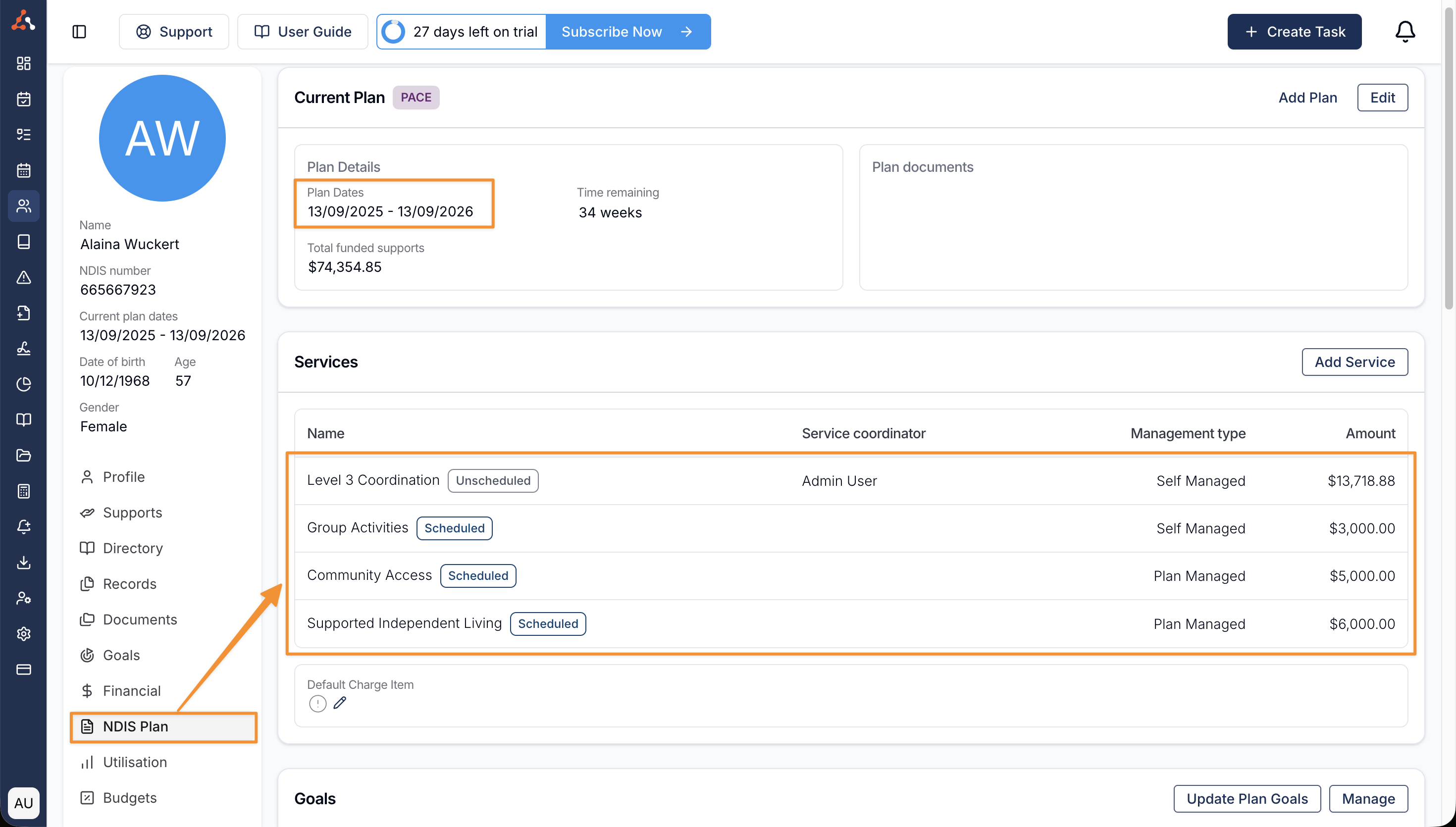
To manage Services, open the Participant's profile, then open their NDIS Plan.

Service Status
The label beside a Service shows whether it is scheduled or unscheduled.

Creating a Service
Once you have navigated to the Plan you want to add the Service to, click Add Service.

If your account includes Scheduling, choose Unscheduled service or Scheduled service under Service Type.
- If you are providing rostered or scheduled activities, such as Community Access, Group Activities, or Supported Independent Living, select Scheduled service.
- For other supports such as Support Coordination, Recovery Coaching, or Allied Health services, select Unscheduled service.

Service Name
The Service Name should clearly describe the service you are delivering. For example:
- Level 2 Support Coordination
- Psychosocial Recovery Coaching
- Occupational Therapy
- Group Activities
- Community Access
Service Budget Amount
The total budget amount for this service.
If some funding has already been used, enter the full Service amount, usually the amount listed on the plan. Then reconcile the budget.
Reconcile
To reconcile a Service budget amount, click the Reconcile button next to the Service Budget Amount field.
Remaining Amount
How much funding is remaining for this service as of the Reconciled date.
Reconciled Date
The date that the remaining amount was valid - this will default to today's date.
Management Type
Define how the funds for this service are managed. This will dictate how Charge Items are invoiced when you process your invoice batches.
Service Category
The NDIS Support Category that this Service falls under. This is important as it will dictate which Charge Items can be used for this Service.
If you want to use Charge Items starting with 07, then you will need to select the 07 - Support Coordination service category.
Service Coordinator
The Team Member who is in charge of coordinating or delivering this Service. This is helpful if you are delivering several services to the same Participant.
Assign the team member responsible for coordinating or delivering this service. For core supports, this may be a Team Leader or Case Manager. For Support Coordination services, this would typically be the Support Coordinator. This ensures there is a clear point of contact for each service, especially if the Participant is receiving multiple services at once.
Charge Items
For Unscheduled Services, select at least one Charge Item. A service can contain multiple Charge Items. The available list is filtered for the selected service category and plan; review any existing service assignment before moving an item.
For Scheduled Supports, you can select both Charge Items and Charge Item Sets. Charge Item sets can be configured in the Charge Items section and are based on the time of day to determine the correct charges for the service. You can select multiple Charge Item sets within a service for a Participant.

Calculate Remaining Units Using
For Unscheduled Services, you will need to select the Charge Item you want Astalty to use to calculate the remaining units. Typically, this would be the standard hourly rate Charge Item for your service.
For example, if you provide Level 2 Support Coordination, you would select the Level 2 Support Coordination Charge Item to get an accurate reading of how many hours of funding remain.
Due to the variability of charges and supports delivered across multiple days, this feature is not available for scheduled services such as Community Access.
Editing a Service
To edit a Service, open the Participant's profile, select the relevant NDIS Plan, then select the Service.
To make changes to the selected service, select Edit in the Service Summary.
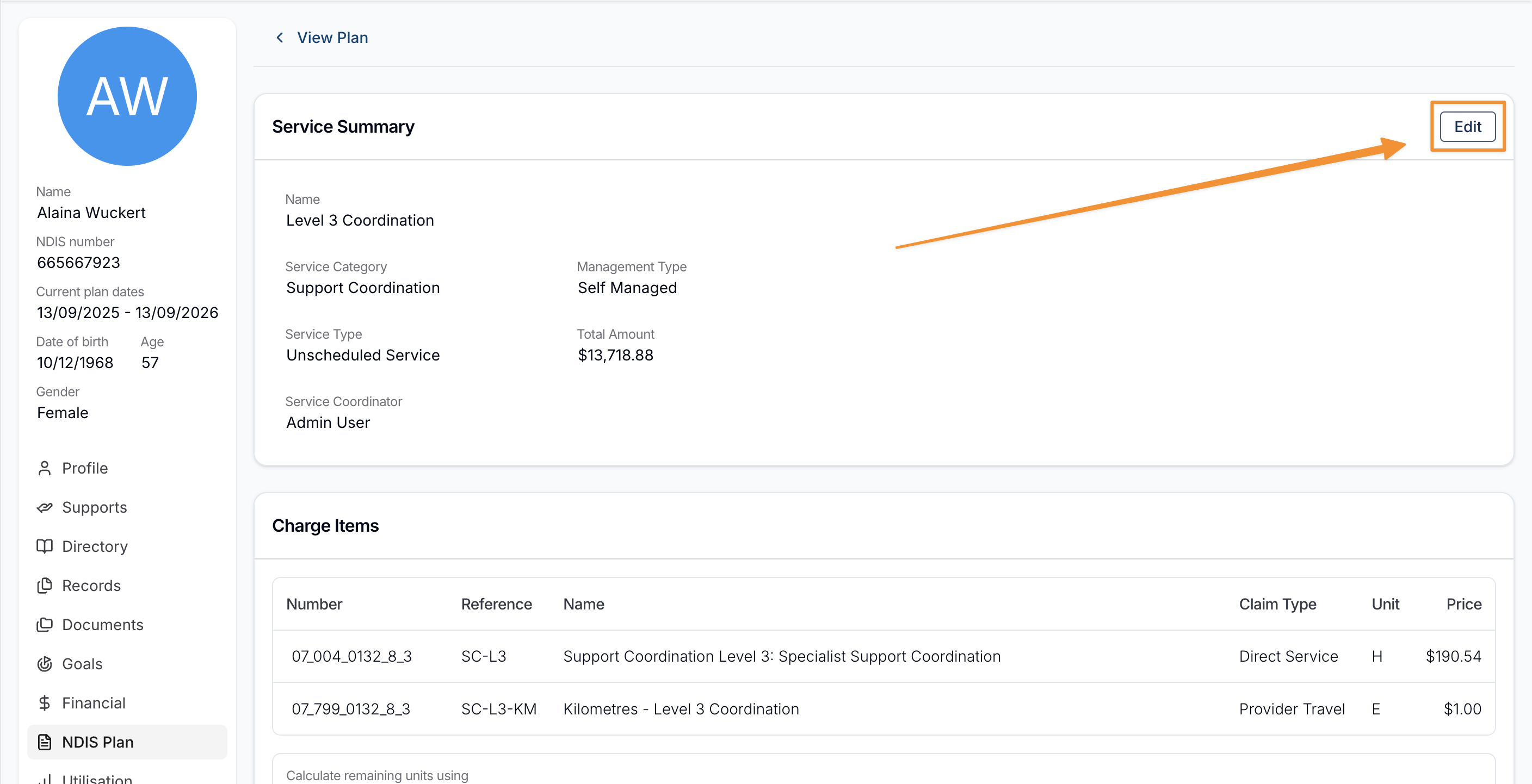
Here you can update the service including:
- Service Name
- Management type
- Service Budget Amount
- Reconciliation
- Remaining Amount
- Reconciled Date
- Support Category
- Service Coordinator
- Charge Items Assigned
- Set up a Funding Schedule. See Funding Periods to edit existing periods.
- Charge Item to Calculate Remaining Units
Deleting a service is permanent. Review its linked charges, tasks, supports and funding before confirming; deleting a service is not a way to void an issued invoice.
Services Overview
Watch the following video to see how to create and update both scheduled and unscheduled services.
Deleting a Service
Watch the following video to see a visual guide on how to delete a Service.