- Administration
- Overview
Overview
Charge Items and Charge Item Sets are the building blocks of billing in Astalty. This page explains what they are, how they relate to Services, and where to go for everything else in this section.
What is a Charge Item?
A Charge Item in Astalty represents something you charge for. It behaves much like a line item from the NDIS Price Guide. Most of the time, Charge Items are created by importing from the Price Guide and include details like:
- NDIS line item number
- Price
- Claim Type
- Other relevant billing information
For step-by-step instructions, see Managing Charge Items.
How is a Charge Item different to a line item?
The NDIS Price Guide lists standard line items, each with a unique line item number (e.g., 07_002_0106_8_3).
In Astalty, Charge Items also have line item numbers, but you can create multiple Charge Items with the same NDIS line item number. This allows you to customise them, for example, by changing the default Claim Type or using a different hourly rate.
Charge Items vs. Charge Item Sets
- Charge Item (Unscheduled Services) - One specific item you bill for, such as Level 2 Support Coordination. An Unscheduled Service can have multiple Charge Items attached, so you can choose the appropriate item for each charge.
- Charge Item Set (Scheduled Services) - A collection of Charge Items configured for different conditions (e.g., time of day or day of week) that automatically determine which rate applies for a Scheduled support.
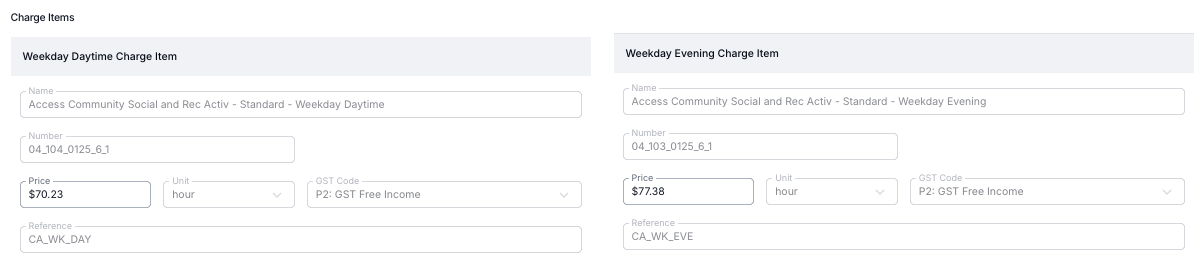
The example above shows a Charge Item Set for Community Access that includes both Weekday Daytime Standard Rate and Weekday Evening Standard Rate. Astalty selects the Charge Item from the billed support span, using approved times where applicable.
An unsegmented support span resolves to one rate from its set. For example, a support running from Saturday evening to Sunday 2am uses the Sunday rate unless a higher-priority sleepover or public-holiday rule applies. See How Rates Are Selected for the full rules and time segments.
For step-by-step instructions, see Managing Charge Item Sets.
How Charge Items link to Services
A Service is attached to a Participant's NDIS Plan and represents a support or activity you are delivering. Services are what connect your Charge Items and Charge Item Sets to the supports you actually bill for.
Astalty supports two types of services:
- Scheduled Services - Used for supports linked to a rostered or booked activity, such as Community Access, Group Activities, or Supported Independent Living. These services use Charge Item Sets that determine billing based on factors like time of day.
- Unscheduled Services - Used for supports not tied to a specific booking, such as Support Coordination, Recovery Coaching, or Allied Health services. These services can have one or more Charge Items attached.
For Scheduled Services, if a Participant is receiving multiple days of support that all fall under the same Charge Item Set, you only need to set up one service.
If the Participant receives different types of supports, such as Community Access and Capacity Building, you would set up two separate services, each with its own Charge Item Set configured to match the relevant support category.
To learn more about Services and how to create them, see Creating a Service.
How Services and Charge Items relate to Charges
When you create a Task for a Participant, you can assign Charge Items to that Task. This allows you to bill for your time.
- For Unscheduled Services, you choose an active Charge Item attached to the Service.
- For Scheduled Services, the relevant Charge Item will come from the Charge Item Set linked to the service.
Astalty uses the Management Type of the Service to determine how invoices are prepared and where they are sent. Without creating Services, Astalty cannot process invoices for the Charge Items used.
Payment rates for staff payments
Charge Items are also used to drive staff payments. Charge-based Staff Payments can apply configured rates to eligible charges attributed to a user. This is separate from Scheduling timesheets and award interpretation.
This is configured separately from the Charge Item itself. To set up payment rates per Charge Item, see Staff Payment Settings.
Automatic updates
When the NDIS releases new pricing arrangements each year, Astalty can update your eligible Charge Items to the new price limits automatically, rather than you updating each one by hand.
For eligibility, opting in or out, how previous charges are locked, and FAQs, see the Automatic Updates page.
Claim type specific line items
Astalty formats affected charges dated from 1 July 2026 with separate support item numbers for claim types such as Cancellation, Non-Face-to-Face and Provider Travel. See Handling claim type specific line items for the list of affected items.
Creating and Updating Services video walkthrough
Here is a video guide on how to create and update a Service.