- Administration
- Settings
- Two-Way SMS
Two-Way SMS
Two-way SMS gives your provider a dedicated Australian mobile number so you can send and receive text messages with Participants (and their contacts) directly inside Astalty. Inbound replies land in a shared SMS inbox, and you can use the same number to send Participants automated SMS Reminders ahead of their scheduled supports.
Enabling SMS
Only the Account Owner can enable SMS, and your provider must be on an active paid subscription.
Opening the SMS settings page requires permission to view settings. Enabling or disabling SMS also requires billing access and is restricted to the Account Owner. Editing inbound notification groups requires permission to update settings. These settings permissions are separate from Can access the SMS inbox, which is used to read and send messages.
Open the SMS settings page
Click the settings wheel in the left-hand menu, then select SMS.
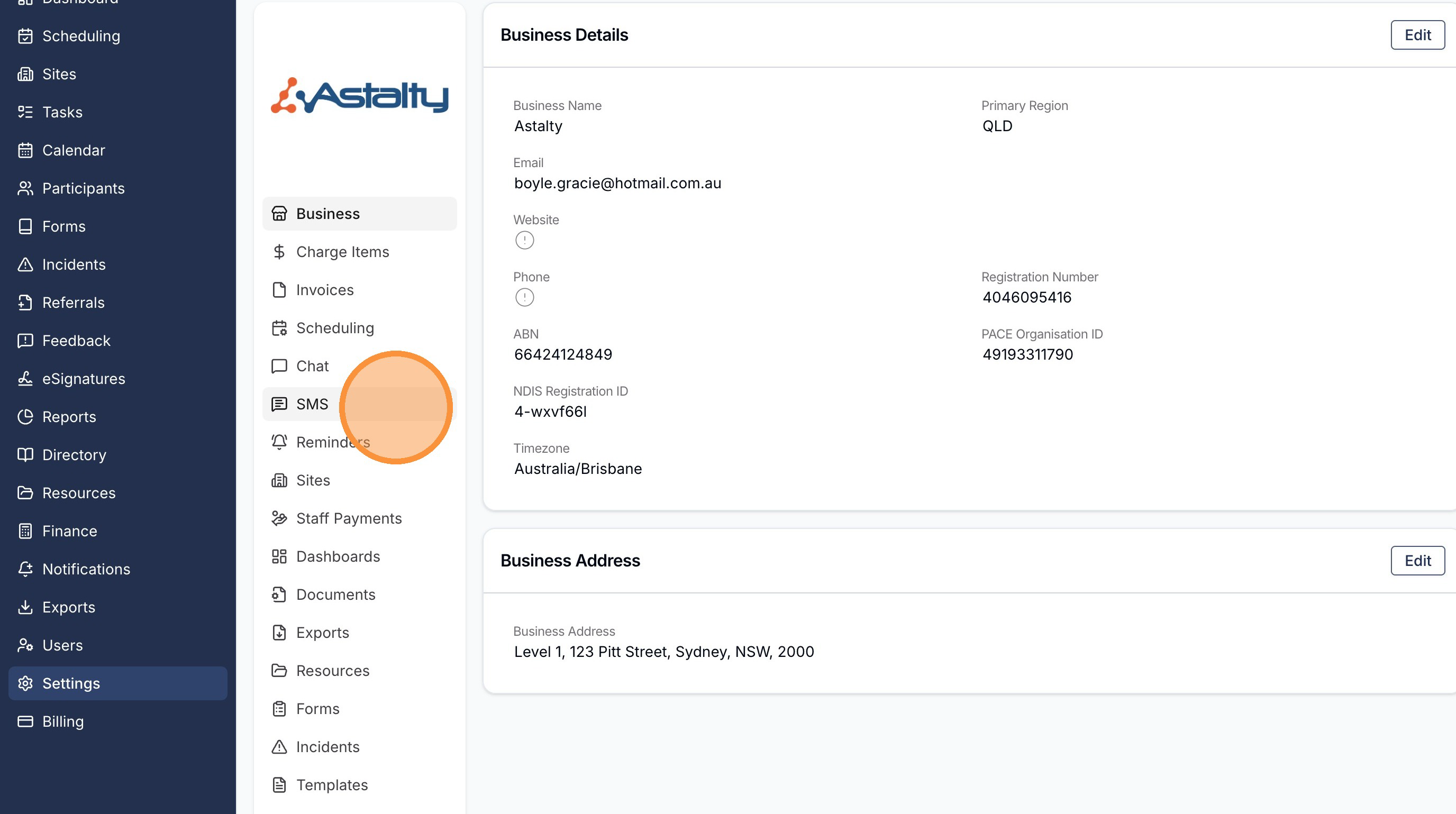
Read and agree to the terms
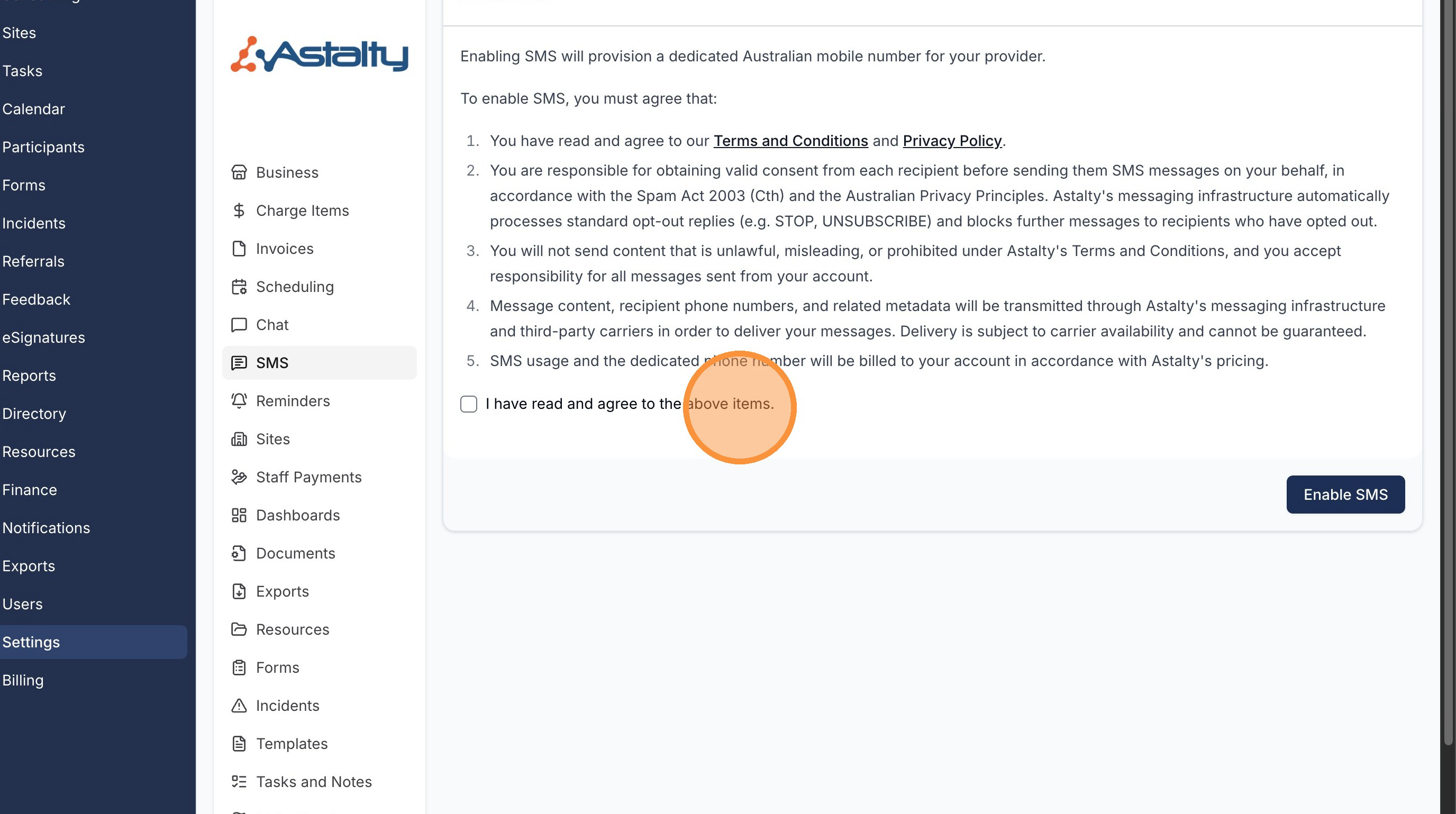
Enabling SMS provisions a dedicated Australian mobile number for your provider. Before you can continue, the page shows your Pricing - the dedicated number cost for your current billing period, and the per-segment cost for outbound messages - so you know what SMS will cost before you agree to the terms.
You must then read and agree to the terms shown on the page, which cover:
- You have read and agree to our Terms and Conditions and Privacy Policy.
- You are responsible for obtaining valid consent from each recipient before sending them SMS messages.
- You will not send content that is unlawful, misleading, or prohibited under Astalty's Terms and Conditions.
- Message content, recipient phone numbers, and related metadata are transmitted through Astalty's messaging infrastructure and third-party carriers to deliver your messages. Delivery is subject to carrier availability and cannot be guaranteed.
- The dedicated phone number and SMS usage will be billed to your account at the prices shown above.
Once you're happy, tick I have read and agree to the above items, then click Enable SMS.
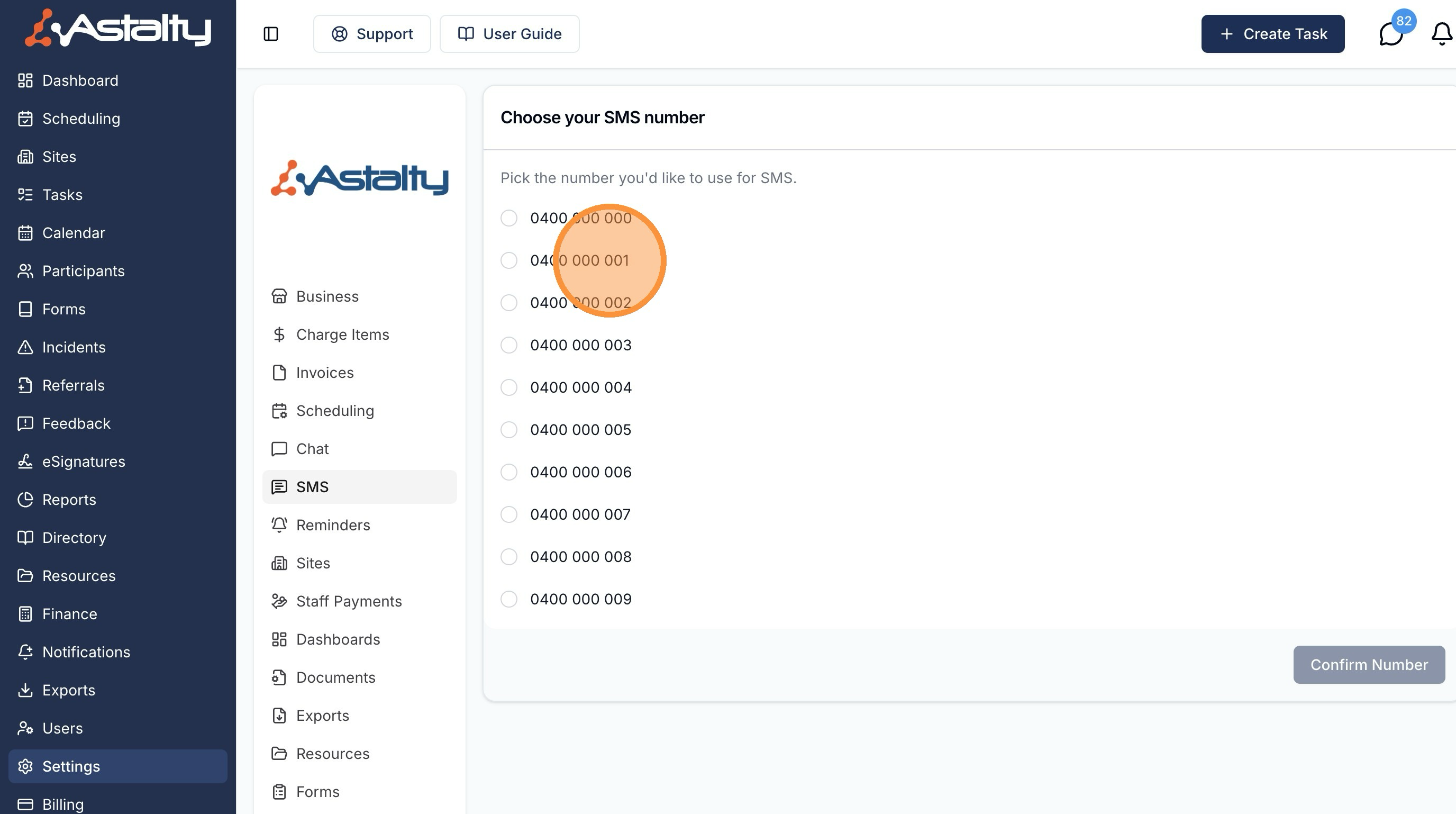
Choose your number
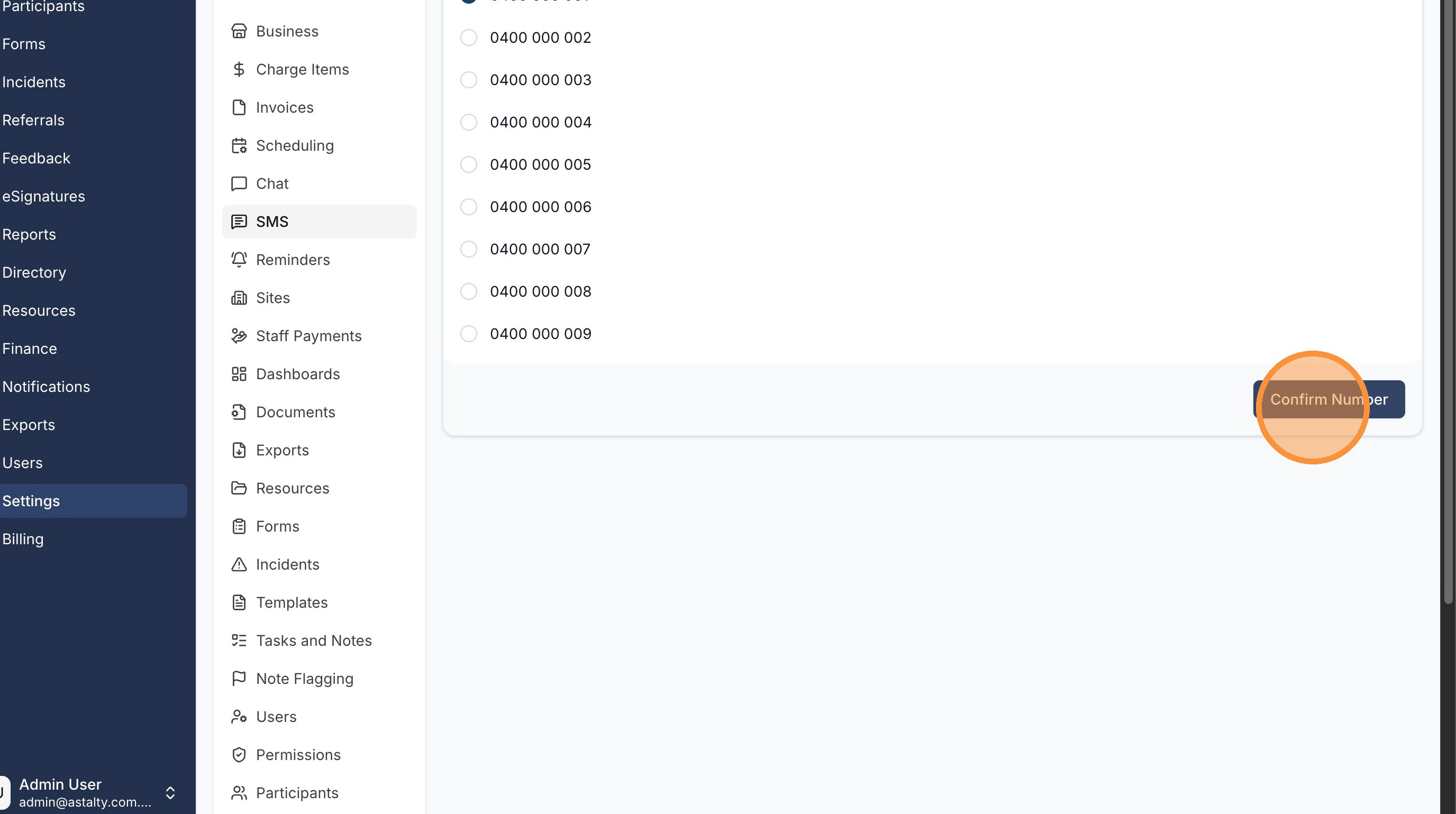
You'll then be prompted to Choose your SMS number. Pick the number you'd like to use from the list, then click Confirm Number.
Configuring inbound notifications
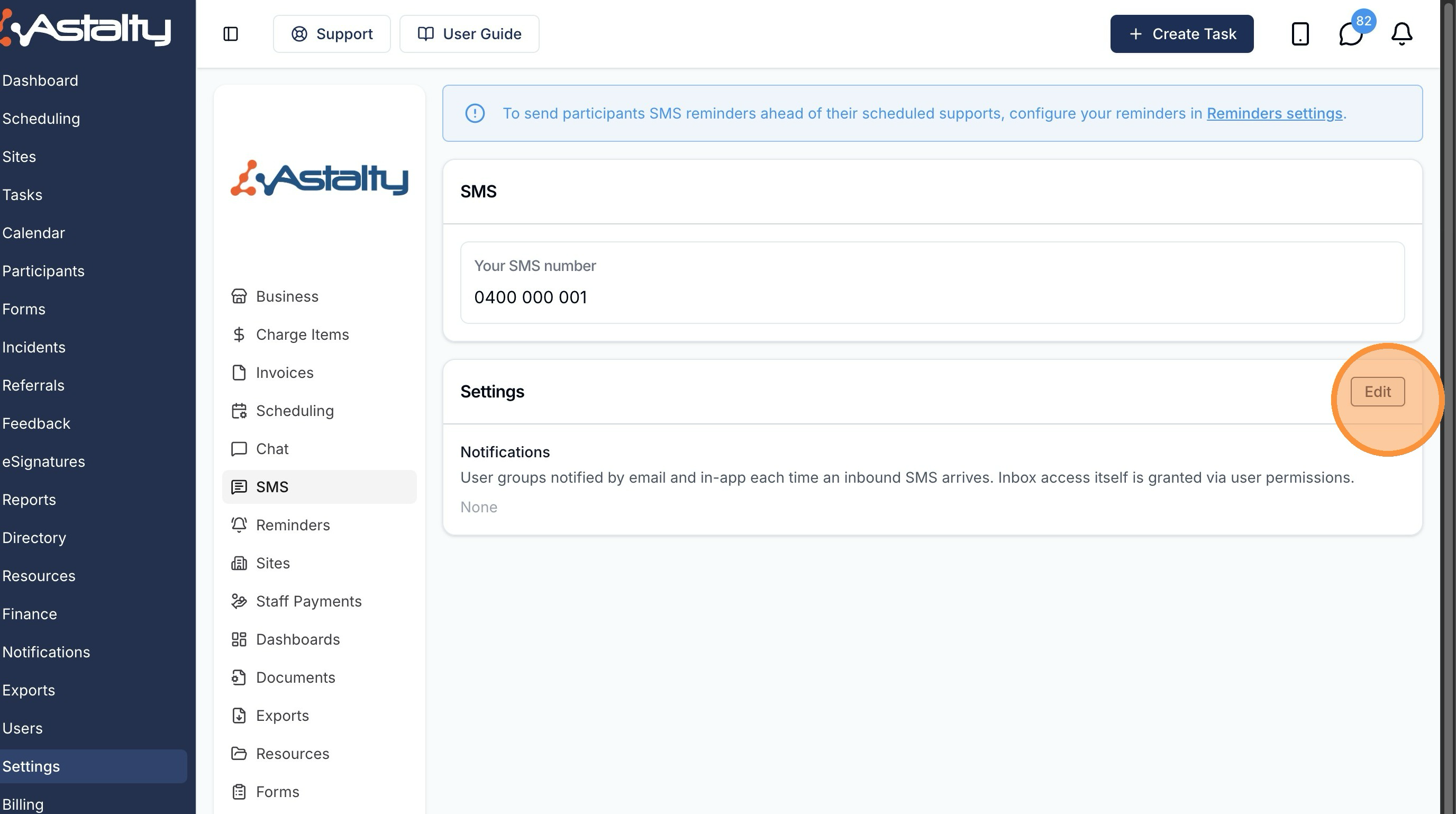
Once SMS is active, you can choose who gets alerted whenever an inbound message arrives. On the SMS settings page, click Edit next to the Settings section.
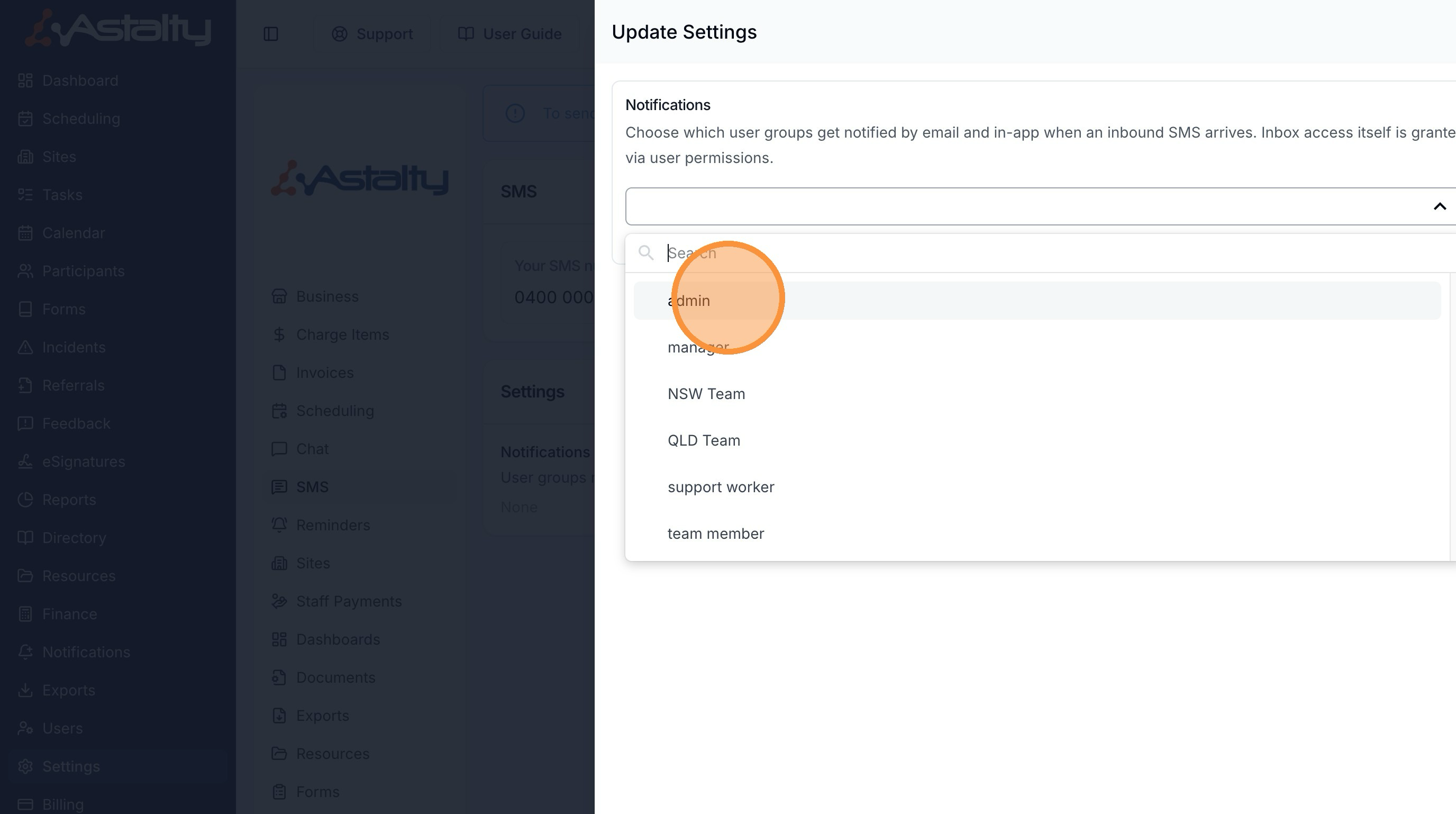
Under Notifications, choose which User Groups should be notified - by email and in-app - each time an inbound SMS arrives. You can select more than one group.
Granting access to the SMS inbox
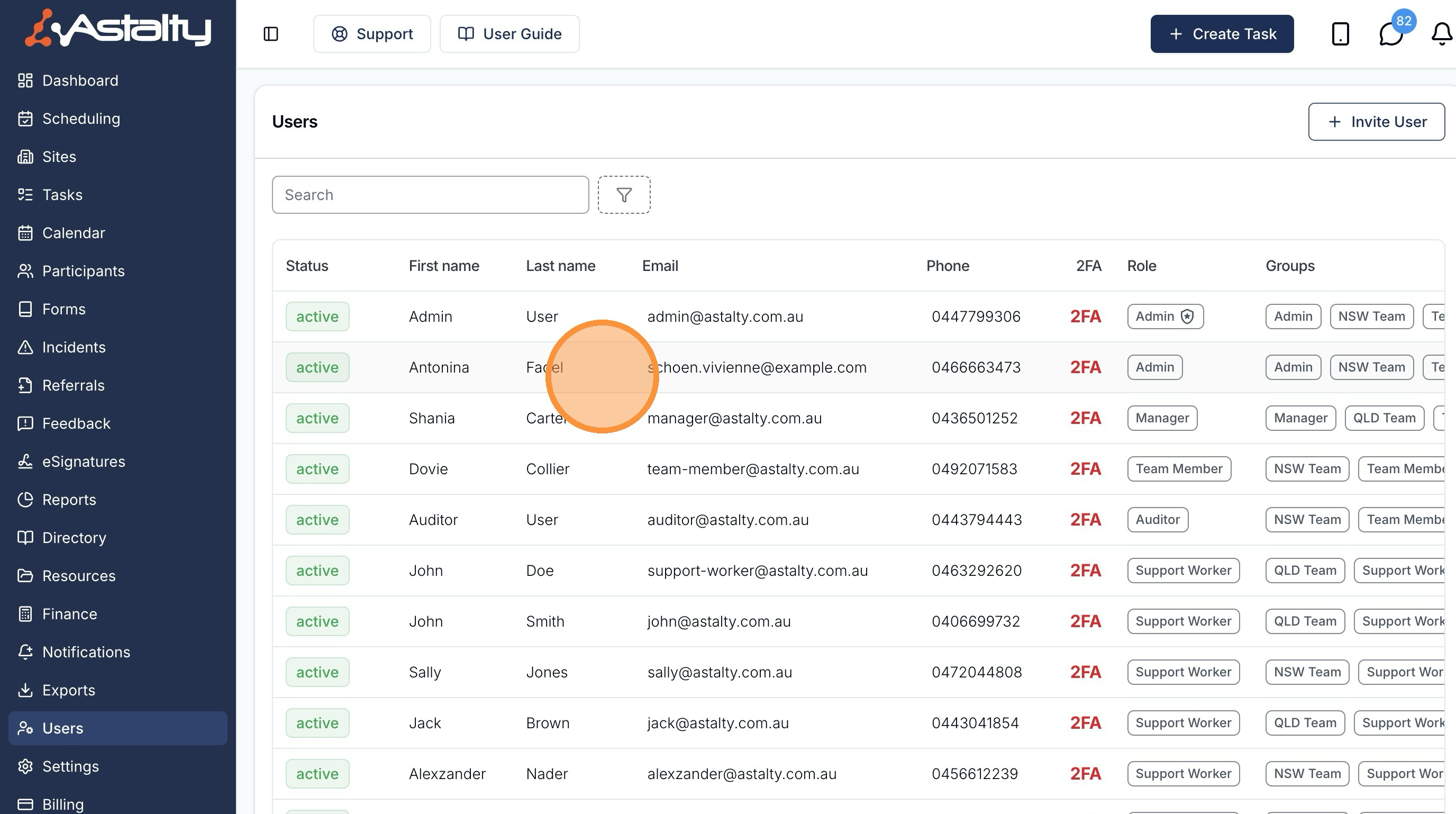
Access to the SMS inbox is controlled per user. To grant it, head to the Users page from the left-hand menu and click into the relevant user's profile.
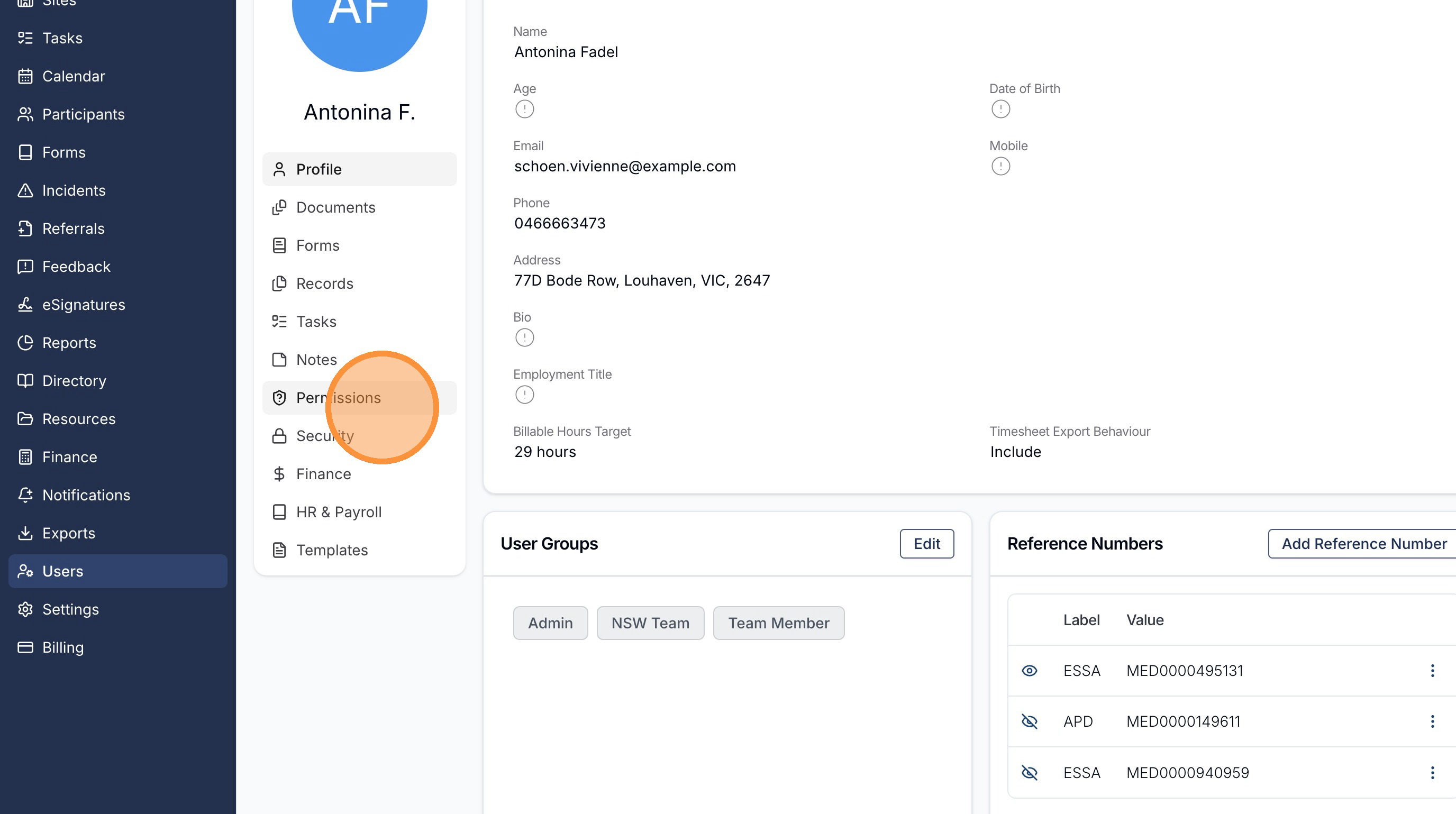
Click the Permissions tab on the user's profile.
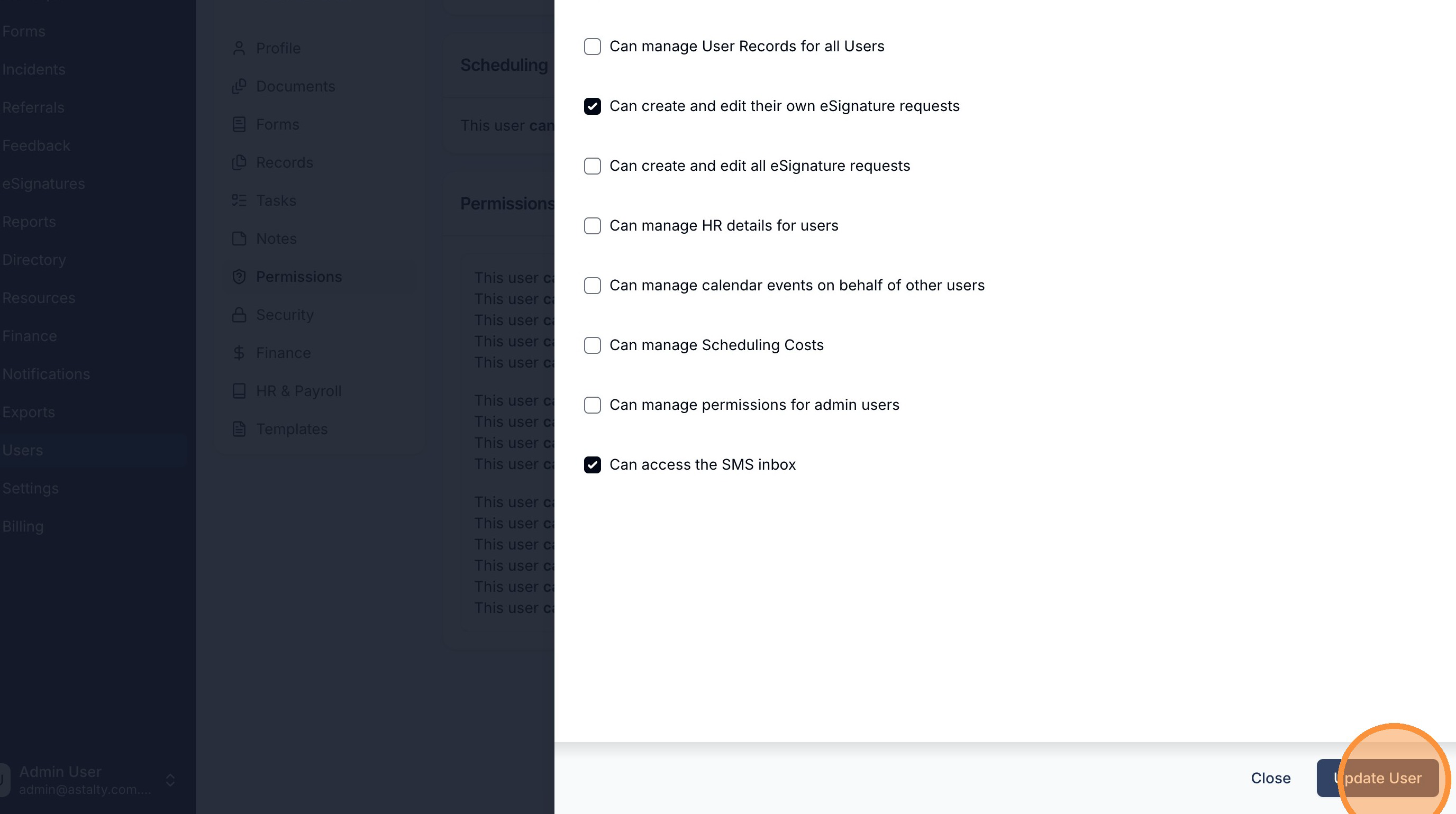
Click Edit, tick Can access the SMS inbox, then click Update User.
Using the SMS inbox
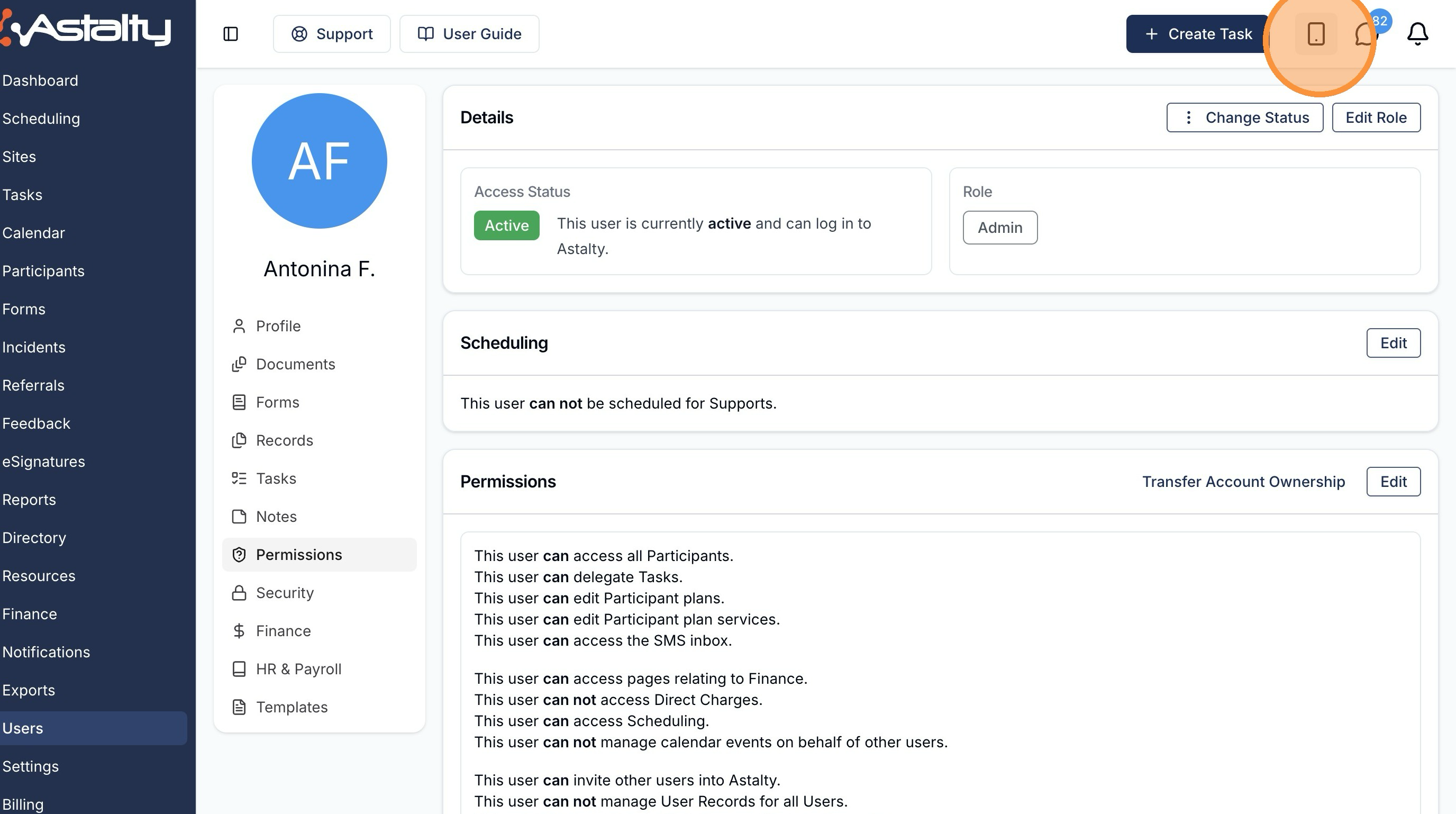
Once a user has inbox access, the SMS inbox icon appears at the top right of the screen, next to the chat and notification icons. A badge shows the number of unread conversations.
From the inbox you can:
- Read inbound replies and see the full two-way conversation thread for each contact.
- Reply to a message, or start a new conversation with a Participant, a Participant's contact, or any mobile number.
- See delivery status on outbound messages (sent, delivered, or failed) and mark conversations as read or unread.
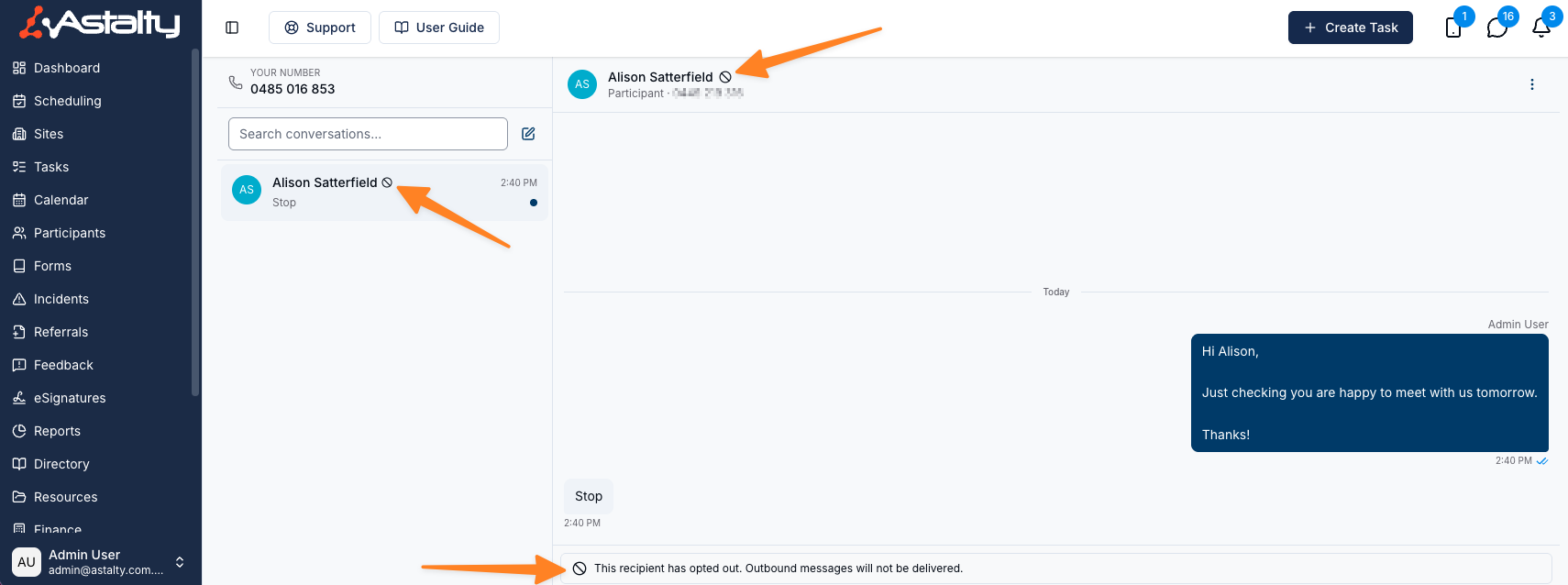
Conversations from contacts who have opted out (for example, by replying STOP) are clearly flagged in the chat window, and Astalty blocks any further outbound messages to those numbers until they opt back in. To opt back in, the recipient needs to reply with the word START.
Receiving photos and files
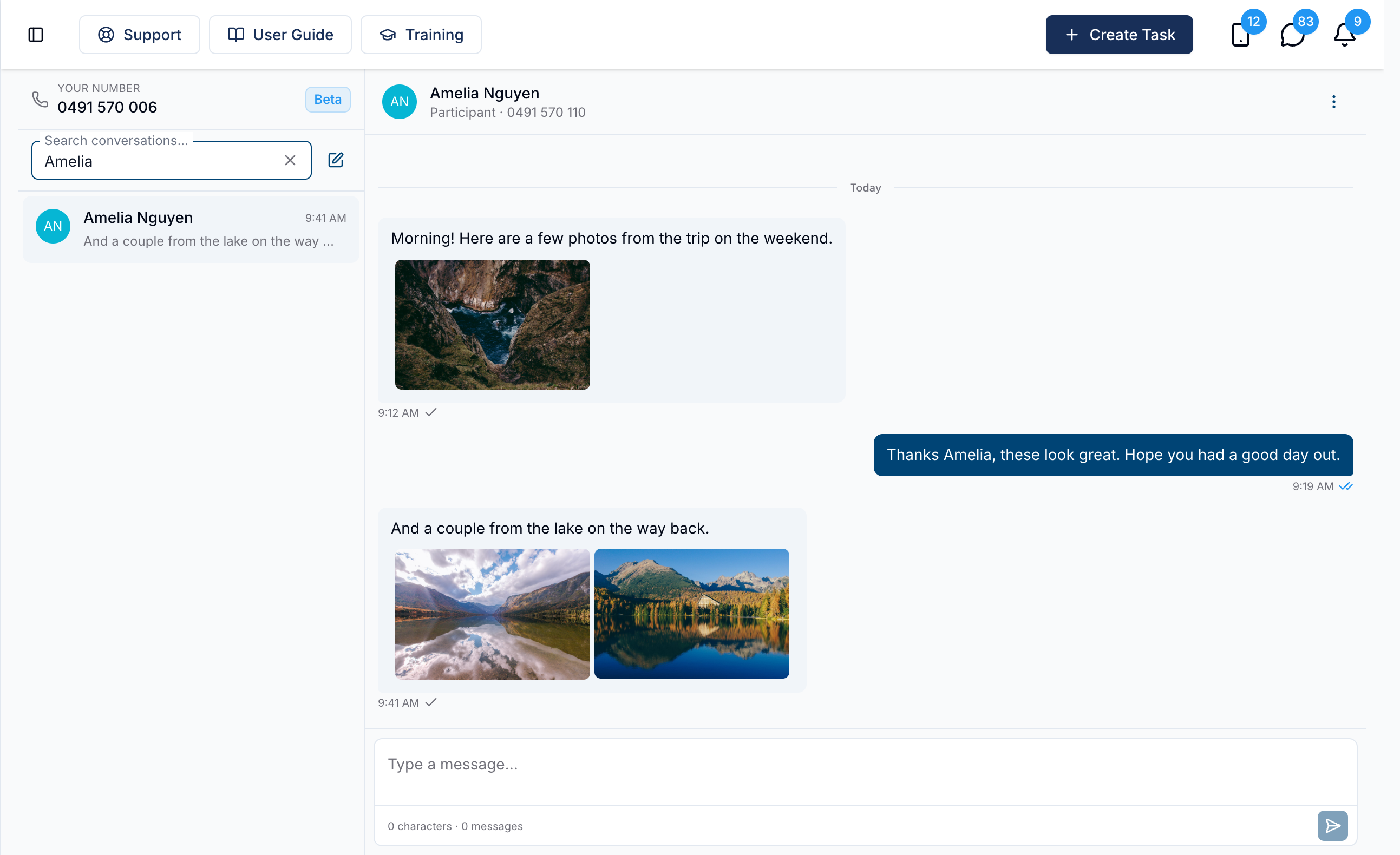
When someone sends a photo or a file to your dedicated number, it arrives in the SMS inbox attached to their message, alongside any text they sent with it.
Photos appear in the conversation. Images - JPG, PNG, GIF and WebP - show as thumbnails directly in the message. Click a thumbnail to open it full size, and when a message carries more than one image, use the arrows to move between them.
Everything else arrives as a file. PDFs, videos, audio and contact cards are all received and stored, but they appear as a named file row rather than inline. Click the row to download the file and open it on your device. Videos can't be played inside Astalty - you'll always need to download them first.
In the conversation list, a message that arrived with attachments and no text of its own previews as File or 3 files. The email notification uses the same wording - "A file was attached. View it in the inbox." - so it reads the same whether what arrived was a photo or a document.
Receiving photos and files does not require a separate setting once the dedicated number is active. Attachment delivery and size limits depend on the messaging carrier and the sender's device. Check the current pricing shown in Astalty for billing details.
Disabling SMS
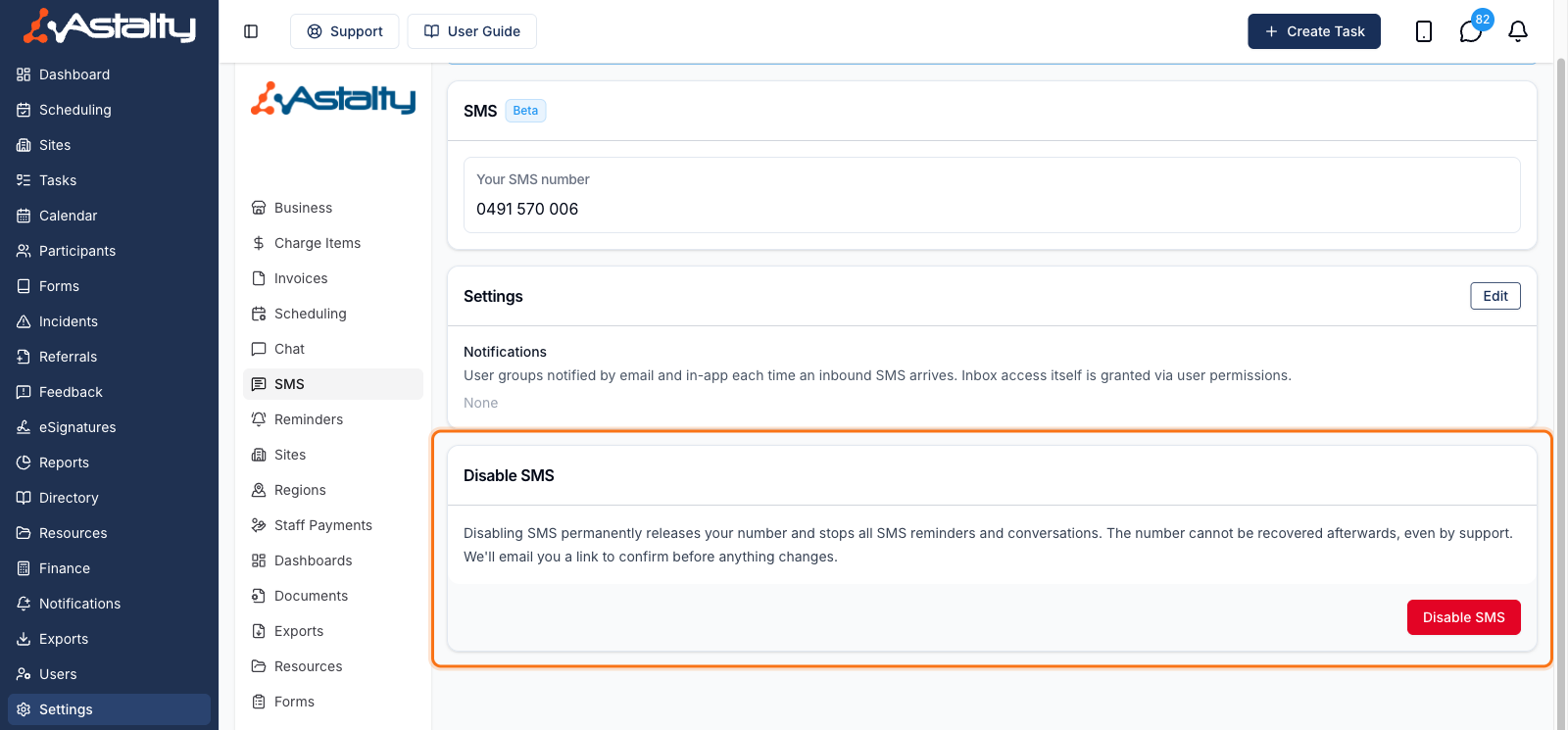
If you no longer need SMS, the Account Owner can switch it off from the SMS settings page. To protect against accidental changes, disabling is confirmed by email - nothing happens until you open the confirmation link.
Request the disable
On the SMS settings page, find the Disable SMS section and click Disable SMS. Read the confirmation prompt, then click Continue to have the confirmation link emailed to you.
Confirm from your email
We email a confirmation link to the address on your account. Your SMS number stays active until you open the link, so nothing changes by accident. The link expires in one hour - if it lapses, just start again from the SMS settings page.
Open the link, review the warning that confirming permanently releases your number, then click Confirm and disable SMS.
Once confirmed, your number is released and SMS is switched off. We'll send a confirmation email to let you know it's done.