Regions
Regions let you group your Participants, staff and sites by area - Brisbane North, Gold Coast, Northern Rivers, and so on - and then filter by that grouping across lists, the schedule, reports and exports. A Region is just a name: you create the ones that match how your organisation is split up, tag records to them, and use them as a lens over your data.
What a Region is - and what it isn't
A Region is a label with a name and nothing else. There's no description, colour, hierarchy, postcode or boundary. You can tag a Participant, staff member or site to as many Regions as you like, or none at all.
Only participants, staff and sites can be assigned to a Region. Teams, Charge Item Sets, cost codes and organisations can't.
Setting up Regions
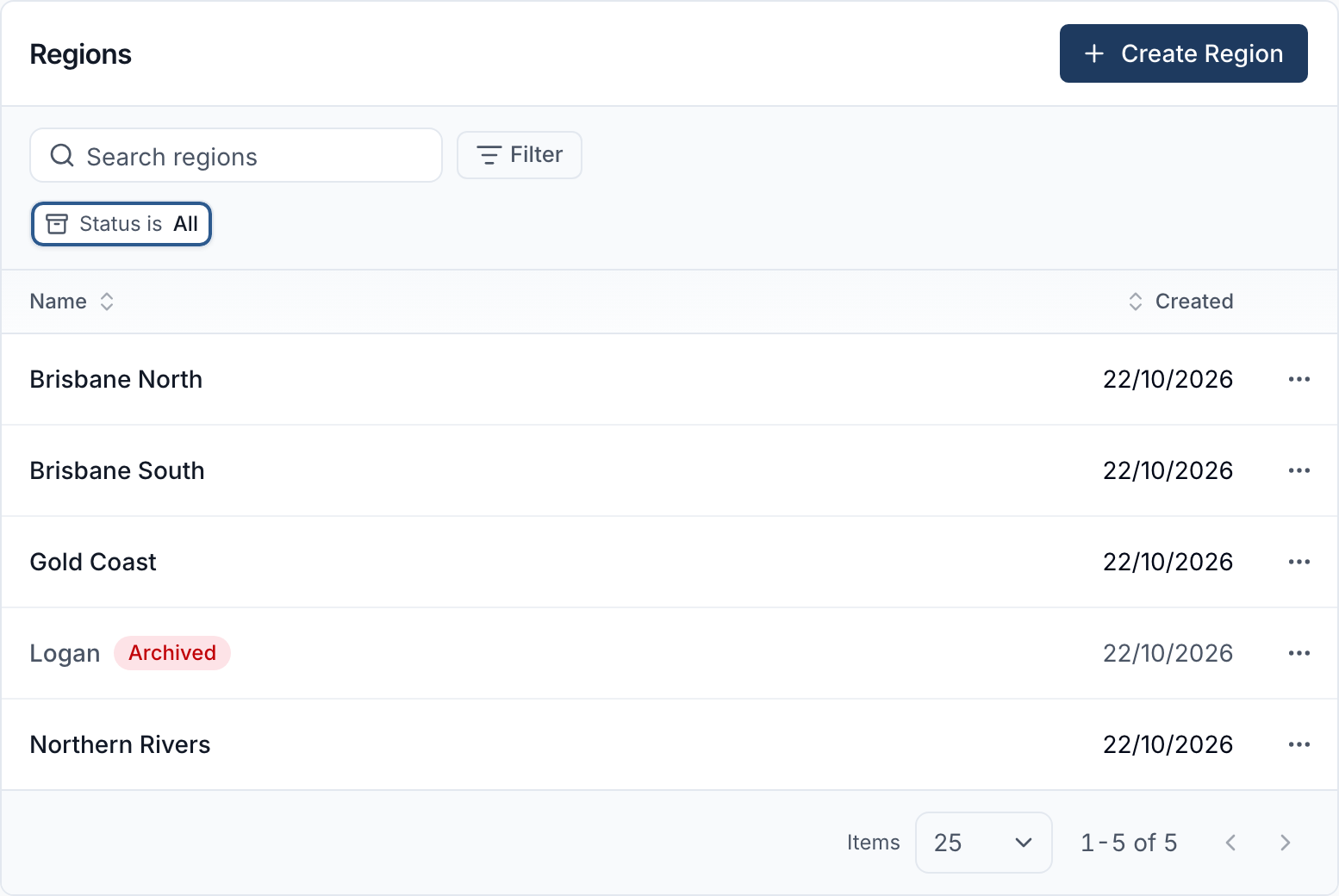
Regions are managed at Settings → Regions. The page lists your Regions with their Name and the date each was Created, and you can search by name or sort either column. The Status filter shows Active, Archived or All Regions, and defaults to Active. By default, only Admins can create, rename, archive and delete Regions.
Creating a Region
Click Create Region, enter a Name, and click Create. Region names must be unique within your account, so you can't have two called Gold Coast.
There's no limit on how many you create, but Regions work best when there are few enough to be a useful filter - think of the handful of areas your organisation actually reports on rather than one per suburb.
Renaming a Region
Click the actions menu at the end of a Region's row and choose Edit, change the Name, then click Update.
Renaming only changes the label. Everything tagged to the Region stays tagged to it, and any saved filters keep working.
Archiving a Region
Archive a Region your organisation no longer uses instead of deleting it. Open the actions menu at the end of the Region's row, choose Archive, then confirm.
An archived Region:
- keeps everything already in it. Its Participants, staff and sites stay tagged, and lists, reports and exports filtered by it still return them.
- stays in every Region filter, so you can keep reporting on an area you've stopped using.
- can't be assigned to anything new. It no longer appears in the Select Regions list, except on a record that already has it, where it's marked Archived so you can untick it.
An archived Region shows a red Archived chip beside its name. To bring one back, set Status to Archived or All, open its actions menu and choose Unarchive.
Deleting a Region
Deleting is done from the same Edit drawer - open the Region and click Delete at the bottom.
A Region can only be deleted once nothing is tagged to it. If any Participant, staff member or site still has it, Astalty shows Unable to delete Region instead, listing each record with a link to it. Archived Participants and sites, and deactivated staff, are listed too and marked as such. From there you can either:
- remove the Region from each record listed, then try again, or
- click Archive instead to archive the Region and keep everything that's tagged to it. This option isn't shown for a Region that's already archived, or to someone who can't archive Regions.
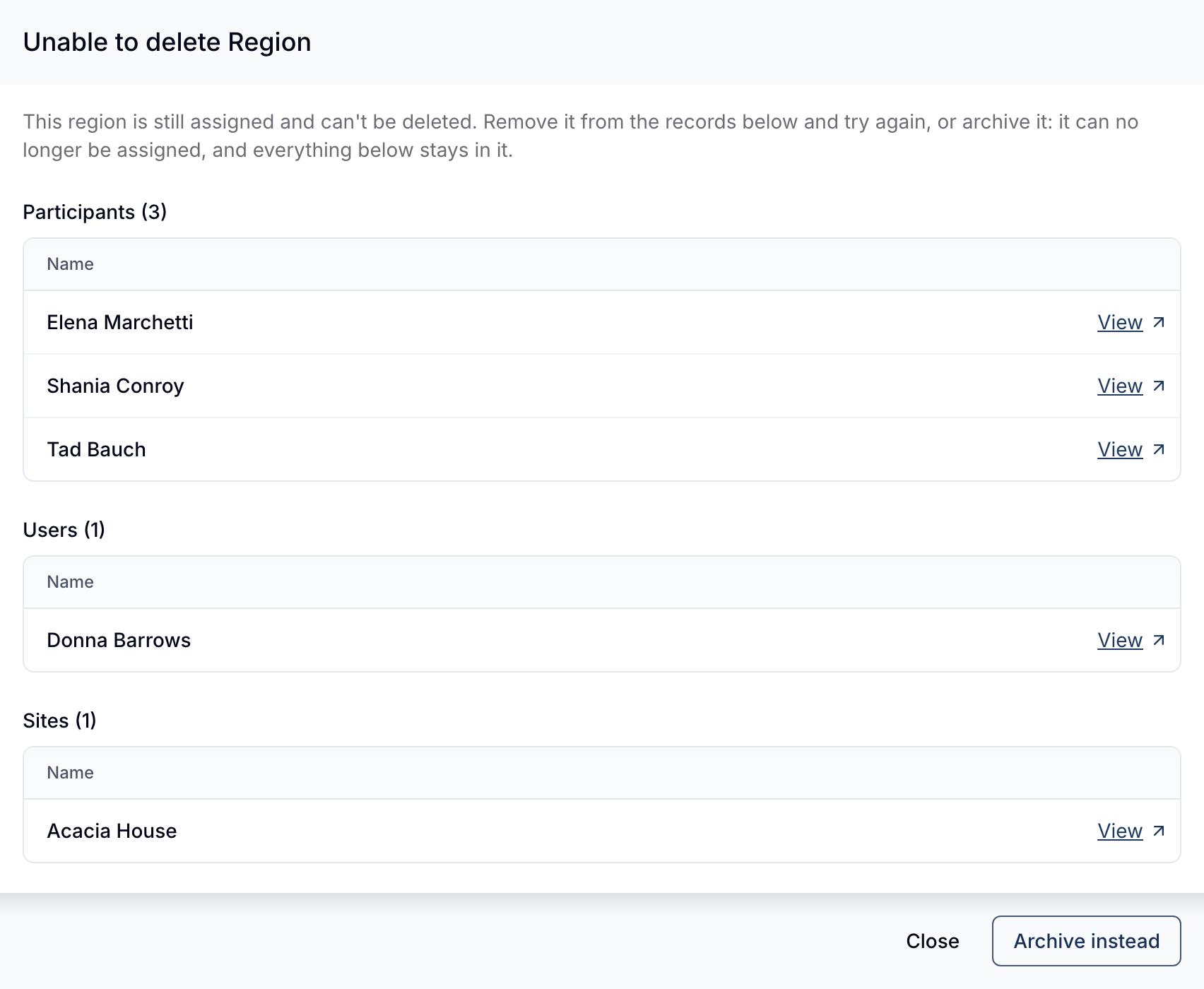
When nothing is tagged to the Region, Astalty asks you to confirm and then deletes it.
Assigning Regions to Participants, staff and sites
Regions are assigned from a Regions card on each record's detail page:
- Participants - the Participant's profile page
- Staff - the staff member's profile page
- Sites - the site's detail page
The card shows the record's current Regions as chips, or No regions assigned. if there aren't any. Click Edit, tick the Regions you want in the Select Regions list, and click Update Regions. It's a checkbox list, so a record can belong to several Regions at once - a Participant who moves between two service areas, for example.
Type in the search box above the list to narrow it to Regions whose name matches what you've typed - useful once your account has more than a handful. A Region you've already ticked stays ticked even while the search hides it, so switching Regions doesn't lose a selection you made earlier. If nothing matches, the drawer tells you so.
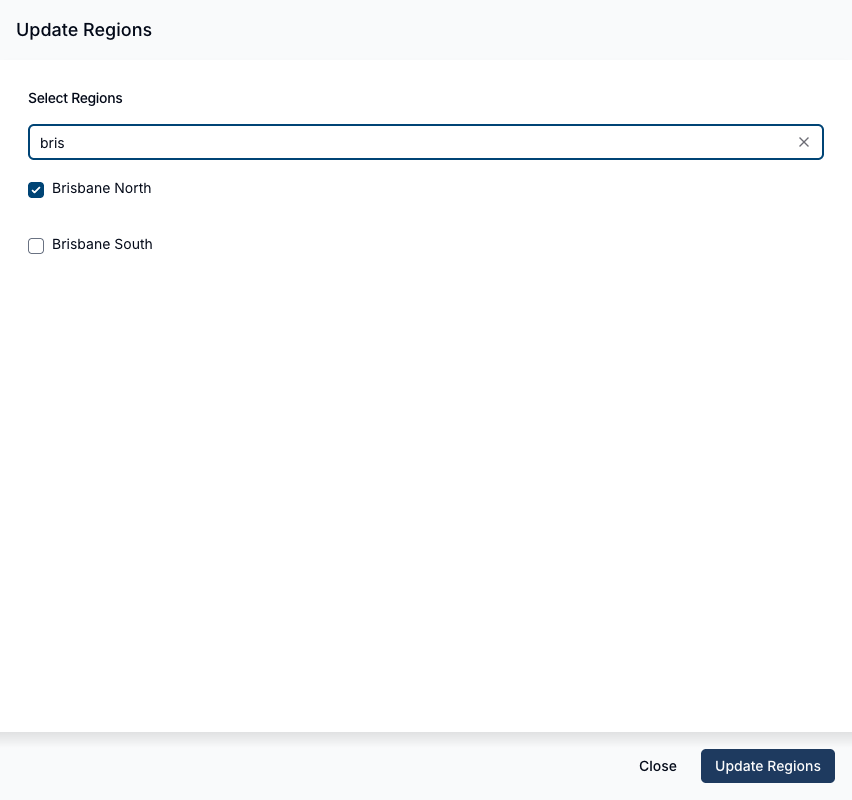
By default, only Admins can change a staff member's Regions, even though Managers and Team Members can see the card.
Where the Region filter appears
A Region filter shows up throughout Astalty. Support Workers don't see Regions at all. Selecting one or more Regions narrows the view to records in those Regions.
Lists
- Participants
- Staff
- Sites
- Invoices
- Invoice Batches
Finance
- The Invoices list
- The Invoice Batches list
- The charge list on Create Invoice Batch, before you generate a draft batch - the batch that's generated only includes charges for Participants in the selected Regions
Scheduling
- The schedule calendar
- All Shifts, Unassigned Shifts, Unpublished Shifts and the Shift Board
- Shift Approvals, Shift Alerts and Schedule Alerts
- Unavailability Requests
- The worker suggestion picker when adding a shift, and the worker picker for group supports
Reports
- Shifts Report
- Shift Clashes Report
- Supports Report
- Tasks Report
- Billable Charges Report
- Billable Hours Report
- Team Billables Report
- Capacity Report
- Award Pay Report
- Utilisation Report
- Participant Records Report
- User Records Report
- Participant Goal Report
- Participants Without Goals Report
- Participant Plans Report
- Participant Alerts Report
The "My" versions of these reports (My Tasks, My Participants, and so on) use the same Region filter.
Exports
- Shifts Export
- Participant Records Export
- User Records Export
- Team Billables Export
- Team Billable Hours Export
On exports the field is labelled Regions (optional). Leave it blank and the export isn't restricted by Region.
Filtering by Unassigned
Most Region filters include an Unassigned option, which finds records that aren't in any Region - handy for spotting Participants or staff you haven't tagged yet.
Unassigned isn't available on shift-based views: the schedule calendar, the shift lists and Shift Board, the Shifts, Shift Clashes and Supports reports, and the Shifts Export. That's because a shift doesn't have a Region of its own.
How shifts get their Region
Shifts and supports aren't tagged to a Region directly. A shift is treated as belonging to a Region if any of the following is in that Region:
- the worker assigned to the shift,
- the site the shift is at, or
- the Participant the shift is for (including Participants on a group support).
So a shift can appear under two different Regions at once - for example, a Gold Coast worker covering a shift for a Logan Participant shows up when you filter by either. Because a shift's Region comes from these three sources rather than a single tag, "unassigned" isn't a meaningful option on shift-based views.